How to Convert a DOCX File to a PowerPoint Presentation
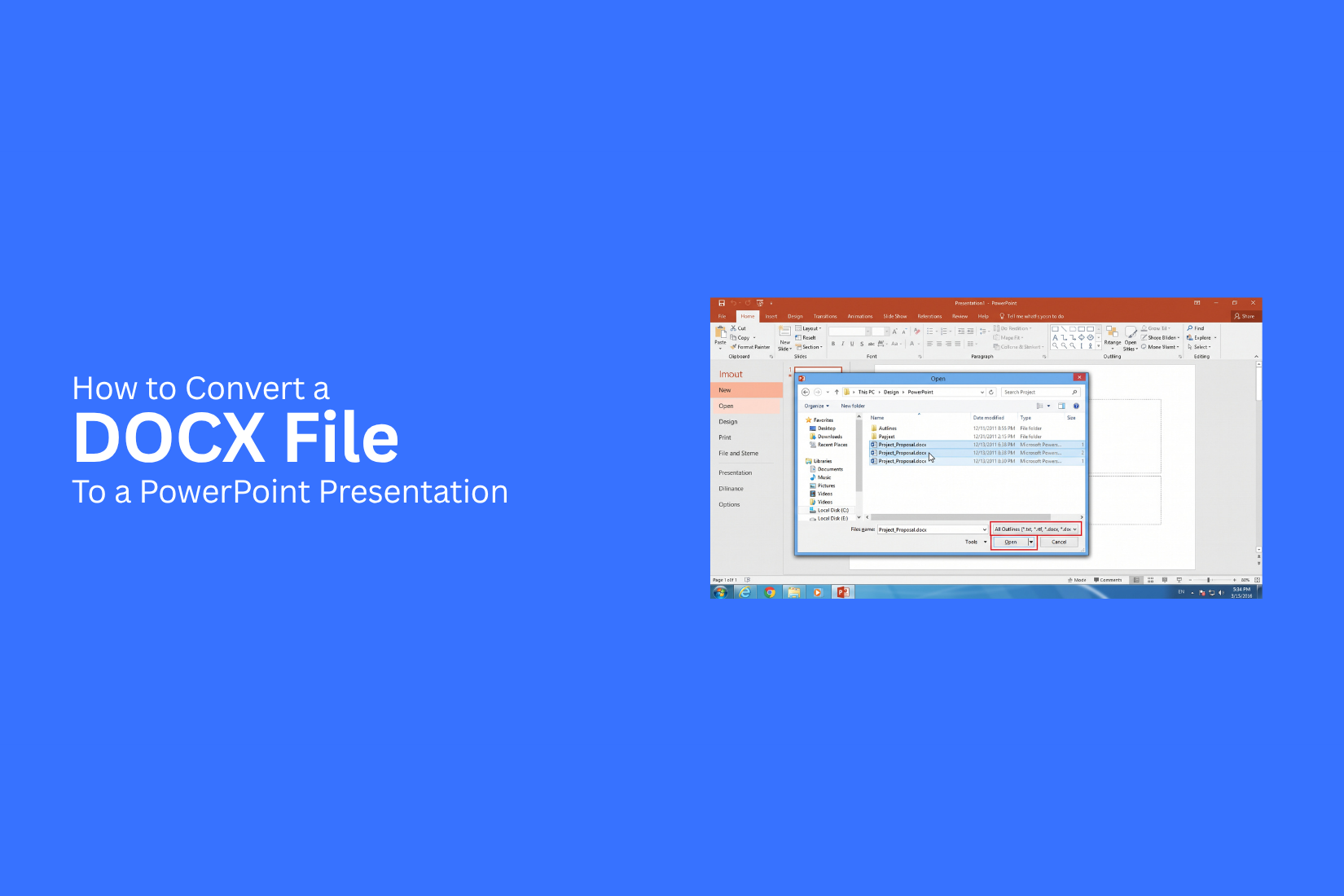
Microsoft Word is often used to create reports, proposals, research papers, and other documents. Much of this content may later be needed in a PowerPoint presentation. Copying the content into slides by hand can take time and may lead to formatting issues.
If you are asking, “How do I convert a DOCX file to a PowerPoint presentation?”, there are several ways to do it without rebuilding the entire presentation from scratch. You can prepare the Word document, use built-in Microsoft tools, or use online conversion tools. This guide covers each method and shows how to turn your DOCX content into clear, well-structured PowerPoint slides.
What Is a DOCX File?
A DOCX file is a document file created with Microsoft Word. It is commonly used for reports, essays, business documents, meeting notes, and other written content. The file uses the .docx extension.
DOCX files are built for text-based content. They can hold text, images, tables, headings, lists, and other document elements. This makes them useful for storing detailed information before turning that content into slides.
What a DOCX File Contains
A DOCX file can include many types of content, such as:
- Text: Paragraphs, headings, titles, and notes.
- Images: Photos, screenshots, and other visual elements.
- Tables: Data arranged in rows and columns.
- Lists: Bulleted and numbered lists.
- Links: Links to websites or other resources.
- Formatting: Fonts, text sizes, bold text, spacing, and page layouts.
The content in a DOCX file can serve as the starting point for a PowerPoint presentation. Headings can become slide titles. Key points can become bullet points. Images can be placed on slides to support the main message.
DOCX vs. PowerPoint Presentation
DOCX and PowerPoint files serve different purposes. A DOCX file is designed for reading and editing detailed information. A PowerPoint presentation is designed for showing key points to an audience.
A DOCX document may have long paragraphs and several pages. A PowerPoint presentation usually uses shorter text, larger visuals, and separate slides for each main idea.
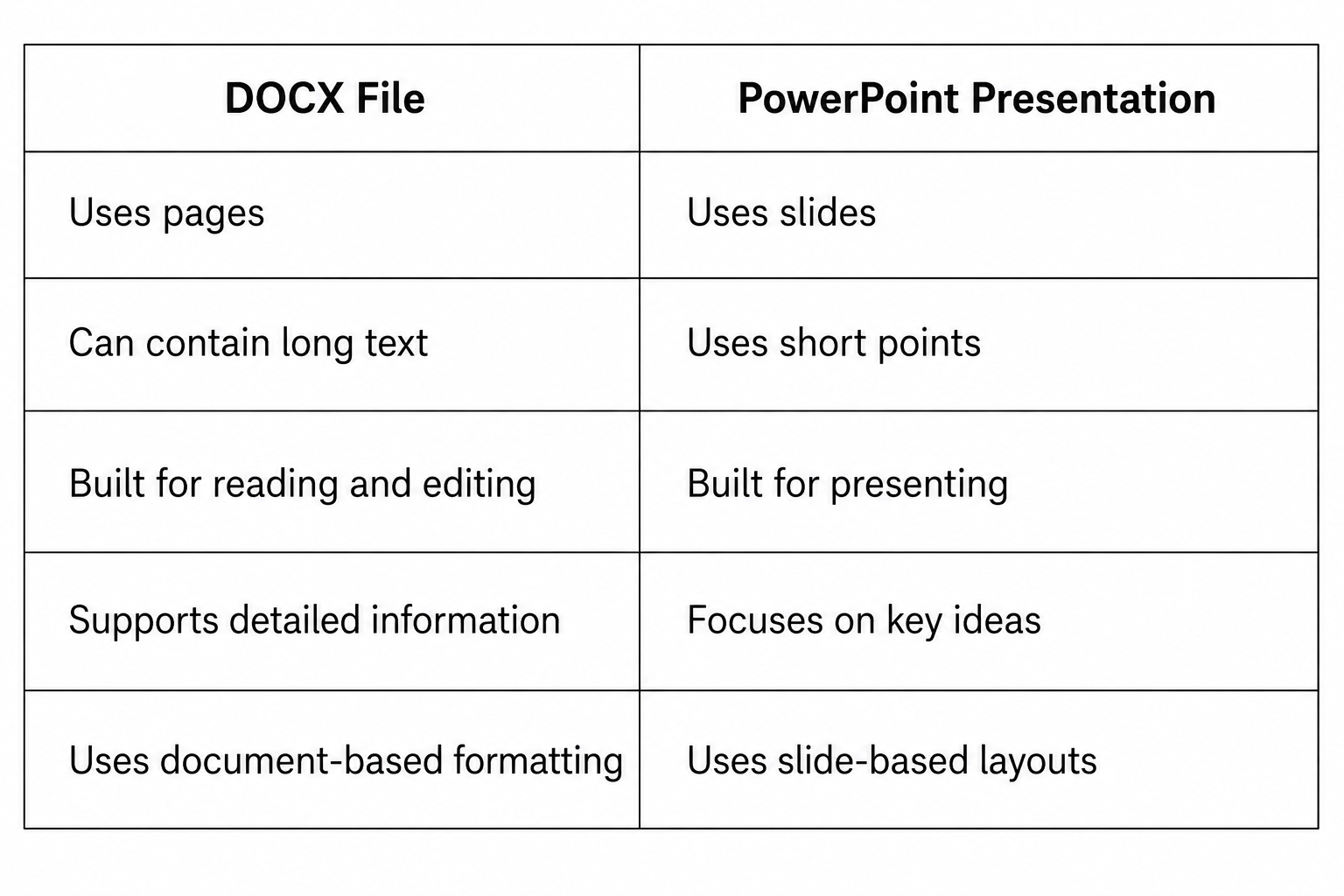
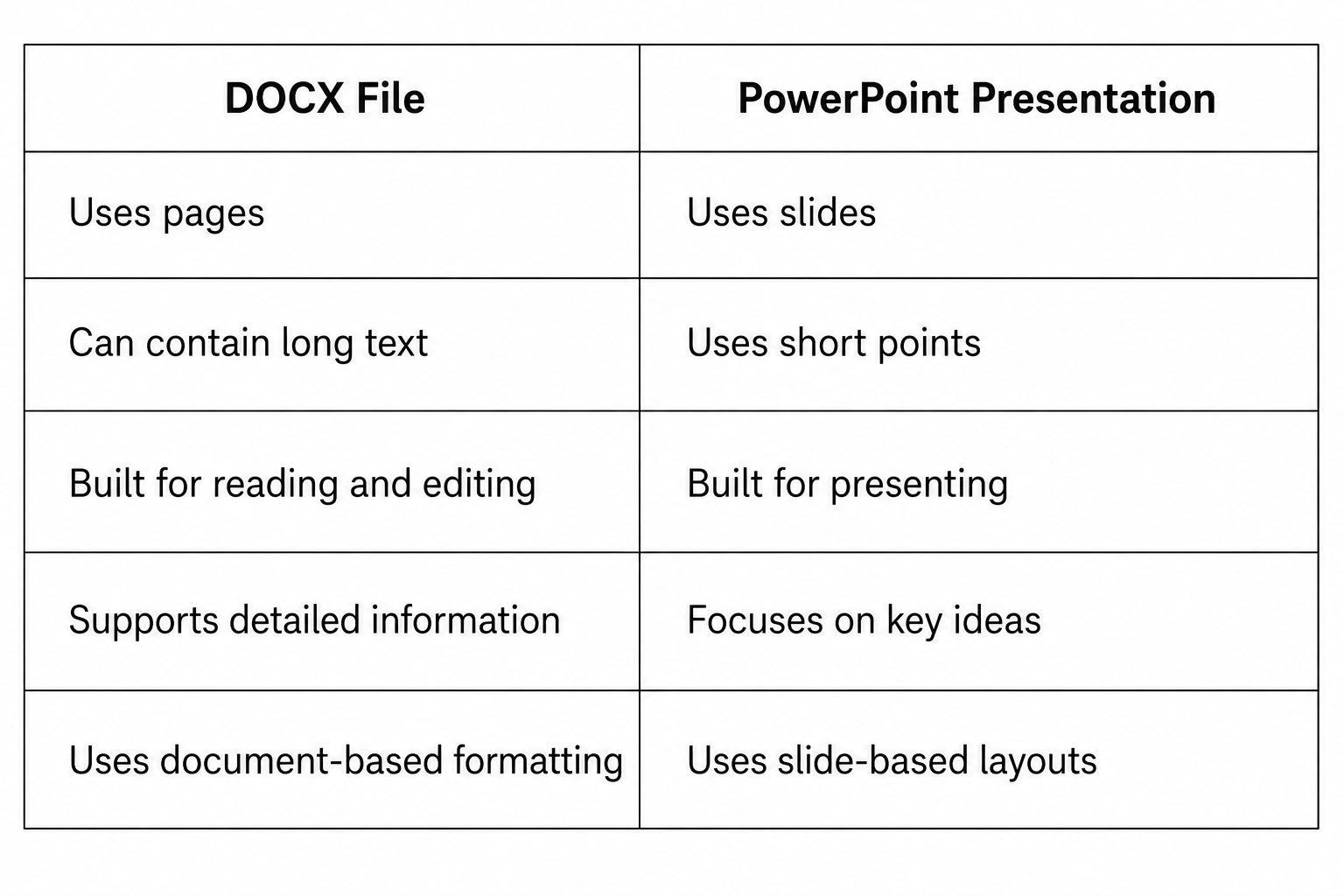
Converting a DOCX file to PowerPoint changes the way the information is presented. The main ideas need to be grouped into slides. Long sections may need to be shortened. Important visuals can also be placed beside the related content. This process helps turn a detailed document into a format that is easier to present and follow.
Why Convert a DOCX File to PowerPoint?
A DOCX file can hold a lot of useful information, but long pages of text are not always easy to present. PowerPoint gives that content a slide-based format. This makes key points easier to read, explain, and follow during a presentation.
Turn Long Text Into Visual Slides
A DOCX file often contains paragraphs, headings, lists, and other text. PowerPoint can break this content into smaller sections across several slides. Each slide can focus on one main idea. This helps the audience follow the topic without reading large blocks of text.
Make Information Easier to Present
Reading from a long document can make a presentation harder to follow. Slides give you a clear structure for each part of your talk. You can show a short point on the slide and explain it in more detail as you speak.
Save Time Creating Slides
Moving content from a DOCX file into PowerPoint by hand can take a lot of time. Converting the file can give you a starting point for your presentation. You can then edit the slides instead of building every slide from scratch.
Organize Content Into Clear Sections
A document may contain several topics in one file. PowerPoint lets you separate those topics into slides and sections. Headings can become slide titles, while lists and key points can form the main slide content. This creates a clear flow for the presentation.
Add Visuals and Presentation Elements
A DOCX file is mainly built around text. PowerPoint gives you more ways to present the same information. You can add images, icons, charts, shapes, tables, and other slide elements. These additions can help explain ideas and make key points easier to understand.
How to Convert a DOCX File to a PowerPoint Presentation
Converting a DOCX file into a PowerPoint presentation takes more than copying text from one file to another. A DOCX file may contain long paragraphs, headings, lists, tables, and images. PowerPoint works best with short text and clear visual sections. Use the steps below to turn your DOCX content into a clear slide deck.
Step 1: Review and Organize the DOCX Content
Start by reading the entire DOCX file. Mark the key points, headings, lists, data, and images you want to use. Remove details that do not support the main message of the presentation. Group related content into clear sections. This gives you a simple base for planning your slides.
Step 2: Identify the Main Sections
Look at the headings and subheadings in the DOCX file. These sections can help you plan the structure of the PowerPoint presentation.
For example, a business report may have sections such as:
• Introduction
• Goals
• Market Data
• Results
• Recommendations
• Next Steps
Each main section can become one or more slides. Keep large sections split across several slides rather than placing too much text on one slide.
Step 3: Create a PowerPoint Presentation
Open PowerPoint and create a new presentation. Choose a simple template that fits the topic. Start with a title slide. Add the presentation title and any needed details, such as the author name or date. Next, create blank slides for the main sections you identified. Do not add all the DOCX text yet. Build the basic slide structure first.
Step 4: Add the DOCX Content to Slides
Move the key points from the DOCX file into the matching slides. Avoid copying full paragraphs unless the text is very short. Turn long sections into short bullet points. Keep each slide focused on one main idea. For example, a three-paragraph section in the DOCX file may become two or three slides. This gives each point enough space and makes the presentation easier to read.
Step 5: Format Headings and Body Text
Use clear heading styles for each slide. Keep the heading size and position consistent across the deck. Use a readable font for body text. Keep font sizes large enough for people sitting at the back of the room to read. Use short bullet points instead of large blocks of text. Leave enough space between lines and sections so the slide does not look crowded.
Step 6: Add Images, Icons, and Graphics
Add visuals that help explain the content. A slide about a product may use a product image. A process slide may use icons or a simple diagram. Place visuals near the text they support. Keep the number of graphics under control. Too many visual elements can make a slide harder to read. Use the same visual style across the presentation. This helps the slides look consistent.
Step 7: Create Charts and Tables From Data
Review the DOCX file for numbers, research data, or comparison tables. Turn useful data into PowerPoint charts or tables. Choose a chart type that matches the data. A bar chart works well for comparisons. A line chart can show changes over time. Keep tables simple. Remove columns or rows that do not help explain the main point. Highlight key numbers so the audience can find them quickly.
Step 8: Add Speaker Notes
Use speaker notes for details that do not need to appear on the slide. You can add explanations, examples, talking points, or reminders to the notes area. This lets the slide stay short while keeping extra information available for the presenter. Review the notes after adding them. Make sure they support the slide and do not repeat every word shown on screen.
Step 9: Review the Slide Layout
Review every slide after adding the DOCX content. Check the spacing, text size, images, charts, and alignment. Look for slides with too much text. Split large sections into multiple slides if needed. Also check that headings, fonts, images, and page layouts follow the same style. A final slide-by-slide review can help catch small layout problems before the presentation is shared.
Step 10: Save and Export the Presentation
Save the PowerPoint file in PPTX format so you can edit it later. Give the file a clear name that makes it easy to identify. Store a backup copy of the original DOCX file as well. You can also export the presentation as a PDF if you need a fixed version for sharing or printing. Open the exported file and check each page to make sure the content and layout appear correctly.
How to Convert DOCX to PowerPoint Using Microsoft Word
Microsoft Word can help turn a DOCX file into a PowerPoint presentation. The Word document needs a clear structure first. Headings help PowerPoint identify the main points and organize them into slides.
Use Word Headings to Structure Content
Open the DOCX file in Microsoft Word. Review the document and organize the content with Word heading styles. Use Heading 1 for the main slide titles. Use Heading 2 for key points under each main topic. Keep each section focused on one idea.
For example:
• Heading 1: Project Overview
• Heading 2: Project Goals
• Heading 2: Key Milestones
• Heading 1: Project Results
• Heading 2: Sales Growth
• Heading 2: Customer Feedback
A clear heading structure gives PowerPoint a better base for creating slides.
Send the Word Document to PowerPoint
After you finish the document structure, use Word's option to export the content to PowerPoint. The exact option may vary based on your version of Microsoft Word. Choose the PowerPoint export option and follow the prompts. Word will use the document structure to create the presentation. The result gives you a starting point. It may not match your final slide layout or design needs.
Review the Generated Slides
Open the new PowerPoint file and review each slide. Check the slide titles, text, and section order. Look for slides with too much text. Long paragraphs can make slides hard to read. Remove extra details and keep the main points. Also check for missing content or sections that need to be split across more slides.
Adjust the Slide Design
The generated presentation may need design changes. Select a PowerPoint theme that fits your topic. Then adjust fonts, colors, images, icons, and layouts. Keep the text easy to read. Use short bullet points instead of large blocks of text. Add visuals where they help explain the content. Finish by checking the full presentation from start to end. Make sure the slides have a clear order and a consistent design.
How to Convert a DOCX File to PowerPoint Using Microsoft Copilot
Microsoft Copilot can help turn a DOCX file into a PowerPoint presentation. It can use the text in your Word document to build slides. This can save time, especially for documents with clear headings and sections.
Open the DOCX File
Start by opening the DOCX file in Microsoft Word. Check the document before you create the presentation. Make sure the headings are clear. Remove extra text that does not belong in the slides. Fix spelling errors and update any outdated details. A well-organized DOCX file gives Copilot clearer content to work with.
Ask Copilot to Create a Presentation
Open Copilot in Microsoft Word. Ask it to create a PowerPoint presentation from the current document.
Use a clear prompt. For example:
“Create a PowerPoint presentation based on this document. Use the main headings as slide topics and keep the slide text short.”
Copilot will use the document content to build a presentation. The result may include a title slide, content slides, and other slide elements.
Select a Presentation Style
Review the style options shown for the presentation. Pick a style that fits your topic and audience. A business report may need a clean and simple style. A lesson may work better with larger text and clear visual elements. Keep the design easy to read. The style should support the content instead of taking attention away from it.
Review the Generated Slides
Read every slide after Copilot creates the presentation. Check the text, headings, images, and layout. Look for missing details or incorrect information. Some slides may contain too much text. Others may need more context. Check the order of the slides as well. The presentation should follow the same basic flow as the DOCX file.
Edit and Customize the Presentation
Open the presentation in PowerPoint and make your final changes. Edit the text, move content, resize elements, and adjust the layout. You can also add charts, images, icons, or diagrams that support the topic. Remove any slide that does not add value. Keep each slide focused on one main idea. Use short text blocks and clear headings. A final review helps make the presentation ready for your audience.
How to Convert a DOCX File to PowerPoint Using Online Tools
Online DOCX-to-PowerPoint tools can turn a Word document into a slide deck. The process usually takes a few steps. You upload the file, choose a slide format, create the presentation, and make final edits.
Upload the DOCX File
Start by opening the DOCX-to-PowerPoint tool you want to use. Look for the option to upload a Word file. Select your DOCX file from your computer. The tool will read the text and structure of the document. Some tools may also read headings, lists, tables, and images. A well-structured DOCX file can make the slide creation process easier. Use clear headings and short sections before uploading the file.
Choose a Presentation Format
Some online tools let you pick a presentation style or format. Choose a layout that fits the purpose of your presentation. A simple format works well for business reports and school presentations. A visual format can suit topics that need more images and graphics. Check the slide layout before creating the deck. Look for options such as title slides, content slides, image layouts, and section slides.
Generate the Slides
Start the conversion after choosing your format. The tool will turn the DOCX content into PowerPoint slides. The result may place document headings into slide titles. Lists may become bullet points. Images and other content may also be added to the slides. Review the generated deck after the process ends. A Word document often contains more text than a slide needs. Shorten long paragraphs and split large sections across several slides.
Download and Edit the PowerPoint File
Download the finished PowerPoint file to your computer. Open it in PowerPoint and review each slide. Check the text, images, spacing, fonts, and slide order. Fix any layout issues caused during the conversion. You can also add charts, icons, images, or speaker notes to improve the deck. Keep each slide focused on one main point. Save the final file after making your edits.
How to Convert a DOCX File to PowerPoint Manually
A DOCX file often contains more text than a PowerPoint slide needs. Manual conversion lets you choose the most useful points for each slide. You can also control the layout, visuals, and slide flow.
Create a Slide Outline From the Document
Start by reading the DOCX file from beginning to end. Mark the main topics, key facts, examples, and important details. Turn each main topic into a slide or slide section. Keep one main idea per slide. A simple outline may look like this:
• Title slide
• Introduction
• Main topic 1
• Main topic 2
• Main topic 3
• Key findings
• Final slide
This gives you a clear structure before you start building the presentation.
Copy Key Points Into Slides
Open PowerPoint and create a new presentation. Add a title for each slide based on your outline. Copy only the main points from the DOCX file. Avoid moving full paragraphs onto slides. Use short sentences or bullet points instead. A useful rule is to keep each slide focused on one idea. Place extra details in the speaker notes or leave them in the original document.
Add Visual Elements
Text alone can make a slide hard to read. Add visuals that support the main point.
You can use:
• Photos
• Icons
• Charts
• Tables
• Diagrams
• Shapes
Pick visuals that help explain the content. Avoid adding images just to fill empty space. Each visual should have a clear purpose.
Format Each Slide
Apply the same basic design across the presentation. Use a consistent font style, text size, and spacing. Keep titles easy to spot. Make body text large enough to read from a distance. Leave enough empty space around text and visuals. Check each slide after adding the content. Remove text that does not support the main idea. Adjust the layout so the slide does not feel crowded.
Add Transitions and Animations
Use PowerPoint transitions to create a smooth change from one slide to the next. A simple transition often works best for business and educational presentations. You can also add animations to specific text, images, or shapes. Use them to reveal information step by step. Keep animation effects limited. Too many effects can distract from the message. Preview the full presentation before sharing it to make sure each effect works as planned.
How to Structure DOCX Content for Better PowerPoint Slides
A DOCX file often contains more text than a PowerPoint slide can handle. A good structure makes the conversion easier. It also helps each slide deliver one clear message.
Use Clear Section Headings
Use short headings to divide the DOCX file into clear sections. Each heading can guide the structure of a slide or slide group.
For example, a report may use headings such as:
• Project Overview
• Market Results
• Sales Data
• Key Challenges
• Next Steps
Clear headings help you find the main topics quickly. They also make it easier to turn each section into a slide.
Keep Each Slide Focused
Give each slide one main idea. Avoid placing several topics on the same slide. A slide about sales results should focus on sales data. A separate slide can cover customer feedback or future plans.
This approach keeps the content easy to read. It also gives the audience a clear point to follow.
Turn Paragraphs Into Bullet Points
Long DOCX paragraphs do not work well on slides. Break each paragraph into short bullet points.
For example, a paragraph about project progress can become:
• Project started in January
• First phase finished in March
• Team reached 80% of the target
• Final testing starts next month
Keep each bullet short. Remove extra details that do not help explain the main idea.
Highlight Key Facts and Numbers
Pull key facts, figures, dates, and percentages from the DOCX file. Give these details a clear place on the slide.
For example:
• $2.4M in annual sales
• 35% increase in revenue
• 12 new clients
• Q3 target reached
Large numbers can work well as visual highlights. Charts and simple graphics can also help present data clearly.
Separate Supporting Details From Main Ideas
Keep the main message easy to find. Move extra facts, examples, and explanations to speaker notes or later slides. For example, a slide may show the main sales result. A later slide can show the full data table. This keeps the slide clean without removing useful information from the presentation. The full DOCX content can still serve as a source for speaker notes, charts, or supporting slides.
How to Improve the Design After Conversion
Converting a DOCX file to PowerPoint gives you a starting point. The slides may still need design changes. A few simple edits can make the presentation easier to read and more polished.
Choose a Consistent Presentation Theme
Pick one theme for the full presentation. Use the same colors, font styles, and layout across the slides. A consistent theme helps the deck feel organized. It also makes each slide look like part of the same presentation.
Use Readable Fonts
Choose fonts that are easy to read on a screen. Use a clear font for headings and body text. Keep the font size large enough for people in the back of the room to read. Avoid using too many font styles in one presentation.
Keep Text Concise
A DOCX file may contain more text than a slide needs. Remove repeated points and long sentences. Turn key ideas into short bullet points. Keep each slide focused on one main idea.
Add Relevant Visuals
Use images, icons, diagrams, or other visuals that support the slide content. Place visuals near the text they explain. Avoid adding images only to fill empty space. Each visual should have a clear purpose.
Use Charts for Data
Turn long lists of numbers into charts when a visual comparison is easier to understand. Use bar charts for category comparisons. Use line charts for changes over time. Keep chart labels clear and remove details that do not help the reader.
Align Objects Properly
Use PowerPoint's alignment tools to place text boxes, images, icons, and other objects. Keep related items lined up. Proper alignment creates a cleaner slide and makes the content easier to scan.
Maintain Consistent Spacing
Keep similar gaps between headings, text, images, and other elements. Avoid placing some objects too close together while leaving large empty areas elsewhere. Consistent spacing gives the slide a clean structure and improves readability.
Common Problems When Converting DOCX to PowerPoint
Converting a DOCX file into PowerPoint can save time, but the result may need some cleanup. Text, images, tables, and styles may not transfer as expected. Knowing the common problems helps you fix the slides before presenting them.
Too Much Text on Each Slide
A DOCX file can hold large blocks of text. PowerPoint slides need shorter points that are easy to read. A conversion may place full paragraphs on one slide. This can make the slide look crowded. Break long sections into short bullet points. Move extra details to speaker notes or separate slides.
Poor Slide Structure
A DOCX document often follows a page-based layout. A PowerPoint presentation needs a clear slide-by-slide structure. A converted file may place several topics on one slide. Important points may also appear in the wrong order. Review each slide and group related content together. Give each main topic its own slide or section.
Missing Images or Formatting
Images, shapes, spacing, colors, and other design elements may not transfer correctly. Some items may also appear in a different position. Check every slide after conversion. Add missing images and fix spacing, alignment, and text placement. Keep the layout clean and easy to follow.
Inconsistent Fonts and Styles
A DOCX file may use several fonts, sizes, headings, and text styles. These differences can create an uneven look in PowerPoint. Set a consistent font for headings and body text. Use the same text sizes and styles across similar slides. This gives the presentation a more organized appearance.
Broken Tables or Charts
Tables and charts can change during conversion. Rows may shift, text may become hard to read, or chart elements may not appear correctly. Check every table and chart after the file is converted. Fix any layout issues. Rebuild complex tables or charts in PowerPoint if needed.
Unnecessary Content
A DOCX file may contain notes, repeated details, references, or other content that does not belong in the presentation. Review the converted slides and remove content that does not support the main message. Keep key facts, useful examples, and important points. This helps each slide stay focused.
Tips for Converting DOCX to PowerPoint More Efficiently
A DOCX file can hold a lot of text. A PowerPoint presentation needs a cleaner layout. A few simple steps can make the conversion process easier. Use these tips to create slides that are clear, focused, and easy to follow.
Start With a Presentation Template
Pick a PowerPoint template before you start. A good template gives your slides a consistent layout. It also helps you save time on design. Choose a template with clear fonts and simple layouts. Make sure the text is easy to read. Keep enough space around headings, text, and images.
Remove Repeated Information
DOCX files often repeat the same points in different sections. A slide deck does not need all of this text. Read through the document first. Remove repeated sentences and ideas. Keep the details that help explain the main topic. This makes the slides shorter and easier to read.
Use One Main Idea Per Slide
Give each slide one main idea. This keeps the message clear and helps the audience follow the presentation. Use a short heading that states the main point. Add only the text needed to support it. Move extra details to speaker notes or another slide.
Create a Clear Slide Hierarchy
Arrange content based on its level of importance. Use the slide title for the main point. Use smaller headings for supporting points. Keep the most useful information easy to spot. Use font size, spacing, and placement to show the difference between titles, headings, and body text.
Review the Presentation After Conversion
Do not treat the converted file as the finished presentation. Check every slide after the conversion. Look for missing text, broken layouts, crowded slides, and incorrect formatting. Check images, headings, bullet points, and page order. Make manual edits where needed. A final review helps ensure the PowerPoint file matches the original DOCX content while still working well as a slide deck.
Final Notes
Converting a DOCX file to PowerPoint can save time and give you a useful starting point for your slide deck. The key is to prepare the Word document before moving the content into slides. Start with clear headings and organized sections. Keep the main points short. Move extra details to speaker notes or supporting slides. Add visuals, charts, and tables where they help explain the content.
You can use Word, Microsoft Copilot, online tools, or a manual process. Each method can help with different needs. No matter which method you choose, review the PowerPoint after conversion. Fix crowded slides, missing content, spacing issues, and inconsistent formatting. A DOCX file and a PowerPoint presentation serve different purposes. The goal is not to copy every word from the document. The goal is to turn the most useful information into clear slides that support your presentation.
FAQs
Can I convert a DOCX file to PowerPoint?
Yes. You can convert a DOCX file to PowerPoint using Microsoft Word, Microsoft Copilot, online conversion tools, or by creating the slides manually. The best method depends on how much control you want over the final slides.
Can Microsoft Word convert DOCX to PowerPoint?
Yes. Microsoft Word can use the structure of a DOCX file to create a PowerPoint presentation in supported versions. Clear headings help organize the content into slides.
Can Microsoft Copilot convert a Word document into PowerPoint?
Yes. Microsoft Copilot can use a DOCX file to create a PowerPoint presentation. It can turn headings and key content into slides. You should review and edit the result after it is created.
Can I convert DOCX to PowerPoint without copying and pasting?
Yes. Microsoft Word, Copilot, and online conversion tools can reduce the need to copy and paste content by hand. You still need to review the slides and make design or content changes.
What happens to images in a DOCX file during conversion?
Images may transfer to PowerPoint, but their position or size may change. Check each slide after conversion and adjust any images that do not appear correctly.
How do I convert a DOCX file with lots of text into slides?
Start by finding the main headings and key points. Turn long paragraphs into short bullet points. Split large sections across several slides. Move extra details to speaker notes or supporting slides.
Can tables in a DOCX file be converted to PowerPoint?
Yes. Tables may transfer during conversion, but their layout can change. Check the rows, columns, text size, and spacing. Rebuild complex tables in PowerPoint if needed.
How do I keep my PowerPoint slides from looking crowded?
Use short bullet points and focus each slide on one main idea. Remove repeated details and move extra information to speaker notes. Add enough space between text and other slide elements.
Can I convert DOCX to PowerPoint online?
Yes. Online tools can convert a DOCX file into a PowerPoint presentation. The usual process is to upload the file, choose a format, create the slides, and download the PowerPoint file. Review the result before using it.
Do I need to edit the PowerPoint after conversion?
Yes. A converted presentation should be treated as a starting point. Check the text, slide order, images, tables, charts, spacing, fonts, and layouts. Make changes so the slides fit your audience and presentation goals.
How should I format a DOCX file before converting it to PowerPoint?
Use clear headings and subheadings. Group related content into sections. Remove repeated information and fix errors. A well-structured DOCX file gives you a better base for creating slides.
What is the best way to convert DOCX to PowerPoint?
There is no single best method for every document. Word and Copilot can save time. Online tools can offer another quick option. Manual conversion gives you more control over the content, slide structure, and design.


You may also be interested in ...

Tips To Create A Great Infographic
Infographics Have been around for a while, but not many people know about them or are their preferred presentation choice. If...
08 Jun, 2024

3 Steps To Create The Best Presentation...
Presentations are something wonderful when well done, you can captivate an audience or be super interested in what another pe...
23 Jun, 2024

3 Tips For Your Next Presentation You MU...
PowerPoint presentations are perfect for explaining a topic and communicating your ideas with a visual aid. But most people s...
08 Jun, 2024