The Most Useful Google Slides and PowerPoint Keyboard Shortcuts You Should Know
Building slides often takes longer than expected. Small actions like formatting text, moving objects, and switching slides can slow your work and break focus. Keyboard shortcuts offer a faster way to handle these tasks without constant mouse clicks.
They help you stay focused on content. Next, these shortcuts reduce time spent on repeated actions and make presentations smoother and easier to manage. You will see the most useful Google Slides and PowerPoint keyboard shortcuts that improve everyday work.
This guide covers formatting, navigation, object control, and editing shortcuts to help build slides with less effort. Each section breaks down key shortcuts so you can work faster and stay organized during presentations.
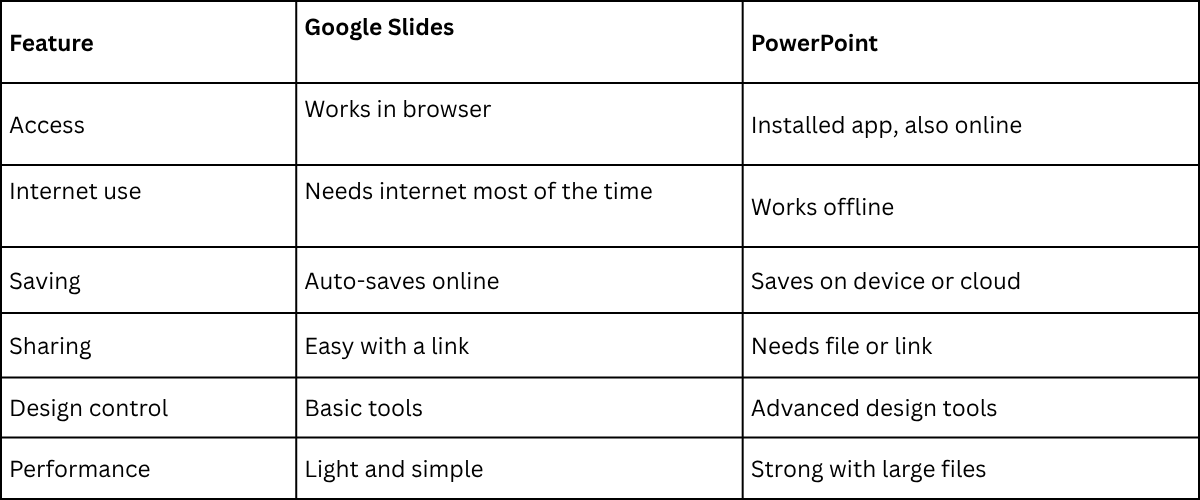
Google Slides vs PowerPoint Overview
Essential Formatting Shortcuts
Shortcuts help you format slides without slowing down. You spend less time clicking and more time building clear content. These tools also keep your slides neat and consistent.
Google Slides Formatting Shortcuts
Google Slides has simple keyboard shortcuts for quick editing. These help you change text style and layout in seconds.
• Bold text: Ctrl + B
• Italic text: Ctrl + I
• Underline text: Ctrl + U
• Align left: Ctrl + Shift + L
• Center align: Ctrl + Shift + E
• Align right: Ctrl + Shift + R
• Copy format: Ctrl + Alt + C
• Paste format: Ctrl + Alt + V
These shortcuts help you keep your slides clean while working faster.
PowerPoint Formatting Shortcuts
PowerPoint also has strong formatting tools that save time during editing. These shortcuts help you adjust text and objects quickly.
• Bold text: Ctrl + B
• Italic text: Ctrl + I
• Underline text: Ctrl + U
• Align left: Ctrl + L
• Center align: Ctrl + E
• Align right: Ctrl + R
• Increase font size: Ctrl + Shift + >
• Decrease font size: Ctrl + Shift + <
• Copy format: Ctrl + Shift + C
• Paste format: Ctrl + Shift + V
These tools help you keep a steady design across all slides without extra effort.
Slide Navigation Shortcuts
Moving between slides becomes simple with keyboard shortcuts. They help you stay focused while presenting or editing.
Go to the next slide using the arrow keys or Page Down. Go back with Page Up or the left arrow key. Jump to a specific slide by typing the slide number and pressing Enter. This helps during live presentations.
Start the presentation with F5 in PowerPoint. Press Esc to exit anytime. Google Slides also allows quick navigation using arrow keys for smooth movement between slides.
Object & Element Control Shortcuts
These shortcuts help manage items like images, text boxes, and shapes. They save time during slide design.
• Select objects by clicking them or using Tab to move between elements.
• Copy an object with Ctrl + C. Paste with Ctrl + V.
• Duplicate an item quickly with Ctrl + D.
• Move objects using the arrow keys for small adjustments. Hold Shift with arrows for larger moves.
• Align objects using built-in alignment tools in the toolbar for a clean layout.
Google Slides Object Control Shortcuts
• Copy selected elements with Ctrl + C and paste with Ctrl + V.
• Group items with Ctrl + Alt + G. Ungroup with Ctrl + Alt + Shift + G.
• Use Ctrl + D to duplicate shapes or images quickly.
• Move objects with the arrow keys for precise placement.
• Lock position using the arrange options in the menu.
PowerPoint Object Control Shortcuts
• Copy with Ctrl + C and paste with Ctrl + V.
• Duplicate with Ctrl + D for fast design work.
• Group objects with Ctrl + G. Ungroup with Ctrl + Shift + G.
• Move elements using arrow keys for fine control.
• Resize shapes by holding Shift while dragging corners.
• Align objects using Alt key guides or alignment tools in the toolbar.
Text Editing Shortcuts
Text editing gets easier with a few simple keys.
• Ctrl + C copies selected text.
• Ctrl + V places copied text in a new spot.
• Ctrl + X removes text and stores it for later use.
• Ctrl + Z brings back the last change.
• Ctrl + Y repeats the last action again.
• Ctrl + B makes text bold.
• Ctrl + I changes text to italic.
• Ctrl + U adds an underline to text.
Double-click selects one word. Triple-click selects a full paragraph.
Design & Layout Efficiency Shortcuts
Good slide design saves time. It also keeps your message clear. Small shortcuts in Google Slides and PowerPoint can help a lot.
Aligning objects can take time if done by hand. Use built-in alignment tools instead. These tools line things up in seconds. Your slides look cleaner with less effort.
Copying styles is another quick trick. Format one shape or text box. Then apply the same style to others. This keeps colors, fonts, and spacing consistent.
Grouping objects helps when moving items. Select multiple elements and group them. Now they move as one unit. This reduces mistakes during edits.
Duplicating slides speeds up your work. Instead of building from scratch, reuse an existing layout. Then adjust only the content you need.
Using slide masters also saves effort. Set your main design once. Every new slide follows the same structure. This keeps your presentation uniform without extra work.
Presentation Mode Shortcuts
Presentation mode needs smooth control. Keyboard shortcuts help you move through slides without breaking focus.
Press F5 to start the slideshow from the first slide. Press Shift + F5 to start from the current slide. Move forward with the right arrow key or spacebar.
Go back with the left arrow key. Jump to a specific slide by typing the slide number and pressing Enter. Exit presentation mode anytime with the Esc key. These shortcuts keep your flow steady during a live presentation.
Hidden / Advanced Shortcuts
Most people only use the basic shortcuts. That slows them down during work.
Some tools inside Google Slides and PowerPoint have extra shortcuts that are not obvious. These help you move faster and keep your slides clean.
One useful trick is duplicating objects quickly. Press Ctrl + D in PowerPoint or Ctrl + Shift + D in Google Slides. This saves time when building repeated shapes or layouts.
Another helpful shortcut is grouping items. Select multiple objects and press Ctrl + G. This keeps everything aligned and easy to move together.
Working with alignment also becomes easier. Use Alt + Shift + Arrow keys in PowerPoint to adjust placement step by step. It helps with precise positioning without dragging.
Slide navigation also has hidden speed. Press Ctrl + Shift + Up or Down to move slides in PowerPoint. This helps you reorganize your deck without using the mouse.
These small actions reduce effort. They also make your workflow smoother during tight deadlines.
Workflow Tips for Faster Presentation Building
Start with a clear slide plan. List the main points before opening any tool. This keeps the work focused. Use a simple layout for every slide. One idea per slide works best. This reduces confusion and saves time.
Keep text short. Use only keywords and short lines. Long paragraphs slow down the design process. Reuse slide styles across the deck. Copy formats instead of building each slide from scratch. This keeps everything consistent.
Group your content before building slides. Put related ideas together. This makes the flow easier to build. Check your slides in one pass at the end. Fix spacing, text size, and alignment in a single review.
Common Mistakes to Avoid
Many people rush their slides. This leads to unclear graphs and messy layouts. Slow down and keep each element simple. Another issue is adding too much data at once. Too many lines or bars make it hard to read. Focus on one clear message per graph.
Some users ignore labels. Without clear labels, viewers guess the meaning. That creates confusion during a presentation. Color choice also matters. Using too many colors distracts the audience. Stick to a small set of colors that stay consistent.
Fonts can also cause problems. Small or fancy fonts reduce readability. Use clean and easy-to-read text for all slides.
Final Notes
Keyboard shortcuts change how you build slides. Small actions become faster. You spend less time clicking and more time shaping your message.
Start with a few basic shortcuts. Use them often until they feel natural. Then add more shortcuts step by step. This makes your work smoother without feeling hard.
Both Google Slides and PowerPoint give you tools to move quickly. Formatting, navigation, object control, and text editing all become easier with the right keys.
Good slide work is not only about design. It is also about speed and control. Shortcuts help you keep both.
Keep your slides simple. Keep your actions simple. The more you rely on shortcuts, the more focused your presentation work becomes.
FAQs:
1. Why should I use keyboard shortcuts in presentations?
Keyboard shortcuts save time. They reduce repeated mouse clicks. This helps you work faster and stay focused on your slides.
2. Do Google Slides and PowerPoint use the same shortcuts?
Some shortcuts are the same, like bold, copy, and paste. Others are different, especially for navigation and object control.
3. Can beginners use these shortcuts easily?
Yes. Most shortcuts are simple key combinations. You can start with a few basic ones and learn more over time.
4. Do shortcuts really improve productivity?
Yes. They help you finish tasks faster. They also make slide building smoother and more organized.
5. What are the most important shortcuts to learn first?
Start with text formatting, copy and paste, undo, and slide navigation keys. These are used most often.
6. Will using shortcuts replace all mouse use?
No. The mouse is still useful. Shortcuts just reduce how often you need it.
7. Can I use shortcuts while presenting?
Yes. You can move between slides, jump to a slide number, and exit presentation mode using simple keys.
8. Are these shortcuts the same on Mac and Windows?
Most are similar, but some use different keys like Command instead of Ctrl on Mac.




You may also be interested in ...

Tips To Create A Great Infographic
Infographics Have been around for a while, but not many people know about them or are their preferred presentation choice. If...
08 Jun, 2024

3 Steps To Create The Best Presentation...
Presentations are something wonderful when well done, you can captivate an audience or be super interested in what another pe...
23 Jun, 2024

3 Tips For Your Next Presentation You MU...
PowerPoint presentations are perfect for explaining a topic and communicating your ideas with a visual aid. But most people s...
08 Jun, 2024