How to Create Sticky Notes in PowerPoint for Engaging Slides
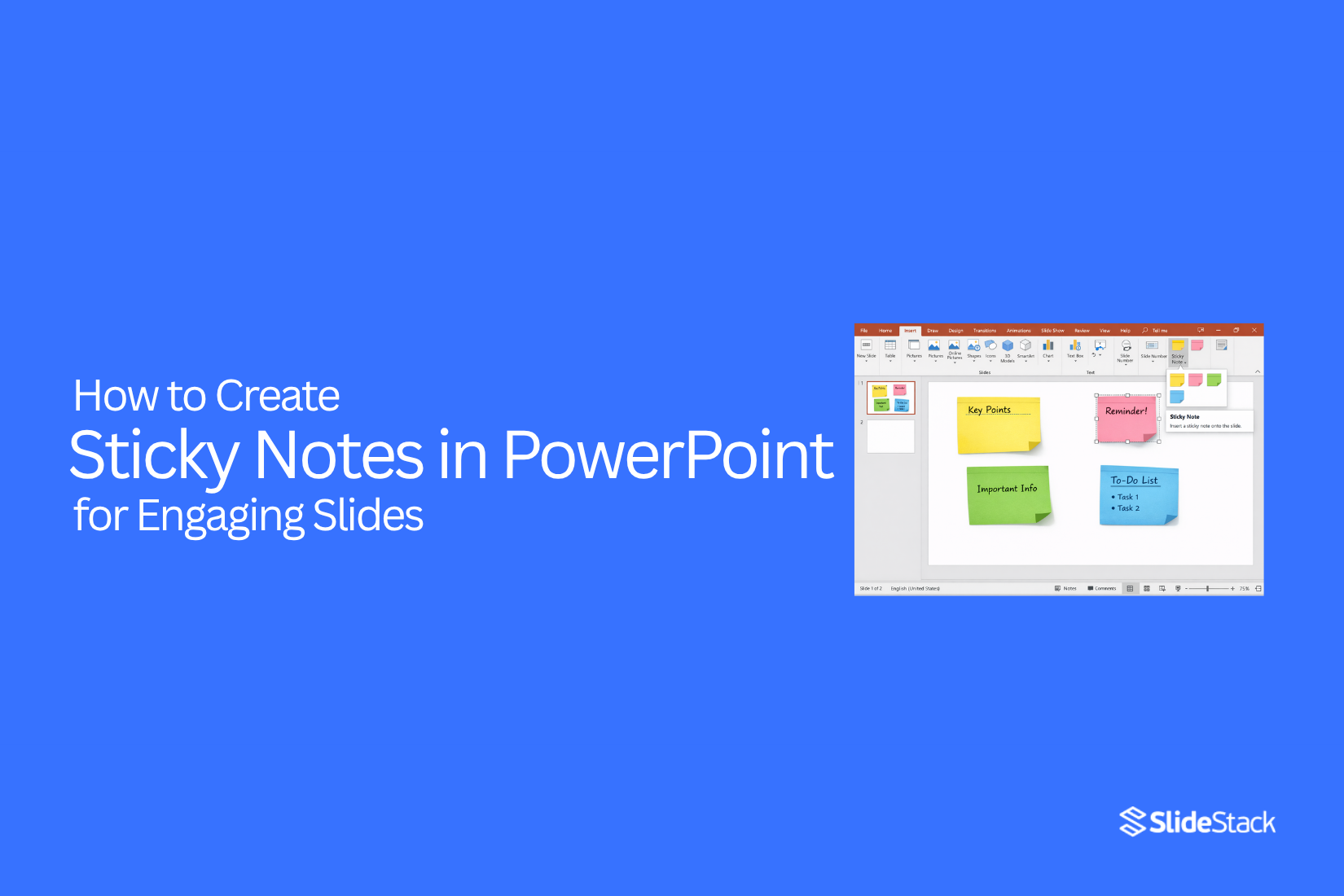
Many PowerPoint slides look flat and hard to follow. Important points often get lost in plain layouts. This makes it harder for people to focus and understand the message. Sticky notes can solve this by adding clear visual blocks for ideas and key details. They help organize content in a simple and structured way.
That brings a better way to build slides that feel clear and easy to read. This guide shows how to create sticky notes in PowerPoint, step by step, and how to use them in different slide types.
What Are Sticky Notes in PowerPoint
Sticky notes in PowerPoint are small note-style elements used inside slides. They help add short reminders, labels, or quick points. They sit on or near slide content and act like quick reference text.
PowerPoint does not include a built-in feature called Sticky Notes. There is no separate button or tool with that name. Users create the same effect using text boxes, shapes, or the speaker notes section. These options let users place short text in different parts of a presentation.
Common use cases appear in different ways across slides.
Slide planning often uses sticky note-styleTeamworkthe elements to mark key points that need attention during editing. These notes sit near titles or content areas to guide slide structure.
Content labeling is another use. Small text boxes act as tags to explain parts of a chart, image, or diagram. This keeps meaning clear without filling the slide with long text.
Presenter support also relies on notes. The speaker notes area holds reminders that are not shown to the audience. These notes help guide what the presenter says during a slide show.
Team work can also include slide comments or text boxes. These act like short messages placed on slides to suggest changes or highlight feedback during review.
Sticky Notes vs. Speaker Notes in PowerPoint
Sticky Notes in PowerPoint and Speaker Notes in PowerPoint are not the same. They serve different roles during slide creation and presentation.
Sticky Notes sit directly on the slide area. They become part of what appears on screen. They can act as small visual reminders inside the slide design. Speaker Notes sit in a separate notes panel. They stay hidden from the audience during a slideshow.
Sticky Notes support on-slide reminders. They can point out small details inside the layout. Speaker Notes support talking points for the presenter. They stay private during the presentation view.
Many users mix both tools. The editing view can make them look similar. Their purpose changes how they are used.
Sticky Notes fit visible cues inside slides. They help shape what the audience sees. Speaker Notes fit spoken guidance for the presenter. They help support delivery during presentations.
Sticky Notes work best for on-screen hints and design reminders. Speaker Notes work best for private notes that guide speech during slideshows.
Why Use Sticky Notes in PowerPoint Presentations
Sticky notes in PowerPoint presentations support clear planning and better slide structure. They help organize ideas before and during slide creation. They also improve how information is shared and delivered. They also reduce confusion during the planning stage. Ideas become easier to sort before slides are built. This saves time during design and editing.
Visual hierarchy: Sticky notes help arrange ideas in a clear order. Key points stand out from smaller details. Slides stay clean and easy to follow. This structure reduces confusion during presentations.
Simplification of content: Complex ideas are broken down into smaller parts using sticky notes. Each note holds one idea. Slides avoid heavy text blocks. This keeps focus on the main message without distraction.
Collaboration: Teams use sticky notes to share and adjust ideas. Each person can add input during planning. Group alignment becomes easier. Slide content reflects shared understanding across the team.
Agile and Kanban use: Sticky notes support step-by-step planning for presentations. Ideas move through stages such as draft, review, and final. This approach keeps work organized. Progress becomes easier to track during development.
Memorability: Key points placed on sticky notes stay more visible during preparation. Repeated review improves recall. Presenters remember structure and flow better. This leads to smoother delivery during presentation time.
Better idea grouping: Sticky notes help group related points together. Similar ideas stay close during planning. This makes patterns easier to see. The final slide order feels more logical.
Faster editing process: Changes become easier during review. Notes can be moved, removed, or replaced quickly. Slide structure adjusts without rebuilding everything. This keeps the workflow efficient and simple.
How to Create Sticky Notes in PowerPoint from Scratch
Sticky notes in PowerPoint help organize ideas on slides. They also make content easier to review during planning or presentations. Many people use templates for this task. Templates save time and keep the layout consistent. They also reduce the need to build every element from zero.
A ready-made slide template set can show how sticky notes should look and feel. It gives a clear structure that can be reused across projects. This approach reduces setup time and keeps designs aligned across slides. Manual creation often takes more time because each shape, color, and text box must be built one by one.
A simple process follows below for building sticky notes directly inside PowerPoint.
Step 1: Insert a Shape
Open a slide and add a shape. A square or rounded rectangle works best. This shape becomes the base of the sticky note. Keep the size similar for all notes to maintain a clean layout.
Step 2: Apply Fill Color
Select the shape and add a fill color. Soft yellow, light pink, or light blue works well for sticky note style. Consistent colors help the slides look organized and easy to read.
Step 3: Add Text
Click inside the shape and type the content. Keep the text short and clear. One idea per sticky note works best. This keeps information easy to scan during review or presentation.
Step 4: Customize Shape Effects
Add light effects to improve the appearance. A soft shadow or slight outline helps the sticky note stand out from the background. Avoid heavy effects since they can make the slide look crowded.
After building a few sticky notes, arranging them on the slide becomes important. Copying the first note helps keep all notes the same size. Spacing them evenly improves readability. Grouping related notes together supports better structure during brainstorming or planning sessions.
Some projects need more than simple notes. In those cases, a structured slide template designed for brainstorming or Kanban-style layouts can support larger workflows. It helps manage tasks, ideas, and progress in a more organized way without extra design effort.
Examples of Sticky Notes in PowerPoint Slides
Sticky notes in PowerPoint help break ideas into small parts. They make slides easier to read and plan. They also keep content organized without clutter.
Brainstorming Layout
Sticky notes work well for idea sessions. Each note holds one idea. This keeps thoughts separate and easy to move around on the slide.
Teams place notes in groups. Each group shows a theme. This helps sort ideas without confusion. It also makes it easier to pick strong ideas later.
Task or To-Do Lists
Sticky notes can show simple task lists. Each note shows one task. This keeps work clear and easy to track.
Tasks can sit in a row or column. This layout helps show progress in a simple way. It also helps teams stay focused on what needs action.
Timeline or Process Slides
Sticky notes can map steps in a process. Each note shows one step. The steps move across the slide in order.
This layout helps show how work flows from start to finish. It keeps each step clear and separate. It also makes long processes easier to follow.
Highlight Key Points
Sticky notes can bring attention to important ideas. Each note can hold one key point. These points stand out on the slide.
They can sit near related content. This helps guide attention without crowding the slide. It also makes the main message easier to spot.
Best Practices for Sticky Notes in PowerPoint
Sticky notes in PowerPoint support clear guidance during presentations. They work best with clean structure and simple visual choices. Each note should support the message without distracting the audience. Strong design habits help keep slides easy to follow.
1. Limit Text for Sticky Notes
Sticky notes should stay short. Long text slows down reading and creates a distraction during delivery. Each note should focus on one clear idea. Short phrases improve quick scanning during a presentation. This keeps attention on the slide content instead of the notes.
2. Maintain Consistent Colors
Color consistency helps the audience recognize patterns across slides. Sticky notes should use a small set of colors. Each color can represent a purpose, such as reminders or key points. Random color use creates confusion and weakens structure. A steady color system supports visual order.
3. Avoid Overcrowding Slides with Sticky Notes
Too many sticky notes on one slide reduces clarity. The slide becomes harder to read and follow. Space between elements helps the eye move smoothly. Each slide should carry only the notes needed for that point. Clean spacing keeps the message clear.
4. Align Sticky Notes
Alignment gives slides a neat structure. Sticky notes should follow a clear grid or straight layout. Uneven placement creates visual noise. Aligned notes help the audience scan content in a simple path. This improves flow across the slide.
5. Test Readability on Screen or Projector
Sticky notes should stay readable in real presentation settings. Text size and color contrast must stay clear on larger displays. A quick check on a screen or projector shows how the notes appear to viewers. This step helps avoid unclear or hard-to-read content during delivery.
Strong use of these practices keeps sticky notes useful and controlled. Each rule supports cleaner slides and smoother audience focus.
Creative Ways to Use Sticky Notes
Sticky notes help organize ideas in a clear way. They fit well in presentation slides. They also make complex topics easier to follow.
Brainstorming Slides
Sticky notes work well for idea generation. Each note can hold one idea. This keeps thoughts separate and easy to move around. Slides stay clean. Ideas stay flexible. You can group similar notes to form new directions.
Process Breakdown
Sticky notes help show steps in a process. Each step sits on its own note. This creates a clear visual path. The audience can follow each stage without confusion. Moving notes around can show order changes in a simple way.
Key Point Highlights
Sticky notes help draw attention to important points. Each note can hold one key message. This keeps the focus on the main ideas. It also stops slides from feeling crowded. Important details stand out more clearly.
Interactive Slides
Sticky notes support interaction in presentations. Notes can be moved during discussion. This helps group ideas in real time. It also keeps the audience involved. Slides feel more active and easier to follow.
Common Mistakes to Avoid When Using Sticky Notes in PowerPoint
Sticky notes in PowerPoint help guide ideas and speaker notes. Poor use creates confusion on slides. It also reduces visual clarity and weakens message delivery. Small design choices change how the whole presentation feels.
1. Using Neon or Saturated Colors
Bright neon colors pull attention away from the message. They make slides feel heavy on the eyes. Strong colors also clash with slide backgrounds. This creates visual noise and reduces focus on content.
Muted colors work better. Soft yellow, light blue, and pale green keep the design calm. These tones support reading and keep attention on the message.
2. Adding Long Paragraphs
Sticky notes are not built for long text. Large blocks of writing are hard to read during a presentation. The audience loses focus quickly.
Short lines keep ideas clear. Each sticky note should hold a single thought. Simple wording makes the slide easier to follow and faster to understand.
3. Overusing Rotation or Shadow Effects
Rotation and shadows may look creative at first. Too much of these effects makes slides messy. It also creates uneven visual balance across the screen.
Flat placement keeps the design stable. Clean alignment helps the eye move across the slide without distraction. A simple layout feels more structured and controlled.
4. Mixing Too Many Fonts or Styles
Different fonts on sticky notes break visual consistency. Bold, italic, and mixed styles on one slide create confusion. The message loses strength.
One or two fonts keep the design steady. Clear font choice builds order. Consistent style helps the audience stay focused on content instead of design changes.
5. Treating Sticky Notes as Decorative Elements Only
Sticky notes are often used only for visual effect. This weak approach reduces their real value. They stop working as communication tools.
Each sticky note should carry meaning. They should support ideas, not just fill space. A clear purpose behind each note improves slide quality and message delivery.
Strong presentation design comes from control and intention. Each sticky note should support clarity. Clean structure, simple text, and consistent style keep the message easy to follow and professional in appearance.
Final Notes
Sticky notes help make PowerPoint slides clear and easy to follow. They break ideas into small parts. This keeps information simple for the audience. Each sticky note should carry one idea. Short text works best. It keeps attention on the message without distraction.
Clean layout matters. Spacing between notes keeps slides readable. Aligned placement helps the eye move across content with ease. Color choice shapes how slides look. Soft and consistent colors keep everything calm and organized. Bright or mixed colors make slides harder to read.
Sticky notes work well for planning, tasks, and key points. They support structure during slide creation and presentation delivery. Good slide design keeps focus on the message.
FAQs:
1. What are sticky notes in PowerPoint?
Sticky notes are small text boxes or shapes. They hold short ideas or reminders inside slides.
2. Does PowerPoint have a sticky note feature?
No. PowerPoint does not have a built-in sticky note tool. Users create the effect with shapes, text boxes, or speaker notes.
3. How do you make sticky notes in PowerPoint?
Insert a shape like a square or rounded box. Add color. Type short text inside it. Place it on the slide.
4. What shape works best for sticky notes?
Rounded rectangles and squares work best. They look clean and easy to read.
5. How many sticky notes should be on one slide?
A small number works better. Too many notes make the slide crowded and hard to follow.
6. What colors work well for sticky notes?
Soft yellow, light blue, and light pink work well. These colors keep slides easy on the eyes.
7. What is the difference between sticky notes and speaker notes?
Sticky notes stay on the slide and are visible. Speaker notes stay hidden and guide the presenter.
8. Why use sticky notes in slides?
They break ideas into smaller parts. They also make slides easier to organize and read.
9. What mistake should be avoided with sticky notes?
Long text should be avoided. Each sticky note should carry one simple idea.
10. Can sticky notes improve presentations?
Yes. They keep ideas structured and make slides easier to understand.




You may also be interested in ...

How To Create An Eye-Catching Portfolio
If you’re looking to create an eye-catching portfolio, this post will come in handy. In this article, you can find the easies...
23 Jun, 2024

How To Easily Create An Infographic
Infographics are the perfect way to make a presentation that will impact an audience, but their design and composition might...
08 Jun, 2024

PowerPoint Template Tips & Tricks You Ne...
PowerPoint seems to be an unknown world for many people, especially those who have been assigned to create a presentation out...
08 Jun, 2024