How to Make Columns in Google Slides Quickly and Easily

Creating professional-looking slides can be tricky, especially when your content looks crowded or uneven. Many people struggle to organize text and images clearly, which makes presentations harder to read and less engaging.
This clutter can be frustrating, slowing you down and leaving your audience confused. Without proper formatting, your ideas may get lost, and your slides might not have the polished appearance you want.
Fortunately, there’s a simple way to fix this. By using columns in Google Slides, you can structure content neatly, improve readability, and highlight key points. In the following guide, we’ll show you step by step how to create and customize columns quickly and easily.
Step-by-Step Guide: Creating Columns in Google Slides
Creating columns in Google Slides can make your slides look neat and organized. It might seem tricky at first, but with the right steps, anyone can do it. Keep reading to follow our simple, step-by-step guide and set up columns like a pro.
Method 1: How to Add Table Columns in Google Slides
Adding extra columns can make your table more organized and easier to read. Follow these simple steps to expand your table quickly.
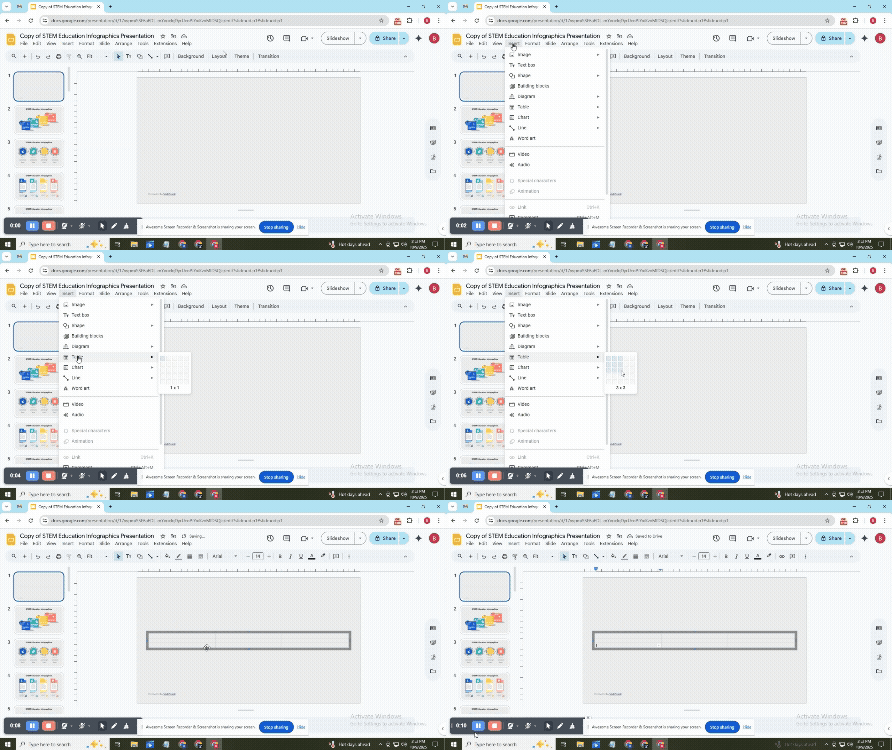
Step 1: Open Google Slides and Insert a Table
Go to your slide where you want the table. Click Insert, then select Table. Choose the number of rows and columns you need. The table will appear on your slide, ready for content.
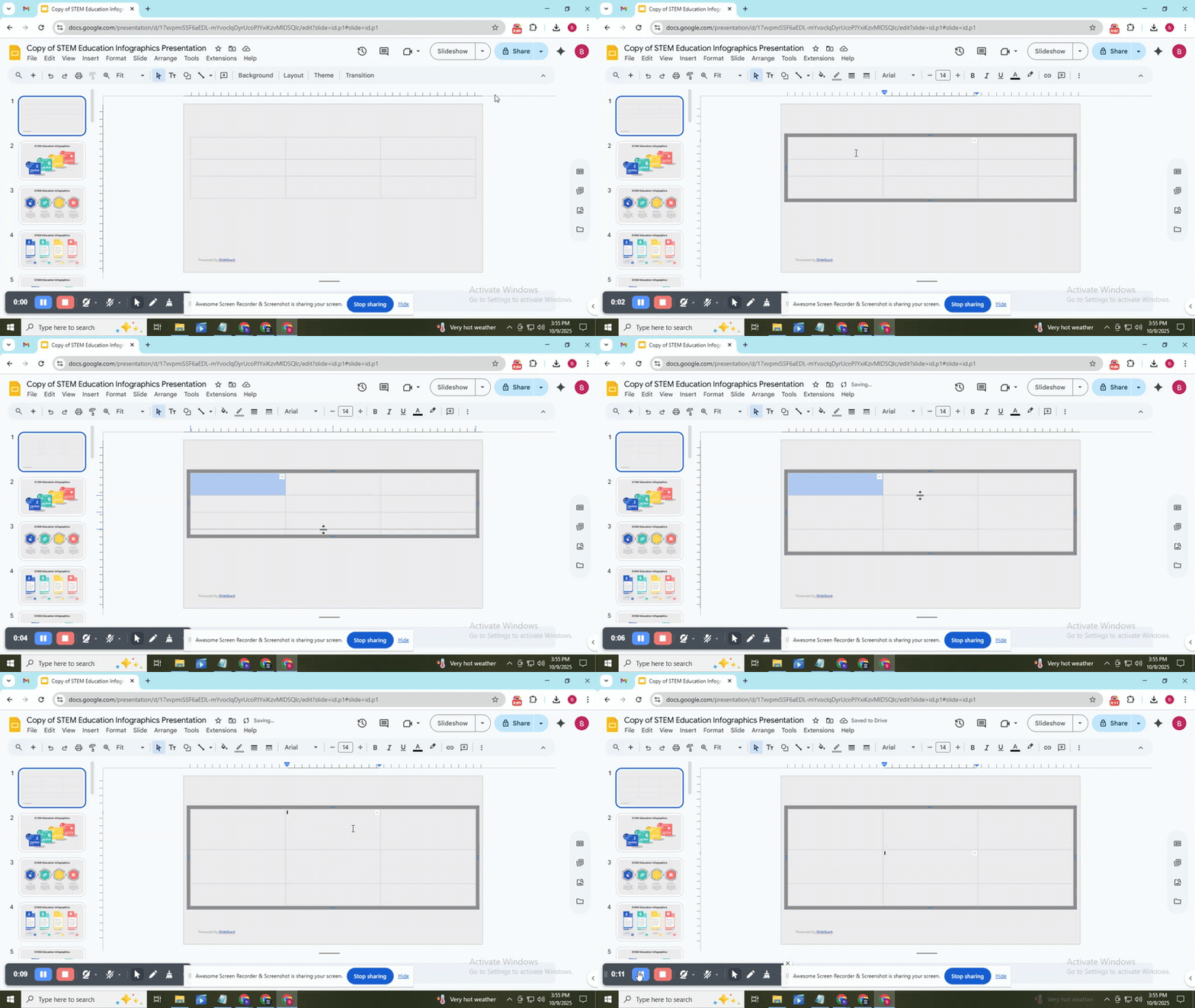
Step 2: Customize Your Table
Adjust the size of the table by dragging the edges. Change the background color or border style by using the table formatting menu. This helps your table fit your slide design.
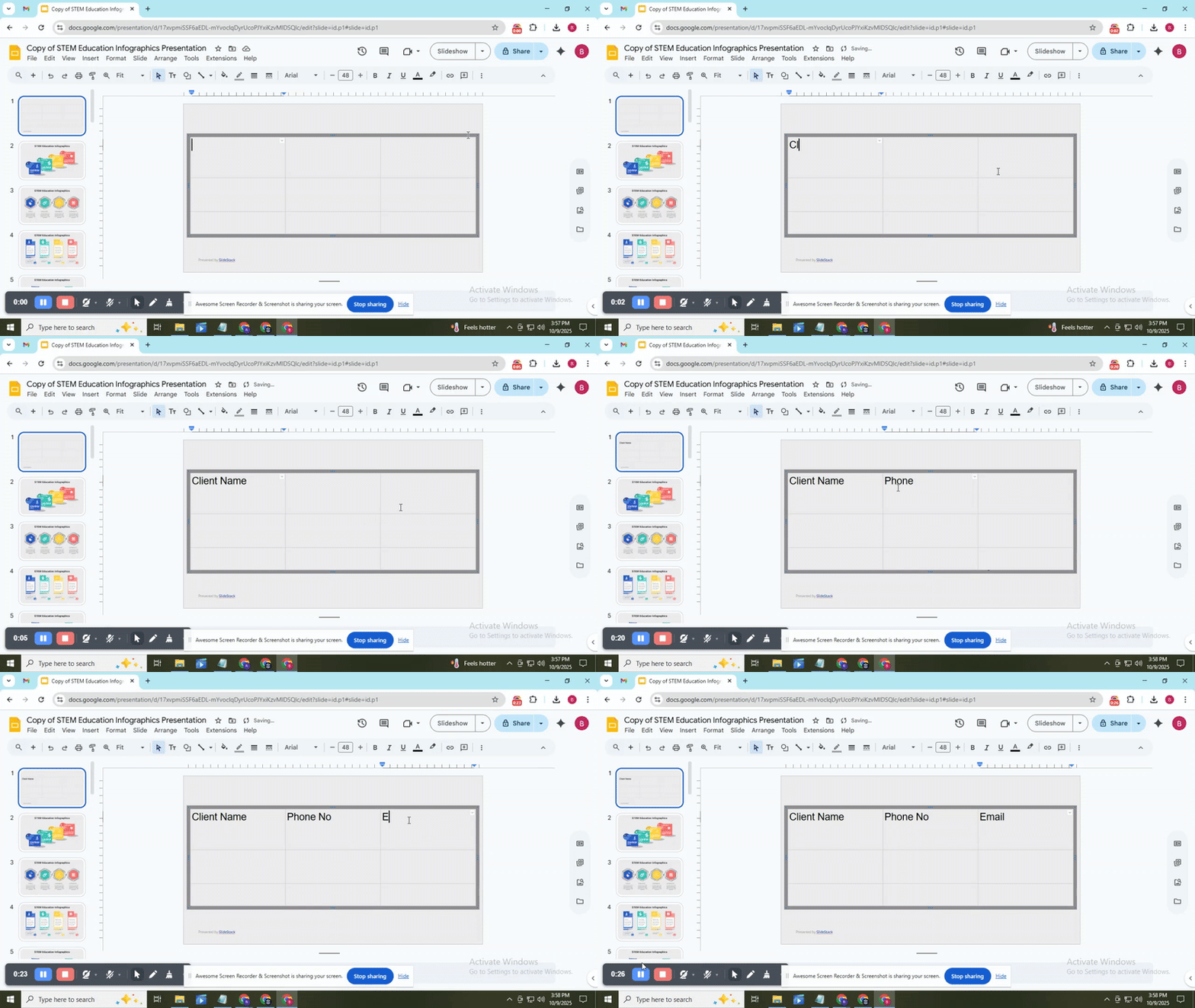
Step 3: Add and Format Content
Click each cell to type your text. Use bold, italics, or color to highlight important points. You can also align text to the left, center, or right to improve readability.
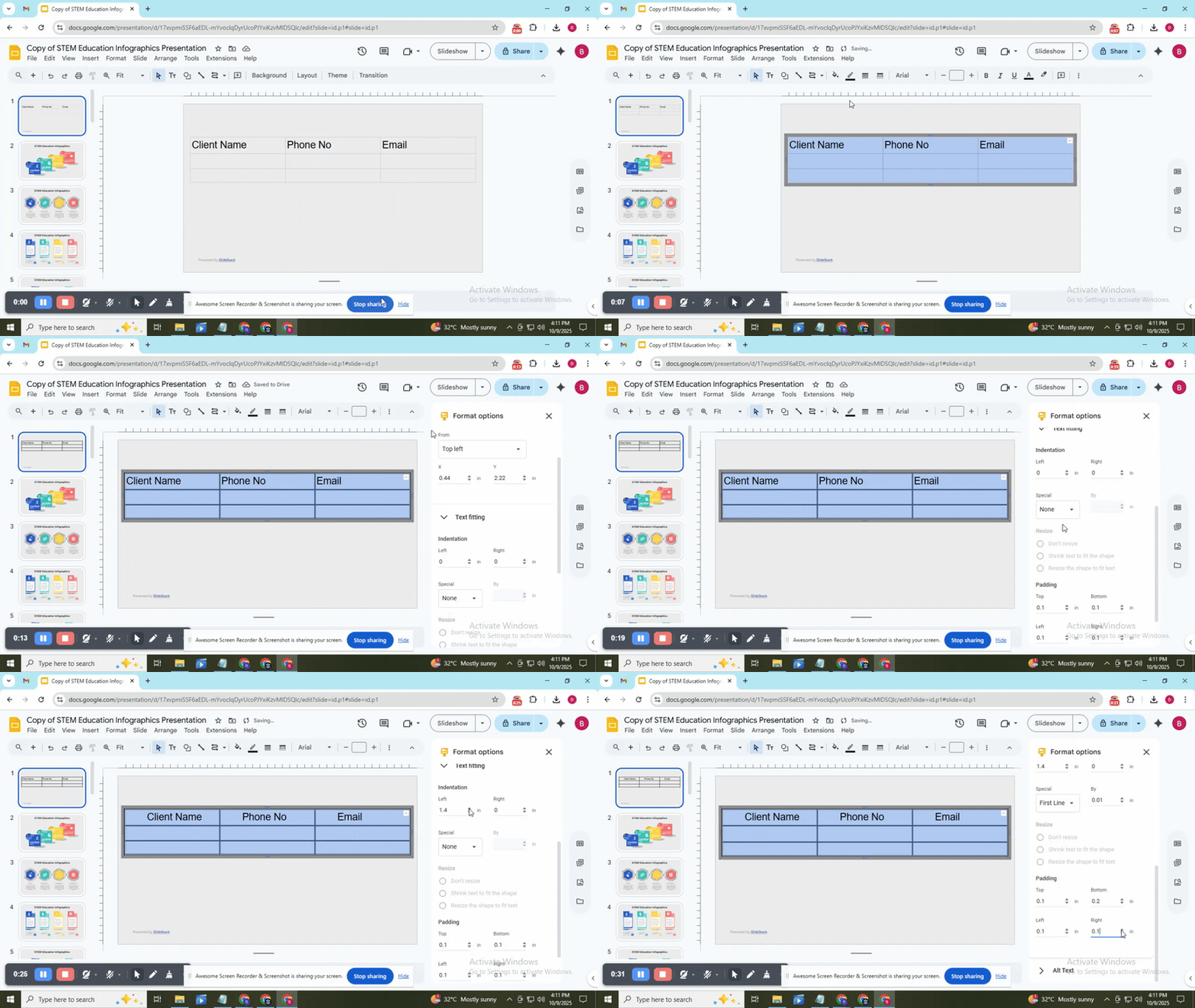
Step 4: Fine-Tune Table Design
Check spacing and alignment to make the table look neat. Resize columns or rows if needed. Add or remove borders to match your slide style. Your table is now ready to present clearly.
Method 2: How to Make Text Columns in Google Slides?
Columns help organize your text and make slides easier to read. They are useful when you have a lot of information but want it to stay clear and neat. Follow these steps to add columns quickly.
Step 1: Start With a Blank Slide
Begin with a blank slide so you have full control over the layout. Click “New Slide” and choose the blank option. This gives you a clean space to work with.
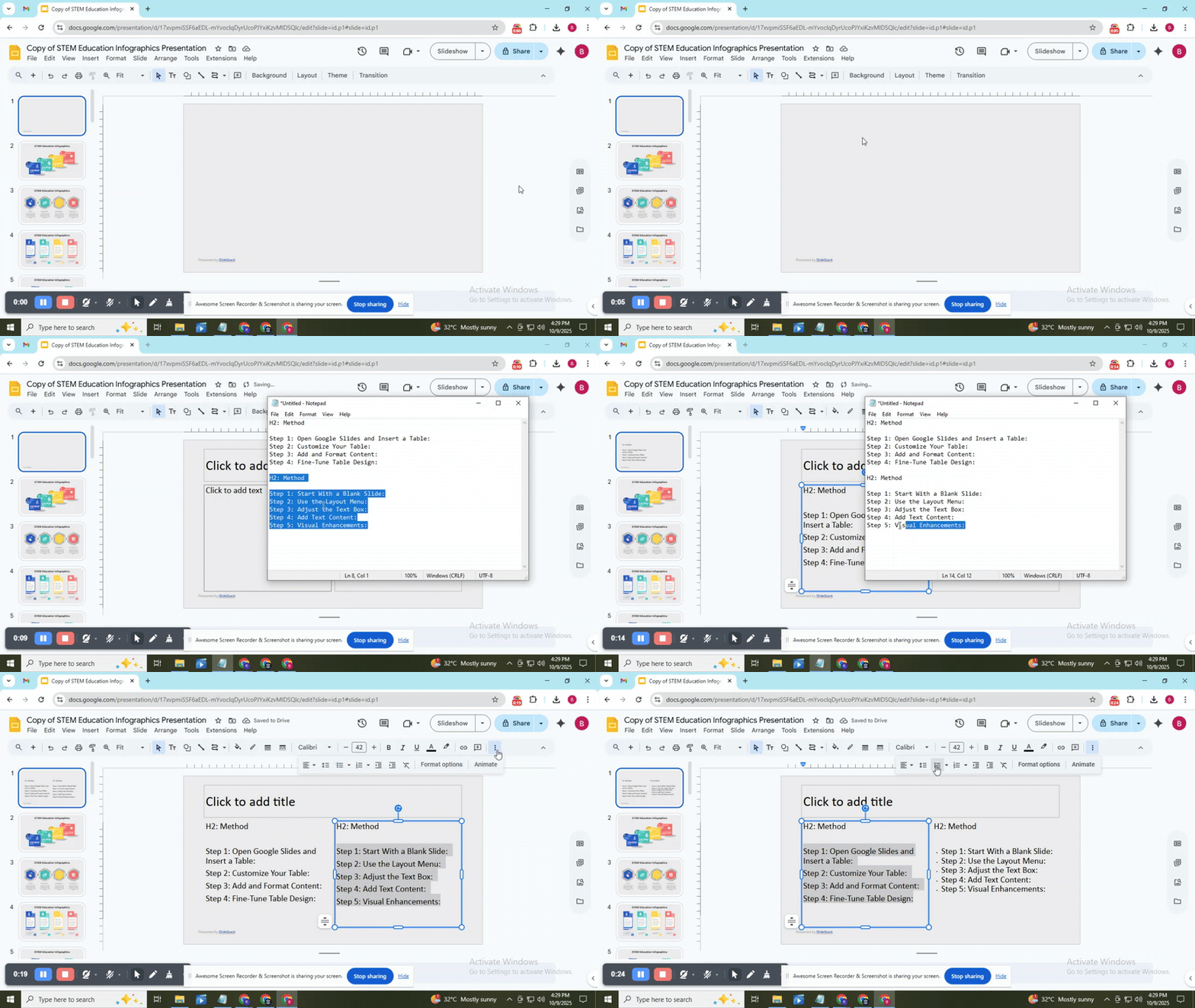
Step 2: Use the Layout Menu
Go to the “Layout” menu at the top of the screen. Choose a layout that has space for multiple text areas, or use the blank layout if you want to create columns manually.
Step 3: Adjust the Text Box
Insert a text box by clicking “Insert” > “Text box.” Drag it to one side of the slide. Copy this box and place it next to the first one to form columns. Adjust the width so each column looks balanced.
Step 4: Add Text Content
Click inside each text box and type or paste your content. Keep sentences short to make reading easier. Spread the text evenly across the columns.
Step 5: Visual Enhancements
You can add borders, background colors, or spacing adjustments to separate columns. Use bullets or numbering if it helps clarify the points. These changes make the slide more visually appealing without cluttering it.
Read Also: How to Arrange and Align Objects in Google Slides: Tips and Tricks
How to Add More Columns in Google Slides
Google Slides does not let you add more than two text columns directly. You can work around this by using multiple text boxes. Here’s how you can do it step by step.
Step 1:
Choose a blank slide or one with a layout you don’t mind adjusting. This gives you space to place extra columns without clutter.
Step 2:
Go to the toolbar and click “Text box.” Draw the box where you want your first column. Type or paste your content here.
Step 3:
Select the first text box, copy it, and move the copy to the right. Repeat this for as many columns as you need. Make sure each box lines up evenly.
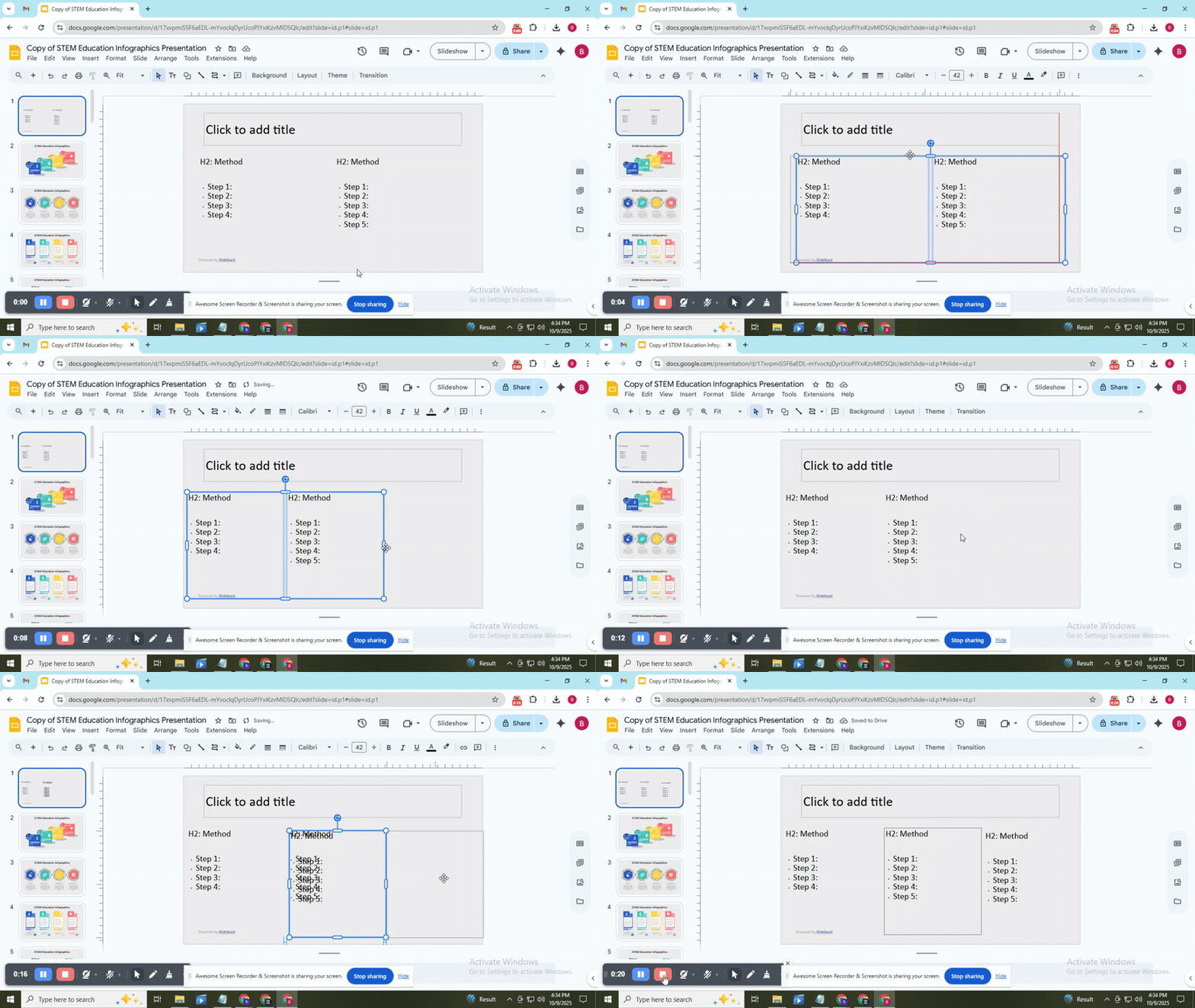
Step 4:
Drag the edges of each text box to make columns narrow or wide. Leave space between boxes to keep the slide clean and readable.
Step 5:
Fill each column with your text. You can change fonts, colors, or alignments to make the columns clear and easy to follow.
Using multiple text boxes helps you create the appearance of several columns even though Google Slides does not support them natively. This method keeps your slide organized and readable. Always check your spacing and alignment to make the layout look professional.
Read Also: How to Select Multiple Slides in Google Slides for Faster Editing
H2: Advantages of Using Columns in Google Slides
Using columns in Google Slides can make your content easier to read and more organized. Here are some key benefits:
Better Organization
Columns help separate information into clear sections. This makes your slides easier to follow.
Improved Readability
Text in columns is shorter and less overwhelming. Your audience can scan content quickly.
Visual Appeal
Columns create a balanced layout. Slides look neat and professional without extra effort.
Efficient Use of Space
You can fit more content without crowding the slide. This keeps your presentation clean.
Easy Comparisons
Placing related information side by side makes comparisons simple. Readers can see differences at a glance.
Using columns ensures your slides are clear, structured, and practical for any presentation.
Read also: Advantages and Disadvantages of Using Google Slides When Creating Presentations
Closing Thoughts:
Incorporating columns into your slides is a simple yet powerful way to organize information clearly and make your points easier to follow. You can use tables to display data neatly or divide text into separate columns to guide the reader’s eye across your content. Both methods help create structure without overwhelming your audience.
Experiment with different layouts, column widths, and spacing to see what works best for your material. Adjusting these elements can improve readability and highlight the most important points. Don’t be afraid to mix tables and text columns if it makes your message clearer.
By using these techniques thoughtfully, you will be well-equipped to create impactful presentations that leave a lasting impression on your audience. Clear, organized slides make your ideas stand out and help your message stick.
FAQs:
1. What are the benefits of using columns in Google Slides?
Columns make text easier to read and organize. They help break up large blocks of text and create a cleaner, more professional look. Using columns can also make your slides more visually appealing.
2. Is it possible to change the number of columns once they’ve been created?
Yes, you can adjust the number of columns anytime. You just need to select the text box and update the column settings. This allows you to experiment with different layouts quickly.
3. Does adding columns impact the formatting of text within each column?
Columns can slightly change how text flows, but they do not alter your font style, size, or color. You may need to adjust spacing or alignment to make everything look balanced.
4. Can I use columns on individual slides or across the entire presentation?
You can use columns on a single slide or apply them to multiple slides. Just select the slides you want and set up columns in each text box.
5. How can I align bullet points side by side in Google Slides?
To place bullets side by side, create separate text boxes for each list. Then move and align the boxes next to each other. This gives a neat, column-like effect.
6. What’s the process for cropping text in Google Slides?
Google Slides doesn’t allow cropping text directly. You can resize the text box or use shapes to hide parts of the text. This gives a cropped appearance without cutting the actual text.


You may also be interested in ...

How To Create An Eye-Catching Portfolio
If you’re looking to create an eye-catching portfolio, this post will come in handy. In this article, you can find the easies...
23 Jun, 2024

How To Easily Create An Infographic
Infographics are the perfect way to make a presentation that will impact an audience, but their design and composition might...
08 Jun, 2024

PowerPoint Template Tips & Tricks You Ne...
PowerPoint seems to be an unknown world for many people, especially those who have been assigned to create a presentation out...
08 Jun, 2024