How to Add Speaker Notes in Google Slides Quickly
Speaker notes in Google Slides are a simple way to improve your presentations. They let you add reminders and extra details that don’t need to appear on your slides. These notes stay hidden from your audience while giving you easy access during your presentation.
Using speaker notes means you don’t have to memorize every point or rely on cue cards. They act as prompts to keep you on track and deliver your message smoothly. This guide will show you how to add speaker notes quickly, use them with Presenter View, and print your slides with notes so you can present confidently and clearly.
How to Add Speaker Notes in Google Slides
Adding speaker notes in Google Slides helps you stay organized while presenting. These notes are visible to you during your presentation but hidden from your audience. Follow these steps to add and manage speaker notes effectively.
Step 1: Open Your Presentation
Go to Google Drive and open the Google Slides file you want to work on. Make sure you are signed in to your Google account to access editing features.
Step 2: Locate the Speaker Notes Section
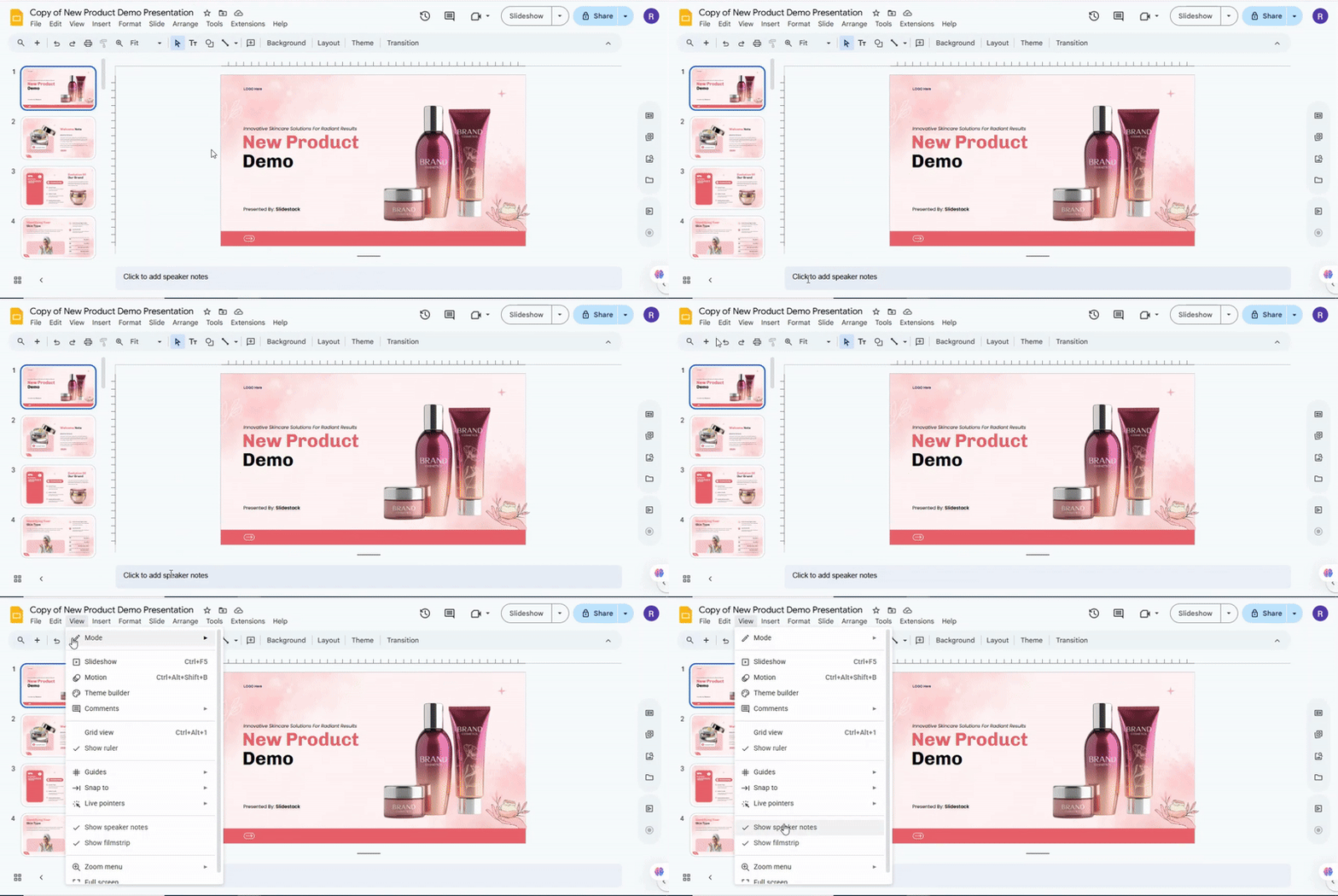
At the bottom of each slide, you will see a box labeled “Click to add speaker notes.” If you do not see this box, click on “View” in the top menu and select “Show speaker notes.” The notes area will appear beneath the slide.
Step 3: Start Typing Your Notes
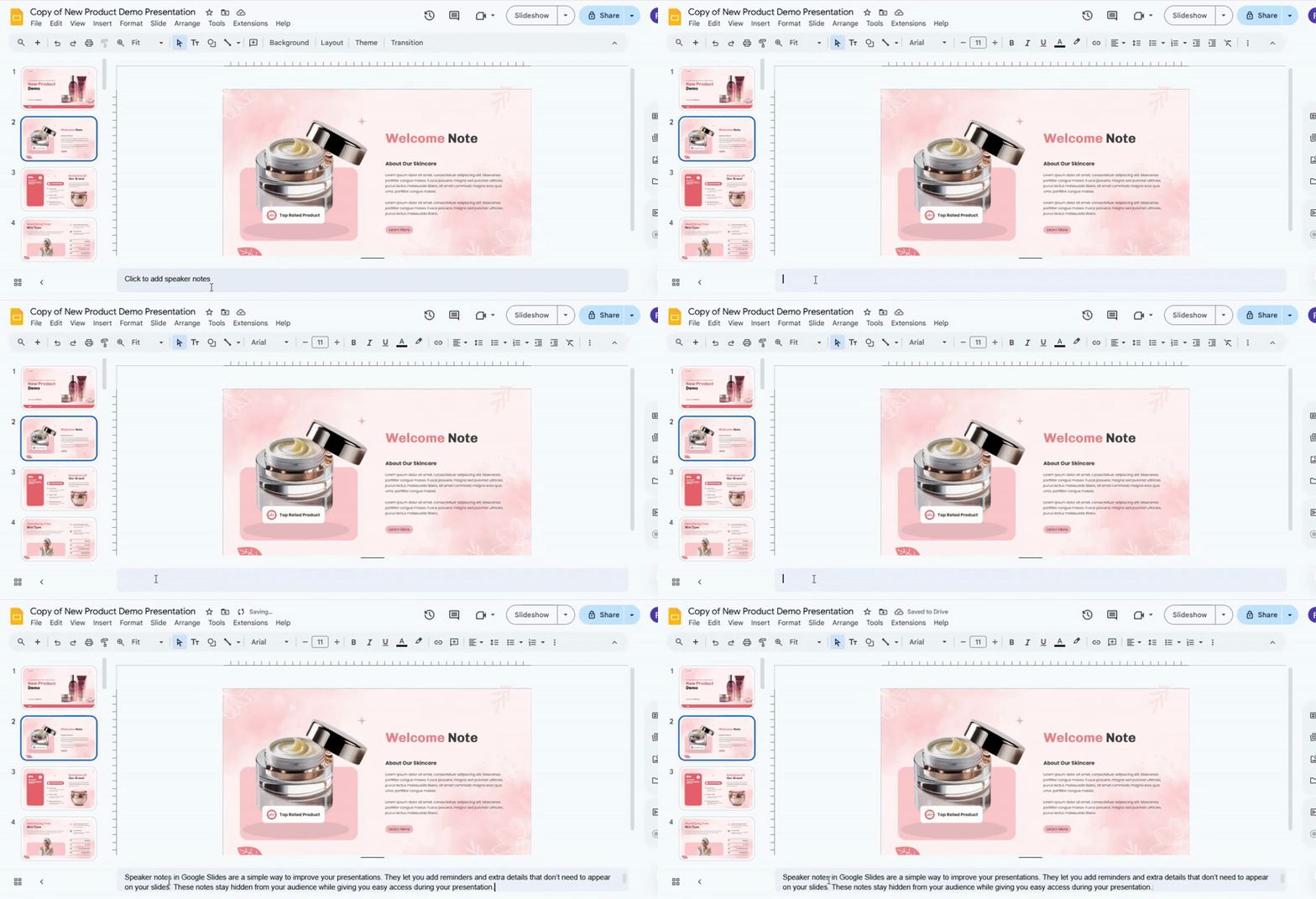
Click inside the speaker notes box and start typing your content. Keep notes brief and clear so you can glance at them easily while presenting. You can add reminders, key points, or full sentences.
Step 4: Format Your Notes (Optional)
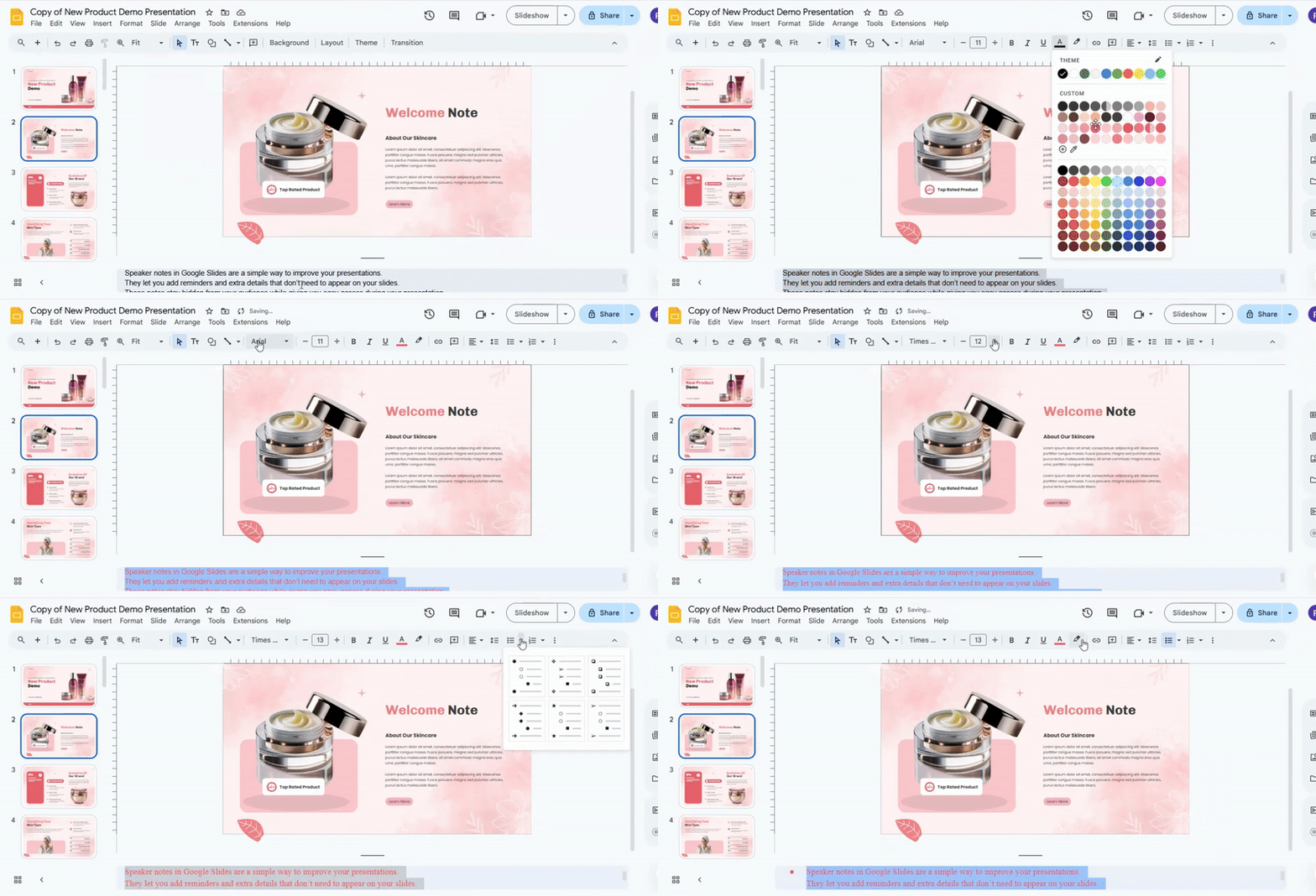
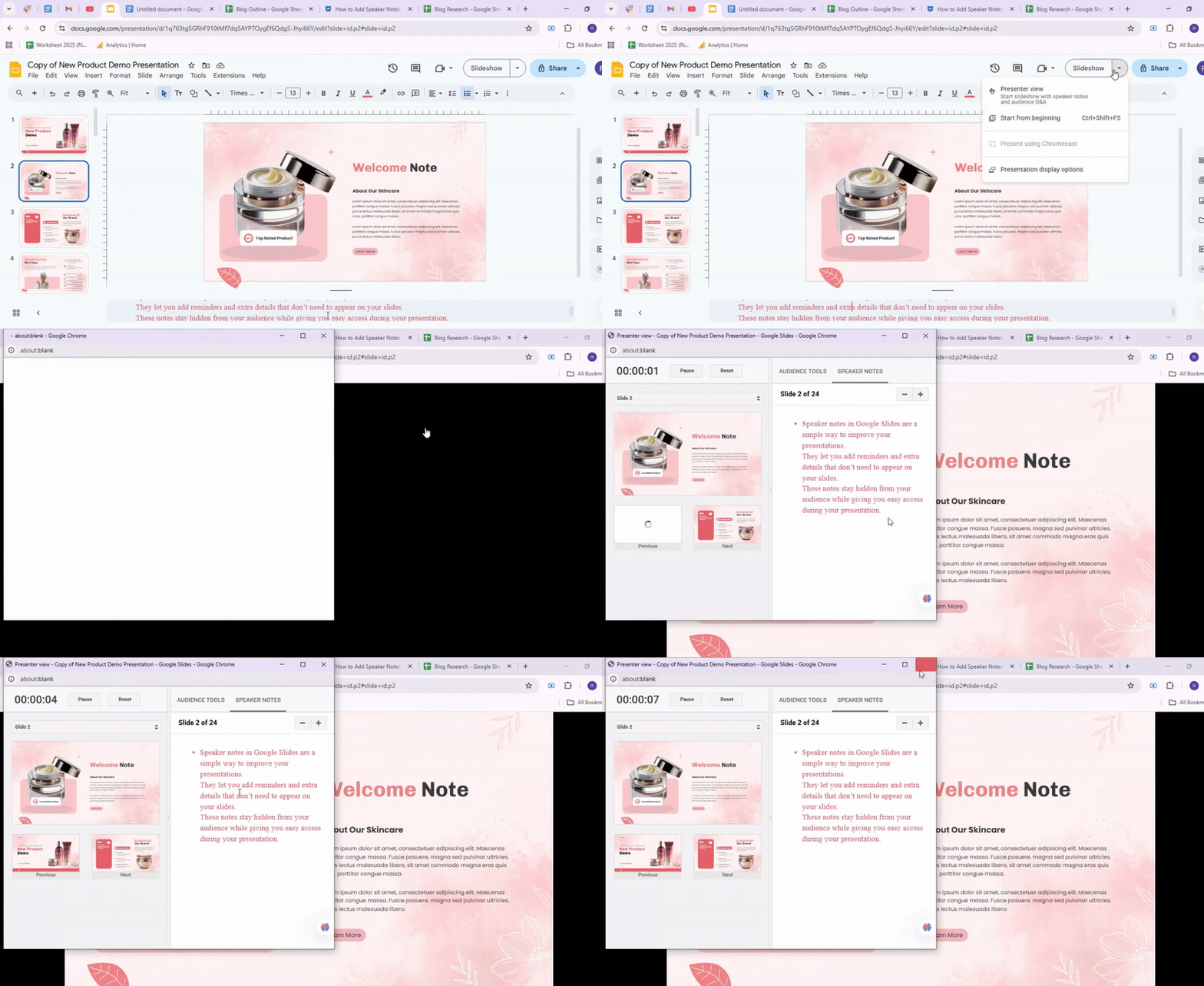
You can format text by changing the font size, style, or color. Highlight important points or create bullet lists for better organization. This step is optional, but it can make your notes easier to read during a presentation.
Step 5: Save Your Notes
Google Slides automatically saves your changes. You can close the presentation at any time without worrying about losing your notes. To check your work, enter “Slideshow” mode and click on “Presenter view” to see how your notes appear alongside your slides.
Pro Tip: Use AI tools or text suggestions to draft concise speaker notes quickly. You can then refine them in Google Slides for a personal touch.
How To Use Presenter View With Speaker Notes
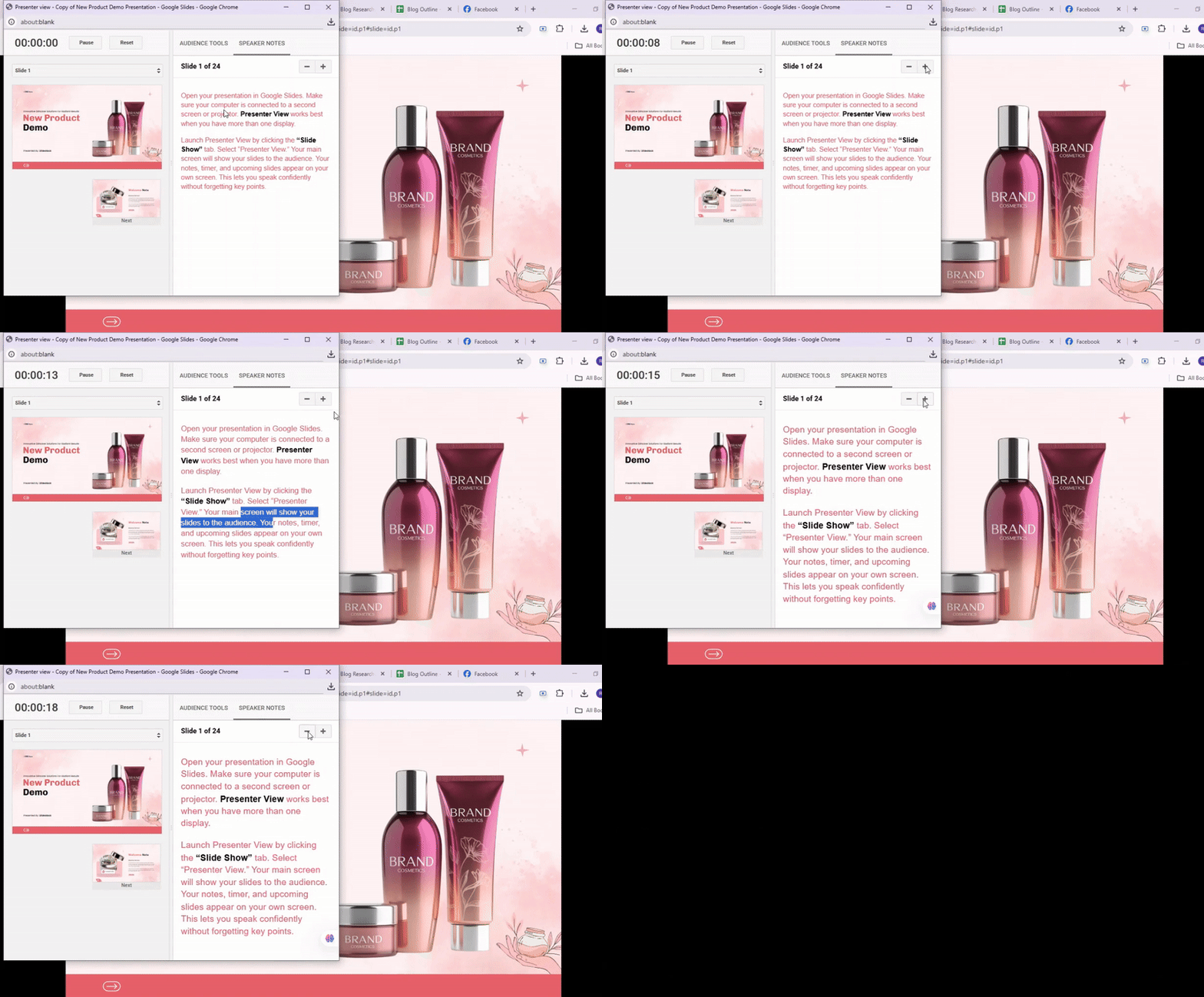
Open your presentation in Google Slides. Make sure your computer is connected to a second screen or projector. Presenter View works best when you have more than one display.

Launch Presenter View by clicking the “Slide Show” tab. Select “Presenter View.” Your main screen will show your slides to the audience. Your notes, timer, and upcoming slides appear on your own screen. This lets you speak confidently without forgetting key points.
Use the tools in Presenter View. Read your speaker notes to guide your presentation. See a preview of the next slide so you can plan your transitions. Use the timer to keep track of your pace. You can also zoom in on details or highlight parts of a slide for emphasis.
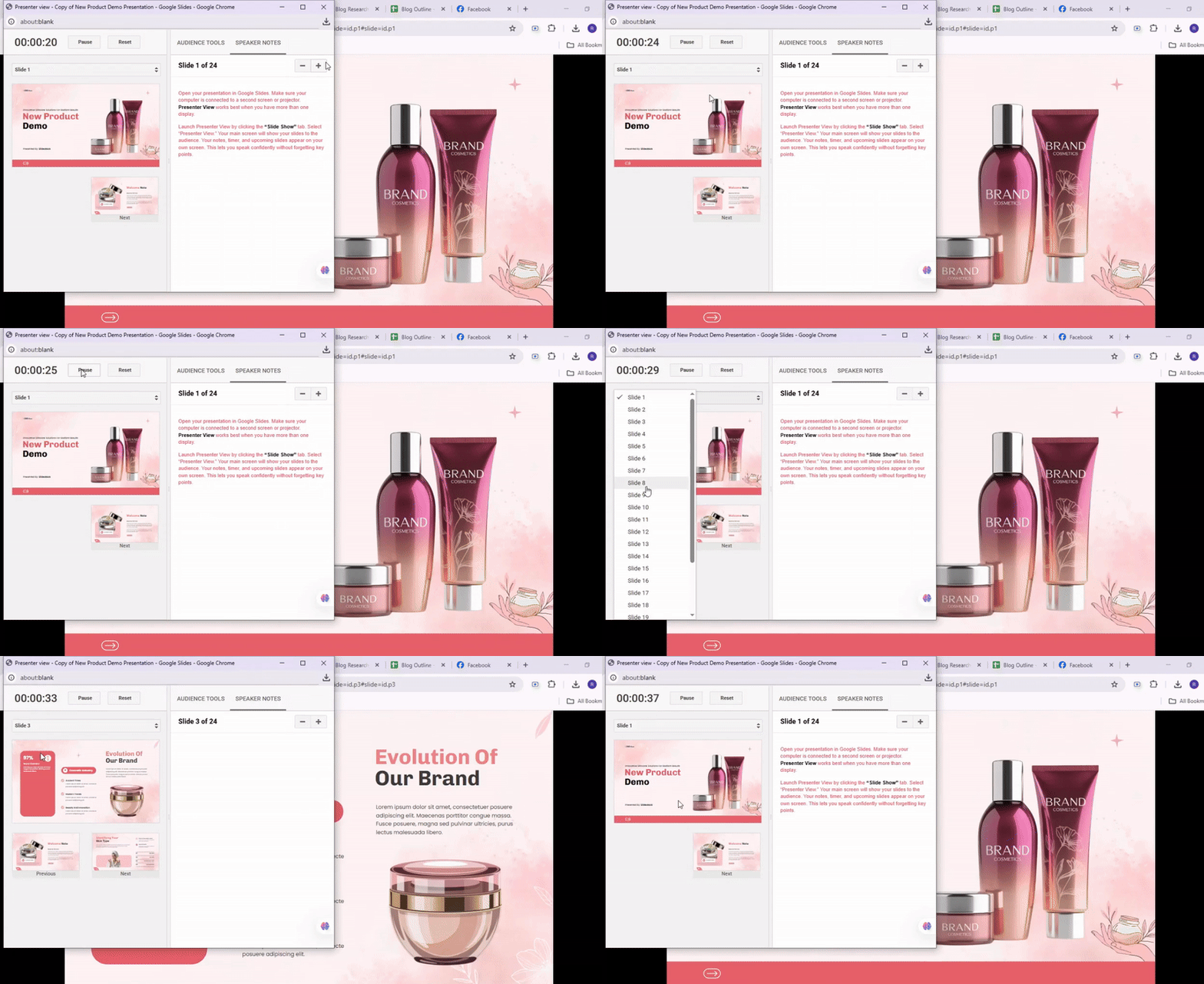
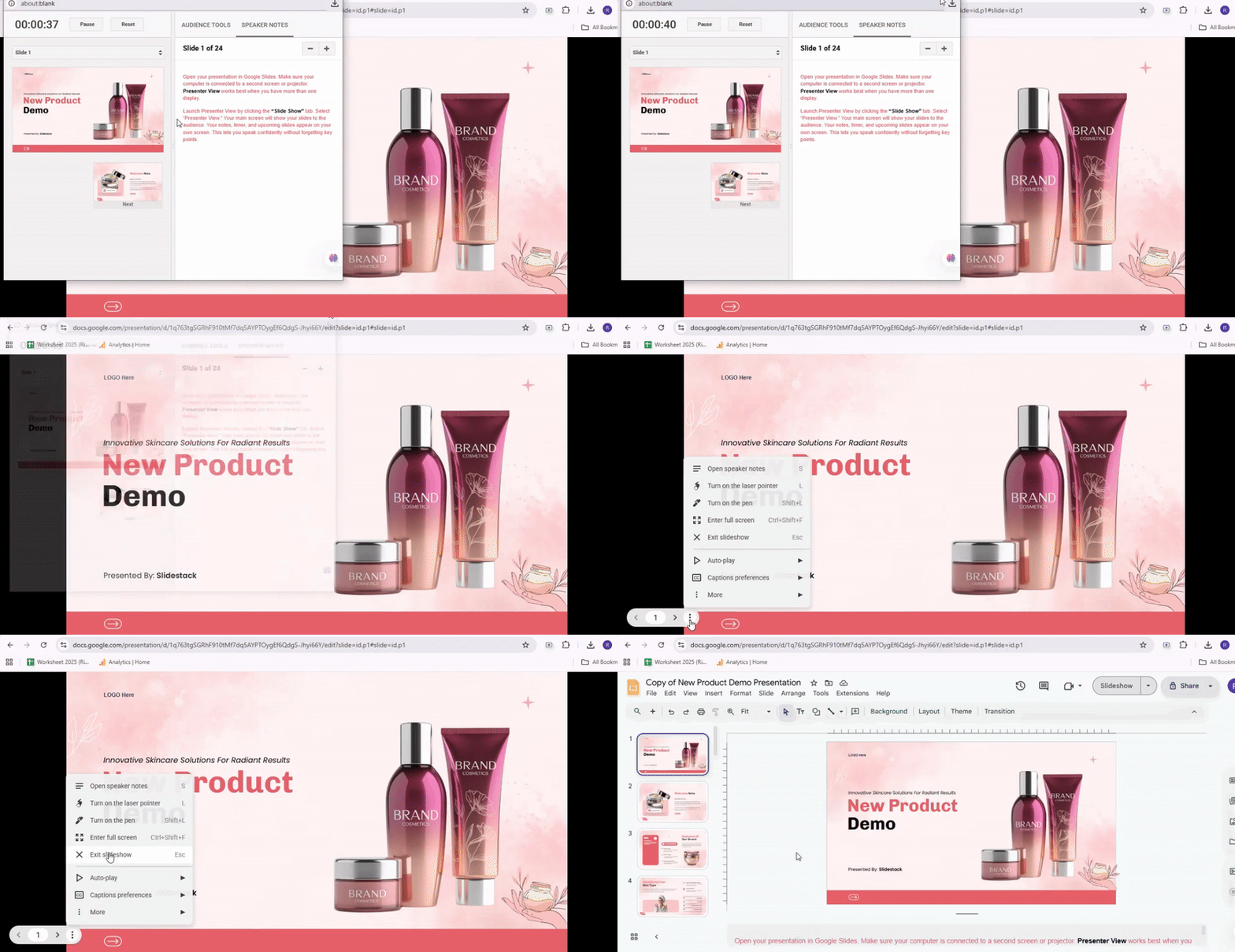
Control your slides easily. Click the arrows to move forward or backward. You can jump to a specific slide from the slide sorter view. End your presentation by pressing the “Escape” key or selecting “End Slide Show.”
Bonus Tip: Practice with Presenter View before your live presentation. This helps you get comfortable reading notes while speaking and using the tools without losing your flow.
How To Print Your Slides with Speaker Notes
Printing your slides with speaker notes helps you keep key points handy during presentations. Follow these steps to do it correctly.
Step 1: Open Your Presentation
Start by opening the Google Slides presentation you want to print. Make sure all slides and speaker notes are finalized before proceeding.
Step 2: Access the Print Settings
Click on “File” in the top menu. From the dropdown, select “Print settings and preview.” This opens a view where you can see how your slides will appear when printed.
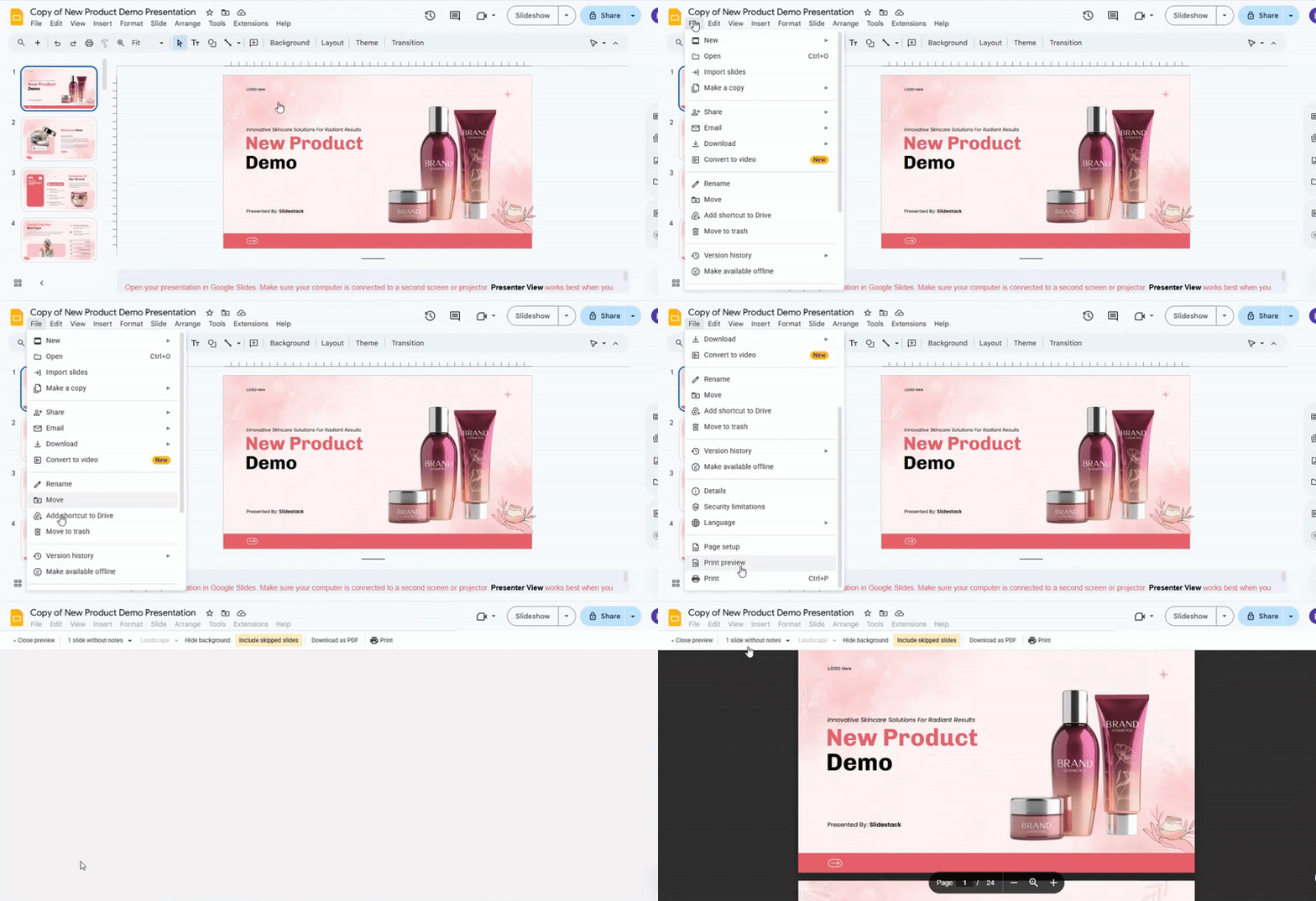
Step 3: Choose the Layout
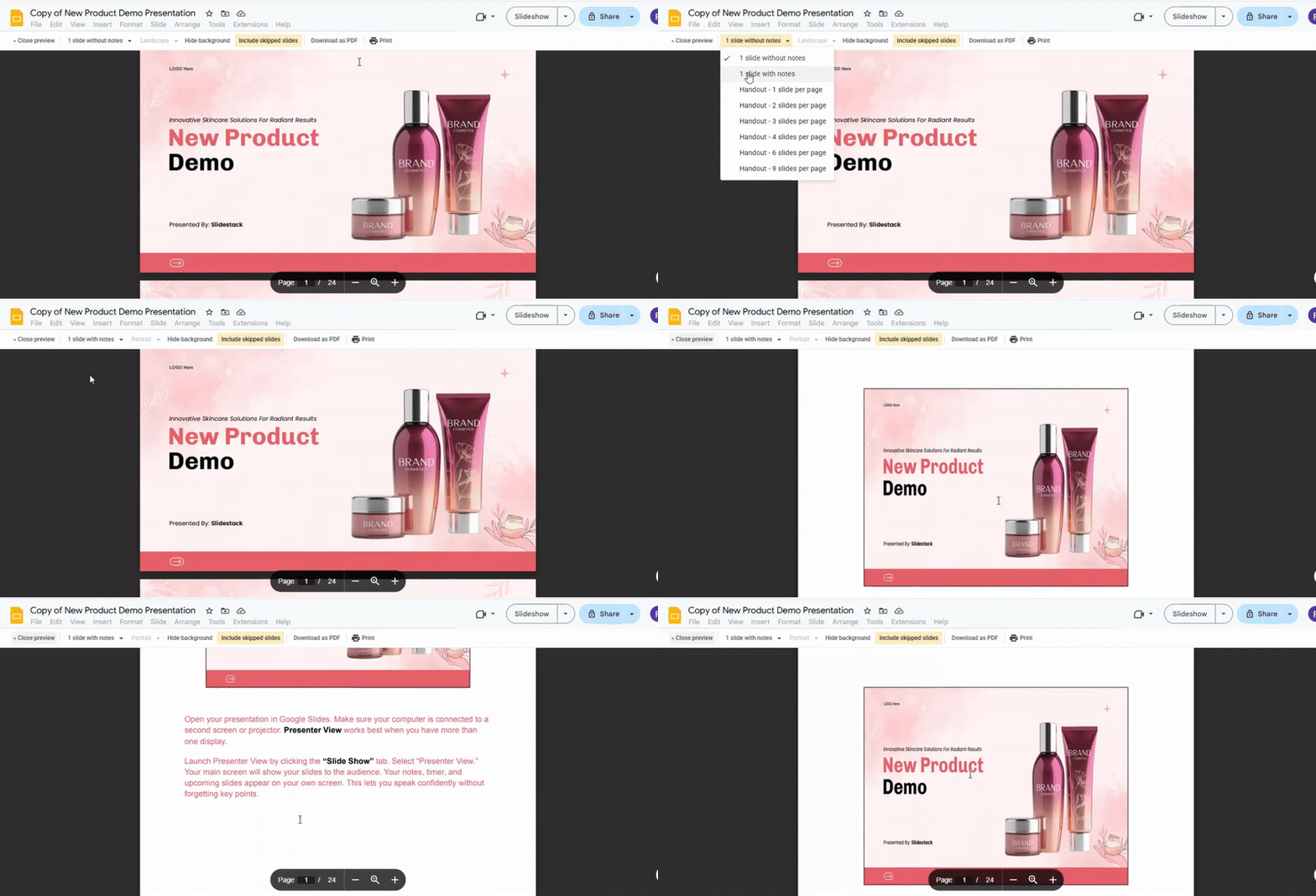
In the print preview, click the “1 slide with notes” option. This ensures each slide is printed with its corresponding speaker notes below. Check that all notes are fully visible.
Step 4: Adjust Optional Settings
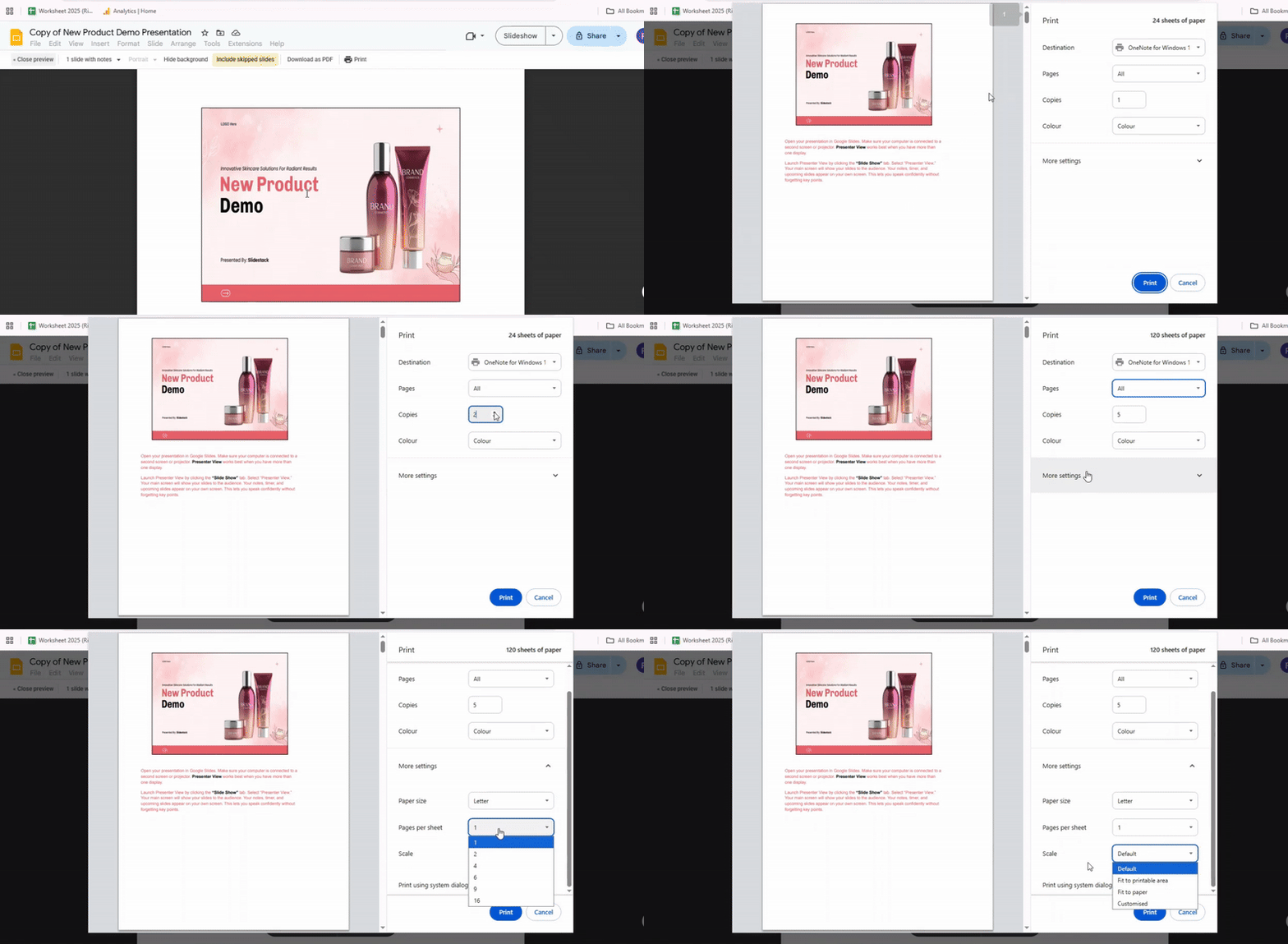
Use the settings menu to make changes if needed. You can select paper size, orientation, and the number of copies. Decide if you want to print in color or black and white.
Step 5: Print Your Slides
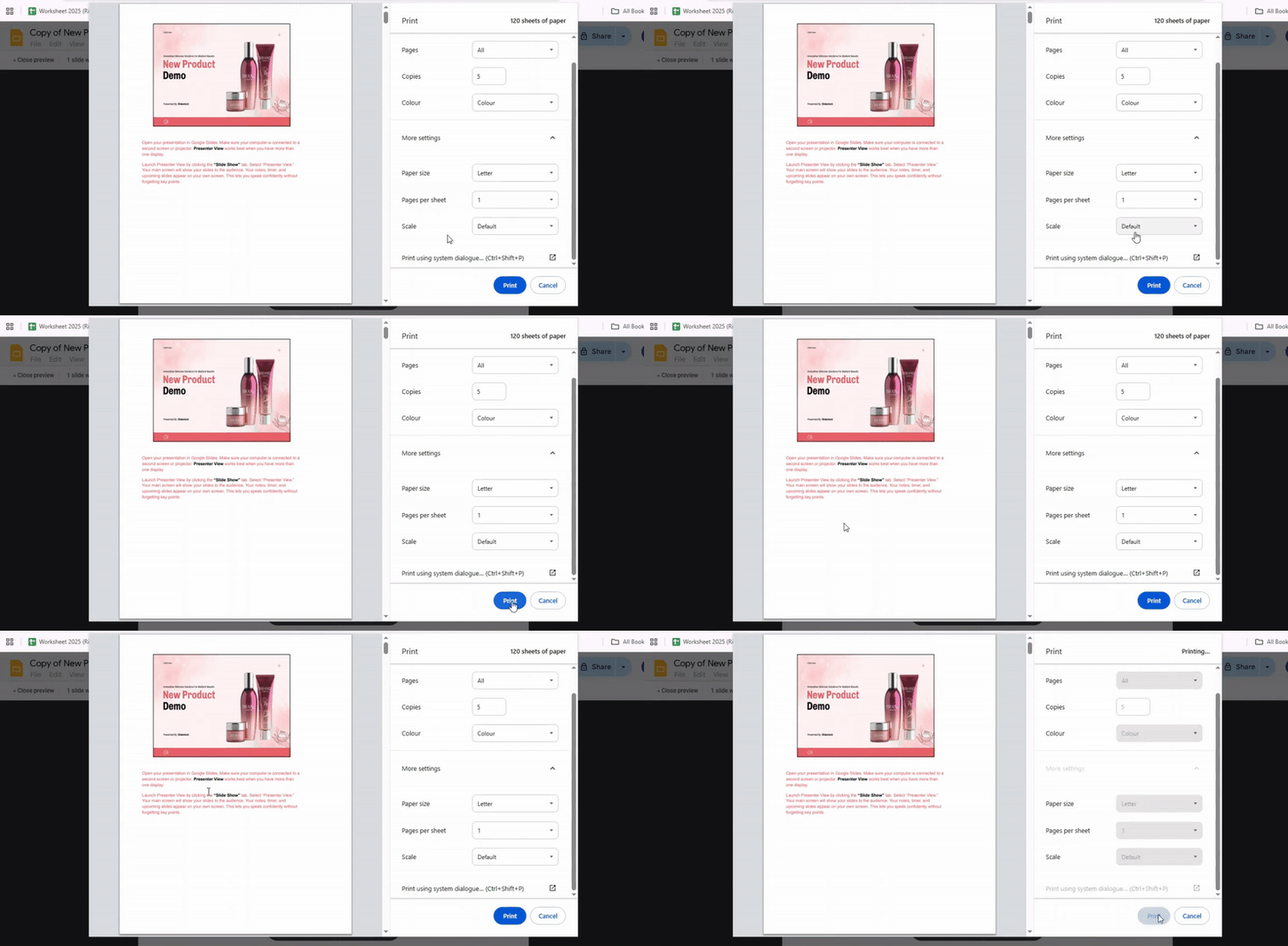
Click the “Print” button. Choose your printer and confirm the print job. Review the first page to make sure everything looks right before printing the entire deck.
Bonus Tip:
If your notes are long, consider adjusting the font size or spacing in the speaker notes section. This can prevent text from being cut off when printed.
Why Use Speaker Notes in Google Slides Presentation?
Speaker notes in Google Slides are private notes that appear only for the presenter. They help you remember important points, facts, or reminders while giving your presentation. Using speaker notes makes your presentation smoother and keeps your slides focused.
Key Benefits of Using Speaker Notes in Google Slides Presentations
Keeps Slides Clean
Speaker notes let you put extra details, explanations, or examples in a private space. This way, your slides show only the main points. Viewers can focus on your visuals and key ideas without being distracted by too much text.
Helps You Stay on Track
With notes in front of you, it’s easier to follow your presentation plan. You won’t forget key points or skip important steps. Notes act as a guide, helping you maintain flow and timing.
Reduces Anxiety
Having speaker notes can make presenting less stressful. You always have reminders to fall back on. This helps you speak confidently, even if you lose your place for a moment.
Supports Practice and Preparation
You can use speaker notes to practice your talk before presenting. Reading your notes while rehearsing helps you remember your points and improves your delivery.
Enhances Professionalism
Presenting with clear, well-prepared notes shows you are organized. It ensures your message is clear and that your audience gets all the important information.
Conclusion:
Speaker notes make presenting easier and more confident. They keep your slides simple while giving you access to all your key points. By adding notes, using Presenter View, and printing slides with notes, you can stay organized and focused. Taking a few minutes to set up speaker notes can make a big difference in how smoothly your presentation flows.
FAQs:
Can the audience see the speaker's notes?
No, the audience cannot see the speaker's notes during a presentation. They are only visible to the presenter in Presenter View or on a printed copy. This allows you to reference your notes without showing them on the screen.
Can I edit my speaker notes?
Yes, you can edit your speaker notes anytime. Simply click in the speaker notes area and type or change your text. Your edits are saved automatically.
What’s the advantage of adding speaker notes?
Speaker notes help you remember key points while presenting. They keep your talk organized and reduce the chance of missing important details. Notes can also include reminders for timing or extra information.
How do I add speaker notes in Google Slides?
Open your slide and look for the “Click to add notes” section below it. Click there and start typing your notes. You can add notes to any slide in your presentation.
Can people editing my presentation see the speaker notes?
Yes, anyone with editing access can see and change the speaker notes. Viewers without editing rights cannot see them. This helps collaborators stay on the same page.
How do I activate speaker notes on the Google Slides app?
Open your presentation in the app and tap the slide you want to present. Then tap the menu and select “Presenter view” to see your notes while presenting. This shows your notes on your device without displaying them to the audience.


You may also be interested in ...

How To Create An Eye-Catching Portfolio
If you’re looking to create an eye-catching portfolio, this post will come in handy. In this article, you can find the easies...
23 Jun, 2024

How To Easily Create An Infographic
Infographics are the perfect way to make a presentation that will impact an audience, but their design and composition might...
08 Jun, 2024

PowerPoint Template Tips & Tricks You Ne...
PowerPoint seems to be an unknown world for many people, especially those who have been assigned to create a presentation out...
08 Jun, 2024