How to Zoom In on Google Slides Without Losing Quality
Many users find that images and text become blurry when they try to focus on details. This makes slides look unprofessional and can distract your audience from the main points.
Luckily, there is a way to zoom in without losing quality. By using the right tools and settings inside Google Slides, you can keep your visuals sharp and clear. These simple steps save time and make your presentation more effective, letting you highlight details without any frustration.
Top 4 Methods that Allow You to Zoom in on Google Slides
Zooming in on your slides can make details easier to see and your presentation more precise. The next section covers four practical methods to help you focus on key parts of your Google Slides. Keep reading to explore each method step by step.
Step 1: Zoom In on Google Slides Using the “View” Option
Here’s how to zoom in on Google Slides using the View option:
1. Open your Google Slides presentation and go to the slide you want to zoom in on.
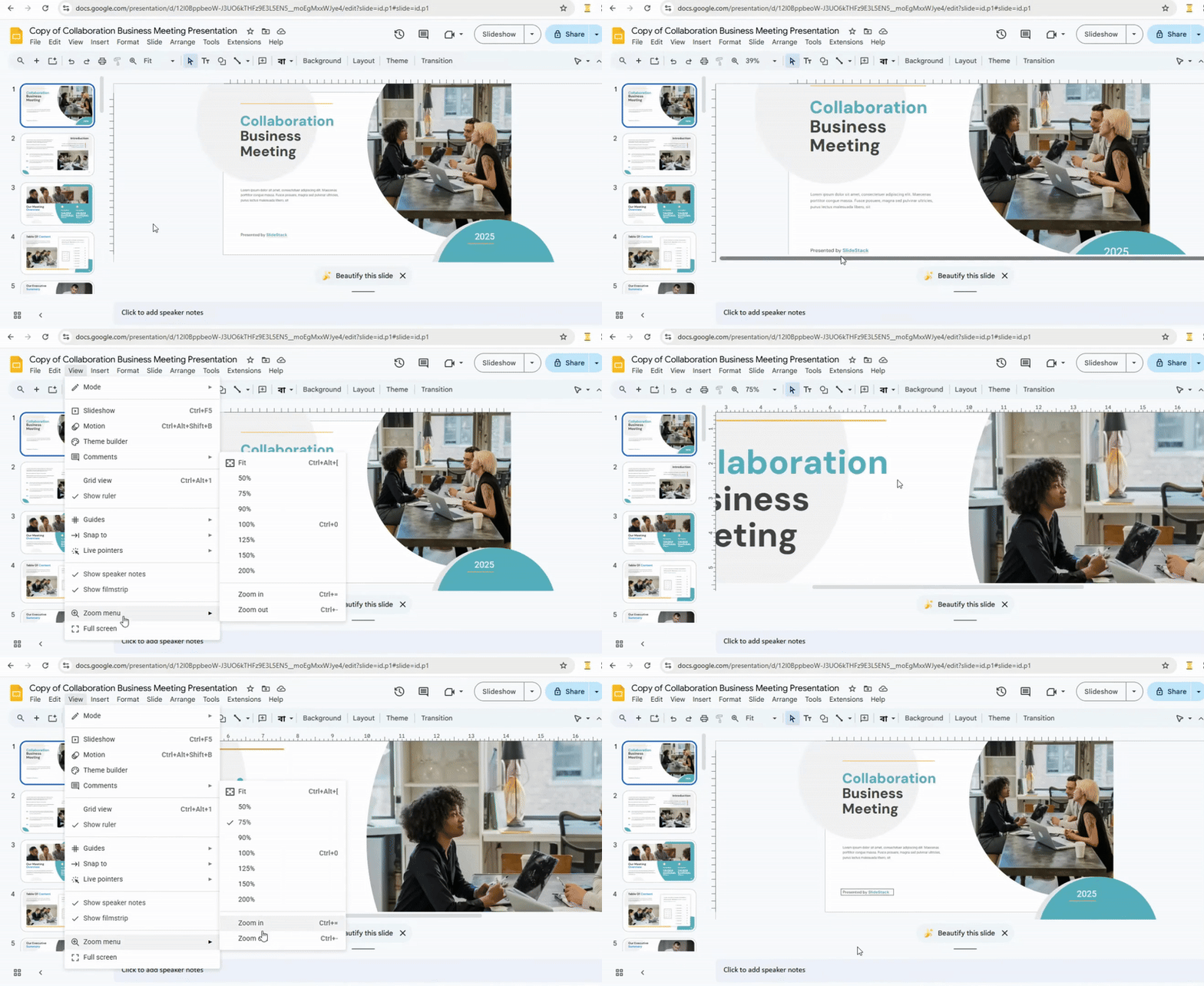
2. Click the View menu in the top menu bar. It is usually the third option from the left.
3. In the dropdown menu, find Zoom and hover over it.
4. You will see a submenu with several options:
- Zoom In: Click this repeatedly to zoom in on the slide in small steps.
- Zoom Out: Click this to zoom out.
- Specific Zoom Percentages: Choose a percentage like 50%, 100%, or 200% to zoom to that level.
5. To zoom in quickly, select Zoom In from the submenu. Click it multiple times to get closer.
6. To zoom to a specific level, pick the desired percentage from the submenu, such as 200% for double size.
7. While zoomed in, use the scroll bars on the right and bottom of the window to move around the slide.
8. To return to normal view, select Zoom Out or choose Fit from the Zoom submenu. This will fit the entire slide back into the editing window.
Step 2: Zoom In On Google Slides Using The Toolbar Option
There are two ways to zoom in on Google Slides using the toolbar options:
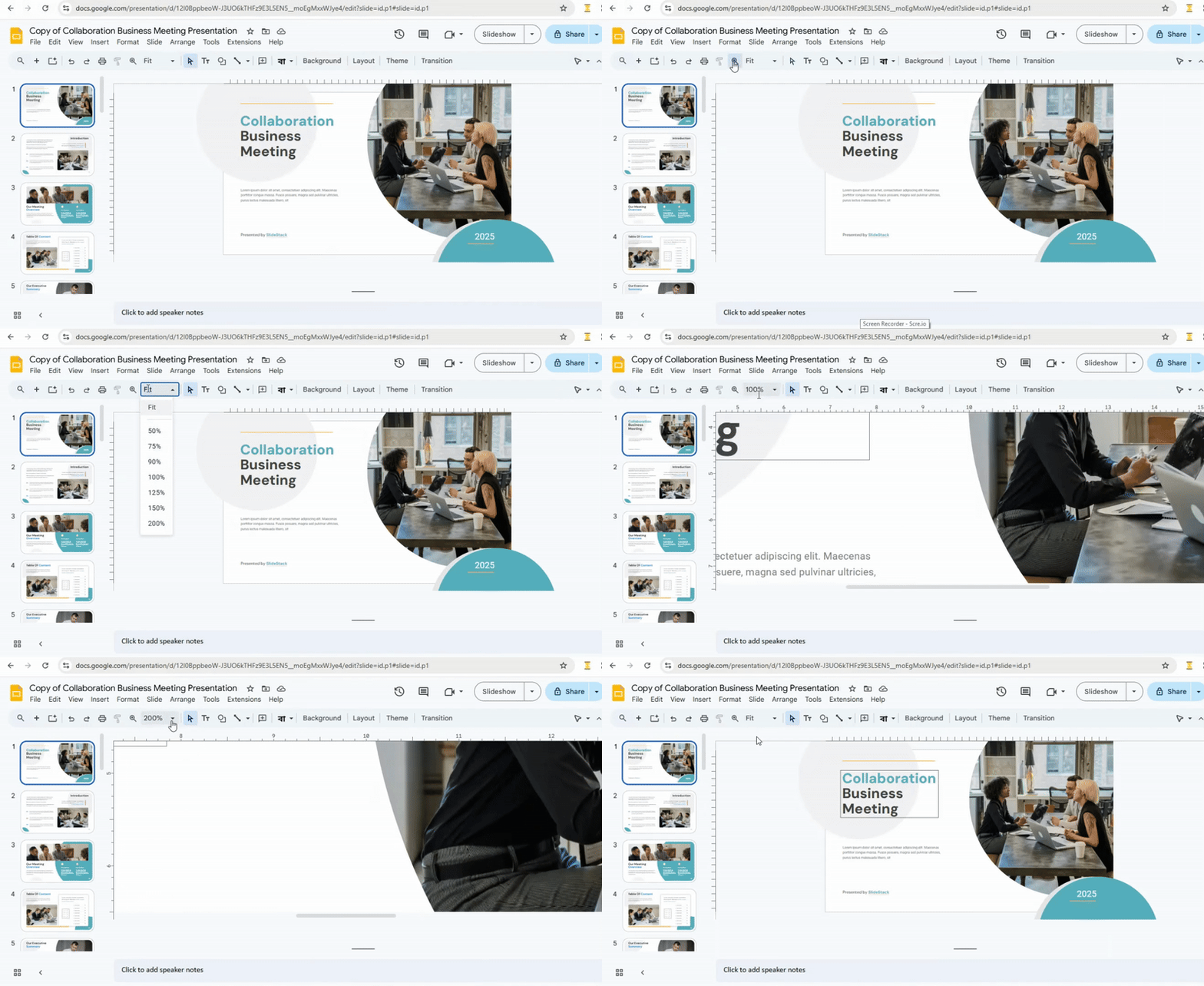
1: Using the Zoom Drop-Down Menu
- Click the small arrow next to the Zoom button. This opens the Zoom drop-down menu.
- You will see preset zoom percentages like 50%, 100% (original size), and 200%.
- Select the zoom percentage you want. The entire slide will magnify immediately.
2: Using the Zoom Button
- Find the Zoom Button on the toolbar. It usually looks like a magnifying glass with a plus sign (+).
- Click the Zoom Button. Your cursor changes into a magnifying glass with a plus sign.
- Click the area of the slide you want to zoom in on. Each click magnifies that area a bit more.
3. To Zoom Out
- Right-click anywhere on the slide.
- Repeat right-clicks to gradually zoom out.
Step 3: Zoom In on Google Slides Using Shortcut Keys
You can zoom in on Google Slides using shortcut keys! Here’s how:
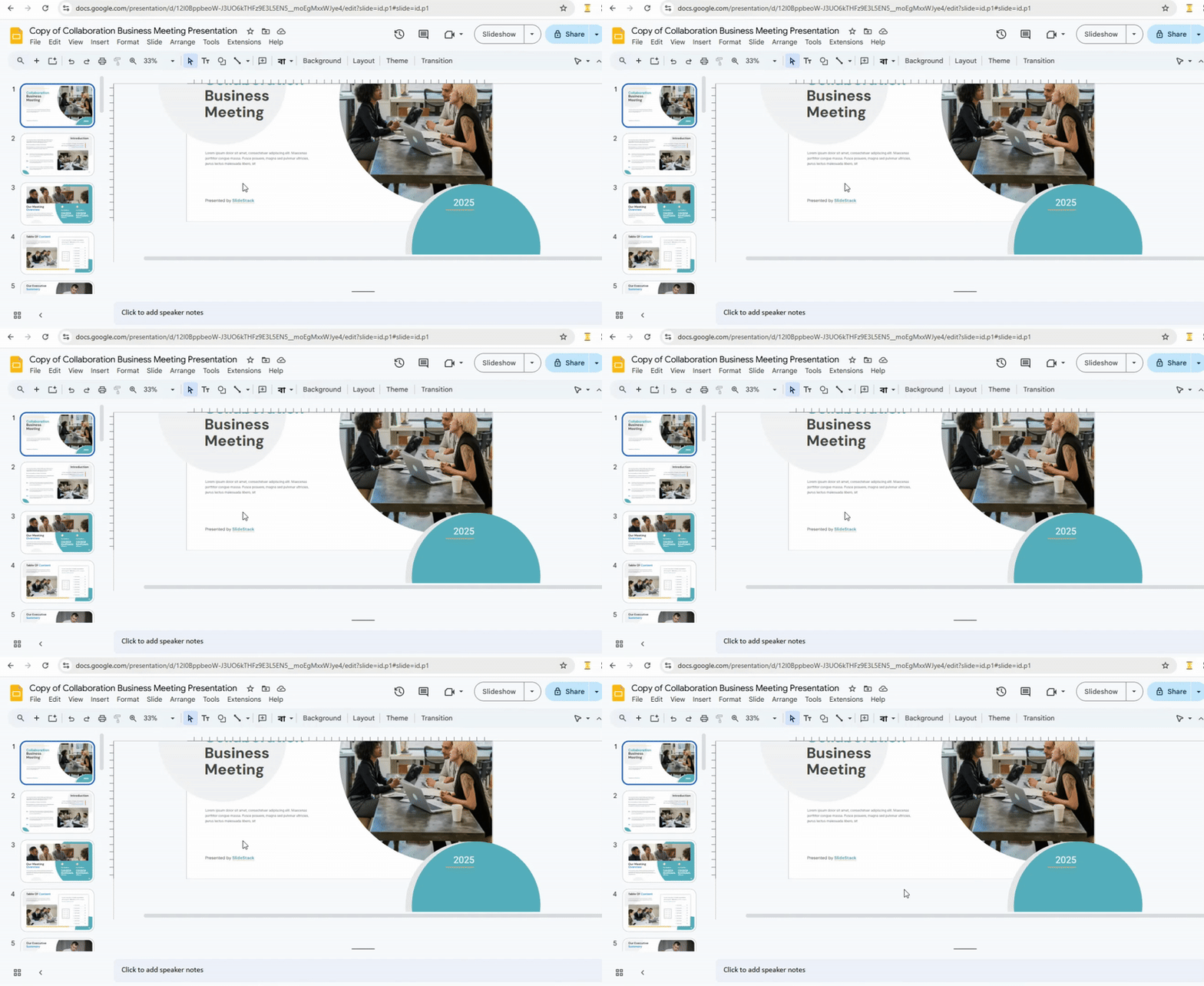
Windows: Press Ctrl + Alt + + (plus sign) at the same time.
Mac: Press Command + Option + + (plus sign) at the same time.
For both Windows and Mac, you can zoom out by replacing the plus sign with a minus sign (-).
These shortcuts let you quickly change the zoom level in Google Slides without using the mouse or menus. You can press the keys repeatedly to zoom in more.
Step: Zoom In on Google Slides Using the Mouse
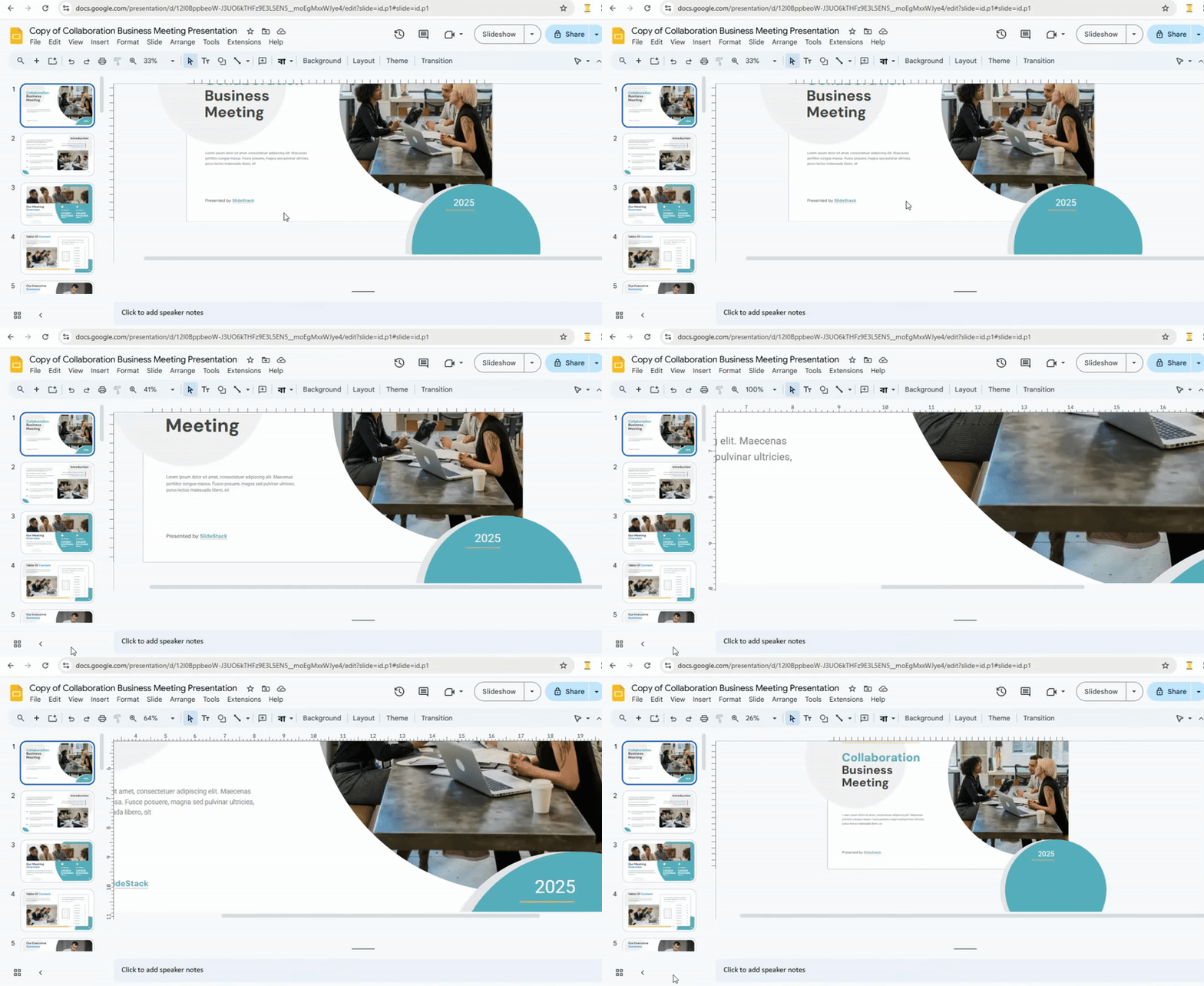
Step 1: Open your Google Slides presentation.
Step 2: Hold down the Ctrl key on your keyboard.
Step 3: Scroll the mouse wheel forward to zoom in.
Step 4: Scroll the mouse wheel backward to zoom out.
Step 5: Release the Ctrl key when you finish zooming.
This method lets you quickly adjust your view without opening menus. It works on both text and images, keeping your slide clear while you focus on details.
Conclusion:
Mastering Zoom in Google Slides keeps your presentations clear and professional. Using the built-in tools and shortcuts helps you focus on details without losing quality. Whether you need to zoom in for editing, zoom out for an overview, or fit slides to your screen, these methods make it easy to work efficiently. By following these steps, you can ensure every slide looks sharp and polished for your audience.
FAQs:
How can I zoom in on a Google Slides presentation?
Click the View menu, select Zoom, and choose a higher percentage like 125% or 150%. You can also press Ctrl + Plus (+) on your keyboard to zoom in quickly.
How do I zoom out of a slide in Google Slides?
Go to the View menu, select Zoom, and pick a lower percentage like 75% or 50%. On your keyboard, press Ctrl + Minus (-) to zoom out fast.
Is there a way to fit the slide to the screen?
Yes. Click View, select Fit, and the slide will adjust to fill your screen. This works well if you want to see the whole slide at once.
Can I zoom by a specific percentage in Google Slides?
Yes. In the View → Zoom menu, you can pick a set percentage or type a custom value to get the exact zoom you want.
What’s the quickest way to access Zoom options in Google Slides?
Use the toolbar zoom dropdown in the top-right corner of the screen. You can also use keyboard shortcuts like Ctrl + Plus (+) or Ctrl + Minus (-).
Why would I need to zoom in or out while working in Google Slides?
Zooming helps you focus on details like text or images, or step back to see the overall layout of your slide. It makes editing easier and more precise.
Does the zoom percentage affect the final presentation?
No. Zooming only changes your view while editing. Your audience will see the slides at full size during the presentation.
Can I use Zoom functions while presenting my slides?
Yes, but Zoom options are limited in Present mode. You can use your browser's zoom or presentation tools to adjust your view if needed.




You may also be interested in ...

How To Create An Eye-Catching Portfolio
If you’re looking to create an eye-catching portfolio, this post will come in handy. In this article, you can find the easies...
23 Jun, 2024

How To Easily Create An Infographic
Infographics are the perfect way to make a presentation that will impact an audience, but their design and composition might...
08 Jun, 2024

PowerPoint Template Tips & Tricks You Ne...
PowerPoint seems to be an unknown world for many people, especially those who have been assigned to create a presentation out...
08 Jun, 2024