How to Print Google Slides with Notes the Simple Way
Printing Google Slides with notes often causes confusion. Many users receive slides that lack key details or have notes that don’t align properly. This can slow preparation and reduce the effectiveness of your presentation.
There is a clear method to resolve this. By following a few straightforward steps, you can print slides and notes on the same page accurately. No more adjusting settings blindly, just a precise approach that ensures your materials are ready and organized for any presentation.
How to Print Google Slides with Speaker Notes?
Printing Google Slides with speaker notes is simple once you know the steps. You can keep your notes handy while presenting or reviewing your slides. Read the following points to see exactly how to do it.
Step 1: Open your Google Slides presentation
Launch Google Slides on your computer. Open the presentation you want to print. Make sure it is the correct file before proceeding.

Step 2: Access the File menu
Look at the top-left corner of the screen. Click on “File” to open the menu.
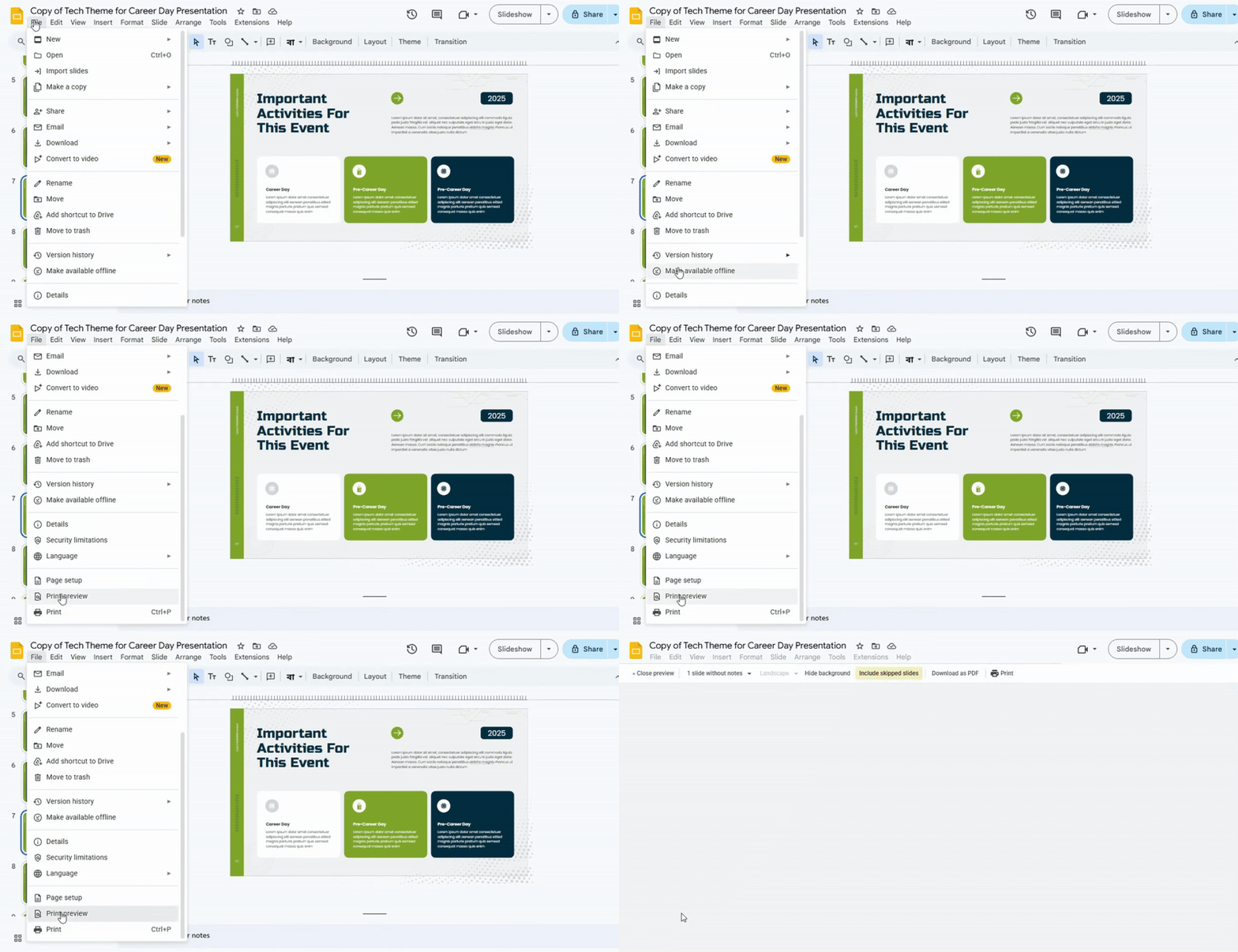
Step 3: Choose “Print Preview”
From the File menu, find and select “Print preview.” This will show how your slides will appear when printed.
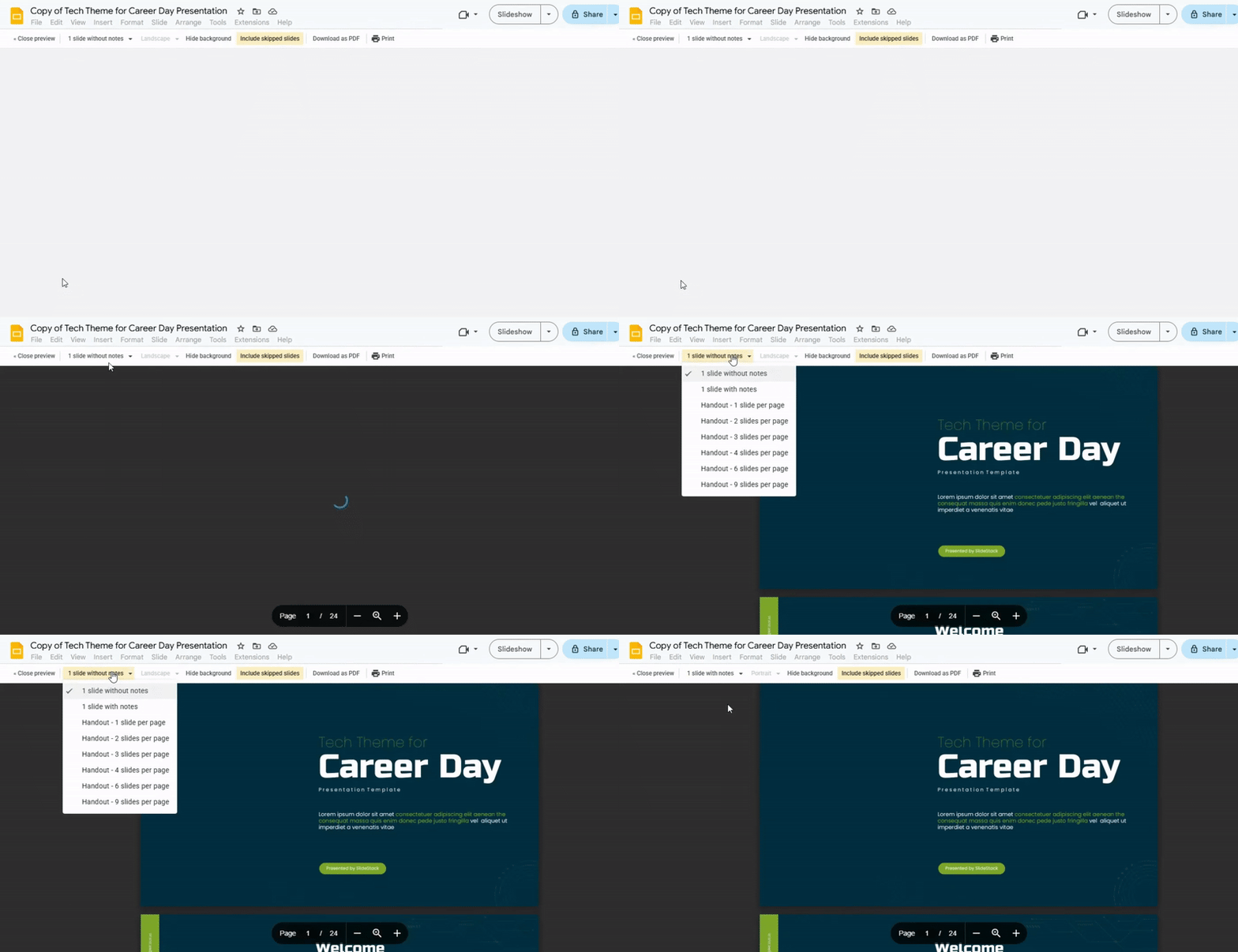
Step 4: Select “1 Slide With Notes”
In the preview options, click on “1 slide with notes.” This ensures each slide is printed along with its speaker notes.
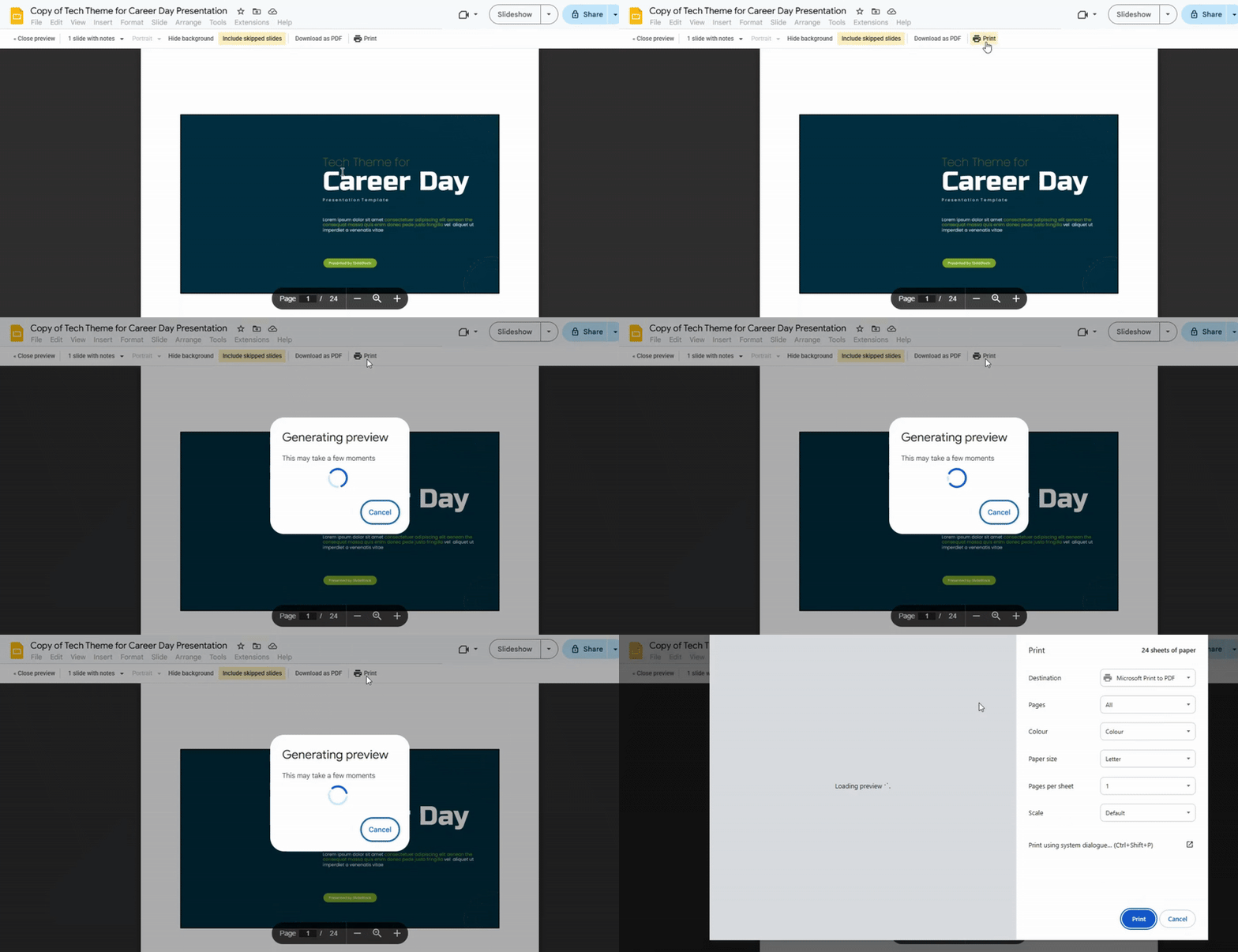
Step 5: Adjust Print Settings (Optional)
If needed, change settings such as paper size, layout, or margins. You can skip this step if the defaults work for you.
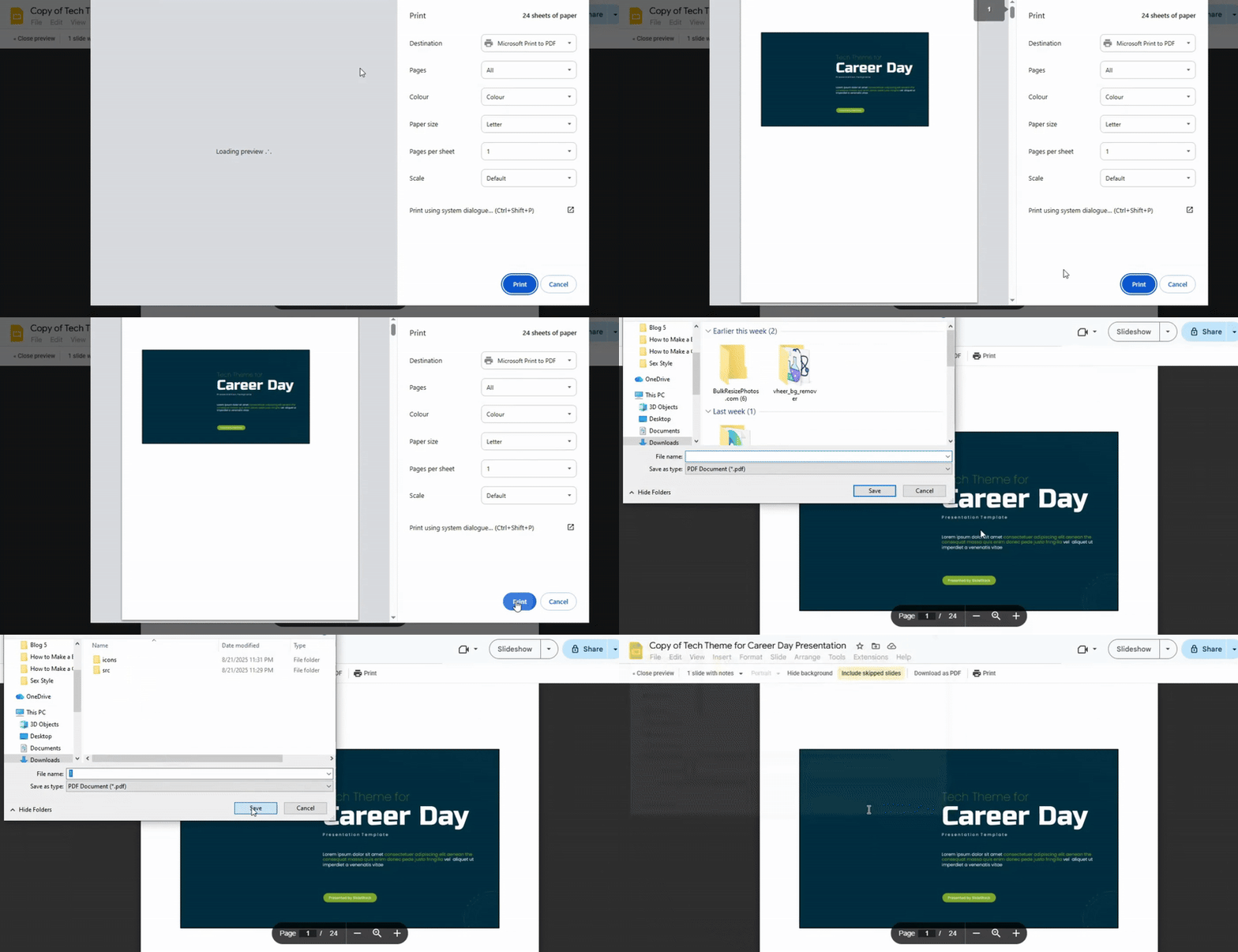
Step 6: Click “Print”
Once settings are ready, click the “Print” button. Your slides will print according to the options you selected.
Conclusion:
Printing your Google Slides with notes does not have to be confusing. By following these clear steps, you can have your slides and notes printed together without extra effort. This method saves time and keeps your presentation materials organized, so you can focus on delivering your message effectively. With your notes at hand, presenting or reviewing your slides becomes much easier.
FAQs:
1. Can I adjust the size of the speaker notes on my printed slides?
Yes. In the print settings, you can change the scale or layout before printing. Increasing the scale will make the notes larger, and choosing a layout like “Notes” helps fit more space for your text.
2. How do I print multiple Google Slides presentations with notes at once?
Google Slides doesn’t let you print several presentations at once. You’ll need to open each presentation and print it one by one with notes included.
3. When I print my slides with notes, the formatting gets messed up. What can I do?
Try using the “PDF” option before printing. Export your slides with notes as a PDF, then check the layout and print from the PDF file. This usually keeps the formatting intact.
4. Is there a way to print only the speaker notes without the slides?
Yes. Go to “File” > “Print settings and preview,” select “Notes” layout, then hide or remove the slide images if needed. Only the notes will appear for printing.
5. How do I save a Google Slides as a PDF with notes?
Click “File” > “Download” > “PDF Document.” Make sure you choose the “Notes” layout so your speaker notes are included in the PDF.
6. How many slides can I print on one page?
You can print 1, 2, 3, 4, 6, or 9 slides per page. Select the layout in the print settings depending on how much space you want for each slide.




You may also be interested in ...

How To Create An Eye-Catching Portfolio
If you’re looking to create an eye-catching portfolio, this post will come in handy. In this article, you can find the easies...
23 Jun, 2024

How To Easily Create An Infographic
Infographics are the perfect way to make a presentation that will impact an audience, but their design and composition might...
08 Jun, 2024

PowerPoint Template Tips & Tricks You Ne...
PowerPoint seems to be an unknown world for many people, especially those who have been assigned to create a presentation out...
08 Jun, 2024