How to Create Professional Waterfall Charts in PowerPoint
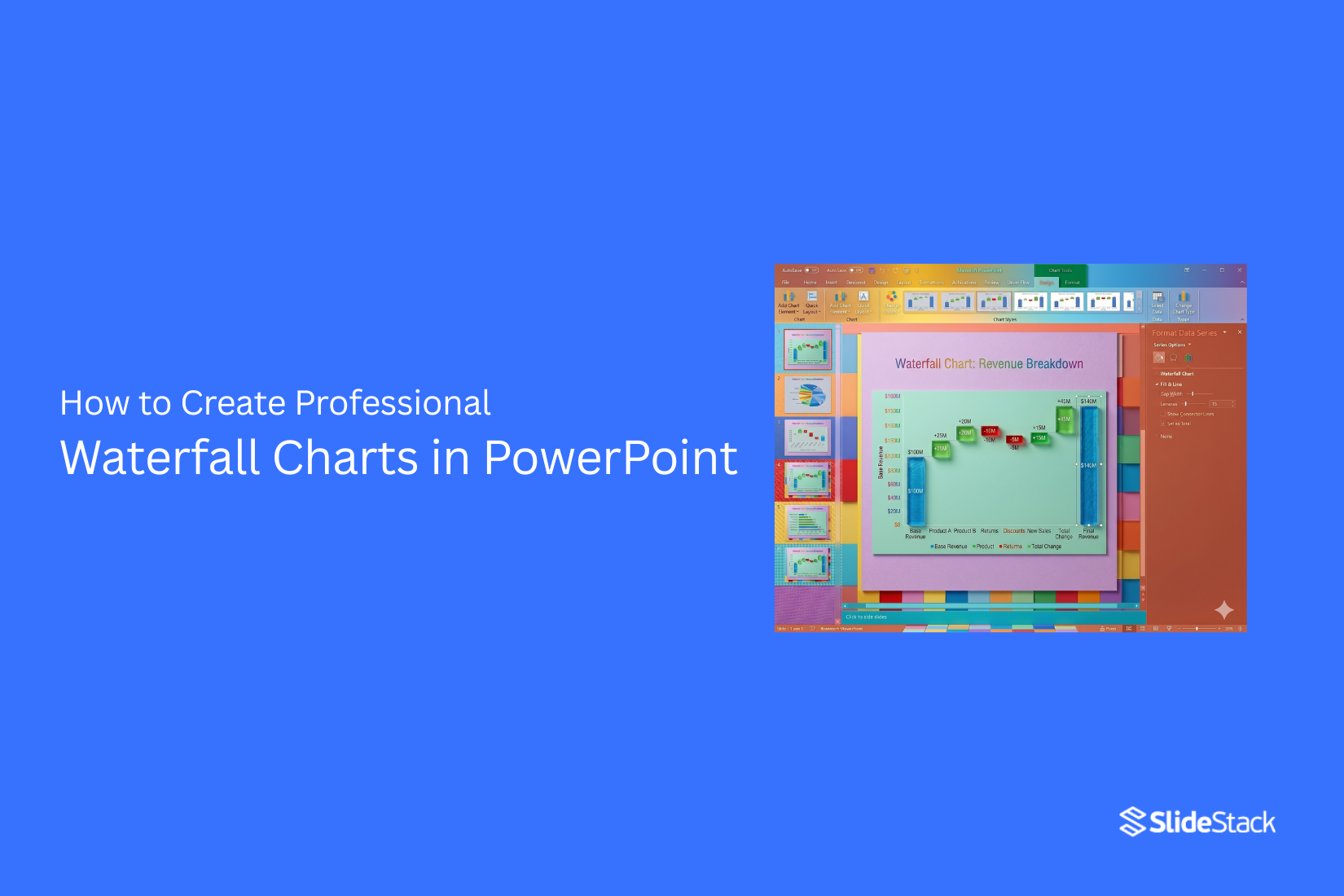
PowerPoint charts often fail to show how numbers rise and fall across stages. Many slides end up unclear and hard to read. This makes it hard to explain profit changes, budgets, or project results in a simple way that people can follow. The story behind the data gets lost.
A waterfall chart brings clarity to each step. It shows how values add and subtract across a process. Viewers can see profit, loss, and change in one clear view. This guide shows how to build a professional waterfall chart in PowerPoint step by step. Each section moves from setup to final design. You will also learn formatting choices that make the chart easy to read in presentations.
What is a Waterfall Chart
A waterfall chart in PowerPoint is a data visual tool. It shows how a starting value changes step by step. The value moves through increases and decreases. It ends at a final total. This chart is also known as a bridge chart. It links one value to another through clear steps. Each column shows a change. Positive values move the total up.
Negative values move the total down. The final columns show the full result after all changes. Common examples include revenue and profit, opening and closing balance, and budget versus actual results. Waterfall charts are used in business and finance reports. They help explain profit and loss, cost changes, revenue breakdowns, and budget tracking. They also support financial reporting by showing each change in a clear order.
Why is it Called a Bridge Chart
The term bridge chart comes from financial and consulting work. It explains how one number moves to another number. A simple flow can look like this: Revenue to Costs to Expenses to Profit. Each step connects like a bridge between values. The chart shows how the final result is formed from each part. This format helps people see what causes changes in results. It is often used in PowerPoint slides for financial explanations and business reporting.
When to Use a Waterfall Chart in PowerPoint
A waterfall chart helps show how a value changes step by step. It breaks a total into clear increases and decreases. This makes it easier to follow the flow of numbers. It works best when data moves through several stages. Each step shows how much was added or removed before reaching the final result.
Financial Performance Analysis
Waterfall charts are often used to show company performance. They help explain how profit changes over time. Revenue, costs, and expenses can be shown in one view. Each part shows its impact on the final profit. This makes it easier to see what helped or hurt results. A manager can quickly spot strong areas and weak points. A simple flow like this helps teams understand business health without long reports.
Budget and Variance Reporting
Budget tracking becomes clearer with a waterfall chart. It shows the planned amount first. Then each change is added or removed. This helps explain why the final number is different from the original plan. Small changes in spending can be tracked step by step. Nothing gets hidden in large totals. Finance teams often use this format to compare planned vs actual results. It makes gaps easier to explain in meetings.
Revenue and Profit Bridge Presentations
Waterfall charts also help explain how revenue turns into profit. Each stage shows a part of the journey. Sales, discounts, costs, and taxes can all be added in order. The final bar shows net profit. This format is useful for presentations to managers or investors. It shows exactly how money moves through the business. It also helps answer simple questions like where profit was gained or lost along the way.
Preparing Data for a Professional Waterfall Chart
A waterfall chart starts with clean data. That is where most strong charts begin. Messy data leads to unclear results. Clean data keeps everything easy to follow. Start with a simple list. Each row should show one part of the change. This can be income, costs, or adjustments. Keep each value separate so nothing gets mixed. Next, set a clear starting point. This is the base value. It often shows the first total or opening balance. Everything in the chart builds from this point. After that, list the increases and decreases one by one. Each change should have its own label. Positive values show growth. Negative values show drops.
Keep the direction clear so the story stays easy to read. A final total is needed at the end. This shows the result after all changes. It closes the chart and gives meaning to the steps before it. Small mistakes in data can confuse the whole chart. Extra spaces, wrong signs, or missing values can change the result. A quick check helps avoid this problem. Good structure also matters. Keep the order logical. Start, changes, and end should always stay in the same flow. This helps PowerPoint build the chart correctly later. Before moving on, review the numbers once more. A clean dataset makes the waterfall chart look sharp and professional.
How to Create a Waterfall Chart in PowerPoint
PowerPoint includes a built-in waterfall chart tool. You use it to show how values rise and fall in a sequence. The chart is useful for tracking changes in data step by step.
Inserting a Waterfall Chart
Open PowerPoint and select the slide where the chart will go. Go to the Insert tab. Select Chart from the menu. A chart window opens. Choose Waterfall from the list. Select OK. A chart appears on your slide. A linked Excel sheet also opens. This sheet controls the chart data.
Entering and Managing Data
The Excel sheet shows sample values. Replace them with your own data. List each category in one column. Add values next to each category. Use positive numbers for increases. Use negative numbers for decreases. Close Excel after updating the data. The chart updates on the slide right away. Keep labels clear and short. This helps the chart stay readable. A template-based setup also helps speed up changes across slides.
Configuring Total Columns
Click any bar in the chart that represents a total point. Right-click and select Set as Total. Do this for the starting value and final value. These points anchor the chart and show the full range of change. Use the chart tools in the top menu to adjust colors and layout. Small design changes help separate increases, decreases, and totals. A clean setup makes the chart easier to read in reports and presentations.
Formatting Waterfall Charts for a Professional Look
A waterfall chart should feel clear at first glance. Each part should support the main message. Clean formatting helps the viewer read the story without confusion.
Applying Consistent Color Schemes
Colors guide attention. They also set the structure. Start with a simple rule for colors. Use one color for increases. Use another for decreases. Use a third for the total bar. Keep the shades close in tone so the chart feels steady. Avoid random color changes between bars. That breaks the flow. The eye stops following the movement of values. A soft contrast works better than strong, bright mixes. It keeps the chart readable in presentations and reports.
Formatting Data Labels and Axes
Data labels should be easy to scan. Place them close to the bars. Keep the numbers short and clean. Use the same number format across all labels. Do not mix decimals and whole numbers without reason. That creates noise. Axis labels should stay simple. Too many labels slow down reading. Stick to what is needed to understand the values. Remove extra grid lines if they do not help. A lighter grid keeps focus on the data instead of the background.
Improving Visual Hierarchy
Visual hierarchy controls what the viewer sees first. Start with the total bar. Make it stand out from the rest. It should be slightly stronger in color or size emphasis. Next, guide the eye through the increases and decreases in order. Keep spacing even between bars so the flow feels natural. Avoid crowding the chart with extra shapes or heavy borders. Clean space around elements helps the chart breathe and improves clarity. Strong hierarchy turns a basic chart into a clear story.
Customizing Waterfall Charts for Better Storytelling
Waterfall charts show how values move step by step. Each bar tells part of a story. The goal is to make that story easy to follow. Start with clear labels. Each bar needs a short name. Readers should know what each step means right away. Color plays a big role. Use one color for increases. Use another for decreases. Keep the colors consistent across the chart. This helps the eye track the flow. The first and last values matter most. The first bar shows the starting point. The last bar shows the final result. Make both stand out with clear labels or a stronger color.
Keep the chart clean. Too many notes or effects make it harder to read. Simple layouts help the message stay clear. Each step should connect to a real change. Extra or unclear steps weaken the story. Remove anything that does not support the message. Numbers should stay easy to read. Round values where possible. Long numbers slow down understanding. A short title helps guide the reader. The title should explain the main message of the chart in plain words. A well-set waterfall chart guides attention from start to finish without confusion.
Example: Showing Profit and Loss in a Waterfall Chart
One of the most common uses of a waterfall chart is to explain how a business moves from revenue to profit. Instead of looking at a long list of numbers in a table, the chart shows how each gain or cost affects the final outcome. This makes the financial story easier to follow and understand.
Understanding the Flow
A profit and loss waterfall chart usually begins with total revenue. From this starting point, each cost is removed in sequence. Every step in the chart shows a change in value. Some steps reduce the total, while others may add small adjustments. This step-by-step structure helps the viewer see exactly how the final result is formed.
Example
In a typical PowerPoint waterfall chart, revenue appears first as the starting value. After that, costs such as cost of goods sold are deducted. Next come operating expenses like salaries, rent, and utilities. Marketing costs may also appear as another step. Each of these reduces the total in sequence. The final bar shows net profit, which is the value left after all deductions. This example shows how revenue is reduced step by step through production costs, operating expenses, and marketing costs until the final net profit is reached.
Tips for Formatting a Waterfall Chart in PowerPoint
While most formatting options can be found in the PowerPoint ribbon, a few simple adjustments can make your waterfall chart easier to read and present.
Adding Data Labels: Click the chart and select the Chart Elements (+ icon). Turn on Data Labels. This shows values on each bar. Place labels where they are easy to read. Keep font size clear so numbers do not get lost during a presentation.
Changing Colors for Clarity: Colors help separate increases, decreases, and totals. Click a bar, then right-click and choose Format Data Point. Use the fill color option to set a clear meaning. Many users choose green for gains, red for losses, and blue for totals. You can also match colors with your brand style, so the chart looks consistent across slides.
Adjusting Axis and Spacing: Click the vertical axis to adjust the scale. Set a range that fits your data without extra empty space. Go to bar settings and reduce the gap width. This makes columns thicker and easier to see on screen. A balanced layout helps each change stand out without crowding the chart.
Removing Gridlines: Gridlines can pull attention away from the data. Click on gridlines and remove them or keep only light lines. A cleaner background helps the chart feel easier to follow and keeps focus on the bars.
Adding Titles and Labels: Add a clear chart title so the message is clear at first glance. Use simple category names that match each step in the chart. Axis labels also help explain what the values mean. Clear labeling supports faster understanding during review or presentation.
Using PowerPoint Templates for Waterfall Charts
PowerPoint templates offer a faster path to building waterfall charts. They replace the need to start from a blank slide. The layout is already structured. The visual style is already set. This creates a smoother way to build financial visuals without extra setup time.
These templates also support clear and consistent presentation work. Teams often deal with repeated reporting needs. A template keeps each chart aligned in style and format. Slides look uniform across different reports. This helps presentations feel more organized and easier to follow for viewers.
A key strength of these templates is the built-in structure. Waterfall chart elements come pre-formatted. Bars, labels, and connectors are already arranged. Users focus on inputting data rather than building the chart design from scratch. Editable placeholders allow quick updates without adjusting the full layout.
Consistency plays a strong role in reporting quality. Templates reduce variation between slides created by different users. This keeps financial data visuals aligned across departments and meetings. Reports carry a steady visual language that supports clearer communication.
Time savings is another clear benefit. Manual chart creation takes more effort and repeated adjustments. Templates remove much of that repetitive work. Teams can shift attention toward reviewing data and refining the message instead of formatting charts.
Standardized reporting becomes easier to maintain across multiple presentations. Waterfall charts built from templates follow the same structure each time. This supports clearer comparisons between periods, projects, or financial updates. Presentation decks stay cohesive even as content changes.
Advanced Waterfall Chart Design Techniques
Waterfall charts need a clear structure. Each step should be easy to follow. Strong design helps the viewer read the story without effort.
Keep the step order easy to scan
Place values in a clear sequence. Start with the main total. End with the final result. Each bar should lead into the next one in a clean path. Avoid mixing unrelated items in the middle.
Use color with purpose
Each color should have meaning. One color for increases. One for decreases. One for totals. Keep the same colors across all slides. This builds recognition and reduces confusion.
Control spacing between bars
Space affects clarity. Tight spacing can feel crowded. Wide spacing can break the flow. Keep spacing even so the chart feels stable from start to finish.
Label only what matters
Too many labels create noise. Show key values that support the story. Focus on start value, major changes, and final result. Smaller steps can stay unlabeled if they are clear from context.
Align all elements
Bars, labels, and axes should line up cleanly. Misalignment makes the chart harder to read. A clean grid helps the eye move smoothly across the chart.
Keep font style consistent
Use one font style across all text. Change only size for emphasis. Avoid mixing font types. Consistency keeps attention on the data, not the design.
Highlight the final value
The last bar carries the main message. Make it slightly stronger through size or shade. This helps the viewer understand the end result quickly.
Common Waterfall Chart Mistakes to Avoid
Overcrowding the Chart
A waterfall chart loses impact when too much data is packed into one view. Too many bars make it hard to read the flow. The story gets lost in the noise. Keep only key steps that affect the final result. Extra detail can sit in supporting slides instead of the main chart. Clean spacing between bars also matters. It helps the eye move from start to end without confusion. A simple layout often communicates more than a dense one.
Using Ineffective Colors
Color choice shapes how the message is understood. Poor color use can confuse positive and negative values. It can also hide the final total. Stick to a clear pattern. Use one color for gains, another for drops, and a distinct tone for totals. Avoid mixing too many shades in one chart. The goal is clarity, not decoration. A consistent color system across slides also helps the audience follow the story without effort.
Misrepresenting Data Relationships
A waterfall chart shows movement step by step. It is not meant for random comparisons or unrelated values. The wrong structure can distort meaning. Each bar should connect logically to the next. If steps are rearranged without reason, the financial story breaks. Viewers may draw the wrong conclusion. Keep the order aligned with the actual process being shown. Revenue, costs, and final result should follow a natural path that reflects real changes.
Best Practices for High-Impact Waterfall Charts
Keep the data focused
Only show values that matter to the message. Extra steps make the chart harder to read. A clean structure helps the audience follow the change from start to end without confusion.
Start and end values must stand out
Begin with a clear starting point, like revenue or total cost. End with the final result, such as net profit. These two points carry the main message, so they need strong visual weight.
Use simple color rules
One color can show increases. Another can show decreases. A separate color can mark totals. This pattern helps the eye move through the chart without effort.
Label each key step
Every major change needs a short label. Keep labels direct. Avoid long text. Short labels make the flow easier to scan during a presentation.
Keep spacing clean
Bars need enough space between them. Tight spacing makes values harder to compare. Balanced spacing improves clarity and reading speed.
Focus on a clear flow
Arrange steps in a logical order. Each change should connect naturally to the next. A clear sequence helps the chart tell a simple financial story from start to finish.
Real-World Applications of Waterfall Charts
Waterfall charts show how numbers change step by step. Each bar shows a rise or a drop. This makes the full story easy to follow. In finance, teams use waterfall charts to show profit and loss. Revenue starts the chart. Costs and expenses bring it down. Final profit appears at the end. The flow is clear without long tables.
Sales teams use them to track performance. New deals raise numbers. Lost deals reduce totals. The chart shows what helped growth and what reduced it. Project managers use waterfall charts for cost tracking. Each task adds cost. Some tasks reduce cost through savings. The final value shows total project spending.
Supply teams use them for stock movement. Incoming stock increases numbers. Sales and usage reduce stock. The chart shows how inventory changes over time. Business leaders use waterfall charts to explain change. One clear view replaces long reports. The story behind the numbers becomes easier to follow.
Final Verdict
Waterfall charts hold clear value in business and analytical work. They help turn raw numbers into a structured story that is easier to follow and explain. This makes financial and performance data more meaningful for decision-making. A key strength of this chart type is how it connects data changes in a clear sequence. Instead of viewing separate figures, stakeholders see how each step affects the final result.
This supports quicker understanding and better discussions around results. Visual clarity also plays a strong role. A well-built waterfall chart helps audiences spot gains, losses, and totals without extra effort. This improves how insights are taken from complex datasets and reduces confusion during presentations. PowerPoint provides practical tools that make this process more accessible.
Built-in chart options and ready-made templates allow users to create structured visuals without heavy manual work. This supports consistent reporting across business presentations. Clear formatting choices shape the final quality of the chart. Labels, order of data, and color all affect how easily the message is understood. Strong presentation design leads to better readability and a more direct impact on the audience.
FAQs:
What is a waterfall chart in PowerPoint?
A waterfall chart shows how a number changes in steps. It starts with a base value. It moves up and down through changes. It ends with a final total.
What is another name for a waterfall chart?
A waterfall chart is also called a bridge chart. It shows how one value connects to another through a series of changes.
What does a waterfall chart show?
It shows increases and decreases in data. Each bar represents a change. The full chart shows how the final result is formed.
Where are waterfall charts used?
They are used in finance, sales, and project tracking. Teams use them to show profit, cost changes, and budget results.
How does PowerPoint create a waterfall chart?
PowerPoint has a chart tool. It links to an Excel sheet. Users enter values. The chart updates on the slide.
What data is needed for a waterfall chart?
A starting value is needed. Then a list of increases and decreases follows. A final total closes the chart.
Why are colors used in waterfall charts?
Colors separate types of changes. One color shows increases. One shows decreases. Another shows the final total.
How can a waterfall chart be made easier to read?
Simple labels help. Clean spacing between bars also helps. A steady color pattern improves reading flow.




You may also be interested in ...

How To Create An Eye-Catching Portfolio
If you’re looking to create an eye-catching portfolio, this post will come in handy. In this article, you can find the easies...
23 Jun, 2024

How To Easily Create An Infographic
Infographics are the perfect way to make a presentation that will impact an audience, but their design and composition might...
08 Jun, 2024

PowerPoint Template Tips & Tricks You Ne...
PowerPoint seems to be an unknown world for many people, especially those who have been assigned to create a presentation out...
08 Jun, 2024