How to Replace Icons in PowerPoint (Step-by-Step Without Breaking Layouts)
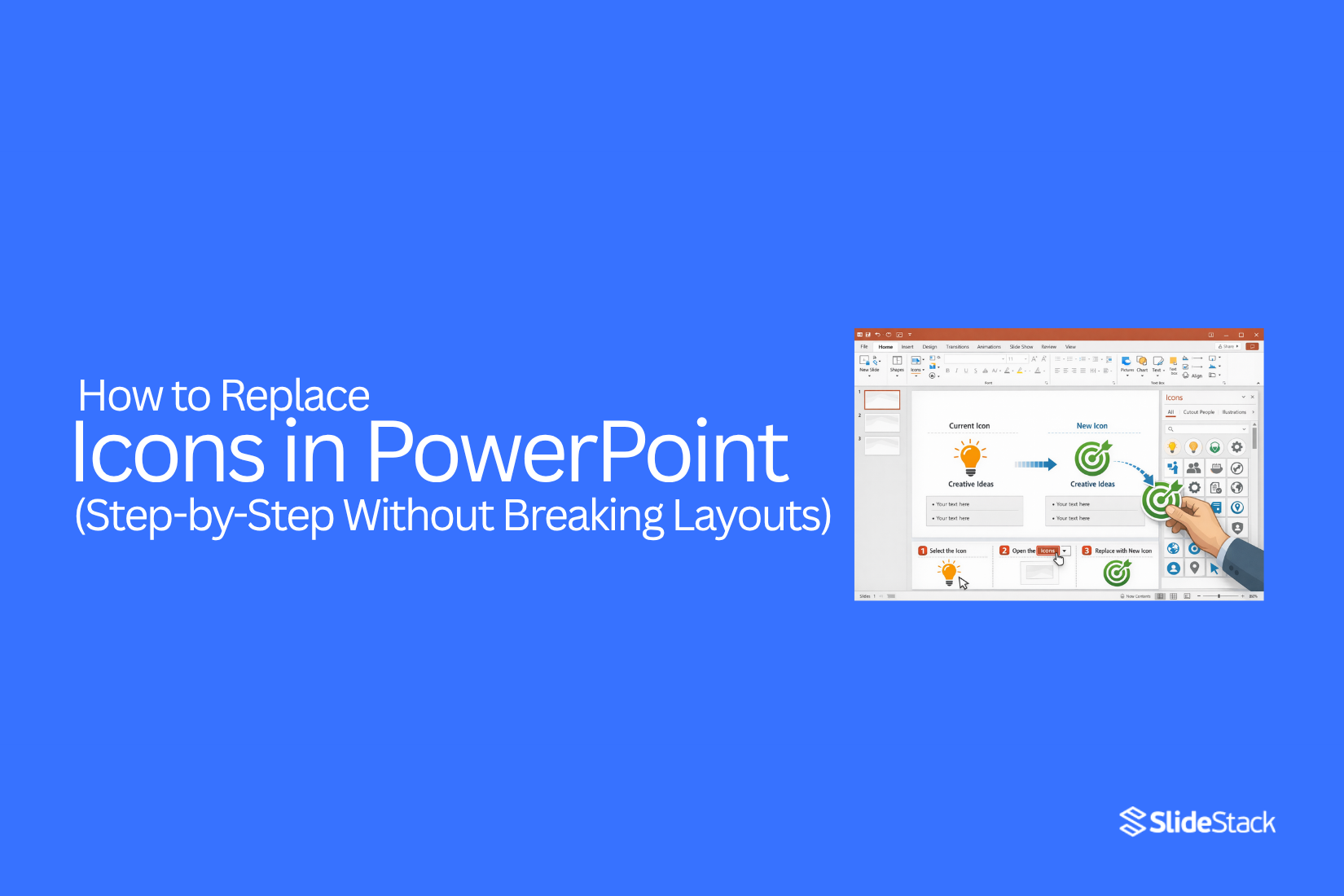
Icons in slides often shift or break layouts inside Microsoft PowerPoint presentations. Many users struggle to replace icons without moving text boxes or disturbing alignment. Small formatting changes can quickly make slides look unorganized and unprofessional during editing tasks. This affects overall presentation quality directly. Simple steps help keep layouts stable.
We can replace icons without shifting text or images. Slides stay clean and consistent across all pages. No layout breaks means less rework during editing. This guide shows each step to do it correctly. You will learn safe methods for single and multiple icon changes. These methods work across standard slide layouts and templates. No design skill needed for these steps.
Why Icon Consistency Matters in PowerPoint
Icons set the visual tone of a slide. A slide looks clean and steady when icons share the same style. Mixed styles pull attention in different directions and make the layout feel uneven. Clear icon style helps the message stand out. The reader can focus on the content instead of adjusting to different shapes, line weights, or design styles.
Slides also stay easier to edit. Matching icons fit into layouts without shifting spacing or breaking alignment. This keeps the structure stable across updates. A steady visual style also supports readability. The eye moves across the slide with less effort. The content feels connected from one point to the next. Small design choices like this shape how the whole presentation feels. Consistent icons bring order to the slide without adding extra elements or distractions.
Understanding How PowerPoint Icons Work
PowerPoint icons are small vector images. They sit inside slides like shapes. They do not behave like normal pictures in most cases. Each icon stays connected to its slide layout. This keeps size, alignment, and position stable. That connection helps your design stay clean even after edits.
Icons can be moved, resized, and recolored. They keep their sharp edges at any size. This makes them useful for slides that need clear visuals. Some icons are grouped with other elements. That grouping controls how items move together. Breaking the group changes how the icon behaves on the slide.
Icons also follow the theme settings in PowerPoint. Color changes can apply across multiple icons at once. This depends on how the file is set up. Small edits can affect spacing or alignment if the icon is part of a structured layout. Careful handling keeps the slide balanced.
Preparing Before Replacing Icons
Start by checking the slide layout. Look at where each icon sits. Notice spacing and alignment. This helps you avoid shifting elements by mistake. Make a copy of the slide. Keep the original version untouched. This gives a safe backup if changes do not look right later. Check if icons are grouped with other objects. Grouped items move together. Breaking a group may change the layout. Keep groups intact until you are ready to adjust them.
Look at the file type of the icons. Some icons come as SVG files. Others are images. SVG icons stay sharp at any size. Image icons may blur if resized too much. Scan the slide for locked elements. Some templates protect certain parts. Adjust only the parts that are editable. This keeps the design stable.
Check alignment guides in PowerPoint. These guides help keep icons in line with text and shapes. Misaligned icons can make the slide look uneven. Take a quick look at the color scheme. New icons should match the slide style. Mismatched colors can break visual balance. After these checks, the slide is ready for icon replacement work without disturbing the layout.
Replacing Icons Without Breaking Layouts
Icons in PowerPoint sit inside a design grid. Moving or changing one icon can shift everything around it. The goal is to keep the layout steady while swapping icons. Start by selecting the icon you want to change. Click it once so only that icon is active. Avoid clicking outside the design area during this step.
Use the Replace option from the format menu. This keeps the same size and position. The new icon drops into the same spot without moving other elements. Some icons come from grouped elements. Open the group before making changes. This helps keep spacing and alignment stable.
Check alignment after the swap. Look at the spacing between icons and text. Small shifts can happen, so a quick check helps keep everything clean. Keep icon styles consistent across the slide. Use similar line weight and size. This keeps the design balanced and easy to read.
How to Replace Icons Using Change Graphic
PowerPoint lets you swap icons without messing up your slide design. The layout stays in place. Only the icon changes. Start by selecting the icon you want to replace. Click it once so it is active on the slide. Next, go to the top menu and open the Graphics Format tab. This tab appears after you select an icon.
Look for the option called Change Graphic. Click it to open replacement choices. You can pick a new icon from the built-in library. You can also use your own SVG file. After you pick the new icon, PowerPoint updates it right away. The size and position stay the same. Your slide keeps its structure. You avoid moving other elements or fixing spacing again.
How to Replace Icons in Slide Masters
Slide Masters control the main layout of your PowerPoint slides. They help keep every slide looking the same. Icons inside Slide Masters follow the same rule. Open your PowerPoint file first. Then go to the View tab. Click on Slide Master. This opens the main design area. Find the slide layout that has the icon you want to change. Click on that layout. The icon will become selectable.
Click the icon. Press Delete on your keyboard. This removes the old icon from the layout. Now go to the Insert tab. Click Icons. A window will open with many icon options. Pick a new icon. Click Insert. The new icon will appear on the slide master layout. Move the icon to the right spot. Use your mouse to adjust its position. Keep it aligned with other elements on the slide. Close Slide Master view. Go back to normal view. All slides using that layout will now show the new icon. Check a few slides. Make sure the change looks correct across the presentation.
Replacing SVG Icons While Keeping Formatting
SVG icons in PowerPoint stay sharp and flexible. You can change them without messing up the slide design. The layout stays in place while the icon updates.
Start by selecting the SVG icon on the slide. Click once on the icon so it is active.
Next, go to the top menu and open the graphic options. Choose the option that lets you change the graphic.
Pick a new SVG icon from your files or the built-in icon library. The new icon takes the same size and position as the old one.
The color and style are easy to adjust. Use the format panel to match the new icon with your slide design.
A few quick points help keep things clean:
• Keep icons the same style across slides
• Use similar stroke weight for balance
• Avoid resizing too much after replacement
After that, check the slide layout. Everything should stay aligned and neat without extra adjustments.
How to Replace Multiple Icons at Once
Replacing one icon is simple. Doing many at once saves more time. Start with your slide open in PowerPoint. Look at the icons you want to change. Hold the Shift key on your keyboard. Select each icon one by one. All chosen icons will now stay active together.
Move to the top menu. Open the format options for icons. Pick the new icon style or image you want. Apply it once. PowerPoint updates all selected icons at the same time. Check the slide after the change. The layout stays in place. The size and position remain steady. Only the icon design changes. This method helps keep slides clean. It also speeds up editing work in large presentations.
Common Problems When Replacing Icons
Icon replacement often causes layout issues in PowerPoint. Small changes can move elements out of place. This can affect the whole slide design.
Here are the most common issues:
• Icons shift out of alignment after replacement
• Size changes cause uneven spacing
• Text boxes overlap or move away from icons
• Grouped items break and act separately
• New icons do not match the style of the slide
These problems usually come from differences in size, format, or anchor points. Even a simple swap can affect the balance across the slide.
Careful adjustments help keep everything steady and clean.
Best Sources for PowerPoint-Compatible Icons
Good icons make slides easy to read. They help ideas stand out without extra text. Picking the right source keeps your design clean and simple. The built-in PowerPoint icon library is a strong starting point. It gives many simple shapes that fit well in slides. These icons stay sharp and do not break layouts.
Another option is SVG icon files. These files scale without losing quality. They work well in PowerPoint and keep edges smooth even after resizing. PNG icon packs are also useful. These come with transparent backgrounds. They sit well on colored slides and do not create messy edges.
Some users also create icons inside PowerPoint. Simple shapes like circles, lines, and squares can form clean visuals. This keeps everything consistent with the slide design. Each option supports different needs. Built-in icons work for quick edits. SVG files help with clean scaling. PNG packs support visual variety. Custom shapes give full control over style.
Tips for Maintaining Professional Slide Design
Good slide design keeps the content easy to follow. Icons play a big role in that. A small change can affect the overall look of the slide. So every detail matters. Start with a consistent icon style. Mixing line icons with filled icons can make slides feel uneven. Stick to one style across all slides.
Color choice also matters. Match icon colors with the slide theme. Avoid too many colors in one slide. Simple color use keeps focus on the message. Alignment keeps everything clean. Place icons in a straight line with text or other elements. Uneven placement can make a slide look messy.
Size should stay balanced. Icons that are too large can take attention away from text. Very small icons may get lost. Keep a steady size across slides. Clutter slows down reading. Too many icons in one slide can distract the viewer. Use only what supports the message. A quick review helps. Look at the full slide and check spacing, balance, and clarity before final use.
When to Redesign Instead of Replace Icons
Some slides start to feel off even after you add new icons. The problem is not always the icon itself. It is how the whole slide looks together. Redesign becomes the better choice when icons do not match each other. Different stroke styles or line weights can make a slide feel messy. Even small differences stand out on a simple layout.
Some slides carry icons from many sources. One icon looks flat. Another looks detailed. Another uses a different style. The slide loses balance. A full redesign helps bring one clear style across everything. Layout issues also matter. Icons that keep breaking alignment or crowding text often point to a deeper structure problem. Fixing only the icon does not solve it. A cleaner layout rebuild helps the slide stay stable.
Brand mismatch is another signal. Old icons may not match current colors or tone. A redesign brings all visual parts in line again, including spacing, fonts, and icon style. Some slides also feel overloaded. Too many icons in different spots can distract from the message. A redesign reduces noise and gives each element a clear place. A simple rule helps here. Small updates stay with replacement. Bigger visual problems move toward redesign.
Read also: How to Add Icons in a PowerPoint Slide
Final Notes
Replacing icons in PowerPoint works best with steady control. The layout stays clean when icons keep their position and size. The Change Graphic tool keeps everything in place. The icon updates, but the slide structure does not move. Slide Master gives control over full slide sets. One change there updates many slides at once. SVG icons keep edges sharp and clear at any size.
Replacing many icons at the same time saves effort. The selection of multiple icons allows one update across the slide. This keeps design work faster and more organized. Some issues still appear during editing. Icons may shift slightly. Spacing can look uneven. Grouped elements may separate. Style mismatch can also break visual balance.
A steady design style keeps slides clear. Matching icon style, color, and size helps every slide feel connected. Clean spacing supports easy reading. Some slides reach a point where replacement is not enough. Mixed styles or broken structure points to a deeper layout issue. A full rebuild of the slide design fixes that problem and brings better order.
FAQs
1. Why do icons break layouts in PowerPoint?
Icons can shift when they are resized or replaced. Grouped items also move together. This can change the spacing on the slide.
2. How do I replace an icon without moving other elements?
Select the icon. Use the Change Graphic option. The new icon keeps the same spot and size.
3. What tool helps replace icons safely?
The Change Graphic tool in PowerPoint helps keep layouts steady. It updates the icon without moving the design.
4. Can I replace many icons at once?
Yes. Select multiple icons at the same time. Apply one change to all selected icons. This keeps design work faster.
5. Why do SVG icons work better?
SVG icons stay sharp at any size. They do not lose quality when resized. They also fit well in slide layouts.
6. What causes spacing problems after icon changes?
Different icon sizes or styles can shift spacing. Grouped elements can also change position during edits.
7. How do I keep icons consistent across slides?
Use the same icon style, size, and color. This keeps all slides balanced and easy to read.
8. When should a slide be redesigned instead of edited?
A redesign helps when icons come from many styles or the layout feels messy. A clean structure gives better results.




You may also be interested in ...

Tips To Create A Great Infographic
Infographics Have been around for a while, but not many people know about them or are their preferred presentation choice. If...
08 Jun, 2024

3 Steps To Create The Best Presentation...
Presentations are something wonderful when well done, you can captivate an audience or be super interested in what another pe...
23 Jun, 2024

3 Tips For Your Next Presentation You MU...
PowerPoint presentations are perfect for explaining a topic and communicating your ideas with a visual aid. But most people s...
08 Jun, 2024