How to Add Icons in a PowerPoint Slide
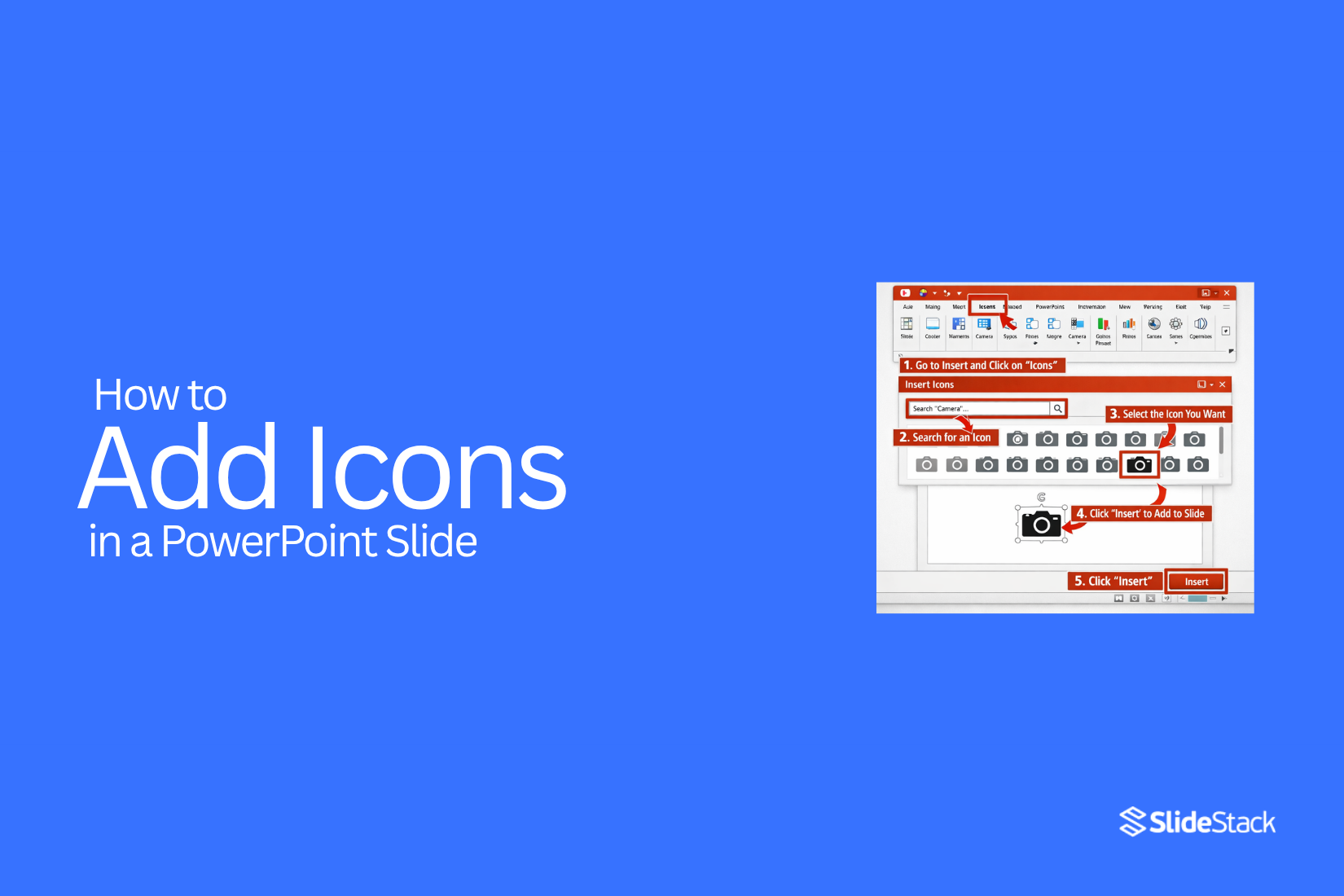
Slides often feel plain when they rely only on text. Many users find it hard to add icons in PowerPoint, and even basic steps like inserting or editing icons can slow the workflow. Slides lose impact, and the message becomes harder to follow. Adding icons helps make ideas clearer and easier to read.
PowerPoint gives several ways to work with icons, from built-in libraries to custom SVG files and editable templates. This guide shows simple steps to add, edit, and arrange icons so slides look clean and well-structured.
Why Use Icons in PowerPoint Presentations?
Icons are small visual symbols used in slides to represent ideas, actions, or objects. They help turn written content into simple visuals. Many presentations rely on text alone, which can feel heavy and hard to follow. Icons change that by adding clear visual meaning to key points.
They support better slide design and make content easier to scan. They also help structure information in a way that feels organized and direct. Below are five clear reasons icons are used in PowerPoint presentations.
1. Clearer Message Delivery: Icons turn ideas into simple visual forms. A small image can represent a full idea without long text. This helps the audience understand the message faster. Slides feel less crowded and more focused on key points.
2. Better Slide Clarity: Slides with only text can look dense and tiring to read. Icons break that text into smaller visual parts. This creates space on the slide and improves balance. The content becomes easier to view from a distance.
3. Stronger Memory Retention: People often remember images better than words. Icons create visual links to ideas in the presentation. This helps the audience recall information after the session ends. Simple symbols stay longer in memory than plain text blocks.
4. Structured Information Layout: Icons help separate sections of content on a slide. Each icon can represent a category or idea. This builds a clear structure without adding extra words. The slide becomes more organized and easier to follow step by step.
5. Focused Attention on Key Points: Icons guide the viewer’s eyes to the most relevant parts of a slide. They highlight key ideas without using large visuals or heavy design elements. This keeps attention on the message instead of distractions. The flow of information becomes more controlled and steady.
Types of Icons You Can Use in PowerPoint
Icons help slides look clear and simple. They also make ideas easier to understand without long text.
One common type is basic shape icons. These include arrows, circles, and squares. They work well for showing steps or simple ideas.
There are also business icons. These include charts, briefcases, and dollar signs. They help explain work topics and data.
Technology icons are also popular. These include phones, laptops, and cloud symbols. They fit well in tech or online service slides.
People icons show users, teams, or customers. These help explain roles or group ideas in a simple way.
Another type is navigation icons. These include home, menu, and location symbols. They help guide the viewer through content.
Each icon type adds meaning without extra words. The right choice keeps slides clean and easy to follow.
How to Insert PowerPoint Presentation Icons
PowerPoint icons are simple visual elements that help explain ideas without long text. They are often used in business slides, reports, and educational decks. These icons usually come in SVG, PNG, or JPG formats. SVG icons stay sharp at any size and are easy to edit. PNG icons support transparent backgrounds and work well on most layouts.
Icons help structure content in a clean way. They guide attention across the slide. They also reduce heavy text blocks and improve readability. PowerPoint supports both built-in icons and external icon files.
Method 1: Inserting Icons Using PowerPoint’s Built-In Library
PowerPoint includes a ready-made icon library inside the software. These icons are designed for presentations and can be adjusted easily. They fit well into most slide styles without extra editing work. The library covers many categories such as business, education, and technology. Each icon behaves like a vector graphic, which keeps it sharp at any size.
Step 1: Open PowerPoint and select a slide where the icon will be placed.
Step 2: Go to the Insert tab on the top menu and select Icons.
Step 3: Browse or search, then select and insert the icon.
Once inserted, the icon can be resized or recolored directly inside PowerPoint. This makes it easy to match the slide theme. The vector format keeps edges smooth even after resizing.
Icons from the built-in library are useful for quick slide design. They also maintain a consistent style across presentations. This helps keep visual balance across multiple slides.
Method 2: Using SlideModel’s PowerPoint Icon Templates
SlideModel provides pre-designed icon packs that are ready for presentation use. These packs group icons into clean sets that follow a consistent design style.
Step 1: Open a SlideStack icon template file in PowerPoint.
Step 2: Find the slide containing the icon set you need.
Step 3: Copy the icon or full group and paste it into your presentation.
These templates are useful for building structured slide decks. The icons are already aligned and styled for business use. This reduces the need for manual formatting.
The icon sets are designed to match across slides, which helps maintain visual consistency. They also save time during design work. Each icon stays scalable and keeps sharp edges across different slide sizes.
Method 3: Importing Third-Party SVG or PNG Icons into PowerPoint
External icon sources provide more design options for presentations.
Step 1: Download an icon file in SVG or PNG format from a trusted source.
Step 2: Open PowerPoint and select Insert, then Pictures.
Step 3: Choose This Device and insert the downloaded file.
SVG icons can be ungrouped inside PowerPoint, allowing shape-level editing and color changes. PNG icons work well for quick placement, but cannot be broken into editable parts.
SVG icons maintain high quality at any scale, which makes them suitable for detailed presentations. PNG icons are better for fixed visuals where editing is not required.
How to Insert Custom Icons into PowerPoint
Start PowerPoint and open your file. Move to the slide where the icon is needed. Go to the top menu and select the Insert tab. This tab holds media and visual tools. A menu appears with different options. Choose Pictures or Icons depending on the file type of your custom icon.
Pick the file from your device. SVG or PNG files work well for most slides. The icon appears on the slide. Drag it to the right position. Use the corner handles to change size.
Keep the shape balanced so it stays clear. Alignment tools help place the icon in a clean layout. Use guides or grid lines to keep spacing even.
How to Edit Icons in PowerPoint
Icons in PowerPoint are easy to change once they are on a slide. Start by selecting the icon. A border appears around it. That shows it is active.
The next step is the formatting panel. This panel controls how the icon looks. Color changes are done here. Shape styles are also found here. A simple click can change the full look of the icon.
Some icons come as grouped elements. Right-click and choose “Group” then “Ungroup.” This breaks the icon into parts. Each part can then be edited on its own. Color, size, and position can be changed for each piece.
Size control is done with corner handles. Drag a corner inward or outward. The icon keeps its shape while scaling. Side handles should be avoided since they can distort the look.
Alignment tools help place icons in a clean layout. Use the alignment options on the ribbon. Icons can line up in rows or stay centered with other elements.
Small changes make a big difference in clarity and balance on the slide.
How to Align and Arrange Icons Properly
Icons should feel organized on the slide. A clean layout helps your message stand out.
Start by placing icons with equal spacing. Uneven gaps can make the slide look messy. Use a simple grid layout to keep everything in line. This helps each icon sit in a clear position.
Size matters too. Keep all icons the same visual weight. A large icon next to a small one breaks the balance. Matching sizes creates a steady look across the slide.
Alignment tools in PowerPoint help a lot here. You can align icons to the left, center, or right with a few clicks. The distribution tool also helps keep equal spacing between multiple icons.
Look at your slide from a distance. Do the icons feel like they belong together, or do they feel scattered? Small shifts in position can improve the overall flow.
A well-arranged set of icons guides the viewer’s eyes smoothly across the slide without distraction.
Tips for Customizing Icons in PowerPoint
Once inserted, icons in PowerPoint can be adjusted to match the slide style and layout. Small changes in color, size, and position help icons support the content without pulling attention away from it.
Recolor Icons using Graphics Fill or Shape Fill
Color adjustments help icons match the slide theme and keep visuals consistent across the presentation. This creates a cleaner and more organized look. Select the icon. Open the Graphics Format tab. Use Graphics Fill or Shape Fill to apply a new color.
Resize while holding Shift to maintain proportions. Proper scaling keeps icons clear and prevents distortion. Balanced sizes help maintain visual clarity across different slide sections. Select the icon. Hold Shift while dragging a corner handle to resize evenly.
Align with other elements using the Align tools. Alignment keeps slide elements structured and easy to scan. Well-aligned icons improve overall slide balance and readability. Select the icons. Go to the Format tab. Use Align options to position or distribute them evenly.
Group or Ungroup parts of a complex icon to isolate shapes
Some icons contain multiple parts inside one group. Ungrouping separates those parts so each shape can be edited on its own. Colors, size, and position can be adjusted to match the slide layout better.
Animate icons with subtle effects like Fade or Appear
Motion can guide attention to key icons on a slide. Fade or Appear works well for a clean result. Simple movement keeps the slide easy to follow and avoids visual noise.
Rotate or flip icons
Rotation helps align icons with the direction of content flow. Flipping can also help balance the layout across a slide. Small adjustments improve structure and visual order.
Combine icons with text
Icons gain clearer meaning when paired with short text. A label beside or under the icon helps viewers understand the message quickly. Proper spacing keeps the layout clean and readable.
Maintain Consistency for Icon Styles
A single icon style keeps the presentation visually stable. Line, filled, or flat styles should stay consistent across slides. Consistent size and spacing help the design feel organized and easy to scan.
Best Practices for Using Icons in Slides
Icons work best when they stay simple and clear. A slide should not feel crowded. One idea per slide keeps things easy to follow.
Pick icons that match the message. A phone icon should point to contact details. A chart icon should support data or progress. This keeps meaning clear without extra words.
Stick to one icon style across the whole presentation. Mixing flat, outline, and 3D icons can make slides feel messy. Consistency helps the design look clean and steady.
Color choice matters. Use colors that match your theme. Keep contrast strong so icons stay visible on both light and dark backgrounds.
Size also plays a role. Small icons lose impact. Very large ones can overpower text. Balance both so the slide feels stable.
Too many icons on one slide can distract the viewer. Space them out. Let each icon support a single point.
Alignment brings order. Line up icons with text or other elements. This creates a neat structure that is easy to scan.
Icons should support the message, not replace it. A short line of text next to an icon often works better than icons alone.
Common Mistakes to Avoid
Many people rush while working in PowerPoint. That leads to small errors that weaken the slide.
One common mistake is using too many icons on one slide. The message gets lost, and the slide feels crowded.
Another issue is picking icons that do not match the topic. A mismatch confuses the viewer and breaks the flow of the idea.
Some users also ignore alignment. Icons placed unevenly make the slide look messy and hard to follow.
Low-quality icons also create problems. Blurry or pixelated graphics reduce trust in the presentation.
Spacing matters too. Tight layouts make content feel cramped, while uneven spacing looks unplanned.
A quick review before finalizing the slide helps catch these issues early.
Exporting and Sharing Slides with Icons
After placing icons in your slides, the next step is saving your work. This step matters more than it seems. It affects how your design looks on other devices.
PowerPoint gives a few export options. You can save as a PPTX file for editing later. You can also export as a PDF for sharing. PDF keeps the layout fixed, so icons stay in place.
Some users prefer images. PNG or JPEG works well for single slides. This helps when you need to post slides on websites or social media.
File size can grow with many icons. Large files may load slowly or become hard to send. Reducing image resolution helps keep files light.
Sharing comes next. Email works for small files. Cloud links work better for larger presentations. Services like OneDrive or Google Drive help with easy access.
A final check helps avoid issues. Open the file on another device. Look at spacing, alignment, and icon clarity. This step keeps the design consistent everywhere.
Final notes
Icons help slides carry ideas in a simple way. They turn long text into clear visual points. This makes slides easier to read and follow.
A clean design comes from steady choices. Same icon style, even spacing, and simple colors keep everything balanced. Each slide feels more connected.
Small details shape the final result. Clear icons, proper alignment, and short text work together. The message stays direct, and the slide feels organized from start to finish.
FAQs:
1. What are icons in PowerPoint?
Icons are small visual symbols. They represent ideas, actions, or objects in a simple way.
2. Where can I find icons in PowerPoint?
PowerPoint has a built-in icon library. You can find it under the Insert tab.
3. Can I change the color of icons in PowerPoint?
Yes. Select the icon. Then use the Graphics Fill or Shape Fill option to change the color.
4. What file types work for custom icons?
SVG and PNG files work best. SVG files are editable. PNG files are fixed images.
5. Can I resize icons without losing quality?
Yes. SVG icons stay sharp at any size. Hold Shift while resizing to keep proportions.
6. How do I edit parts of an icon?
Right-click the icon and choose Ungroup. This lets you edit each part separately.
7. Why should I use icons in slides?
Icons make slides easier to read. They help break long text into simple visuals.
8. Can I animate icons in PowerPoint?
Yes. You can apply simple effects like Fade or Appear.
9. What is the best way to arrange icons?
Keep equal spacing and use alignment tools. This keeps slides clean and balanced.
10. Do icons replace text in presentations?
No. Icons support text. Short text plus icons gives clearer meaning.




You may also be interested in ...

How To Create An Eye-Catching Portfolio
If you’re looking to create an eye-catching portfolio, this post will come in handy. In this article, you can find the easies...
23 Jun, 2024

How To Easily Create An Infographic
Infographics are the perfect way to make a presentation that will impact an audience, but their design and composition might...
08 Jun, 2024

PowerPoint Template Tips & Tricks You Ne...
PowerPoint seems to be an unknown world for many people, especially those who have been assigned to create a presentation out...
08 Jun, 2024