How to Print Multiple Slides on One Page in Google Slides Step by Step
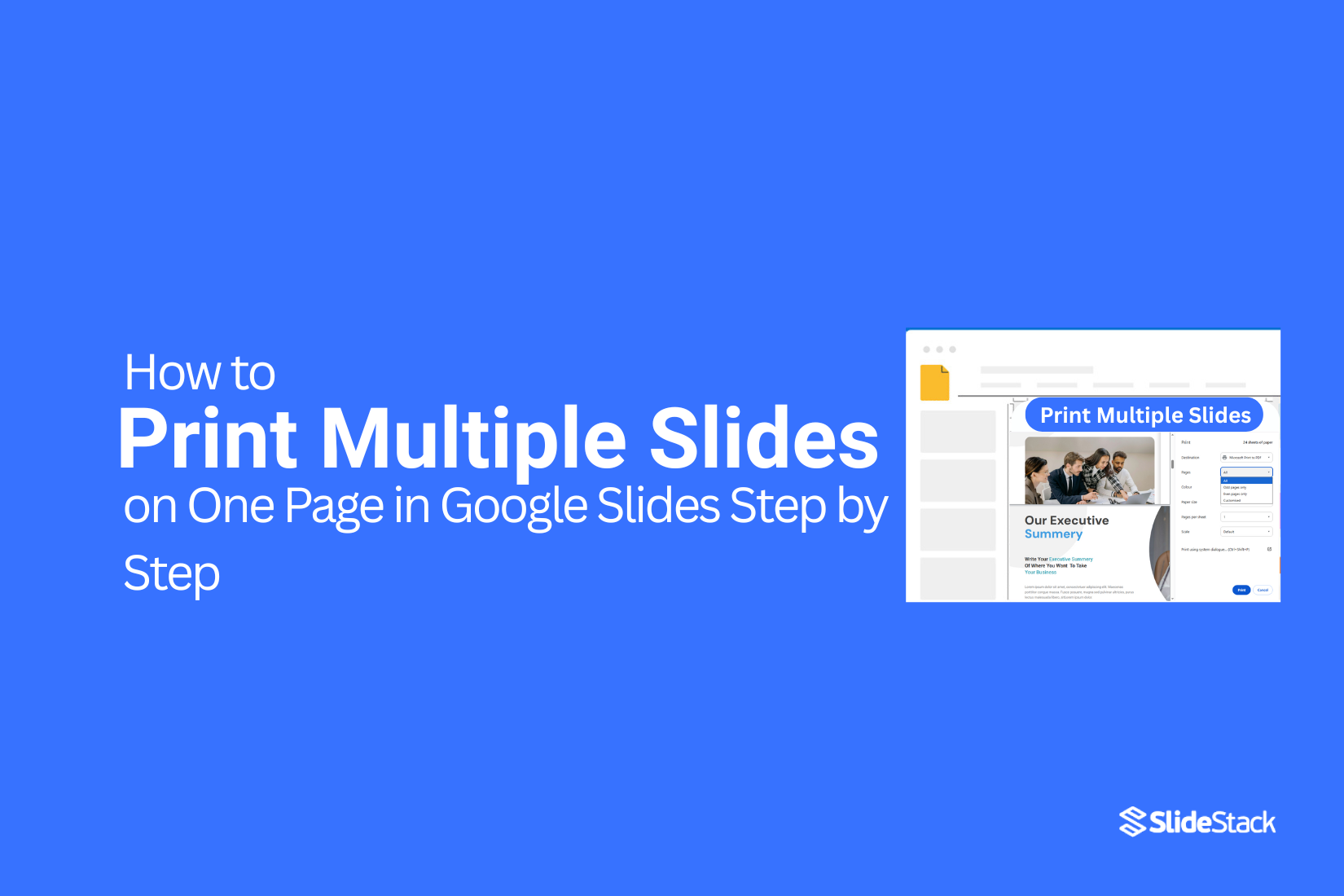
Printing slides one by one can waste a lot of paper and time. Many people do not realize that Google Slides makes it easy to fit multiple slides on a single page. This approach saves resources and keeps your documents organized.
By learning the right steps, you can quickly print several slides per page without confusion. In this guide, we will walk you through the process, starting from opening your presentation to adjusting print settings and completing the print job. Each step is simple and clear, making it easy even for beginners to follow.
This keeps the intro within your word range, flows naturally, and uses a smooth transition.
How to Print Multiple Slides on One Page in Google Slides
This section explains how to print multiple slides on one page in Google Slides. The steps below break the process into clear actions. Read the following points to see how each setting works and how to get the layout you want.
1. Open Your Presentation
Begin by opening the Google Slides presentation you want to print. Make sure all slides are finalized and arranged in the correct order. Check for any last-minute edits to avoid printing errors.
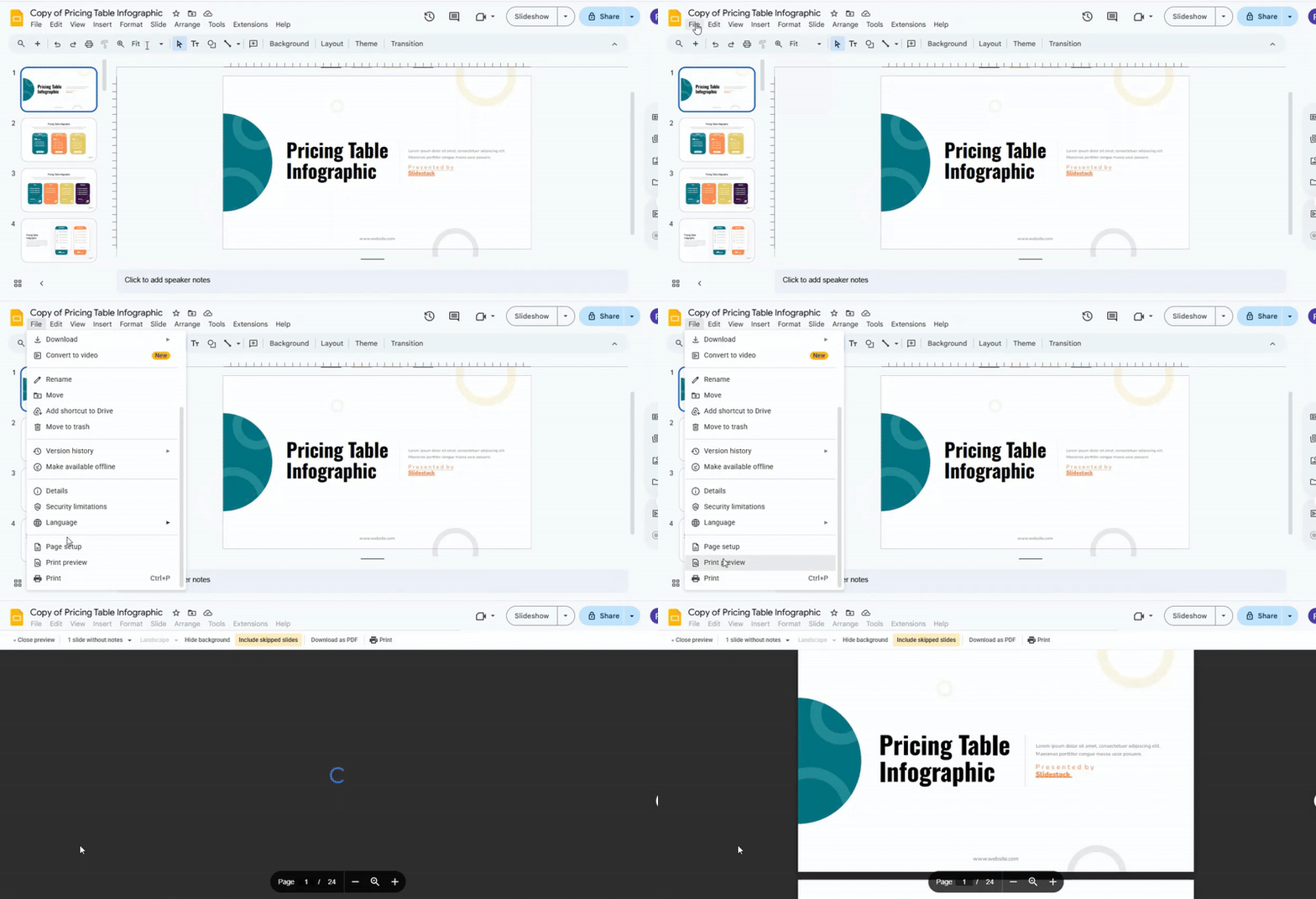
2. Access the Print Settings
Click on “File” in the top menu. From the dropdown, select “Print settings and preview.” This will open a preview window where you can see your slides and adjust print options.
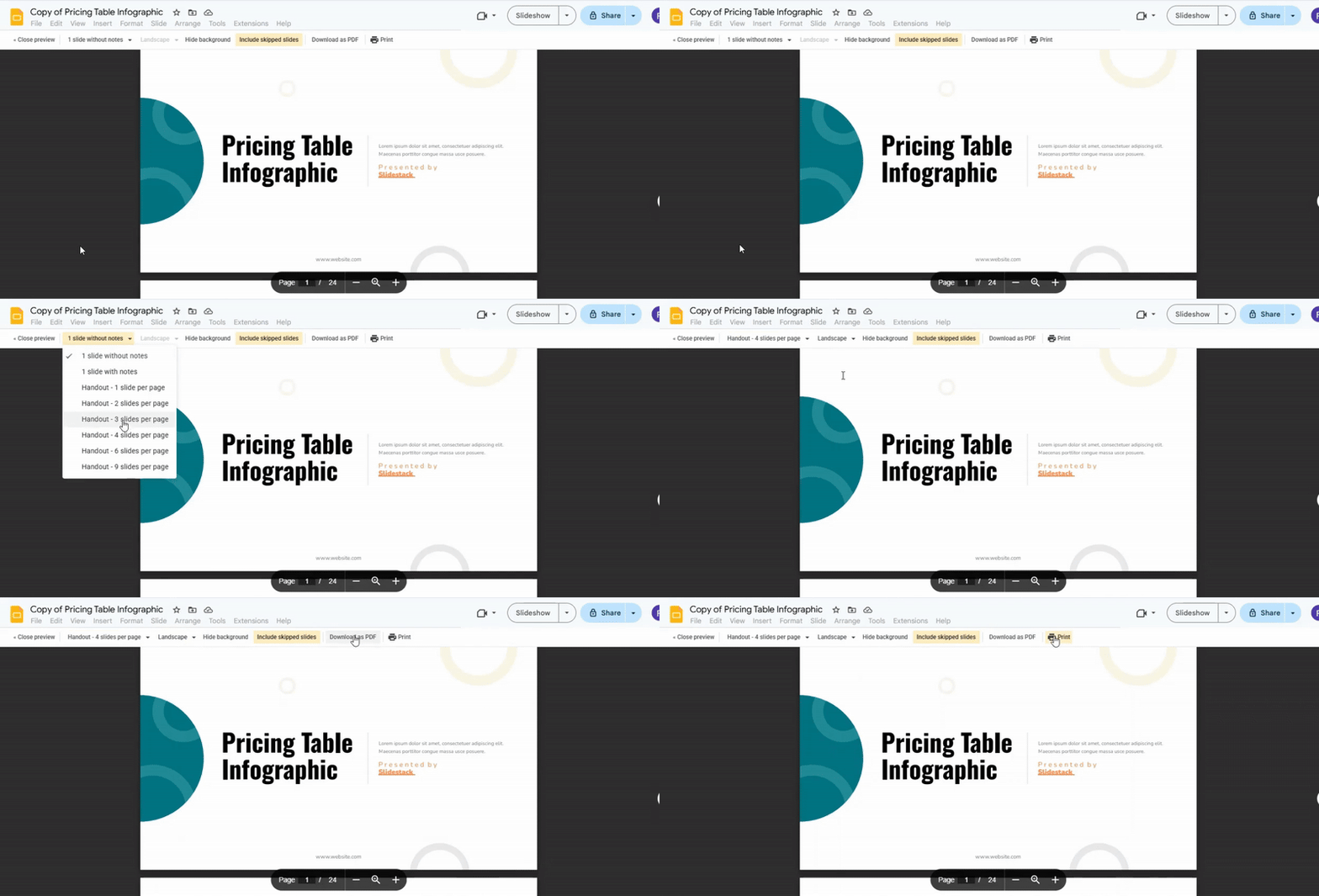
3. Customize Print Settings
Look for the “1 slide without notes” option. Click on it to open a dropdown menu. Select the number of slides per page you want, such as 2, 4, 6, or 9. Review the preview to see how the slides will appear on each page.
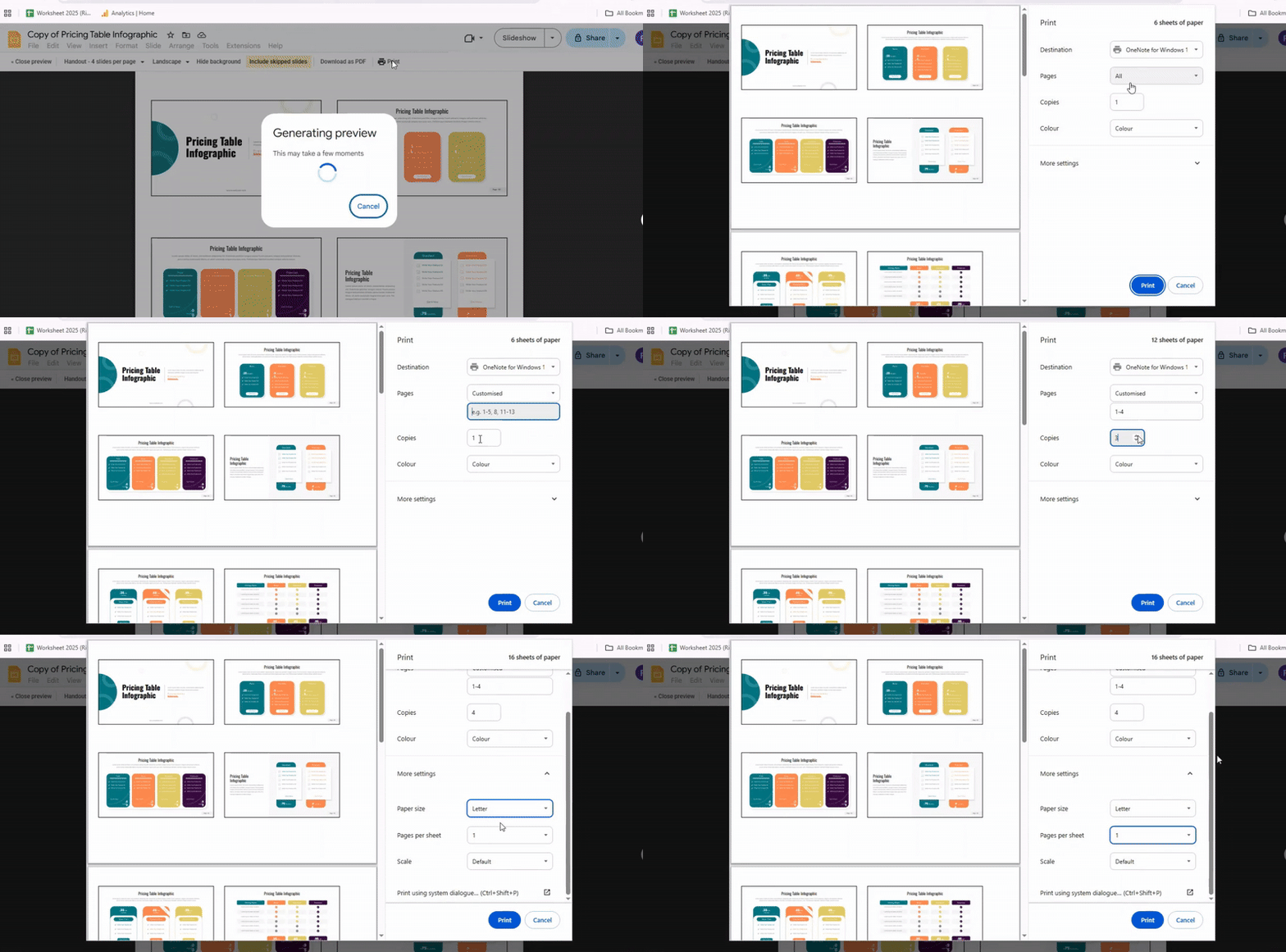
4. Adjust Other Print Settings (Optional)
Check other settings like page orientation or whether to include notes. Adjust the paper size or margins if needed. These changes help ensure the slides fit well on the printed page.
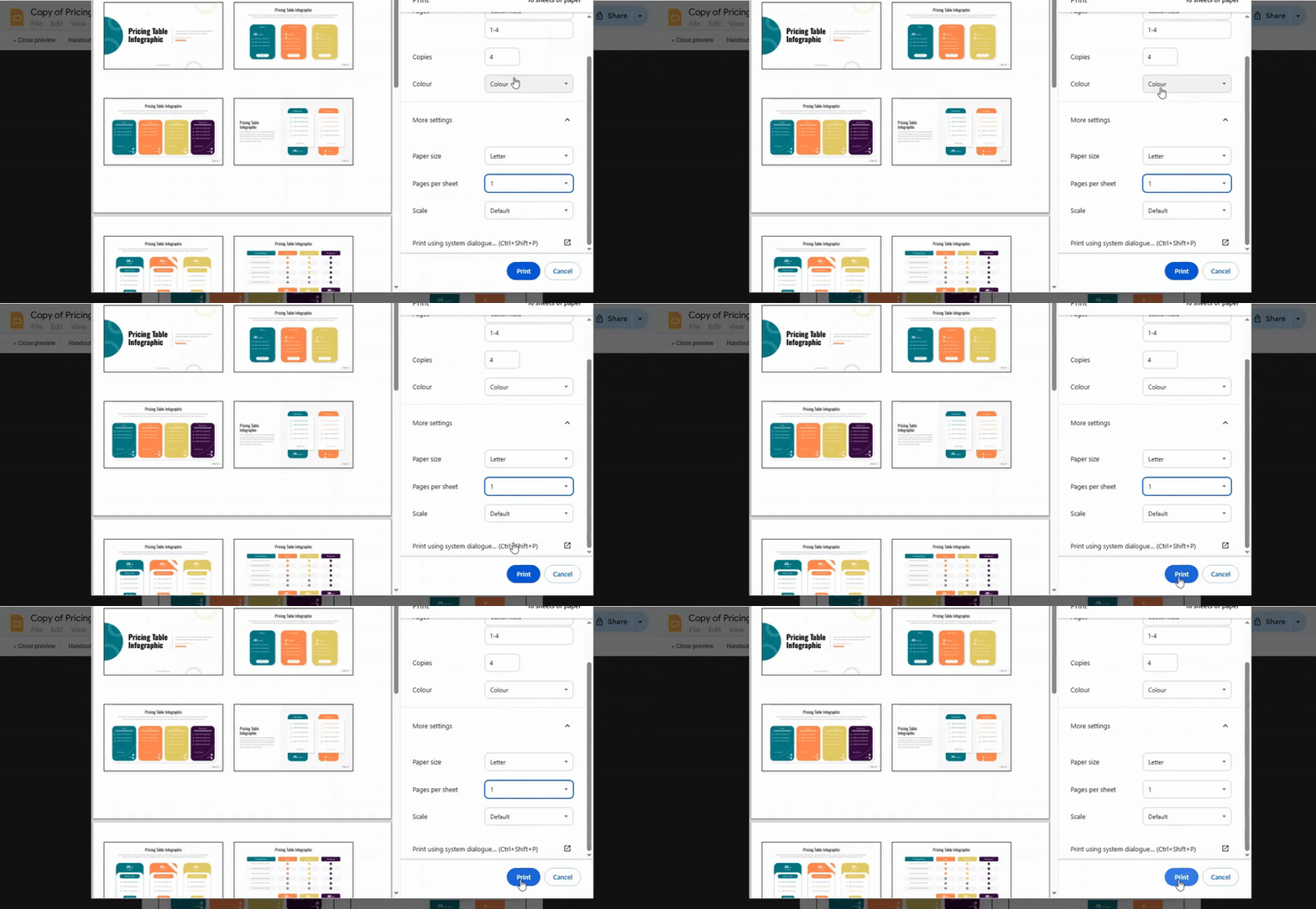
5. Print Your Presentation
Click the “Print” button. Choose your printer and confirm the settings. Once ready, click “Print” again to start printing the slides on a single page.
Read also: How to Print Presentations in Google Slides the Easy Way
Conclusion:
Printing multiple slides on one page is an easy way to save paper and keep your materials organized. By following these steps, you can quickly adjust settings and print exactly how you want. Once you get the hang of it, printing several slides at once becomes a smooth and efficient part of your workflow.
FAQs:
Can I mix portrait and landscape slides on one handout page?
No, Google Slides does not let you mix portrait and landscape slides on the same page. Each handout page will follow the orientation of your slides. You can change the slide orientation in your file settings if needed.
How do I add headers or footers to my handouts?
Go to “Insert” and choose “Header & Footer.” You can add a date, page number, or custom text. Then apply it to all slides or just the ones you want.
Can I print only certain slides in Google Slides?
Yes, choose “Print” and select “Custom” under slides. Enter the slide numbers you want. Only those slides will be printed.
Can I print in color or black and white?
Yes, in the print settings, you can pick color, grayscale, or black and white. Your choice will apply to all the slides you print.
Can I print slides with speaker notes?
Yes, choose the “Notes” option in the print settings. Each slide will print with its notes below it.
Can I print multiple slides per page with a border around each slide?
Yes, select “Handouts” in the print settings and pick how many slides per page. You can choose to include borders around each slide.
Can I print multiple slides per page on Google Slides from a phone?
Printing multiple slides per page is limited on mobile. It’s easier to do from a computer. If needed, export your slides as a PDF and adjust the layout before printing.
How do I print vertical handouts with multiple slides per page?
Change your slide orientation to portrait in the file settings. Then select “Handouts” in print options and choose the number of slides per page. Each page will print vertically.




You may also be interested in ...

How To Create An Eye-Catching Portfolio
If you’re looking to create an eye-catching portfolio, this post will come in handy. In this article, you can find the easies...
23 Jun, 2024

How To Easily Create An Infographic
Infographics are the perfect way to make a presentation that will impact an audience, but their design and composition might...
08 Jun, 2024

PowerPoint Template Tips & Tricks You Ne...
PowerPoint seems to be an unknown world for many people, especially those who have been assigned to create a presentation out...
08 Jun, 2024