How to Print Presentations in Google Slides the Easy Way
Luckily, Google Slides offers simple options to control what you print and how your slides appear. By learning these tools, you can save time and avoid common mistakes.
With the right steps, you can print your slides correctly, select which ones to include, adjust layouts, scale content, and even print on different paper formats or both sides. Following this guide ensures your presentation looks polished and professional without wasting paper or effort.
Printing Your Google Slides Presentation
Open your Google Slides presentation.
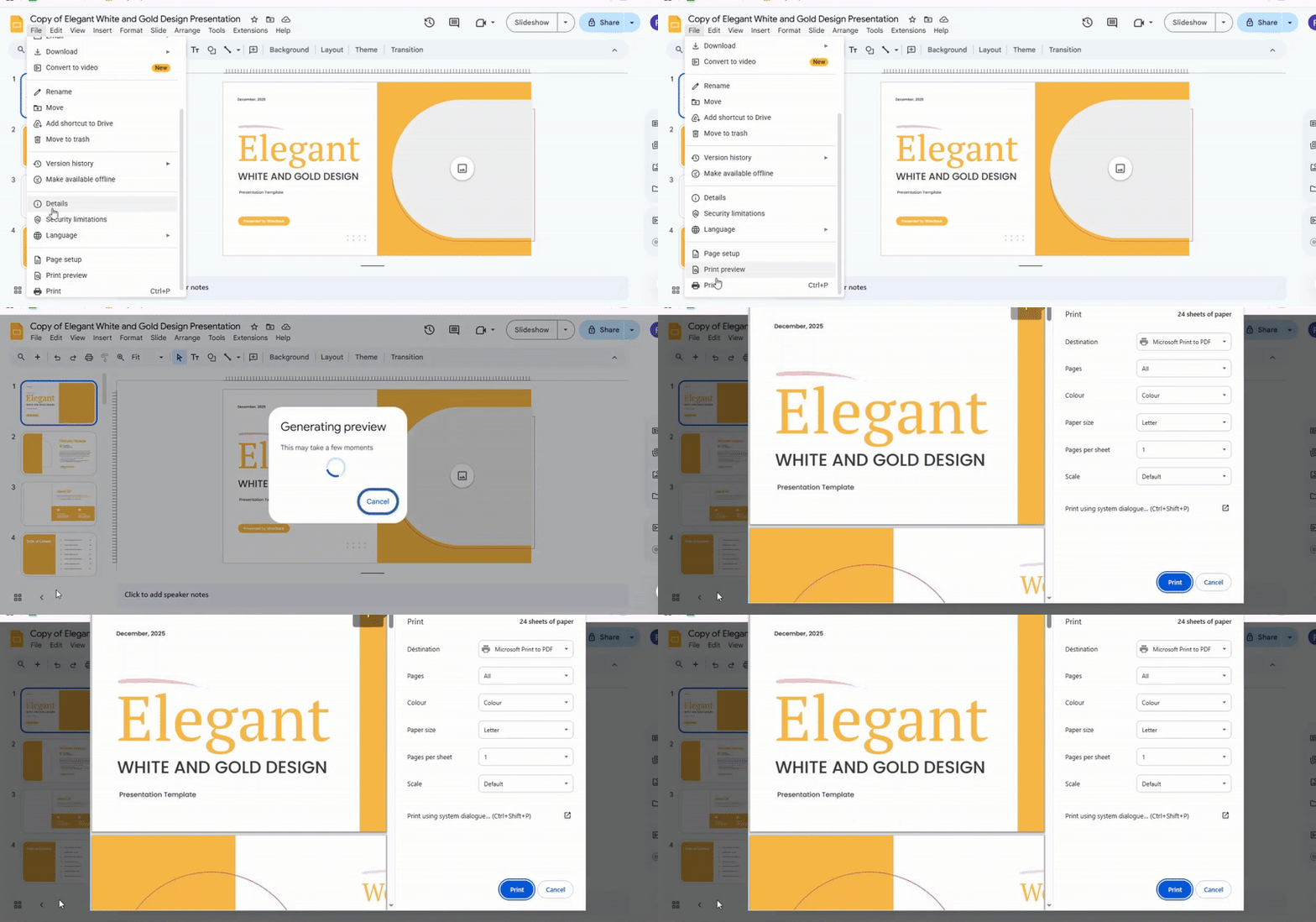
Click File → Print. A new window opens with a preview and print options.
Click the arrow next to Destination to select your printer. If your printer is not listed, add it to your system settings:
- Windows 10: Go to Start → Settings → Devices → Printers and scanners.
- Windows 7 or 8: Go to Control Panel → Hardware and Sound → Add printer → Add network, wireless, or Bluetooth printer → Next.
Check the connection if the printer still does not appear. Make sure it is connected via cable or wireless and follow the printer’s instructions for setup.

Select the slides you want to print. You can print all slides, a range, or a single slide. Choose Color or Black & White if needed. You can also change layout settings or paper size, such as printing multiple slides per page. To include speaker notes, select the Include Notes option.
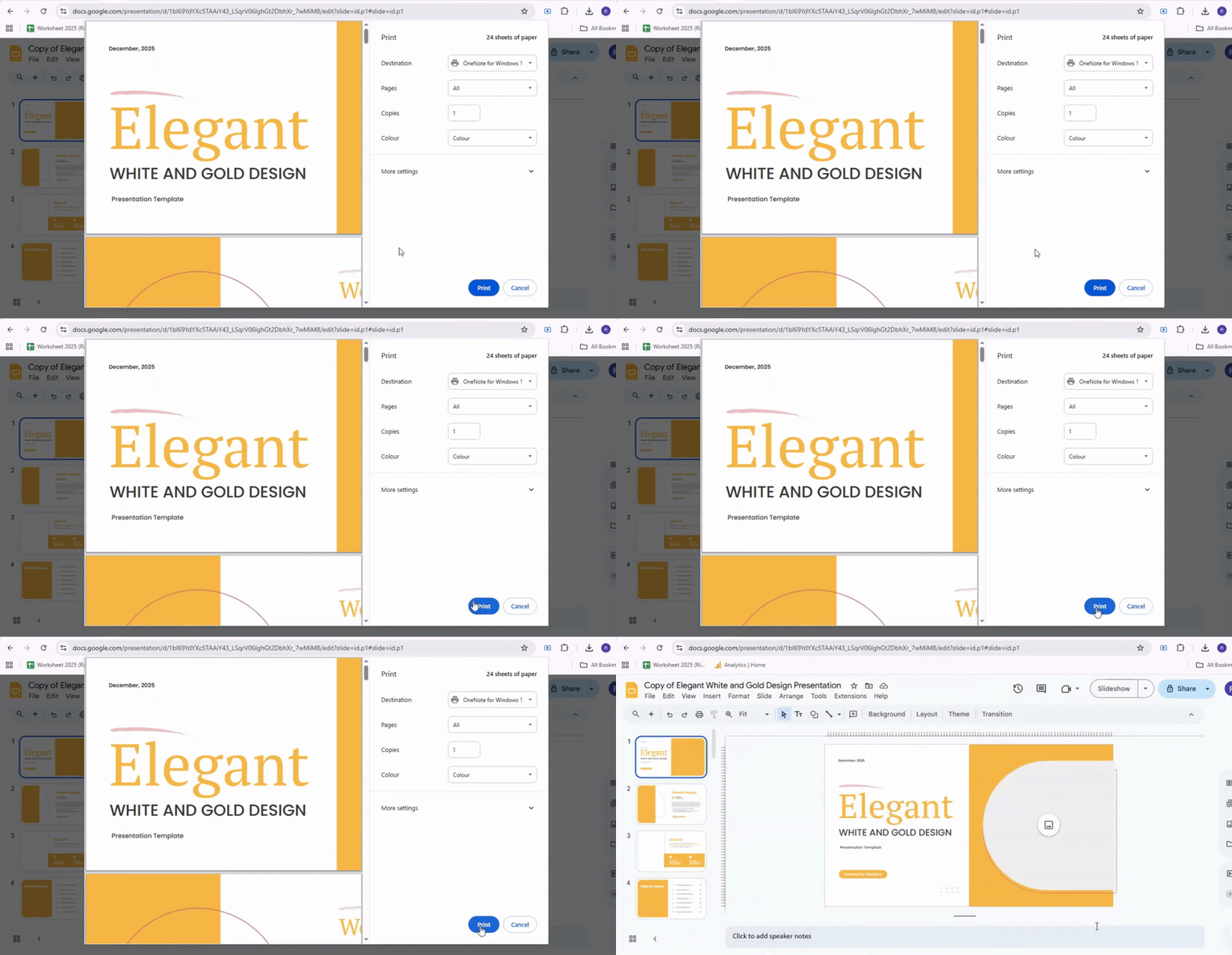
Review the preview to make sure everything is correct. Click the Print button at the bottom of the window to start printing. If printing fails, try refreshing Google Slides or restarting your browser.
Selecting Which Slides to Print
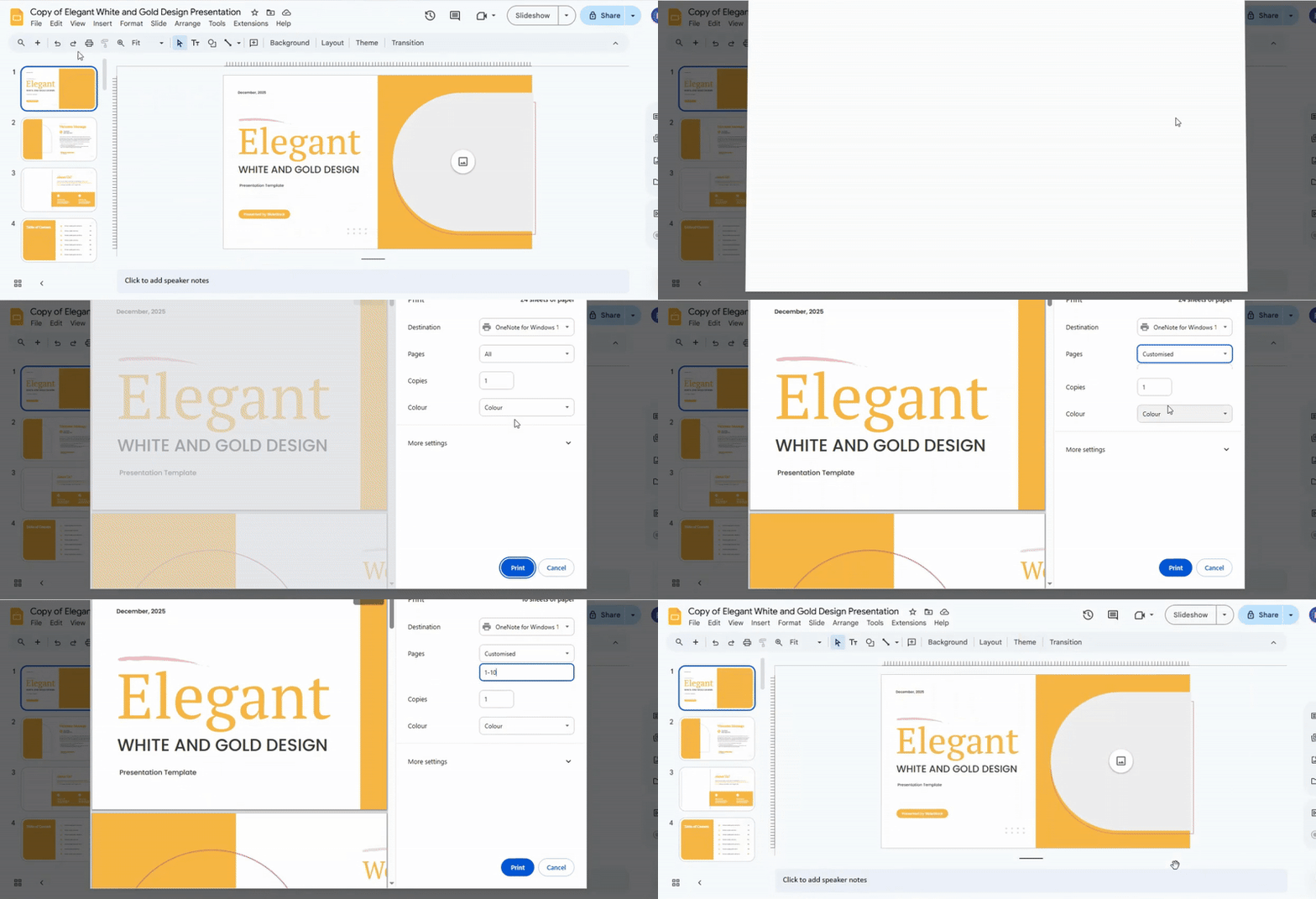
Open your presentation in Google Slides. Click on File in the top menu. From the dropdown, select Print. A print dialog will appear. To print all slides, choose All. To print specific slides, select Custom and enter the slide numbers you want. Check your other print settings, such as layout and color. When ready, click Print to finish.
Printing Several Copies
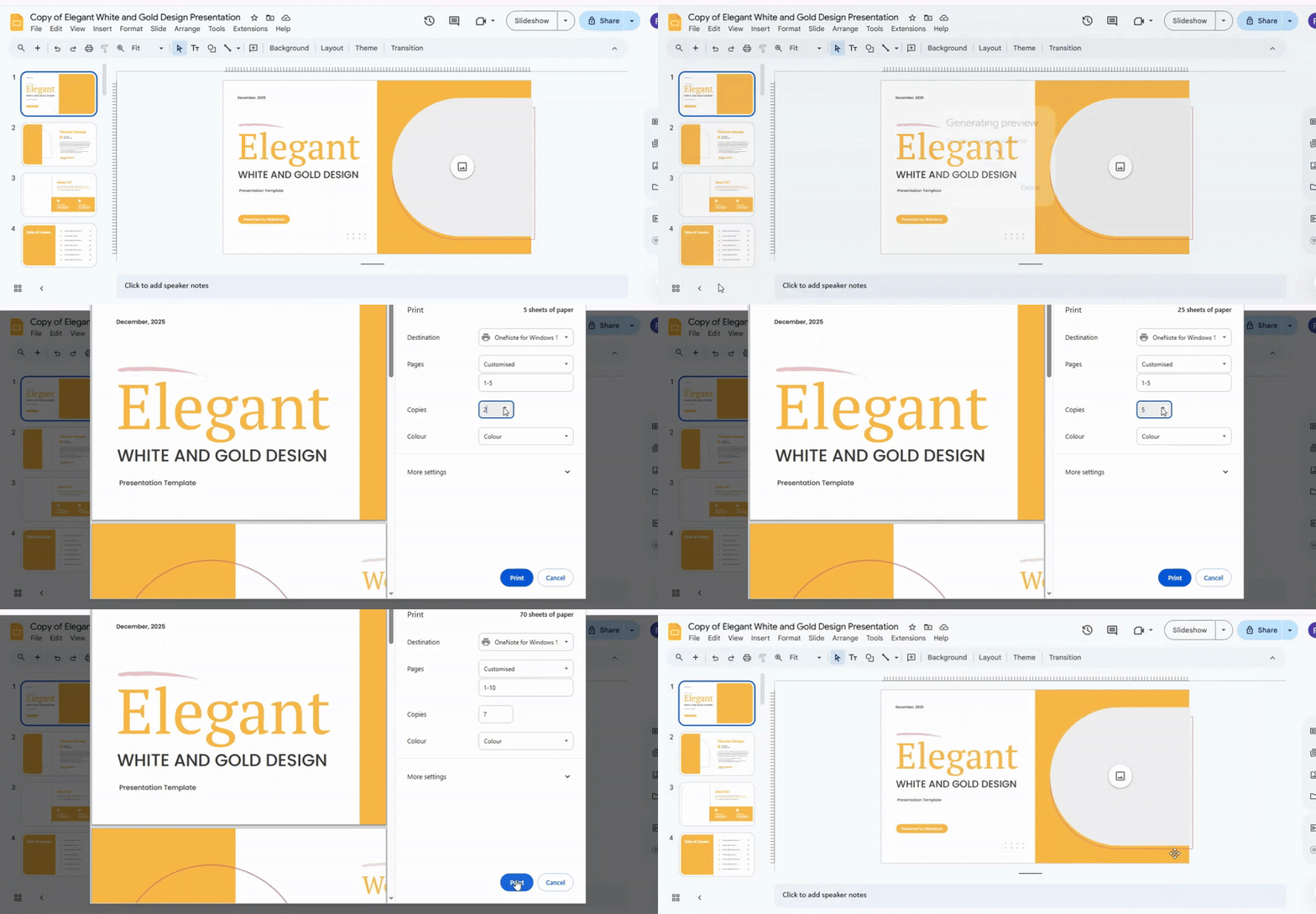
Open your presentation in Google Slides. Click on File in the top menu, then choose Print. In the print dialog, enter the number of copies you want.
If you want the slides in order for each copy, check the Collate box. This will print all slides of the first copy, then all slides of the second copy, and so on. If you leave it unchecked, all copies of slide one print first, then all copies of slide two, and so on.
Finally, click Print to start printing your slides.
Printing Presentations on Different Paper Formats
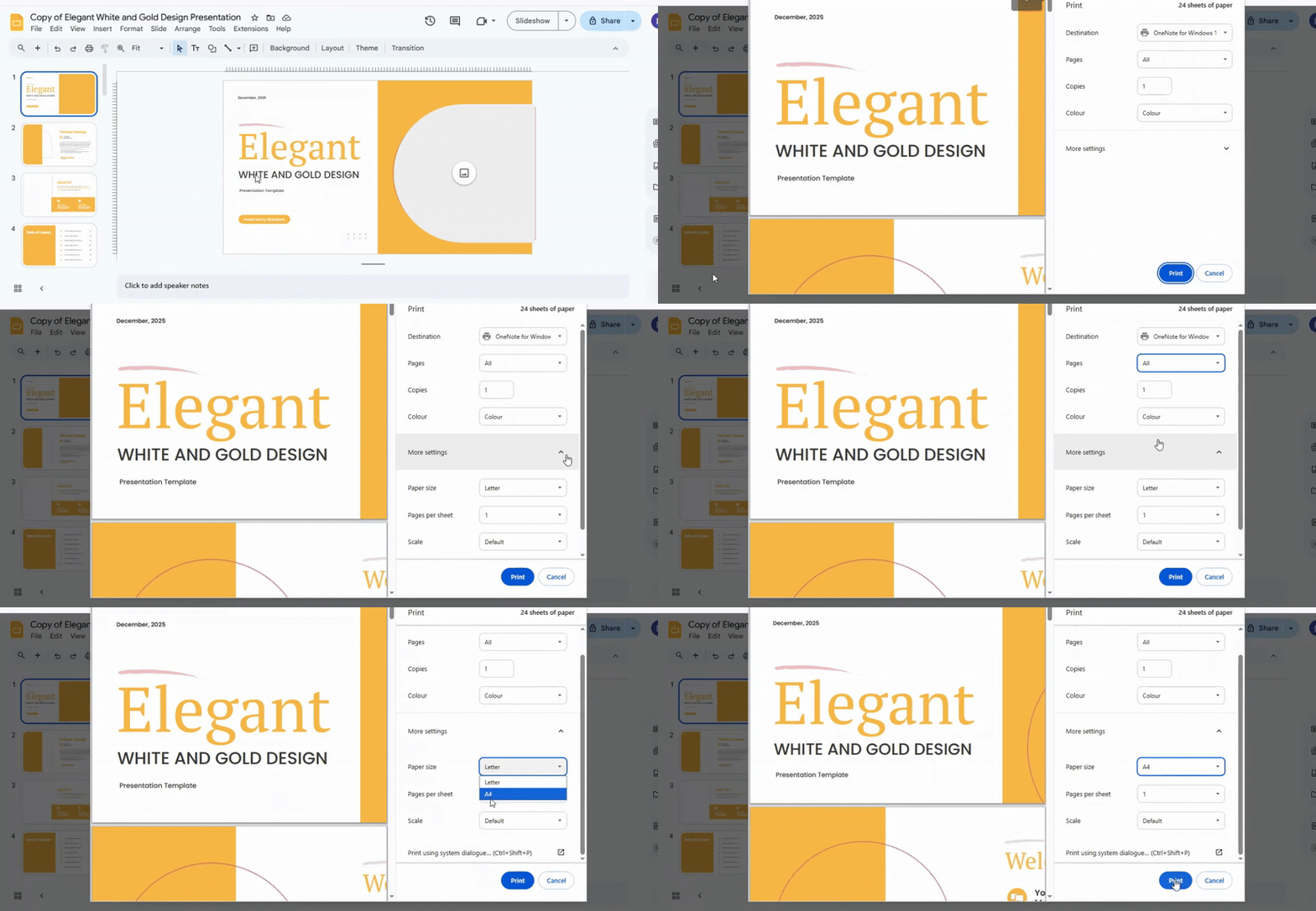
Open your Google Slides presentation. Click File in the top menu, then select Print settings and preview. You will see a preview of your slides on the right side of the screen. Click the Paper size dropdown menu. Choose the size you want for printing. The preview will adjust to match the paper format you selected. Check that all slides look correct in the preview. When everything appears right, click Print to start printing your presentation.
Choosing How Many Slides per Page to Print
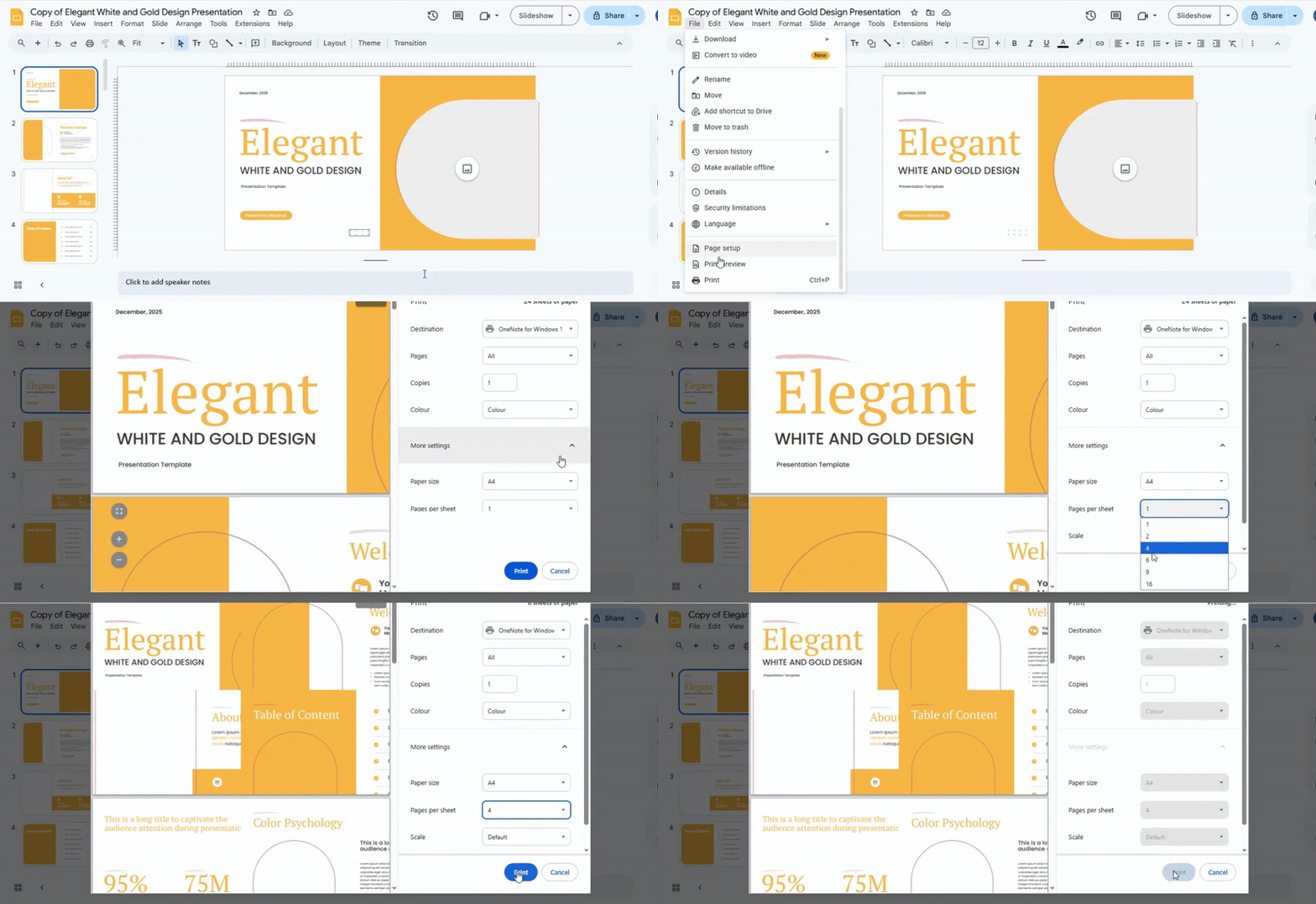
Open your Google Slides presentation. Click File in the top menu, then select Print settings and preview. Find the 1 slide without notes dropdown menu. Click it and choose the number of slides you want to print per page. The preview will update to show how the slides will appear on the page. Make sure the layout looks correct for your selection. When you are ready, click Print to complete the process.
Scaling the Slides to Print
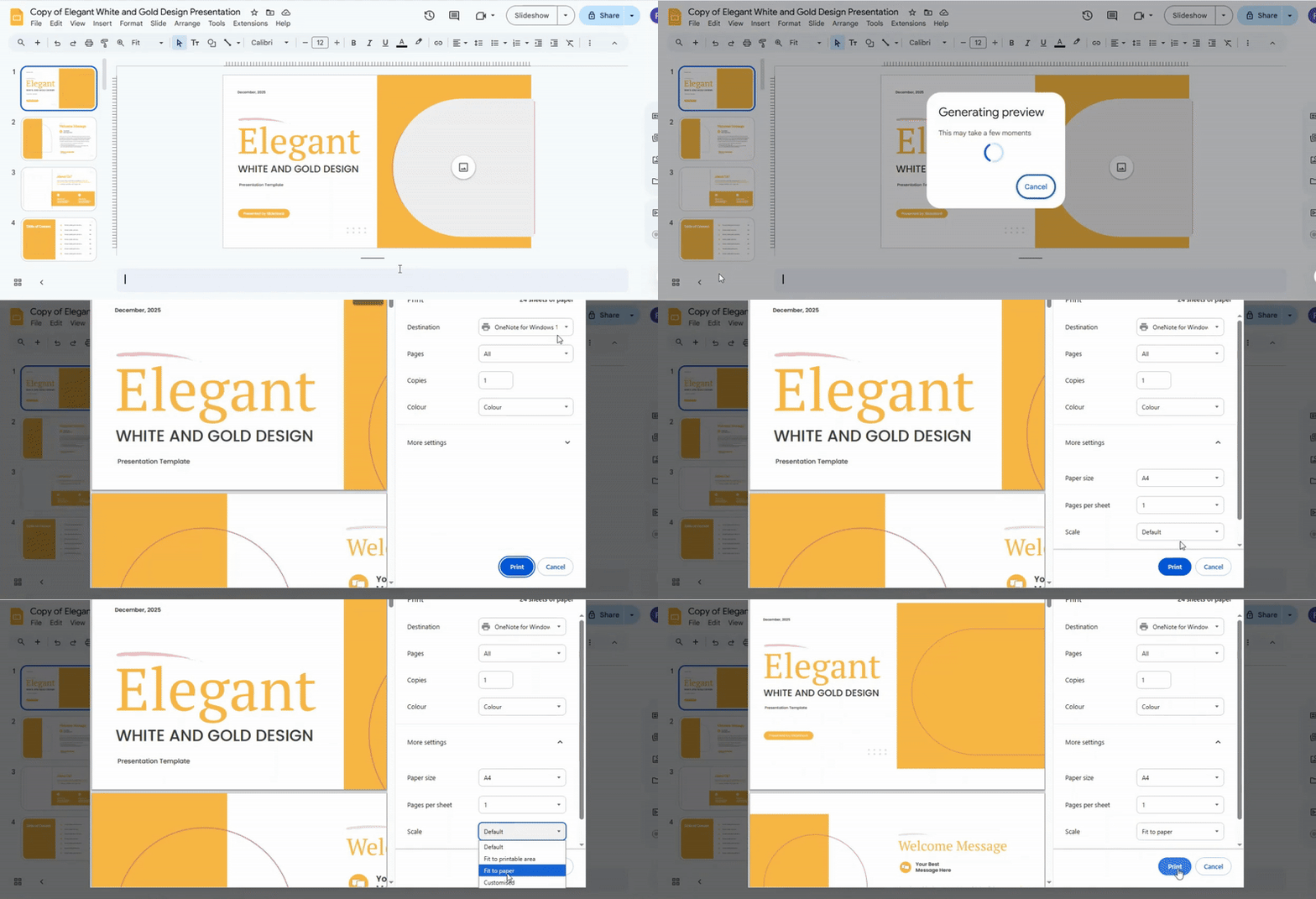
Open your presentation and go to the File menu. Select Print to open the printing options. Look for the scaling settings to control how your slides fit on the printed page.
You can choose Predetermined to use standard scaling, which keeps slides at a common size. Adjusting the printing area changes the slides to fit the available print space without cutting content. Adjust to paper size resizes slides to match the paper dimensions exactly. For more control, select Custom and enter a percentage to make slides larger or smaller.
After selecting your preferred scaling option, review the preview to make sure everything fits. Click Print to finish and create your scaled slides.
Printing Slides on Both Sides
Open your presentation in Google Slides. Click on File in the top menu. Select Print settings and preview. In the preview window, click Print. Choose your printer from the list. Look for the option labeled Two-sided or Print on both sides and select it. Adjust any other settings as needed. Finally, click Print to start printing your slides on both sides.
Conclusion:
Printing your Google Slides presentation does not have to be confusing. By following these steps, you can choose which slides to print, set the layout and scaling, pick paper formats, and even print on both sides. Taking a few moments to check your settings ensures your slides look organized and professional. With these tips, every printout will match your expectations and save you time and effort.
FAQs:
Can I print a Google Slides presentation directly from the web?
Yes, you can print directly from Google Slides in your web browser. Click on File > Print or press Ctrl+P (Cmd+P on Mac). This opens the print settings where you can choose your printer and layout.
How do I customize the color settings when printing my slides?
In the print settings, look for the Color option. You can choose between Color, Black and White, or Grayscale. Select the option that fits your needs before printing.
Is it possible to print only specific slides rather than the entire presentation?
Yes, you can print just the slides you want. In the print menu, choose Custom and enter the slide numbers separated by commas or ranges. Only the selected slides will print.
Can I print speaker notes or annotations with my Google Slides presentation?
Yes, you can include speaker notes. In the print settings, select 1 slide with notes or Notes pages. This will print each slide with its corresponding notes below.




You may also be interested in ...

How To Create An Eye-Catching Portfolio
If you’re looking to create an eye-catching portfolio, this post will come in handy. In this article, you can find the easies...
23 Jun, 2024

How To Easily Create An Infographic
Infographics are the perfect way to make a presentation that will impact an audience, but their design and composition might...
08 Jun, 2024

PowerPoint Template Tips & Tricks You Ne...
PowerPoint seems to be an unknown world for many people, especially those who have been assigned to create a presentation out...
08 Jun, 2024