How to Quickly Download Google Slides Templates
Google Slides templates help you create professional presentations faster by giving you ready-made layouts, designs, and structures. Instead of building slides from scratch, you can download and reuse templates to save time and improve visual quality.
In this guide, you’ll learn exactly how to download Google Slides templates, how to use them properly, and how to avoid common formatting issues.
Why Use Google Slides Templates?
Using templates is not just about design, it’s about efficiency and consistency.
Here’s what they help you achieve:
- Save hours of design work
- Maintain professional slide structure
- Improve presentation clarity and readability
- Ensure consistent branding across slides
- Reduce design mistakes for non-designers
Whether you're preparing a business pitch, school project, or marketing presentation, templates give you a strong starting point.
Where to Find Google Slides Templates
Before downloading, you need to know where templates come from. There are three main sources:
1. Google Slides Template Gallery: Google provides built-in templates directly inside Slides.
2. Third-Party Template Websites: These offer more advanced and niche designs (business, pitch decks, portfolios, etc.).
3. Direct Template Providers: Platforms like SlideStack and other presentation design sites provide downloadable templates in formats like PPTX and Google Slides-ready files.
How to Get Themes from Template Gallery
The Template Gallery shows ready-made themes for slides. It helps start a presentation with a design already in place.
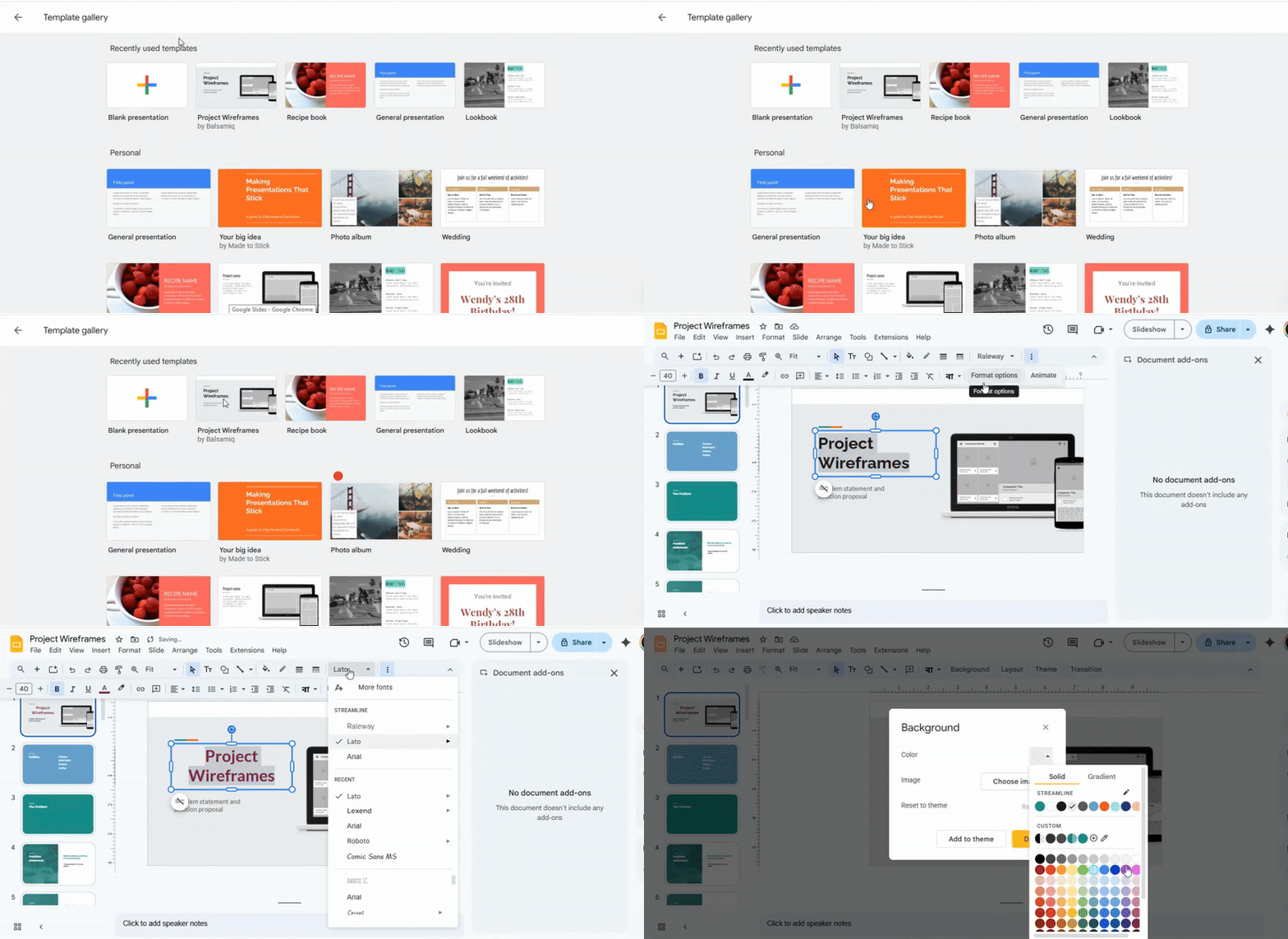
If the gallery is not expanded, click Template Gallery at the top. This opens a full view of available templates.
Browse the templates and click one to select it. The chosen theme applies to the current presentation.
After selection, the theme can be edited. Colors, fonts, and layouts can be changed to fit specific needs.
How to Pick or Change Themes in Google Slides
When starting a new Google Slides presentation, a theme can be chosen right away. After opening a blank presentation, the right-hand sidebar usually shows the theme options. Click on any theme to apply it to all slides.
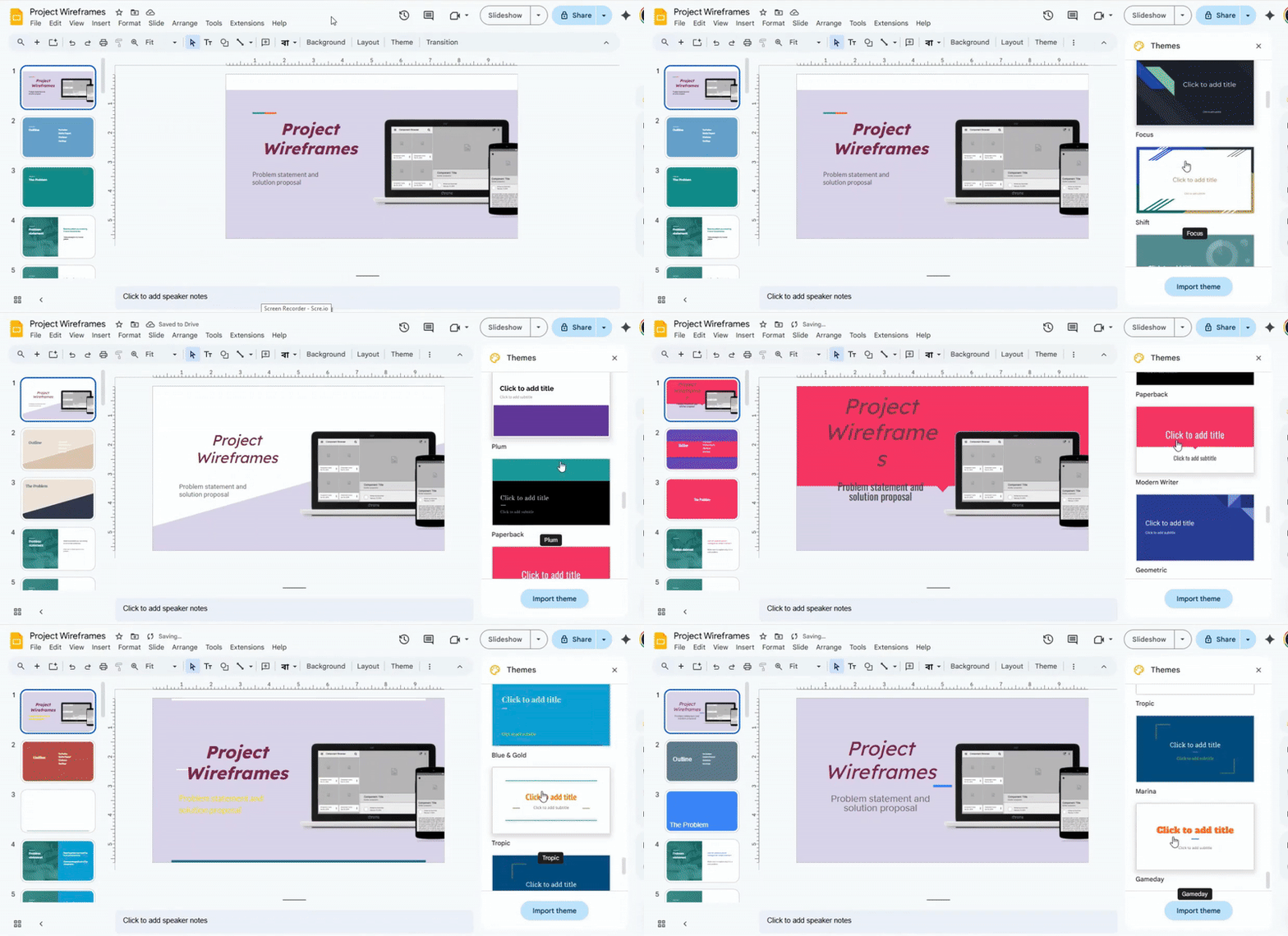
Themes can also be accessed from the top menu. Click Slide, then select Change theme. A panel appears with all available themes. Selecting a new theme updates the slides immediately.
The toolbar provides another option. Click the Theme button on the toolbar to open the theme panel. From there, any theme can be applied with a single click.
Themes are flexible and can be switched at any time. A new theme can be applied even after adding content. Changing the theme adjusts the style, colors, and fonts across all slides while keeping existing content intact.
How to Import a Theme in Google Slides
The Import Theme button in Google Slides allows you to apply a new design to your presentation. It is located in the toolbar under the Theme menu.
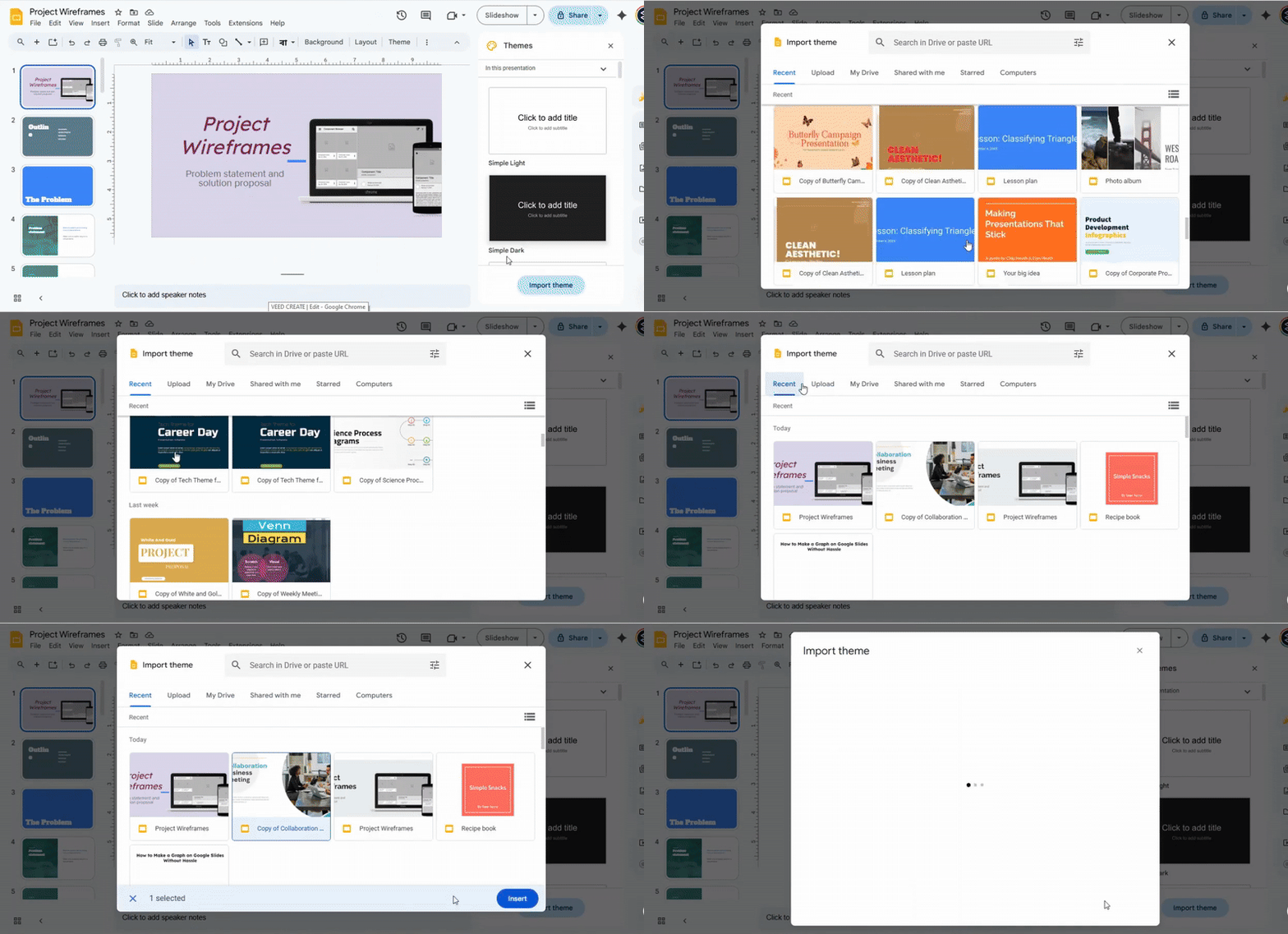
To import a theme, click Import Theme. You have two options. First, you can upload a theme file from your computer. Second, you can select a theme stored in your Google Drive.
After selecting the theme, it will be applied to your presentation. All slides adopt the new design automatically.
How to Get More Templates on Google Slides
Google Slides offers a set of default templates when you start a new presentation. These templates cover common uses like business, education, and portfolios. While they are useful, you might want more variety or a unique style. That’s where additional templates come in. You can download extra templates from third-party sources. Some websites provide free or paid template packs.
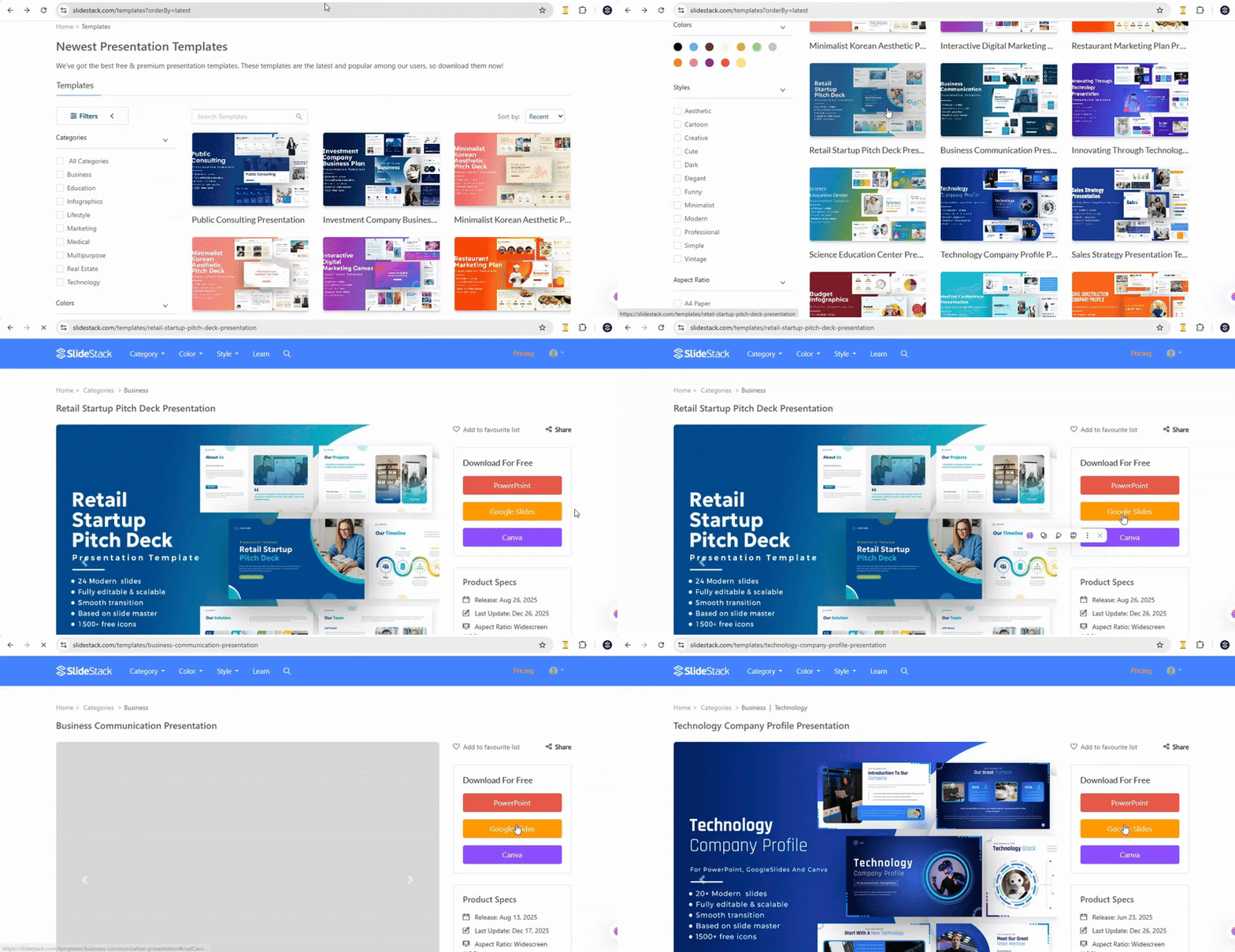
To use a downloaded template, open Google Slides and go to File > Open. Locate the template file on your computer and open it. The template will appear as a new presentation ready for editing.
Sometimes you might find a template set to View Only. In this case, you can create your own editable copy. Click File > Make a copy > Entire presentation. This saves a personal version of the template in your Google Drive. Now you can change text, colors, and slides without affecting the original.
By exploring extra templates, you can give your presentations a fresh look and save time while keeping everything easy to edit.
How to Copy the Entire Presentation
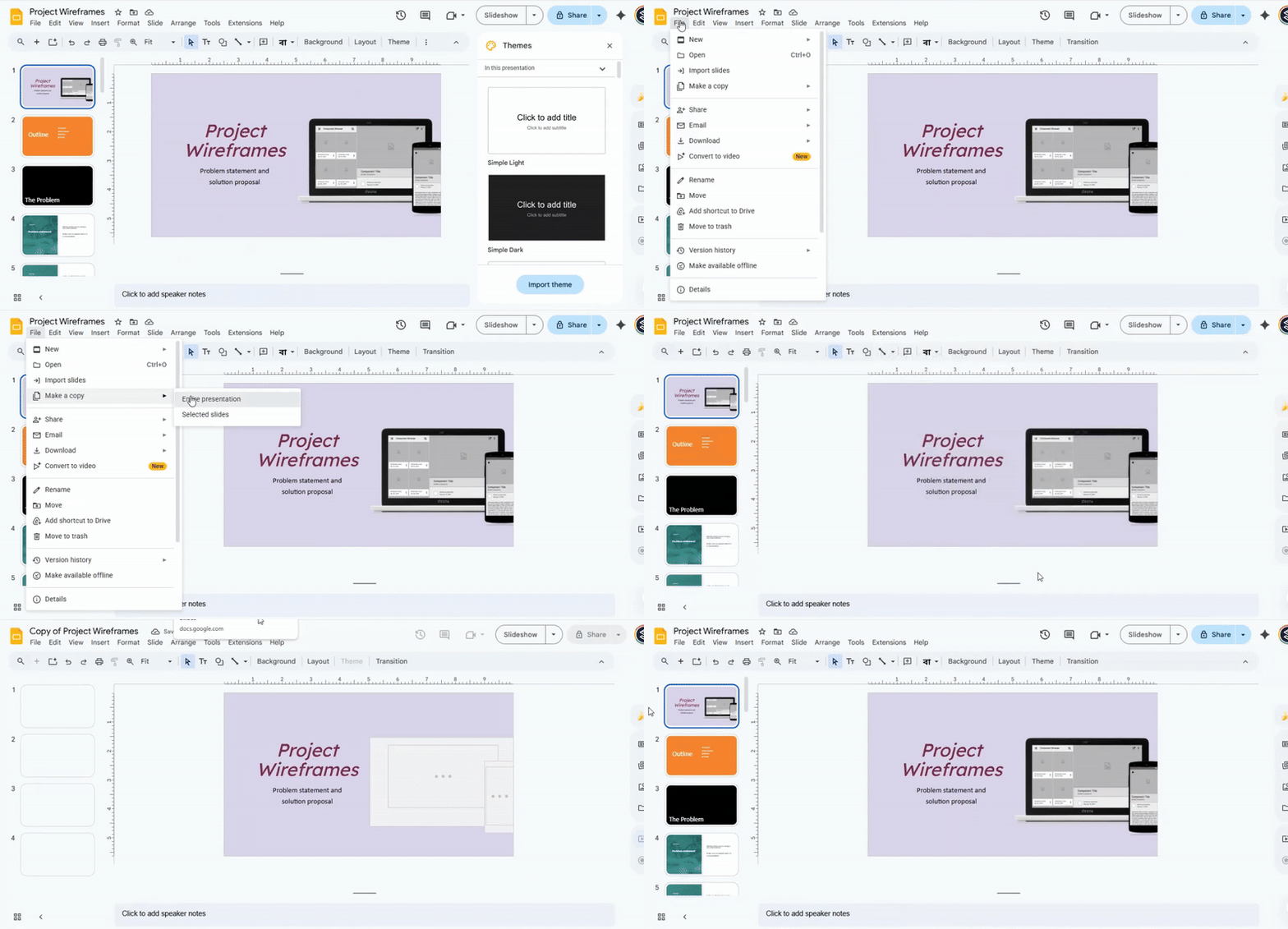
Open your Google Slides. Click File in the top menu.
Select Make a copy to duplicate the presentation.
Or choose Download to save it to your device in Google Slides format.
How to Copy Selected Slides
You can copy only the slides you need instead of the whole presentation.
First, pick the slides you want to copy. To select multiple slides, hold the CTRL key while clicking each slide.
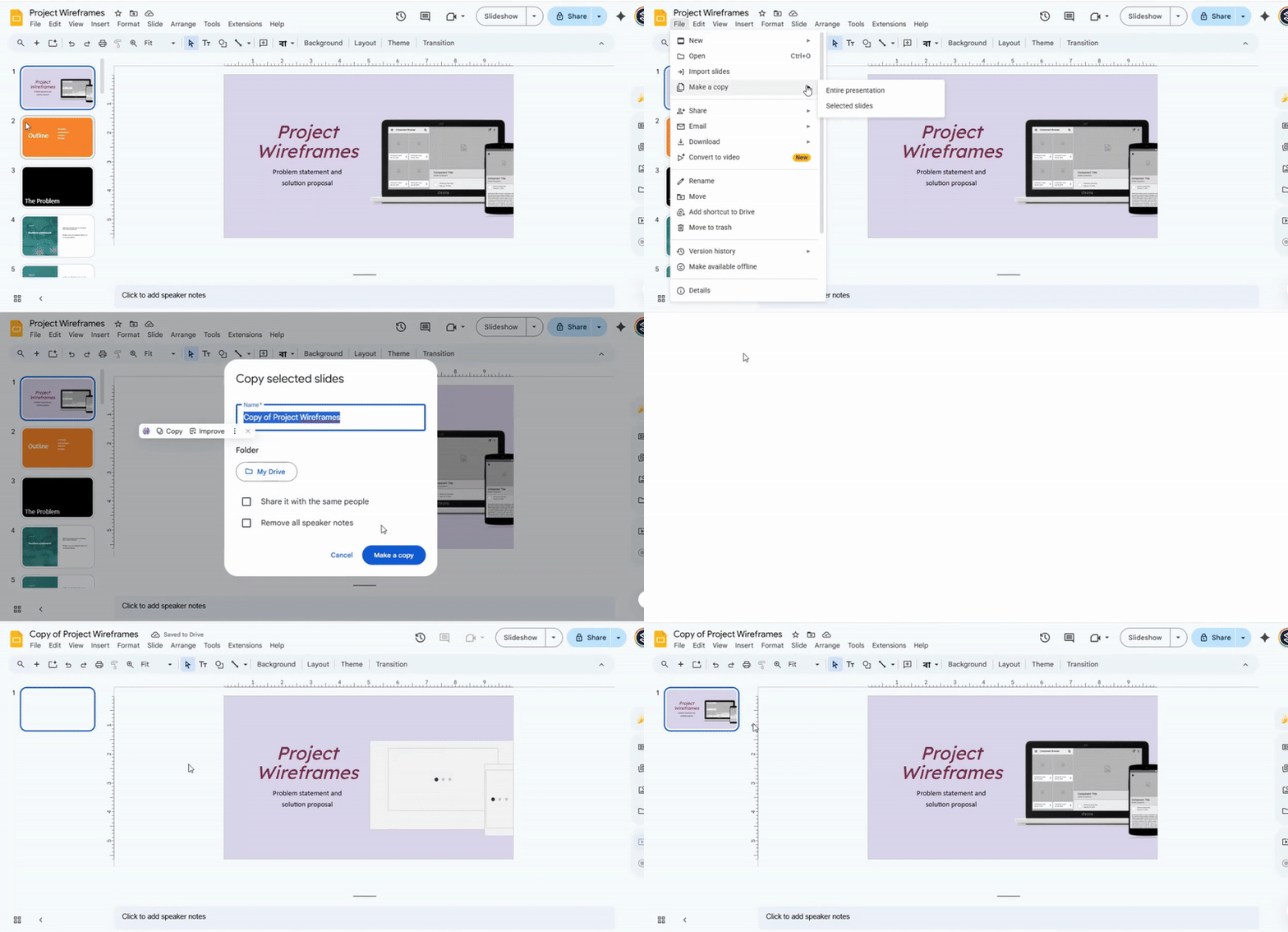
Once your slides are selected, go to File > Make a copy > Selected slides. The chosen slides will be copied to a new presentation.
How to Download a Google Slides Presentation
Google Slides allows you to download your presentations in different formats. This makes it easy to share, print, or use your slides on other platforms.
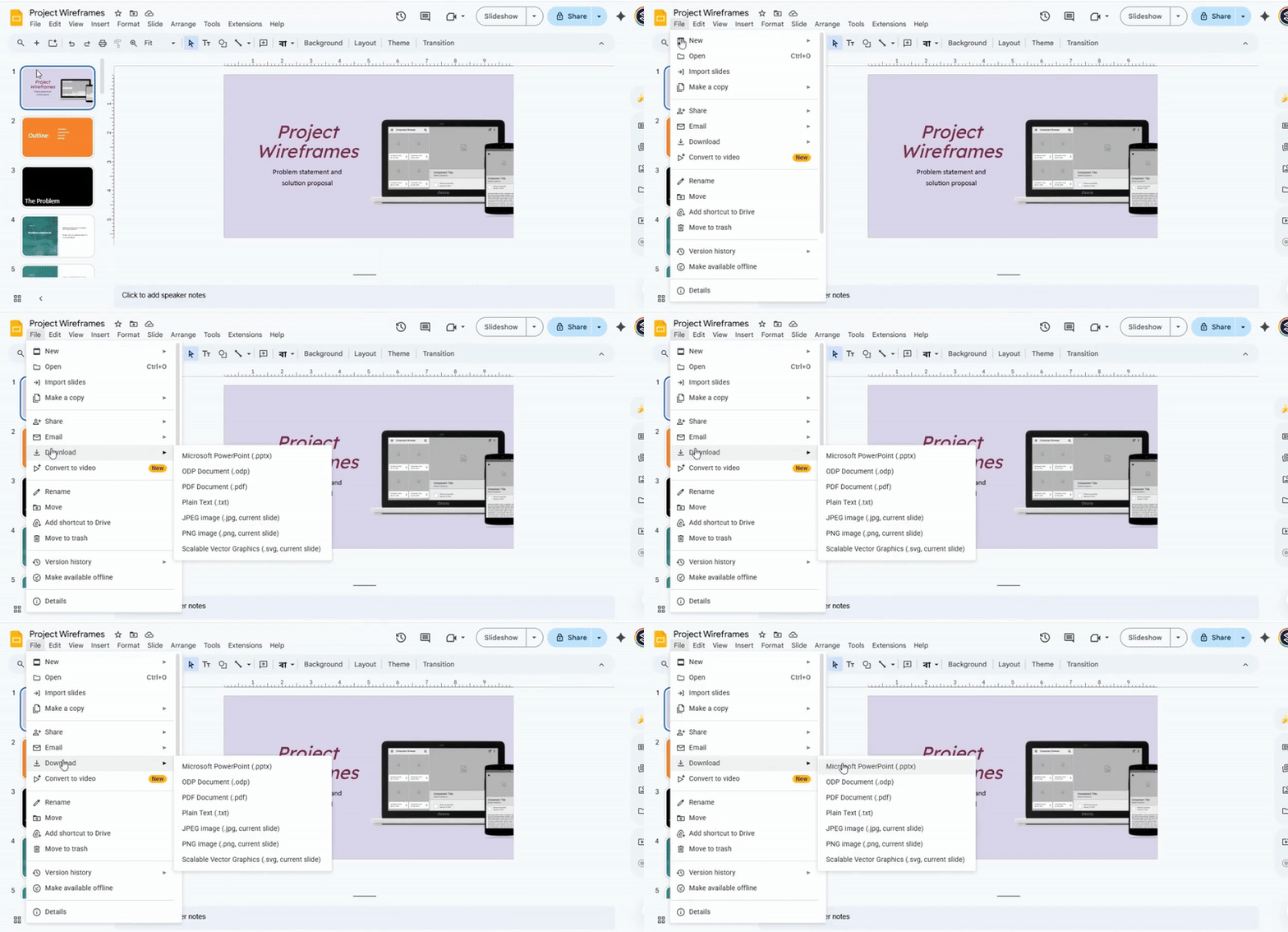
Step 1: Use the File Menu
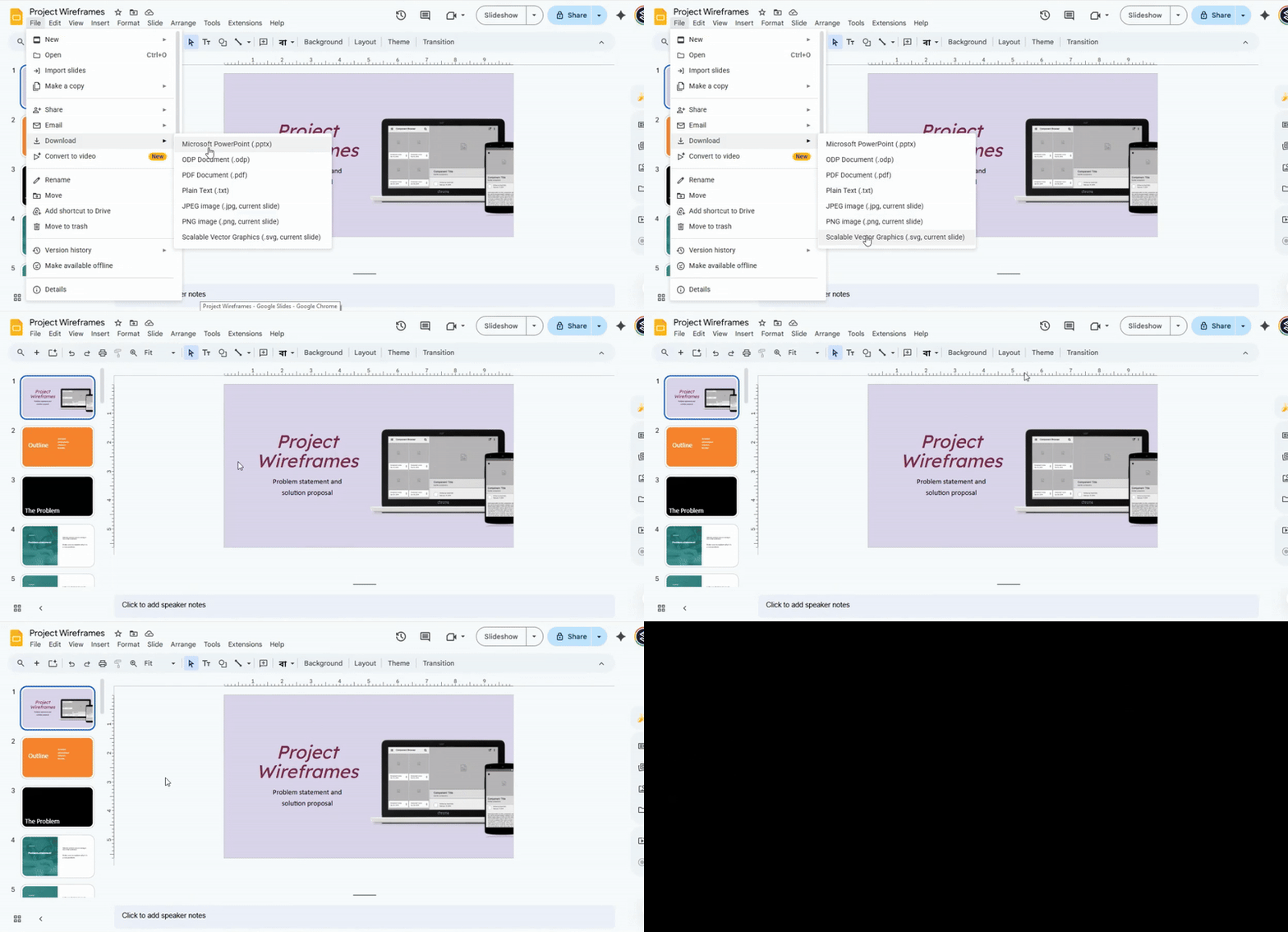
Open your Google Slides presentation. Click on File in the top menu. From the dropdown, select Download. This will show a list of formats you can choose from.
Step 2: Choose a Format
You can download your slides in several formats:
- Microsoft PowerPoint (.pptx): Use this if you want to open or edit your slides in PowerPoint.
- PDF Document (.pdf): Best for sharing a read-only version.
- JPEG Image (.jpg): Saves each slide as an image.
- PNG Image (.png): Another option for saving slides as images.
- Plain Text (.txt): Downloads only the text from your slides.
Each format has its benefits. For example, images can be added to reports or websites, while PowerPoint files can be edited further on another platform.
Step 3: Access Templates and Themes
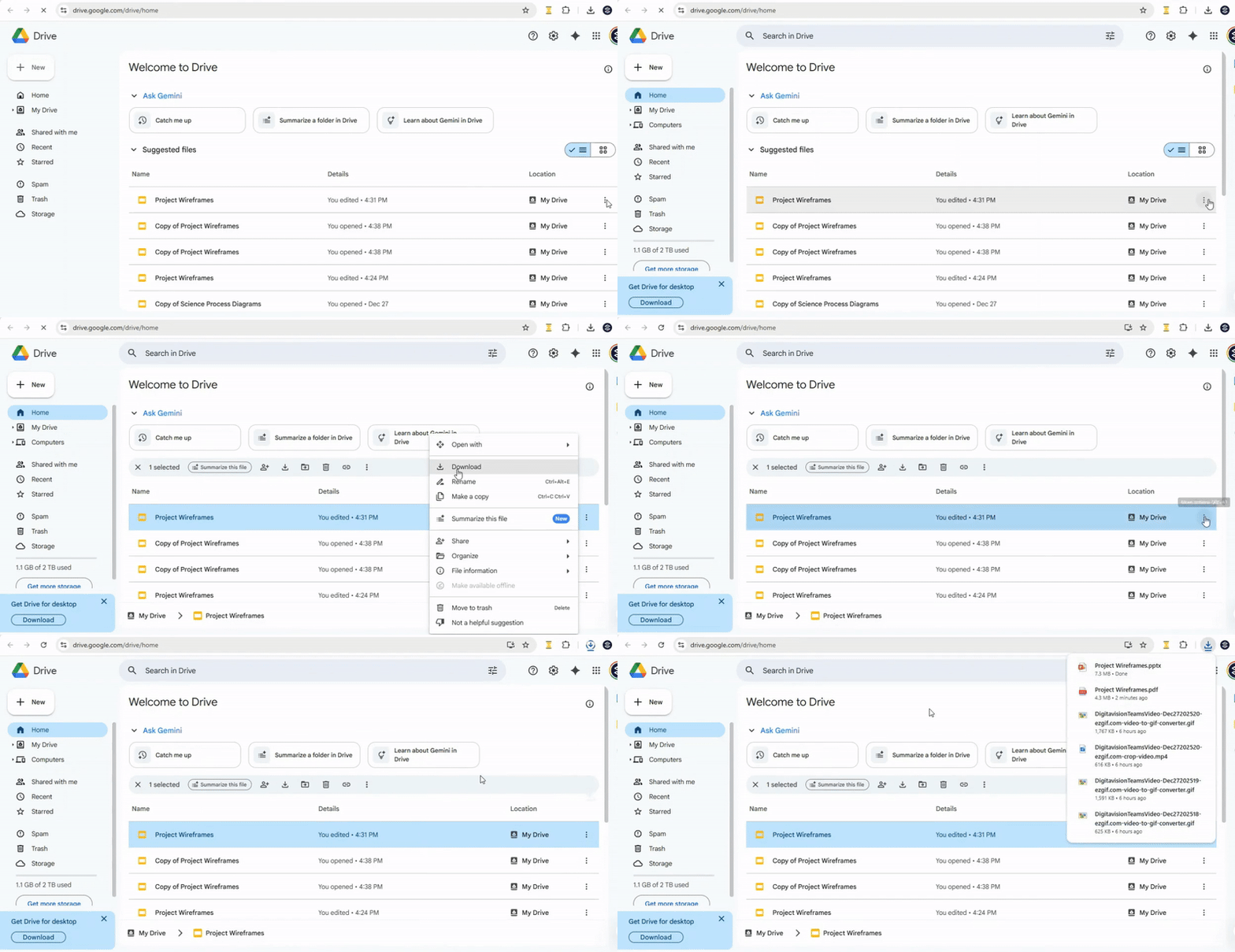
You can also download templates or reuse themes directly from your Google Drive. Open a template, then use the File > Download option. This keeps your design intact and ready for use in other presentations.
Step 4: Use Downloads on Other Platforms
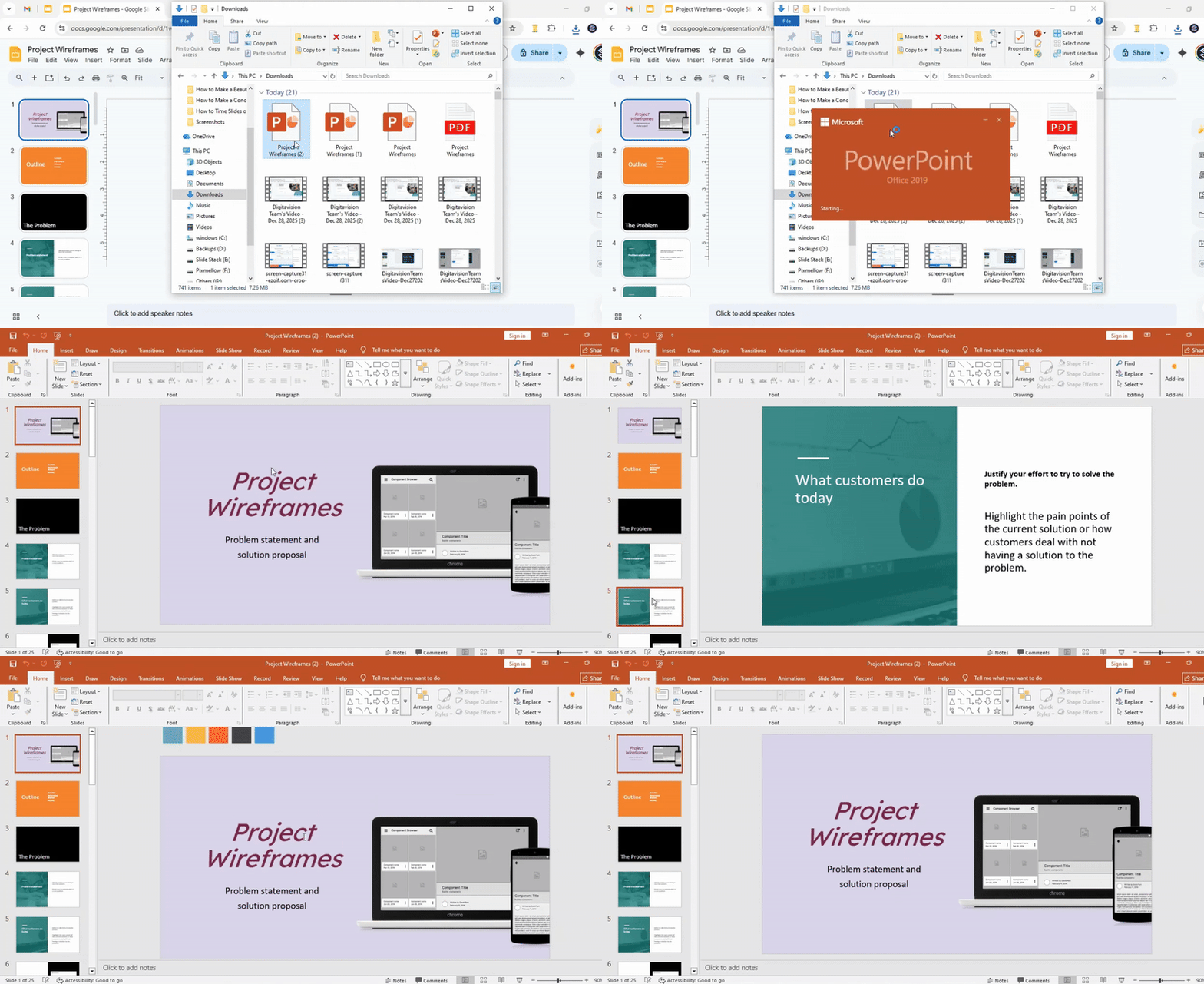
Downloaded slides can be opened in PowerPoint, Keynote, or other presentation tools. Images extracted from your slides can be used in documents, reports, or social media posts.
Step 5: Downloading Themes
Google Slides is cloud-based, so downloading themes is simple. Select a presentation with your desired theme and download it in your preferred format. The colors, fonts, and layouts will remain the same, making it easy to reuse your design.
How to Use Google Slides Templates Effectively
Downloading is only the first step. Proper usage is what makes your presentation look professional.
1. Keep the Layout Structure Intact
Avoid changing the entire design unless necessary.
2. Replace Content, Not Design
Focus on updating:
• Text
• Images
• Charts
• Brand colors (if needed)
3. Use Consistent Fonts
Stick to 1–2 font styles across the entire presentation.
4. Avoid Overloading Slides
Keep slides clean and focused on one idea at a time.
Common Problems When Downloading Templates (And Fixes)
Problem 1: Formatting Breaks After Import
Cause: PPTX file not fully compatible
Fix: Re-upload and open using Google Slides instead of PowerPoint
Problem 2: Fonts Look Different
Cause: Missing fonts in Google Slides
Fix: Replace with standard Google fonts like Arial or Roboto
Problem 3: Images Misaligned
Cause: Conversion shift
Fix: Re-align using “Arrange → Align” tools
Types of Google Slides Templates You Can Download
Choosing the right template improves presentation impact significantly.
Used for reports, meetings, and corporate communication.
Designed for investors and funding presentations.
Ideal for lectures, assignments, and teaching materials.
Used for campaign reports, analytics, and strategy presentations.
Clean layouts focused on clarity and professionalism.
Tips to Choose the Right Template
Before downloading, evaluate:
• Purpose of presentation
• Audience type (internal vs external)
• Level of visual complexity required
• Brand alignment (colors, tone, structure)
A good template should support your message—not distract from it.
Frequently Asked Questions (FAQ)
How do I download Google Slides templates for free?
You can use Google Slides' built-in templates or download free templates from trusted presentation design websites.
Can I use PowerPoint templates in Google Slides?
Yes. You can upload PPTX files to Google Drive and open them with Google Slides.
Why does my template look different after uploading?
This usually happens due to font or formatting differences between PowerPoint and Google Slides.
Are Google Slides templates editable?
Yes. All templates are fully editable once imported or copied into Google Slides.
Final Thoughts
Downloading Google Slides templates is simple, but using them correctly is what creates professional presentations.
If you focus only on downloading, you’ll stay at a basic level. But if you focus on choosing, customizing, and structuring templates properly, your presentations will immediately stand out.




You may also be interested in ...

How To Create An Eye-Catching Portfolio
If you’re looking to create an eye-catching portfolio, this post will come in handy. In this article, you can find the easies...
23 Jun, 2024

How To Easily Create An Infographic
Infographics are the perfect way to make a presentation that will impact an audience, but their design and composition might...
08 Jun, 2024

PowerPoint Template Tips & Tricks You Ne...
PowerPoint seems to be an unknown world for many people, especially those who have been assigned to create a presentation out...
08 Jun, 2024