How to Easily Add and Modify Icons in Google Slides

Adding icons to your Google Slides can make presentations more engaging, but many users find it hard to locate the right icons or place them correctly. This often leads to slides that look cluttered or inconsistent, which can distract your audience and weaken your message.
Fortunately, adding and customizing icons in Google Slides is easier than it seems. With simple steps, you can insert icons from your device, Google Drive, URLs, or popular add-ons like Freepik, Flaticon, Noun Project, and Hugeicons. This guide will walk you through each method, showing how to quickly enhance your slides and make them look polished and professional.
How to Easily Add and Modify Icons in Google Slides
Adding and customizing icons in Google Slides can make your presentations more engaging and easier to follow. The process is simple and only takes a few steps. Read the points below to learn how to easily add and modify icons in your slides.
Insert Icons via Device, Google Drive, URL, or Web
You can add icons to your slides in several ways. This gives you flexibility depending on where your icons are stored.
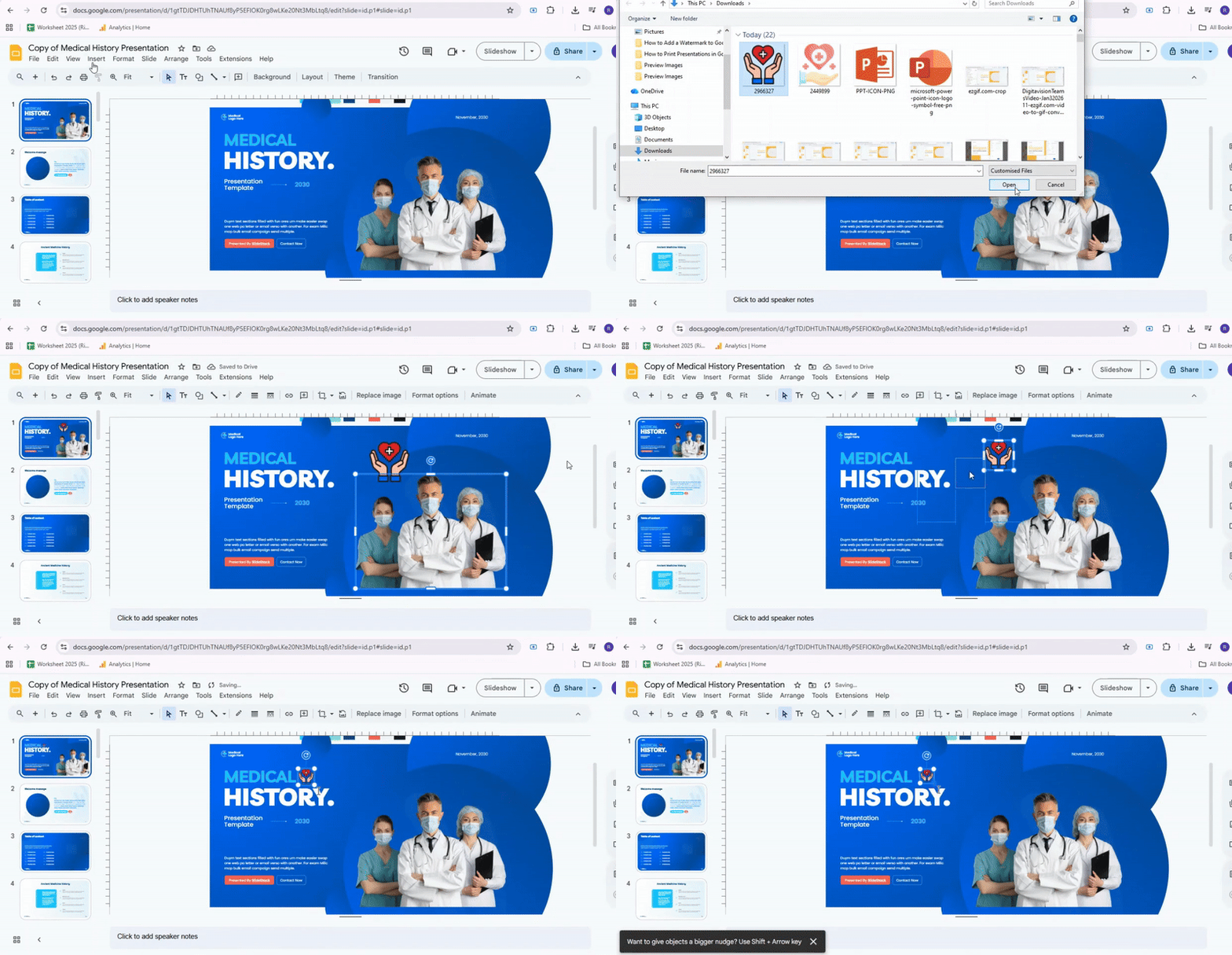
From your device: Click “Insert,” then “Image,” and choose “Upload from computer.” Select the icon file you want.
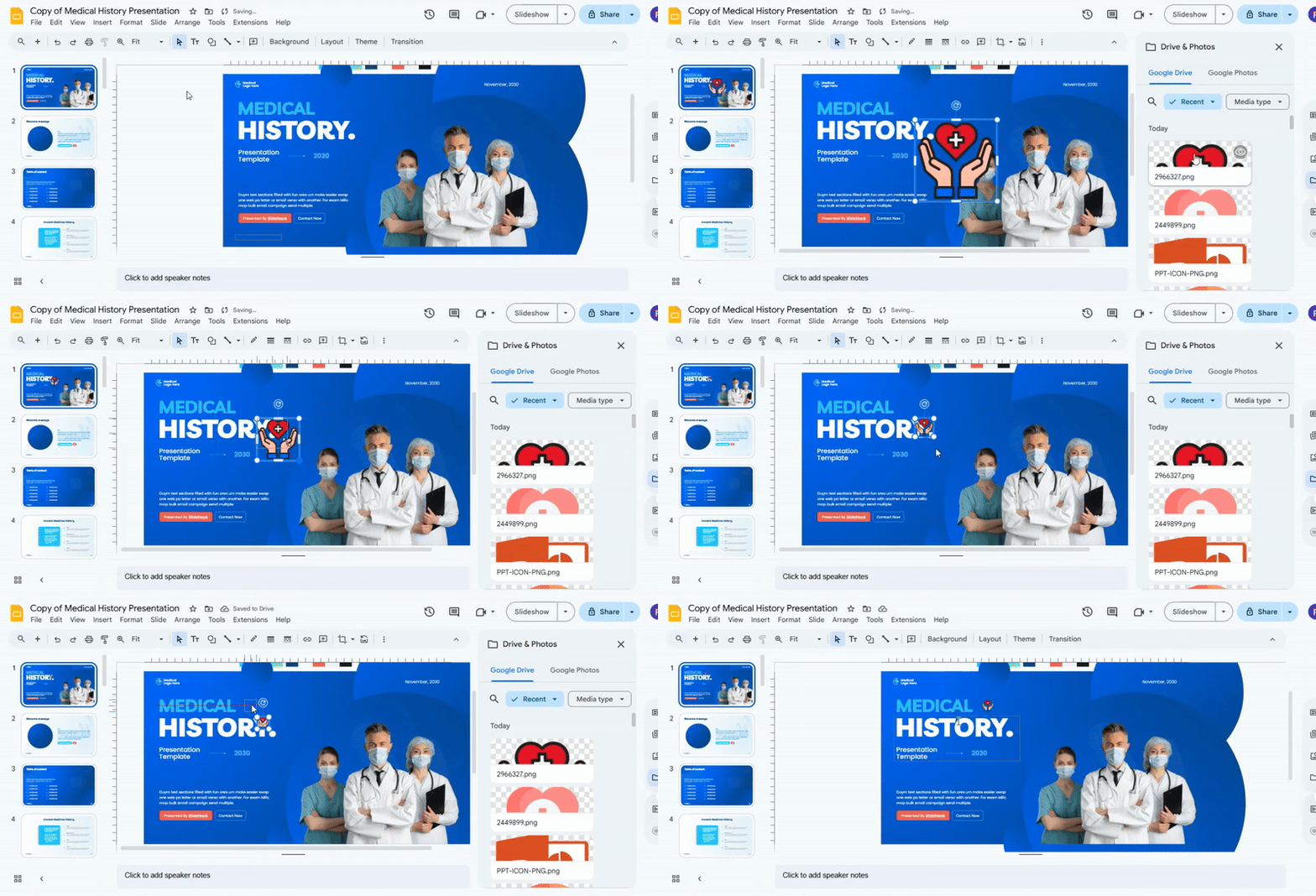
From Google Drive: Click “Insert,” then “Image,” and pick “Drive.” Browse your folders and select your icon.
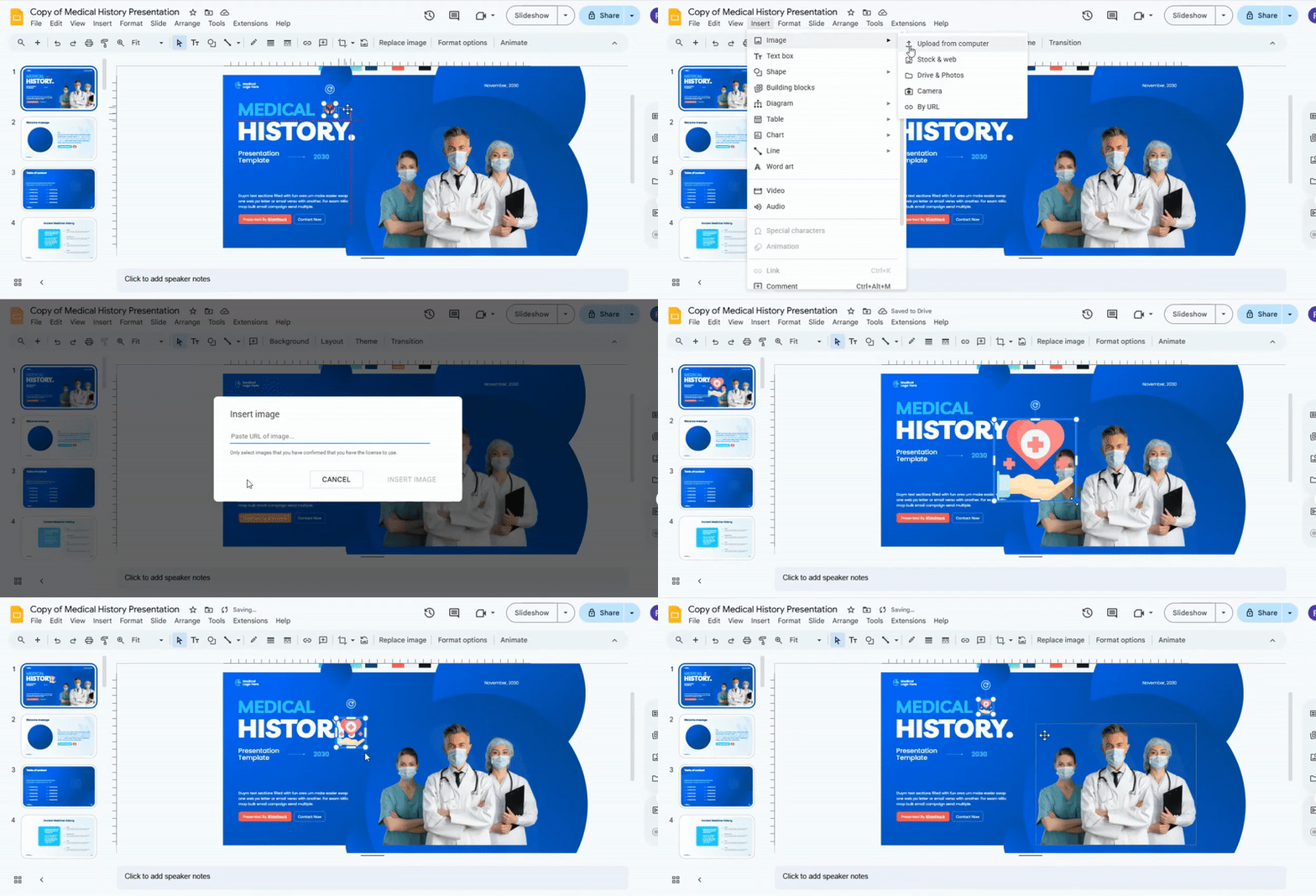
From a URL: Copy the image link, click “Insert,” then “Image,” and choose “By URL.” Paste the link and insert.

From the web: Click “Insert,” then “Image,” and choose “Search the web.” Type the icon you need, such as a Wi-Fi symbol, and insert it directly.
Using multiple sources lets you save icons in different ways or quickly search for them online. Third-party add-ons can also help you find icons faster.
Tips: After adding an icon, resize it to match your slide design. Keep icon styles consistent for a polished look. Use free-to-use icons or check copyright rules. You can save frequently used icons in a personal library for faster access next time.
Insert Icons Using Google Slides Add-ons
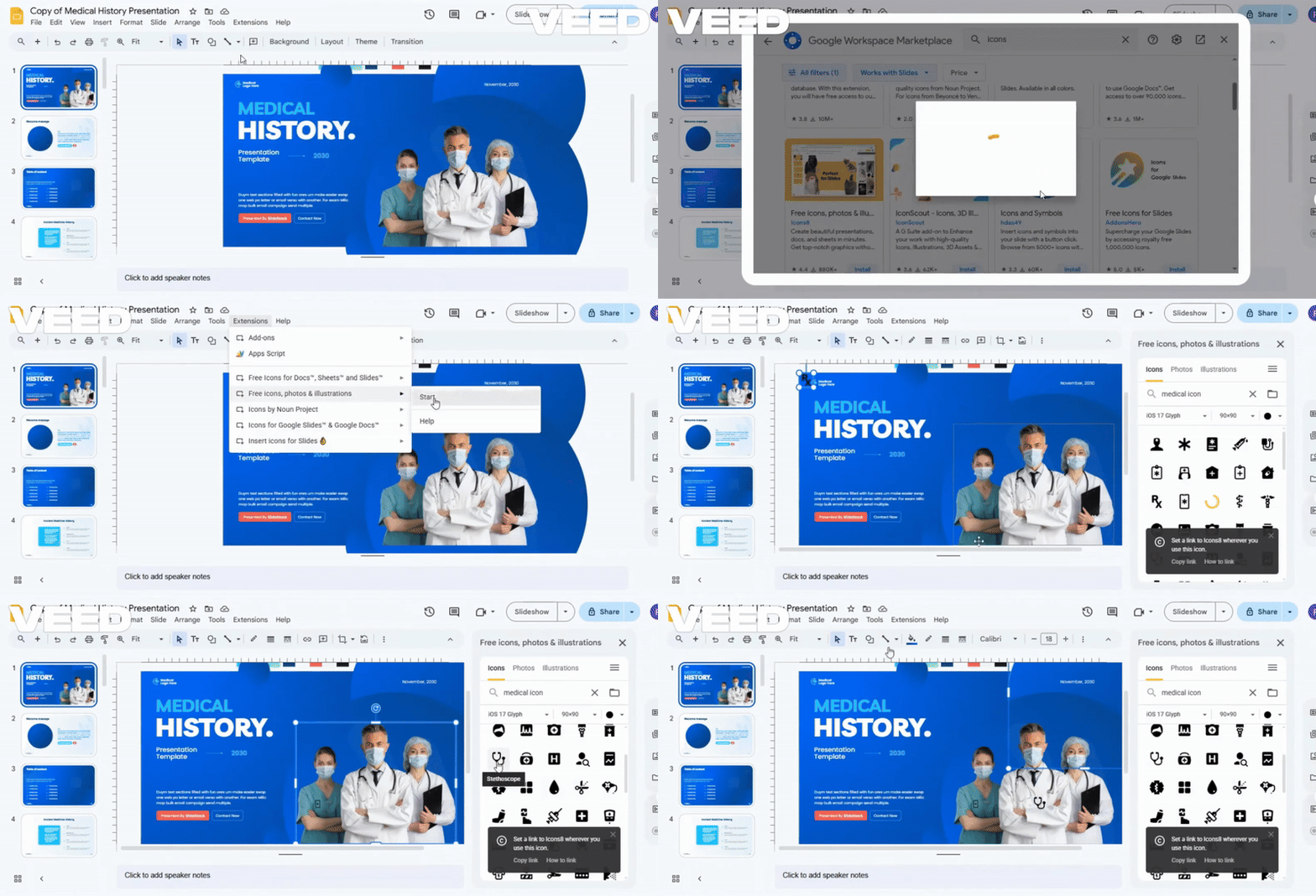
There are several useful add-ons you can use to find and insert icons in Google Slides. To add an add-on, go to Extensions → Add-ons → Get add-ons. Two popular choices are Icons for Google Slides by Flaticon and Icons by Noun Project. These add-ons provide a wide range of high-quality free icons that can be added directly to your slides. To use an installed add-on, go to the Extensions menu and launch the extension.
Icons for Google Slides by Freepik
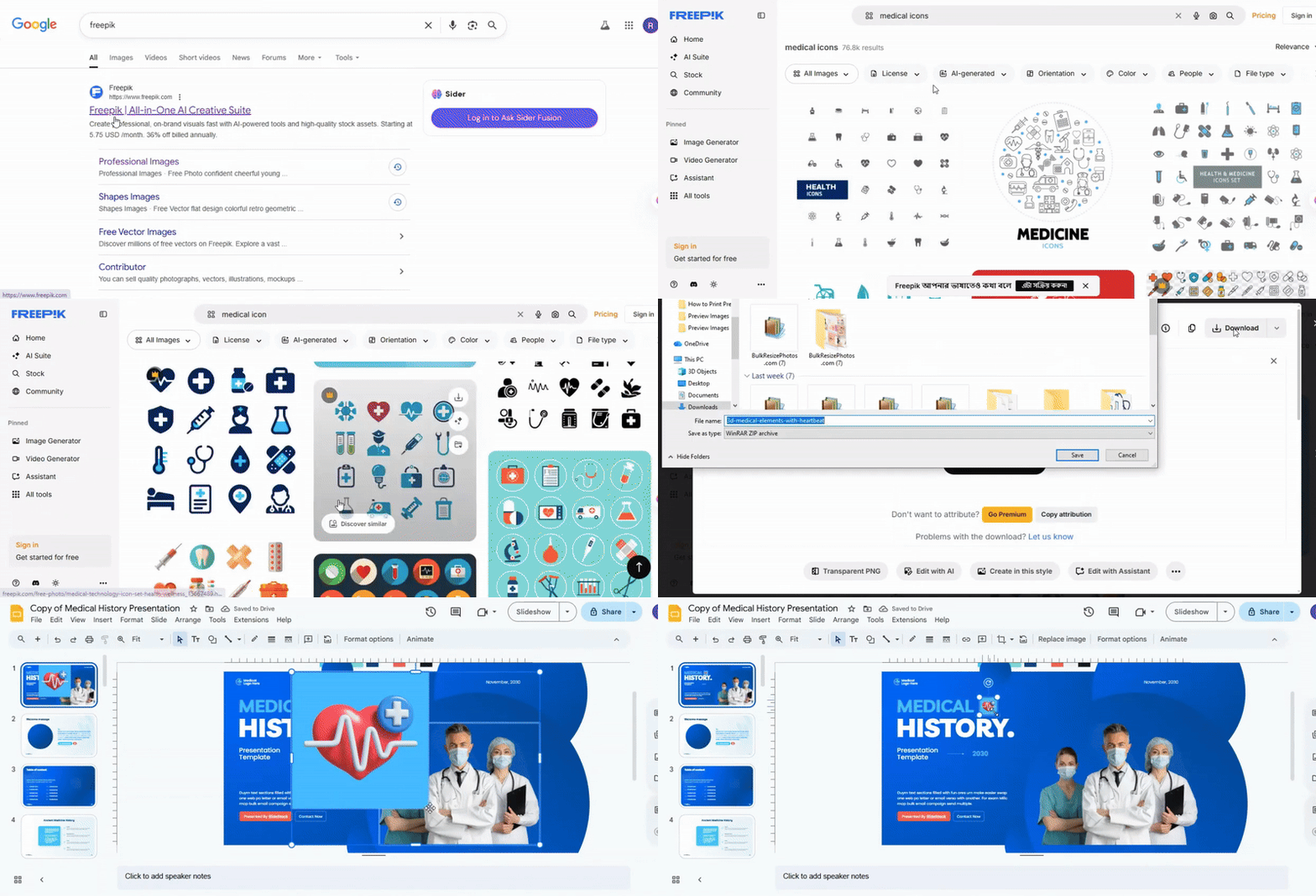
Freepik offers a wide range of icons you can use in Google Slides. You can browse categories like business, education, and technology. Download the icons in PNG or SVG format. Then, open your Google Slides presentation and insert them by going to Insert > Image > Upload from computer. Resize and position the icons as needed to enhance your slides.
Icons for Google Slides by Flaticon
Icons for Google Slides by Flaticon give you access to a vast library of icons right inside your presentation. This add-on helps you add visual elements quickly without leaving your slides. You can find icons for almost any topic or theme.
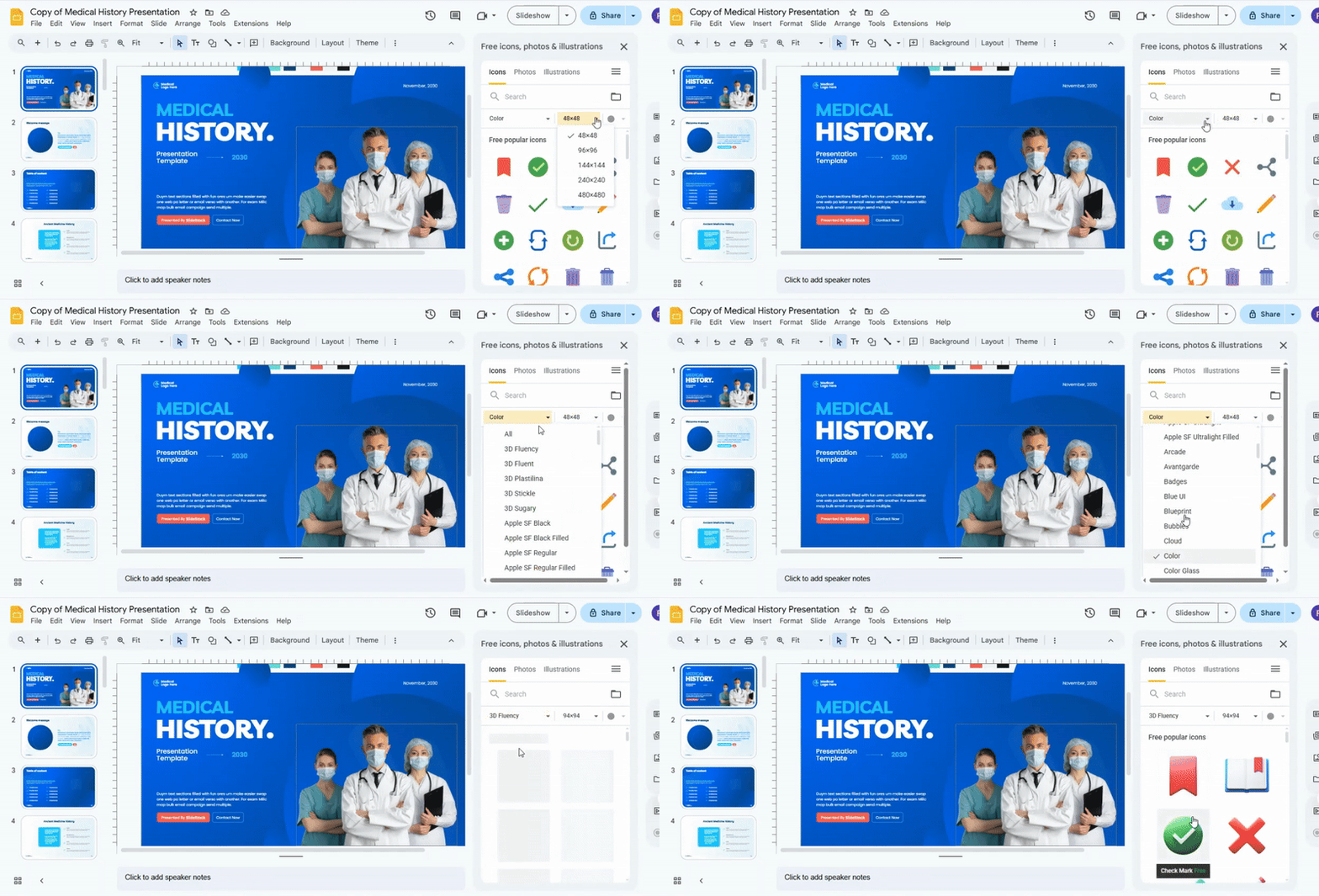
The add-on offers different types of icons. You can choose from 3D icons for depth, badge-style icons for emphasis, and bubble icons for a playful look. Each style lets you match your slides’ mood and purpose.
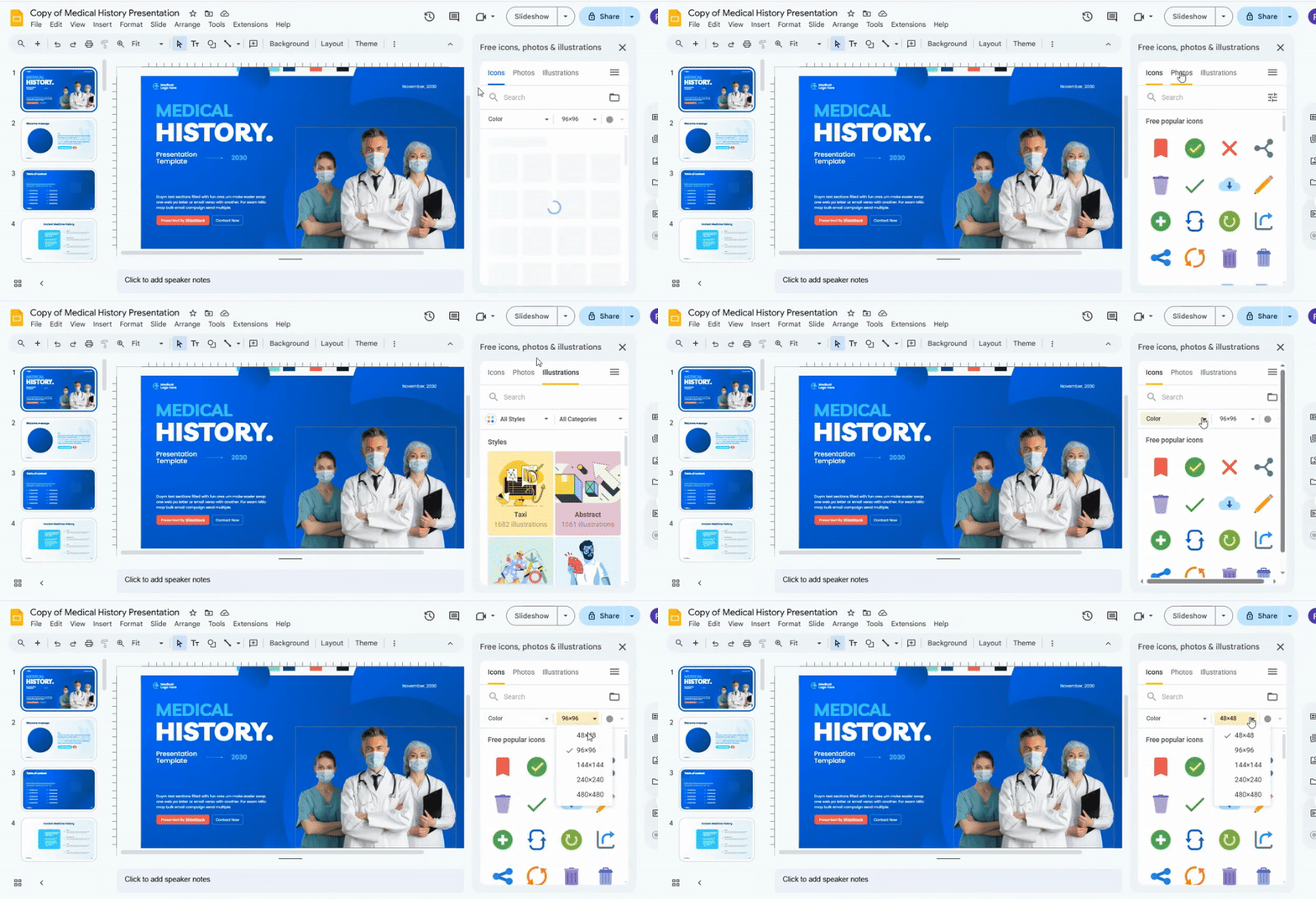
The interface is simple and easy to use. It has three tabs: Icons, Photos, and Illustrations. The Icons tab lets you search and insert icons. The Photos tab provides stock images, and the Illustrations tab offers creative vector graphics.
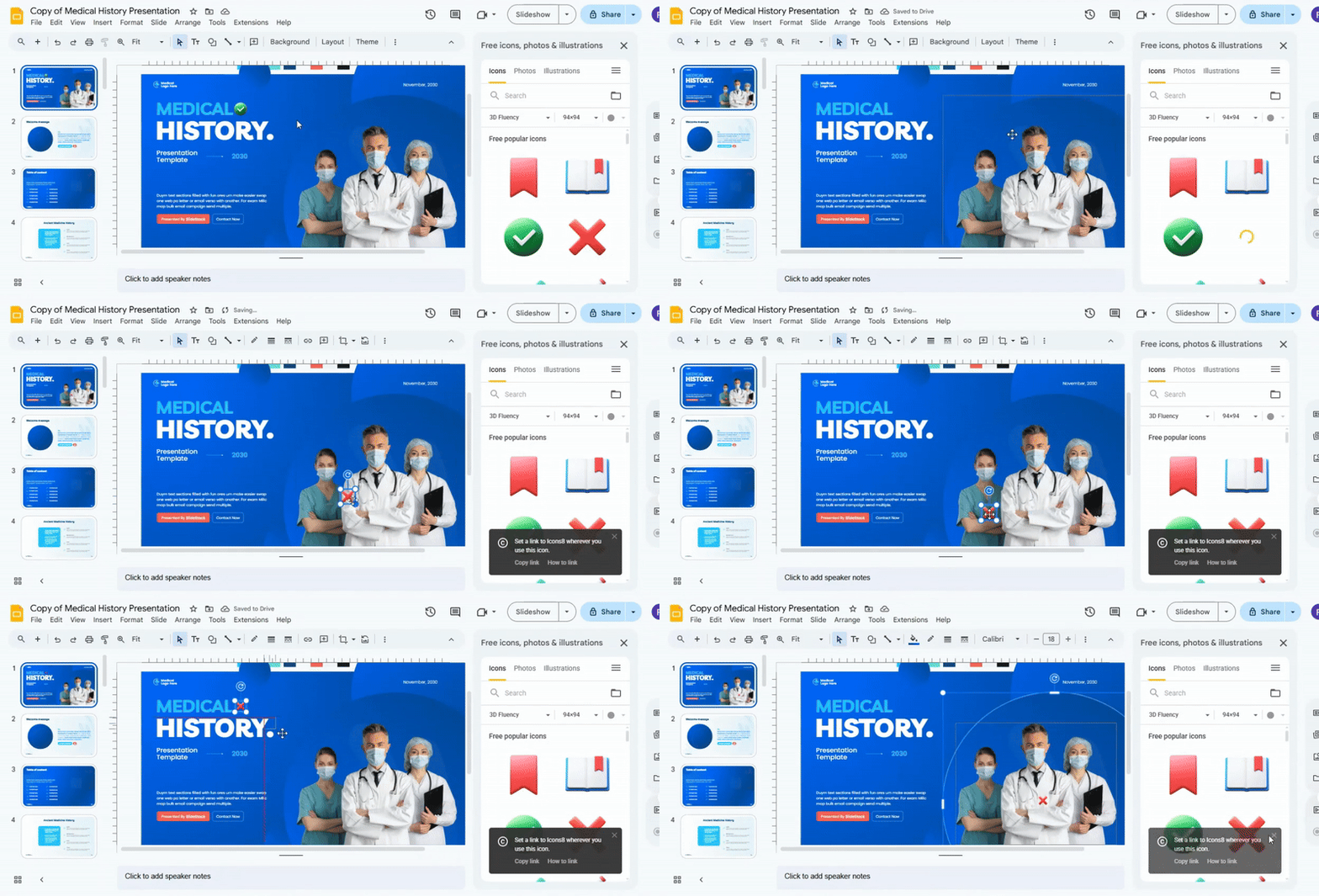
You can customize the icons to fit your slides. Change their size, adjust colors, and select high-resolution versions. These options help your slides look polished and professional while keeping your design consistent.
Using different icon styles can enhance your slide design and branding. Stick to a consistent style across all slides for a cohesive look. Combine icons with text carefully to make information clear. You can also group or layer icons to create more complex visuals.
When using colorful or high-resolution icons, avoid cluttering your slides. Leave enough white space so each element is easy to see. With thoughtful use, these icons can make your presentations more engaging and visually appealing.
Icons by Noun Project
Icons by Noun Project help you add clear visuals to your slides. It creates a universal visual language that makes ideas easy to understand. You can find icons for almost any concept, making your presentation more engaging and simple to follow.
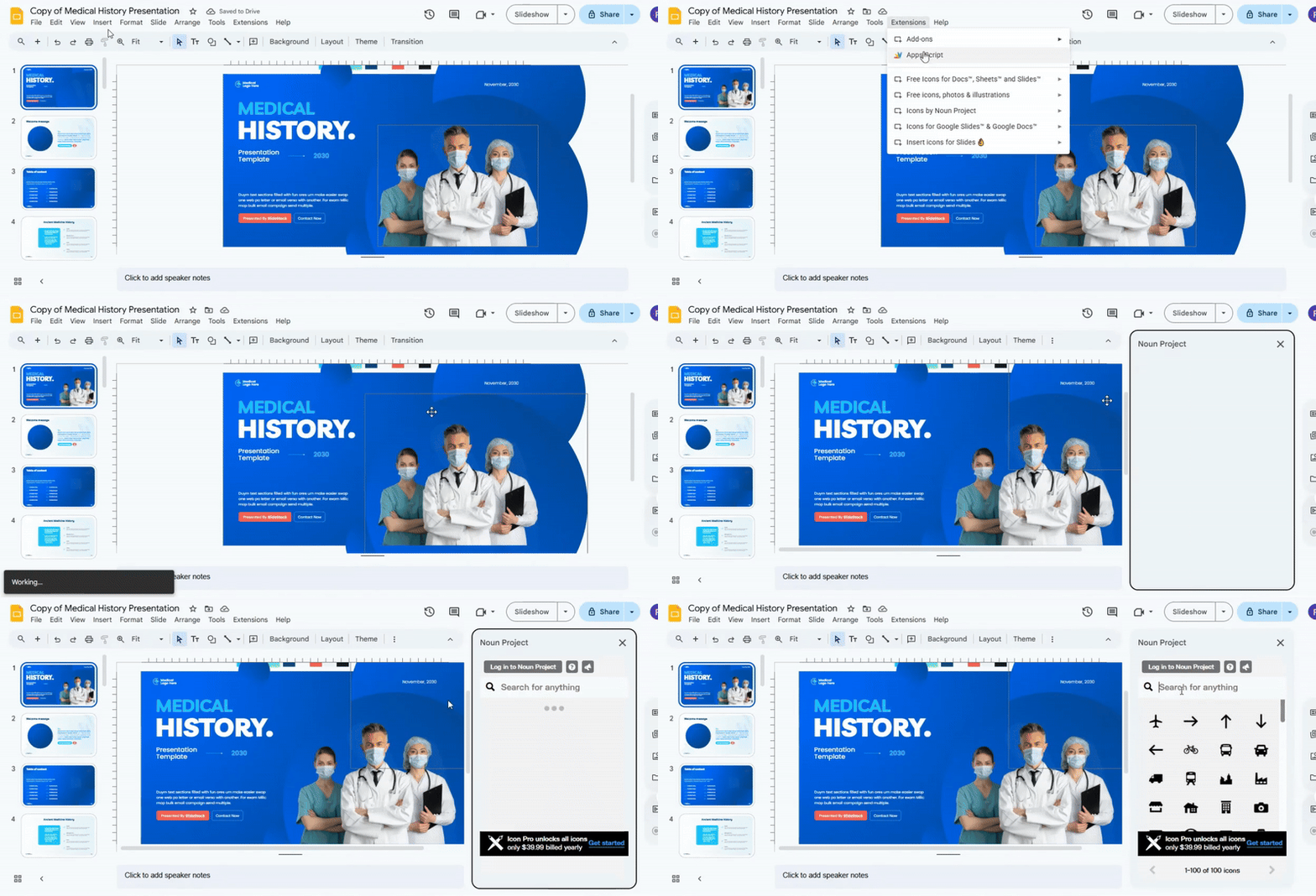
To start, open your slide deck and go to the Add-ons menu. Search for Icons by Noun Project and install it if you haven’t already. Once installed, open the add-on to access the icon library. You can type keywords in the search bar to find icons that match your topic.
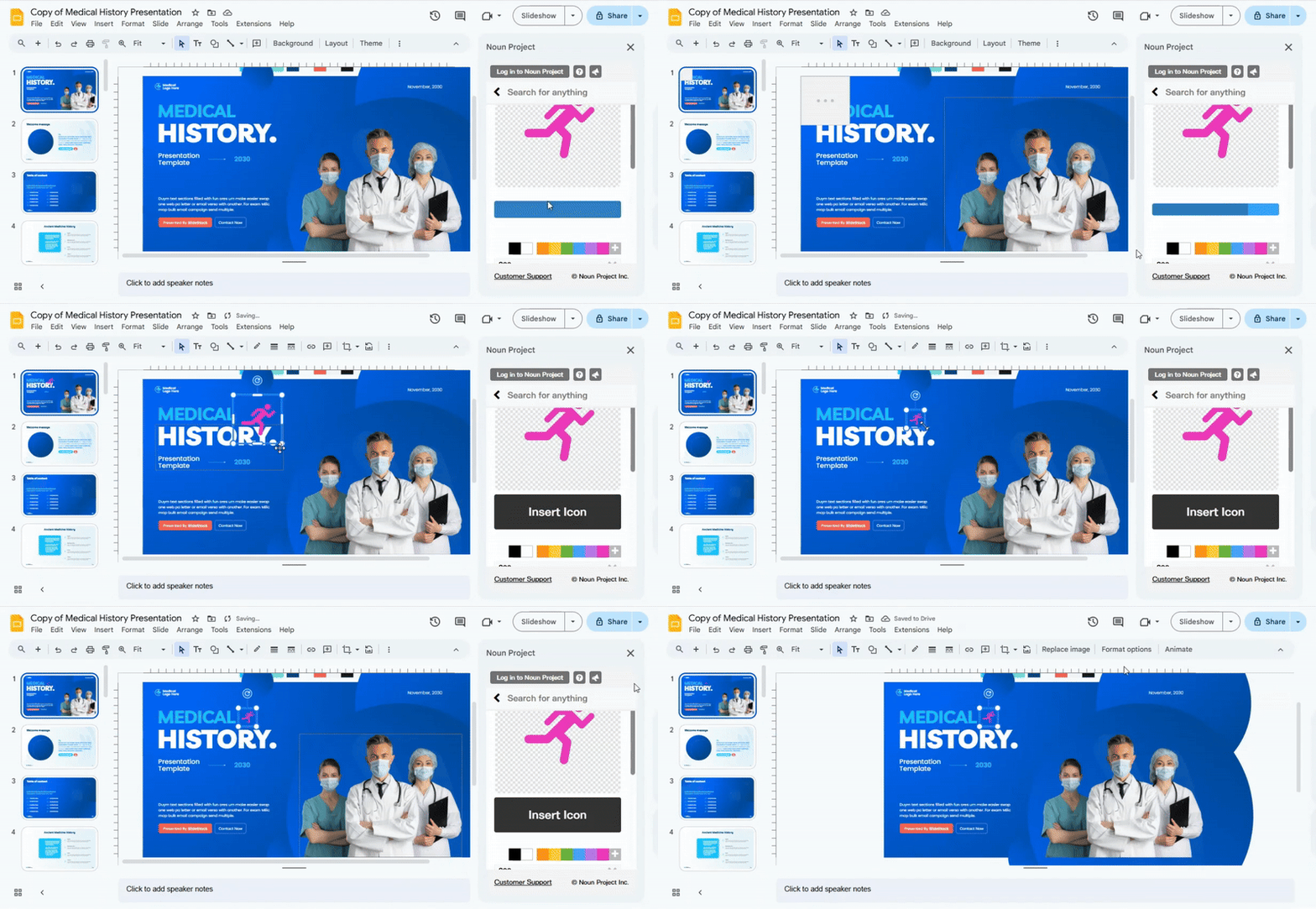
To insert an icon, click on the one you want. Then press Insert. The icon will appear on your slide. You can move it, resize it, or rotate it as needed.
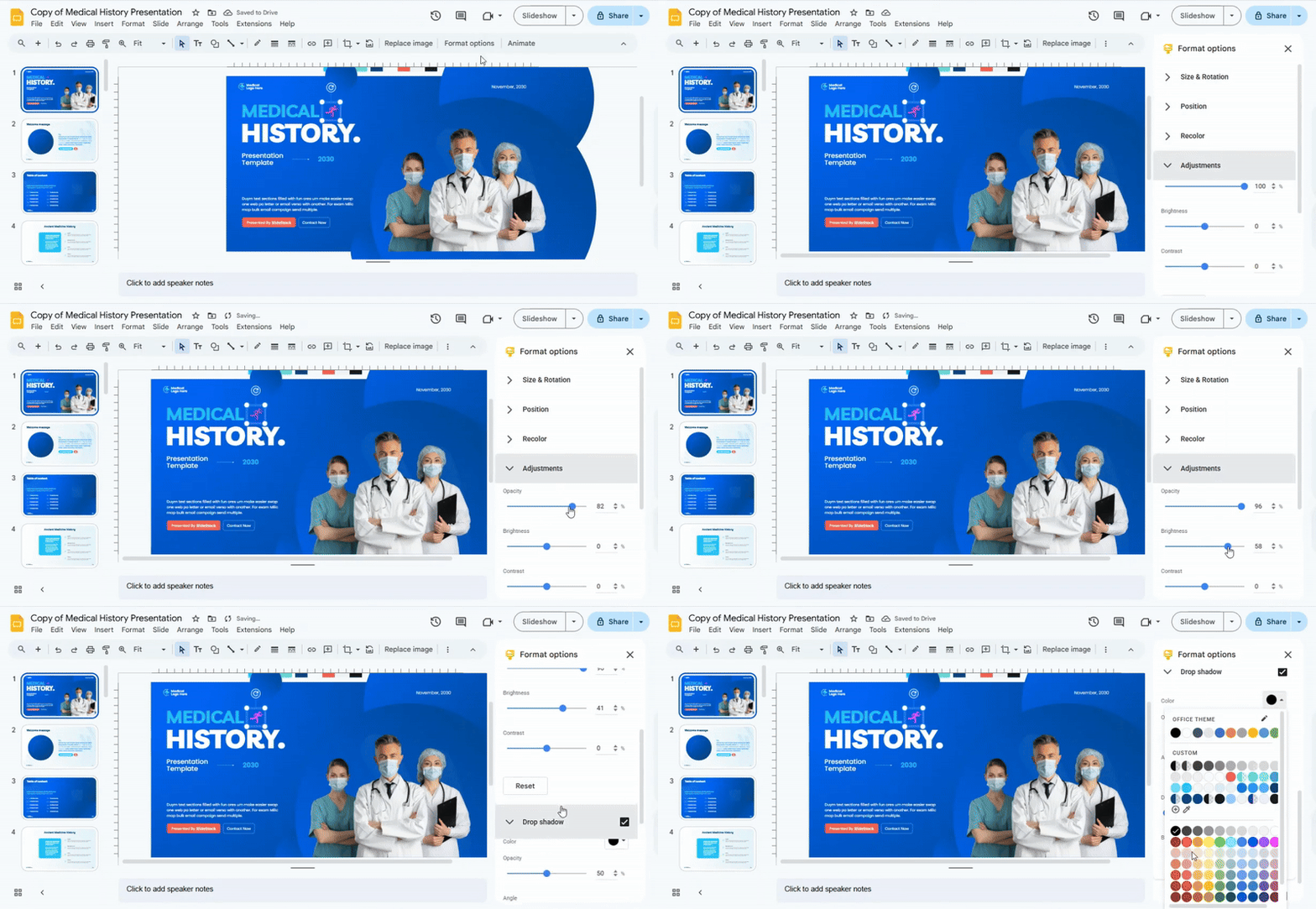
Use Format Options to adjust colors, transparency, or other styles.
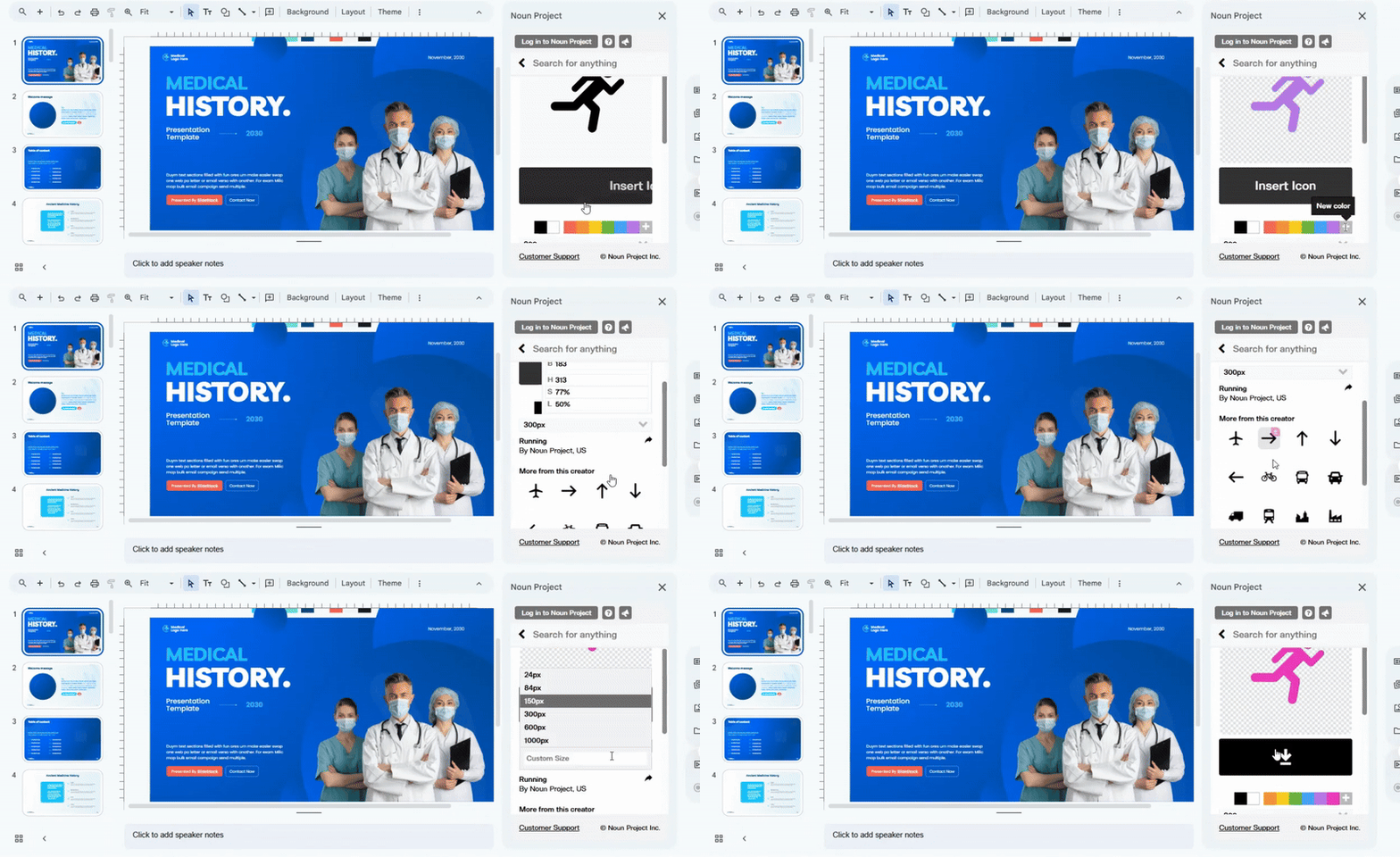
For consistency, pick icons that share a similar style. This helps your slides feel connected and professional. Combine icons with shapes, text, or images to tell a story visually. Keep your icons simple to avoid clutter.
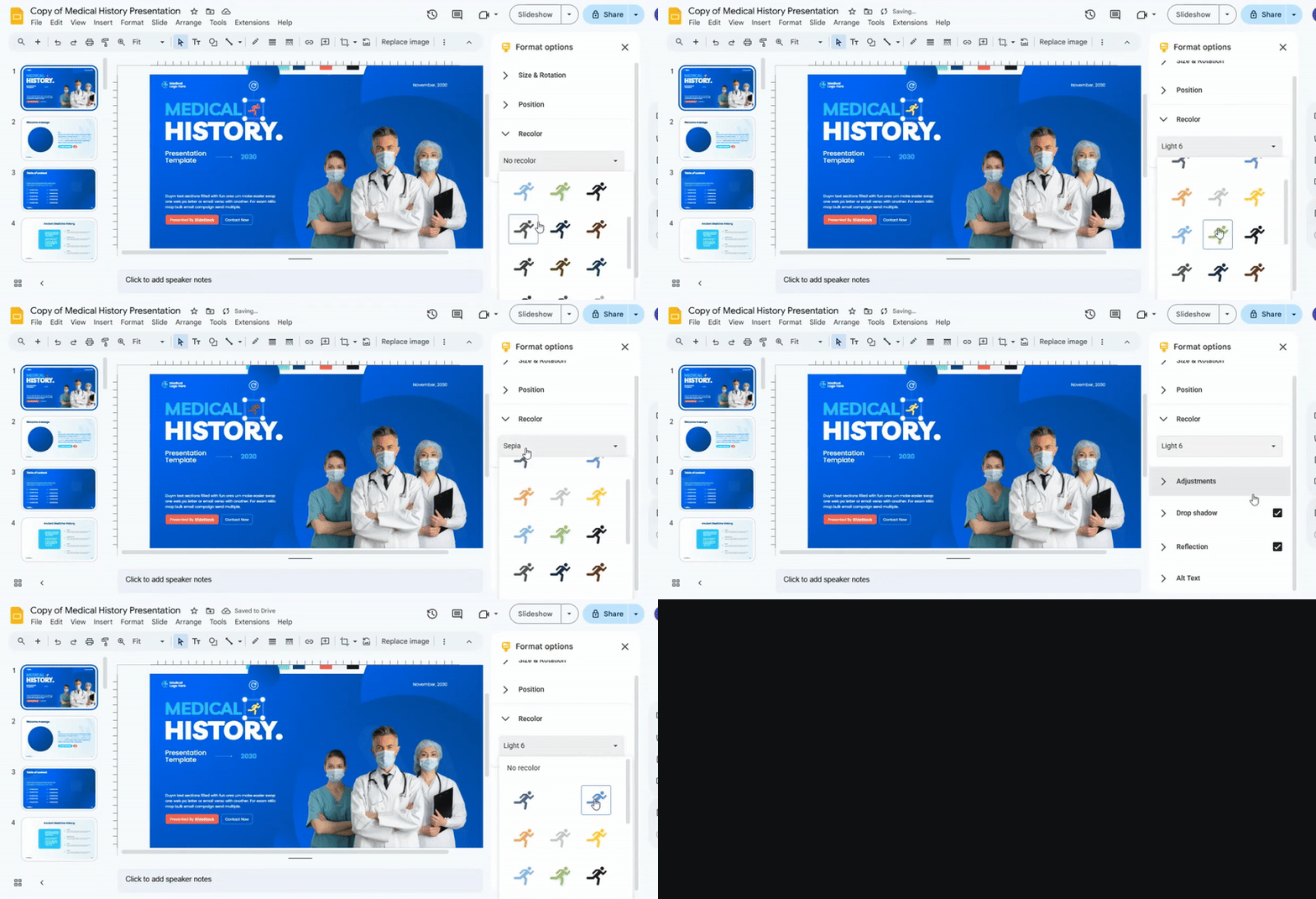
Some icons require attribution. Check the license before using them, especially in public or shared presentations. This ensures you respect the creator’s rights while using the icon library effectively.
Conclusion:
Adding icons to Google Slides can make your presentations clearer and more visually appealing. You have many options to choose from, whether uploading from your device, using a URL, or exploring add-ons like Freepik, Flaticon, and Noun Project. Keep your icons consistent, sized properly, and well-spaced to maintain a clean look. With these steps, your slides can communicate ideas more effectively while staying polished and professional.
FAQs:
Can I customize the color of icons in Google Slides?
Yes, you can change the color of many icons in Google Slides. Select the icon, then use the “Fill color” option in the toolbar to pick the color you want. Some icons, like images, may need editing in an external tool first.
Where can I find icons to use in Google Slides?
You can find icons directly in Google Slides by going to “Insert” → “Image” → “Search the web” and typing what you need. You can also use free icon libraries online and download them as PNG or SVG files to add to your slides.
Can I resize the icons after inserting them into my slides?
Yes, you can resize icons easily. Click the icon and drag the corner handles to make it bigger or smaller. Hold the Shift key while dragging to keep the icon’s shape proportional.



You may also be interested in ...

How To Create An Eye-Catching Portfolio
If you’re looking to create an eye-catching portfolio, this post will come in handy. In this article, you can find the easies...
23 Jun, 2024

How To Easily Create An Infographic
Infographics are the perfect way to make a presentation that will impact an audience, but their design and composition might...
08 Jun, 2024

PowerPoint Template Tips & Tricks You Ne...
PowerPoint seems to be an unknown world for many people, especially those who have been assigned to create a presentation out...
08 Jun, 2024