How to Add and Use Speaker Notes in Canva Presentations
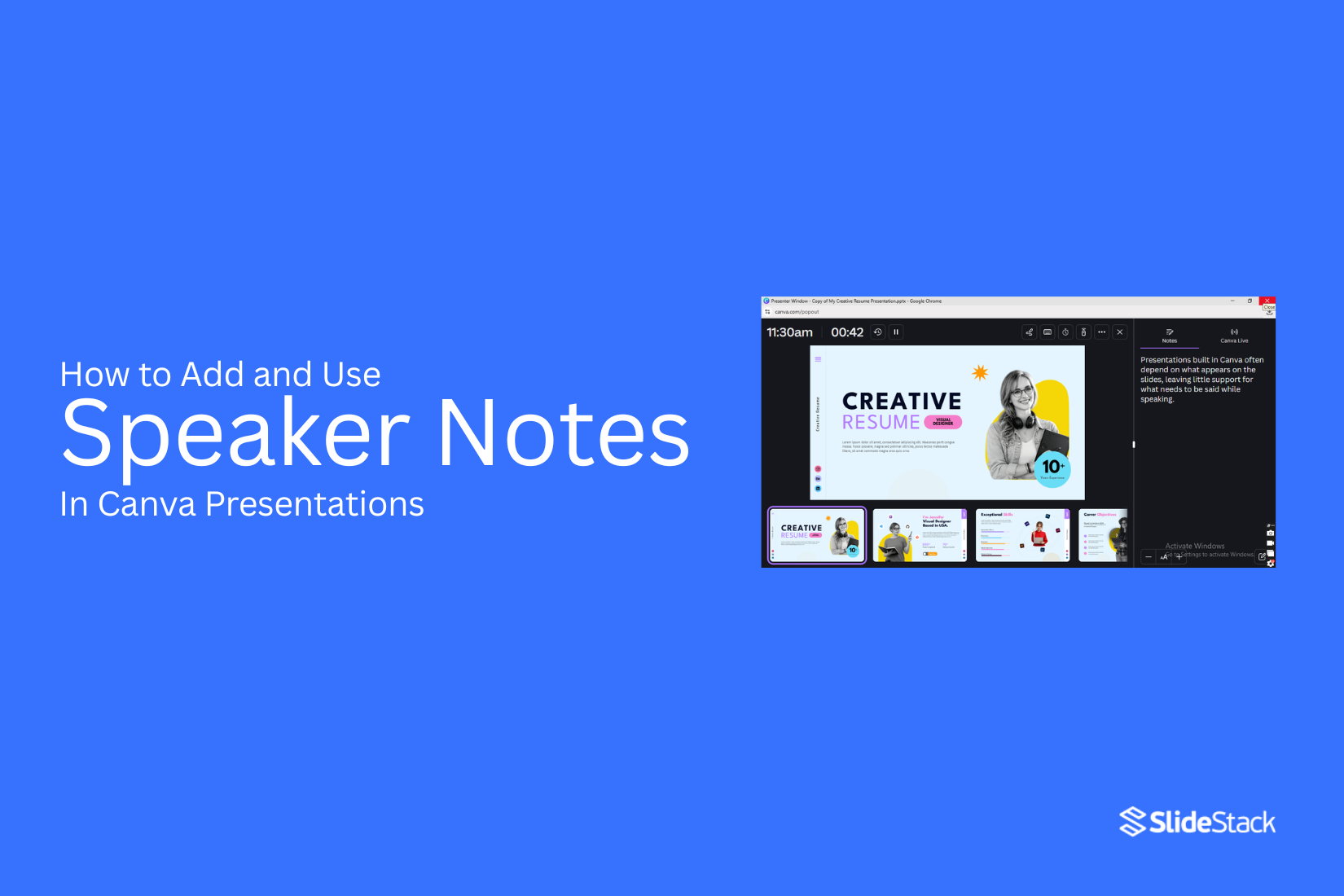
Presentations built in Canva often depend on what appears on the slides, leaving little support for what needs to be said while speaking. Without structured speaker notes, presenters may lose their place, repeat ideas, or rely on memorized lines that feel rigid. This creates pauses, uneven flow, and reduced clarity during delivery. That gap becomes noticeable during presentation delivery.
Speaker notes in Canva provide a structured space to guide what you say while presenting, helping you stay aligned with each slide without overloading the visual content. This article explains what speaker notes are, how to add them in Canva, and how to use them during presentations, including printing and delivery techniques for smoother communication.
What Are Speaker Notes in Canva
Speaker notes in Canva are a built-in note section that allows presenters to add supporting text for a slide without displaying that text to the audience during the presentation. In Canva presentations, each slide includes a hidden area beneath the main canvas. That space holds extra information intended only for the presenter. The content stays private during presentation mode and does not appear on the projected or shared screen.
This feature supports several practical functions within presentation work. A presenter may add reminders for talking points, helping maintain structure while speaking. Short explanations can sit inside the notes to clarify complex slide content without crowding the visual design. Data references, prompts for storytelling flow, or cues for timing also fit into this section. It acts as a personal guide tied directly to each slide rather than a separate document.
Inside Canva’s editor, speaker notes are accessed from the bottom panel of the presentation workspace. Each slide has its own dedicated note field. Text entered there remains linked to that specific slide, which helps keep information organized across longer presentations. During presentation mode, the notes become visible only to the presenter through presenter view, while the audience sees only the designed slides.
This structure supports clearer delivery during live presentations. It reduces the need to memorize long scripts and keeps attention on the audience instead of searching through external notes. It also helps maintain consistency in messaging across multiple slides by anchoring key points directly within the presentation flow.
Why Use Speaker Notes in Canva Presentations
Speaker notes in Canva presentations serve a clear purpose during delivery. They give you space to keep supporting details separate from the slide visuals, helping your presentation stay focused and easier to follow for the audience. Instead of placing all information on the slides, speaker notes keep extra context in a private area that only you can see.
A major advantage appears in how your slides look. Clean slides with limited text help the audience stay focused on key points without distraction. Speaker notes carry the supporting explanations, examples, or reminders that would otherwise clutter the slide. This separation creates a clearer balance between what is shown and what is spoken.
Delivery also becomes more structured and steady. Reading directly from slides often leads to a flat presentation style. Speaker notes guide your speech with supporting prompts, allowing your delivery to stay closer to natural speech patterns. This helps maintain flow during transitions between ideas without relying on full written content on screen.
Speaker notes can be seen as quiet cues placed beside each slide. They sit in the background like brief reference lines that guide timing, emphasis, and order of ideas. During a presentation, they act as anchors that keep your message aligned while giving you space to speak more freely and confidently.
How to Add Speaker Notes in Canva
Speaker notes in Canva sit slightly out of view during editing, which often leads to confusion. The notes area is not always displayed openly on the screen, so locating it can take a moment. Once found, it becomes a simple space for adding reminders, talking points, or extra details for presentations. A few quick steps guide the process from opening a presentation to adding notes across every slide.
Step 1: Open Your Canva Presentation
Start by accessing Canva and opening the presentation file you want to work on. The editor loads with your slides arranged in a vertical or grid layout, depending on your setup.
Step 2: Select a Slide
Click on any slide from the left-hand panel or main workspace. The selected slide becomes active, showing its editing options on the screen. Each slide works independently, so notes added here will only apply to the selected slide.
Step 3: Locate the Notes Section
Look toward the bottom area of the editor. A small section labeled for notes appears beneath the slide workspace. This area may appear minimized at first. Expanding it reveals a text field ready for input. The interface keeps this section subtle to avoid distraction while designing slides.
Step 4: Add Your Notes
Click inside the notes field and type your content. This space works well for key talking points, cues, or reminders tied to the slide content. Longer notes remain easy to manage since the field expands as more text is added. Formatting stays simple, focusing on clarity rather than design elements.
Step 5: Repeat for Other Slides
Move through the remaining slides and add notes where needed. Each slide holds its own separate notes section, allowing different talking points for different parts of the presentation. A quick review across slides helps maintain consistency and ensures nothing important is missed during delivery.
Read also: How to Add Speaker Notes in Google Slides Quickly
How to Automatically Add Speaker Notes to Canva
Speaker notes in Canva help you keep talking points aligned with each slide without placing text on the design itself. With Canva’s AI-assisted tools, notes can be generated automatically from slide content or a custom prompt, reducing manual writing and keeping presentations consistent.
This feature supports two main approaches: generating notes directly from existing page content or creating them from a custom instruction. Both routes aim to speed up preparation while keeping notes aligned with your message.
AI Speaker Notes Capability in Canva
Canva analyzes the content on each slide, including headings, text blocks, and visual context, then produces speaker notes that match the slide’s intent. It can also work from a user prompt to shape notes in a specific style or direction.
This removes the need to manually draft talking points for every slide and keeps narration aligned across an entire presentation.
Step 1: Open Your Presentation
Start by entering your Canva presentation file. Each page should already contain the visual elements or draft content you want to support with notes.
Select a slide from the left panel to begin working on speaker notes for that page.
Step 2: Open the Speaker Notes Panel
At the bottom of the editor, open the speaker notes section.
This area is where Canva stores presenter guidance tied to each slide. It stays hidden from the audience during presentation mode and is used only for the presenter’s reference.
Step 3: Generate Notes Using AI
Inside the speaker notes panel, choose the option to generate notes using AI.
Two paths appear at this stage:
Option A: Generate from Page Content
Canva reads the current slide and builds notes based on what is already present.
• Works best for slides with clear headings and structured text
• Keeps notes aligned with visible content
• Reduces the need for manual direction
Option B: Use a Custom Prompt
Instead of relying on slide content, you can provide instructions for how the notes should be written.
• Useful for shaping tone or depth of explanation
• Helps when slides are visual-heavy with little text
• Gives control over how detailed or brief the notes should be
After selecting either option, Canva processes the request and places the generated notes into the speaker notes field for that slide.
Moving Through Your Slides
Each slide follows the same process. Open the page, access the speaker notes panel, then choose the generation method that fits the slide content. Some slides may benefit from content-based generation, while others rely more on custom direction. Switching between both keeps the presentation consistent without manual rewriting.
Once all slides are processed, speaker notes sit alongside your presentation, ready to guide delivery during
How to Automatically Rewrite Notes in Canva
After notes are added to a design, a refinement option becomes available within the editing interface. This option sits inside the Actions menu, giving you access to quick adjustments without leaving the workspace.
The Actions menu brings a set of text transformation choices designed for quick refinement. You can select a direction based on the result you want, such as a formal tone, casual style, shortened version, or a rewritten variation that keeps the core meaning but changes structure and wording.
Available transformations typically include:
• Formal adjustment for structured presentation
• Casual adjustment for relaxed tone
• Shorten for condensed content
• Rewrite for alternate phrasing with similar intent
Each option modifies the existing notes directly, keeping the original context intact while adjusting style or length. The process stays contained within the same editing panel, so the content remains easy to refine without switching tools or rebuilding text from scratch.
How to Use Speaker Notes During a Presentation
After setting up slides and adding notes, attention shifts to how those notes support delivery during live presentation use. Speaker notes sit out of view for the audience while remaining accessible to the presenter, helping keep the flow steady without breaking eye contact with the screen.
Presenter View in Canva
Canva provides a Presenter View mode designed for real-time delivery with notes visible only to the speaker. Start by opening the presentation file in Canva. Move to the top-right corner and select the Present button. A menu appears with different viewing options. Choose Presenter View from the available list.
This mode splits the screen into two sections. One side displays the current slide and the next slide preview, while the other section shows speaker notes tied to the active slide. The layout supports steady delivery without needing to switch tabs or leave the full-screen view.
If a second screen is connected, Canva can place the audience view on the external display while keeping notes on the main device. This setup helps maintain separation between audience content and speaker guidance.
Navigating Slides While Speaking
Slide movement happens directly within Presenter View using on-screen controls or keyboard inputs. Arrow buttons allow movement forward or backward between slides. Some setups also support slide thumbnails, letting you jump to a specific section without scrolling through each slide in order.
A navigation bar usually sits near the bottom or side of the interface, depending on the device. This allows quick movement while keeping the current slide visible. Switching between slides stays smooth by maintaining focus on the notes panel at the same time. The speaker can track talking points while controlling slide flow without breaking rhythm.
Tips for Natural Delivery
Speaker notes work best as short prompts rather than full scripts. Reading line by line can reduce engagement with the audience, so brief cues help maintain a steady conversational pace. Eye movement plays a role in delivery. Glancing at notes briefly, then returning focus to the audience-facing screen, helps maintain connection without losing track of content.
Device setup also shapes delivery quality. A second screen keeps notes separate from slides, while a single-screen setup relies more on careful window arrangement. Printed notes offer a backup option during connectivity issues or software delays. Pacing shifts based on slide complexity. Slower delivery suits detailed sections, while simpler slides allow more direct speaking without heavy reliance on notes.
How to Print Speaker Notes in Canva
Printing speaker notes in Canva does not follow a direct path. The platform separates design view from notes, which creates a gap during export. Still, there are practical ways to get your notes onto paper or a readable format.
Method 1: Print with Notes
Canva allows exporting designs in different formats, and this is the closest option to a direct print setup.
Open your presentation inside Canva. Head to the download section and choose a PDF format option, often labeled as PDF Print.
Before downloading, check the export settings panel. If an option for including notes appears, select it. This keeps your slide content and speaker notes together in a single file.
After downloading, open the PDF and print it using your device's print settings.
Method 2: Copy Notes Manually
This method works well when export options do not show notes.
Open your Canva presentation and switch to the notes section under each slide. Select the text in the speaker notes area and copy it.
Paste the content into a document tool such as Google Docs or Microsoft Word. Keep a simple structure where each slide title sits above its notes for clarity.
For quick input:
• Windows: Ctrl + C to copy, Ctrl + V to paste
• Mac: Command + C to copy, Command + V to paste
After arranging the content, print the document directly from the word processor.
Method 3: Use Presenter View Screenshots
Canva’s presenter mode offers a way to view slides alongside notes during a presentation. Screenshots from this view can serve as a printable reference.
Start the presentation in presenter mode. As each slide appears with its notes, take a screenshot using your device's tools.
Common options:
• Windows: Snipping Tool or Print Screen
• Mac: Shift + Command + 4 for selected capture
• Browser extensions for full-page capture if working in a web setup
After capturing all slides, place the images into a document editor. Arrange them in order and print the file. Extra flexibility comes from combining these approaches. Some users export slides for printing while keeping notes in a separate document for reference during delivery. This keeps the presentation clean while preserving speaking cues in an easy-to-read format.
Limitations of Speaker Notes in Canva
Speaker notes in Canva give presenters a space to keep supporting points alongside slides. The feature helps structure delivery, yet it does not carry the same depth or control found in more established presentation tools. This gap becomes clearer during preparation, rehearsal, and live delivery.
Lack of dedicated print layout
Canva does not provide a fully structured print layout for speaker notes in the same way traditional presentation software does. This limitation affects how notes are reviewed offline or shared in physical form. Notes often appear separated from the slide context, which forces extra formatting work before printing.
The result shows up during preparation. You may spend additional time adjusting layouts outside the platform, especially when notes need to be distributed as handouts or reference sheets. Instead of a direct export that preserves structure, the process relies on adjustments that sit outside the slide environment.
Limited presenter view reliability
Presenter view in Canva includes speaker notes, but its consistency can vary depending on device setup and browser performance. This affects how smoothly notes appear during live sessions. Timing between slides and notes may not always feel stable, particularly during longer presentations or when switching between screens.
During delivery, this creates an extra layer of attention. Instead of focusing entirely on speaking flow, attention splits between monitoring the interface and tracking notes as they appear. That split can disrupt pacing and reduce confidence during transitions between slides.
Dependence on manual workarounds
Speaker notes in Canva often rely on manual handling when more control is needed. Copying notes into external documents, restructuring them for rehearsal, or duplicating content across platforms becomes part of the workflow. These steps are not built into a single streamlined process.
This approach increases preparation time. It also introduces inconsistency, since updates in slides may not automatically reflect in external note copies. Over time, the workflow becomes fragmented, especially in larger presentations with frequent edits.
Planning around these constraints
Speaker notes in Canva still serve a practical role for quick reference during presentations. The main challenge lies in how much additional handling is required outside the tool itself. Preparation benefits from treating notes as a lightweight guide rather than a fully integrated system.
A clear structure in advance, paired with separate rehearsal notes when needed, helps reduce friction during delivery and keeps focus on the slides rather than the setup around them.
Best Practices for Writing Effective Speaker Notes
Speaker notes work best as a guide, not a script. Their purpose is to support what appears on the slide, not repeat it. Keeping that balance makes delivery smoother and keeps attention on the audience rather than the screen. Start with key points only. Each note should highlight the core message of the slide in short, clear statements. Long paragraphs tend to slow delivery and make it harder to stay natural during speaking.
Keep language close to how you speak. Notes that sound conversational help maintain a steady flow during the presentation. Short phrases, cues, or reminders often work better than fully written sentences. Focus on structure. A simple order helps: main idea first, then supporting detail, followed by any brief example or cue. This keeps thoughts organized without needing to search for what comes next during the presentation.
Avoid overcrowding a single slide’s notes section. Too much text creates friction while presenting and increases the chance of losing track. Splitting complex points across slides or trimming unnecessary detail helps maintain clarity. Use prompts instead of full explanations. A keyword or short reminder can trigger recall more effectively than reading prepared lines. This also supports a more natural speaking style.
Read through the notes out loud during preparation. This helps identify areas that feel unnatural or too dense. Adjusting based on spoken flow improves confidence during the actual presentation. Speaker notes should support delivery, not control it. Keeping them light, structured, and easy to scan allows the focus to stay on communication rather than reading.
Common Mistakes to Avoid
Speaker notes in Canva often go unused or misused because a few recurring patterns keep showing up in presentations. Putting full content on slides takes away the purpose of speaker notes. Slides start carrying too much text, leaving no space for natural delivery. The result feels crowded for the audience and harder to present smoothly.
Turning speaker notes into a full script creates another issue. Reading line by line pulls attention away from the audience and reduces natural speaking flow. Notes work better as prompts, not a script replacement. A mismatch between slide content and notes causes confusion during delivery. Slides say one thing while notes drift into unrelated details, breaking the connection between visual and speech.
Small text in the notes area also creates problems during live presentation view. Straining to read while presenting slows down delivery and interrupts focus. Relying only on speaker notes without rehearsing the flow leads to hesitation. Notes support the presentation, not replace familiarity with the material.
Tips for Writing Effective Speaker Notes in Canva
Speaker notes in Canva shape how a presentation is delivered, not just how slides are prepared. Strong notes act like a quiet structure behind your speech, helping ideas come out clearly without forcing memorisation or rigid reading. The quality of those notes often shows in how steady and confident the delivery feels.
Conciseness
A speaker note works best when it stays stripped back to its core idea. Long sentences tend to pull attention away from the speaker and back into reading. Short phrasing keeps focus on speaking rather than decoding text. Each note line should carry a single idea or prompt rather than full explanations. A clear speaker's structure in notes leads to clearer speech. The delivery becomes more natural, with fewer pauses spent searching through text.
Keyword-based memory triggers
Notes built around keywords support recall far better than full sentences. A keyword acts as a mental hook. It brings back a wider idea without forcing the speaker to read line by line. This keeps eye movement light and reduces dependence on the screen. Speech becomes more flexible. The presenter can adjust wording in real time while staying anchored to the core message.
Delivery and timing cues
Speaker notes can also guide rhythm, not just content. Simple cues like short pauses, emphasis points, or pacing reminders help control flow. These cues sit quietly in the background, shaping how ideas land with the audience. A controlled rhythm reduces rushed sections and avoids flat delivery. The presentation feels more structured without sounding rehearsed.
Slide-note alignment strategy
Each slide benefits from a tight connection between what appears visually and what sits in the notes. Notes that repeat slide text create redundancy and slow down delivery. A better approach places supporting explanation, context, or talking direction in the notes instead. This separation keeps slides clean while allowing the speaker to expand naturally without cluttering the visual space.
Practice and rehearsal integration
Speaker notes gain value during rehearsal rather than only during preparation. Repeated practice with notes builds familiarity with both structure and flow. Over time, reliance on reading decreases and speaking becomes more fluid. Notes shift from script to support.
With consistent rehearsal, delivery begins to stand on its own. Notes remain as a backup structure rather than a main guide.
Final Notes
Speaker notes in Canva offer practical support for presenters who want to stay organized while speaking. They sit alongside slides and provide a space for cues, reminders, or short prompts. This helps maintain structure during delivery without overcrowding the main visuals. The feature works well for simple presentations where clarity and ease of access matter most.
A comparison with PowerPoint shows clear differences in depth and flexibility. PowerPoint provides a dedicated notes page layout and stronger printing options for speaker notes. Canva keeps the experience lighter, focusing more on design and visual presentation rather than detailed presenter tools. This difference affects how each platform fits into professional speaking scenarios, especially where printed notes or structured rehearsal materials are required.
The key takeaway lies in how speaker notes are prepared and managed. Canva supports quick note creation and in-presentation guidance, while PowerPoint supports more structured documentation and distribution of notes. Both serve similar purposes but suit different working styles. The choice depends on whether visual simplicity or detailed presentation control carries more weight in the workflow.
Confidence in delivery grows through preparation and repetition. Clear notes, well-structured slides, and familiarity with the flow of content help reduce hesitation during presentation. A steady approach to planning allows speaker notes to function as reliable prompts rather than full scripts.
FAQs:
1. What are speaker notes in Canva?
Speaker notes are a private text area attached to each slide. The audience does not see this section during a presentation. It holds reminders, cues, and extra points linked to the slide content.
2. Where do speaker notes appear in Canva?
Speaker notes sit at the bottom of the editor under each slide. Each slide has its own separate note field, connected only to that page.
3. Can the audience see speaker notes during a presentation?
The audience only views the slide content. Speaker notes remain hidden and appear only in presenter view for the speaker.
4. How do you add speaker notes in Canva?
A presentation opens inside the editor, then a slide is selected. The notes section appears below the canvas. Text entered there becomes linked to that slide.
5. Can speaker notes be edited during a live presentation?
Presenter view allows access to notes while presenting. Edits during a live session stay visible only to the presenter interface.
6. Does Canva include a presenter view for speaker notes?
Presenter view displays the current slide, the next slide, and the speaker notes panel in one layout. It separates audience display from speaker guidance.
7. Can speaker notes be printed from Canva?
Direct print layout for notes is limited. A PDF export, manual copy into a document, or screenshots from presenter view are common methods used for printed reference.
8. Can speaker notes be generated automatically in Canva?
Canva offers an option to generate notes from slide content or a custom prompt. The system creates text based on visible elements or given instructions.
9. What is the difference between slide content and speaker notes?
Slide content appears on screen for the audience. Speaker notes remain private and carry talking points, cues, and additional explanations for the speaker.
10. What is the best way to write speaker notes?
Short cues work better than long paragraphs. Single ideas per line and keyword prompts keep delivery steady and easier to follow during speaking.


You may also be interested in ...

How To Create An Eye-Catching Portfolio
If you’re looking to create an eye-catching portfolio, this post will come in handy. In this article, you can find the easies...
23 Jun, 2024

How To Easily Create An Infographic
Infographics are the perfect way to make a presentation that will impact an audience, but their design and composition might...
08 Jun, 2024

PowerPoint Template Tips & Tricks You Ne...
PowerPoint seems to be an unknown world for many people, especially those who have been assigned to create a presentation out...
08 Jun, 2024