Best Alternatives to Microsoft Copilot for Teacher Presentations
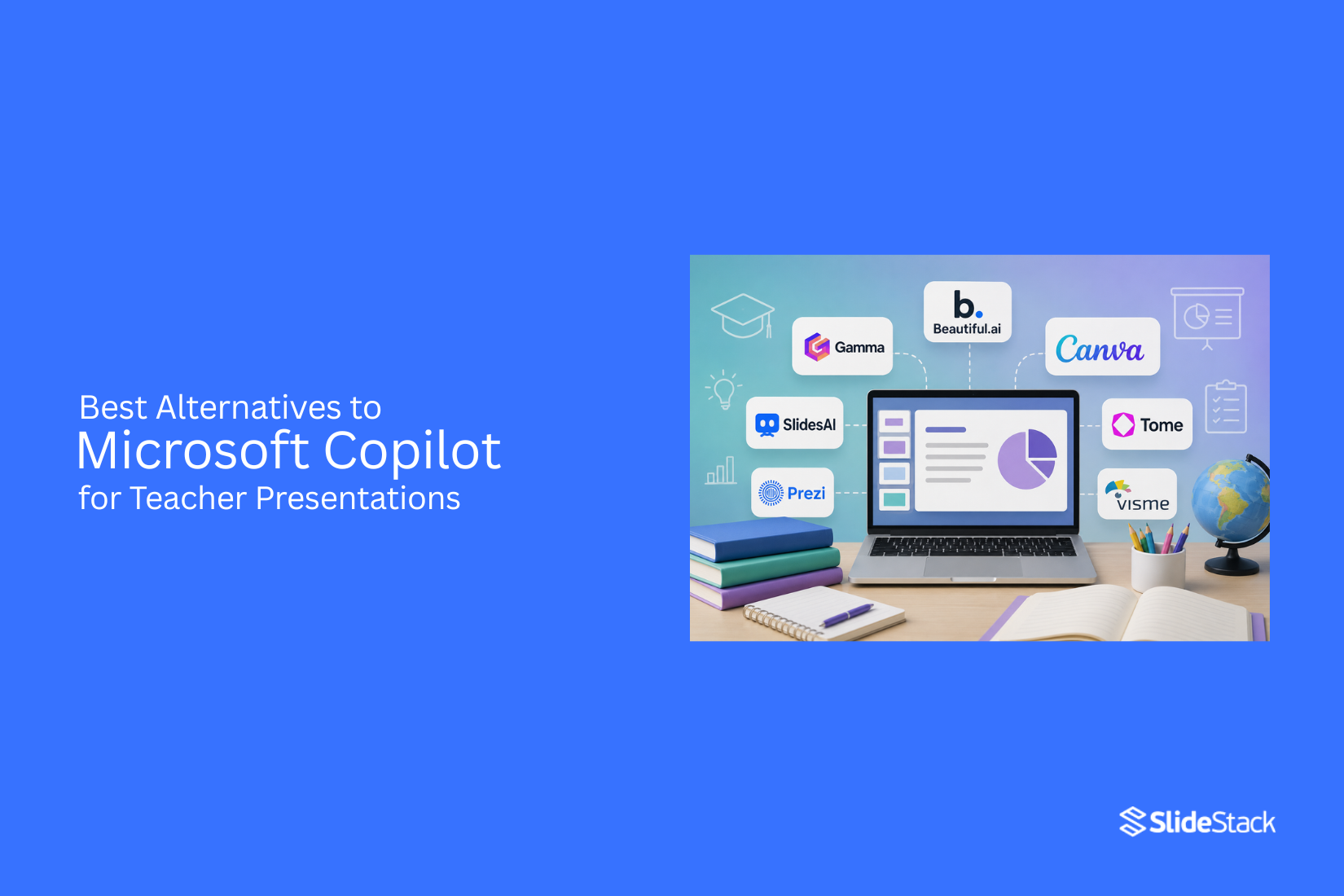
Teachers often need to create presentations that explain lessons clearly and keep students focused. Creating slides for every class can take extra time, especially with different topics, teaching styles, and learning goals. Finding the right AI tool can make this process easier for many teachers.
As a result, exploring alternatives to Microsoft Copilot helps teachers find tools that match their presentation needs. Different options may offer simpler workflows, classroom features, templates, and pricing choices. The right tool can support lesson planning and help teachers build useful slides for students. This article reviews AI presentation tools that teachers can use and compares their features to help them choose the best option for their classroom needs.
What is Microsoft Copilot?
Microsoft Copilot is an AI assistant built into Microsoft tools like PowerPoint, Word, and other Microsoft 365 apps. It helps users create content, organize ideas, and complete tasks with AI support. For teachers, Microsoft Copilot can help plan lessons, create presentation outlines, write slide text, and summarize information. It can also suggest ideas for classroom activities and help improve existing content.
In PowerPoint, Copilot can turn a simple idea into a presentation draft. Teachers can provide a topic, and Copilot can suggest slide titles, key points, and layouts. This helps reduce the time needed to prepare teaching materials. Microsoft Copilot works best for users who already use Microsoft 365 tools. Teachers looking for different features, simpler workflows, or other presentation options may want to compare it with other AI presentation tools.
Why Teachers Need Alternatives to Copilot
Microsoft Copilot can help with many tasks, but teachers may need tools that focus more on creating classroom presentations. A presentation tool should help teachers build clear slides, add useful visuals, and keep students interested. Different tools offer different features. Some focus on simple design, while others provide better teamwork options or classroom-friendly features. Choosing the right tool helps teachers create presentations that match their teaching style.
1. More Presentation-Focused Workflow
Teachers often need more than text suggestions. They need tools that support the full slide creation process. This includes choosing layouts, adding visuals, organizing lessons, and preparing slides for students. Some Copilot alternatives focus mainly on presentations. These tools help teachers create slides from ideas, improve slide structure, and make lessons easier to follow.
2. Easier Interfaces
A simple interface saves time. Teachers may not want to spend extra hours learning complex features. A clean design helps them create presentations with fewer steps. Many alternative tools offer easy-to-use controls. Teachers can quickly add content, edit slides, and adjust designs without needing advanced skills.
3. Better Classroom Engagement Tools
A good classroom presentation needs to keep students involved. Some tools include features that help teachers add quizzes, interactive elements, visuals, and activities. These features can turn a basic slide deck into a more engaging learning experience. Students can follow lessons better and take part in classroom discussions.
4. Google Slides Compatibility
Many teachers use Google Slides for their lessons. Tools that work well with Google Slides make it easier to create, edit, and share presentations. Compatibility also helps with teamwork. Teachers can share files with students, work with other educators, and access presentations from different devices.
5. Lower Pricing and Free Plans
Budget plays a role in choosing presentation tools. Schools and teachers often look for affordable options that still offer useful features. Many Copilot alternatives provide free plans or lower-cost options. These plans help teachers create quality presentations without adding extra expenses.
Best Alternatives to Microsoft Copilot for Teacher Presentations
Teachers need presentation tools that help create clear slides, save time, and support better lessons. Microsoft Copilot is one option, but other tools offer different features for slide creation, design, and classroom use. Each tool below has its own strengths. Some focus on quick slide creation, while others help with visual design, layouts, or AI support. Teachers can pick a tool that matches their teaching style and presentation needs.
1. Canva Magic Design
Canva Magic Design helps teachers create presentations with AI support. It can turn a simple idea into a slide deck with layouts, images, and design elements. Teachers can use it for lesson plans, classroom activities, project presentations, and educational materials. Its large template library also helps create slides without starting from scratch.
2. Gamma
Gamma helps teachers create presentations from a short text prompt. It builds a structured deck with headings, visuals, and clean layouts. This tool works well for lesson summaries, topic explanations, and classroom discussions. Teachers can edit the content and adjust the design after the first draft is created.
3. Beautiful.ai
Beautiful.ai focuses on smart slide design. It uses automatic layouts to keep slides organized as teachers add content. It helps create neat presentations with less time spent fixing spacing and alignment. Teachers can use it for lectures, training sessions, and student projects.
4. Tome
Tome helps teachers turn ideas into visual presentations. It combines text, images, and layouts to create story-based slides. This tool can support lessons that need a clear flow. Teachers can use it to explain topics, share examples, and create engaging classroom materials.
5. Plus AI
Plus AI works with common presentation platforms to help create and edit slides. It can generate outlines, rewrite text, and help improve existing presentations. Teachers can use it to prepare lessons faster while keeping control over the final slide design. It is useful for creating drafts and updating old presentations.
6. SlidesAI
SlidesAI helps create presentations from written text. Teachers can add their lesson notes, and the tool can turn them into slides. This makes it helpful for converting documents, articles, or class notes into presentation formats. Teachers can then adjust the slides to fit their students' needs.
7. MagicSlides
MagicSlides helps teachers create presentations from simple instructions. It can generate slide content and layouts based on a topic. It works well for quick classroom presentations, study materials, and teaching resources. Teachers can edit the generated slides to match their lesson goals.
8. Prezi AI
Prezi AI helps create presentations with a more dynamic layout style. It focuses on visual movement and connections between ideas. Teachers can use it for lessons that need more interaction and visual storytelling. It can help explain relationships between topics in a different way than standard slide formats.
9. Visme
Visme helps teachers create presentations with visual content such as charts, diagrams, and graphics. It offers tools for making educational slides more visual. Teachers can use it for science lessons, research topics, and classroom projects. Its design tools help present information in a clear format.
10. Pitch
Pitch is a presentation tool with AI features for creating and editing slides. It offers templates, teamwork features, and design options. Teachers can use Pitch for class presentations, group projects, and shared lesson materials. It helps create clean slides while allowing easy edits.
Quick comparison snapshots
Teachers need presentation tools that match their lesson goals. Some tools help with slide design, while others focus on AI support and content creation. Here is a quick look at how Beautiful.ai, Canva, and Gamma compare with Microsoft Copilot for teacher presentations.
Beautiful.ai vs Microsoft Copilot
Beautiful.ai focuses on creating well-structured slides with automatic design support. It helps teachers build clean presentations without spending too much time on layout choices. Microsoft Copilot focuses on AI assistance inside Microsoft tools. It can help teachers create content ideas, organize information, and work with PowerPoint features. Beautiful.ai works well for teachers who want polished slide designs with less manual editing. Microsoft Copilot suits teachers who already use Microsoft 365 and want AI help during the presentation process.
Canva vs Microsoft Copilot
Canva offers a wide range of presentation templates, visual elements, and editing options. Teachers can create slides with more control over colors, images, and layouts. Microsoft Copilot provides AI-based help for creating and improving presentation content. It connects closely with Microsoft PowerPoint and other Microsoft tools. Canva is a good choice for teachers who enjoy visual design and want more creative control. Microsoft Copilot is useful for teachers who want AI support inside their existing Microsoft workflow.
Gamma vs Microsoft Copilot
Gamma focuses on creating presentations from simple prompts and ideas. It helps turn basic content into organized slide layouts. Microsoft Copilot helps teachers create presentations using AI features within Microsoft apps. It supports content planning, writing, and slide creation. Gamma works well for teachers who want to build presentations from a starting idea quickly. Microsoft Copilot fits teachers who prefer working with PowerPoint and other Microsoft tools.
How to Choose the Right AI Presentation Tool for Teaching
The right AI presentation tool depends on your teaching needs. Some tools help create lesson slides, while others support student activities and online classes. A good choice should save time, fit your teaching style, and make lessons easier to follow.
For Lesson Planning
Teachers often need slides that match their lesson goals. An AI presentation tool can help organize ideas, create slide layouts, and build a clear structure for a class topic. Look for tools that help turn notes or lesson outlines into ready-to-edit presentations. A useful tool should also let you adjust the content. Teachers need control over examples, explanations, and activities to match their students’ needs.
For Interactive Classroom Presentations
Classroom presentations work better with student participation. Choose a tool that supports visuals, quizzes, polls, or other interactive elements. These features can help students stay involved during lessons. The tool should also make it easy to update slides. Teachers often need to change examples or add new activities based on class responses.
For Online Teaching
Online classes need presentations that are easy to share and view on different devices. A good AI tool should help create clear slides with readable text and useful visuals. Features like collaboration and easy sharing can help teachers manage virtual lessons. Students should be able to access materials without extra steps.
For Group Projects
Group projects need tools that support teamwork. Look for features that allow multiple users to edit, comment, and share ideas in one place. AI features can help students organize information and create a presentation structure. Teachers can also use these tools to guide students through the project process.
For Budget-Conscious Teachers
Teachers with limited budgets need tools that offer useful features at a fair price. Free plans or affordable options can help create quality presentations without extra costs. Compare the features before choosing a tool. A lower-cost option may work well if it includes the main features you need, such as templates, editing tools, and sharing options.
Tips for Creating Better AI-Generated Presentations
AI tools can help teachers create presentation drafts, but the final slides still need a teacher’s input. A good presentation needs clear ideas, useful visuals, and content that matches the lesson goal. These tips can help teachers create slides that are easier for students to follow.
Start With a Clear Prompt
The quality of an AI-generated presentation depends on the prompt. A clear prompt helps the tool understand the topic, audience, and purpose of the lesson. Include details such as the subject, grade level, number of slides, and key points to cover. A detailed prompt gives the AI better direction and reduces the need for major edits later.
Review AI-Generated Content
AI can create a first draft, but teachers should check every slide before using it in class. Review the facts, examples, and explanations to make sure they match the lesson. Remove any details that may confuse students. Add missing information and adjust the wording to fit the class level.
Add Visuals That Support Learning
Images, charts, and diagrams can help students understand new topics. Choose visuals that explain an idea instead of adding decoration. Each visual should have a clear purpose. A simple diagram may explain a process better than a slide filled with text.
Keep Slides Simple
A clear slide helps students focus on the main message. Avoid adding too many words, images, or ideas on one slide. Use short sentences and highlight key points. A simple layout gives students more time to understand the lesson.
Personalize the Final Presentation
AI creates a starting point, but teachers bring their own teaching style to the slides. Add examples from class discussions, adjust the tone, and include activities that match student needs. A personalized presentation feels more connected to the lesson. It also helps students engage with the topic in a way that fits their learning style.
Common Mistakes to Avoid
AI tools can help teachers create presentations faster, but they work best as support tools. A good presentation still needs a teacher’s ideas, review, and classroom knowledge. Avoiding common mistakes helps create slides that are clear, useful, and suitable for students.
Relying Entirely on AI
AI can help with slide ideas, outlines, and content suggestions. However, using AI for every part of a presentation can make the slides feel less personal. Teachers know their students, lessons, and teaching goals better than any tool. Review AI-generated content before adding it to slides. Adjust examples, explanations, and activities to match the class level. A teacher’s input makes the presentation more helpful for students.
Using Too Much Text
A slide filled with long paragraphs can make it hard for students to follow the lesson. Students may focus on reading the screen instead of listening to the teacher. Keep slide text short and clear. Use key points, visuals, and simple examples to support the main idea. The presentation should guide the lesson, not replace the teacher’s explanation.
Ignoring Student Needs
Every class has different learning needs. A presentation made without thinking about students may not connect with the audience. Choose language, visuals, and examples that fit the students’ age and knowledge level. Add activities, questions, or discussions to help students stay involved during the lesson.
Skipping Fact Checking
AI tools can create incorrect or outdated information. Using this content without review can lead to mistakes in the classroom. Check facts, numbers, and examples before presenting them to students. A quick review helps keep the lesson accurate and builds trust with the class.
Overusing Animations
Animations can make slides more interesting, but too many effects can distract students. Moving text, flashing elements, and frequent transitions may take attention away from the lesson. Use animations only where they support learning. A simple effect that highlights a key point works better than adding movement to every slide.
Final Notes
AI presentation tools can help teachers save time and create better lesson materials. Microsoft Copilot is a useful option, but other tools may fit different classroom needs. Some teachers may prefer tools with more design choices, easier editing, or features made for teamwork and student activities.
The best choice depends on how teachers create and use presentations. A tool that supports lesson planning, clear slide design, and simple sharing can make class preparation easier. Teachers should review AI-created slides, add their own ideas, and adjust the content for their students. AI works best as a support tool for teaching. A teacher’s knowledge, experience, and classroom connection still shape a good presentation. The right AI presentation tool can help create slides that are clear, useful, and ready for learning.
FAQs
1. What is the best Microsoft Copilot alternative for teacher presentations?
The best alternative depends on a teacher’s needs. Canva Magic Design works well for teachers who want more design options, while Gamma helps create presentations from simple prompts. Tools like Beautiful.ai, SlidesAI, and Visme also offer useful features for creating classroom slides.
2. Can AI presentation tools help teachers create lesson slides?
Yes, AI presentation tools can help teachers create slide drafts, organize ideas, and build layouts. Teachers can use these tools to prepare lesson materials faster. The final presentation should still be reviewed and adjusted to match the class needs.
3. Is Microsoft Copilot good for creating classroom presentations?
Microsoft Copilot can help teachers create presentation outlines, write slide content, and organize lesson ideas. It works well for teachers who already use Microsoft 365 tools. Some teachers may prefer other tools with more presentation-focused features.
4. Which AI presentation tool is easiest for teachers to use?
Many AI presentation tools focus on simple workflows. Canva, Gamma, and Beautiful.ai are known for making slide creation easier with templates and design support. Teachers can choose based on the features they need most.
5. Are there free AI presentation tools for teachers?
Yes, some AI presentation tools offer free plans or affordable options. These plans can help teachers create slides, use templates, and access basic design features without extra costs.
6. Can AI tools create presentations from lesson notes?
Yes, some tools can turn written notes into presentation drafts. SlidesAI and similar tools can help convert text into slides. Teachers can edit the results to match their lesson goals and student level.
7. Should teachers check AI-generated presentations before using them?
Yes. Teachers should review AI-created slides before using them in class. Checking facts, examples, and explanations helps make sure the content is accurate and suitable for students.
8. Can AI presentation tools improve student engagement?
Some AI presentation tools include features like visuals, quizzes, and interactive elements. These features can help create lessons that encourage student participation. Teachers should choose tools that support their teaching style and classroom goals.
9. What features should teachers look for in an AI presentation tool?
Teachers should look for features such as easy editing, useful templates, visual tools, sharing options, and collaboration support. The right features depend on whether the tool is used for lesson planning, online classes, or group projects.
10. Can students use AI presentation tools for school projects?
Yes, students can use AI presentation tools to organize ideas and create project slides. Teachers should guide students on using AI properly and reviewing the information before submitting their work.





You may also be interested in ...

How To Create An Eye-Catching Portfolio
If you’re looking to create an eye-catching portfolio, this post will come in handy. In this article, you can find the easies...
23 Jun, 2024

How To Easily Create An Infographic
Infographics are the perfect way to make a presentation that will impact an audience, but their design and composition might...
08 Jun, 2024

PowerPoint Template Tips & Tricks You Ne...
PowerPoint seems to be an unknown world for many people, especially those who have been assigned to create a presentation out...
08 Jun, 2024