18 Interactive Presentation Games to Increase Audience Participation
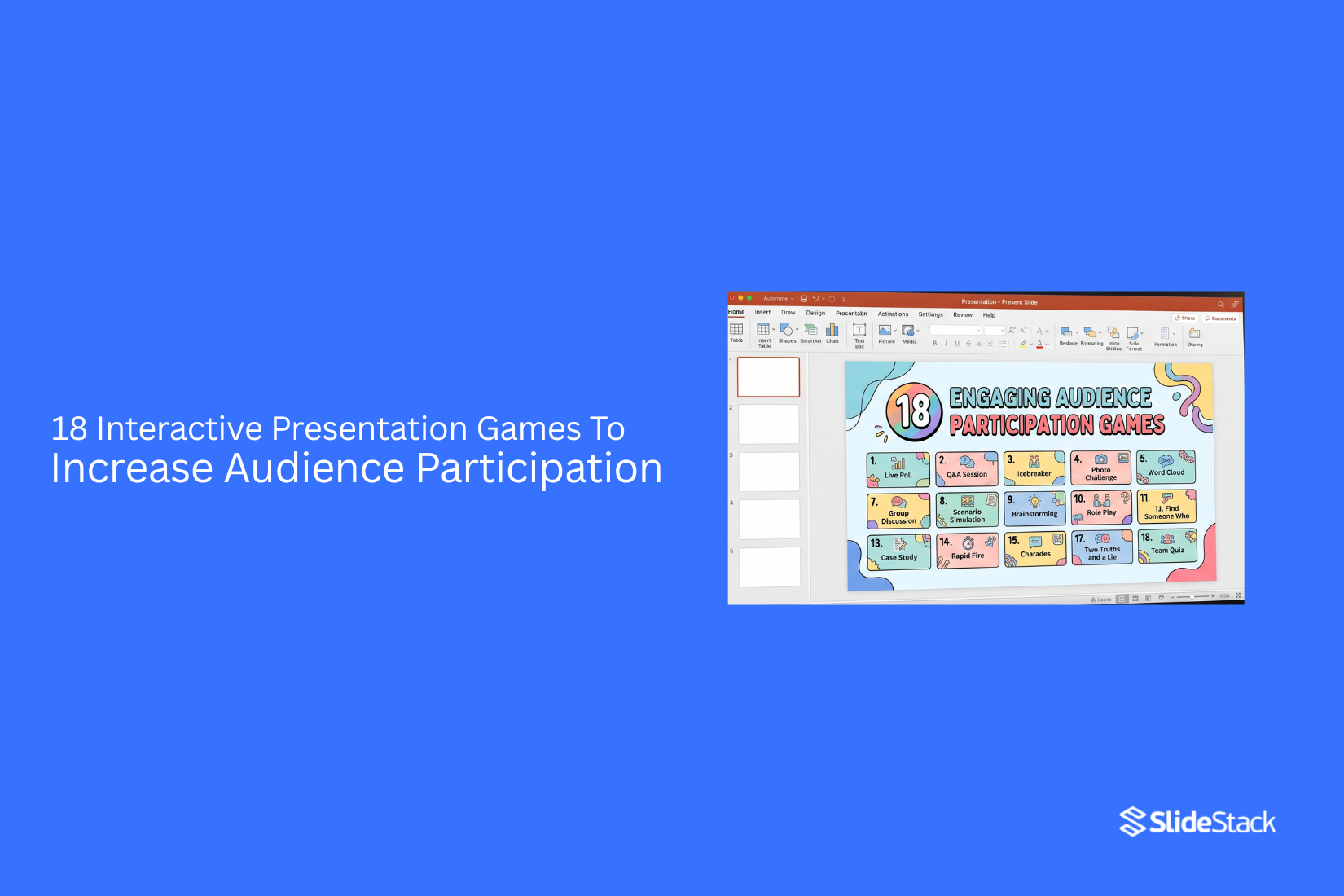
Most presentations fail to keep people involved. Slides move forward, but the room stays quiet. Attention drops, and messages get lost before they land. This gap shows up in schools, meetings, and events. Speakers talk, yet the audience stays passive and distracted. That is where interactive presentation games change the flow. They turn passive listeners into active participants and make ideas easier to remember.
Why Use Interactive Presentation Games?
Traditional presentations often rely on passive listening. People sit and listen while slides move forward. This can reduce attention and make it harder to remember key points. Interactive presentation games change this by bringing in active participation. The audience joins in through questions, quick tasks, and group responses. This keeps attention higher and builds better understanding. It also makes presentations more memorable and helps ideas stay with the audience after the session ends.
Benefits of Engaging Your Audience
Audience engagement shapes how people respond during a session. It also affects how well they follow the message and take part in activities.
The points below show the key gains from active engagement.
• Increased Participation: More people take part in discussions and tasks. The group becomes active instead of passive.
• Better Attention: Focus stays on the session for longer periods. Fewer distractions appear during the presentation.
• Stronger Understanding: People grasp ideas more clearly. Messages feel easier to follow and process.
• Improved Memory Recall: Key points stay in mind for a longer time. Information becomes easier to remember later.
• More Interaction Between Participants: People talk and respond to each other more often. This builds shared learning within the group.
Higher Energy in the Room: The session feels more active. People respond with more interest and movement.
• Clear Feedback for the Presenter: Responses from the audience show what works and what needs adjustment. This helps shape the flow of the session.
• Stronger Connection With Content: The audience relates more to the topic. The message feels more direct and meaningful.
All 18 Interactive Presentation Ideas at a Glance
This section brings together 18 interactive presentation ideas in one place.
Each group shows a different way to engage an audience during a presentation.
Technology-Based
• Live Polls & Surveys: Audience gives instant feedback through simple voting tools during the session.
• Gamified Quizzes: Questions turn into short games where scores keep attention active.
• Collaborative Whiteboards: Multiple people add ideas or drawings to a shared digital space at the same time.
• Interactive Multimedia: Videos, audio, and visuals react based on clicks or audience input.
• Real-Time Commenting: People share thoughts and reactions while the presentation is still running.
Analog & Low-Tech
• Colored Cards or Props: Audience uses colors or objects to answer questions without devices.
• Metaphorical or Emotional Storytelling: Simple stories help explain ideas in a way that feels personal and clear.
• Group Movement Activities: People move to different areas to show choices or opinions in real time.
• Pair-and-Share Moments: Two participants talk briefly, then share key points with the group.
• Sticky Note Feedback: Ideas and reactions are written on notes and placed on a shared surface.
Structural & Story-Based
• Choose-Your-Own-Adventure: The audience picks directions that shape how the presentation moves forward.
• Reverse Presentation: The result is shown first, then the steps that led there are explained.
• Nested Loops: Earlier points come back later, helping ideas connect in layers.
Design & Visual Storytelling
• Use GIFs & Video Clips: Short visuals help explain points without long explanations.
• Before & After Contrasts: Two visuals side by side show change clearly.
• Visual Anchors: Simple icons or shapes guide attention across slides.
• Bold Key Stats: Large numbers highlight important data in a direct way.
• 1 Idea Per Visual: Each slide focuses on one message to keep attention clear and steady.
5 Technology-Based Engagement Tactics
You have tools at your disposal. They can do more than display slides. They can shape how people respond and take part. These five tactics help keep attention active from start to end.
1. Live Polls & Surveys
Nothing draws people in faster than giving them a direct voice. Tools like Mentimeter or AhaSlides let you set up polls before the session begins. A simple join code or QR scan gets everyone connected within seconds. Responses start flowing right away, and you gain live input that can guide your next steps. Timing plays a key role. A poll at the start sets the tone and wakes up attention. A mid-session question can reset focus after heavier content. Live results create a clear shift in pace and show how group opinion is forming in real time.
2. Gamified Quizzes
Quizzes bring a sense of challenge into the room. Platforms like Kahoot!, Quizizz, and Slido make it easy to build short question sets that test understanding. Participants answer in real time, and scores update on a visible leaderboard. This format works well after a topic block. A quick round helps reinforce key ideas without slowing momentum. The leaderboard adds light competition, which keeps energy steady. Small wins and shifts in ranking keep people alert and engaged through repetition that feels active rather than passive.
3. Collaborative Whiteboards
Shared whiteboards shift the focus from presentation to participation. Tools like Miro or Mural allow people to add notes, draw ideas, and group thoughts in one space at the same time. The setup turns individual input into a shared visual map. Clear structure matters here. A simple prompt, a set time window, and light moderation help keep the activity focused. This works well in strategy meetings, workshops, or planning sessions. Ten to fifteen minutes can produce a full set of ideas that can be saved and reused later in the process.
4. Interactive Multimedia
Slides become more engaging when they include movement and interaction. Tools like PowerPoint, Canva, and Keynote support embedded video, clickable elements, and animated visuals. These features help break long stretches of static content. Short videos work well for explaining real examples. Animated charts help show change over time. Timing matters, especially after detailed sections where attention may dip. Brief media moments reset focus and make ideas easier to follow and remember.
5. Real-Time Commenting
Large groups often struggle with speaking order. Real-time commenting tools solve that by giving everyone a space to respond at once. Features in Google Slides or Canva Live let participants post questions and reactions directly on the screen. Clear ground rules keep the space useful. Moderation helps maintain focus and filter off-topic input. This approach fits well during Q&A or reflection points. It opens space for quieter voices and builds a visible record of audience feedback that can guide later discussion.
5 Analog & Low-Tech Interaction Strategies
Technology is not required to keep a group active and involved. Simple tools and physical actions often create stronger attention and memory. These methods work well in classrooms, workshops, and group sessions. They are easy to prepare and easy to run.
1. Colored Cards or Props
Colored cards or small props give people a quick way to respond without speaking. Each color stands for a choice or opinion. You explain the meaning before starting. The group responds by holding up a color. In a session, you can ask a question with clear options. Red means no. Green means yes. Yellow means not sure. The room responds in seconds. You can also repeat this method later with harder questions after the group is comfortable. This method creates fast feedback. It keeps attention on the speaker. It also helps you see understanding across the room without delay. People feel included without pressure to talk.
2. Metaphorical or Emotional Storytelling
Stories with meaning help people connect ideas to real life. A short story or simple metaphor can make a concept easier to understand. You use real situations or familiar experiences to explain the point. During a session on teamwork, you might describe a group carrying a heavy table. Each person supports one side. One person steps away and the balance breaks. The idea becomes clear through the story. This approach builds emotional connection. It helps people remember the message longer. It also brings focus back when attention starts to drift.
3. Group Movement Activities
Movement brings energy back into the room. You ask people to stand, shift position, or move to different areas based on their response. The room becomes active and visual. In a workshop, you place two sides in the space. One side shows agreement. The other shows disagreement. People walk to the side that matches their view after each statement. Discussion follows naturally. This method resets attention. It breaks long sitting time. It also helps people show opinions without speaking, which often leads to more open discussion.
4. Pair-and-Share Moments
Short conversations between two people help ideas settle. You pause the session and ask people to talk with a nearby partner. The focus stays on one simple question or idea. After explaining a topic, participants repeat the main point in their own words to each other. The room becomes active with short discussions. After a few minutes, a few pairs share their thoughts with everyone. This method improves understanding through speaking and listening. It gives quiet participants space to contribute. It also helps people process information before moving forward.
5. Sticky Note Feedback
Sticky notes create space for honest reflection. You give each person a few notes and ask them to write short thoughts. Each note holds one idea or question. The notes go on a shared wall or board. In a workshop, you can ask people to write one unclear point after a lesson. Notes are placed in groups on a board. Patterns start to appear quickly. This method supports open feedback. It lowers pressure since people do not need to speak out loud. It also gives a clear view of what the group understands and what needs more time.
3 Structural & Story-Based Techniques
Beyond individual activities, structure shapes how a presentation is felt. These techniques guide the audience’s journey and make them part of the story, not spectators.
1. Choose-Your-Own-Adventure
Instead of following a fixed path, let the audience decide where to go next. Prepare alternate slides or branches in your narrative that adjust to their choices. It works especially well in sales demos, workshops, or training sessions where priorities differ by group. Once the basics are set, the audience picks the direction. That shift builds attention and keeps content relevant in real time.
Preparation: May require up to 3x normal prep due to story mapping and multiple slide paths
Audience: Best for groups under 30 - gets difficult at a larger scale
Skill: Intermediate - needs comfort with slide linking and quick facilitation
2. Reverse Presentation
Start with a visual, result, or data point before any explanation. Ask the audience what they notice or how they interpret it. Their reactions shape the direction of the discussion before you add context. This approach fits design reviews, research sessions, or data storytelling where interpretation matters as much as outcome. The audience stays engaged because their input appears early in the flow.
Preparation: Minimal - extra prep compared to standard slides
Audience: Suitable for small to medium-sized groups (up to 50) for best interaction
Skill: Beginner to intermediate - needs comfort guiding open discussion
3. Nested Loops
Nested loops use smaller stories inside a larger narrative. Each short story opens a loop, builds interest, then closes by linking back to the main theme. The pattern repeats across the presentation, creating rhythm and variety. It works well in thought leadership talks, culture sessions, or inspirational presentations where meaning matters more than data alone. Each return to the central idea strengthens recall and focus.
Preparation: Slightly more prep for story planning and transitions
Audience: Works for any size - but most effective in groups under 100
Skill: Intermediate - benefits from strong storytelling and pacing experience
5 Design & Visual Storytelling Techniques
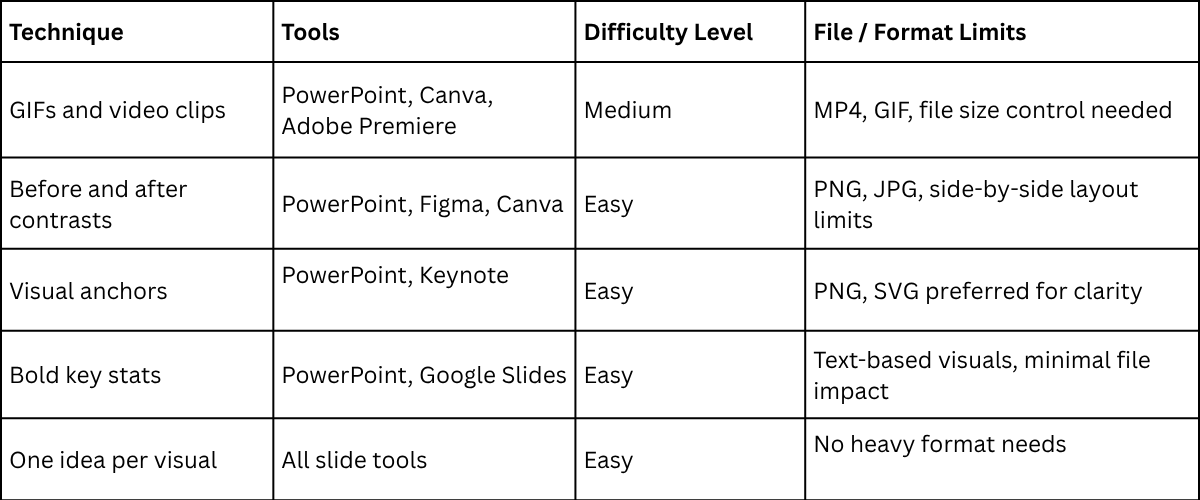
Visual storytelling shapes how people understand a slide. Words alone slow down attention. Strong visuals guide focus and reduce effort for the viewer. Each element on a slide should carry meaning and support a clear point. A structured design system keeps content easier to scan. It also improves recall during presentations. The table below shows key methods used in slide design work, along with tools and limits that affect production.
Overview Table
1. Use GIFs & Video Clips
Motion draws attention faster than static content. Short clips guide focus to a single action or idea. In slide decks, short loops work best. A 3- to 6-second clip keeps attention stable. Longer clips reduce focus and create distraction. Product demos, process steps, and quick reveals work well in this format. A slide showing a tool in action removes the need for long explanations. The audience processes movement faster than text. This reduces effort and keeps attention on the message being shown.
. Before & After Contrasts
Side-by-side comparison gives instant clarity. Two states placed together show change without long explanation. This method works well for transformation stories. Design updates, workflow improvements, and performance changes fit this format. Each side should stay visually simple. Too many details weaken the contrast. A clean split between the two visuals keeps focus strong. The brain reacts quickly to change comparison. It builds understanding in seconds instead of reading long descriptions.
3. Visual Anchors
Visual anchors guide where attention goes first. These are shapes, icons, or highlighted elements that frame key information. A strong anchor reduces scanning effort. It directs focus toward the most important part of the slide. Icons placed near key points help structure information. Boxes and lines can also group related content. This method reduces confusion on dense slides. The viewer knows where to look without searching.
4. Bold Key Stats
Numbers stand out faster than paragraphs. Large fonts turn data into clear visual signals. A single strong stat per slide creates focus. Too many numbers reduce impact and slow reading. This method works well in reports, pitch decks, and performance updates. It turns data into clear points instead of long explanation blocks. The audience remembers numbers more easily than sentences. This improves retention during discussions and reviews.
5. One Idea Per Visual
Each slide should carry one message. Extra ideas reduce clarity and split attention. A focused slide supports faster understanding. The viewer does not need to sort through multiple points. This method works across all presentation types. Marketing decks, training slides, and reports all benefit from clear separation of ideas. Memory improves when one message stands alone. The audience recalls the core point without confusion or overlap.
How to Choose the Right Presentation Game
Consider Your Audience
Audience shapes how people respond to games. Students often enjoy quick challenges. Professionals respond better to structured activities with clear steps. Mixed groups need simple rules that are easy to follow. Different backgrounds also affect comfort levels during participation.
Match the Game to Your Presentation Goal
Each game should support a clear purpose. Some games help people share ideas. Others help test knowledge or start group discussion. The goal sets the direction for the activity. A clear purpose keeps the session focused and steady.
Plan for Time and Group Size
Time changes how a game works. Short sessions fit simple activities with quick instructions. Longer sessions allow more steps and deeper interaction. Group size also affects setup. Small groups move with ease. Large groups need clear structure and simple flow to stay organized.
Best Tools for Interactive Presentation Games
Interactive presentations feel stronger when the right tools support them. Each tool type serves a different purpose. Some collect opinions. Some test knowledge. Others help groups build ideas together. Picking the right mix shapes how people take part during a session.
Polling Tools
Polling tools let you gather quick responses from a group. They work well for simple questions with clear choices. A speaker can ask a question and see results appear right away. These tools help start conversations. A room full of quiet faces turns into active input in seconds. They also help guide direction during a talk based on real audience responses.
Quiz Platforms
Quiz platforms turn learning into short challenges. They work well for checking understanding or adding friendly competition. People answer questions on their own devices and see scores as they go. This setup keeps attention steady. It also adds energy to training sessions or classroom-style talks. Small rewards or rankings often make people stay involved longer.
Collaboration Tools
Collaboration tools focus on group input. They allow multiple people to add ideas at the same time. This can include shared boards, sticky notes, or live idea walls. These tools help capture thoughts from everyone, not just the loudest voices. They work well for brainstorming or planning sessions where ideas need to grow together.
Interactive Presentation Software
Interactive presentation software brings different features into one place. It can include slides, polls, quizzes, and live feedback options. This type of tool keeps everything in a single flow. A speaker can move from explaining a point to collecting responses without switching platforms. It helps maintain focus and keeps the session organized while still allowing active participation.
Pro Tips & How to Get Started Checklist
This section turns ideas into clear steps. Each step supports a smooth presentation that stays easy to follow from start to finish. The focus stays on simple actions that can be applied during preparation and delivery.
• Define the main message in one short sentence: This sets a clear direction for the entire presentation. It keeps content aligned with a single goal. The audience stays focused on what matters most without drifting into confusion.
• Break content into small sections: Smaller sections make ideas easier to follow. Each part becomes easier to process without overload. The audience can keep pace without losing attention.
• Use one idea per slide: Each slide carries a single message. This reduces distraction and keeps attention steady. The flow feels cleaner during delivery.
• Add visuals that match the message: Images or graphics should support the spoken point. This helps the audience connect ideas faster. Visual balance also prevents slides from feeling crowded.
• Practice with a timed run-through: A full run builds comfort with pacing. It shows where the delivery feels rushed or slow. The presentation feels more stable during real delivery.
• Remove extra words from slides: Short text keeps focus on speaking instead of reading. It reduces clutter on the screen. The audience stays engaged with the presenter.
• Check slide flow from start to finish: Each slide should connect smoothly to the next idea. This keeps the message moving in a natural direction. The audience follows the story without distraction.
Case Flow Example
A strong presentation follows a clear path. It keeps structure but allows movement and audience input. This 30-minute flow mixes storytelling, interaction, and simple activities.
- Compelling hook (2 minutes): Open with a short story, a striking fact, or a quick vote.
- Example: "How many people checked messages during their last meeting? Vote now."
- Transition: Attention shifts toward how focus behaves in real sessions.
- Live poll or word cloud (3 minutes): Use Mentimeter or Slido to collect audience input on a key challenge.
- Example question: "What creates the biggest struggle in presentations?"
- Transition: Responses guide the direction of the next segment.
- Core narrative (8 minutes): Share main ideas using simple storytelling. Bring in poll answers to connect points to real experience.
- Transition: The main ideas set up a shift into hands-on participation.
- Analog group activity (4 minutes): Pair discussion on one practical method that improves delivery.
- Example prompt: "Share one approach that helped you explain ideas more clearly."
- Transition: Shared input builds into a visual learning moment.
- Short video or dynamic chart (3 minutes): Show a short clip or animated data to highlight change or contrast.
- Transition: The visual example sets up a quick knowledge check.
- Interactive quiz recap (5 minutes): Run a short quiz using Kahoot or Quizizz with a few questions.
- Example: "Which option improves recall most: storytelling, more slides, or repetition?"
- Transition: Results lead into final questions from the group.
- Live Q&A (5 minutes): Open discussion for audience questions using Slido or direct sharing. Focus on clarity and real situations.
- Closing phrase: Audience input closes the loop and reinforces shared learning.
Interactive Presentation Ideas for Students
Students stay more engaged when they take part in the session instead of just listening. These methods work in school, college, and university settings. Each one fits different time limits and group sizes.
Best ideas for student presentations:
Gamified Quizzes (idea #2): Kahoot! and Quizizz turn review sections into short competitions. Use them after explaining a topic to check understanding in a fun way. Best for large classes and revision lessons.
Choose-Your-Path Questions (idea #11): Let the audience decide what comes next in the topic. A vote decides the next slide or section. This works well for history topics, case studies, and research-based subjects where multiple angles exist.
Pair Discussion (idea #9): Students talk in pairs before sharing answers with the class. This lowers pressure and increases participation. Works best in medium to large groups during concept-heavy lessons.
Collaborative Boards (idea #3): Miro or Jamboard lets everyone add ideas at the same time. Useful for brainstorming, planning tasks, or collecting opinions during group presentations.
5-Minute Format: Short presentations need one clear interaction point. A quick poll at the start sets direction. A short recap question at the end checks understanding. That single interaction keeps focus without slowing the flow.
Group Presentation Setup: Each presenter handles one part of the interaction. One manages questions. One runs the main content. One handles tools like polls or boards. One controls timing and slide flow. This keeps delivery active and avoids confusion.
Interactive PowerPoint Presentation Ideas
PowerPoint already has tools that support interaction, but most presentations ignore them. These features turn static slides into active sessions without leaving the software.
Hyperlinked Slides: Buttons or shapes connect to different slides inside the deck. This creates a free-flow structure where the presenter or audience can choose paths. Works well for topic menus, revision maps, or case-based learning.
Embedded Poll Add-ins: Tools like Mentimeter, Slido, and Poll Everywhere connect directly inside PowerPoint. They allow live voting during slides. Useful for checking opinions or testing understanding in real time.
Animated Step Reveals: Content appears step by step instead of all at once. This keeps attention focused on one idea at a time. It also lets the audience guess answers before each reveal, especially in data or math topics.
Clickable Video Slides: Videos can be placed inside slides and controlled during the presentation. Pause points can be used to ask questions or collect reactions before continuing.
Action Buttons: Built-in PowerPoint buttons can move between slides, open links, or trigger actions. This supports quiz formats and interactive navigation without extra tools.
Practical Tip: Always run a full test in Slideshow mode. Some links, animations, and media behave differently in edit mode, which can break the flow during live delivery.
5-Minute Interactive Presentation Ideas
Short time slots still allow audience interaction. Each idea below fits into 60–90 seconds and keeps the session on track.
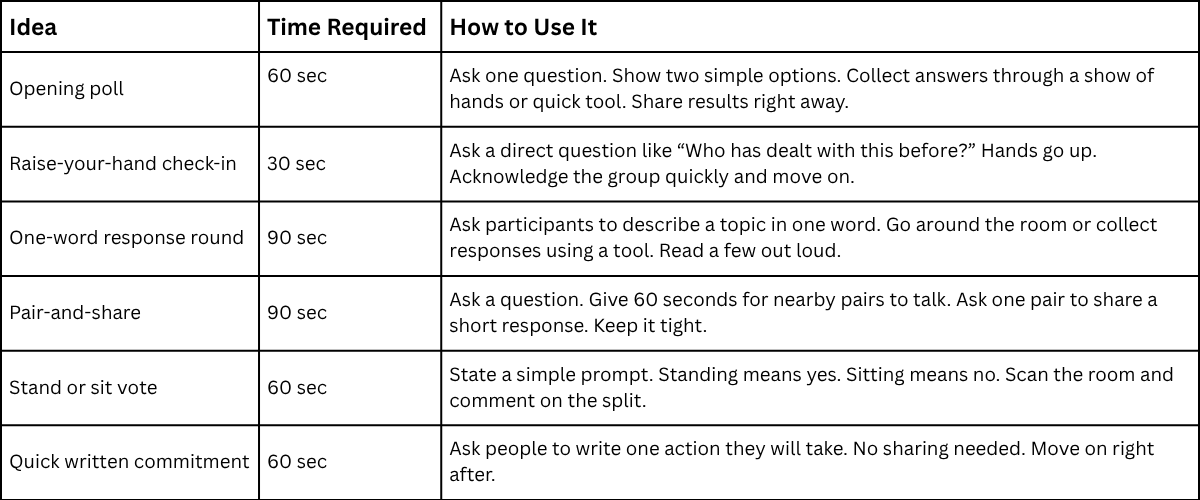
Ask people to write one action they will take. No sharing needed. Move on right after.
A single interaction works best in a 5-minute slot. Place it early, within the first 90 seconds. That early action shapes how the room responds for the rest of the session.
How to Handle Interactive Presentation Challenges
Even well-planned interactive sessions face problems. These moments are normal. Strong presenters stay steady and adjust without losing flow. Preparation and calm responses keep the session on track. Here are four common challenges and ways to handle them.
1. Tech Failures
Tech problems can stop slides, polls, or videos. The screen may freeze. Audio may stop working. Tools may not respond during live use. These issues often come from weak internet, software errors, or device overload. Live audience tools can add extra strain on systems. Keep simple backups ready. Save slides offline on a USB drive. Keep PDF copies of slides. Use printed notes for key points. Prepare paper polls or quick hand vote options. Stay calm if something stops working. Acknowledge the issue in a simple way. Switch to the backup method and continue the session. A steady tone helps the audience stay focused and relaxed.
2. Shy or Quiet Audiences
Some audiences do not respond quickly. Questions may get silence. Group participation may stay low in the beginning. This often happens when people feel unsure or do not want to speak in front of others. Large groups can also reduce confidence. Start with low-effort actions. Use hand raises for simple questions. Ask short yes or no prompts. Try small pair discussions before group sharing. Use written responses when speaking feels hard for the group. Keep your tone relaxed. Give short pauses after questions. Do not rush the audience. Quiet space helps people feel safe to respond over time.
3. Time Management
Interactive parts can take more time than planned. Polls may run long. Group talks may stretch. Later sections may feel rushed. This happens because audience input is not always predictable. People may need extra time to respond or discuss. Set clear time limits for each activity. Use a visible timer during the session. Keep instructions short so activities start quickly. Move the session forward with clear signals when time ends. Stay firm with pacing. End activities on time even if some input is still going. This keeps balance across the full session.
4. Difficult Participants
Some participants speak too much. Some interrupt others. Some may shift focus away from the topic. This usually comes from strong opinions or a need to be heard in the group. Respond with short and calm replies. Thank them briefly for sharing. Then move the focus back to the group. Ask others to share their views. Use structured turn-taking for fairness. Set clear speaking rules early in the session. Limit long comments when needed. Keep your tone steady. The group will follow your lead when your response stays controlled.
Common Mistakes to Avoid
Small choices can change how people respond during a presentation. A game or activity that feels off can reduce focus and lower participation. A few common mistakes often repeat across sessions. Avoiding them keeps attention steady and keeps the flow of the session strong.
Choosing Overly Complicated Games
Some games come with long rules and extra steps. People spend more time trying to understand them than joining in. The message gets buried under instructions. Simple formats work better because people join in quickly and stay focused on the topic.
Spending Too Much Time on Activities
Activities that run too long drain energy. The room starts to feel slow. People stop reacting with the same interest. Shorter segments keep the pace active and help the session move forward without losing attention.
Ignoring Audience Preferences
Different groups respond in different ways. A quiz may work well for one group but feel awkward for another. A discussion might engage some people while others stay silent. Paying attention to the group in front of you helps shape better participation.
Failing to Test Technology
Technical issues can interrupt the flow at the worst moment. A poll may not load. A video may freeze. A link may not open. Testing tools before the session helps avoid these problems and keeps everything running smoothly.
From Ideas to Impact – The Tools That Bring It All Together
Managing separate apps for polls, whiteboards, videos, and meetings pulls your focus away from delivery. Every change of tool breaks your rhythm. The audience notices the pause. Attention drops.
A single control system fixes this. One platform holds all interactive elements in one place. Everything runs from a shared screen. No tool switching. No setup gaps during delivery.
The Vibe Board S1 supports this setup. It keeps interaction, media, and collaboration inside one workspace. The session stays steady from start to finish.
In practice, that means:
• Live polls and quizzes (ideas #1 and #2): Mentimeter and Kahoot can run directly on the board. The audience responds on their phones. Results appear on screen right away.
• Collaborative whiteboards (idea #3): Vibe Canvas allows shared input. People add notes, shapes, and drawings at the same time. Everyone sees changes as they happen.
• Interactive multimedia (idea #4): Videos and visuals play directly on the board in high resolution. You can draw or mark points on top of the content during discussion.
• Choose-your-path sessions (idea #11): You can move between different content branches using touch controls. The flow shifts based on audience input without rebuilding slides.
• The system handles the technical side. You stay focused on reading the room and guiding the discussion.
Final Notes
Interactive presentation games change how people respond in a session. The shift is simple. Less talking at people. More participation from them. That shift builds focus and improves how ideas land. Strong results come from balance. Too many activities can slow the flow. Too few can make the room passive again. A clear structure keeps things steady. One main message per section helps people follow without effort. The best sessions do not rely on tools alone. Tools support the experience. The presenter shapes the energy. Timing, pacing, and clarity matter more than features on a screen. A simple question asked at the right moment often does more than a complex setup.
Different groups respond in different ways. A student group may enjoy competition. A professional group may prefer structured input. The same activity can feel very different depending on who is in the room. Reading that difference during the session changes the outcome. Short interactions often work better than long ones. A quick poll. A two-minute discussion. A simple vote. These moments keep attention active without breaking the flow of the topic.
Problems will still show up during delivery. A tool may fail. A group may stay quiet. Time may run short. These moments do not define the session. The response does. Calm adjustment keeps the session moving forward. A strong presentation feels shared, not delivered. The audience is part of it from start to finish. That is what keeps attention steady and ideas clear long after the session ends.
FAQs
What are interactive presentation games?
They are short activities that get people involved during a presentation. The audience answers questions, votes, or joins simple tasks instead of only listening.
Why do interactive games help presentations?
They keep attention higher. People stay active during the session. Ideas also become easier to understand and remember.
Do these games work in large groups?
Yes. Many games work in large groups. Polls, quizzes, and quick vote activities work well for bigger audiences.
Can interactive games be used in classrooms?
Yes. Teachers often use them. They help students take part and stay focused during lessons.
Do I need special tools for these activities?
Not always. Some need digital tools. Others use cards, movement, or simple group discussion.
How long should each activity last?
Short activities work best. Most run for one to five minutes. This keeps the session steady and clear.
What is the easiest game to start with?
A simple poll or a show of hands works well. It needs little setup and gets quick responses.
Can interactive games work in business meetings?
Yes. They help teams share ideas and give feedback. Meetings also feel more active and focused.
What is the biggest mistake to avoid?
Long or complex activities slow the session. Simple and clear tasks keep people involved.
How can I make my presentation more interactive?
Add simple audience actions. Use polls, short quizzes, or quick group questions. Break long talking sections with small response moments.
What is the 5-5-5 rule in presentation?
It is a slide design guide. Each slide should have no more than 5 lines of text, 5 words per line, and 5 seconds of focus per point.
What is the 777 rule in presentation?
It is a visual rule for slides. It suggests no more than 7 lines per slide, 7 words per line, and 7 seconds per idea to keep attention clear.
What are fun presentation topics?
Topics that connect to daily life work best. Examples include habits, technology use, social media behavior, teamwork stories, and simple problem-solving ideas.
How do I handle remote audiences while keeping them engaged?
Use live polls, chat questions, and short breaks for response. Ask direct questions often. Keep slides simple so people can follow on small screens.
What makes a presentation interactive for adults?
Adults respond well to relevance. Real examples, short discussions, and problem-based questions work best. They prefer clear purpose and practical value.
What are the best interactive presentation techniques?
Polls, quizzes, group discussions, storytelling, and visual comparisons work well. Mixing a few simple methods keeps attention steady without overload.


You may also be interested in ...

How To Create An Eye-Catching Portfolio
If you’re looking to create an eye-catching portfolio, this post will come in handy. In this article, you can find the easies...
23 Jun, 2024

How To Easily Create An Infographic
Infographics are the perfect way to make a presentation that will impact an audience, but their design and composition might...
08 Jun, 2024

PowerPoint Template Tips & Tricks You Ne...
PowerPoint seems to be an unknown world for many people, especially those who have been assigned to create a presentation out...
08 Jun, 2024