Animated Network PowerPoint Template Concept – Quick Tutorial
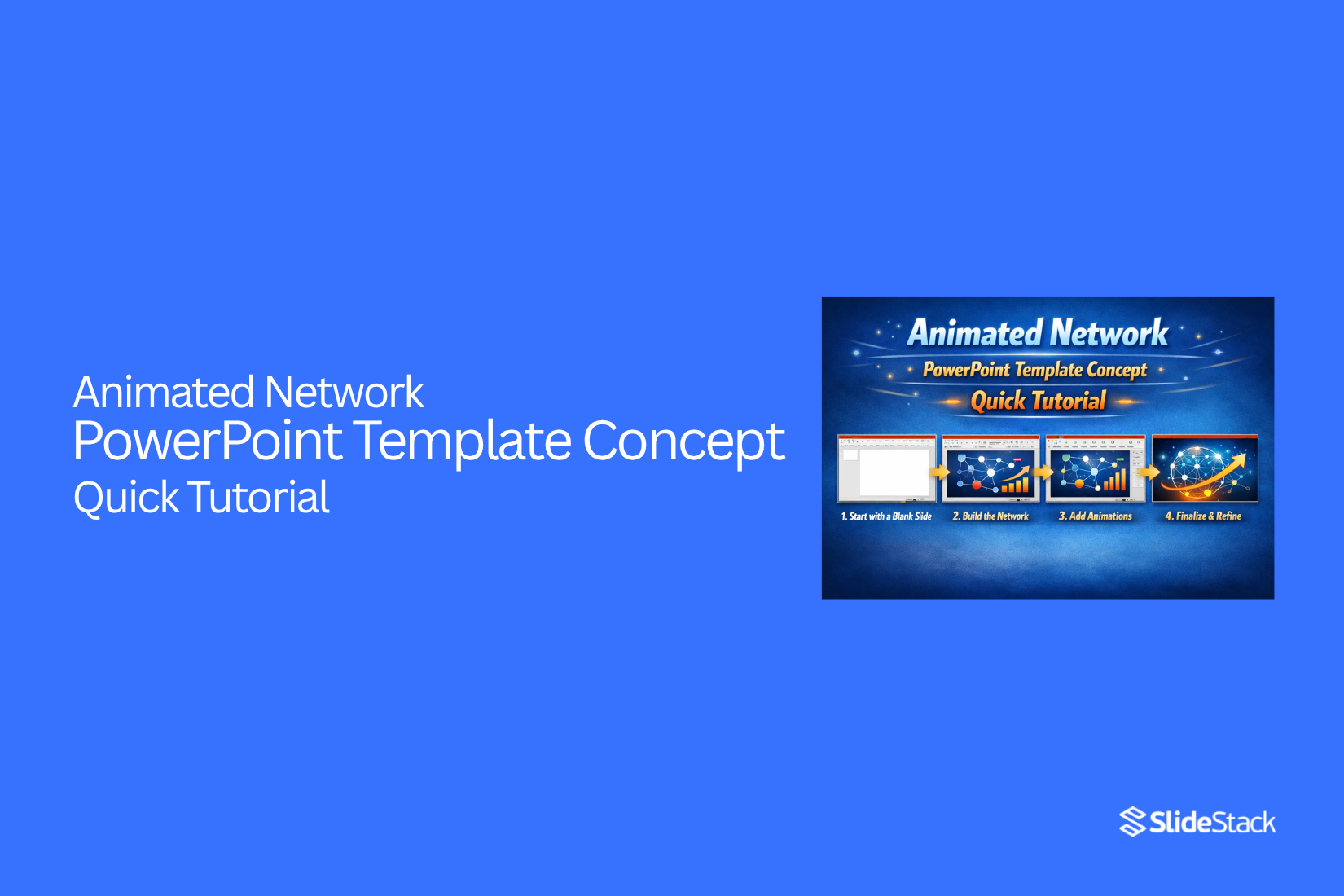
Creating clear and engaging network diagrams in PowerPoint can be challenging. Many slides end up cluttered or static, leaving audiences confused and disengaged. This often makes it hard to communicate complex information effectively.
A simple solution is an animated network PowerPoint template. These templates come with ready-made nodes, connectors, and smooth animations that make your diagrams visually appealing.
By using these templates, you can save time while building professional-looking slides. Animated networks help highlight relationships clearly and keep viewers focused. This quick tutorial will guide you through choosing the right template, customizing it, adding animations, and ensuring your slides deliver a polished, interactive experience.
What is a Network Animation in PowerPoint?
A network animation in PowerPoint is a way to show how parts of a system connect and interact. Instead of using a static diagram, it adds motion to shapes, lines, and icons. This movement helps the audience follow the flow of information or processes.
Each element can appear, move, or change to highlight its role. Lines can connect nodes step by step, or icons can move to show data flow. These animations make complex ideas easier to understand. They also keep viewers interested because the slide changes dynamically rather than staying still.
Network animations are often used for tech systems, business processes, social networks, or project maps. They show relationships, dependencies, and movement between different parts. With clear animations, audiences can grasp connections quickly without reading long text.
Good network animations combine timing, direction, and sequence. Proper use ensures the slide is informative, not distracting. They help presenters explain systems in a visual, logical way.
Key Features of Animated Network Templates
Animated network templates make complex ideas easier to follow. They show connections clearly using lines, shapes, and icons. Movement in these templates guides the viewer’s eye and highlights important points. Colors help separate sections and emphasize key elements. Many templates come with placeholders, so you can quickly add your own text and graphics. They save time while keeping slides clean and organized. Using these templates helps presentations feel more dynamic and professional without extra effort.
Step-by-Step Tutorial
This section walks you through each step in a clear way. You will start with a template and move through edits, effects, and final checks. Each step builds on the last to help you create a clean and easy slide.
Choosing the Right Template
Start with a template that fits your goal. Look at the layout first. A clean layout keeps ideas easy to follow. Next, check the number of nodes. Too many can feel crowded. Too few may not show enough detail.
Also, pay attention to colors and fonts. Simple styles work best for clear slides. A quick check helps here. Does the template match your topic? If yes, you are ready to move on.
Customizing Nodes and Connections
Now it is time to shape the content. Add your main points to each node. Keep each line short.
Then adjust the size of the nodes. Bigger nodes can show key ideas. Smaller ones can hold extra details.
Connections come next. Link each node in a clear path. Straight lines often work best. Curved lines can help in tight spaces. Keep spacing even so the slide looks neat and easy to read.
Applying Animations
Animations help guide the viewer’s focus. Start with simple effects like fade or appear. Set each node to show one at a time. This keeps the slide from feeling busy.
Timing matters here. A steady pace helps people follow along. Avoid adding too many effects. A few smooth steps work better than many quick ones.
Adding Interactive Features
Slides can do more than just show content. Add clickable elements to make them active.
For example, link one node to another slide for deeper details. Buttons can also help. A small icon can guide users to more information. Keep these features simple so they stay easy to use.
Preview and Test
Before you finish, take a full look at your slides. Play the slideshow from start to end.
Check if the flow feels smooth. Each step should connect clearly to the next. Test all links and animations. Make sure everything works as planned. A quick review now can save time later and keep your presentation clear and strong.
Best Practices for Animated Network Slides
Clear slides help your audience follow your ideas. Keep each network simple and easy to read. Too many nodes can confuse the viewer. Use only what you need to show the point.
Next, keep your layout clean. Place nodes with enough space between them. Avoid crowding. A tidy layout helps the eye move with ease.
Then, use color with care. Pick a few colors and stay consistent. Use one color for related items. This helps show groups and links at a glance.
Animation should support the message. Show one part at a time. Let each step appear in a clear order. This keeps attention on the key idea.
Timing also matters. Set a steady pace. Do not rush through steps. Give viewers time to see and understand each change.
Labels should be short and clear. Use simple words. Long text can distract from the visual.
Finally, test your slide. Play the full animation. Check the flow and timing. Make small fixes so everything feels smooth and easy to follow.
Common Mistakes to Avoid
Multilevel lists can make slides clear and easy to follow. Still, small mistakes can make them hard to read. Let’s look at what to avoid so your slides stay clean and simple.
Too many levels can confuse your audience. Stick to two to four levels in most cases. Extra layers make the slide look crowded and hard to scan.
Long text blocks also cause trouble. Each bullet should be short and direct. A few words work better than full sentences.
Inconsistent formatting can break the flow. Keep the same font, size, and style across all levels. This helps your audience follow the structure with ease.
Poor spacing is another issue. Lines that sit too close feel cramped. Add enough space so each level stands out.
Overuse of colors can distract the viewer. Use one or two colors to show levels. Too many colors can make the slide messy.
Finally, avoid an unclear hierarchy. Each level should show a clear step down. If all bullets look the same, the structure gets lost.
Final Thoughts
Animated network slides can turn complex ideas into clear visuals. They help your audience see how parts connect and move together. With the right setup, your slides feel smooth and easy to follow.
Start with a clean template. Keep your layout simple. Add content in small, clear steps. Then use light animation to guide attention from one point to the next. Each choice you make should support clarity.
It also helps to stay consistent. Use the same colors, spacing, and styles across the slide. This keeps the design steady and easy on the eyes. A quick test at the end can catch small issues before you present.
In the end, strong network slides do not need many effects. Clear structure and simple motion do the work. Keep things focused, and your message will come through with ease.
FAQs:
What is an animated network PowerPoint template?
It is a slide design with nodes, lines, and built-in motion. It shows how parts connect and move. This makes ideas easier to follow.
Why use animation in network slides?
Animation guides the viewer step by step. It keeps attention on one part at a time. This helps people understand the flow without confusion.
How many nodes should I use on one slide?
Keep the number low. A few clear nodes work best. Too many can make the slide hard to read.
Which animation effects work best?
Simple effects like fade or appear work well. They keep the slide clean and easy to follow.
Can I make the slide interactive?
Yes. You can add links or buttons. These can open other slides or extra details. Keep them simple so they are easy to use.
How do I keep my slide from looking cluttered?
Use space between nodes. Keep text short. Stick to a few colors. This helps the layout stay neat and clear.
Do I need to test the slide before presenting?
Yes. Play the slideshow from start to end. Check the flow and timing. Fix any small issues so the slide runs smoothly.


You may also be interested in ...

How To Create An Eye-Catching Portfolio
If you’re looking to create an eye-catching portfolio, this post will come in handy. In this article, you can find the easies...
23 Jun, 2024

How To Easily Create An Infographic
Infographics are the perfect way to make a presentation that will impact an audience, but their design and composition might...
08 Jun, 2024

PowerPoint Template Tips & Tricks You Ne...
PowerPoint seems to be an unknown world for many people, especially those who have been assigned to create a presentation out...
08 Jun, 2024