How to Use PowerPoint Morph for Smooth Slides and WOW Animations
The Morph Transition in PowerPoint is one of the most used effects in modern presentations, yet many users still struggle to apply it well. Slides often feel broken, with sudden jumps between content that reduce clarity and viewer attention.
PowerPoint Morph solves this by letting objects, text, and shapes move smoothly from one slide to the next. You set up matching elements across slides and apply the Morph transition to create continuous motion without restarting each element.
This article explains the basics, setup steps, and practical uses so you can build cleaner slide animations, improve flow, and make presentations feel more connected and easier to follow. It also includes tips and common mistakes.
PowerPoint Morph: what is it?
In biology, metamorphosis describes a clear shift in form as one stage becomes another. PowerPoint Morph follows a similar idea. It creates a smooth change from one slide to the next, where objects appear to move, resize, or shift in a natural flow. All modern versions of PowerPoint include this feature. PowerPoint reads objects on both slides and builds movement between them.
This produces motion that feels fluid and connected. It can give a presentation the feel of a single moving scene instead of separate slides. The effect can resemble a steady camera moving through content, which adds a more modern look to slides. Even with that result, the process stays simple. The user sets a starting layout and a final layout, and PowerPoint handles the change between them.
PowerPoint Morph works as a one-click transition that brings motion into slides without complex steps. The feature helps visuals support the message more clearly. A moving chart can guide attention. A shifting title can highlight a key point. A changing image can support a story in a direct way.
Note: For more ideas on PowerPoint animations and related tools, visit our blog. https://slidestack.com/blogs
Why Use Morph Transition in PowerPoint?
The Morph transition in PowerPoint is not only a slide change effect. It is a visual movement tool that connects objects across slides. It helps content move in a continuous flow. This creates stronger storytelling, clearer messaging, and better audience understanding. It also adds a polished feel that standard transitions do not provide.
1. Enhances Visual Storytelling
Morph makes it possible to show change across slides in a clear visual path. Objects can move, grow, or shift to form a connected sequence. This removes the need for separate “before” and “after” slides. A product can evolve from sketch to final design. A process can move step by step on the screen. A timeline can unfold in a smooth line. These visual shifts help viewers understand relationships between ideas without extra explanation.
2. Smooths the Flow of Information
Sudden slide changes can break attention. They interrupt how the audience processes ideas. Morph reduces this disruption by linking one slide to the next through motion. The result is a steady flow of information. Viewers stay focused on the message instead of adjusting to visual resets. This works well in reports, pitches, and structured explanations.
3. Elevates the Professionalism of Slides
Slides gain a more refined appearance with Morph. Movement feels intentional and controlled. This improves the overall presentation quality. In business settings, visual quality affects perception. Clean transitions support credibility. They show attention to detail in design and communication.
4. Drives Focus to Key Messages
Motion can direct attention without extra words. Morph allows specific elements to move into focus. A chart section can expand. A key number can shift to the center. An icon can move to highlight importance. This visual guidance reduces confusion. It helps audiences understand what matters most on each slide.
5. Reduces the Need for Complex Animations
Traditional animation often requires multiple steps. Each object must be set separately. This takes time and can lead to uneven results. Morph simplifies this process. Objects are placed on different slides and adjusted. PowerPoint handles the movement between them. The result is smoother motion with less setup effort.
6. Boosts Engagement in Remote Presentations
Online meetings often struggle with attention loss. Static slides can feel flat over time. Morph adds movement that keeps the screen active. Even small shifts in layout help maintain interest. This supports longer sessions where focus usually drops.
7. Supports Data Narratives
Data becomes easier to understand when shown in motion. Morph allows charts and numbers to change step by step. A bar chart can grow across slides. A pie chart can shift into a different comparison view. Trends become easier to follow because changes are shown visually instead of explained only in text.
8. Ideal for Educational and Training Content
Complex topics often need a clear structure. Morph helps break ideas into visual stages. Processes, cycles, and systems can be shown one step at a time. Learners see how each part connects. This supports a better understanding without heavy explanation.
9. Enables Micro-Interactions in Presentations
Morph can create a feeling of interaction inside slides. Elements can move like a simple interface. Sections can shift as if navigating a menu. Icons can move between areas, like a dashboard view. This makes presentations feel more dynamic and guided.
10. Perfect for Branding and Consistency
Brand identity is not only about color or logo. Movement also plays a role. Morph allows consistent motion patterns across slides. Logos can shift smoothly. Brand elements can appear in a unified style. This creates a consistent visual experience across the full presentation.
PowerPoint Morph requirements
Morph is a slide transition feature in PowerPoint. It moves objects between slides. It creates smooth movement. It depends on object matching across slides. It is a newer feature compared to older transitions.
Morph support depends on the PowerPoint version. Some versions create Morph effects. Some only play them. Older versions replace Morph with Fade. Behavior changes across platforms and builds.
Morph works best with consistent object names and slide structure. Without that structure, results fall back to basic transitions.
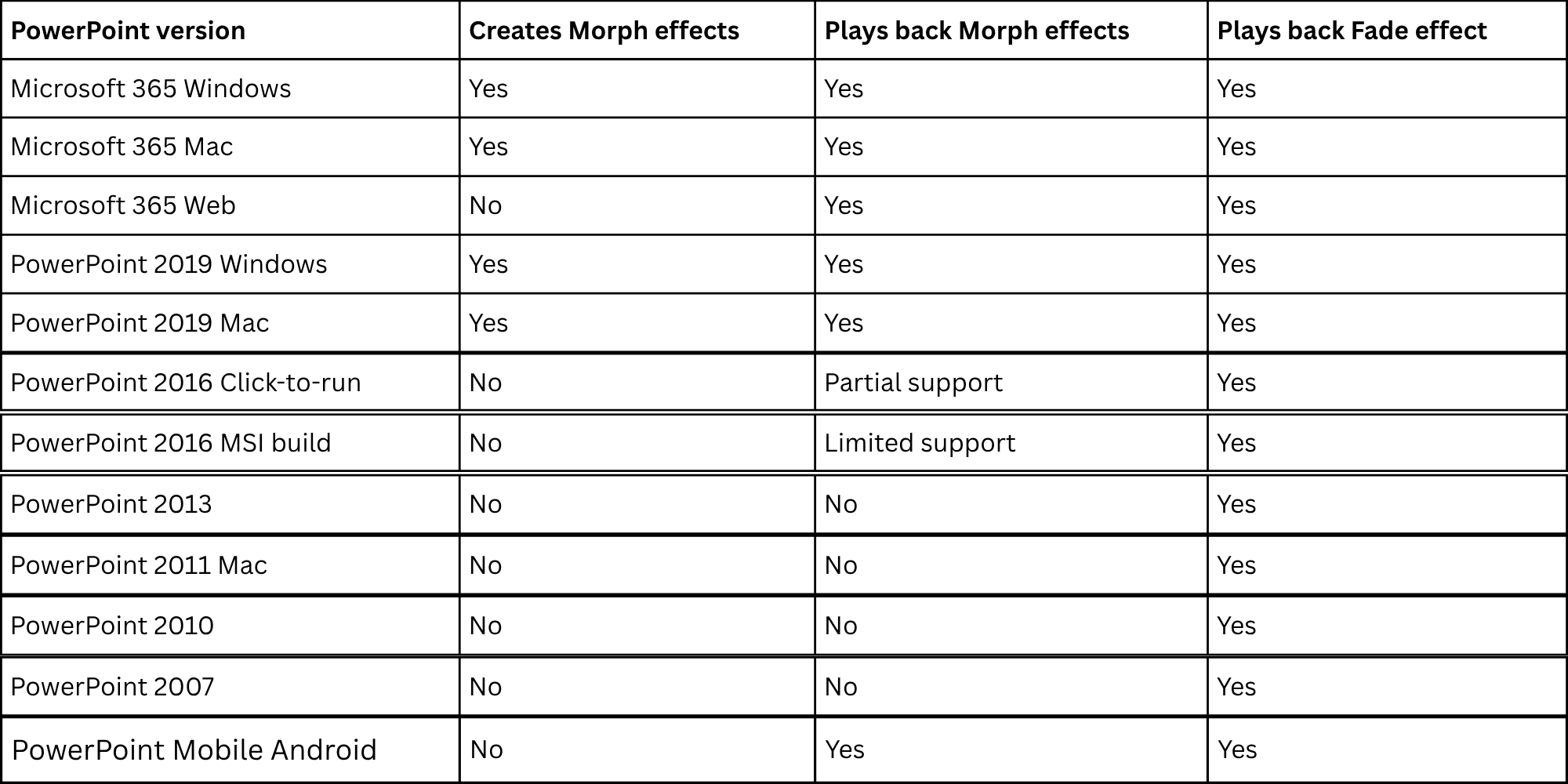
PowerPoint 2016 requires updates for Morph playback support. Click-to-run builds receive updates through Microsoft 365 channels. MSI installations may not include Morph playback improvements.
Mobile apps do not support Morph creation. Creation is tied to Microsoft 365 subscription access on desktop apps. Mobile platforms focus on playback only.
PowerPoint Morph effect: here’s how
To use the Morph effect as a transition, two slides are needed. The first slide holds the starting state. The second slide holds the target state. PowerPoint then moves objects between these two slides. Shapes, text, or images shift into new positions and forms. The second slide uses modified copies of the first slide objects.
The process may look complex at first. It becomes simple once the steps are followed in order.
- Insert an object: Go to Insert > Shapes. Pick a rectangle and draw it on the slide.
- Set the style: Open the Shape Format tab. Pick a fill color for the shape. Adjust outline and basic styling to match the starting look.
- Duplicate the slide: Select the slide in the left panel. Press CTRL + D or right-click and choose Duplicate Slide. Now there are two identical slides.
- Adjust the target slide: Move to the second slide. Change the shape position. Resize it if needed. Adjust color using Format Shape. You can also reshape it for a different look.
- Apply Morph: Select the second slide. Open the Transitions tab. Choose Morph.
PowerPoint creates the movement between the two slides. The objects shift smoothly from the first state to the second state. Use Preview in the Transitions tab to check the effect. Watch how the shape transforms across slides. Once the idea is clear, more options open up. Shapes can move across the screen. Images can be resized and shifted. Text can flow into new layouts. Each slide pair can create a new visual change.
Creating Basic Morph Animations
Morph in PowerPoint helps slides move in a smooth way. Objects can shift, change size, or change place between slides. This makes the presentation feel connected and clear.
Object Movement
Object movement is the main use of Morph. You place an item on one slide, then move it to the next slide. PowerPoint handles the smooth motion between the slides. Keep the object the same name or copy it from one slide to the next. Then adjust its position on the second slide. The motion will appear during the transition. Small moves look clean. Large moves can show direction or focus. This helps guide attention from one point to another.
Resize Effects
Morph can change the size of objects between slides. A small object on one slide can grow on the next slide. A large object can shrink in the same way. Use this to highlight key points. A chart or image can grow to draw focus. Then it can return to a smaller size later. Keep the change steady. Sudden size jumps can distract the viewer.
Layout Adjustments
Morph also works with layout changes. Objects can shift into new positions across the slide. Text boxes can move from the side to the center. Images can move into a grid. Shapes can align into clean patterns. Keep spacing consistent for a clean result. Each slide should feel connected to the next. This helps the viewer follow the flow without confusion.
Morphing text in PowerPoint
To apply the Morph effect to text or individual letters, an extra setting must be enabled inside the PowerPoint project. Start by following the standard 5-step Morph workflow already set up for slide transitions. Instead of using a rectangle on the first slide, place text in the same position as the base object.
On the next slide, duplicate the text field and adjust it as needed. The font, color, size, and position can all be changed along with the text content. Keeping the layout close to the original placement helps PowerPoint detect the transition between slides.
After selecting Transitions > Morph in the final step, open Effect Options on the right side of the Transitions panel. Choose either Characters or Words. This setting tells PowerPoint how to break down the text during the transition, which helps the Morph effect run smoothly between slides.
Shape and Object Transformations
PowerPoint Morph changes how shapes move between slides. It does not just shift objects from one spot to another. It creates smooth movement that feels connected.
A circle can turn into a square across slides. A line can stretch into a longer path. A shape can grow, shrink, or shift position without sudden jumps. The movement looks clean because PowerPoint blends the changes between slides.
Objects also keep their identity while changing form. A photo can slide across the screen while slowly resizing. A text box can move and change size at the same time. The result feels steady and clear to follow. This works best when two slides share the same object. Copy the slide first. Then adjust the shape, size, or position on the next slide. PowerPoint handles the change between the two versions.
Add a zoom effect to images using PowerPoint Morph
The Morph effect gives a simple way to create movement inside a static image. It works by shifting the view from one slide to another. A zoom effect can be created by focusing on a selected part of a picture. This helps guide attention and makes visual content easier to follow. Start by placing any image on a new blank slide in PowerPoint. Use the Insert tab to bring the image into the slide. Keep the image large enough so it covers most of the slide area. This helps the zoom effect look smooth later.
Next, duplicate the slide using CTRL + D or by right-clicking the slide thumbnail and selecting Duplicate Slide. Now there are two identical slides. The first slide will act as the full view. The second slide will become the zoomed view. Now set the zoom focus on the second slide. Select the image, then go to the Picture Format tab. Choose Crop. Adjust the crop area to frame the part of the image that needs attention. This step defines the zoom target.
After cropping, remove the crop selection and resize the image so it fills the entire slide again. Hold the CTRL key while dragging the corners to keep the image proportions stable. This keeps the visual quality consistent. The Morph transition connects both slides into a smooth zoom effect. Select the second slide, then go to Transitions and choose Morph. PowerPoint will automatically create the movement between the full image and the zoomed section.
Preview the effect by clicking the Preview button. The image now moves from the full view into the focused area with a smooth zoom motion. In the Timing group, adjust the duration to control the speed of the transition. A shorter time creates a quick zoom. A longer time creates a slower, more controlled motion. Sound effects can also be added here to support the transition.
Advanced Morph Techniques
Advanced Morph techniques focus on more control over motion, focus, and layout shifts inside PowerPoint slides. These methods help turn simple slides into structured visual stories. Each technique builds on basic Morph use and adds more precision to how objects move and change. One useful method is layered movement. This uses multiple objects placed at different positions across slides. Each duplicate slide shifts object placement slightly. Morph then connects these positions into smooth motion. The result is a guided visual path across the slide.
Another technique is focus shifting with image zoom zones. A full image is placed on the first slide. On the next slide, the image is cropped into a specific area and resized to fill the screen. Morph links both states and creates a controlled zoom into key details. This helps highlight small parts of an image without adding extra graphics.
Text repositioning also works well with Morph. A title or label is placed in one location on the first slide. On the next slide, the same text is moved to a new position or resized. Morph transitions the text smoothly between both states. This keeps attention on the content while maintaining visual flow. Shape transformation adds another layer of control. A simple shape on one slide can change size, color, or position on the next slide. Morph handles the shift automatically. This works well for diagrams or step-based visuals where elements need to evolve over time.
Spacing adjustments can also guide attention. Objects can be spread out on one slide and grouped closely on the next. Morph connects both layouts and creates a natural rearrangement effect. This helps structure comparisons or process steps. Each of these techniques relies on consistent object naming and slide duplication. Small changes between slides produce smooth animation without manual keyframes.
Best Use Cases for Morph
Morph works well for slide changes that feel smooth and steady. It helps objects move, shift, and change without harsh cuts. Object movement shows items moving across the screen. A shape or icon can move from one side to another. This keeps focus on the idea instead of the change. Zoom focus helps guide attention. A picture can grow larger to show detail. The main point stays clear while the rest stays simple.
Text shift works for words that change place or size. A title can move into a new spot. A keyword can stand out more in the next slide. Layout change supports full slide updates. Elements can move into a new structure. A crowded slide can turn into a clean layout with clear spacing.
Common Mistakes to Avoid
PowerPoint Morph works best with a clean setup and clear steps. Small mistakes can break the smooth effect. Many slides use too many objects. This creates confusion in movement. Keep shapes and images simple. Object names also cause problems. Different names stop Morph from linking items across slides. Use the same names for matching items. Some users change the size and position too much between slides. Big changes can make movement look jumpy instead of smooth.
A few slides mix different styles. One slide may use a photo style. The next slide may use flat icons. This creates a rough visual shift. Too many animations on one slide also cause issues. Morph already handles movement. Extra effects can feel messy. Keep alignment steady across slides. Small shifts in position can change how the animation behaves. Clean setup leads to smoother results and better slide flow.
Tips for Professional Results
Start with a clear slide structure. One idea per slide keeps the motion easy to follow. A clean layout helps the movement feel smooth instead of messy. Use matching objects across slides. Keep the same image or shape and adjust its size or position on the next slide. PowerPoint tracks these changes and builds the motion effect from them. Keep backgrounds steady. A changing background pulls attention away from the movement. A simple and steady background keeps focus on the moving elements.
Use spacing with care. Objects placed too close together can clash during movement. Extra space gives each element room to move without visual noise. Limit the number of moving elements on one slide. Too many changes at once can feel crowded. One or two moving parts often give a clearer result. Check alignment before and after the slide change. Small shifts in position can break the smooth flow. Consistent alignment keeps the motion clean from start to finish.
Final Notes
Morph stands out as a high-impact tool in presentation design. It changes how slides move and connect. Content flows from one slide to the next with smooth motion. This creates a clear visual path for the audience. The main value starts with dynamic animation. Objects shift position, size, and shape across slides. The movement feels natural. It helps ideas feel connected instead of separate. Slide-to-slide transitions gain a new level of control. Instead of abrupt changes, the content moves in a guided way. A timeline can stretch across slides. A process can unfold step by step. Product changes can show clear evolution from start to finish.
Engagement rises as viewers follow motion instead of static jumps. Professional tone also improves. Presentations feel more refined and structured. Attention stays on the message, not the mechanics of the slide change. Morph works well in many settings. A process explanation can show each stage with movement. A timeline can expand across multiple slides with a clear direction. Product development can show early ideas turning into final designs. In the communication strategy, Morph acts as a competitive edge. It supports clearer storytelling. It helps complex ideas feel easier to follow. It also builds a stronger audience focus through guided visual flow.
The benefits extend further. Information becomes easier to understand because movement links ideas together. Narrative flow improves as each slide connects naturally to the next. Audience attention stays steady because visual shifts feel intentional, not random. Use cases span across different fields. Corporate presentations rely on it for reporting and pitching. Education and training use it to break down lessons step by step. Marketing teams use it to show campaigns, product journeys, and brand stories. Pre-built Morph templates can speed up production. They help teams maintain consistency while reducing design effort. This supports faster delivery without losing visual quality.
As digital communication continues to grow, Morph holds strong value. Remote meetings and virtual presentations depend on a clear visual structure. Tools like Morph support stronger delivery of ideas across screens, teams, and global audiences.
FAQs
What is PowerPoint Morph?
PowerPoint Morph is a slide transition. It moves objects from one slide to the next. PowerPoint builds motion between matching items across slides.
How does Morph work in PowerPoint?
Morph uses two slides. The first slide shows the starting layout. The second slide shows the changed layout. PowerPoint connects both slides and creates motion between shared objects.
Which PowerPoint versions support Morph?
Microsoft 365 and PowerPoint 2019 support Morph. Some older versions can play Morph but cannot create it. Very old versions show a basic fade transition instead.
Can Morph be used with text?
Text works with Morph. Words and letters can move, resize, and shift position. A text setting in the Transitions panel controls how text breaks during motion.
Why does Morph not show correct motion on some slides?
Slides with different object names or missing matches do not link well. PowerPoint needs the same items on both slides to build motion.
How is Morph different from normal transitions?
Normal transitions only switch from one slide to another. Morph moves objects across slides. This creates connected motion instead of a simple cut.
Can Morph create zoom effects?
Morph can create zoom effects. A full image on one slide can shift into a focused area on the next slide. PowerPoint blends both views into one motion.
What issues affect Morph results?
Too many objects on a slide can make motion unclear. Different object names break the connection. Large changes in layout can make movement feel uneven. Mixed styles between slides also affect results.
How can Morph results stay clear and steady?
Slides with fewer objects work better. Matching items across slides helps motion stay linked. A steady background keeps attention on moving elements. Small layout changes create better flow.



You may also be interested in ...

How To Create An Eye-Catching Portfolio
If you’re looking to create an eye-catching portfolio, this post will come in handy. In this article, you can find the easies...
23 Jun, 2024

How To Easily Create An Infographic
Infographics are the perfect way to make a presentation that will impact an audience, but their design and composition might...
08 Jun, 2024

PowerPoint Template Tips & Tricks You Ne...
PowerPoint seems to be an unknown world for many people, especially those who have been assigned to create a presentation out...
08 Jun, 2024