How to Crop a Picture Quickly and Easily in Google Slides
Cropping images in Google Slides can feel confusing, especially if you want your presentation to look neat and professional. Many users spend more time adjusting pictures than creating content, which slows down their workflow.
Luckily, Google Slides makes cropping simple and quick. With just a few clicks, you can adjust your images to fit perfectly on any slide. This not only saves time but also gives your slides a polished, organized appearance that grabs attention and makes your message clear.
Why Cropping Images Matters
Cropping helps focus on the main part of an image. It removes extra space that can distract viewers. This makes the subject clearer and stronger. Cropping can also change the composition, making the image more balanced and pleasing to look at.
It helps control what the audience notices first. A well-cropped image can guide the eye to the important details. Cropping also makes images fit better in different spaces, like social media posts, slides, or websites.
Small changes in cropping can make a big difference in how an image feels. By cutting out unnecessary parts, the picture becomes cleaner and easier to understand.
2 Easy Methods to Crop an Image in Google Slides
Learning to crop images in Google Slides is simple and quick. Below, we will show two easy methods to adjust your pictures perfectly. Follow along to see each step clearly.
Method 1: Crop the Image by Double-Click and Drag
Start by selecting the image you want to crop. Click on it so that a border with small handles appears around the edges. This confirms the image is active and ready for editing.
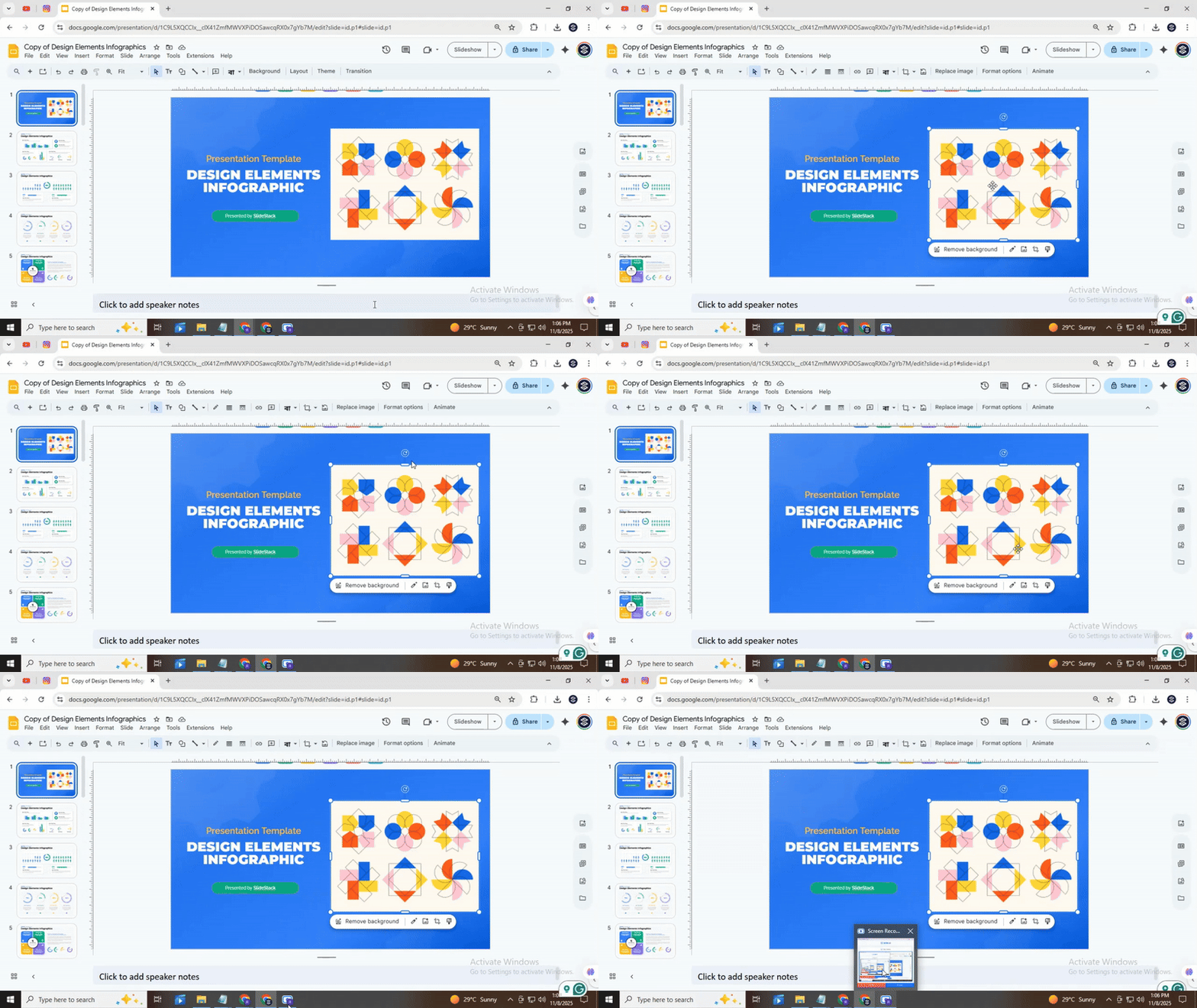
Next, double-click directly on the image to enter crop mode. You will notice the handles change, showing that you can now adjust the visible area of the image.
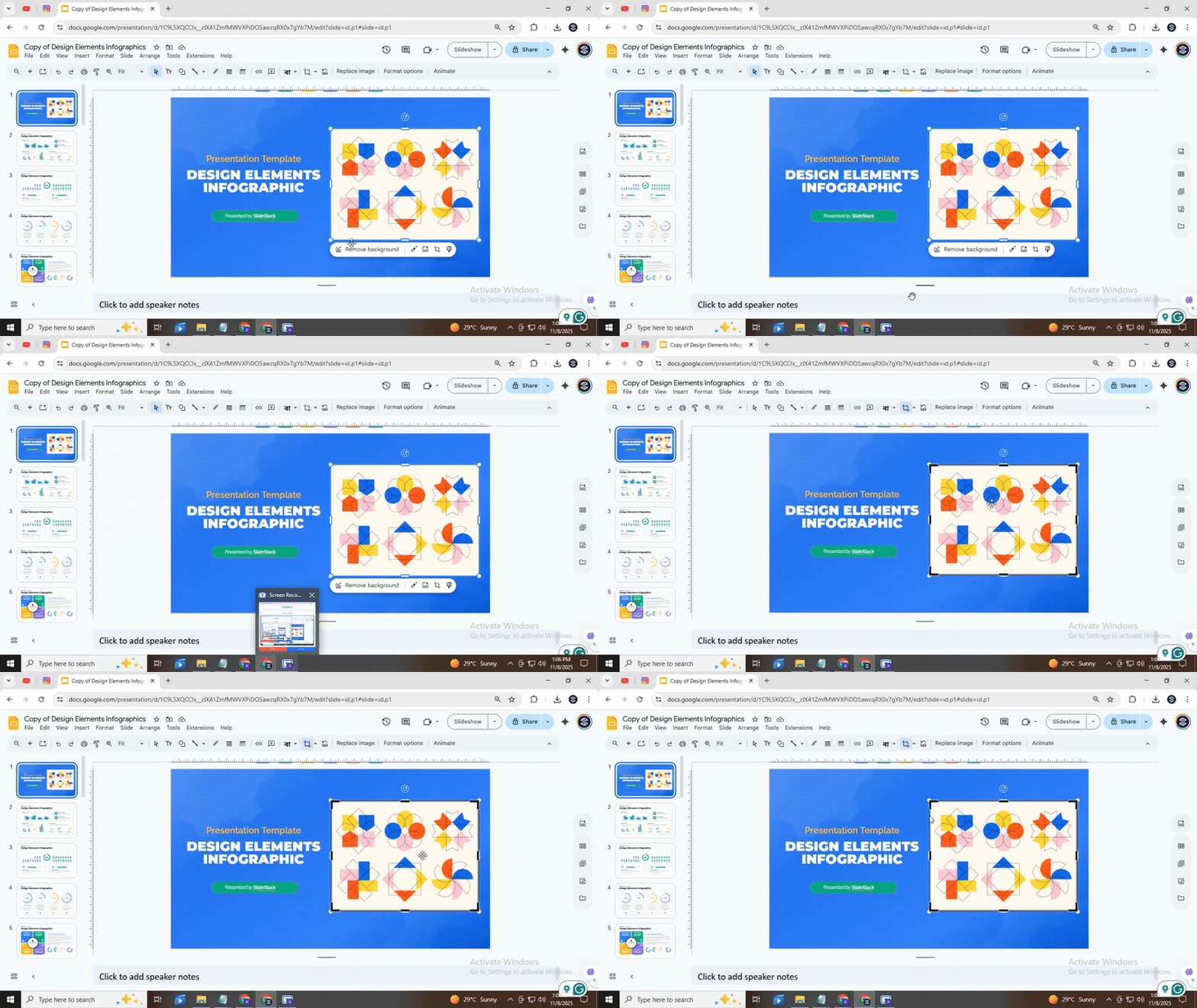
To crop, click and drag any of the corner or side handles. Pulling the handles inward trims the edges, while dragging outward restores parts of the image that were previously hidden.
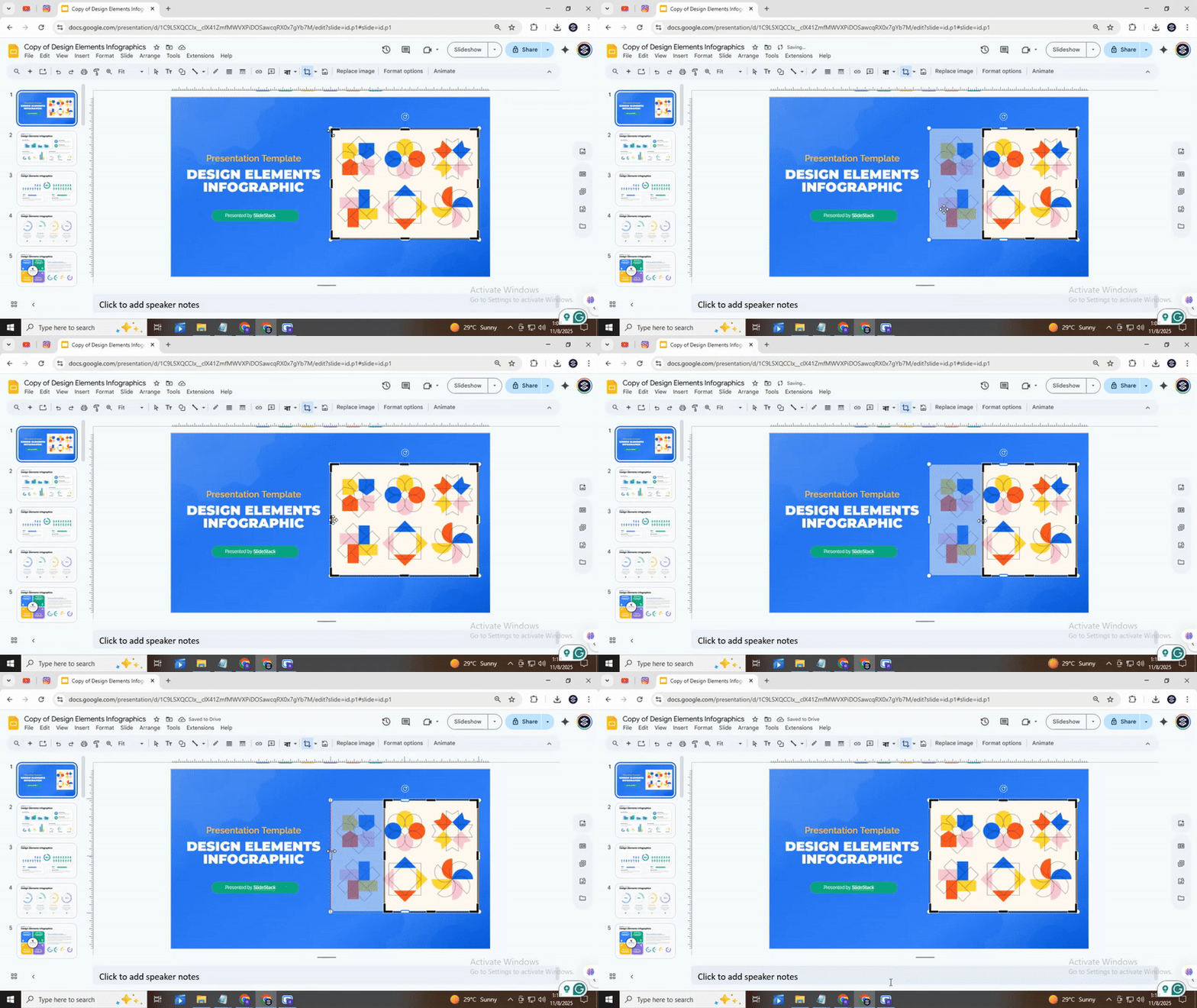
If you want to maintain the image’s proportions, hold down the Shift key while dragging a corner handle. This keeps the width and height proportional, preventing the image from stretching or squashing.
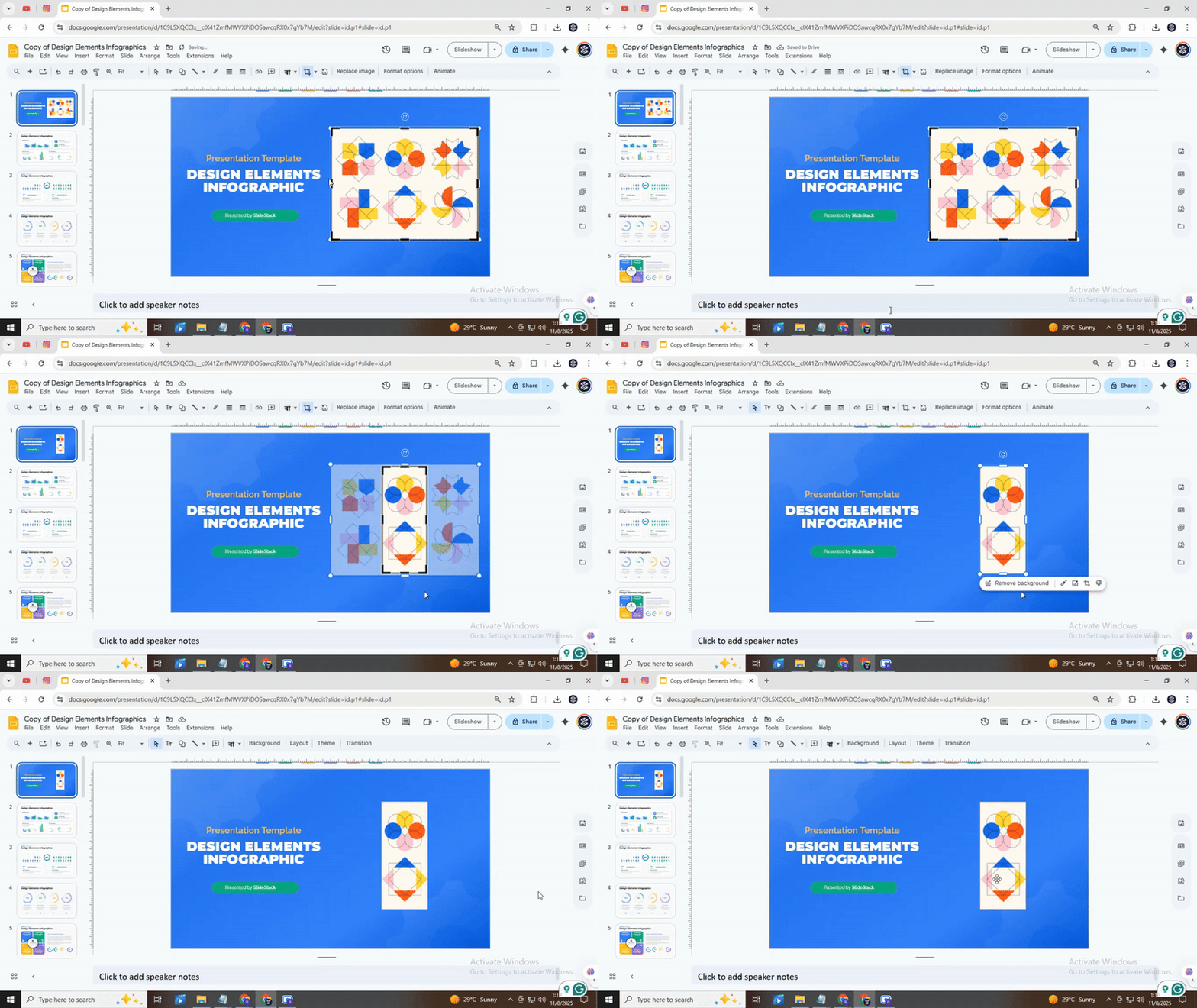
Finally, click outside the image or press Enter to apply the crop. The image now shows only the section you selected. You can double-click again at any time to make further adjustments.
Read also: How to Bring an Image Forward in Google Slides (Simple Guide)
Method 2: Creative Cropping with Shapes
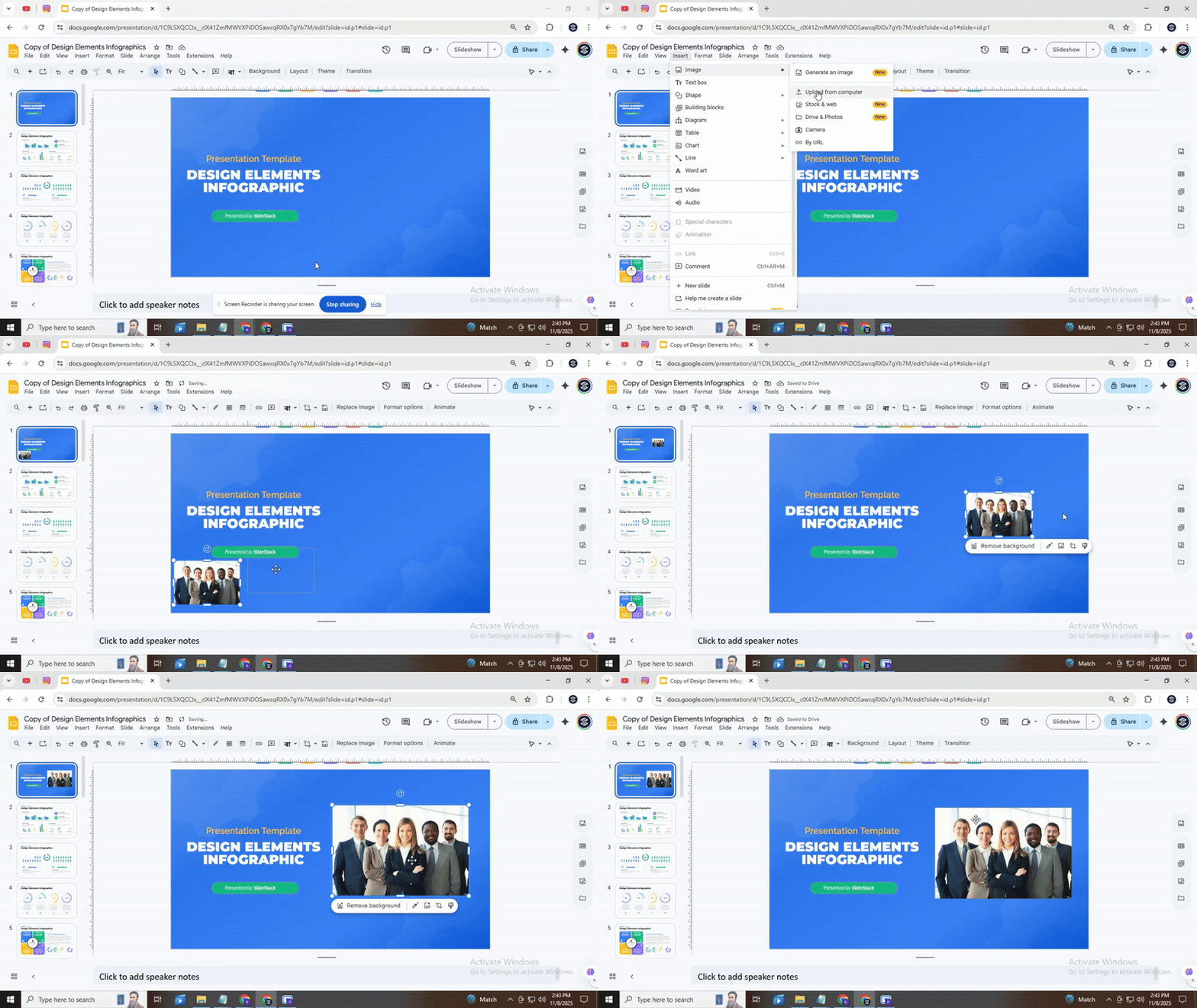
1. Insert Your Image
Start by placing your image on the slide. Click “Insert” from the top menu, then select “Image” and choose where to upload it from. Once your image appears, you can move it around to find the best spot on your slide.
2. Pick a Shape
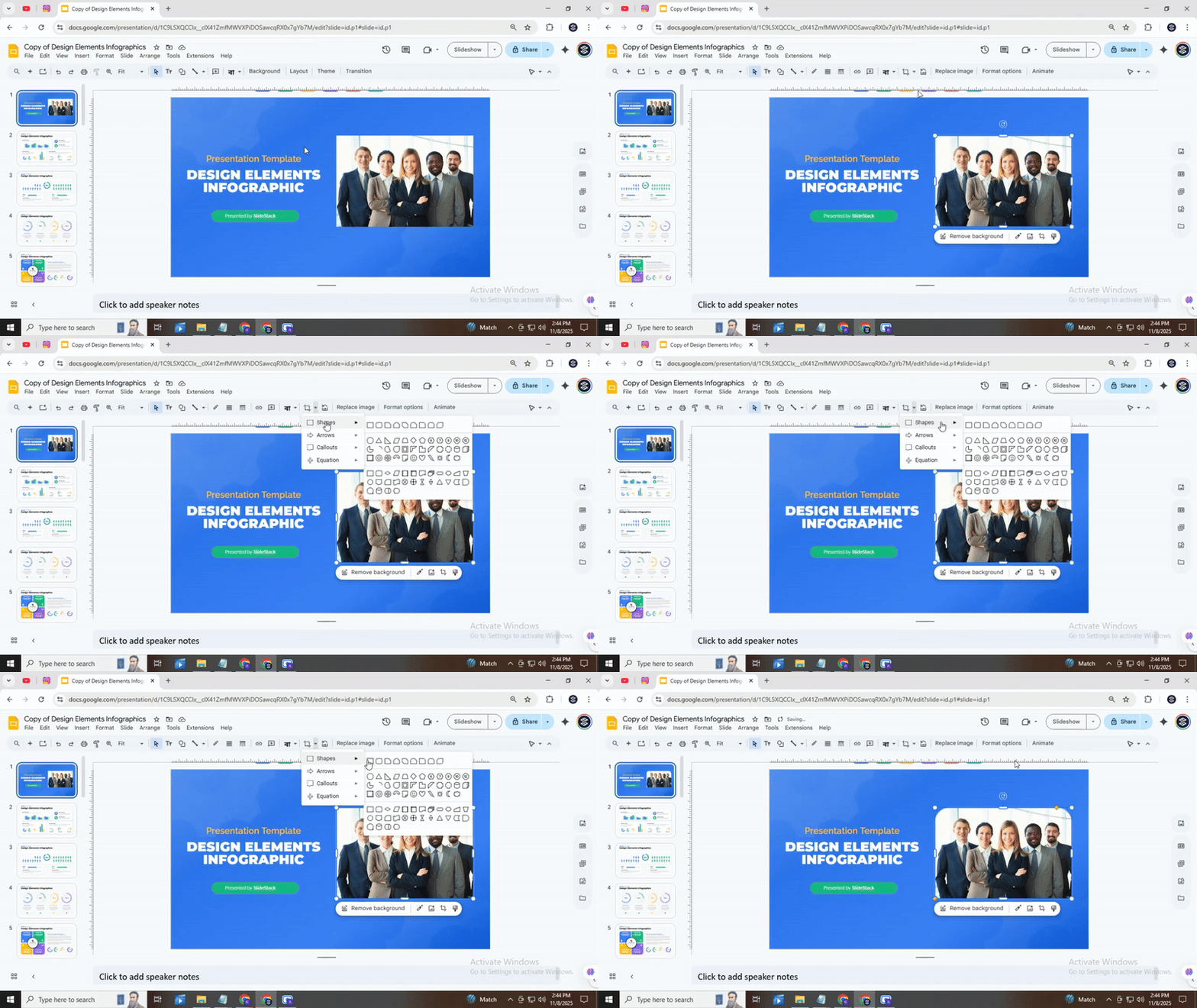
Next, select the shape you want your image to take. Click the small arrow next to the crop icon and choose “Shape.” A menu will appear with circles, triangles, stars, and more. Here comes the magic! Pick a shape that suits your design. You can always try a few before deciding.
3. Position the Image
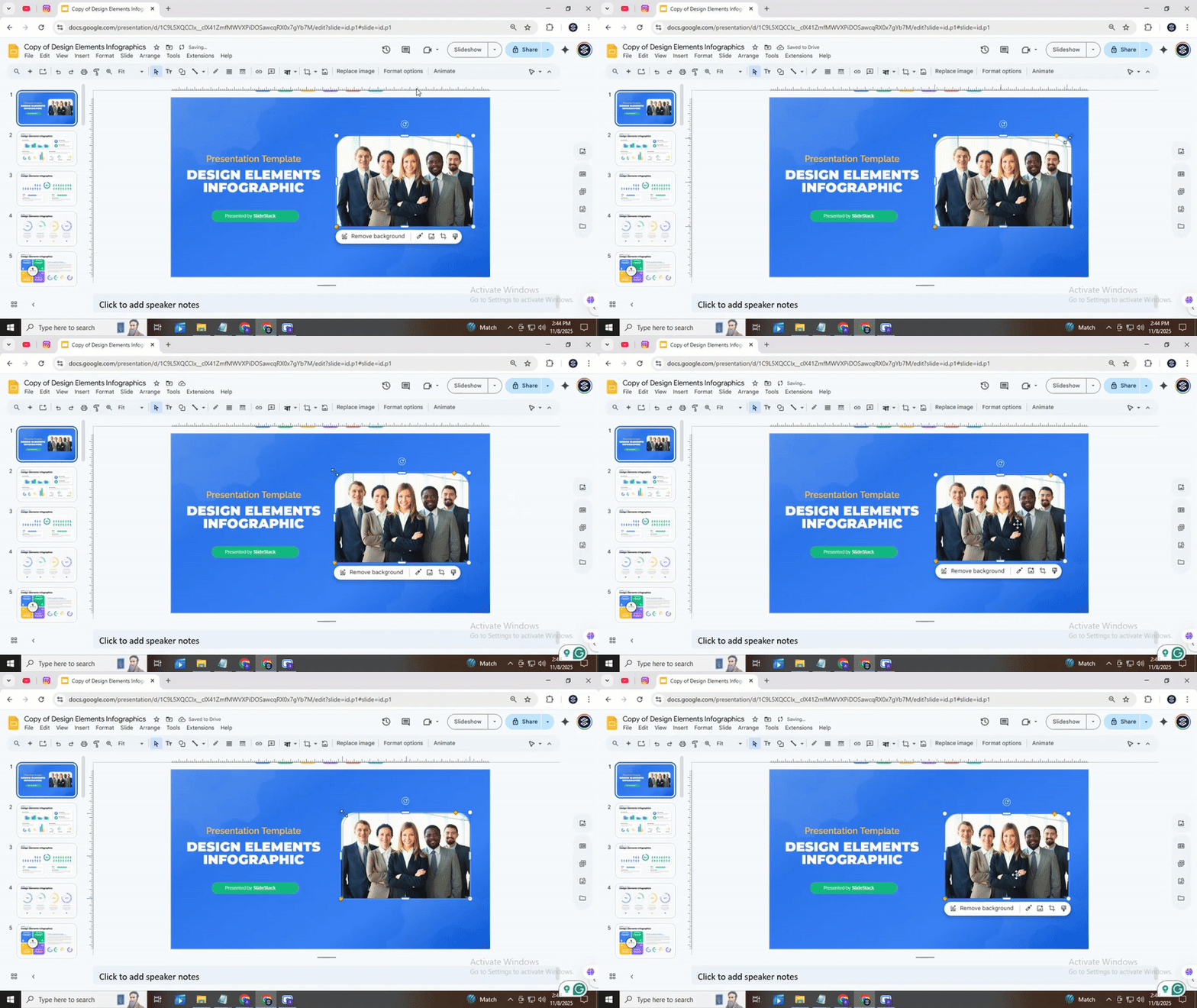
Now, move your image inside the shape. Click and drag to adjust the portion that shows. You can also resize the image slightly so important parts fit nicely within the shape. (It’s like framing a picture in a unique way.)
4. Apply the Mask
Once your image is aligned, click to crop it into the shape. The shape becomes the frame, and the rest of the image disappears. Don’t worry, your original image is still there if you want to adjust it later.
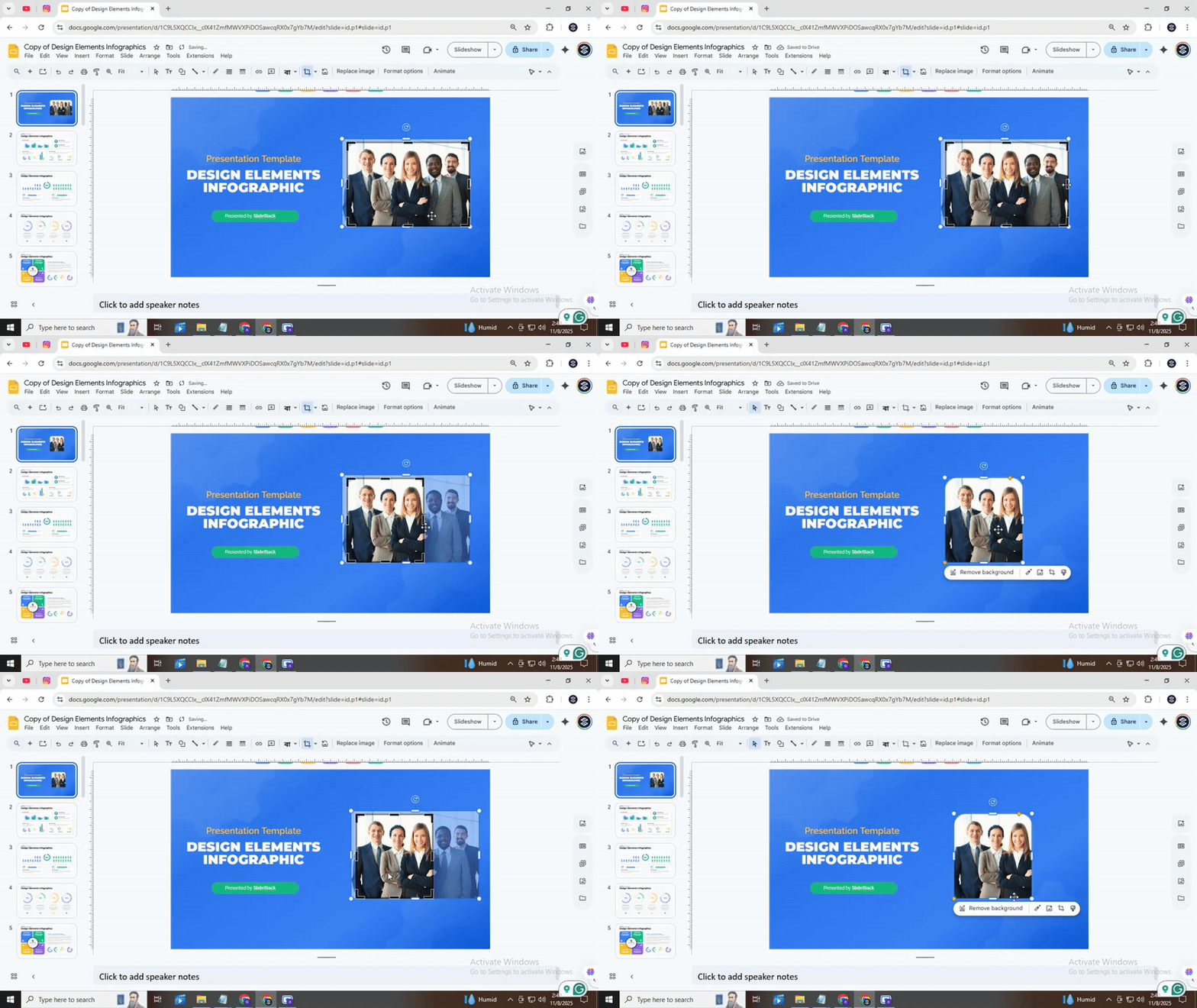
5. Refine and Adjust
After masking, you can make small changes. Rotate the shape slightly for a playful tilt or resize it to fit your layout. Experiment with different shapes on multiple images to create a visually dynamic slide.
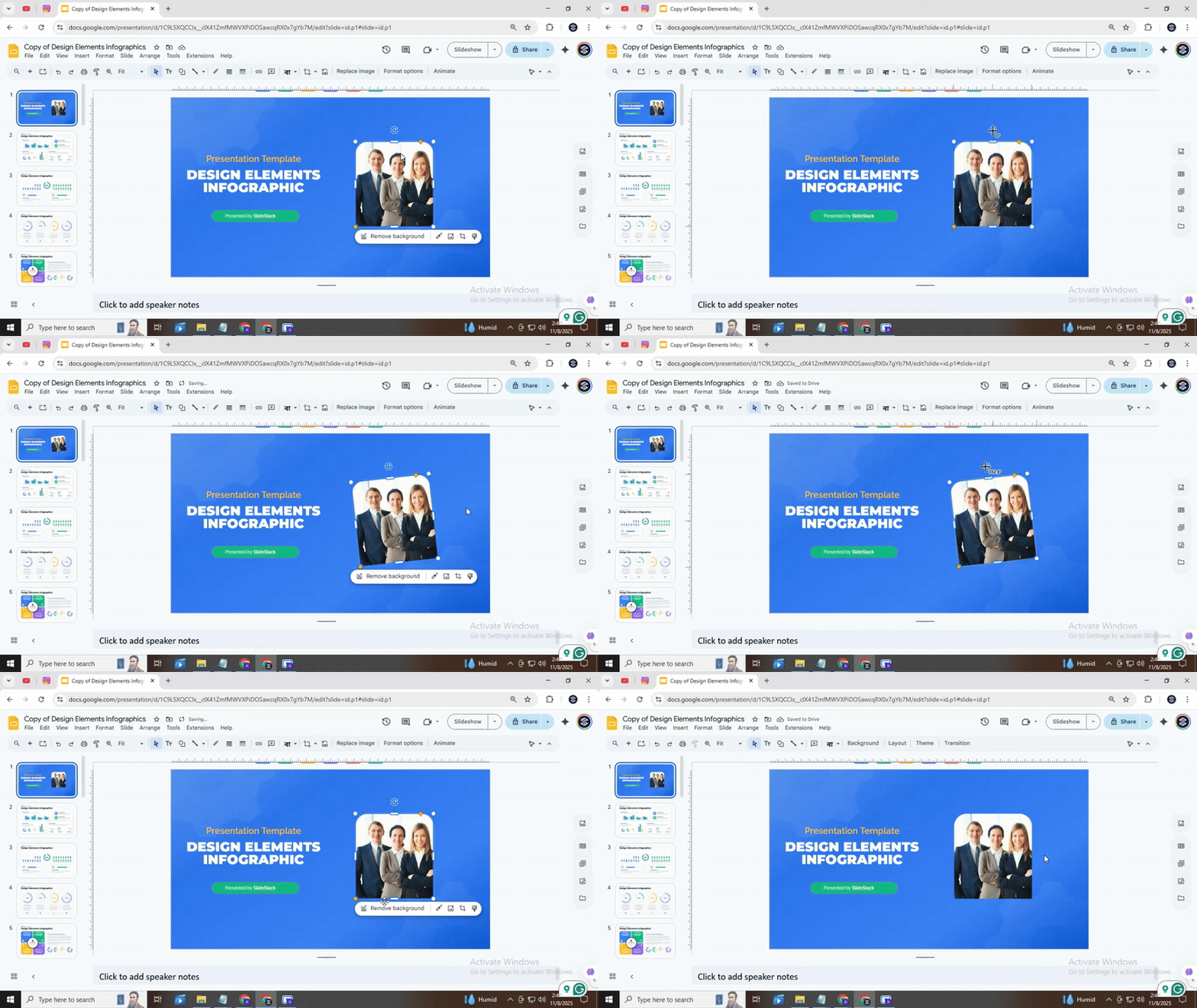
Creative cropping is an easy way to make your slides stand out. By combining shapes, positioning, and subtle adjustments, you can turn ordinary images into engaging visuals. Give yourself permission to experiment and see how different shapes change the feel of your presentation.
Read also: How to Make an Image Circular in Google Slides: Step-by-Step Tutorial
How to Adjust and Resize Cropped Images
Cropped images sometimes need fine-tuning. You can change their size or position to fit your layout.
Start by selecting the image. Look for handles on the corners and sides. Drag a corner handle to resize the image while keeping its proportions. Drag a side handle to stretch or compress the image in one direction.
If the image does not fit well after cropping, move it inside the frame. Click and drag the image to adjust which part is visible. This helps show the most important area without changing the crop shape.
Pay attention to clarity. Enlarging a cropped image too much can make it blurry. Keep the size balanced with other elements on the slide or page.
Small adjustments can make a big difference. Take a moment to check the alignment and proportions before finalizing your design.
How to Reset or Undo a Crop
If you crop an image but want to restore it, you can undo the change easily. Start by selecting the image you cropped. Look for the crop tool in your toolbar or menu. You will see an option to reset the crop. Clicking this will return the image to its original size.
Alternatively, you can use the undo command in your program. This will revert the last action, including cropping. Check if your software has multiple undo steps. This helps if you made other edits after cropping.
Restoring a cropped image keeps the original details intact. This is useful if you need to try different cropping styles or correct mistakes.
Tips for Better Image Cropping
Cropping can help focus on the main part of an image. Start by removing unnecessary background. Keep the subject clear and centered.
Check the edges of the image. Make sure nothing important is cut off. Use simple shapes like squares or rectangles for clean results.
Pay attention to proportions. Avoid stretching or squishing the image. Keep it natural and balanced.
Zoom in only when needed. Too much zoom can reduce quality. Step back and see the whole image before finalizing.
Finally, try different crops. Compare results and pick the one that looks best. A small change can make the image stronger.
Common Mistakes to Avoid
Many people make the same errors when using radar charts. One common mistake is adding too many categories. This can make the chart hard to read. Another is using inconsistent scales. When scales do not match, comparisons can be misleading. Some also forget to label axes clearly. Missing labels confuse viewers and reduce understanding.
Another issue is cluttering the chart with too many colors or patterns. This distracts from the main data. Overlapping data points can also make it difficult to see trends. Finally, ignoring context can be a problem. Charts should always show data in a way that makes sense for the audience.
Avoiding these mistakes keeps radar charts simple and clear.
Conclusion:
Using the double-click method or shapes makes adjusting images quick and simple. Dragging handles or trying different shapes can change how your slides look and feel. These small steps help your presentation appear polished while keeping your focus on your message. Try these techniques to make your slides sharper and more engaging with minimal effort.
FAQs:
Can I edit pictures in Google Slides without messing up the originals?
Yes. Google Slides lets you edit a copy of your picture, so the original file stays safe. You can adjust size, crop, or mask without changing the original image saved on your computer.
Are there specific sizes I can crop to in Google Slides?
You can crop pictures to any size you want, but Slides also offers preset shapes like circles, squares, and triangles. These make it easier to fit your image into a certain design.
Can I undo the crop if I don’t like it?
Yes. Right after cropping, press “Undo” or use Ctrl+Z (Cmd+Z on Mac) to revert the change. You can also re-crop the image anytime to adjust it again.
Is there a limit to how many pictures I can crop on one slide?
No strict limit exists. You can crop as many pictures as you want, but too many images may slow down Slides. It’s best to keep your slide simple for smooth editing.
What are the masking options available in Google Slides?
Masking lets you change the shape of an image. You can pick shapes like circles, stars, arrows, or custom shapes to fit your design.
How do you freehand crop a picture in Google Slides?
Google Slides doesn’t support true freehand cropping. You can use shapes as masks to create a custom outline that fits your image instead




You may also be interested in ...

How To Create An Eye-Catching Portfolio
If you’re looking to create an eye-catching portfolio, this post will come in handy. In this article, you can find the easies...
23 Jun, 2024

How To Easily Create An Infographic
Infographics are the perfect way to make a presentation that will impact an audience, but their design and composition might...
08 Jun, 2024

PowerPoint Template Tips & Tricks You Ne...
PowerPoint seems to be an unknown world for many people, especially those who have been assigned to create a presentation out...
08 Jun, 2024