How to Produce a Spotlight Effect using PowerPoint and Morph Transition
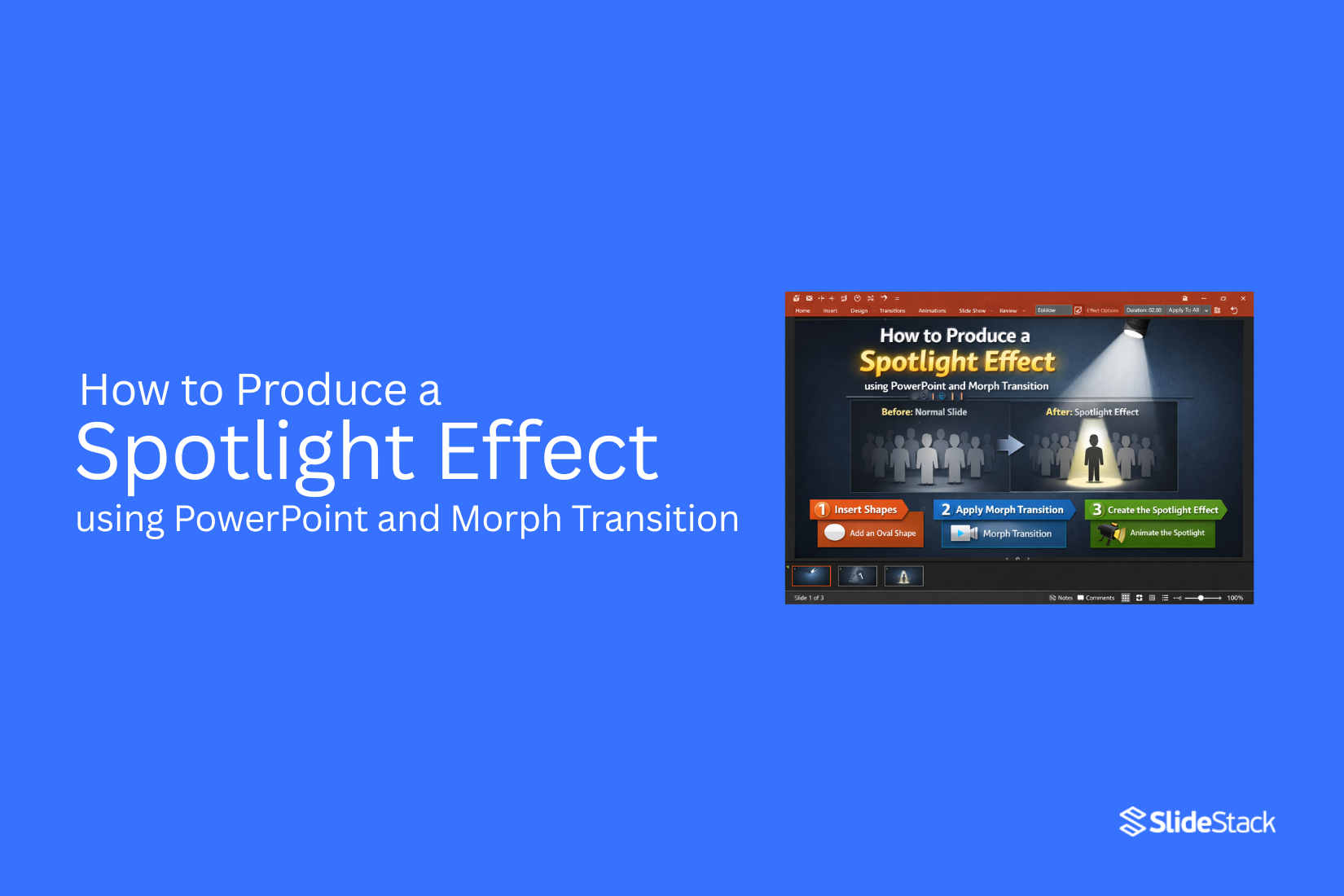
Many PowerPoint slides fail to hold attention because they spread focus across the entire screen. Important details get lost, and viewers struggle to know where to look. Using Morph Transition in PowerPoint creates a smooth shift between slides that highlights one area at a time. Next, the Morph tool helps you build a spotlight-style effect by isolating content and guiding focus naturally.
This creates a clear visual path so viewers quickly understand the main message on each slide. We end with slides that feel focused, easy to follow, and more engaging during presentations. That is where this technique improves clarity and helps present information in a structured way. Step-by-step guide follows.
What is the Spotlight Effect in PowerPoint?
The spotlight effect in PowerPoint is a visual method that draws attention to one part of a slide while the rest stays less visible. It works like a real spotlight on a stage. One area becomes bright and clear. The other parts fade into the background. This effect helps control where the viewer looks first. A slide can feel crowded with text, shapes, or images. The spotlight effect reduces that problem by guiding focus to one key point at a time.
It is often used in presentations where clear communication matters. A speaker may want the audience to focus on a number, a keyword, or a single image. The spotlight effect makes that easier without changing the slide content itself. PowerPoint does not have a single button for this effect. It is usually created using shapes, transparency settings, and animation tools like Morph Transition. These tools work together to create the illusion of movement and focus shift. The result feels smooth and natural. Attention moves across the slide without distraction.
Understanding Morph Transition in PowerPoint
Morph Transition moves objects from one slide to the next in a smooth way. It creates motion without manual animation steps. PowerPoint adjusts position, size, and shape between slides on its own. This works by copying a slide and changing elements on the new version. Text, shapes, and images can shift across the screen. The movement feels continuous because PowerPoint fills the gap between the two slides.
Spotlight effects often rely on this behavior. A focus area can slide into view while other parts move out. A circle, box, or blurred layer can guide attention to one point. The change between slides feels clean and controlled. Each element needs a clear starting point and ending point. If an object is on both slides with changes in position or scale, Morph handles the shift. Naming objects in the selection pane helps PowerPoint match them across slides. This method removes the need for complex animation timelines. It also keeps the slide design simple while still adding motion that feels natural.
Tools and Setup You Need
PowerPoint is the main tool for this work. A recent version gives better control over transitions. Older versions may still work, but results can vary. Start with a clean slide deck. Keep it simple. One idea per slide helps avoid confusion later. A dark background works well. It helps the spotlight stand out. Light backgrounds can make the effect weaker. Use shapes in PowerPoint. The oval shape works best for a spotlight base. You can resize it and place it anywhere on the slide.
The Morph transition is the key feature. It creates smooth movement between slides. Each slide shift builds the spotlight effect step by step. Keep text minimal. Too much text pulls attention away from the spotlight area. Short labels or none at all work best. Align objects carefully. Small position changes matter because Morph tracks movement between slides. Group elements when needed. This keeps parts of the design together during transitions. With these tools ready, the setup is complete for building the spotlight effect.
Why Use the Spotlight Effect in PowerPoint?
The spotlight effect in PowerPoint is a visual method that helps control focus on a slide. It dims extra areas and highlights one section at a time. This makes content easier to follow and understand. Here are key reasons to use it:
Directs Attention to Key Information
A slide can hold text, images, and data at the same time. The spotlight effect brings focus to one main area. Other parts stay darker in the background. This helps the audience see the main point without distraction.
Enhances Storytelling and Flow
A presentation works like a step-by-step story. The spotlight effect reveals one part at a time. Each point feels connected to the next. This creates a smooth flow from start to finish.
Adds Professionalism and Visual Appeal
Clean slides leave a stronger impression. The spotlight effect creates a neat layout with clear focus areas. The slide looks structured and well planned. This builds trust in the message being shared.
Improves Retention and Comprehension
People understand better when content is shown in parts. The spotlight effect reduces overload from too much information at once. Viewers can process each point more clearly. This helps them remember key ideas later.
Boosts Engagement with Interactive Elements
Movement on slides keeps attention active. The spotlight effect shifts focus across sections. This keeps viewers involved during the presentation. It reduces passive viewing.
Guides Viewers through Complex Information
Large topics can feel heavy on a single slide. The spotlight effect breaks them into smaller sections. Each part is shown one at a time. This makes difficult content easier to follow.
Increases Visual Hierarchy and Readability
Important details stand out clearly. Less important parts fade into the background. This creates order on the slide. Text and visuals become easier to read.
Enhances Virtual Presentations
Online meetings can lose attention quickly. The spotlight effect keeps focus on the main point. It helps viewers stay with the content on screen. This supports clearer communication in remote settings.
How to Create a Spotlight Effect in PowerPoint Using Morph Transition
A spotlight effect helps guide attention to one key area on a slide. The rest of the slide stays dark, so the focus becomes clear. This effect works well for storytelling, training slides, and product highlights. You will build it using shapes, duplication, and Morph transition.
Step 1: Insert Shape Overlays to Create a Frame
Open PowerPoint and go to the slide where you want the effect. Add your main content first, such as text or images. Go to Insert and open Shapes. Select a rectangle shape. Draw it to cover the full slide area. Extend it slightly beyond the edges so no empty space shows. Add a circle or oval shape. Place it over the part you want to highlight. Position it carefully on the key object. Right-click the rectangle. Choose Send to Back so the circle stays visible on top.
Step 2: Cut Out the Spotlight Area
Select the rectangle shape. Hold Shift and click the circle so both shapes are selected. Open Shape Format. Choose Merge Shapes and select Combine or Subtract. This creates a cutout in the rectangle. The cutout is the spotlight area. Adjust the circle position so it aligns exactly with your focus point.
Step 3: Create a Dark Overlay
Insert another rectangle shape and stretch it across the full slide. Set the fill color to black or dark gray. This builds the dim background. Open Shape Format and set transparency so slide content remains visible behind the overlay. Place this layer above the background content. Keep the cutout area clear so the spotlight stands out.
Step 4: Duplicate the Slide
Go to the slide panel on the left. Right-click the slide and choose Duplicate Slide. On the second slide, move the circle to a new position. Place it over the next item you want to highlight. Keep all other elements unchanged so the transition stays smooth.
Step 5: Apply the Morph Transition
Select the duplicated slide. Open the Transitions tab and select Morph. Set a short duration for smooth movement between slides. PowerPoint will animate the circle movement from one position to the next. Preview the transition to confirm it flows correctly.
Step 6: Test the Spotlight Effect in PowerPoint
Start Slide Show mode and run through the slides. Watch how the spotlight moves across the content. The rest of the slide stays dim while the focus area remains clear. Adjust circle size or placement if the highlight feels off. Small tweaks improve accuracy. Repeat the process for more slides if you want multiple spotlight points in your presentation.
Best Practices for Using the Spotlight Effect
While using the spotlight effect can be an engaging method to direct attention to specific content on your slides, it is important to follow a few key practices to keep your presentation clear and effective.
Keep it Subtle
To maintain a professional look, avoid strong or heavy spotlight effects. Overuse of motion or intensity can distract from your message and make slides feel crowded.
Use Consistent Colors
Match the spotlight overlay with your slide theme. A consistent color choice keeps the design stable and helps the effect blend with the overall presentation style.
Optimize Slide Timing
Set timing so the spotlight shift feels natural. A very quick change can feel abrupt, while a slow shift can weaken attention on the key point.
Test on Different Screens
Check how your slides appear on projectors, laptops, and online meetings. A design that looks clear on one screen may appear different on another. Make sure the spotlight area fully covers the intended section so no content slips outside the focus zone.
Use It Strategically
Apply the effect only to important parts of your presentation. Using it too often reduces its impact and makes it less noticeable when it matters most.
Pair with Other Visual Elements
Combine the spotlight effect with simple animations or zoom features to guide attention in a natural way. Keep supporting visuals minimal so they do not compete for focus.
Ensure Readability
Make sure all text inside the spotlight area is easy to read. Adjust the contrast between the background and content so nothing becomes hard to see during the effect.
Maintain Slide Simplicity
Keep each slide clean and uncluttered. Too many elements reduce the clarity of the spotlight and weaken its purpose.
Use for Key Points Only
Focus the effect on key ideas such as main messages, important data, or action points. This keeps attention directed where it matters most.
Practice Before Presenting
Run through the full presentation to check timing and flow. This helps confirm the spotlight moves smoothly and supports your delivery without interruptions.
Enhancing the Spotlight Effect
A basic spotlight can already guide attention in a slide. The next step is making it feel smooth and controlled. Small changes in motion, timing, and layout can lift the whole look. Start with movement. A slow shift of the spotlight shape across the slide feels natural. Sudden jumps break focus. Keep each move connected to the last position so the eye follows without effort. Size also plays a role. A tight spotlight keeps attention on one point. A wider one can include more context while still directing focus. Switching between these sizes adds variation without distraction.
Color contrast helps shape focus. A darkened background with a soft, bright center makes the highlighted area stand out. Avoid harsh edges. Soft blur around the spotlight keeps the effect clean. Layering adds depth. Place key text or icons above the spotlight layer. This keeps important elements readable while still drawing attention where needed. Timing matters too. Give each transition enough space to breathe. Quick changes can feel rushed. A steady pace keeps the viewer engaged with the content instead of the motion. A strong spotlight effect feels almost invisible in how it works. The audience follows the message without noticing the technique behind it.
Common Mistakes to Avoid
Many users rush the setup and end up with a weak spotlight effect. Small errors change the final look more than expected. One common issue is using too many elements on a single slide. The spotlight loses focus when the background is crowded. Keep the slide simple so the attention stays on one area. Another mistake is uneven alignment. If the spotlight circle is slightly off, the motion looks shaky during the Morph transition. Careful placement helps the movement feel smooth.
Some users also skip checking slide consistency. The background must stay the same between slides. Even a small change in color or position can break the transition effect. Overusing motion can also create problems. Too many animated elements distract from the main highlight. A clean layout works better than heavy movement. Poor contrast is another issue. If the spotlight area does not stand out clearly, the effect becomes hard to notice. Strong contrast between the highlighted section and the rest of the slide keeps the focus clear.
Best Use Cases for Spotlight Morph Effect
The spotlight morph effect works best in slides that guide attention to one key point at a time. It helps control what the viewer sees first. It also keeps focus on the main message. Presenting data works well with this effect. One number or chart section can appear clearly while the rest stays dim or hidden. Step-by-step lessons also fit this style. Each step can appear in order without crowding the slide.
Product features become easier to follow. One feature can take focus before moving to the next. Story-based slides gain a clearer flow. Each part of the story can be shown in a clean sequence. Training content benefits from this effect. It helps learners stay on one idea before moving forward. Comparison slides can also use it. Each side can appear one at a time for clearer understanding.
Pro Tips for a More Professional Look
A clean spotlight effect starts with a simple slide. Too much detail pulls focus away from the main point. Keep one key message on each slide. This helps the eye rest on what matters most. Dark backgrounds often work best. They make the spotlight stand out. Light text near the focused area improves clarity. Avoid mixing too many colors. Two or three tones are enough.
Shape choice also matters. Soft circles or blurred edges feel more natural. Sharp edges can look harsh and distract from the effect. Keep the spotlight shape smooth. Consistency across slides builds a stronger flow. Use the same font, spacing, and alignment. Small changes in layout can break the visual rhythm. The Morph transition works best with steady movement. Move objects slightly from one slide to the next.
Large jumps can feel sudden and less polished. Layering adds depth. Place the spotlight above the background but below the key text. This creates a clear visual order. Timing controls the feel. Slow transitions create focus. Fast ones can feel rushed. Match the speed to the message. Test the full sequence before sharing. Watch for flicker, overlap, or misalignment. Small fixes here improve the final result a lot.
Pro Tips for a More Professional Look
Start with a clean slide design. A dark background works best for a spotlight effect. It helps the focus stand out. Keep other elements minimal. Too much detail pulls attention away. Use a strong contrast between the subject and the background. Bright objects stand out more on dark slides. This makes the spotlight feel stronger and clearer. Place your main object in the center or slightly off-center. This helps guide the viewer’s eye right away. Avoid random placement. It can break the focus.
Keep the motion smooth in the Morph transition. Small, steady changes look more natural than big jumps. Move the spotlight gently from one point to another. Match shapes and sizes between slides. Morph works best when elements stay similar. Sudden changes can feel messy or unclear. Use consistent colors for the spotlight glow. Stick to one tone across all slides. This builds a steady visual style. Test the animation in slideshow mode. Small timing issues are easier to spot there. Adjust until the movement feels steady and clear.
Final Words
Using the spotlight effect with the Morph Transition in PowerPoint helps direct attention to key parts of a slide. It improves clarity and keeps viewers focused on the main message. This method also adds smooth movement between slides, which makes the presentation easier to follow. It supports stronger audience engagement by reducing distraction and guiding the eye to important details.
The spotlight effect also improves how ideas are delivered from one point to the next. It creates a clear flow that helps the message feel more organized. This approach works well for data, visuals, and storytelling slides. It fits both live and online presentations, which makes it a flexible choice for many use cases. With practice, this technique helps create presentations that feel clear, focused, and more effective in communication.
FAQs:
What is the spotlight effect in PowerPoint?
The spotlight effect is a way to highlight one part of a slide while the rest stays dim. It helps guide attention to a single area so viewers focus on the main message.
Why use Morph Transition for the spotlight effect?
Morph Transition creates smooth movement between slides. It shifts objects naturally, which helps the spotlight move from one point to another without complex animation steps.
Do I need advanced tools to create this effect?
No. PowerPoint is enough. Shapes, transparency, and Morph Transition are the main tools used to build the effect.
What kind of slides work best with the spotlight effect?
Slides with one main idea work best. It also works well for data, product highlights, training content, and step-by-step explanations.
Can I use this effect on every slide?
It is better to use it only on key slides. Using it too often can reduce its impact and make the presentation less clear.
Why is slide simplicity important for this effect?
Simple slides help keep attention on the spotlight area. Too many elements can reduce focus and make the effect harder to see.
How does the spotlight effect improve presentations?
It helps control where the viewer looks. It also makes information easier to follow by showing one point at a time.
What role does color play in this effect?
Dark backgrounds with clear contrast help the spotlight stand out. This makes the highlighted area easier to see.
How does Morph Transition improve the flow?
It connects one slide to the next by adjusting position and movement automatically. This creates a smooth shift between focus points.
What common mistakes should be avoided?
Common issues include crowded slides, uneven alignment, weak contrast, and overuse of animation. These reduce clarity and focus.
How can I make the effect look more professional?
Keep slides simple, use consistent colors, maintain smooth movement, and test the full sequence before presenting.
Where is this effect most useful?
It works well in storytelling, training slides, product showcases, data highlights, and comparison slides.



You may also be interested in ...

How To Create An Eye-Catching Portfolio
If you’re looking to create an eye-catching portfolio, this post will come in handy. In this article, you can find the easies...
23 Jun, 2024

How To Easily Create An Infographic
Infographics are the perfect way to make a presentation that will impact an audience, but their design and composition might...
08 Jun, 2024

PowerPoint Template Tips & Tricks You Ne...
PowerPoint seems to be an unknown world for many people, especially those who have been assigned to create a presentation out...
08 Jun, 2024