How to Combine Motion Paths in PowerPoint
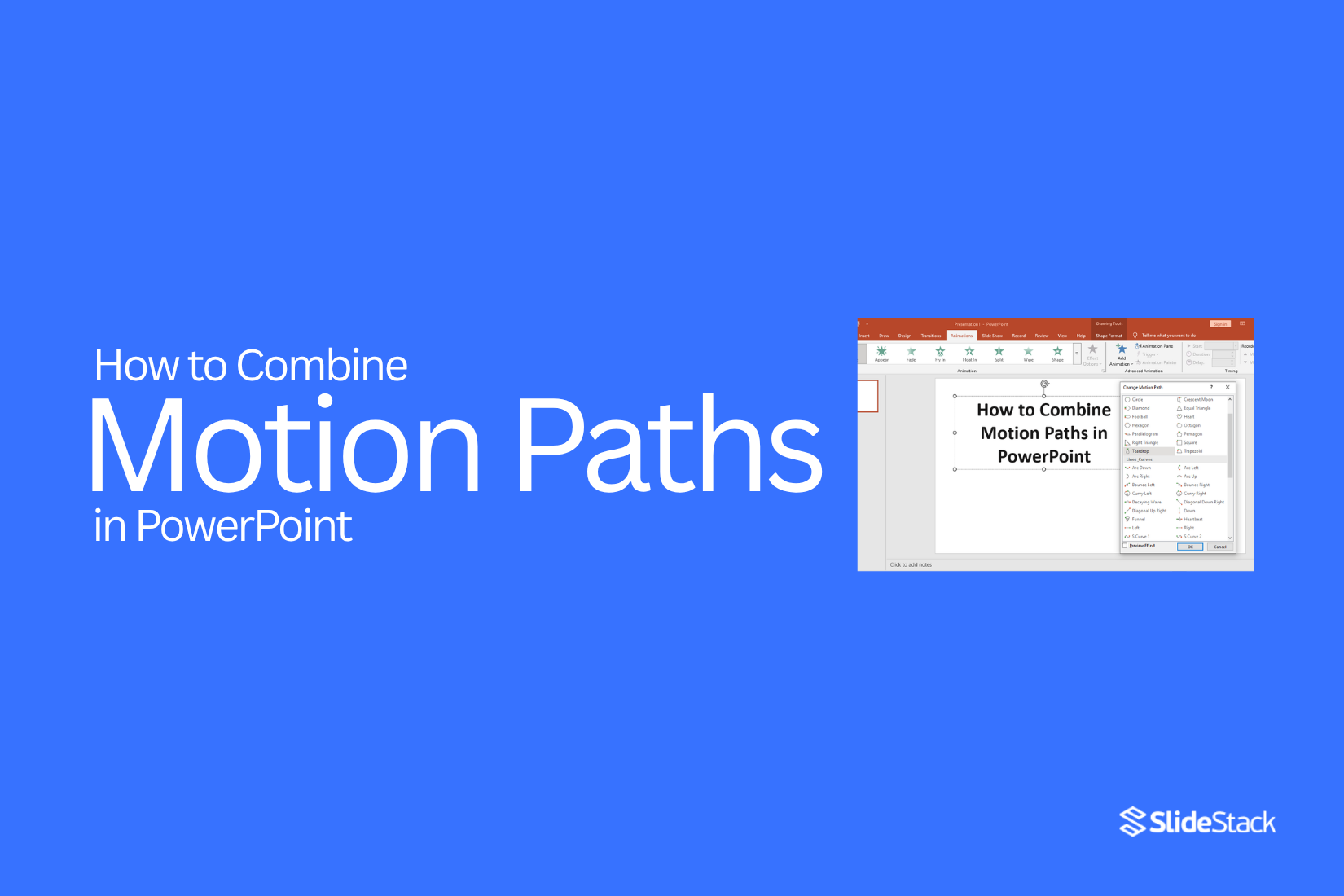
Objects in PowerPoint often move in one simple line. That feels limited. A slide may look flat or too basic. You try to add more motion, yet the result looks off. It becomes hard to control how and where things move.
Soon, the motion feels broken. One path ends, then another starts with no flow. The slide loses its impact. You want smooth movement, but the steps feel unclear.
That is where combining motion paths helps. It lets you guide objects through multiple directions in one clean flow. This guide will show each step in a clear way.
What Are Motion Paths in PowerPoint?
Motion paths are a type of animation in PowerPoint. They let objects move from one place to another on a slide. Unlike simple animations that make objects appear or disappear, motion paths show a clear path of movement. You can make text, shapes, or images move in a straight line, curve, or custom path.
Motion paths help guide the viewer’s focus. They can show a process, highlight a point, or make slides more lively. You control the speed, direction, and shape of the movement. This makes it easy to show changes or tell a story step by step.
Why Combine Motion Paths Instead of Using a Single Path?
Using just one motion path can feel limited. The object moves in a straight line or follows a simple curve. This can make your slides look basic or stiff.
Combining multiple motion paths gives you more control. You can make an object move in complex ways, like following a zigzag or a custom route. This can help guide the viewer’s attention to different areas of your slide.
It also allows you to add pauses or changes in speed. For example, an object can move quickly at first and slow down later. This creates a more natural flow and keeps your audience engaged.
Multiple paths can also be used for multiple objects at once. Each object can have its own movement, making the slide feel dynamic without being chaotic.
Overall, combining motion paths makes your animation more flexible and visually interesting. It gives you options that a single path cannot.
Types of Motion Path Combinations You Can Create
Motion paths let you move objects on a slide in different ways. You can combine multiple paths to create unique effects. Here are some common combinations:
1. Line and Curve: You can move an object along a straight line, then switch to a curve. This makes the motion look smooth and natural.
2. Custom Shape and Loop: Draw a custom path for an object, then add a loop at the end. This works well for showing continuous movement.
3. Diagonal and Zigzag: Start with a diagonal path, then add a zigzag pattern. This combination adds energy to your slide.
4. Multiple Sequential Paths: You can string several motion paths together. For example, move an object up, then right, then down. It allows precise control of movement.
5. Circular and Bounce: Combine a circular path with a bounce effect. This makes objects appear playful or lively.
Each combination can be adjusted to match your slide’s style. Experiment to see what fits best.
Step-by-Step Guide to Combining Motion Paths
Combining motion paths lets you move objects along more than one path. This creates smoother and more complex animations. Follow these steps to set them up correctly.
Step 1 – Add Your First Motion Path
Select the object you want to animate. Go to the Animations tab and choose a motion path. Click and drag to set the path direction and length. Play the animation to see the movement.
Step 2 – Add a Second Motion Path
After the first path is ready, add a second motion path. Pick a new direction or shape. The object will follow this path after finishing the first one. Check how it flows between the two paths.
Step 3 – Adjust Animation Order
Open the Animation Pane to see all animations. Drag them to set the correct sequence. Make sure the object moves in the order you want. Smooth transitions help the animation look natural.
Step 4 – Control Timing and Triggers
Click each animation to adjust its start option and duration. You can make it start automatically, after the previous animation, or on click. Changing the speed and timing helps the movement feel clear and easy to follow.
How to Create Smooth Transitions Between Motion Paths
Smooth transitions make animations feel natural. They keep the viewer focused on the movement instead of being distracted by jumps or pauses. Start by checking where one motion path ends, and the next begins. The paths should connect closely so the object moves without sudden changes in direction.
Next, adjust the speed of each motion path. If one path is faster than the next, the movement can feel uneven. Use the duration settings to match the timing. Small tweaks can make a big difference in flow.
You can also add easing. Easing changes the way speed increases or decreases along a path. PowerPoint offers options like “Slow Start” or “Slow End.” Apply these to make the motion feel more natural.
Finally, preview your animation. Watch how each motion path flows into the next. If anything feels sharp or sudden, return to the path or timing settings and adjust. Repeat until the motion feels steady and seamless.
Advanced Techniques for Combining Motion Paths
Combining motion paths can make your slides more dynamic. You can move one object along multiple paths in a smooth flow. First, add a motion path to your object. Then, select the object again and apply another motion path. PowerPoint will show a warning, but you can choose to keep both paths.
Use the “Timing” options to control how the paths play. You can make one path start after the other or play at the same time. Adjusting the duration helps make movements look natural.
You can also use the “Edit Points” feature. This lets you fine-tune the shape of each path. Small tweaks can prevent objects from jumping or overlapping.
Try combining straight and curved paths. This creates more interesting movement. Experiment with speed changes along the paths to guide attention where you want it.
Once your paths are combined, preview the slide several times. Watch how the object moves and adjust until it feels smooth. Mastering these steps can make your presentations more engaging and polished.
Using the Animation Pane Like a Pro
The Animation Pane shows all the animations on your slide. You can see the order, timing, and effect of each animation. This makes it easier to control how objects move.
To open the Animation Pane, go to the Animations tab and click Animation Pane. A panel will appear on the right side of your screen.
Here you can change the order of animations. Drag an animation up or down to move it earlier or later. You can also adjust timing. Click the drop-down arrow next to an animation and select Timing.
Use the Animation Pane to combine multiple effects on one object. For example, you can make text fade in, then grow, and then move across the slide. This lets you create smooth and professional-looking slides.
Check your animations by clicking Preview in the Animation Pane. Make small adjustments until everything looks right.
Common Mistakes to Avoid
Many people make the same errors when creating presentations. One common mistake is adding too much text on a slide. Crowded slides make it hard for the audience to follow.
Another mistake is using inconsistent fonts and colors. This can distract viewers and make slides look messy.
People also often ignore spacing. Objects placed too close together can feel crowded. Too much empty space can feel unfinished.
Finally, skipping practice is a big problem. Even strong slides need a speaker who knows the flow. Practicing helps you stay confident and keeps the audience engaged.
Pro Tips to Make Your Animations Look Professional
Making animations look smooth and polished takes a few smart moves. Start by keeping your timing consistent. Fast or uneven movements can distract the viewer. Next, focus on easing. Objects that start or stop too abruptly look unnatural. Use slow-ins and slow-outs to make motion feel real.
Check your paths carefully. Straight lines or clean curves make the animation feel neat. Avoid jagged or awkward paths that can break the flow. Layer your elements wisely. Let one action lead to another naturally, so the scene feels connected.
Finally, watch your details. Small tweaks, like adjusting rotation or scale slightly, can make a big difference. Preview your animation often to catch mistakes before they stand out. Practicing these steps will make your work appear sharper and more professional.
When to Use Combined Motion Paths in Presentations
Combined motion paths work best when you want an object to move along a complex route. They help show steps, directions, or progress in a way that is easy to follow. You can use them to highlight key points without switching slides.
They are also useful for making diagrams or charts more dynamic. Instead of moving one object at a time, combined paths let multiple movements happen smoothly together. This keeps the audience engaged and makes your message easier to understand.
Use them when you want to guide attention, show relationships, or demonstrate changes over time. They work well for processes, timelines, or visual storytelling.
Final Words:
Mastering combined motion paths can make your slides look more dynamic and engaging. They let objects move in multiple directions without breaking the flow. This keeps your audience focused and helps them follow your ideas more easily.
Using these techniques, you can show steps, highlight points, or make diagrams more lively. Small adjustments in timing, easing, and path shapes can make a big difference in how smooth the animation feels.
Practice each step and preview your slides often. This will help your movements look natural and professional. With combined motion paths, your presentations can guide attention, show relationships, and make your story easier to understand.
FAQs:
1. What is a motion path in PowerPoint?
A motion path is a type of animation. It moves an object from one place to another on a slide. You can use a straight line, a curve, or a custom path.
2. Why should I combine motion paths?
Combining motion paths gives you more control. Objects can move in multiple directions. This makes slides look smooth and more interesting.
3. Can I use combined motion paths for text and images?
Yes. You can apply motion paths to text, shapes, or images. Each object can follow its own path.
4. How do I make the movement smooth?
Check where each path ends and the next begins. Adjust the speed and use easing like “Slow Start” or “Slow End.” Preview and tweak until the motion flows naturally.
5. Can I move multiple objects at the same time?
Yes. Each object can have its own paths. This creates a dynamic slide without making it feel chaotic.
6. What are common mistakes to avoid?
Avoid too much text, inconsistent fonts, or poor spacing. Also, practice your slide animations to keep the flow clear and confident.
7. Are combined motion paths hard to set up?
Not really. Follow the steps to add each path, adjust timing, and preview. Small adjustments make the process easier.
8. When should I use combined motion paths?
Use them when you want objects to move along complex routes. They work well for processes, timelines, diagrams, or guiding attention on a slide.


You may also be interested in ...

Tips To Create A Great Infographic
Infographics Have been around for a while, but not many people know about them or are their preferred presentation choice. If...
08 Jun, 2024

3 Steps To Create The Best Presentation...
Presentations are something wonderful when well done, you can captivate an audience or be super interested in what another pe...
23 Jun, 2024

3 Tips For Your Next Presentation You MU...
PowerPoint presentations are perfect for explaining a topic and communicating your ideas with a visual aid. But most people s...
08 Jun, 2024