How to Quickly Change Any Shape Color in Canva
Have you ever added a shape in Canva and realized the color does not match the rest of your design? Many users struggle to find the right color settings or make quick changes. This can slow down the design process and leave projects looking less polished.
The good news is that changing shape colors in Canva is simple once you know where to look. In this guide, you'll learn how to change shape colors, use custom colors, apply brand colors, edit multiple shapes at once, create gradient effects, and fix common color issues. You'll also learn a few tips to keep your designs clean and consistent.
Understanding Shapes and Color Options in Canva
Before you change a shape's color in Canva, it helps to know how shapes work. Canva offers many shape styles, and each one can have different color settings. A quick look at these options can save time and help you get the result you want.
Types of Shapes Available in Canva
Canva includes a large collection of shapes for different design needs. You can add basic shapes such as circles, squares, rectangles, triangles, and lines. There are also arrows, speech bubbles, stars, hearts, and many other design elements. Some shapes come as simple graphics with one color. Others include multiple colors or extra design details. The type of shape you choose can affect the color options you see later.
How Canva Handles Shape Colors
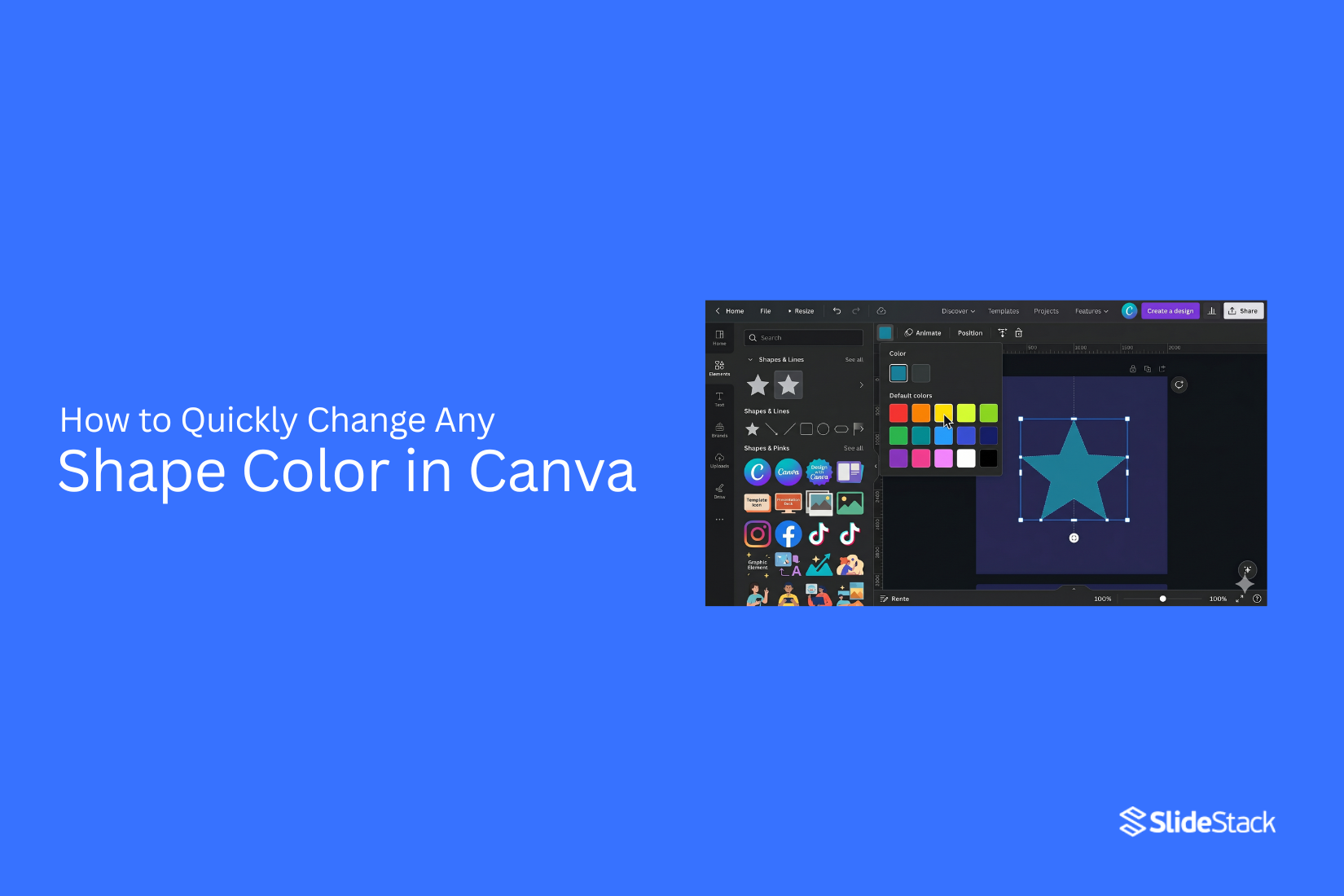
Most shapes in Canva have a color tile in the top toolbar. After selecting a shape, you can click the color tile and pick a new color from the available options. You can also enter a custom color code to match your brand colors. Certain shapes include more than one color area. In those cases, Canva shows multiple color tiles. Each tile controls a different part of the shape, giving you more control over the final look.
Color Editing Limitations to Know
Not every shape can be edited in the same way. Some graphic elements have fixed colors that cannot be changed. This often happens with special illustrations or decorative graphics added from Canva's library. You may also find elements with only partial color editing options. For example, one part of a graphic may allow color changes while another part stays locked. A quick check of the toolbar after selecting a shape can tell you whether color editing is available. This simple step helps you avoid confusion and choose an element that fits your design needs.
How to Change a Shape Color in Canva
Changing a shape color in Canva takes only a few clicks. Canva gives you several ways to update colors, match your design style, and keep your project looking clean. The process is simple, whether you want to use a preset color or add your own brand color.
Selecting the Shape You Want to Edit
Start by opening your Canva design. Click on the shape that you want to change. A border will appear around the shape to show that it is selected. Take a quick look at the toolbar at the top of the editor. Once the shape is active, color options become available. This allows you to make changes to the selected shape without affecting other elements in your design.
Using the Color Picker Tool
After selecting the shape, click the color tile in the top toolbar. A color panel will open on the side of the screen. The color picker tool lets you choose almost any color you need. You can drag the selector across the color area and adjust the shade until it matches your preference. This method works well for creating custom designs that need a specific look.
Choosing Colors from Canva's Default Palette
Canva also provides a default color palette. Open the color panel and browse the available color options. A single click applies the new color to your shape right away. This option saves time and helps you test different color combinations without extra steps. Many users prefer the default palette because it offers quick access to common colors.
Applying Brand Colors to Shapes
Brand colors help keep your designs consistent. Open the color panel and select one of your saved brand colors. You can also enter a color code to match your brand exactly. Canva applies the selected color to the shape instantly. As a result, every design stays aligned with your brand style and looks more professional across different projects.
How to Use Custom Colors for Shapes
Custom colors give you more control over your design. They help you match brand colors and create a clean look across every page. Canva makes this process simple.
Entering HEX Color Codes
A HEX code is a color code made up of letters and numbers. It helps you use an exact color in your design. Start by selecting your shape. Next, click the color tile in the toolbar. A color panel will open. Enter your HEX code into the color field and press Enter. Your shape will update right away. This method works well for matching colors across different projects.
Creating Consistent Brand Colors
Using the same colors in every design helps people recognize your brand. It also makes your content look more organized. Select a shape and apply your brand color. Repeat the same color across buttons, icons, and other design elements. A consistent color palette creates a clear visual style and helps your designs look connected. Small color changes can make a design feel uneven. Keeping colors the same solves that problem.
Saving Frequently Used Colors
Some colors appear in your projects again and again. Saving them can save time during future edits. After using a custom color, Canva often keeps it in your recent colors section. This makes it easy to apply the same color to new shapes without entering the HEX code each time. A saved color library also helps maintain a consistent look across multiple designs.
Read also: How to Make a Custom Template in Google Slides (Easy Guide)
Changing Multiple Shape Colors at Once
Working with many shapes can take time. Canva has tools that help you update colors across several shapes in fewer steps. This keeps your design neat and saves effort.
Selecting Multiple Shapes
Start by choosing all the shapes that need a new color. Click the first shape. Then hold the Shift key and click the other shapes. Another option is to drag your cursor across the shapes to select them together. Once the shapes are selected, open the color menu. Pick the color you want. Canva applies the new color to every selected shape at the same time.
Using Copy and Paste Styling
A shape already has the right color? Use it as your reference. Select the shape with the color you want. Copy its style with Canva's copy style tool. Next, click the shape that needs the same look and paste the style. This method helps keep colors consistent across your design. It also reduces the need to update each shape by hand.
Speeding Up Design Edits with Bulk Changes
Large designs often include many shapes. Changing them one by one can slow your work. Bulk color changes help you finish updates in less time. A quick color update can also make your design look more organized. As your project grows, these small time-saving steps become more useful. The result is a cleaner workflow and a more consistent design.
Read also: How to Change Shape Color in Google Slides Without Any Hassle
How to Add Texture to a Shape in Canva
Canva does not offer a direct texture fill for shapes. Shapes stay flat by default. That limits design depth for posters, thumbnails, and social posts. A few workarounds help create a textured look using simple tools inside Canva.
Method 1: Use a Texture Image
Start with a shape on your canvas. Pick any basic shape from Canva. Next, add a texture image on top of it. Search for textures like paper, grain, fabric, or stone inside Canva’s image library. Place the texture image directly over the shape. Stretch it until it fully covers the shape area. Right-click the texture image and set it as a clipping layer inside the shape using Canva’s frame feature. This makes the texture sit inside the shape instead of covering the whole design. A quick example is a circle shape filled with a paper texture. It gives a soft, natural look for headers or profile icons.
Method 2: Use Transparency and Layering
Start with a shape as the base layer. Add a second shape or image on top that contains a texture pattern. Adjust the transparency slider on the top layer. Lower transparency allows the base shape color to show through. Move layers around until the texture blends with the shape in a balanced way. A simple setup is a dark square shape with a light grain texture placed above it. The mix creates depth without changing the base color.
Method 3: Use Canva Elements
Open the Elements tab inside Canva. Search for texture-style graphics such as noise, grain, dots, or abstract patterns. Drag the chosen element onto your shape area. Resize it so it fits within or over the shape. Adjust the position so the texture aligns cleanly. Some elements already come with built-in patterns that match different styles. A dotted texture over a triangle shape can give a clean, modern feel for icons or labels.
How to Create Color Gradients on Shapes
A solid color works well for many designs. Still, a gradient can add more depth to a shape. It blends two or more colors and creates a smooth color shift. This style can help shapes stand out without adding extra design elements.
Using Gradient Elements
Canva does not offer a direct gradient color option for every shape. A simple way around this is to use gradient elements. Open the Elements tab and search for terms like "gradient circle," "gradient square," or "gradient shape." Browse the results and pick a gradient element that matches your design. Once added, resize and place the element where needed. Many gradient elements also allow color changes, which gives you more control over the final look.
Applying Gradient Effects to Shape Designs
Gradient elements can work as shape replacements or design layers. Place a gradient element over a shape area to create a smooth color blend. This approach works well for backgrounds, buttons, banners, and decorative graphics. A soft color transition can make simple designs look more polished and visually appealing. For a cleaner layout, keep the gradient colors close to your overall design palette. This helps every element feel connected.
Customizing Gradient Colors
Many Canva gradient elements include editable colors. Select the gradient element and click the color tiles in the toolbar. Replace the existing colors with shades that fit your design. You can use brand colors, matching tones, or contrasting colors for a stronger visual effect. Try different color combinations until the gradient looks right. Small color changes can create a very different result, so it helps to test a few options before finishing your design.
Shape Color Limitations When Importing PowerPoint Templates
When importing PowerPoint presentations into Canva, shape editing behavior does not always transfer in the same way. Some elements stay editable, while others become simplified during conversion.
Basic Shapes Usually Remain Editable
Simple shapes like rectangles, circles, and arrows often keep their editable format after import. These shapes usually allow direct color changes inside Canva. Most of the time, the fill color can still be adjusted using the standard color controls.
Complex Shapes May Not Remain Editable
More advanced shapes from PowerPoint, such as merged shapes, custom drawings, and SmartArt elements, may lose their editable structure after import. These elements can turn into single fixed objects. Once that happens, individual parts of the shape can no longer be edited or recolored separately in Canva.
Imported Graphics May Behave Differently
Icons, diagrams, and illustrations created in PowerPoint often shift into flat visual elements after conversion. The overall design stays visible, but internal components may no longer respond to editing tools. Color changes may apply to the whole graphic instead of specific sections.
Gradient and Multi-Color Shapes May Not Import Correctly
PowerPoint supports gradients, layered fills, transparency effects, and other advanced styling options. During import into Canva, some of these effects may be simplified or removed. Gradients may turn into solid fills, and multi-color shapes may merge into a single tone. This can lead to visible differences between the original PowerPoint design and the Canva version.
Troubleshooting Shape Color Issues in Canva
Changing a shape color in Canva is usually simple. Still, a few issues can stop the color tool from showing up. Some shapes also have limits that affect color changes. A quick check can help you find the cause and get back to editing.
Why the Color Option Is Missing
The color option may not appear for every element in Canva. In many cases, the selected item is not a standard shape. Icons, graphics, and uploaded images often use different editing tools. Start by clicking the shape again. Look at the top toolbar. A color tile should appear after the shape is selected. No color tile? The element may not support direct color editing. Another common issue is selecting multiple items at once. Canva may hide certain editing options during a multi-selection. Click a single shape and check the toolbar again.
Shapes That Don't Support Color Changes
Not every Canva element works like a basic shape. Some graphics come with fixed colors. Others contain several colors that cannot be edited separately. Uploaded images also follow different rules. A JPG or PNG file usually cannot be recolored like a shape. Instead, you may need to use filters or image editing tools. Basic shapes from Canva's Shapes library are the easiest to edit. Rectangles, circles, triangles, and similar shapes normally support color changes without extra steps.
Fixing Locked or Grouped Elements
A locked element cannot be edited until it is unlocked. Select the item and check for a lock icon. Remove the lock, then try changing the color again. Grouped elements can also create confusion. Clicking a group may select several items at the same time. As a result, the color controls may not work as expected. To fix this, select the group and ungroup it. Next, click the shape you want to edit. The color option should become available if the shape supports color changes. A few quick checks can solve most color issues in Canva. Once the correct shape is selected, changing colors becomes much easier.
Best Practices for Choosing Shape Colors
Pick colors that match your main message. A clear color choice helps the design feel clean and easy to read. Use a small color set. Two or three colors work well for most designs. Too many colors can distract the viewer. Keep contrast strong. Light shapes need dark backgrounds. Dark shapes need light backgrounds. This helps shapes stand out. Stay consistent with your brand colors. This builds a steady look across your designs. Test different shades before final use. Small changes in tone can change the whole feel of the design.
Canva Pro Features That Help with Color Management
Color tools in Canva help you keep control over your design look. You can apply brand colors across multiple elements with one setup. The color picker lets you select exact shades from images or existing shapes. This helps keep colors aligned in one design.
Saved color palettes help you reuse the same colors again. This keeps your work consistent across projects. Transparency control adjusts how strong a color appears. Lower settings create soft effects, while higher settings make colors solid. Style tools help match colors across pages in longer designs. This saves time and keeps the look steady.
Common Mistakes to Avoid When Changing Shape Colors
Using too many colors is a frequent issue. Designs start to look messy and hard to follow. Low contrast makes shapes hard to see. Light colors on light backgrounds reduce clarity. The same problem happens with dark on dark. Ignoring brand colors weakens visual identity. Designs lose consistency across different materials.
Relying on random color choices leads to uneven results. Each color should support the main message of the design. Skipping a final review can leave small color issues in place. A quick check helps catch weak contrast or off-tone shades.
Final Notes
Changing the shape color in Canva takes a few simple steps. The color tile in the toolbar gives direct access to color options. Custom colors allow exact control for design needs. HEX codes help match precise shades across projects. Shape type affects what color settings appear. Some elements allow full color changes. Others limit color control or keep fixed colors.
Using one color across multiple shapes keeps designs steady. Bulk selection saves time during edits. Copy style tools help repeat the same look across elements. Gradient elements add smooth color shifts. These work well for backgrounds, buttons, and design accents. Adjusting gradient colors creates different visual results.
Some items cannot be recolored. Locked or grouped elements need adjustment before color changes work. Basic shapes give the most flexibility. Clear color choices support clean design results. Consistent use of color keeps layouts organized across pages.
FAQs
What is the fastest way to change a shape's color in Canva?
Select the shape, then click the color tile in the top toolbar. Pick a new color from the panel.
Can I use my own color in Canva?
Yes. Enter a HEX code in the color field. The shape updates right away.
Why can’t I change the color of some shapes?
Some elements have fixed colors. Icons, images, or certain graphics do not allow full color changes.
How do I change colors for many shapes at once?
Select multiple shapes using Shift or drag selection. Then choose one color. Canva applies it to all selected shapes.
What are brand colors in Canva?
Brand colors are saved colors for your design or business. You can apply them to keep designs consistent.
How do I fix a shape that will not change color?
Check if the element is locked or grouped. Unlock or ungroup it, then try again.


You may also be interested in ...

How To Create An Eye-Catching Portfolio
If you’re looking to create an eye-catching portfolio, this post will come in handy. In this article, you can find the easies...
23 Jun, 2024

How To Easily Create An Infographic
Infographics are the perfect way to make a presentation that will impact an audience, but their design and composition might...
08 Jun, 2024

PowerPoint Template Tips & Tricks You Ne...
PowerPoint seems to be an unknown world for many people, especially those who have been assigned to create a presentation out...
08 Jun, 2024