How to Fix Compatibility Issues from PowerPoint to Google Slides – Easy Guide
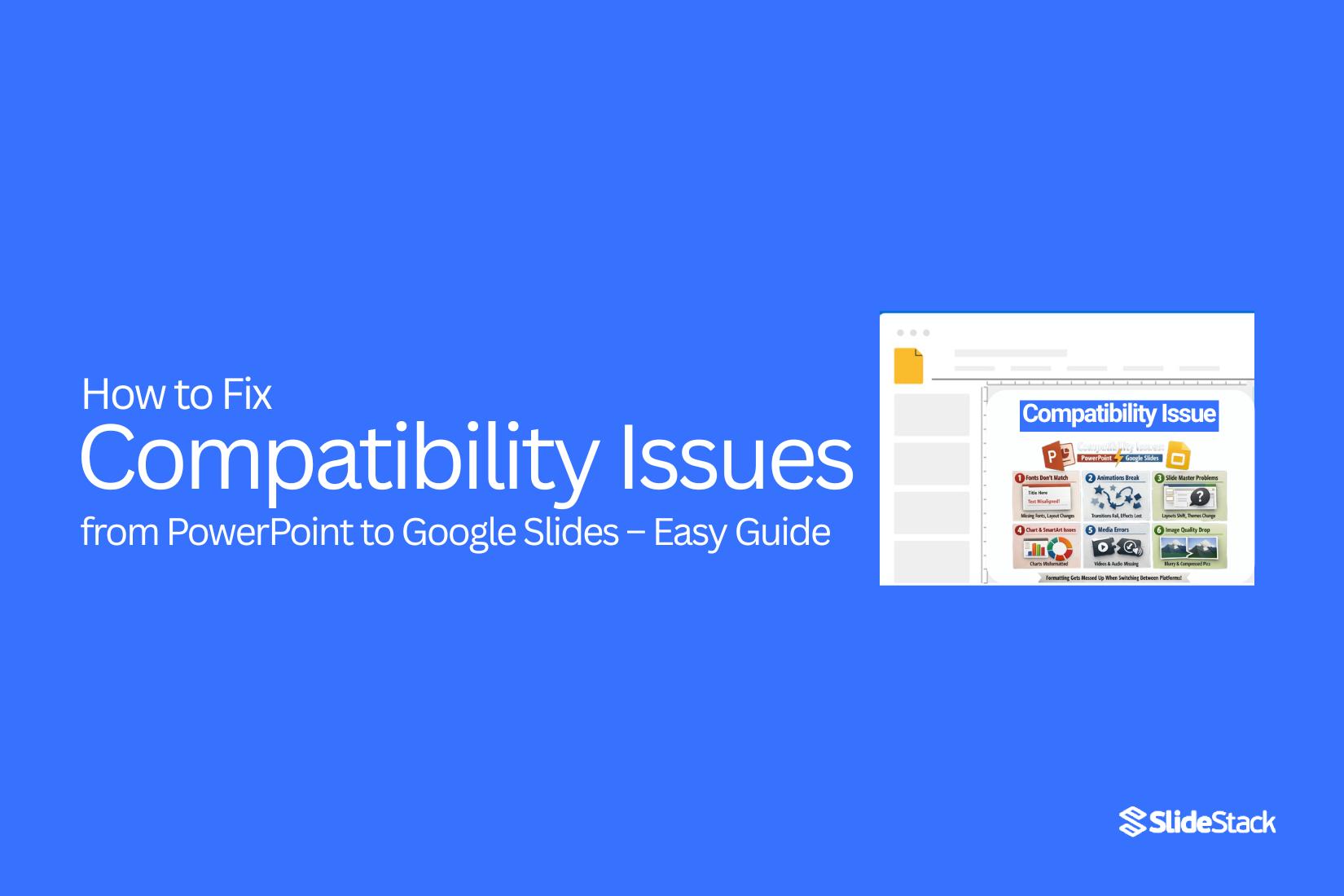
Converting a PowerPoint presentation to Google Slides often sounds simple, but many users run into compatibility issues. Fonts may not display correctly, layouts can break, animations disappear, and media files sometimes fail to play. These problems can make a polished presentation look messy and unprofessional, leaving you frustrated and pressed for time.
Luckily, these issues are usually easy to fix once you know what to check and how to adjust your slides. In this guide, we will walk you through why these problems happen, the common issues you might face, and step-by-step methods to convert, fix, and optimize your presentations so they work perfectly in Google Slides.
Why Compatibility Issues Happen Between PowerPoint and Google Slides
PowerPoint and Google Slides use different file formats and features. Some animations, fonts, or transitions in PowerPoint may not exist in Google Slides. When you open a PowerPoint file in Google Slides, these elements can change or stop working.
Images and charts may also shift or resize. Complex layouts sometimes break because the two programs handle spacing and alignment differently.
These differences can cause slides to look different from what was intended. Knowing this helps you plan and fix issues before presenting.
Common Compatibility Problems When Converting PowerPoint to Google Slides
When you move a presentation from PowerPoint to Google Slides, some things might not work as expected. Knowing these issues helps you fix them before sharing your slides.
Fonts Not Displaying Correctly
Some fonts in PowerPoint may not exist in Google Slides. This can change the look of your text. Words might appear bigger, smaller, or in a different style.
Broken Layouts and Misaligned Elements
Shapes, images, and text boxes can shift during the conversion. Slides may look messy or uneven. You may need to adjust spacing and alignment manually.
Missing Animations and Transitions
Not all PowerPoint animations or slide transitions carry over. Some effects might disappear or change. Check each slide to see what needs fixing.
Media Files Not Playing
Videos and audio files often have trouble in Google Slides. Links might break, or files may not play at all. You might have to reinsert or convert them to compatible formats.
Charts and SmartArt Formatting Issues
Charts and SmartArt may lose colors, fonts, or spacing. Complex diagrams can look different. Review them carefully and adjust as needed.
How to Convert PowerPoint to Google Slides Properly
Converting a PowerPoint to Google Slides is easy if you follow the right steps. You can upload files, open them directly, or import slides to start editing quickly.
Uploading a PowerPoint File to Google Drive
First, go to Google Drive and click the “New” button. Choose “File upload” and select your PowerPoint file. Wait until the upload finishes. Your file will now appear in Google Drive.
Opening PowerPoint Directly in Google Slides
Find the PowerPoint file in Google Drive. Right-click it and select “Open with,” then choose “Google Slides.” The file will open, and you can edit it as a Google Slides presentation.
Using the Import Slides Feature
Open a new Google Slides presentation. Click “File” and then “Import slides.” Select the PowerPoint file from your computer or Drive. Pick the slides you want to add and click “Import.” Your slides will appear in the current presentation.
How to Fix Font Issues After Conversion
Changing a file to Google Slides can sometimes make text look different. Fonts may shift or not show at all. You can fix these problems with a few easy steps.
Replacing Unsupported Fonts
Some fonts from other programs do not work in Google Slides. Check your slides for any text that looks off. Select the text and choose a new font that is supported. This will keep your slides readable and consistent.
Using Google Fonts Alternatives
Google Slides offers a large library of fonts. If your original font does not work, pick a similar one from Google Fonts. Matching the style closely keeps your slides looking professional.
Embedding Fonts Before Uploading
To avoid font problems, embed fonts in your file before uploading. Programs like PowerPoint allow you to save fonts with your presentation. This helps Google Slides display the text correctly without changing the style.
How to Fix Layout and Formatting Problems
Fixing layout and formatting issues makes your slides look clean and professional. Small mistakes can make slides feel messy or hard to read. The following steps help you correct common problems.
Adjusting Slide Master Settings
The Slide Master controls the look of all slides in your presentation. Open it and check the layout, fonts, and colors. Make changes here to update all slides at once. This saves time and keeps your slides consistent.
Fixing Text Box Spacing and Alignment
Check every text box for spacing and alignment. Make sure text fits well, and lines are even. Align titles and bullet points to keep a neat appearance. Proper spacing improves readability and slide balance.
Rebuilding Complex Slides
Some slides may have many elements that don’t fit correctly. It can be easier to rebuild the slide from scratch. Add images, charts, and text carefully. Rebuilding ensures nothing overlaps and the slide looks clean.
How to Handle Animations and Transitions
Animations and transitions can make your slides more lively. But too many effects can slow things down or cause glitches. Knowing how to manage them keeps your presentation smooth and easy to follow.
Reapplying Animations in Google Slides
If an animation does not play correctly, you can reapply it. First, select the object with the animation. Then open the Animations panel. Remove the current effect and choose a new one. Preview it to make sure it works as expected.
Simplifying Effects for Better Compatibility
Some animations may not work well on all devices. Using simpler effects helps avoid problems. Stick to basic motions like fade, appear, or slide in. Removing unnecessary transitions keeps your slides clear and prevents delays.
Read Also: How to Add Animation to Google Slides: A Step-by-Step Guide
Fixing Images, Videos, and Audio Problems
Problems with the media can stop your presentation from running well. Images, videos, or audio might not load, play, or show correctly. Fixing these issues is usually easy if you know the right steps.
Re-Uploading Media Files
Sometimes files get corrupted or fail to upload properly. Delete the problematic file from your slide. Then upload it again. Make sure the file size is not too large. A fresh upload often solves most problems quickly.
Converting Videos to Compatible Formats
Not all video files work in Google Slides. If a video does not play, check its format. MP4 is the safest choice. You can use free tools to convert other formats to MP4. After conversion, upload the new file to your slide.
Checking Sharing Permissions
Videos or audio from cloud services may not play if permissions are restricted. Check that anyone with the link can view or access the file. Adjust sharing settings in Google Drive or the service you used. This ensures your audience can see and hear the media without issues.
Read Also: How to Add or Embed a Video into Google Slides (Beginner Guide)
Tips to Prevent Compatibility Issues Before Converting
Making sure your presentation works well after conversion starts, before you convert. Planning ahead can save time and prevent errors.
Use Standard Fonts and Basic Effects
Stick to fonts that are common on most devices. Avoid rare fonts that might not appear correctly. Use simple text effects like bold or italics. Fancy effects can break or shift during conversion.
Avoid Heavy SmartArt and Advanced Features
Graphics like SmartArt or complex animations may not convert correctly. Keep slides simple. Use basic shapes and images instead. This helps maintain your layout and readability.
Save a Backup Version
Always save a copy of your original file. If something goes wrong, you can return to the backup. This protects your work and prevents loss of content.
When to Keep Using PowerPoint Instead
PowerPoint works well for structured presentations. It is best when your slides need clear layouts and precise control. You can use animations, charts, and notes easily. It is also reliable offline and fits well in business meetings or classrooms.
Checklist for PowerPoint Files Before Upload to Google Slides
If fixing compatibility issues between PowerPoint and Google Slides takes too much time, check your presentation before uploading it to Google Drive or opening it in Google Slides. This workflow checklist helps you prepare your slides for export:
- Save a Working Copy: Go to File → Save As and create a duplicate of your presentation. Use this copy to make adjustments without changing the original file.
- Review Slides: Look through your slide deck and note where complex elements appear, such as animations, embedded videos, SmartArt graphics, charts, tables, or linked files.
- Create Fallback Slides: For slides with heavy animation or multimedia, make a simple version using static images and brief text. This ensures important content is preserved during conversion.
- Collect Original Media: Keep all audio and video files in one folder so you can re-upload them to Google Drive if Google Slides removes them during import.
- Audit Design Elements: Check for non-standard fonts, embedded objects, and SmartArt. Replace unsupported fonts with web-friendly options or convert key text to images to preserve styling.
- Manage Animations: Export unsupported or complex animations as short MP4 or GIF files to keep their appearance intact.
- Rebuild Editable Charts: If your PowerPoint has linked Excel charts, recreate them in Google Sheets before adding them to Google Slides. This keeps charts editable.
- Upload and Link Media Properly: Host videos on Google Drive or YouTube. Then insert them using Insert → Video in Google Slides.
- Test Across Platforms: Check your presentation on different devices, such as Windows, Mac, and Chromebook. Verify fonts, spacing, and media playback work correctly.
- Save Alternate Formats: If interactivity is not needed, export a PDF version for reliable sharing and printing.
Final Thoughts
Moving a PowerPoint presentation to Google Slides can cause unexpected problems. Fonts may change, layouts can shift, and some effects might not appear. Media files may also fail to play. These issues can make a polished presentation look messy.
Most problems are easy to fix once you know what to check. Adjust fonts, align elements, reapply animations, and ensure media files work. Planning ahead and keeping slides simple helps prevent many issues.
Google Slides is a solid tool, but PowerPoint is sometimes better for precise layouts or advanced effects. By following the tips in this guide, you can make your presentations run smoothly and look professional no matter which program you use.
FAQs:
Why do my fonts change when I convert PowerPoint to Google Slides?
Some fonts in PowerPoint are not available in Google Slides. This can make text look different. Using common fonts or Google Fonts helps keep the style consistent.
Why do my slides look messy after conversion?
Layouts, images, and text boxes can shift because the two programs handle spacing differently. Checking alignment and spacing fixes most problems.
Why are my animations missing?
Google Slides does not support all PowerPoint animations. You may need to reapply or simplify effects in Google Slides.
Why won’t my videos or audio play?
Files may be in an unsupported format or have restricted sharing settings. Converting videos to MP4 and checking permissions usually solves the issue.
Can SmartArt or charts break during conversion?
Yes, complex diagrams can lose colors, fonts, or spacing. Review and adjust them after importing.
How can I prevent problems before converting?
Use standard fonts, simple effects, and basic shapes. Avoid complex SmartArt and advanced animations. Save a backup copy before starting.
Should I always use Google Slides?
Not always. PowerPoint works better for precise layouts, advanced animations, and offline use. Google Slides is good for easy sharing and editing online.



You may also be interested in ...

How To Create An Eye-Catching Portfolio
If you’re looking to create an eye-catching portfolio, this post will come in handy. In this article, you can find the easies...
23 Jun, 2024

How To Easily Create An Infographic
Infographics are the perfect way to make a presentation that will impact an audience, but their design and composition might...
08 Jun, 2024

PowerPoint Template Tips & Tricks You Ne...
PowerPoint seems to be an unknown world for many people, especially those who have been assigned to create a presentation out...
08 Jun, 2024