How to Add or Embed a Video into Google Slides (Beginner Guide)
“Stop the snooze!” – your slides should grab attention, not put your audience to sleep. Too many presentations feel flat, with static slides and drifting eyes. What if your deck could spark interest the moment it appears?
Can you really make slides that stand out?
Yes, by adding videos to Google Slides. Videos turn ordinary slides into dynamic stories, keeping viewers focused and engaged. They bring motion, context, and energy that static slides just can’t.
This guide will show you exactly how to embed videos from YouTube, Google Drive, or your phone, and even how to edit them so your slides shine.
Why embed videos in Google Slides?
Whether you’re teaching a workshop or pitching a new idea to your team, plain slides can feel flat. Adding videos to your Google Slides instantly brings your presentation to life, making it more engaging and easier to follow from start to finish.
Here’s how embedded videos can make your slides work harder for you:
Videos make complex ideas easier to understand
A short clip can show step-by-step processes, demonstrate a product feature, or explain a tricky concept that text alone can’t capture. Motion and sound help your audience grasp ideas quickly and remember them longer.
Videos keep your audience focused
Eyes wander during long presentations. Video captures attention through both sight and sound, helping people stay tuned in. You can even record your slides with embedded videos, giving viewers the chance to rewatch later for clarity or review.
Videos give your slides a polished, professional feel
Embedding videos keeps your deck smooth and seamless. You won’t need to flip between tabs or worry about playback interruptions. A well-placed video shows you’ve put thought into your presentation, making your slides look sharper and more credible.
4 Ways to Embed Videos in Google Slides
Embedding videos in your slides can make your presentation more lively and help your audience follow along. Below, we will go over four simple ways to add videos in Google Slides. Read on to see each method step by step.
Method 1: Using the YouTube Search Bar
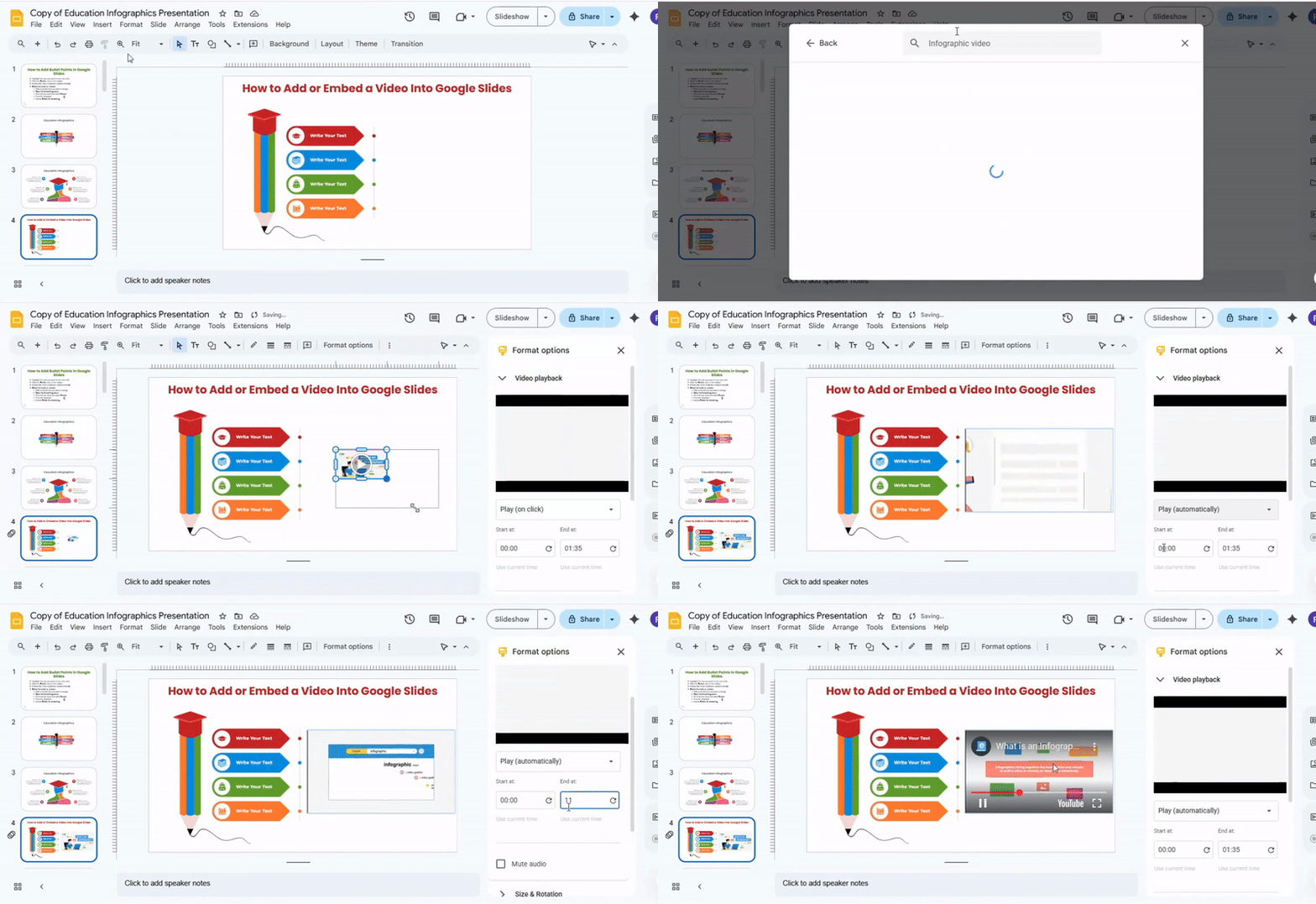
- Open your Google Slides presentation and go to the slide where you want the video.
- Click Insert in the top menu.
- Choose Video from the dropdown.
- Select the Search tab in the window that appears.
- Type the name or keywords of the video you want.
- Press Enter and browse the results.
- Click the video you want, then select Insert.
- The video will appear on your slide. You can drag it to reposition it or resize it using the corners.
Tip: Large videos may take a few seconds to load. Wait until the video preview fully loads before moving it.
Method 2: Using YouTube URL
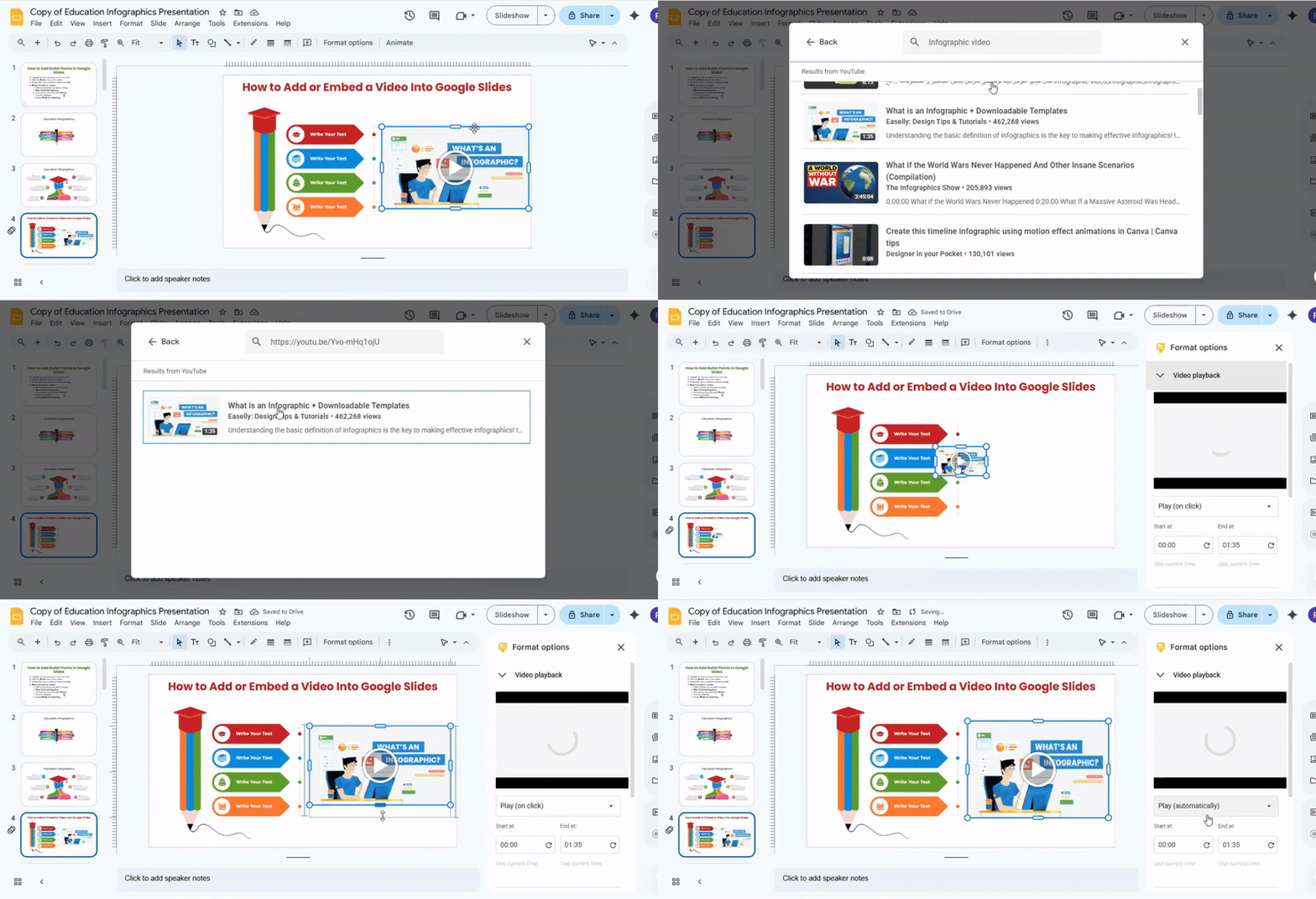
- Open your Google Slides presentation and select the slide for the video.
- Click Insert in the top menu.
- Choose Video from the dropdown.
- Select the By URL tab.
- Go to YouTube, copy the video link, and paste it into the URL box.
- Click Select.
- The video will appear on your slide. Adjust the size and position as needed.
Tip: Use the built-in video toolbar to trim the video, set it to autoplay, or adjust the start time.
Method 3: Using Google Drive
Uploading a video from your computer to Google Slides can make your presentation more engaging. Here is how to do it step by step.
Step 1:
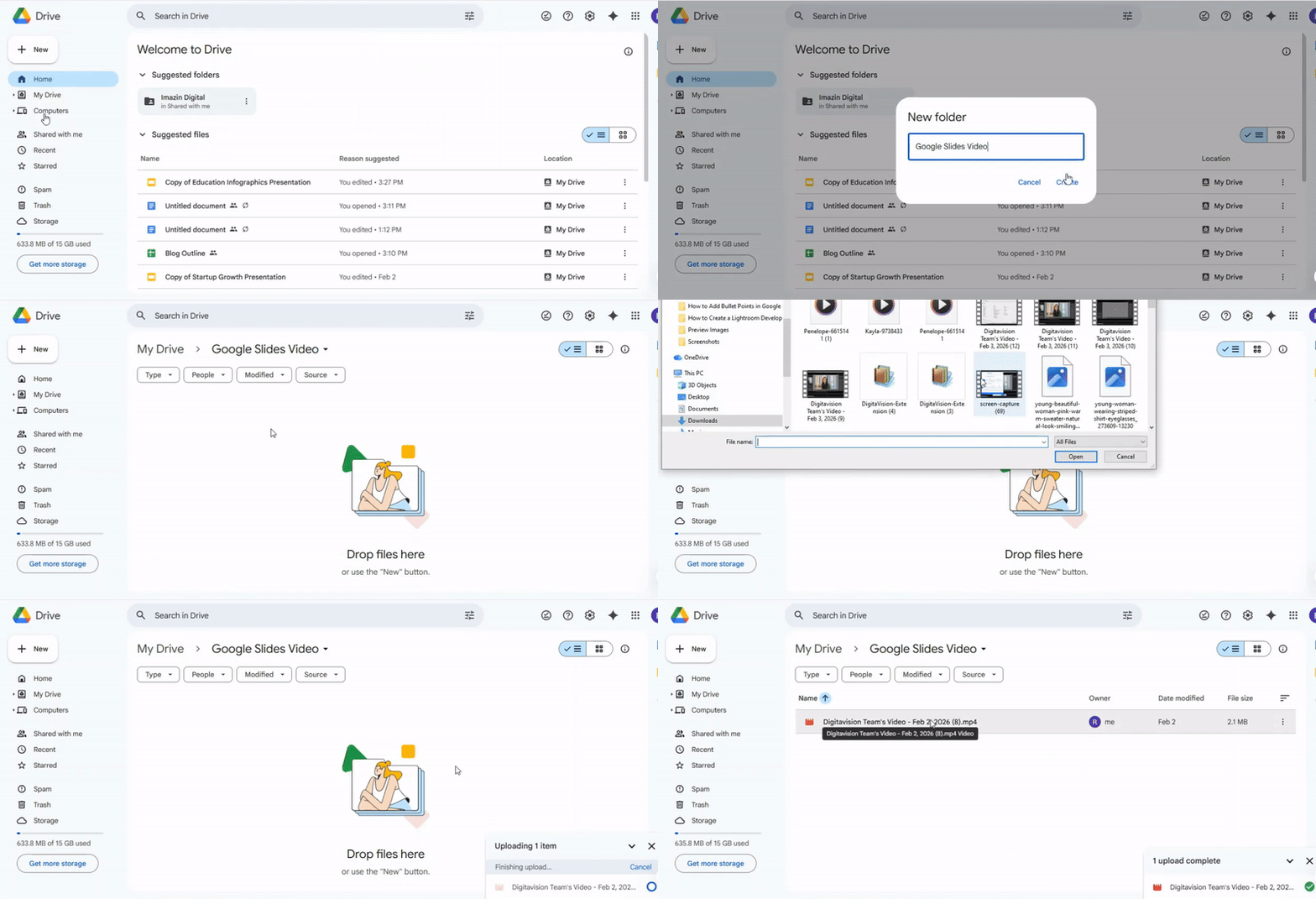
- Open Google Drive on your browser.
- Click the New button in the top-left corner.
- Select File upload.
- Choose the video file from your computer.
- Wait until the upload finishes. Large files may take longer.
Step 2:
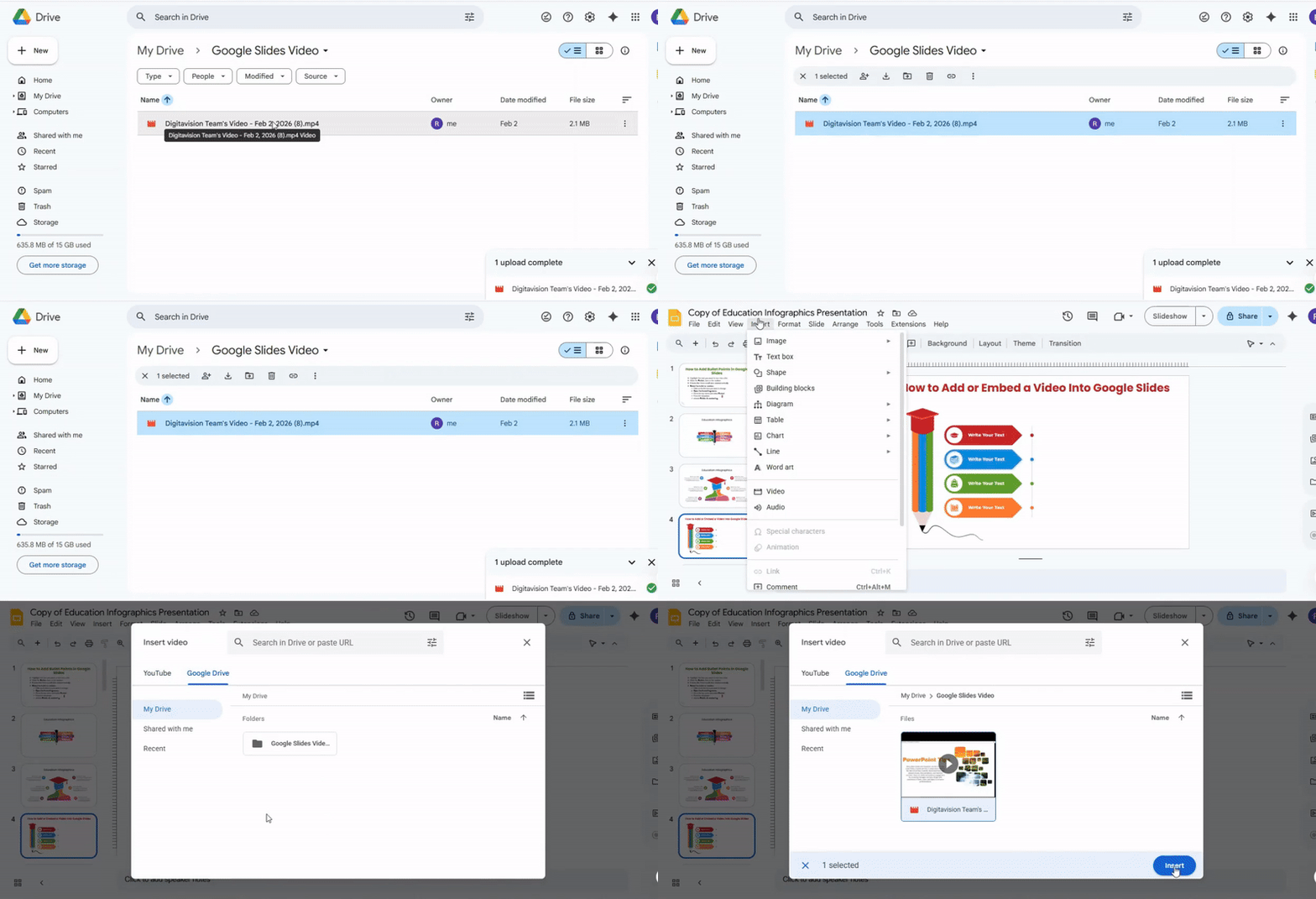
- Go to Google Slides.
- Open the presentation where you want to add the video.
- Select the slide for the video.
Step 3:
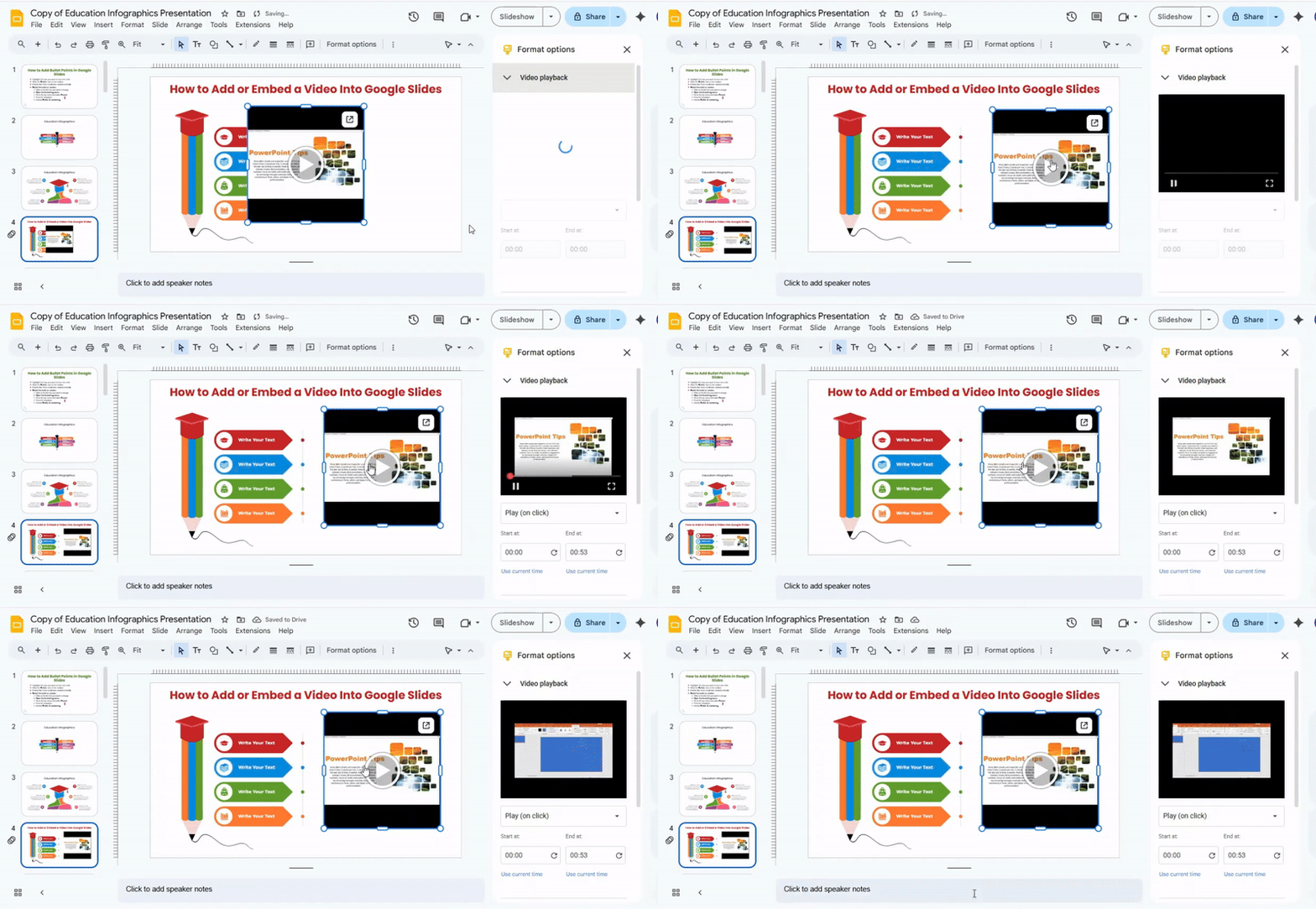
- Click Insert in the top menu.
- Select Video.
- In the pop-up, click Google Drive.
- Find the video you uploaded. You can use the search bar if needed.
- Click the video and then click Select.
Step 4:
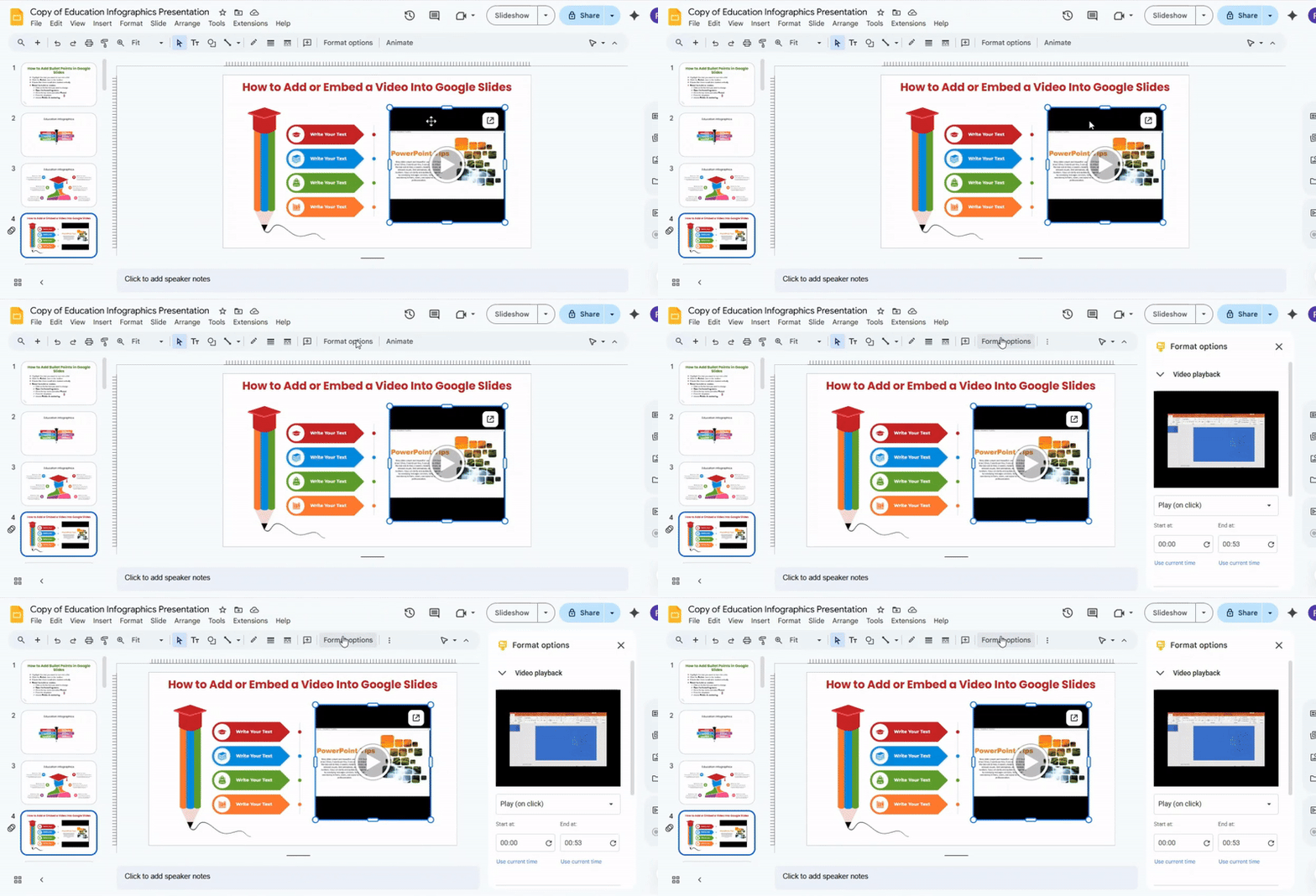
- Click and drag the video to move it.
- Use the corners to resize it without changing the aspect ratio.
- Place it where it fits best on your slide.
Step 5:
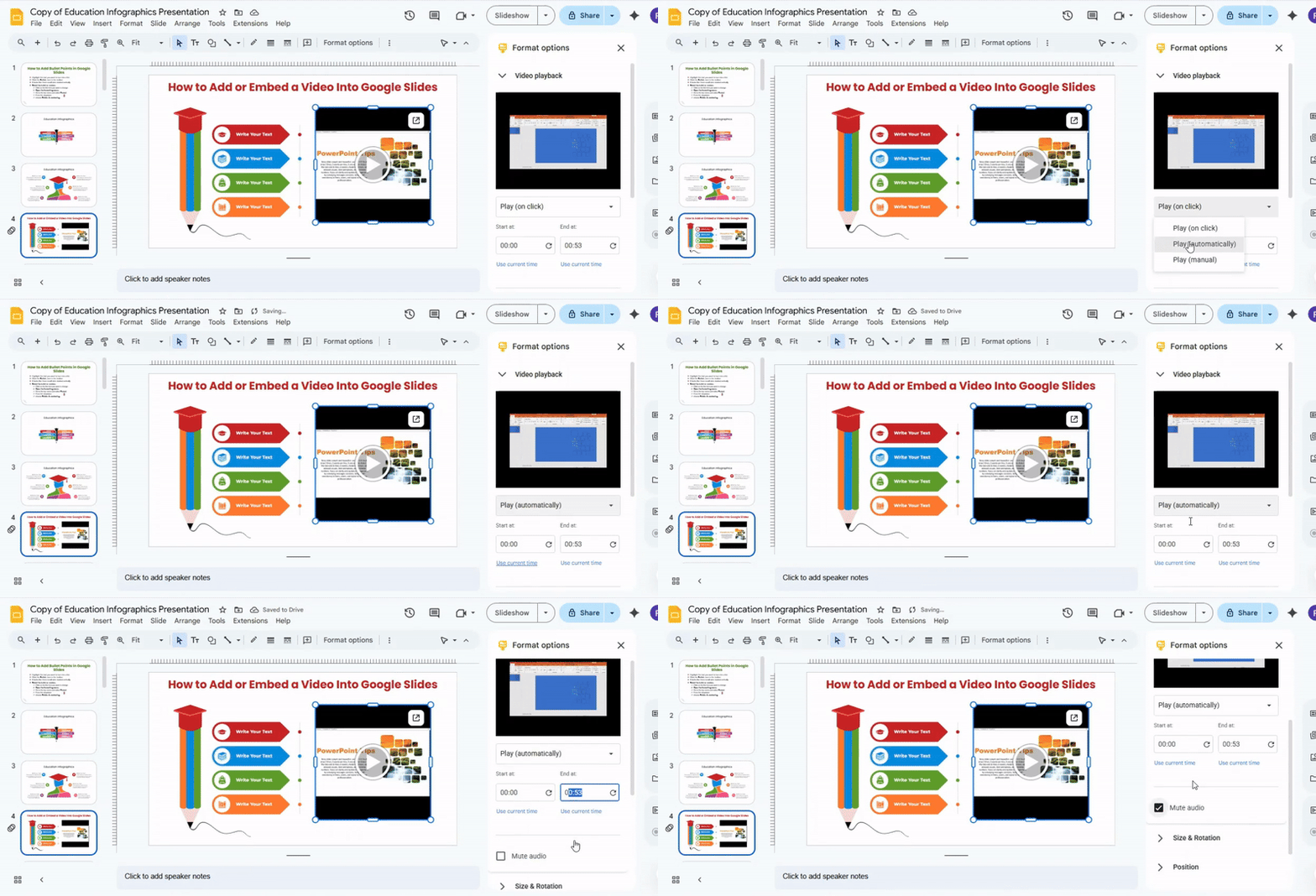
- Click the video once to select it.
- Click Format options in the toolbar.
- Under Video playback, choose Start playing:
- On click: The video plays when you click it.
- Automatically: The video plays as soon as the slide opens.
- You can also set Stop on slide change or adjust the volume.
Tips for Smooth Playback
- Make sure your video is fully uploaded before presenting.
- Keep the video file size manageable to avoid lag.
- Test the video in Present mode before your actual presentation.
Method 4: Google Slides
Adding a YouTube video in Google Slides lets you show content directly in your presentation. This avoids switching tabs or leaving the slides. It is useful for including survey explanations, tutorials, or relevant examples.
Step 1: Go to slides.google.com and open your presentation. Select the slide where you want the video to appear.
Step 2: Click Insert in the top menu, then choose Video. A window will appear with three options: Search, By URL, and Google Drive.
Step 3:
- To search, type keywords and select the video.
- To use a URL, copy the YouTube link and paste it into the box.
- If the video is saved in Google Drive, select it from your files.
Step 4: Click Select. The video will appear on your slide.
Step 5: Click and drag the video to move it. Use the corners to resize it. Make sure it does not cover other important content.
Tip: Keep the video large enough to see clearly, but leave space for other slide elements. This keeps the slide organized and readable.
How to Put a Video in Google Slides From Your Phone
Google Slides works on Android, iPhone, and web browsers. You can view, edit, and present slides from your phone. Adding a video is different on mobile than on a computer. Here’s how to do it step by step.
On Android
- Open Google Slides on your phone.
- Open your presentation or create a new one.
- Select the slide where you want the video.
- Tap the “+” icon at the top.
- Choose “Image”.
- Pick “From Photos” and select a screenshot or thumbnail from your video.
- Resize and position the image on the slide.
- Link the image to your video:
• Tap the image.
• Tap “Insert Link”.
• Paste the video’s URL (YouTube or cloud storage).
9. Now, tapping the image during your presentation will open the video.
On iPhone
- Open Google Slides and your presentation.
- Go to the slide where you want the video.
- Tap “+” and then “Image”.
- Select “From Photos” to pick a screenshot or thumbnail.
- Adjust the image to fit the slide.
- Link the image:
• Tap the image.
• Choose “Link”.
• Enter the video URL.
7. During your presentation, tap the image to play the video.
Tips and Workarounds
• Use screenshots as placeholders: Take a screenshot of the video and insert it as an image. This shows viewers what the video looks like.
• Keep thumbnails simple: Crop the screenshot to focus on the main part of the video.
• Test the link before your presentation to make sure it opens correctly.
• If you have a video in your phone's gallery, upload it to Google Drive first, then link to it in your slide.
This method keeps your slides mobile-friendly while letting you show videos during a presentation.
How to Edit a Video in Google Slides
Adding a video to your slide is only the first step. Editing it helps make your presentation clear and engaging. Here’s how to adjust your video using Google Slides.
Step 1: Select Your Video
Click on the video you want to edit. Once selected, a blue border appears around it. This tells you the video is ready for changes.
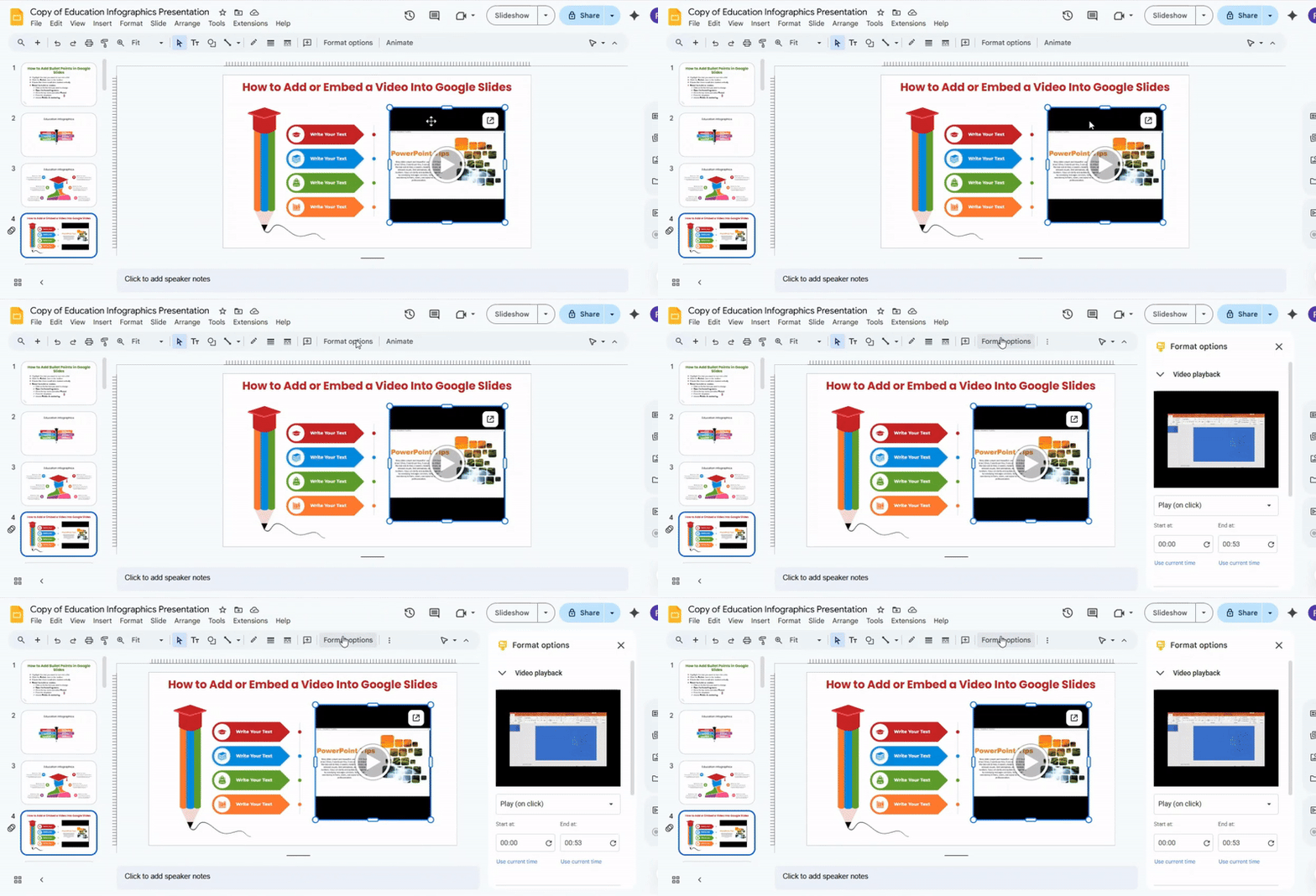
Step 2: Open Format Options
At the top menu, click Format, then choose Format options. A panel appears on the right side of your screen. This panel has all the editing tools you need.
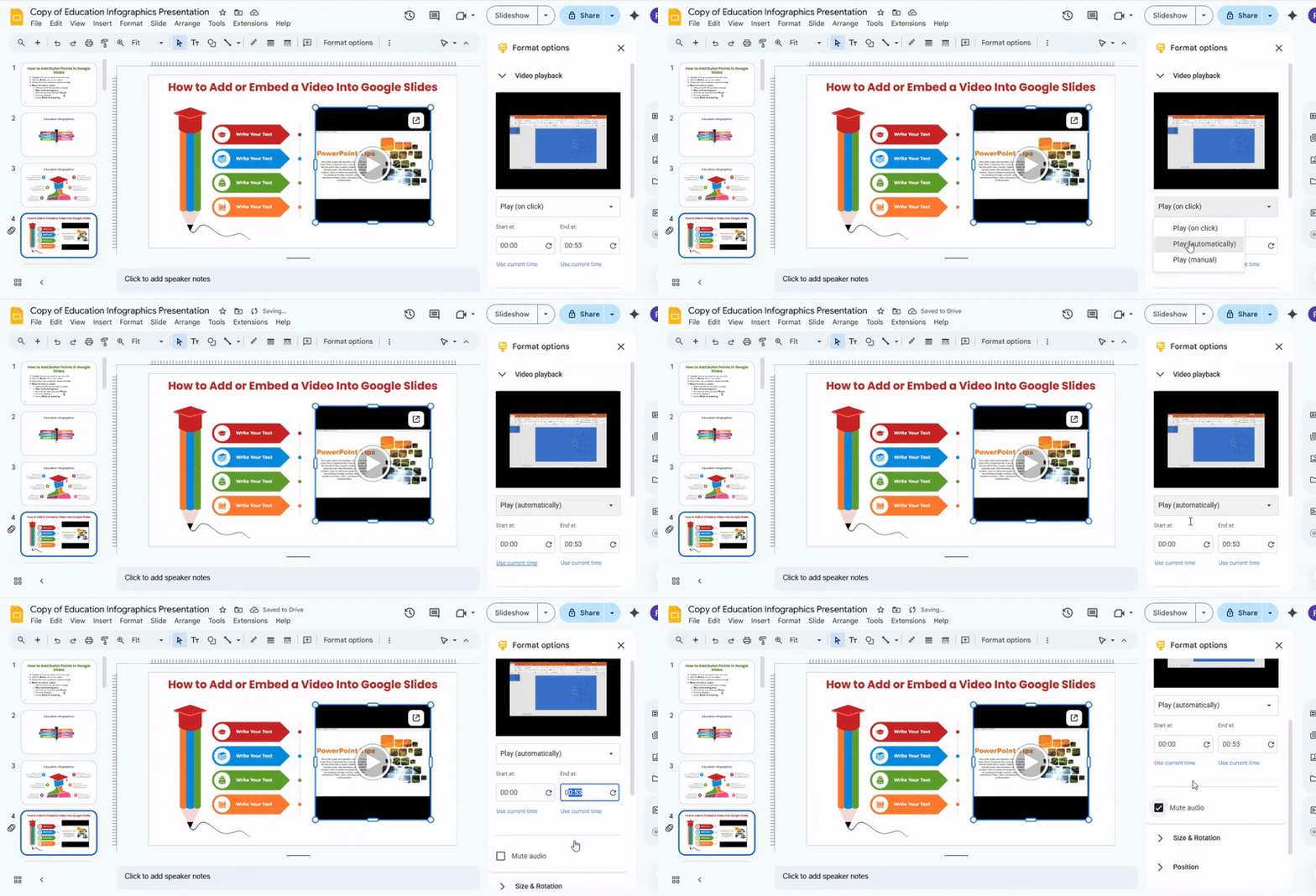
Step 3: Adjust Video Playback
Click the Video playback tab. Here you can:
- Set start and end times – Play only part of your video.
- Autoplay – Have the video start automatically when the slide opens.
- Mute audio – Turn off sound if needed.
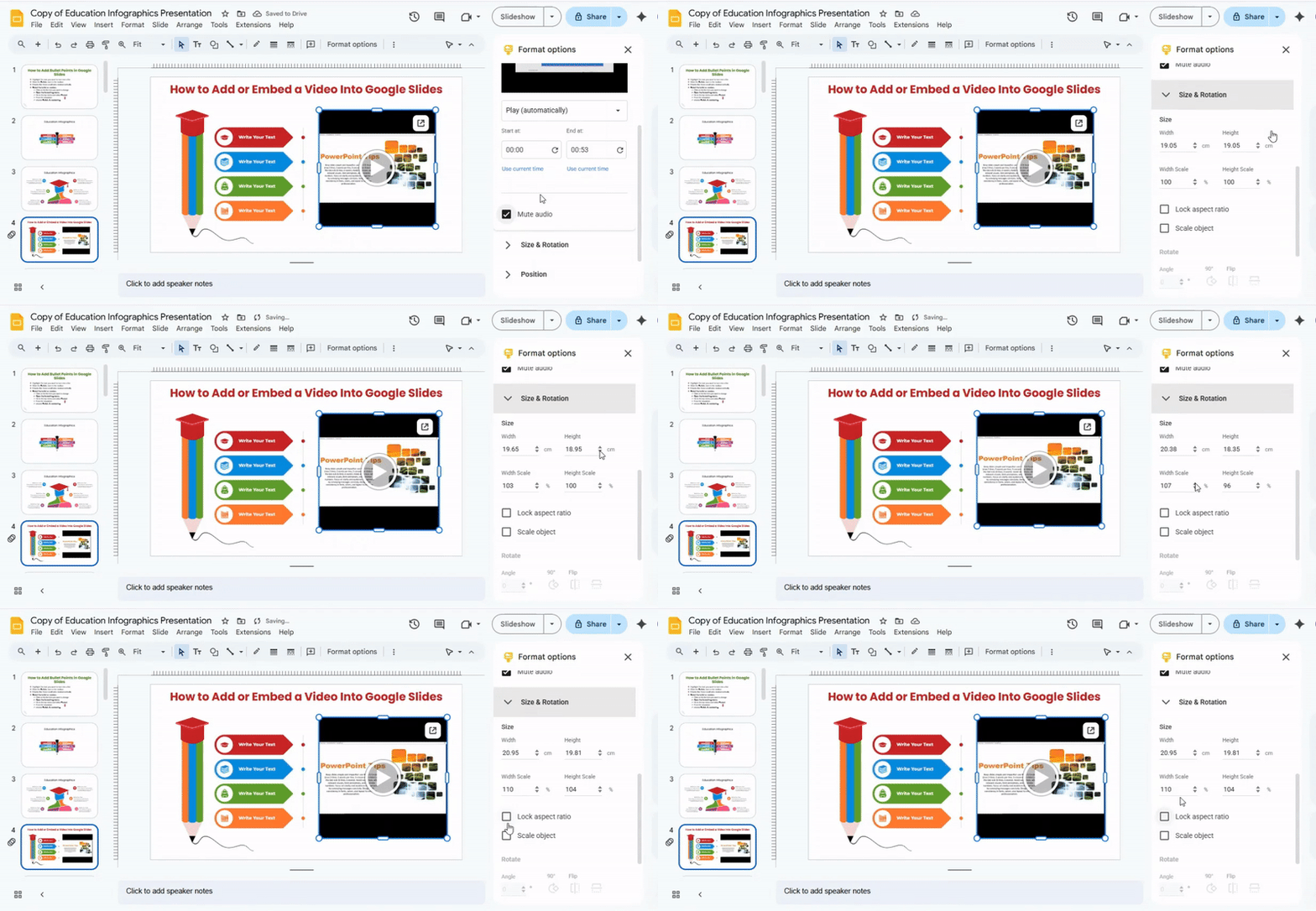
Step 4: Change Size and Rotation
Click the Size & Rotation tab. You can:
- Resize the video – Change width or height using the numbers or drag the corners.
- Rotate the video – Use the angle box or drag the circular handle above the video.
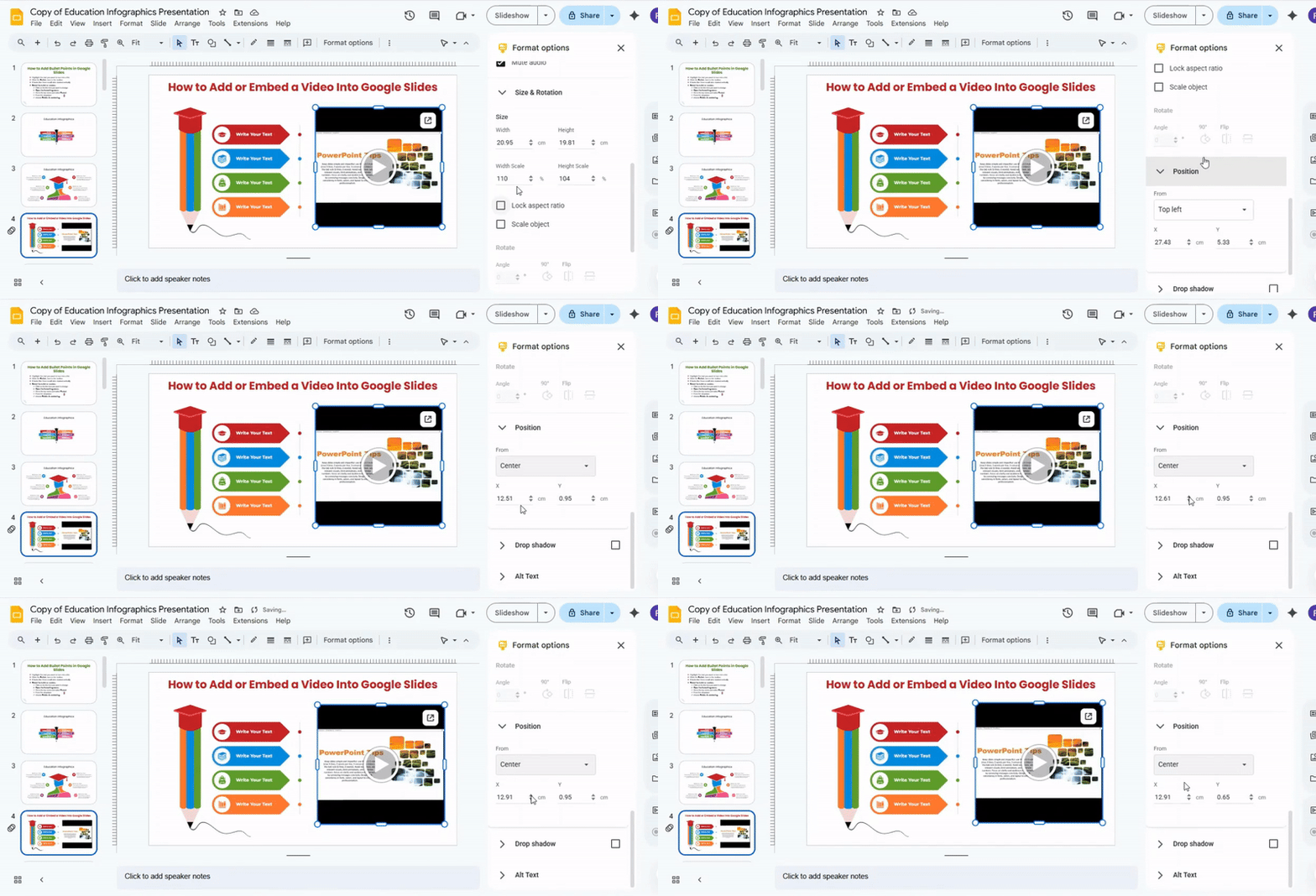
Step 5: Adjust Position
Click the Position tab. This lets you:
- Move the video precisely – Enter exact coordinates for placement.
- Align the video – Keep it centered or match other elements on the slide.
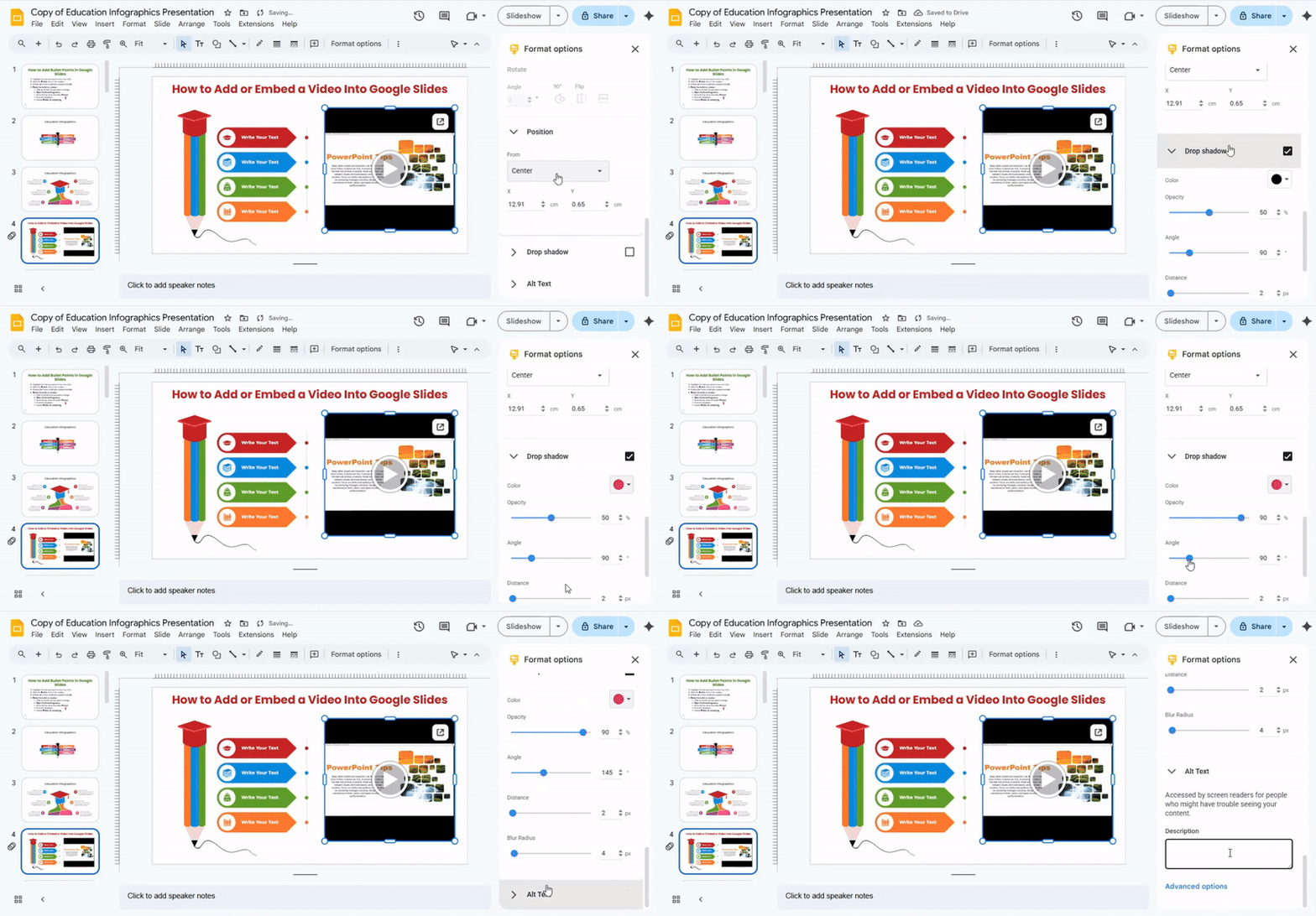
Step 6: Add Drop Shadow
Click the Drop shadow tab. You can:
- Turn shadow on or off – Use the checkbox.
- Change shadow color – Pick a color that fits your slide.
- Adjust transparency, angle, distance, and blur – Create depth for a polished look.
Using these steps, you can make your video fit perfectly and play exactly as you want. Take a moment to test playback and adjust if needed.
Common Problems When Adding Videos to Google Slides (And How to Fix Them)
Adding videos to Google Slides can make presentations more engaging, but it is not always smooth. Some problems often come up. Knowing them helps you fix issues quickly.
Problem 1: Sometimes the video stays black or does not start. This usually happens if the video link is broken or the file format is not supported. To fix this, check that the YouTube link is correct or that your video is in MP4 format. Make sure you have a stable internet connection for online videos.
Problem 2: A blank box can appear instead of your video. This happens if the video was removed from YouTube or your Google Drive permissions are limited. Ensure the video is public or shared with anyone who has the link.
Problem 3: Large video files may lag during playback. Reduce the file size by compressing the video before inserting it. You can also use a lower resolution version to make it run smoothly.
Problem 4: If the sound is missing, check your device’s volume and mute settings. For Google Drive videos, make sure you have access to the file and that your browser allows sound playback.
Problem 5: Google Slides does not always auto-play videos. You need to select the video, click Format Options, and choose “Play Automatically” under Video Playback.
Fixing these common problems ensures your slides run smoothly and look professional.
Why Add a Video to Your Slides?
Let us look at why adding a video can make your slides stronger and more engaging:
• Engaging: Videos grab attention quickly and keep viewers interested.
• Improved Retention: People remember ideas better when they see and hear them.
• Persuasive: Videos can show proof, emotion, or examples that words alone cannot.
• Flexible Formats: You can use clips, animations, or recorded talks depending on your goal.
• Interactivity: Videos can encourage questions, reactions, or discussion during a presentation.
• Breaks Monotony: A short video gives the audience a change from reading slides or listening to a lecture.
Final Words:
Each of these benefits shows how videos can make your presentation more lively and effective.
Videos make your slides more engaging and keep your audience focused. They turn plain presentations into experiences that stick.
We’ve covered ways to add videos on both desktop and mobile. You now know how simple it can be to bring your slides to life.
If you’re wondering how else you can make your slides even smarter, try the add-on from SlideStack. It helps you create, edit, and enhance presentations faster, while keeping your content sharp and engaging.
FAQs:
1. Why can’t I insert a video into Google Slides?
You might not be able to insert a video if the file type isn’t supported or the video is stored on your device instead of Google Drive or YouTube. Make sure the video is in a compatible format and uploaded to the cloud. Also, check your internet connection.
2. How do you record and add a video to Google Slides?
First, record your video using your phone, webcam, or screen recorder. Upload it to YouTube or Google Drive. Then, in Google Slides, click Insert > Video and choose your uploaded video.
3. Can we make Ga oogle Slides to video?
Google Slides doesn’t directly convert slides to video. You can use screen recording software to record your presentation while you play it. Some third-party tools can also export slides as video files.
4. What video formats does Google Slides support?
Google Slides mainly supports videos from YouTube or Google Drive. For uploads, MP4 and MOV formats work best. Other formats may need conversion before uploading.
5. Can I add videos to my Google Slides presentation for free?
Yes. You can add videos from YouTube or Google Drive without paying. You just need a Google account to access these services.
6. Can I trim a video before adding it to my slide?
You can’t trim a video directly in Google Slides before inserting it. Trim the video in a video editor first, then upload the edited version to YouTube or Google Drive.
7. How do I make the video start automatically when I present?
Click the video in your slide, then open Format options. Under Video playback, select Play automatically. Your video will start as soon as the slide appears.
8. Can I add effects or animations to the video?
Google Slides doesn’t let you add effects or custom animations to videos. You can only set them to start automatically or on click.
9. The video has sound, but it’s not playing in my presentation. What can I do?
Check your device’s volume and mute settings. Make sure the video’s audio is not muted in its source file. Try reloading the slide or using a different browser if it still doesn’t play.
10. The video takes up too much space in my presentation. How can I reduce its size?
Google Slides stores videos online, so file size usually isn’t a problem. If you’re uploading a local file, compress it in a video editor before uploading to Google Drive.
11. Can I add interactive elements to the video, like buttons or quizzes?
Not directly in Google Slides. You can link buttons or shapes to other slides or external sites, but the video itself can’t contain clickable elements.
12. Are there any limitations on video length in Google Slides?
There’s no strict limit for YouTube or Google Drive videos, but very long videos may load slowly. Shorter videos work more smoothly during presentations.
13. How do I fix Google Slides’ unable to play video error 150?
This error usually happens with private or restricted videos. Make sure the video is public or shared with your Google account. Also, check your internet connection and try reloading the presentation.



You may also be interested in ...

How To Create An Eye-Catching Portfolio
If you’re looking to create an eye-catching portfolio, this post will come in handy. In this article, you can find the easies...
23 Jun, 2024

How To Easily Create An Infographic
Infographics are the perfect way to make a presentation that will impact an audience, but their design and composition might...
08 Jun, 2024

PowerPoint Template Tips & Tricks You Ne...
PowerPoint seems to be an unknown world for many people, especially those who have been assigned to create a presentation out...
08 Jun, 2024