What Is Microsoft PowerPoint Used For? Main Purposes and Benefits
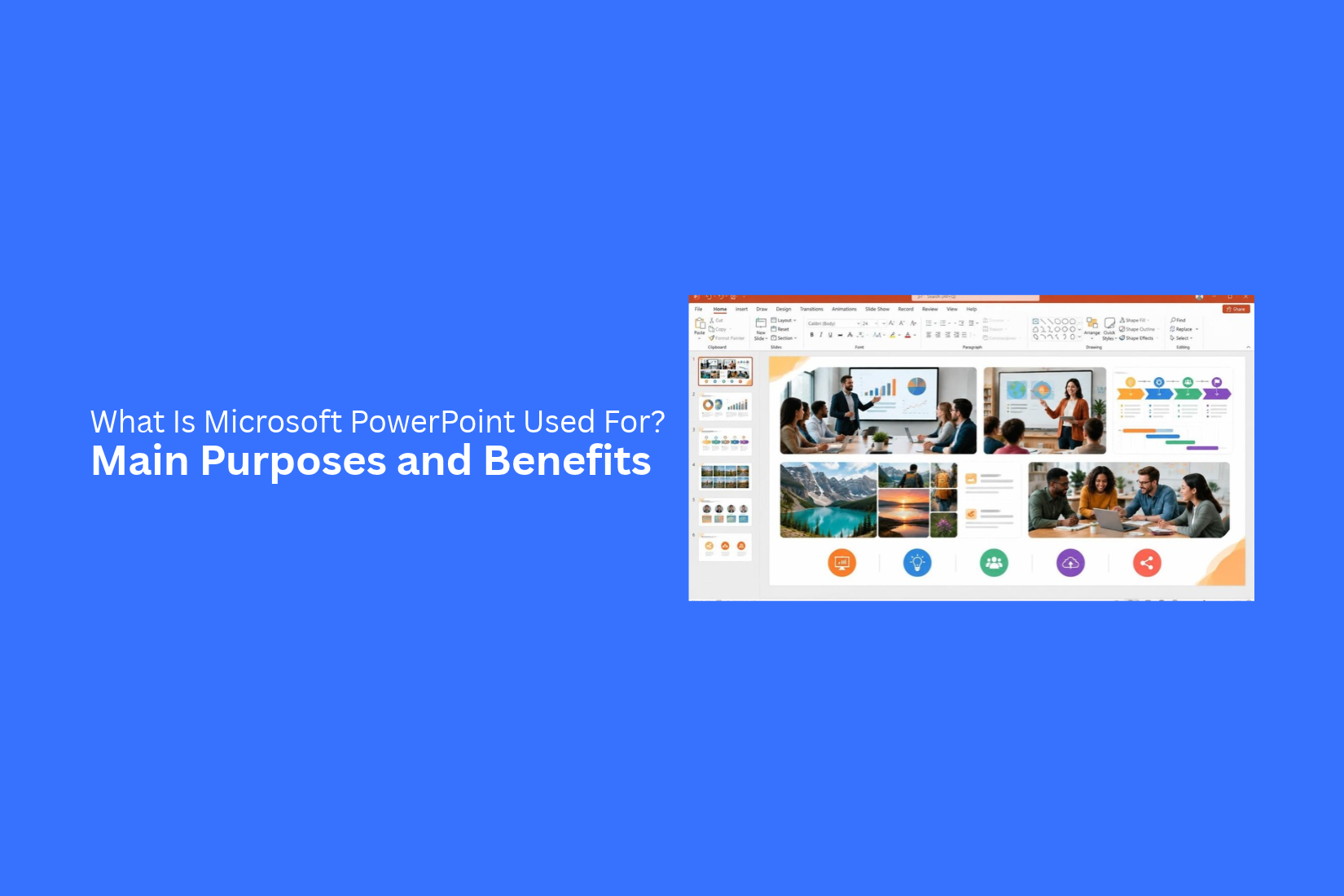
Sharing ideas, explaining information, and presenting data are common tasks in school, business, and daily work. However, long documents and plain text can make it hard for people to follow a message. A lack of clear visuals can also make a topic harder to understand.
This is where Microsoft PowerPoint can help. It lets users turn information into slides with text, images, charts, videos, and other visual elements. These tools make it easier to explain ideas and keep an audience focused.
But PowerPoint is not just for making slides. It can also help users create reports, infographics, timelines, photo slideshows, and more. This article explains its main purposes, key benefits, common uses, and tips for using it effectively.
What Is Microsoft PowerPoint?
Microsoft PowerPoint is a presentation software made by Microsoft. It helps users create and share information through slides. Each slide can include text, images, charts, tables, videos, and other visual elements.
Users can arrange these elements to present ideas in a clear and simple way. PowerPoint also offers themes, layouts, animations, and transitions. These tools help users control how their slides look and how content appears during a presentation.
PowerPoint is part of the Microsoft 365 suite. It is used by students, teachers, business teams, and other professionals. Users can create presentations for school projects, business meetings, training sessions, reports, and many other needs.
What Is Microsoft PowerPoint Used For?
Microsoft PowerPoint is a presentation program used to create and share information through slides. It helps users present ideas in a clear and organized way. Each slide can include text, images, charts, tables, videos, and other visual elements.
People use PowerPoint for many tasks. Students create class projects. Teachers prepare lessons. Business teams share reports and plans. Speakers use slides to support their talks.
PowerPoint also helps users explain complex topics with simple visuals. Instead of sharing long blocks of text, they can break information into smaller parts. This makes it easier for the audience to follow the main points. Its flexible tools make it useful for school, work, training, and many other types of presentations.
Main Purposes of Microsoft PowerPoint
Microsoft PowerPoint helps people share information through visual presentations. It turns ideas, facts, and data into slides that are easy to follow. People use it at work, in schools, and during meetings. Each slide can include text, images, charts, tables, and other visual elements. Here are the main purposes of Microsoft PowerPoint.
Communicating Ideas Clearly
PowerPoint helps people share ideas with others. You can use slides to explain a plan, present a project, or share important updates. Short text and clear visuals help the audience understand your message. For example, a teacher can use PowerPoint to explain a lesson. A business team can use it to present a new plan. Each slide focuses on one main point. This makes the message easier to follow.
Organizing Information into Visual Slides
A long block of text can be hard to read. PowerPoint helps break large amounts of information into smaller parts. You can place each topic on a separate slide. Headings, bullet points, images, and charts help keep the content in order. This slide format also helps the speaker follow a clear path. The audience can see how each point connects to the main topic.
Explaining Complex Topics with Visuals
Some topics are hard to explain with words alone. PowerPoint lets you use images, diagrams, charts, and shapes to make them easier to understand. For example, a science teacher can use diagrams to explain how the human body works. A business analyst can use charts to show sales data. These visuals help the audience understand key details without reading long explanations.
Supporting Public Speaking and Meetings
PowerPoint is a useful tool for public speaking and business meetings. Speakers can use slides as a guide while talking to an audience. Each slide shows the main points of the discussion. In a meeting, team members can use presentations to share project updates, review results, and discuss plans. The slides help everyone stay focused on the same topic.
Keeping Audiences Engaged
A presentation needs more than plain text to hold people's attention. PowerPoint lets you add photos, videos, animations, icons, and charts to your slides. These elements make the content more interesting to view. You can also use different slide layouts to keep the presentation from looking the same throughout. A good mix of text and visuals helps the audience stay focused on your message.
Key Benefits of Using Microsoft PowerPoint
Microsoft PowerPoint offers several tools that make it easier to create and share presentations. You can use it for simple slides or detailed business reports. It also gives you control over the look and feel of each slide. Here are some key benefits of using PowerPoint.
Easy-to-Use Presentation Tools
PowerPoint has a simple interface that makes slide creation easy. You can add text, change fonts, adjust colors, and move objects with a few clicks. Its drag-and-drop tools help you place items on a slide.
You can also copy, delete, or rearrange slides. This makes it easier to edit your work. Beginners can start with basic tools. More advanced users can use extra features to create detailed slides.
Customizable Templates and Themes
PowerPoint offers many built-in templates and themes. These give your slides a ready-made design. You can choose a layout that fits your topic. You can also change the colors, fonts, backgrounds, and other design elements.
Templates help you save time during slide creation. Themes also keep your slides consistent. You can use the same style across the full presentation. This gives your work a clean and organized look.
Support for Images, Videos, Audio, and Animations
PowerPoint supports different types of media. You can add photos, icons, videos, and audio files to your slides. These items help explain ideas through more than just text.
You can also use animations to control how objects appear on a slide. For example, you can make a title appear first. Then, you can show each bullet point one at a time. Slide transitions also help control how viewers move from one slide to the next.
Charts, Graphs, and Data Visualization
PowerPoint includes tools for creating charts and graphs. You can use them to present numbers in a clear way. Common options include bar charts, pie charts, line charts, and column charts.
These tools help turn large sets of data into simple visuals. You can also edit chart colors, labels, and values. This makes it easier for your audience to read and understand the data.
Collaboration and Sharing Options
PowerPoint allows multiple people to work on the same presentation. You can share a file with others through supported cloud services. Team members can edit slides, add comments, and review changes.
This makes group work easier. For example, a team can work on different parts of a business presentation. Each person can add content to the same file. You can also use comments to share feedback and suggest edits.
Flexible Presentation and Export Options
PowerPoint gives you several ways to present and save your work. You can run a slide show in full-screen mode. You can also use Presenter View to see your speaker notes and upcoming slides while presenting.
You can save your presentation in different file formats. PowerPoint supports formats such as PPTX, PDF, and video. You can also print your slides or share them online. These options make it easier to use the same presentation for meetings, training sessions, and other needs.
What Can You Create with Microsoft PowerPoint?
Microsoft PowerPoint is not limited to regular slide presentations. You can use it to create many types of visual content. It has tools for adding text, images, shapes, charts, and videos. You can also change colors, fonts, and layouts to match your needs.
Here are some common things you can create with PowerPoint.
Slide Presentations
Slide presentations are the most common use of Microsoft PowerPoint. You can create slides for school projects, business meetings, training sessions, and client pitches.
Each slide can include text, images, charts, tables, and other visual elements. You can also add animations and transitions to control how content appears on the screen. This helps you share ideas in a clear and organized way.
Infographics and Visual Reports
PowerPoint can also help you create infographics and visual reports. You can use shapes, icons, charts, and diagrams to present facts and data.
For example, a business team can create a sales report with charts and key figures. A teacher can use an infographic to explain a topic. These visuals help readers understand information without reading long blocks of text.
Timelines and Process Diagrams
Timelines and process diagrams help show events, steps, or tasks in order. PowerPoint has SmartArt graphics, shapes, and lines that you can use to build them.
You can create a project timeline to show key dates and milestones. You can also make a process diagram to explain how a task works. These layouts make each step easier to follow.
Photo Slideshows
PowerPoint lets you turn a group of photos into a slideshow. You can add images to separate slides and arrange them in your preferred order.
You can also add captions, background music, and slide transitions. This format works well for family events, school projects, travel photos, and company events.
Posters, Flyers, and Brochures
You can use PowerPoint to design posters, flyers, and brochures. It offers text boxes, shapes, images, and layout tools for this type of work.
You can set a custom slide size to match your print needs. Add a title, key details, contact information, and images to complete the design. These materials can help share event details, product information, or business services.
Video Presentations
PowerPoint also lets you create video presentations. You can add video clips, audio, text, images, and animations to your slides.
You can record your voice while presenting each slide. You can also set slide timings and export the full presentation as a video file. This is useful for online lessons, product demos, training videos, and recorded business updates.
Who Uses Microsoft PowerPoint?
Microsoft PowerPoint is used by people in many fields. It helps them share ideas, explain topics, and present information in a clear way. Students use it for school projects. Business teams use it for meetings and reports. Marketers use it to share product details and campaign plans. Here are some common groups that use PowerPoint.
Students and Teachers
Students use PowerPoint to create slides for class projects, research topics, and group work. They can add text, images, charts, and videos to explain their ideas. Slides also help them organize key points and speak with more confidence.
Teachers use PowerPoint to prepare lessons and share study materials. They can add diagrams, pictures, and short videos to explain hard topics. This helps students follow the lesson and learn new ideas.
Business Professionals and Managers
Business professionals use PowerPoint to share plans, reports, and project updates. It helps them present key facts in a clear format. They can use charts and tables to show sales data, budgets, and other business results.
Managers also use slides to set team goals, explain new plans, and review progress. A well-planned presentation helps team members understand what needs to be done.
Marketers and Sales Teams
Marketers use PowerPoint to present campaign plans, market research, and brand strategies. They can add product images, charts, and key data to explain their ideas. Slides also help them share campaign results with clients and team members.
Sales teams use PowerPoint to show products and services to buyers. They can explain product features, share pricing details, and show how a product meets customer needs. This makes sales meetings easier to follow.
Trainers and Educators
Trainers use PowerPoint to create learning materials for workshops, training sessions, and online classes. They can use text, images, charts, and videos to explain each topic.
PowerPoint also helps trainers break large topics into smaller parts. This makes lessons easier to follow. They can use the same slides for future sessions and update them as needed.
Freelancers and Content Creators
Freelancers use PowerPoint to create client proposals, project plans, and service presentations. It helps them explain their work and share ideas with clients. They can also use slides to show project details and pricing.
Content creators use PowerPoint to make visual content for social media, online courses, and video projects. They can create infographics, slide-based videos, and simple graphics. These slides help them share useful information in a clear and visual format.
Is Microsoft PowerPoint Only Used for Presentations?
No. Microsoft PowerPoint is not only used to create presentations. It also works as a tool for many other tasks. You can use it to create visual content, share information, and organize ideas.
For example, PowerPoint lets you create posters, flyers, brochures, and simple graphics. You can also use it to make photo albums, timelines, flowcharts, and infographics. These files can help you share ideas in a clear visual format.
PowerPoint also supports screen recording and video creation. You can add voice recordings, animations, and background music to your slides. Then, you can export your work as a video file.
Another useful feature is its ability to create interactive content. You can add links, buttons, and action settings to make slides easier to navigate. This works well for quizzes, training materials, and self-paced learning.
So, PowerPoint is more than a slide creation tool. It can help you create different types of visual and digital content for work, school, and personal projects.
Microsoft PowerPoint vs. Other Presentation Tools
Microsoft PowerPoint is one of several tools used to create presentations. Other options, such as Google Slides and Canva, also offer features for slide design and content creation.
Each tool has its own features, layout, and way of working. Your choice depends on the type of presentation you want to make and how you plan to work with others.
PowerPoint vs. Google Slides
Microsoft PowerPoint and Google Slides both let you create and edit presentations. However, they offer different ways to work.
PowerPoint is a desktop-based tool with a wide range of editing and design features. It gives you more control over slide layouts, animations, transitions, charts, and other visual elements. You can also work with files offline.
Google Slides is a web-based tool. It works through a browser and saves your work to Google Drive. Multiple people can edit the same presentation at the same time. This makes it useful for group projects and team work.
Here is a quick comparison:
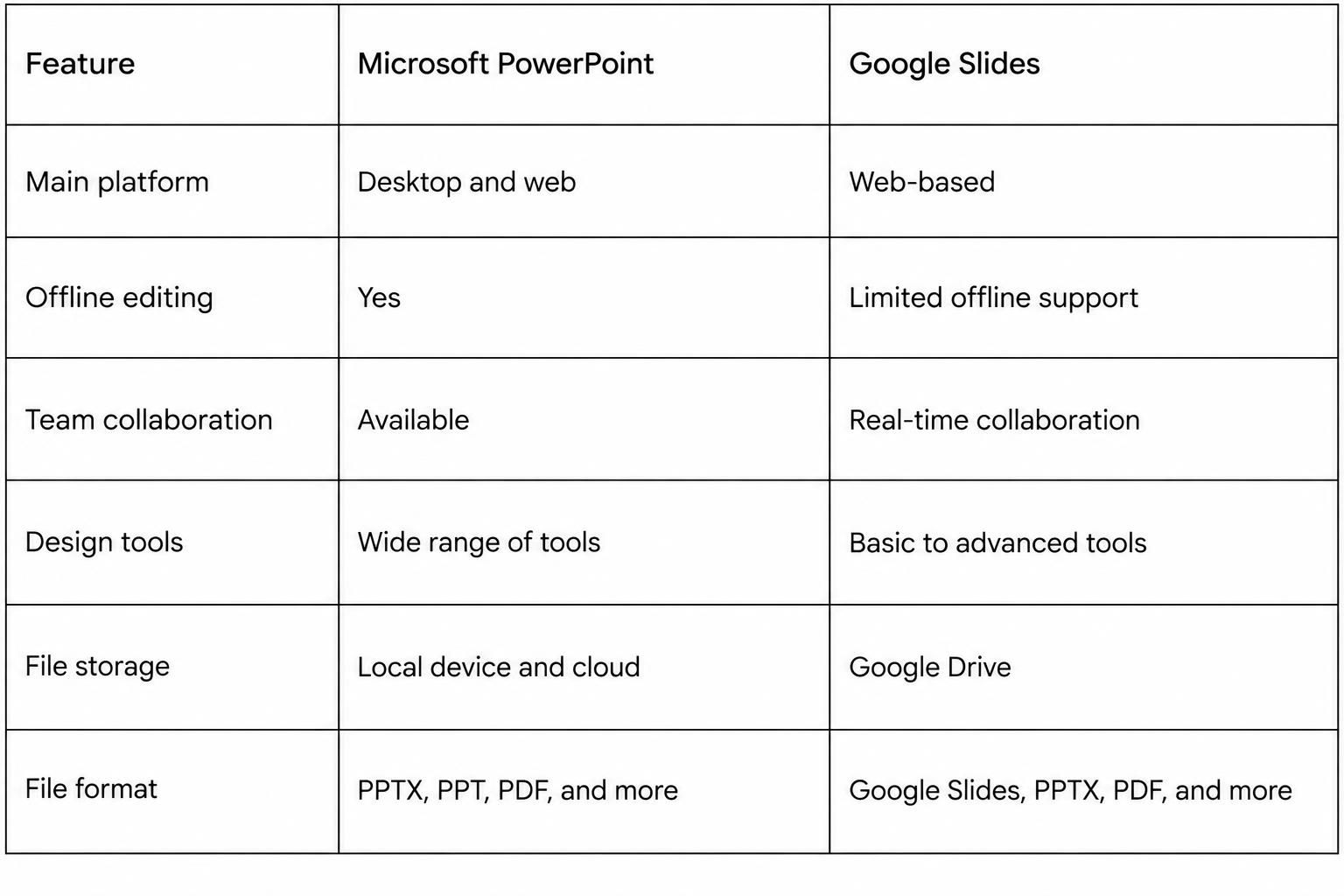
PowerPoint is a good choice for users who need more design control and advanced editing tools. Google Slides works well for teams that need to edit and share slides online.
PowerPoint vs. Canva
Microsoft PowerPoint and Canva both help you create visual presentations. However, their design tools and workflows are different.
PowerPoint gives you more control over slide elements. You can edit text, shapes, images, charts, and animations with detailed settings. It also supports slide masters, custom layouts, and advanced transitions.
Canva focuses on visual design. It offers ready-made templates, graphics, icons, photos, and other design elements. You can use these resources to create slides without building every part from scratch.
Here is how the two tools compare:
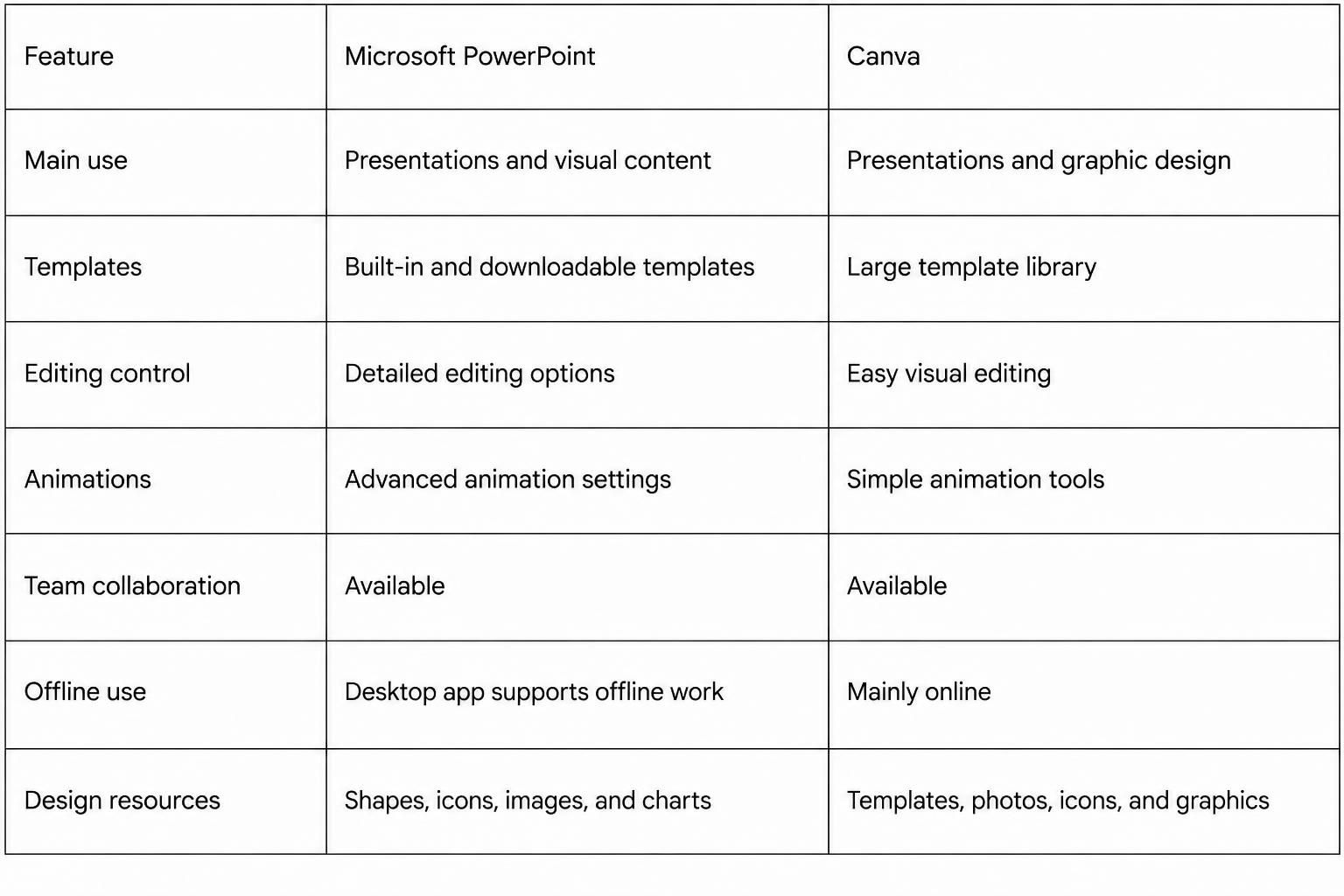
PowerPoint is a strong option for detailed slide editing and professional presentations. Canva is a good fit for users who want to create visual slides with ready-made designs and simple editing tools. Both tools can help you create clear presentations. The right choice depends on your design needs, editing preferences, and workflow
Tips for Using Microsoft PowerPoint Effectively
Microsoft PowerPoint works best when each slide has a clear purpose. A good presentation should be easy to read and follow. Simple design choices can help you share your message with less effort. Here are some tips to help you create better PowerPoint presentations.
Choose a Suitable Presentation Template
Start with a template that fits your topic. PowerPoint offers many templates for business, education, reports, and other needs. Choose a design that matches your message and audience.
A suitable template gives your slides a clear layout. It also saves time on design work. You can change the colors, fonts, images, and other elements to match your needs.
Keep Slide Content Short and Clear
Avoid adding too much text to one slide. Long paragraphs can make your slides hard to read. Use short sentences and key points to share your message.
Try to focus on one main idea per slide. Add a short heading to explain the topic. Use bullet points to break long details into smaller parts. This helps your audience follow the presentation.
Use Visuals to Support Your Message
Images, charts, icons, and diagrams can make your slides easier to understand. They also help explain ideas that may take more words to describe. Choose visuals that match your topic. Use charts to show data and trends. Add images to support key points. You can also use diagrams to explain steps or processes. Make sure each visual has a clear purpose.
Maintain Consistent Fonts and Colors
Use the same font styles and colors across your slides. This gives your presentation a clean and organized look. Choose fonts that are easy to read. Use larger text for headings and smaller text for body content. Limit the number of colors in your design. Pick colors with enough contrast so the text stands out from the background.
Practice Before Presenting
A well-designed presentation also needs a prepared speaker. Practice your slides before sharing them with an audience. Read through your content and check the order of each slide. Practice explaining the main points in your own words. You can use PowerPoint's Presenter View to review your notes during a presentation. Check your timing as well. This helps you speak with more confidence and stay on track.
Final Notes
Microsoft PowerPoint is a useful tool for creating presentations and other types of visual content. It helps students, teachers, business teams, marketers, and freelancers share ideas in a clear format. You can use it to create slide presentations, reports, infographics, timelines, posters, and videos.
Its editing tools, templates, charts, and media support make slide creation easier. You can also share files, work with team members, and export your projects in different formats.
The best results come from clear content and simple design choices. Choose a suitable template, keep text short, and use visuals that support your message. Practice your slides before presenting. These steps can help you create PowerPoint projects that are easy to read, follow, and understand.
Frequently Asked Questions
1. What is Microsoft PowerPoint mainly used for?
Microsoft PowerPoint is mainly used to create and share slide presentations. It helps users explain ideas, present data, and share information through text, images, charts, videos, and other visual elements.
2. Who can use Microsoft PowerPoint?
Students, teachers, business professionals, managers, marketers, trainers, freelancers, and content creators can use PowerPoint. It supports many tasks in education, business, and daily work.
3. Can I use PowerPoint to create things other than presentations?
Yes. You can use PowerPoint to create infographics, posters, flyers, brochures, timelines, flowcharts, photo slideshows, and videos.
4. What are the main benefits of Microsoft PowerPoint?
PowerPoint offers easy editing tools, customizable templates, charts, animations, media support, and sharing options. It also lets users save and export files in different formats.
5. Is Microsoft PowerPoint easy to use for beginners?
Yes. PowerPoint has simple tools for adding text, images, shapes, and other elements. Beginners can start with basic templates and layouts. They can learn more editing features as they gain experience.
6. Can multiple people edit the same PowerPoint presentation?
Yes. PowerPoint supports team collaboration through supported cloud services. Multiple users can edit slides, add comments, and review changes in a shared file.
7. What is the difference between Microsoft PowerPoint and Google Slides?
PowerPoint offers detailed editing tools and supports offline work through its desktop app. Google Slides is a web-based tool that supports real-time team editing. Both let users create and share presentations.
8. Is Microsoft PowerPoint better than Canva for presentations?
The choice depends on your needs. PowerPoint offers detailed slide editing and advanced presentation tools. Canva provides ready-made templates and visual design resources. Both can help you create presentations.
9. Can I convert a PowerPoint presentation into a PDF or video?
Yes. PowerPoint lets you export presentations as PDF files and videos. You can also save your work in other supported file formats.
10. How can I make a PowerPoint presentation more effective?
Choose a suitable template, keep slide text short, and use clear visuals. Maintain consistent fonts and colors. Practice your presentation before sharing it with an audience.



You may also be interested in ...

Tips To Create A Great Infographic
Infographics Have been around for a while, but not many people know about them or are their preferred presentation choice. If...
08 Jun, 2024

3 Steps To Create The Best Presentation...
Presentations are something wonderful when well done, you can captivate an audience or be super interested in what another pe...
23 Jun, 2024

3 Tips For Your Next Presentation You MU...
PowerPoint presentations are perfect for explaining a topic and communicating your ideas with a visual aid. But most people s...
08 Jun, 2024