10 Advantages of Using PowerPoint and Google Slides for Your Presentations – Simple Explanation
Every presentation you create can be made in both PowerPoint and Google Slides. This gives you the freedom to choose the software that works best for you. Many people wonder which tool is better or what makes each one useful for creating slides. Presentations can be tricky; keeping your ideas organized, making slides clear, and keeping the audience’s attention are not always easy.
PowerPoint and Google Slides solve these problems by offering simple tools and features that make creating, editing, and sharing slides easier. Both platforms help you make professional-looking presentations without stress. Keep reading to learn the top 10 advantages of using PowerPoint and Google Slides and see which one fits your needs.
Why Choose PowerPoint and Google Slides for Your Presentations
PowerPoint and Google Slides are two of the most popular tools for making presentations. They help you turn your ideas into clear slides. You can add text, images, charts, and even videos without needing special skills. Both tools give you templates to make your slides look neat and professional.
These platforms also make teamwork easier. You can share your slides with others and work on them at the same time. Changes appear instantly, so everyone stays updated. Google Slides works directly in a browser, while PowerPoint works on both computers and online, giving you flexibility.
Another advantage is that both tools make presentations easy to follow. You can organize content in steps, highlight key points, and guide your audience smoothly. Animations and transitions can make slides more engaging, but they stay simple enough to avoid distraction.
Finally, PowerPoint and Google Slides are reliable for different settings. You can use them for school, work, or personal projects. They let you present in meetings, classrooms, or online calls. This combination of ease, flexibility, and clarity makes them a strong choice for any presentation.
10 Advantages of Using PowerPoint
Microsoft PowerPoint is a professional presentation software included in the Microsoft Office suite. It helps users create clear and organized slides for business, education, or personal use.
1. Easy to Use: PowerPoint has a familiar interface. You can quickly add slides, text, and images without steep learning curves.
2. Customization Options: You can edit images, add filters, and apply effects. This allows each slide to look unique and engaging.
3. Compatibility with Multiple File Formats: PowerPoint supports formats like PDF, JPEG, and video. This makes it simple to share or export presentations.
4. Integration with Other Office Programs: You can insert Excel charts, Word documents, or Outlook data directly into slides. This saves time and keeps information consistent.
5. Versatility: PowerPoint works in many settings. It is useful for classroom lessons, business meetings, training sessions, and online presentations.
6. Templates and Themes: Built-in templates and themes help users create professional-looking slides quickly. You can also customize these templates to fit specific needs.
7. Multimedia Support: You can add audio, video, and animations to make presentations more interactive.
8. Collaboration Features: PowerPoint allows multiple users to work on the same presentation. Changes are tracked, and feedback can be added directly to slides.
9. Presenter Tools: Features like notes, timers, and slide navigation help deliver presentations smoothly. You’ll need these tools for organized delivery.
10. Wide Availability: As part of Microsoft Office, PowerPoint is available on Windows, Mac, and online through Microsoft 365.
Requirements: To use PowerPoint, you’ll need Microsoft Office installed on your device or access to Microsoft 365 online.
Additional Resource: For more guidance, Microsoft offers tutorials and help pages that cover all PowerPoint features and techniques.
10 Advantages of Using Google Slides
Google Slides is part of Google Drive and G Suite. You can use it on any device with an internet connection. It works in your browser, so there is no need to install extra software.
Here are 10 advantages of using Google Slides:
- Easy Access – All your slides are stored in the cloud. You can open them from any computer, tablet, or phone.
- Collaboration – Multiple people can edit the same presentation at the same time. You can see changes instantly and leave comments for your team.
- Integration with Google Apps – Google Slides works smoothly with Sheets, Photos, and YouTube. You can add charts, images, or videos directly without extra downloads.
- Instant Auto-Saving – Every change you make is saved automatically in the cloud. You don’t need to worry about losing your work.
- Free to Use – Google Slides is free. You only need a Gmail account to start creating presentations.
- Templates and Themes – You can choose ready-made templates to speed up your design. This makes it easy to keep slides consistent and visually appealing.
- Easy Sharing – Share your slides with anyone using a link. You can choose whether they can view, comment, or edit.
- Offline Access – You can work offline if needed. Changes will sync automatically once you reconnect to the internet.
- Simple Presentation Tools – Add animations, transitions, and speaker notes without complicated steps. Present directly from your device.
- Additional Resources – For tutorials and tips, you can visit Slidestack Blog to learn new tricks and improve your slides.
PowerPoint vs Google Slides: Feature Comparison
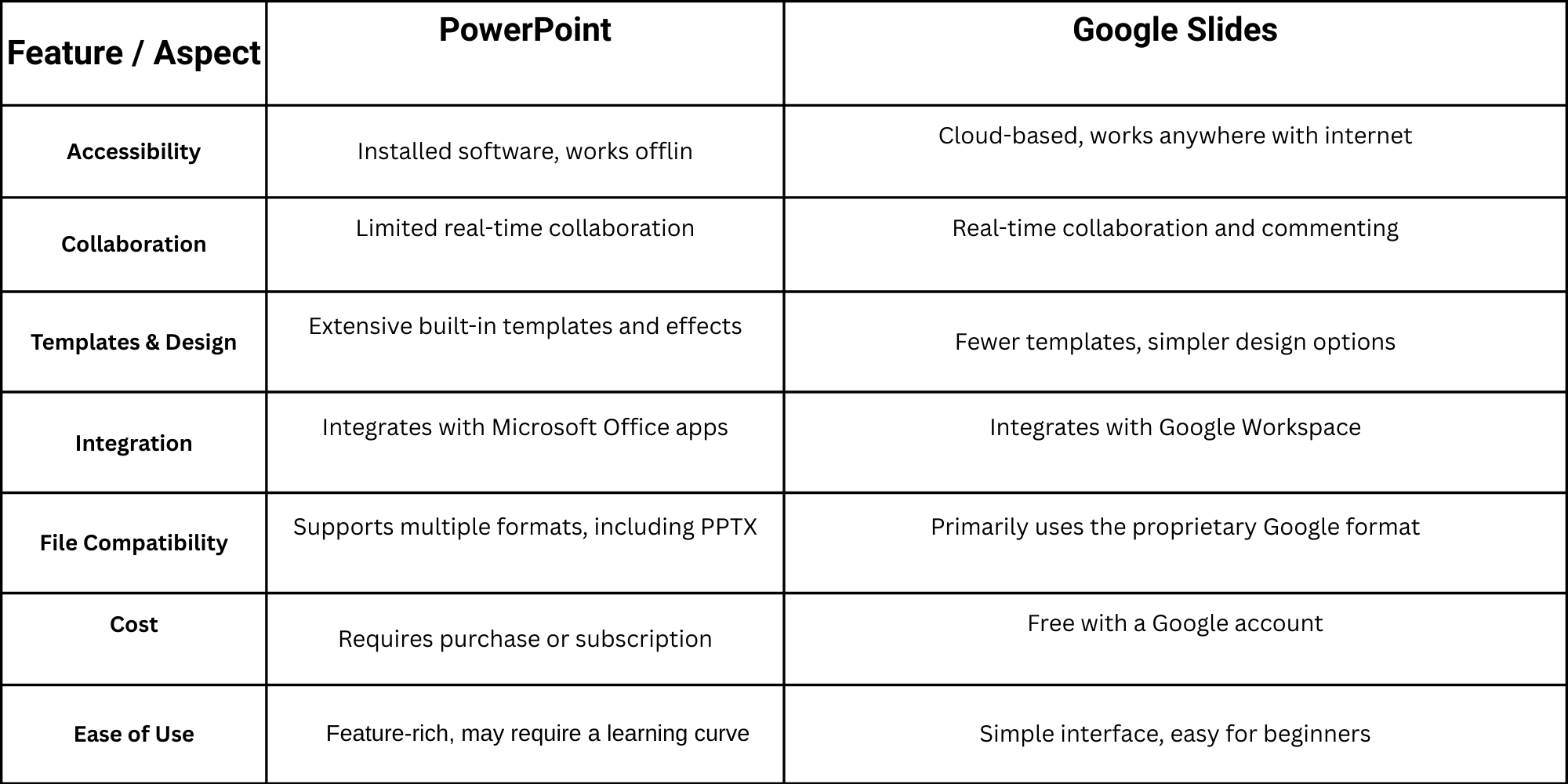
For users deciding between presentation tools, understanding the differences in features, usability, and advantages helps make the right choice. The table below summarizes key points.
Advantages Overview
PowerPoint offers advanced design tools and offline functionality. Google Slides excels at collaboration and cloud access. Users should select based on whether advanced features or easy sharing are a priority.
Tips to Maximize Your Presentation Impact
Start by keeping your slides simple. Use clear visuals and minimal text to make ideas easy to follow. Speak with energy and focus on key points. Engage your audience with questions or quick examples. Make sure your timing gives each idea room to land. Small changes, like consistent colors and readable fonts, can make your presentation feel more professional.
Final Words:
Both PowerPoint and Google Slides make creating presentations easier. PowerPoint gives you strong design tools and works offline, which is useful for detailed or professional projects. Google Slides shines when you need to share work and collaborate with others quickly.
Choosing the right tool depends on what matters most for your presentation. If you want rich features and precise control, PowerPoint is a solid choice. If you want quick access, teamwork, and simple sharing, Google Slides is the better option.
No matter which one you pick, both programs help you make clear, organized, and engaging presentations without stress. Your slides can look professional, and your ideas can reach your audience effectively.
FAQs:
1. Can I use both PowerPoint and Google Slides for the same presentation?
Yes. You can create a presentation in one program and import it into the other. Some formatting may change, but your slides will still work.
2. Do I need to pay to use Google Slides?
No. Google Slides is free. You only need a Gmail account to start creating slides.
3. Can multiple people work on one presentation at the same time?
Yes. Google Slides lets many users edit a presentation at once. PowerPoint also allows collaboration, but changes may not appear instantly unless you use Microsoft 365 online.
4. Can I use PowerPoint or Google Slides offline?
PowerPoint works offline by default. Google Slides can work offline too, but you need to enable offline mode first.
5. Which program is easier for beginners?
Google Slides is simpler and easier to learn. PowerPoint has more advanced features, so it may take some time to get used to.
6. Can I add videos, images, or audio to slides?
Yes. Both programs let you add multimedia. PowerPoint has more advanced editing options, while Google Slides makes it easy to add content from Google apps.
7. Can I share my presentation with others?
Yes. Google Slides lets you share with a link and control whether others can view, comment, or edit. PowerPoint presentations can be shared by email or online via Microsoft 365.
8. Are there ready-made templates in both programs?
Yes. Both programs offer templates and themes to help you design slides quickly. PowerPoint has more advanced designs, while Google Slides keeps it simple.
9. Which program is better for business or school?
It depends on your needs. Use PowerPoint if you need advanced features and offline work. Use Google Slides if you want easy sharing and teamwork.
10. Where can I learn more tips for using these programs?
For PowerPoint, Microsoft offers tutorials and guides. For Google Slides, resources like Slidestack School provide helpful tips and tricks.




You may also be interested in ...

How To Create An Eye-Catching Portfolio
If you’re looking to create an eye-catching portfolio, this post will come in handy. In this article, you can find the easies...
23 Jun, 2024

How To Easily Create An Infographic
Infographics are the perfect way to make a presentation that will impact an audience, but their design and composition might...
08 Jun, 2024

PowerPoint Template Tips & Tricks You Ne...
PowerPoint seems to be an unknown world for many people, especially those who have been assigned to create a presentation out...
08 Jun, 2024