How to Use PowerPoint Icons to Improve Your Slides
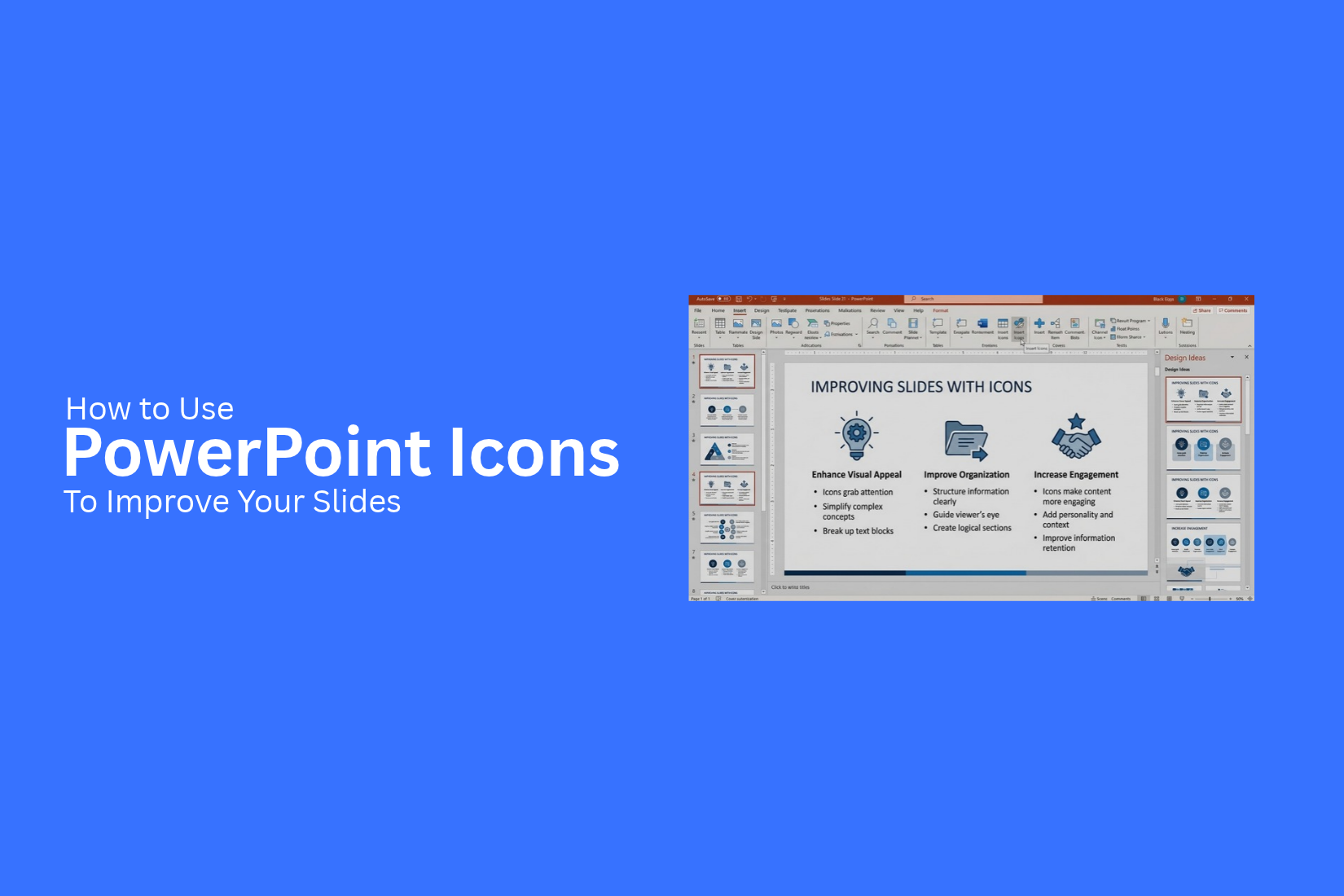
PowerPoint slides can become hard to read when they contain too much text. Long explanations can also make it harder for your audience to follow the main points. Simple visuals can help make your message clearer.
Icons can help your audience understand key ideas at a glance. However, using too many icons or choosing the wrong ones can make your slides look messy. Poor colors and uneven spacing can also affect how your content looks.
PowerPoint icons offer a simple way to present ideas in a visual form. You can add them to titles, lists, charts, and process steps. This guide explains how to insert icons, customize their appearance, and choose the right symbols for your slides. You will also learn how to avoid common mistakes and keep your slides clear and easy to read.
What Are PowerPoint Icons?
PowerPoint icons are small graphics that represent ideas, objects, actions, or topics. They help explain information without using too much text. For example, a chart icon can represent data, while a lightbulb icon can stand for an idea. You can add icons to titles, lists, charts, and other parts of a slide.
PowerPoint offers icons in different styles. You can change their size, color, and position to match your slide design. You can also place them next to text to help viewers understand key points. With the right icons, your slides can look neat and make information easier to follow.
Why Use Icons in PowerPoint Presentations?
Icons help explain ideas in a clear and simple way. They add visual details to your slides without taking up too much space. You can use them to show key points, explain steps, or group related information. Icons also help people understand your message faster.
Here are some reasons to use icons in PowerPoint presentations:
1. Make Slides Easier to Read: Icons help break up large blocks of text. They let your audience scan the slide and find key points with less effort.
2. Explain Ideas Visually: A simple icon can show the meaning of a word or phrase. For example, a clock icon can represent time, while a light bulb can stand for an idea.
3. Keep Slides Clean: Icons can replace some words or short phrases. This helps you share key details without filling the slide with text.
4. Create a Consistent Style: Using icons with a similar design helps your slides look neat and connected. Keep their size, color, and style consistent across the presentation.
5. Highlight Key Information: Place an icon beside an important point to draw attention to it. This helps your audience spot the details that matter most.
Use icons with a clear purpose. Too many icons can make a slide look crowded. Choose symbols that match your message and keep the layout simple.
How to Insert Icons in PowerPoint
PowerPoint has a built-in icon library that you can use to add visual elements to your slides. You can choose an icon, add it to your slide, and adjust its size and position. Follow these steps to use icons in your presentation.
Open the Icons Library
- Open your PowerPoint presentation and select the slide where you want to add an icon.
- Click the Insert tab in the top menu.
- Select Icons to open the icon library.
PowerPoint will show a collection of icons that you can use in your slides. The options may vary based on your PowerPoint version.
Search for the Right Icon
Look through the available icons to find one that matches your topic. You can also use the search box to find an icon by keyword.
For example, search for "team" to find icons for teamwork. Search for "chart" to find icons for data and reports. Choose an icon that fits your message and slide design.
Insert an Icon Into Your Slide
After you find the right icon, select it. You can select more than one icon if needed. Then click Insert to add the selected icons to your slide.
The icon will appear on your slide as a separate object. You can move it, resize it, or change its color. Place it near the text or section it relates to. This helps your audience connect the icon with your message.
Resize and Position the Icon
Select the inserted icon to adjust its size and position. Drag a corner handle to make it larger or smaller while keeping its shape. To move the icon, click and drag it to the right spot. You can place it beside a heading, next to a key point, or inside a chart label. Keep enough space around the icon so the slide stays easy to read. Use a consistent size for icons that serve the same purpose. Also, keep their alignment even across slides. This gives your presentation a clean and organized look.
PowerPoint slides can look plain or crowded with too much text. Readers may find it hard to spot key points or follow your message. A clear slide design helps your audience understand your ideas without extra effort.
Too much text can take attention away from your main message. Slides with few visual elements may also feel dull. Poorly placed icons can create clutter instead of making the content easier to read. The right approach can help you avoid these issues.
PowerPoint icons offer a simple way to improve your slides. You can use them to support key messages, create visual lists, explain steps, and highlight data. This guide shows you how to insert, customize, and use icons to make your slides clear and easy to follow.
How to Customize Icons in PowerPoint
PowerPoint lets you change icons to match your slide design. You can edit their colors, size, fill, and outline. You can also turn some icons into shapes for more editing options. These changes help your icons fit the layout and keep your slides clear.
Change Icon Colors
You can change an icon's color to match your presentation theme. Select the icon and open the Graphics Format tab. Click Graphics Fill to choose a new color. Pick a color that stands out against the slide background. Use the same color style for similar icons across your slides.
Adjust Icon Size and Proportions
Icons should be large enough to see without taking up too much space. Select an icon and drag a corner handle to resize it. This keeps its original proportions. Avoid dragging the side handles, as they may stretch the icon and change its shape. You can also enter exact height and width values from the Graphics Format tab.
Change Icon Outline and Fill
You can change an icon's fill and outline to match your slide style. Select the icon and open the Graphics Format tab. Use Graphics Fill to change the inside color. Select Graphics Outline to change the border color and weight. You can also remove the outline for a cleaner look. Keep the fill and outline colors easy to see against the background.
Convert Icons Into Shapes for Advanced Editing
Some PowerPoint icons can be converted into shapes. This gives you more control over their parts. Select the icon, then use Convert to Shape if the option is available. You can then edit the shape's fill, outline, and points. Some icons may need to be ungrouped before you can edit individual parts. Make a copy of the original icon first so you can restore it if needed.
Creative Ways to Use PowerPoint Icons
PowerPoint icons can make your slides easier to read and understand. They help explain ideas without adding too much text. You can use them in lists, charts, process steps, and section headers. The key is to match each icon with the message you want to share.
Use Icons to Support Key Messages
Icons can help your audience understand the main point of a slide. They give readers a quick visual clue about the topic. For example, use a lightbulb icon for a new idea or a target icon for a business goal.
Place the icon near the text it supports. Keep the size large enough to see, but not so large that it takes attention away from the message. Use a clear label or a short sentence to explain the idea.
Create Visual Lists and Process Steps
Long lists can make slides look crowded. Icons can help break the content into smaller parts. They also make each point easier to spot.
For example, a project plan could use a calendar icon for planning, a gear icon for action, and a checkmark icon for completion. Place each icon beside its related step. Keep the icon style and size consistent across the list.
For process slides, use icons to show each stage from start to finish. Add arrows or lines to show the order. This helps your audience follow the steps without reading long blocks of text.
Design Infographics With Icons
Icons can turn basic facts into a clear visual story. They work well in infographics that explain a topic, compare options, or share key facts.
For example, a slide about customer service could use icons for phone support, email, live chat, and help desks. Add a short label below each icon. Use a simple layout with enough space between each item.
Avoid adding too many icons to one slide. Each icon should support a specific point. A clean layout helps the audience focus on the information.
Use Icons in Charts and Data Slides
Charts help present numbers, but icons can give those numbers more meaning. You can use them to mark key figures, highlight data points, or group related information.
For example, a sales report could use a shopping cart icon near total sales or a person icon beside customer growth. Place icons near the numbers they explain. Keep chart labels and values easy to read.
Use icons with care in data slides. Too many visual elements can make the chart harder to understand. Let the numbers remain the main focus, and use icons only to support the message.
Add Icons to Titles and Section Headers
Icons can help your audience recognize each section of a presentation. They also add visual interest to titles without taking up much space.
For example, use a chart icon for a data section, a team icon for a people section, or a calendar icon for a project timeline. Place the icon beside the title and keep the same alignment across your slides. Choose icons that match the topic of each section. Use a consistent style, size, and color throughout the presentation. This creates a unified look and helps your audience follow the flow of your slides.
How to Choose the Right Icons for Your Slides
The right icons can make your PowerPoint slides easier to read and understand. They can help explain ideas, highlight key points, and guide the audience through your content. However, not every icon fits every slide. Choose symbols that match your topic and support your message.
Match Icons to Your Topic
Choose icons that relate to your slide topic. For example, use a chart icon for data, a clock icon for a timeline, or a person icon for a team slide. These symbols help the audience understand the subject at a glance.
Keep the meaning simple. A symbol that matches the topic can explain an idea faster than a long text label.
Use a Consistent Icon Style
Use icons with a similar look across your slides. For example, choose outline icons for the whole deck instead of mixing them with filled or 3D icons. This creates a clean and organized design.
Pay attention to line weight, shape, and detail. Icons with a similar style help your slides feel connected. You can also use the same colors across related slides to keep the design consistent.
Choose Clear and Recognizable Symbols
Pick icons that people can understand without much effort. Common symbols, such as a house for property or a magnifying glass for search, are often easy to recognize.
Avoid icons with too many small details. They may look unclear on a projector or a small screen. If an icon needs a long explanation, choose a simpler one or add a short text label beside it.
Keep Icons Relevant to the Message
Every icon should serve a clear purpose. Use it to support a key point, explain a concept, or draw attention to useful information. Avoid adding icons just to fill empty space.
For example, a target icon can support a slide about business goals. A shield icon may fit a slide about safety or security. The symbol should help explain the message, not distract from it.
Before adding an icon, ask yourself whether it helps the audience understand the slide. If it adds no value, leave it out.
Common Mistakes to Avoid When Using PowerPoint Icons
PowerPoint icons can help explain ideas and make slides easier to read. However, poor choices can make a presentation look messy. A few simple changes can help you keep your slides clear and neat.
Using Too Many Icons on One Slide
Too many icons can distract your audience from the main message. Each icon adds another visual element to the slide. A crowded layout can make it hard to follow your key points.
Use only the icons that support your message. Remove any icon that does not add useful meaning. Leave enough empty space around each element so the slide feels clean and easy to read.
Mixing Different Icon Styles
Icons may have different shapes, line weights, and levels of detail. Mixing these styles can make your slides look uneven. For example, a thin line icon may look out of place beside a bold, filled icon.
Choose icons from the same style or set. Keep their visual details consistent across the presentation. This creates a more unified look and helps your audience focus on the content.
Choosing Icons That Do Not Match the Message
An icon should help explain the idea next to it. A poor choice can confuse your audience or send the wrong message. For example, a shopping cart may not be the best choice for a slide about customer support.
Pick icons based on their meaning, not just their appearance. Make sure the symbol relates to the text or topic. Use a short label beside an icon if its meaning is not clear on its own.
Using Poor Colors or Low Contrast
Colors affect how easily people can see your icons. An icon with a color close to the background may be hard to notice. Too many bright colors can also take attention away from the main content.
Choose colors that stand out against the background. Use a small color palette that matches your presentation theme. Check each slide in presentation mode to make sure the icons remain clear and easy to see.
Ignoring Alignment and Spacing
Icons can look out of place if they are not aligned with nearby text or other visual elements. Uneven spacing can also make a slide appear messy. These small details can affect the overall look of your presentation.
Use PowerPoint's alignment tools to position icons evenly. Keep the gaps between icons consistent. Match their size across similar sections. A clean layout helps your audience scan the slide and follow your main points.
Tips for Using PowerPoint Icons Effectively
PowerPoint icons can help your audience understand your slides faster. Good icon choices also make your content easier to read. Follow these tips to keep your slides clear and neat.
Keep Icons Simple and Easy to Recognize
Choose icons with clear shapes and familiar meanings. Simple icons are easier to understand at a glance. Avoid designs with too many small details. They may be hard to see on a slide.
For example, use a clock icon to show time or a location pin to mark a place. Make sure each icon matches the message you want to share.
Pair Icons With Short Labels
An icon may not explain your message on its own. Add a short label to make its meaning clear. This works well for business steps, team roles, key features, and service lists.
Use words that explain the icon in a few seconds. For example, pair a person icon with the label "Team Members." Keep labels short so they do not take up too much space.
Maintain Consistent Sizes and Colors
Use icons of similar sizes across your slides. This creates a neat layout and helps your audience focus on the content. Make key icons larger only when you need to draw attention to them.
Keep your color choices consistent, too. For example, use blue icons for business topics and green icons for growth or progress. Choose colors that fit your slide theme. Avoid using too many colors on one slide.
Use White Space to Improve Readability
Give each icon enough room around it. Crowded layouts can make icons and text hard to read. White space helps each item stand out and keeps your slides organized.
Leave space between icons, labels, and other slide elements. Align related items and keep even gaps between them. You do not need to fill every empty area. A clean layout often makes your message easier to follow.
Check Icon Visibility in Slide Shows
An icon may look clear while you edit a slide but appear too small during a presentation. Check your slides in Slide Show mode before sharing them with an audience.
Make sure each icon is large enough to see from a distance. Check its contrast against the background. Dark icons may be hard to see on dark backgrounds. Light icons may disappear on light ones. Adjust the size or color as needed.
Also, check that icons stay sharp and do not cover nearby text. A quick review can help you catch these issues before your presentation begins.
Where to Find More Icons for PowerPoint
PowerPoint has a built-in icon library, but you may need more options for your slides. You can use other icon sources to find designs that match your topic and style.
Here are a few ways to find more icons:
- Use online icon libraries: Search for icons that fit your slide content. Look for simple designs that are easy to read.
- Download SVG icons: SVG files work well for presentations because you can resize them without losing image quality. You can also change their colors in PowerPoint if the file supports editing.
- Use PNG icons: PNG files are useful for icons with a fixed design. Choose a high-resolution file to keep the icon clear on your slide.
- Check the license: Review the usage rules before adding an icon to your presentation. Some icons are free for personal use but require payment or credit for other uses.
Keep your icon style consistent across the deck. Use similar colors, shapes, and line styles. This helps your slides look clean and keeps the focus on your main message.
Final Notes
PowerPoint icons can help you present ideas in a clear and simple way. They break up long text, highlight key points, and make lists, charts, and process steps easier to follow. The right icons also help your slides look neat and consistent.
Choose icons that match your message. Keep their size, color, and style consistent across the presentation. Use short labels to explain unclear symbols, and leave enough space around each icon. Avoid adding extra graphics that do not support your content.
Before presenting, review each slide in Slide Show mode. Check the icon size, color contrast, alignment, and spacing. Small changes can make your slides easier to read and help your audience focus on the main message.
FAQs
1. What are PowerPoint icons?
PowerPoint icons are small graphics that represent ideas, objects, actions, or topics. You can use them to explain key points, support text, and make slides easier to read.
2. How do I insert icons in PowerPoint?
Open your presentation and select a slide. Go to the Insert tab and click Icons. Choose an icon from the library, then click Insert to add it to your slide.
3. Can I change the color of icons in PowerPoint?
Yes. Select an icon and open the Graphics Format tab. Use Graphics Fill to change its color. You can also adjust the outline if the option is available.
4. Can I edit individual parts of a PowerPoint icon?
Yes. Some icons can be converted into shapes for more editing options. Select the icon and use Convert to Shape if available. You may then be able to edit individual parts, including their fill and outline.
5. How do I choose the right icons for my slides?
Choose icons that match your topic and message. Use familiar symbols with clear shapes. For example, a clock can represent time, while a target can represent a goal. Add a short label if the meaning is unclear.
6. Can I use icons in PowerPoint charts and infographics?
Yes. Icons can highlight key figures, group related facts, and explain different parts of an infographic. Keep them near the information they support. Avoid adding too many graphics to one slide.
7. How do I keep PowerPoint icons consistent across slides?
Use icons with a similar style, size, and color. Keep their alignment and spacing consistent. Choose outline icons or filled icons for a unified look across your presentation.
8. Can I add downloaded icons to PowerPoint?
Yes. You can add downloaded SVG and PNG files to your slides. SVG files can be resized without losing image quality. Some SVG icons also allow color changes in PowerPoint. PNG files work well for fixed designs.
9. Why do my PowerPoint icons look blurry?
Blurry icons may come from low-resolution image files. Use SVG files or high-resolution PNG images to keep icons clear. Check their appearance in Slide Show mode before presenting.
10. How many icons should I use on one PowerPoint slide?
Use only the icons needed to explain your main points. There is no fixed number for every slide. Keep enough space between icons and text so your audience can read the content with ease.




You may also be interested in ...

How To Create An Eye-Catching Portfolio
If you’re looking to create an eye-catching portfolio, this post will come in handy. In this article, you can find the easies...
23 Jun, 2024

How To Easily Create An Infographic
Infographics are the perfect way to make a presentation that will impact an audience, but their design and composition might...
08 Jun, 2024

PowerPoint Template Tips & Tricks You Ne...
PowerPoint seems to be an unknown world for many people, especially those who have been assigned to create a presentation out...
08 Jun, 2024