How to Design a Professional Product Catalog in PowerPoint
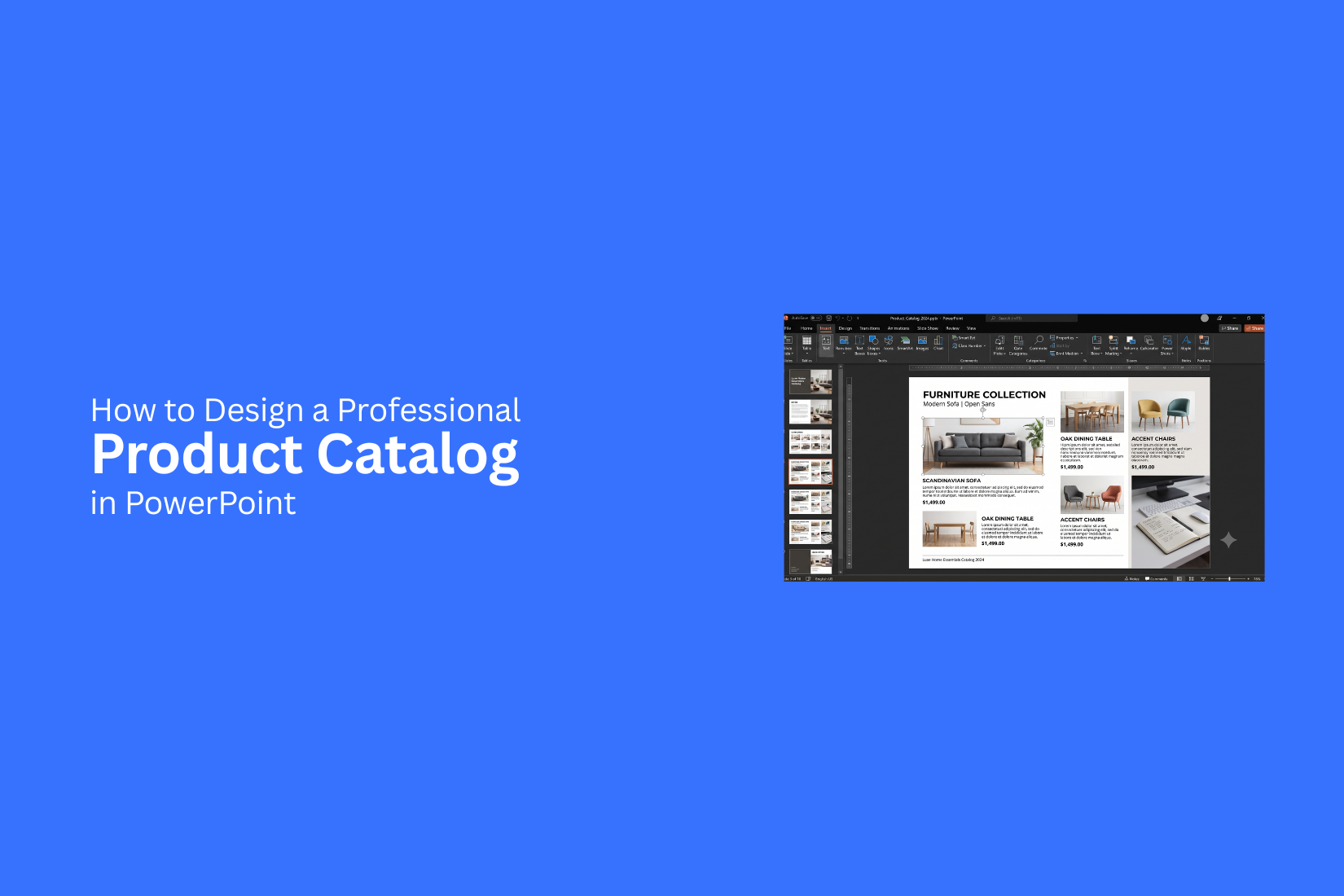
Creating a professional product catalog in PowerPoint can be challenging for many users. A catalog needs clear layouts, organized product details, and strong visuals to present items well. Poor design choices can make information harder to follow and reduce the impact of the catalog itself. A simple approach helps fix these issues by focusing on layout, images, and product information placement. Without a clear structure, pages may look uneven and confuse readers. This guide explains how to design a professional product catalog in PowerPoint step by step. It covers layout planning, design tips, useful PowerPoint features, interactive elements, and sharing methods to help create a clear and effective catalog for different product types.
What Is a Product Catalog in PowerPoint?
A product catalog in PowerPoint is a digital document that displays products in a clear and organized format. It combines product images, descriptions, prices, features, and other details into a set of slides.
Businesses use PowerPoint catalogs to present their products to customers, sales teams, or partners. Each slide can highlight a single product or a group of related items. This makes it easier for viewers to compare options and understand what a product offers.
A well-designed PowerPoint product catalog works like a digital brochure. It uses visual layouts, consistent colors, and easy-to-read text to create a professional look. The format also allows users to edit product details, update images, and add new items without creating a new file.
PowerPoint is a useful choice for product catalogs because it offers many design tools. Users can arrange images, create product sections, add charts or icons, and adjust layouts based on their needs. The finished catalog can be shared as a presentation file or exported as a PDF for easy viewing.
A product catalog should do more than list items. It should help customers understand the value of each product and make better buying decisions. A clear structure and clean design can make the catalog easier to use and more effective.
Essential Elements of a Professional Product Catalog
A professional product catalog needs more than product images and prices. It should help customers understand your products and make buying decisions with ease. A clear layout, useful details, and a strong visual style create a better catalog experience.
Clear Product Images
High-quality images are one of the first things people notice in a catalog. Use sharp photos that show the product from the right angles. Keep image sizes consistent across pages to create a clean look.
Product Names and Descriptions
Each product should have a clear name and short description. Explain key features, sizes, materials, colors, or other details customers need to know. Avoid long blocks of text. Simple descriptions make information easier to read.
Pricing Information
Add clear pricing for each product. Place prices near product names or images so readers can find them quickly. Use a consistent format for all prices across the catalog.
Organized Product Categories
Group similar products together to help readers find items faster. Use category pages, section titles, or page dividers to create a simple browsing path. A well-organized catalog feels easier to use.
Brand Elements
Include your brand name, logo, colors, and fonts throughout the catalog. These elements help create a consistent look. Use them in a balanced way so they support the products instead of distracting from them.
Product Details and Specifications
Customers often need extra details before making a choice. Add product codes, dimensions, technical information, or available options based on your product type. Present these details in a simple format, such as tables or bullet points.
Contact and Ordering Information
A catalog should guide customers on what to do next. Add contact details, website information, store locations, or ordering steps. Make this information easy to find on the last page or in the footer.
A strong product catalog combines useful information with clean design. Each element should work together to create a professional and easy-to-read presentation in PowerPoint.
How to Design a Professional Product Catalog in PowerPoint Step by Step
A product catalog needs a clean structure and easy navigation. PowerPoint gives you the tools to create a catalog that looks organized and professional. Each slide can highlight your products with clear visuals, helpful details, and a consistent style. Follow these steps to build a product catalog that is easy for customers to view and understand.
Choose the Right Slide Size
The slide size affects how your catalog looks on different screens and devices. Start by selecting a format that fits your purpose. For a digital catalog, a widescreen layout with a 16:9 ratio works well. It gives you enough space for product images, text, and design elements. A standard layout can work for catalogs that need a more traditional page style. Set your slide size before adding content. Changing it later can move images and text boxes out of place.
Create a Catalog Layout Structure
A strong layout keeps each product page easy to follow. Plan the structure before designing individual slides. Start with a cover slide that shows your brand name, catalog title, and a strong product image. Add category pages to group similar products. Use product slides with the same format throughout the catalog.
Keep key areas consistent, such as:
• Product image placement
• Product name location
• Price or key details section
• Description area
• Contact information
A consistent layout helps readers find details faster.
Add and Arrange Product Images
Product images are one of the most important parts of a catalog. Use clear, high-quality images that show the product from the best angle. Place images where they get attention without making the slide feel crowded. Keep similar image sizes across product pages for a clean look.
You can use PowerPoint tools to improve image placement:
• Crop images to fit the layout
• Remove unwanted backgrounds
• Align multiple images evenly
• Add simple borders or effects
Avoid adding too many images on one slide. A focused design helps each product stand out.
Format Product Information
Product details should be easy to read. Use short descriptions and highlight the most useful information.
Include details such as:
• Product name
• Features
• Price
• Size or specifications
• Contact or ordering details
Use clear fonts and proper spacing. Keep headings larger than body text. Use bullet points to break down important features. Avoid filling the slide with long paragraphs. Customers should find key details with a quick glance.
Use Shapes and Icons for Better Design
Shapes and icons can improve the visual structure of your catalog. They help separate information and guide attention.
PowerPoint includes many shapes that you can use for:
• Price tags
• Feature highlights
• Section labels
• Callout boxes
Icons can also help explain product features without adding extra text. Use simple icons that match your catalog style.
Keep your design balanced. Too many shapes or icons can make the slide look busy.
Add Navigation Elements
Navigation elements help readers move through your catalog easily. They are useful for longer presentations with many products.
You can add:
• Page numbers
• Category labels
• Menu links
• Back and next buttons
PowerPoint hyperlinks can connect slides and create an interactive catalog. This makes it easier for viewers to jump between sections. A clear navigation system creates a smoother browsing experience and helps users find products quickly.
PowerPoint Design Tips for a Professional Product Catalog
A good product catalog should look clean and be easy to read. Every slide should help people find product details without effort. A simple design also makes your products look more professional. These tips can help you build a catalog that looks polished and stays easy to update.
Keep the Layout Clean and Organized
A clean layout helps readers stay focused on your products. Place similar items in the same position on every slide. Keep product names, images, prices, and descriptions in a fixed order. Use grids or guides to line up every element. This keeps the design balanced and neat. Avoid filling the slide with too many objects. A simple layout gives each product enough room to stand out. If your catalog has many pages, use the same layout style from start to finish. This creates a smooth reading experience.
Use High-Quality Product Images
Product images are often the first thing people notice. Clear and sharp photos help build trust in your products. Blurry or stretched images can make the catalog look unprofessional. Use photos with a similar size and style. Keep the background clean if possible. Crop images carefully so the main product stays easy to see. Leave enough space around each image. This keeps every product easy to view without making the slide feel crowded.
Maintain Font and Color Consistency
A consistent design helps readers move through the catalog without distractions. Pick one or two fonts and use them across every slide. Use one style for headings and another for product details. Choose a small color palette that matches your brand. Apply the same colors to headings, buttons, icons, and other design elements. Too many colors can make the catalog look messy. Keep font sizes consistent for similar content. Readers can scan each page much faster if every section follows the same pattern.
Use White Space Effectively
White space is the empty area around text and images. It gives each element room to breathe and makes the slide easier to read. Leave space between products, text blocks, and images. Avoid placing items too close together. A balanced design feels cleaner and helps readers focus on the most important details. Small gaps can make a big difference. Even a little extra space can improve the overall look of the catalog.
Create a Clear Visual Hierarchy
A visual hierarchy tells readers where to look first. Make product names the most visible text on the slide. Use smaller text for descriptions and extra details. You can also use size, bold text, and color to show the order of importance. Keep this pattern the same throughout the catalog. A clear hierarchy helps readers scan each page quickly. They can find product information without searching through large blocks of text.
Common Mistakes to Avoid When Designing a Product Catalog
A good product catalog does more than display products. It helps people find what they need without confusion. Small design mistakes can make a catalog look unprofessional and harder to use. Here are some common problems and simple ways to avoid them.
Adding Too Much Text
Long blocks of text make a catalog feel crowded. Most people scan product pages instead of reading every word. A page filled with text can hide the details that matter most. Keep each product description short and direct. Focus on the key features, main benefits, and important specifications. Use bullet points if they make the content easier to read. Leave enough white space so every section feels clean and organized.
Using Poor-Quality Images
Product images often catch attention before the text does. Blurry, dark, or stretched images can lower trust in your catalog. They also make products look less appealing. Use clear, high-resolution images with good lighting. Keep image sizes and styles consistent across every page. Crop photos carefully so each product stays the main focus. A clean image helps customers understand the product at a glance.
Creating Inconsistent Layouts
A catalog should feel connected from the first page to the last. Random font styles, different image sizes, and uneven spacing can make the design look messy. Pick one layout and use it throughout the catalog. Keep headings, product images, colors, and text boxes in the same positions whenever possible. A consistent design helps readers move through the catalog with less effort.
Ignoring Digital Viewing Experience
Many people view product catalogs on laptops, tablets, or phones. A design that works well in print may not look good on a screen. Use font sizes that are easy to read. Leave enough space between elements so pages do not feel crowded. Test the catalog on different screen sizes before sharing it. Simple navigation also helps readers move between sections without frustration.
Forgetting to Update Product Information
An outdated catalog can create confusion. Old prices, discontinued products, or incorrect contact details may lead to missed sales and unhappy customers. Review the catalog before publishing it. Check prices, product names, descriptions, and images for accuracy. Remove products that are no longer available and add new items as needed. Regular updates keep your catalog useful and trustworthy.
Best PowerPoint Features for Product Catalog Design
PowerPoint has several built-in tools that make catalog design easier. These features help you keep every page clean, organized, and easy to read. They also save time while giving your catalog a polished look.
Slide Master
The Slide Master helps you keep every slide the same. You can set your fonts, colors, logos, and layouts once. Those settings appear on every slide that uses the master layout. This feature is useful for product catalogs with many pages. It keeps product titles, images, and text in the same position across the entire file. That creates a clean and professional design. You can also update the Slide Master later. One change updates every slide that uses that layout. This saves time and reduces editing work.
PowerPoint Designer
PowerPoint Designer gives layout ideas based on the content you add. After placing your images and text, it suggests different slide designs. This feature works well if you need design ideas or want to build slides more quickly. You can use the suggested layouts as they are or adjust them to match your brand. Designer is also helpful for keeping slides balanced. It places images and text in a way that looks neat and easy to scan.
Image Editing Tools
A product catalog depends on clear product photos. PowerPoint includes simple image editing tools that help improve your pictures without leaving the program.
You can:
• Crop images to remove unwanted areas.
• Adjust brightness and contrast.
• Add soft shadows or borders.
• Keep all product images the same size.
Using the same image style across the catalog creates a clean and consistent look.
SmartArt and Shapes
SmartArt and Shapes help you organize product details in a clear way. They also make each slide easier to read.
Shapes work well for:
• Price tags
• Product labels
• Feature boxes
• Callout sections
• Category headers
SmartArt is useful for showing product groups, feature lists, or simple processes. It turns plain text into visual content that readers can scan quickly.
Hyperlinks and Interactive Elements
If your catalog will be shared as a PDF or PowerPoint file, interactive elements can improve the reader's experience.
You can add hyperlinks to:
• Product pages
• Company website
• Contact page
• Email address
• Online store
You can also create buttons that move readers to different sections of the catalog. A linked table of contents makes large catalogs much easier to use. These simple features help readers find products faster without scrolling through every slide.
How to Make Your Product Catalog More Interactive
A product catalog should do more than show products. It should help people move from one page to another with ease. It should also make it simple to find details and take action. PowerPoint gives you several tools that help turn a basic catalog into a more useful one.
Add Clickable Links
Clickable links help readers move to the right place with one click. You can link text, images, shapes, or icons to another slide in the catalog. You can also link to a product page, contact form, or order page. Place links where people expect them. A product image can open a larger view. A "Learn More" button can lead to extra details. Keep link text short and clear. Test every link before you share the file.
Include Product Videos
Some products need more than a photo. A short video can show how a product works or how it looks from different angles. This helps readers understand the product in less time. Keep each video short and focused. Place it near the related product so readers do not have to search for it. Add a play icon or a short label to show that a video is available.
Create Interactive Buttons
Interactive buttons make your catalog easier to use. They give readers a quick way to move through the slides or open more product details. Use simple buttons such as "View Details," "Next Product," "Previous," or "Back to Catalog." Make every button the same style and place it in the same spot on each slide. This helps readers know where to click every time.
Add Navigation Menus
A navigation menu helps readers jump to different sections without scrolling through every slide. This works well for large product catalogs with many categories. Place the menu on the first slide or keep a small version on every page. Add links to each product category or section. Use short labels that are easy to read. A clear menu saves time and makes the catalog easier to use from start to finish.
How to Export and Share Your Product Catalog
Your catalog is ready. The next step is getting it into the right format. A good export keeps your design clear on every screen and every page. PowerPoint gives you several ways to share your catalog based on your needs.
Save as PDF
PDF is one of the best formats for a product catalog. It keeps your layout, fonts, and images in place. This helps your catalog look the same on different devices.
Follow these steps:
- Select File.
- Click Save As or Export.
- Choose PDF as the file type.
- Pick the folder where you want to save it.
- Click Save.
Open the PDF after saving it. Check every page. Make sure the text is easy to read, the images look clear, and the spacing stays the same.
Share Digitally
A digital catalog is easy to send to customers, team members, or business partners. You can attach the PDF to an email or upload it to your website. It also works well with cloud storage and messaging apps.
Keep the file size as small as possible without lowering image quality too much. A smaller file opens faster and is easier to download. Before sending your catalog, test it on a computer, tablet, and phone. This helps you catch any display issues before your audience sees it.
Prepare for Printing
A printed catalog needs extra attention. Review each page one more time before sending it to print.
Check these items:
• Make sure all images are high quality.
• Keep text away from the page edges.
• Use the same margins on every page.
• Check that colors look consistent.
• Review every page for spelling or layout mistakes.
Print a sample copy first. Hold it in your hands and flip through every page. Small problems are much easier to fix before printing a large number of catalogs.
Recommended Tools for Creating Product Catalogs
The right tool can save time and help you keep your catalog neat. Some tools work better for slide design. Others help with image editing or teamwork. You can also use more than one tool during the project.
Here are some popular options.
Microsoft PowerPoint
PowerPoint is a solid choice for product catalogs. It gives you full control over each slide. You can add product photos, text, icons, shapes, tables, and charts with ease. Slide Master also helps you keep every page in the same style. This makes it a good option for both print and digital catalogs.
Google Slides
Google Slides works well for teams. Several people can edit the same file at the same time. Your work saves automatically, so there is less risk of losing changes. It also makes sharing and getting feedback simple.
Canva
Canva offers many ready-made layouts and design elements. You can drag and drop images, change colors, and edit text with little effort. It is a good choice for users who want a simple design process.
Adobe Photoshop
Photos play a big role in any product catalog. Adobe Photoshop helps you edit product images before placing them into your slides. You can remove backgrounds, adjust colors, crop photos, and improve image quality.
Adobe Illustrator
Some catalogs use custom icons, logos, or product drawings. Adobe Illustrator is useful for creating clean graphics that stay sharp at any size. You can export these graphics and place them into your PowerPoint slides.
Free Icon and Image Resources
Icons and high-quality images make a catalog easier to scan. Pick graphics that match your brand style. Keep the same icon style and image quality across every page for a clean look.
PDF Export Tools
Most product catalogs are shared as PDF files. Before sending your catalog, export it as a PDF to keep the layout, fonts, and images in place. This also makes the file easier to view on different devices. You do not need every tool on this list. PowerPoint alone can handle most catalog projects. Extra tools become useful if you need better photo editing, custom graphics, or team collaboration.
Final Thoughts
A professional product catalog should make it easy for people to view your products and find the details they need. A clean layout, clear images, consistent formatting, and simple navigation all help create a better reading experience. Small design choices can make a big difference in how your catalog looks and how easy it is to use.
PowerPoint gives you the tools to build, edit, and update a catalog without using complex design software. You can organize products, keep every slide consistent, add interactive features, and export the finished file for digital sharing or printing. Start with a clear structure. Keep each page simple. Review your catalog before sharing it. A well-designed product catalog presents your products in a clear and organized way and helps readers move through the information with ease.
FAQs
1. Can I create a professional product catalog in PowerPoint?
Yes. PowerPoint lets you create a clean and organized product catalog with images, product details, pricing, icons, and consistent layouts. You can also export the finished catalog as a PDF.
2. What should a product catalog include?
A product catalog should include product images, names, descriptions, prices, specifications, product categories, brand elements, and contact or ordering information.
3. What is the best slide size for a PowerPoint product catalog?
A 16:9 widescreen layout works well for most digital catalogs. Pick your slide size before adding content to keep the layout consistent.
4. How do I make my product catalog look professional?
Use high-quality images, keep the same layout on every slide, use consistent fonts and colors, leave enough white space, and organize product information clearly.
5. Can I add clickable links to a PowerPoint product catalog?
Yes. You can add hyperlinks to other slides, product pages, websites, email addresses, or online stores. This makes the catalog easier to use.
6. How do I share a PowerPoint product catalog?
You can share it as a PowerPoint presentation or export it as a PDF. A PDF keeps the layout and formatting the same across different devices.
7. Which PowerPoint features are useful for creating a product catalog?
Useful features include Slide Master, PowerPoint Designer, image editing tools, SmartArt, Shapes, and hyperlinks. These tools help create a clean and consistent catalog.
8. How often should I update my product catalog?
Review your catalog regularly. Update product images, prices, descriptions, specifications, and contact details to keep the information accurate.
9. Can I create a product catalog for printing in PowerPoint?
Yes. PowerPoint can be used for both digital and printed catalogs. Check image quality, spacing, margins, and page layout before printing.
10. Is PowerPoint a good choice for small business product catalogs?
Yes. PowerPoint is a practical option for small businesses because it is easy to edit, simple to update, and suitable for creating both digital and printable product catalogs.


You may also be interested in ...

How To Create An Eye-Catching Portfolio
If you’re looking to create an eye-catching portfolio, this post will come in handy. In this article, you can find the easies...
23 Jun, 2024

How To Easily Create An Infographic
Infographics are the perfect way to make a presentation that will impact an audience, but their design and composition might...
08 Jun, 2024

PowerPoint Template Tips & Tricks You Ne...
PowerPoint seems to be an unknown world for many people, especially those who have been assigned to create a presentation out...
08 Jun, 2024