How to Add Hyperlinks in Google Slides – Quick Tutorial
Adding hyperlinks in Google Slides can feel tricky if you’re not sure where to start. Many users struggle with making text, images, or objects clickable, which can slow down presentations and confuse the audience. Without clear guidance, even small mistakes can make links stop working or lead to the wrong slide.
Fortunately, adding hyperlinks is simpler than it seems. With a few easy steps, you can link text, images, slides, or websites without hassle. By mastering these techniques, your slides become more interactive, easy to navigate, and professional. This tutorial will guide you through every method, so your presentations work smoothly and leave a strong impression.
What Are Hyperlinks in Google Slides
Hyperlinks are links that take you to another slide, a website, or a document. They make presentations more interactive. You can click a link to jump directly to the content you want. Hyperlinks save time and keep your slides organized. They are easy to add and can help guide your audience through your presentation smoothly.
Why Use Hyperlinks in Google Slides
Hyperlinks make your slides more interactive. They let viewers jump to another slide, website, or document with a single click. This saves time and keeps the presentation organized. Links can guide your audience to extra resources or related information. They also make it easier to navigate long presentations without losing track. Using hyperlinks can help your slides feel more professional and connected.
How to Add Hyperlinks in Google Slides
Hyperlinks help your slides connect to websites, other slides, or files. They make your presentation interactive and easy to navigate.
Add a Link to Text
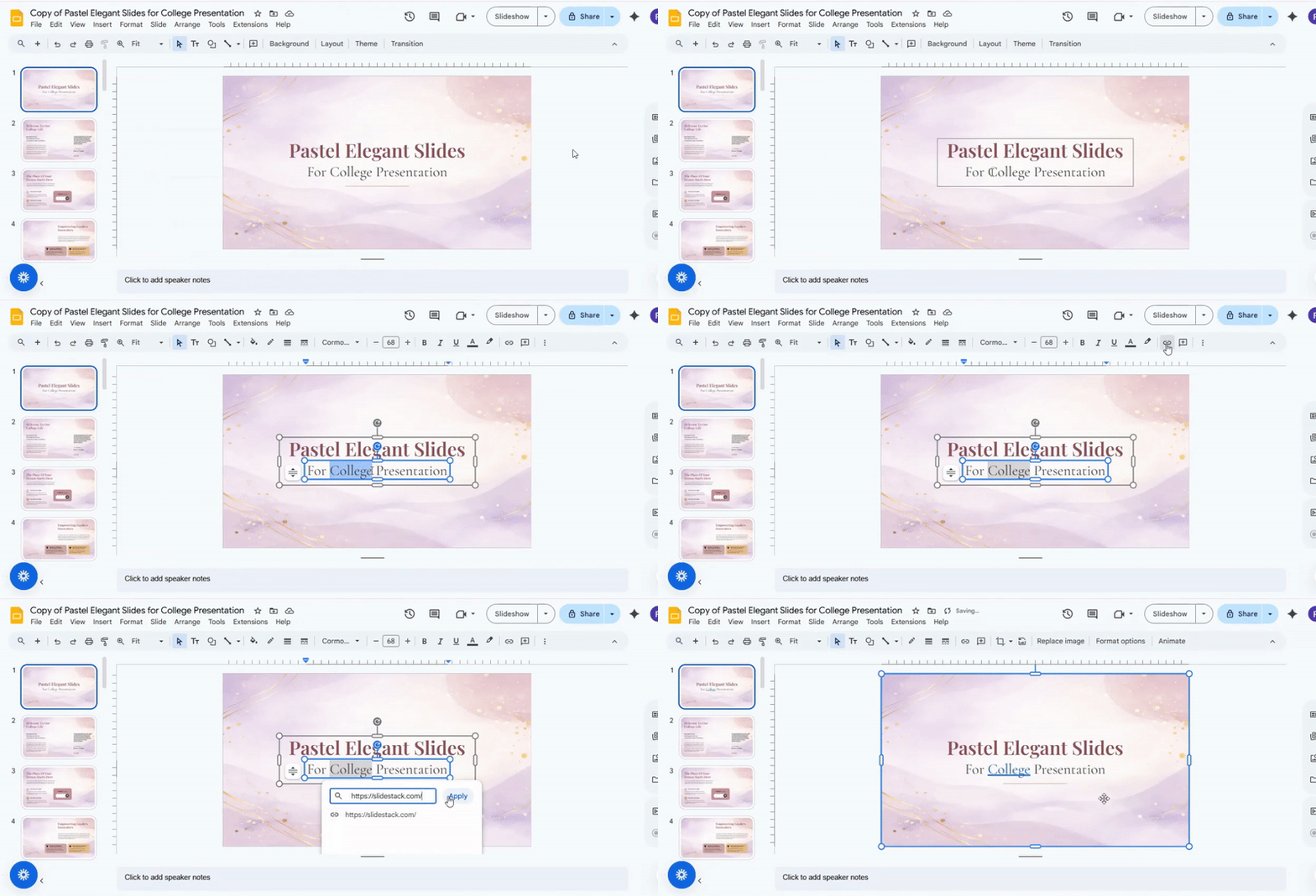
Select the words you want to link. Click the link icon in the toolbar. Type or paste the URL. Press Enter to make the text clickable.
Add a Link to an Image or Object
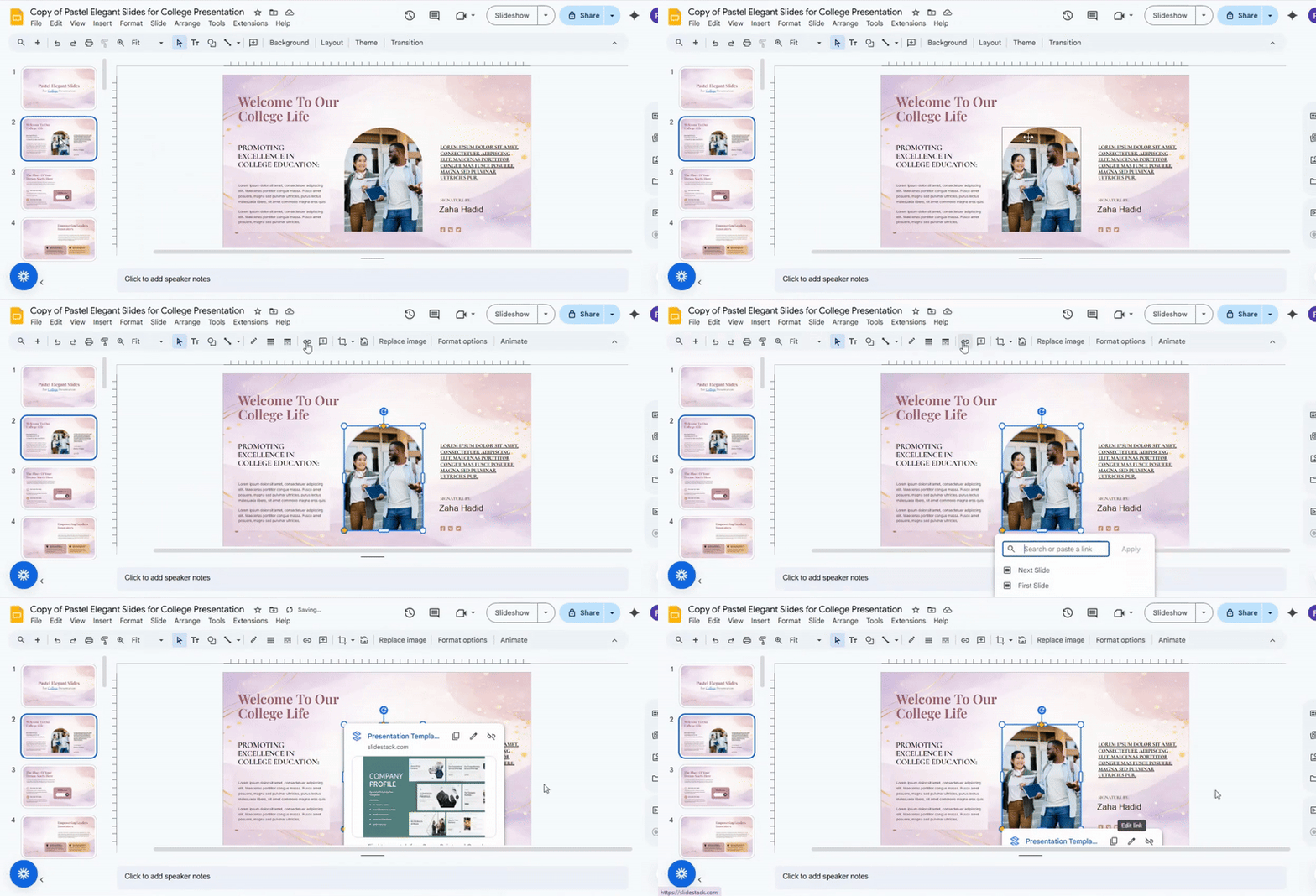
Click the image or shape you want to link. Click the link icon. Enter the URL and press Enter. Now, clicking the image or object will open the link.
Add a Link to Another Slide
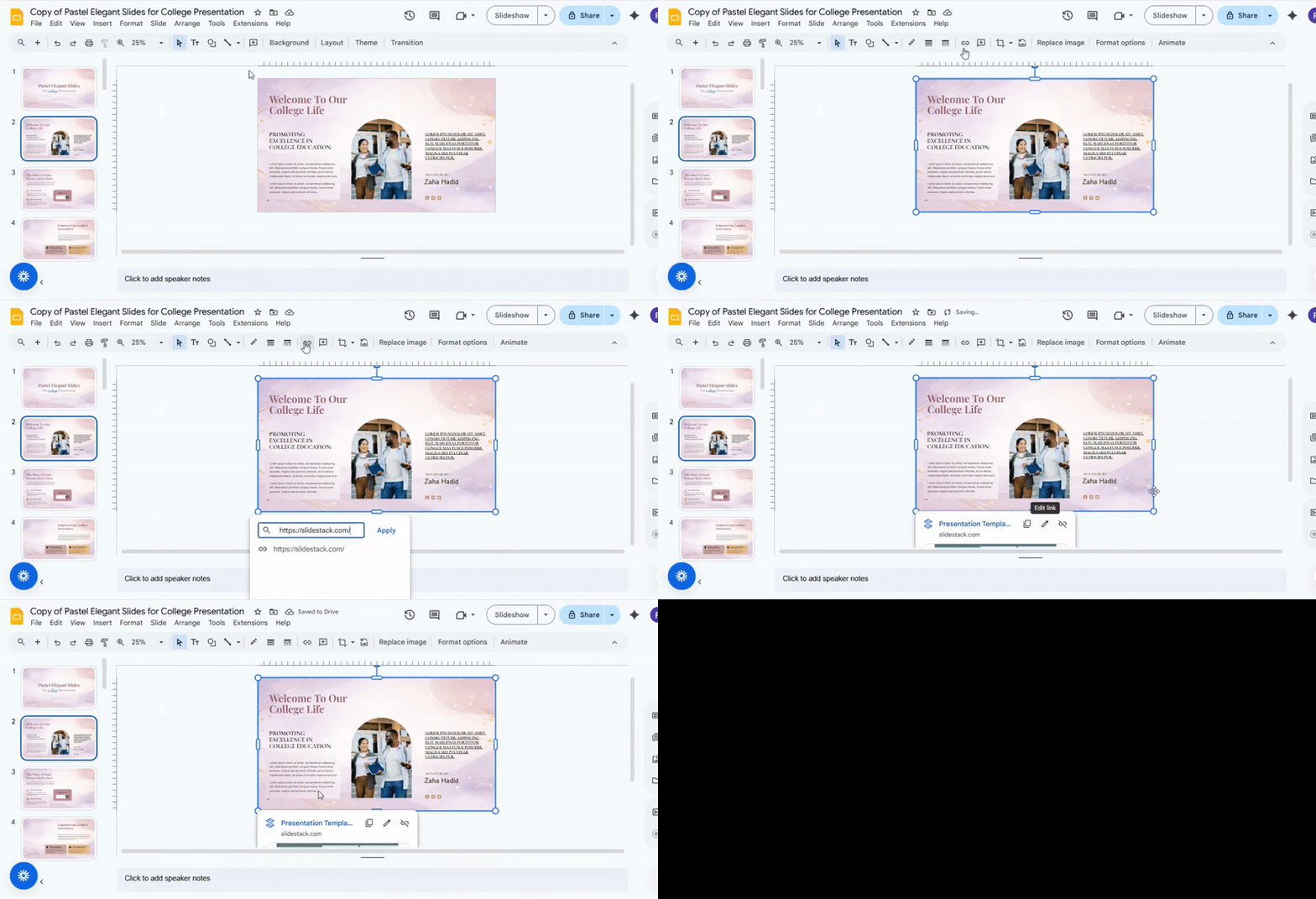
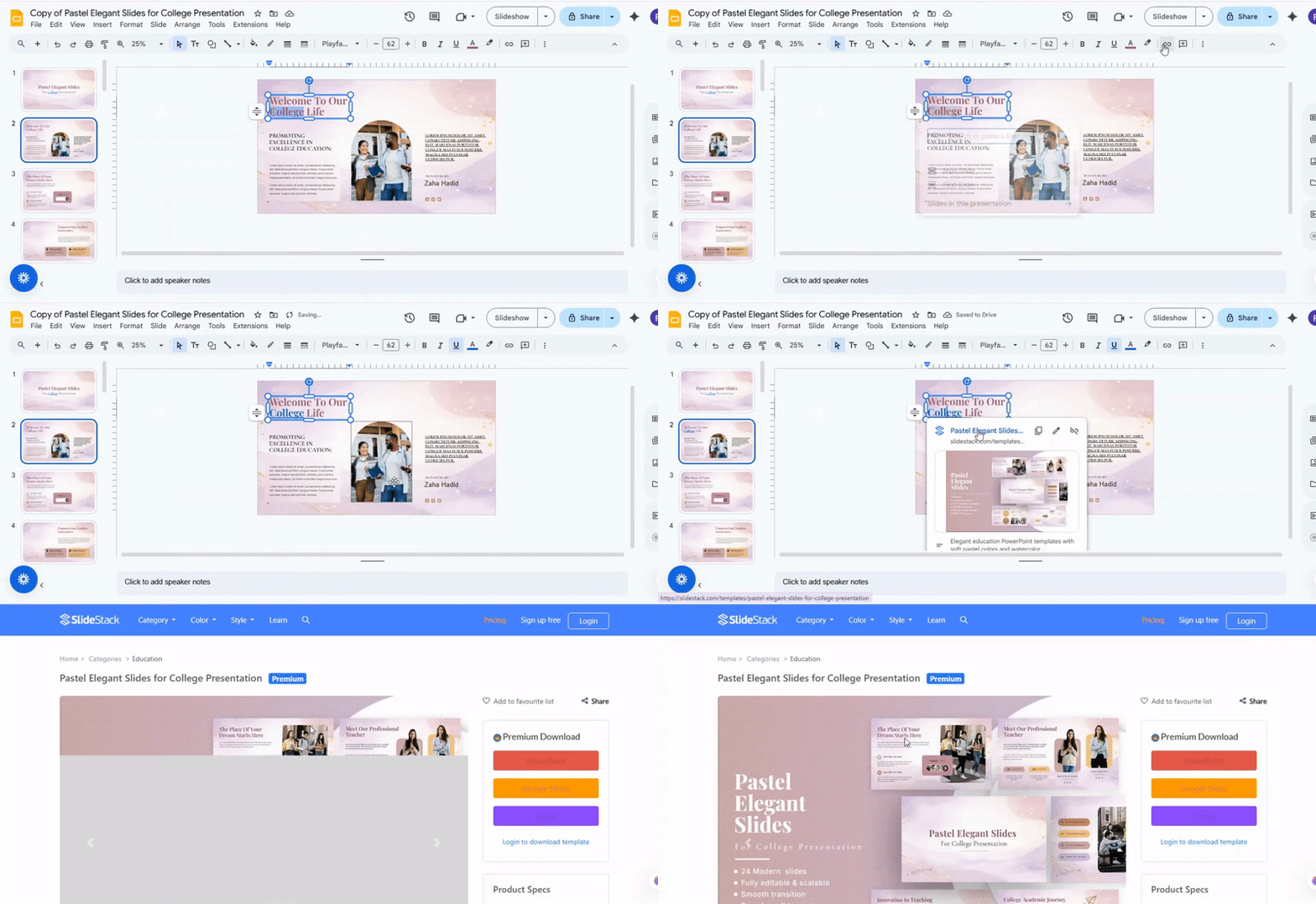
Select your text, image, or shape. Click the link icon. Choose “Slides in this presentation.” Pick the slide to link to and click Apply. This helps your audience move between slides easily.
Add a Link to a Website URL
Select the item you want to link. Click the link icon. Paste the website address and press Enter. This opens the page directly from your slide.
Add a Link Using the Insert Menu
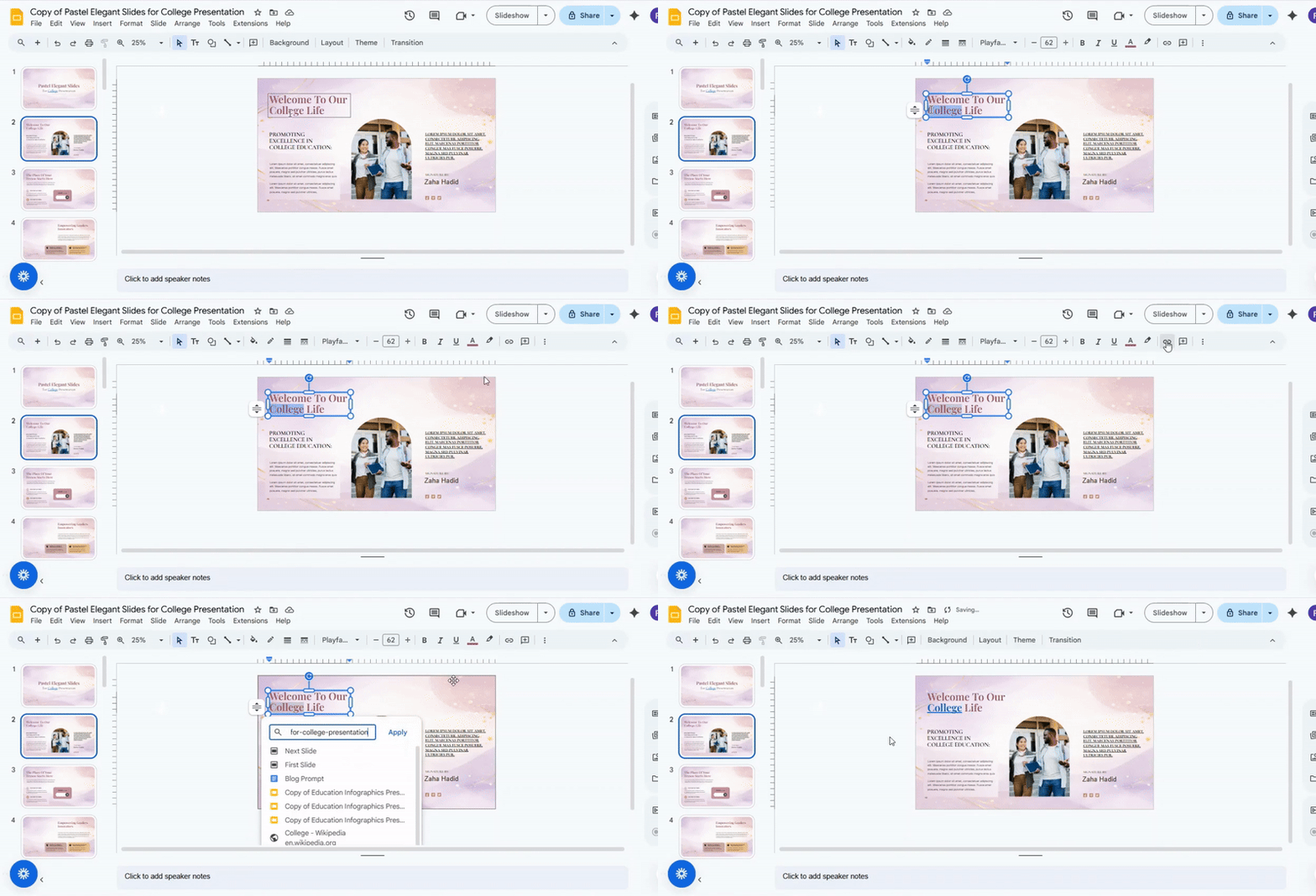
Go to the top menu and click “Insert.” Choose “Link.” Enter the URL or select a slide. Click Apply. This method works for both text and objects.
Add a Link Using Right-Click Menu
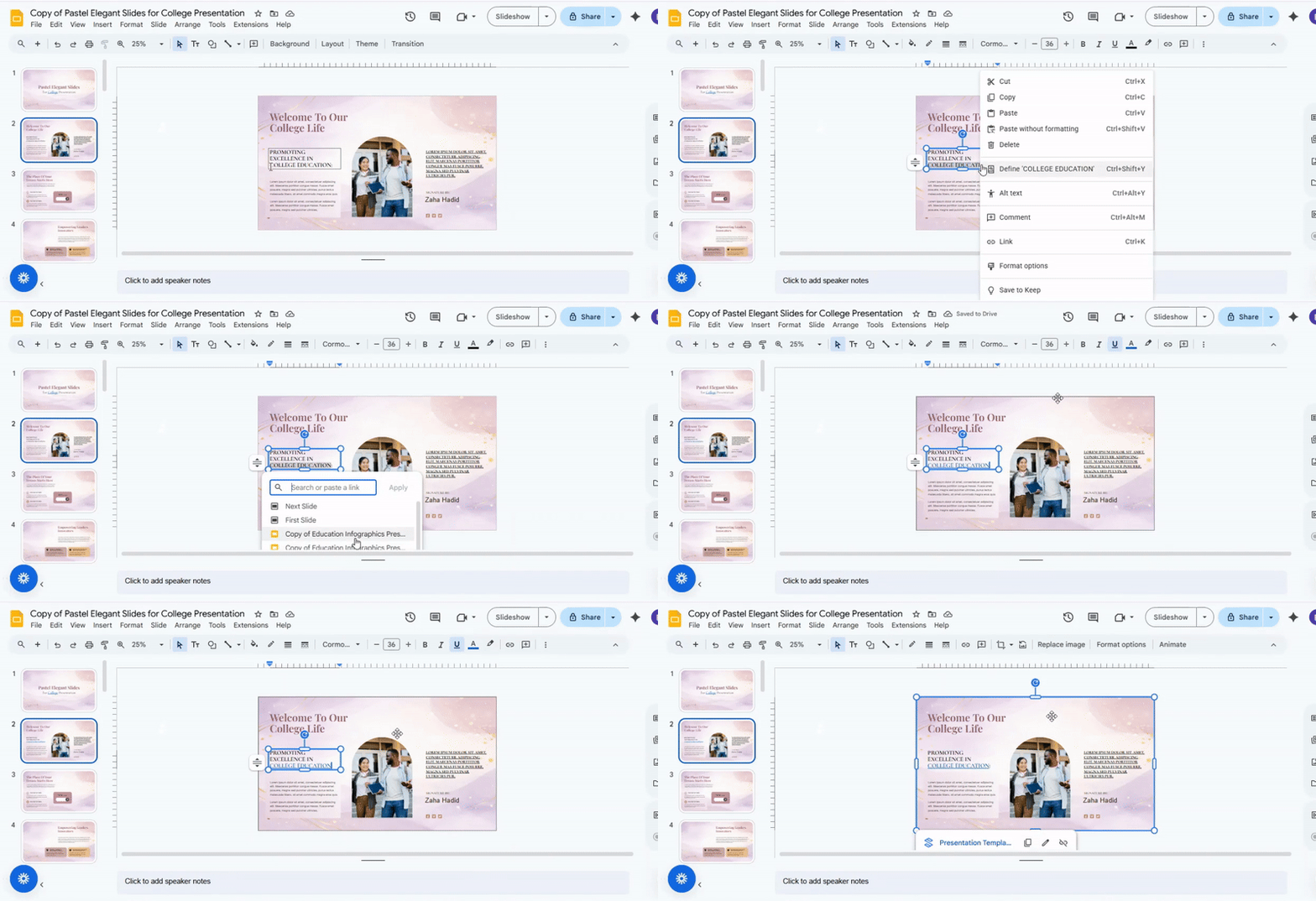
Right-click the text, image, or shape. Choose “Link” from the menu. Type the URL or pick a slide. Click Apply. This is a quick alternative to the toolbar icon.
Add a Link Using Keyboard Shortcuts
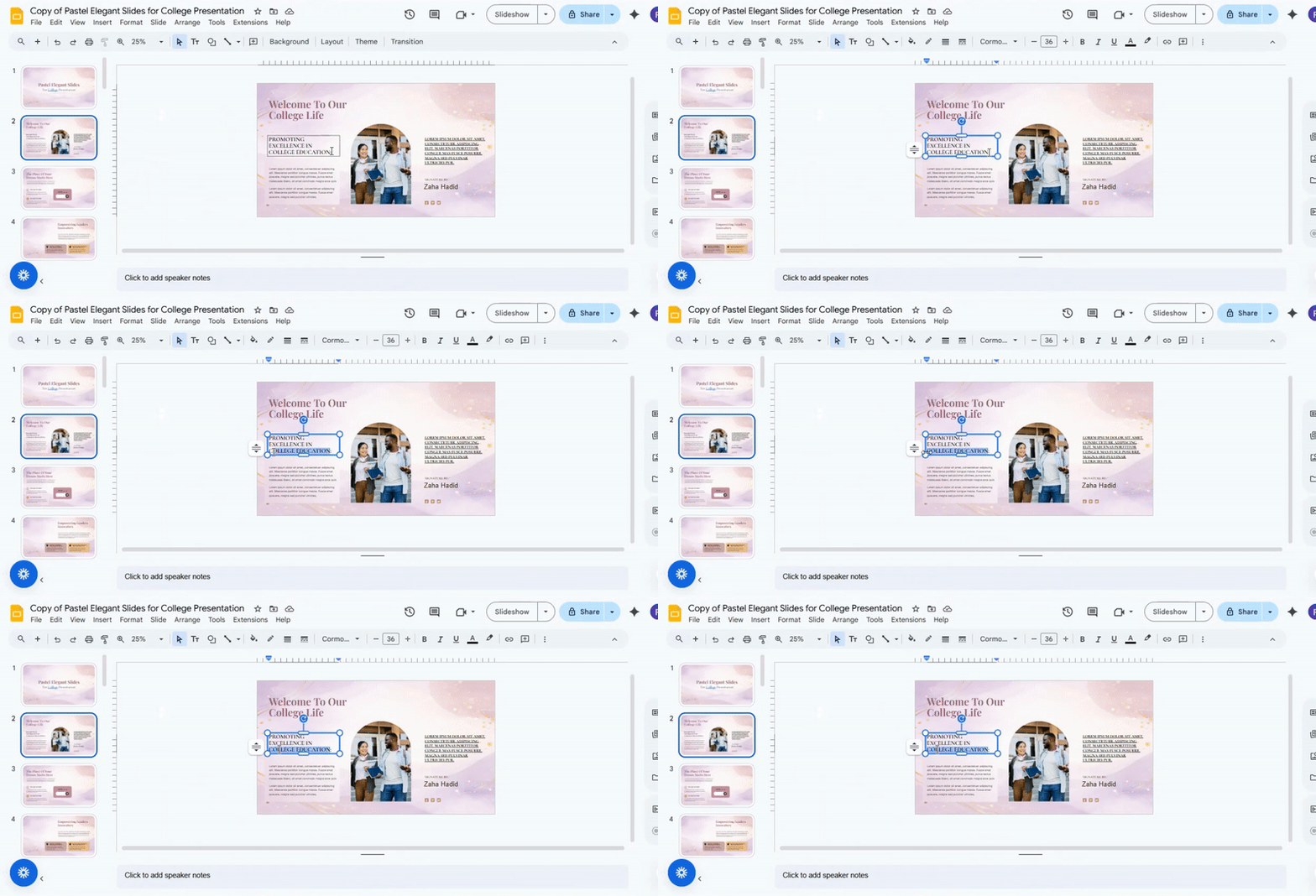
Select the item to link. Press Ctrl + K (Cmd + K on Mac). Type the URL or choose a slide. Press Enter. This shortcut speeds up the process.
How Hyperlinks Work in Present Mode
When you click a hyperlink during a presentation, it takes you directly to the linked slide, website, or document. Links are active only in Present mode, not in Edit mode. This means you can test and navigate without changing your slides. Hyperlinks can connect slides within your deck or open external resources. They help you guide your audience smoothly to related content without leaving your presentation.
Common Problems When Adding Hyperlinks
Hyperlinks can save time, but they sometimes cause trouble. Knowing the common problems helps you fix them quickly.
Link Not Clickable: Sometimes, links do not respond when clicked. This can happen if the link was not added correctly or if the text or object is not set as a hyperlink.
Link Opens the Wrong Slide: Links may take you to the wrong slide. This often occurs when slides are moved after the link was created. Checking and updating links can fix this issue.
Link Not Working in Present Mode: A link might work in edit mode but fail in presentation mode. This usually happens if the linked object is hidden or if there is an error in the hyperlink settings.
Best Practices for Using Hyperlinks in Slides
Use clear and simple text for links. Make sure the link stands out from other text. Test all links before presenting. Avoid linking too many words in one slide. Keep links relevant to your topic. Use consistent colors and styles for all hyperlinks. Check that links open correctly on different devices. Place links where the audience can easily see them. Limit the number of links to prevent distraction.
Use Cases for Hyperlinks in Google Slides
Hyperlinks add flexibility to your slides. They help connect content within your presentation or to outside resources. With links, you can guide viewers, save time, and make your slides more interactive.
Interactive Presentations: Hyperlinks make slides more engaging. You can link to other slides in the same deck. This allows the audience to jump to key points quickly. Quizzes and polls also work better with clickable links.
Table of Contents Slides: A table of contents can guide viewers through your presentation. Each heading can link to the relevant slide. This saves time and keeps the flow smooth. Audiences can move to sections that interest them most.
External Resources and References: Links can point to websites, videos, or documents. This provides extra information without crowding your slides. Viewers can explore details on their own. References become easy to access and follow.
Final Words
Adding hyperlinks in Google Slides makes your presentations easier to follow. They let you link text, images, and slides to websites, documents, or other slides. This keeps your audience on track and saves time.
Use clear link text and check that all links work before presenting. Keep links relevant and simple. Hyperlinks make your slides interactive, organized, and professional. Mastering these steps helps your presentations run smoothly and keeps your audience engaged.
FAQs:
Can I hyperlink to a Google Doc, Sheet, or Slide?
Yes. You can copy the shareable link from your Doc, Sheet, or Slide and add it as a hyperlink in your Google Slides presentation. Make sure the file’s sharing settings allow others to view it.
Can I hyperlink to an email address in Google Slides?
Yes. You can create a link using “mailto:” followed by the email address. Clicking it will open the default email app to send a message.
Can I hyperlink to a specific time in a video?
Yes. For YouTube videos, add “?t=XXs” at the end of the URL, replacing XX with the number of seconds. When clicked, the video will start at that time.
Can I hyperlink to a file in Google Drive?
Yes. Copy the file’s shareable link and insert it as a hyperlink. Ensure the file’s sharing settings let your audience access it.
Will hyperlinks work if I share my slides publicly?
Yes. Hyperlinks will work as long as the linked files or websites are accessible to anyone who clicks them.
Can I test hyperlinks before presenting?
Yes. Click the link in edit mode or present mode to make sure it opens correctly. This helps avoid broken links during your presentation.
Can I remove all hyperlinks at once?
No. Google Slides does not have a built-in option to remove all links at once. You need to remove them one by one.
Can I change the display text of a hyperlink without changing the link itself?
Yes. Right-click the hyperlink, select “Edit link,” and change the text. The link will stay the same.
How do I insert a hyperlink in Google Slides?
Select the text or object, click “Insert” → “Link,” then paste the URL. Press “Apply” to create the hyperlink.
How can I link to a specific slide in Google Slides?
Select the text or object, click “Insert” → “Link,” then choose “Slides in this presentation” and pick the slide number. Click “Apply” to set it.
Can I use hyperlinks in Google Slides to link to files in Google Drive?
Yes. Copy the Drive file’s shareable link and add it as a hyperlink in your slide. Check sharing settings so others can view the file.


You may also be interested in ...

How To Create An Eye-Catching Portfolio
If you’re looking to create an eye-catching portfolio, this post will come in handy. In this article, you can find the easies...
23 Jun, 2024

How To Easily Create An Infographic
Infographics are the perfect way to make a presentation that will impact an audience, but their design and composition might...
08 Jun, 2024

PowerPoint Template Tips & Tricks You Ne...
PowerPoint seems to be an unknown world for many people, especially those who have been assigned to create a presentation out...
08 Jun, 2024