How to Make a Jeopardy Game on Google Slides for Beginners
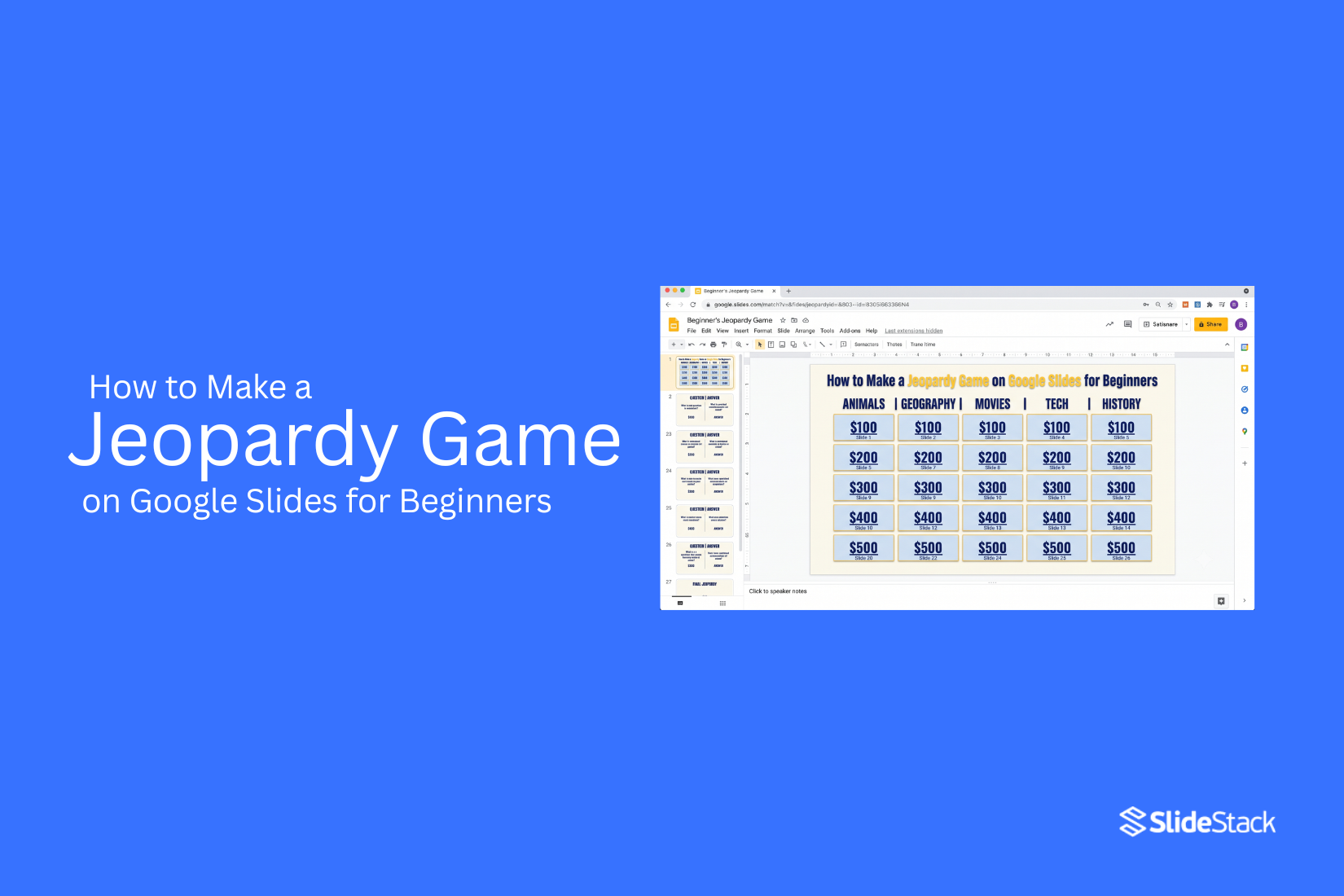
Creating a Jeopardy game in Google Slides can feel confusing for beginners. Setting up categories, point values, question slides, and clickable links may take time without a clear plan. A simple mistake can affect how the game works during a class, meeting, or event. With the right steps, building this game becomes easier to manage. This guide explains how to make a Jeopardy game on Google Slides from the start, add interactive features, avoid common mistakes, and prepare it for smooth gameplay. You will also learn how to customize templates, test every link, and use design tips that help create a better experience for players. The steps are made for new users.
What Is a Jeopardy Game in Google Slides?
A Jeopardy game in Google Slides is a quiz game made with slides, questions, and answers. It follows the same idea as the popular quiz show. Players pick a category and point value, then answer a question to earn points. Google Slides makes it simple to build this type of game. You can create question slides, answer slides, score sections, and game boards in one file. The format works well for classrooms, team activities, and fun group events.
How the Game Works
A Jeopardy game starts with a game board. The board has different categories and point values. Each point value connects to a question slide. A player or team picks a category and a point amount. The game moves to the matching question slide. Players answer the question, then check the answer slide to see if they are correct. Correct answers add points to the score. Wrong answers may remove points based on the rules you set. The game continues until all questions are used or the set time ends.
Why Use Google Slides Instead of Other Tools
Google Slides is a simple choice for making a Jeopardy game because many people already know how to use it. You can create and edit slides without learning a new platform. It also gives you control over the game design. You can change colors, add images, edit text, and arrange slides to match your needs. Sharing is simple too, so teachers, students, and teams can access the game from different devices. Another benefit is the ability to work with others. Multiple people can help create or update the game in the same file.
Common Uses for Jeopardy Games
Jeopardy games work well in many settings. Teachers use them to review lessons and help students practice topics in a fun way. Students can also create games for class projects. Businesses use Jeopardy-style games for team activities, training sessions, and group events. Friends and families can create custom games for parties, holidays, or casual gatherings. The format works for almost any topic. You can create questions about history, science, movies, sports, or general knowledge.
How to Make a Jeopardy Game on Google Slides for Beginners
Creating a Jeopardy game in Google Slides is a simple way to build an interactive activity for a class, meeting, or group event. You can create the game board, add questions, and connect slides with clickable links. Follow these steps to make your own Jeopardy-style game from scratch.
Step 1: Create a New Google Slides Presentation
Start by opening Google Slides and creating a blank presentation. Remove any default text boxes from the first slide to create a clean workspace. Set the slide size based on how you plan to use the game. A standard layout works well for most screens. You can also pick a theme or background color that matches your topic. Create a few blank slides before adding content. These slides will become your game board, question slides, and answer slides.
Step 2: Design the Main Game Board
The main game board is the first slide players will see. It should show all categories and point values in one place. Use tables, shapes, or text boxes to create a grid. Each column can represent a category, and each row can show different point values. Keep the design simple. Make sure the text is large enough for players to read from a distance. Use clear colors to separate categories and point options.
Step 3: Add Categories and Point Values
Add your categories at the top of each column. These categories should match the topics of your questions. Place point values below each category. Common choices include 100, 200, 300, 400, and 500 points. Each point value should represent a clickable option. Players can select a value from the board to open the related question slide.
Step 4: Create Question Slides
Create a new slide for each question in your game. Add the category, point value, and question text. Keep each question slide focused on one question. Avoid adding too much text. A clean layout helps players read and answer quickly. You can also add images, charts, or other visuals to support the question. Make sure every element helps players understand the question.
Step 5: Add Answer Slides or Reveal the Correct Answer
Create an answer slide after each question slide. Add the correct answer and any extra details you want to share. Another option is to place the answer on the same slide and reveal it after players respond. You can use animations or separate text boxes for this setup. An answer slide gives you more control over the game flow. It also makes it easier to review answers with players.
Step 6: Link Each Point Value to Its Question
Google Slides allows you to connect text boxes, shapes, or images to other slides. Use this feature to turn your game board into an interactive menu. Select a point value on the board. Add a link and choose the question slide connected to that value. Repeat this step for every point value. Check that each button opens the correct question slide.
Step 7: Add a Back to Board Button
Add a button on each question and answer slide that takes players back to the main game board. You can create this button using a shape with text like “Back to Board.” Then add a link that sends users to the first slide. This button helps you move through the game without searching for slides manually.
Step 8: Test Every Link Before Playing
Before using the game, open the presentation in slideshow mode. Click every point value and button to make sure each link works. Check that questions open the right slides and the back button returns to the game board. A quick test helps prevent problems during the game. It also gives you time to fix missing links or design issues before players start.
How to Make Your Jeopardy Game More Interactive
A basic Jeopardy game works well, but small design changes can make the experience more fun for players. Google Slides gives you tools to add visual elements, movement, and special rounds that keep players engaged. These features help create a game that feels closer to a real quiz show.
Add Images and Icons
Images and icons can make your Jeopardy game easier to follow. They help players understand categories, questions, and clues faster. You can add pictures related to your topics, such as photos, symbols, or simple graphics. For example, a history category can use a landmark image, while a science category can use a lab icon. Keep your visuals clear and simple. Too many images can make your slides look crowded. Use visuals that support the question instead of taking attention away from the game.
Use Animations Sparingly
Animations can add movement to your slides and make question reveals more interesting. Google Slides lets you add effects to text, images, and other elements. Use animations for key moments, such as showing an answer after a player responds. Avoid adding effects to every object on a slide. Too much movement can distract players and slow down the game. A few simple animations are enough to make the game feel more active.
Include Sound Effects
Sound effects can make your Jeopardy game feel more like a live game show. You can add sounds for correct answers, wrong answers, or special moments. Short sounds work best. A quick applause sound after a correct answer or a countdown sound before time runs out can add excitement. Make sure the audio volume is comfortable for everyone. Test the sounds before starting the game to avoid technical issues.
Add a Final Jeopardy Round
A Final Jeopardy round gives players a chance to make a comeback. It creates a strong ending for your game. Create a separate slide for the final question. Add a category, a question, and space for players to write their answers or scores. You can also add a timer to give players a set amount of time to respond. This keeps the final round organized and fair.
Create Daily Double Questions
Daily Double questions add a surprise element to your Jeopardy game. These special questions allow players to risk extra points. You can hide Daily Double slides behind specific point values on your game board. Add a message that tells players they found a special question. Choose these questions carefully. They should be challenging but still match the skill level of your players. A well-made Daily Double can become one of the most memorable parts of the game.
Tips for Creating a Better Jeopardy Game
A good Jeopardy game needs more than questions and answers. The layout, flow, and difficulty level all affect how players enjoy the game. Small changes can make your Google Slides game easier to play and more fun for everyone.
Keep Questions Clear
Write questions that are easy to understand. Avoid long sentences or confusing words. Players should know what they need to answer without reading the question several times. Use one main idea for each question. Add enough details to guide players, but do not give away the answer. Clear questions help keep the game moving.
Increase Difficulty Gradually
Start with simple questions and slowly move to harder ones. This helps players build confidence as they play. Place easier questions with lower point values. Save the harder questions for higher points. A balanced difficulty level keeps the game fair for all players.
Use Consistent Slide Design
Use the same colors, fonts, and layouts across your slides. A consistent design makes the game look organized and easier to follow. Keep question slides, answer slides, and the main game board similar in style. Players can quickly understand where to look and what to do next.
Make Navigation Simple
Players should move between slides without confusion. Add buttons or links that connect the game board to question slides and answers. Test each link before sharing the game. Broken links can interrupt the game and make it harder to play.
Leave Time for Testing
Play through the entire game before using it with others. Check every question, answer, button, and slide link. Testing helps you find mistakes before the game starts. It also gives you a chance to improve the game flow and fix any confusing parts.
Common Mistakes to Avoid
Creating a Jeopardy game in Google Slides is simple, but small mistakes can affect how the game works. Checking each part before sharing the game helps create a smoother experience for players.
Broken Hyperlinks
Hyperlinks connect the game board to question and answer slides. A broken link can stop the game flow and make players wait. Test every link before the game starts. Click each point value and check that it opens the correct slide.
Crowded Question Slides
A question slide needs clear text that players can read easily. Too much text can make the slide look messy and harder to follow. Keep questions short. Use enough space between lines. Add only the details needed for the question.
Inconsistent Point Values
Point values help players understand the game structure. Random or incorrect values can confuse players. Check that each category follows the same point system. Make sure higher values match harder questions.
Missing Navigation Buttons
Navigation buttons help players move between slides without searching through the presentation. Add buttons for returning to the game board or moving to the next slide. Test each button before using the game.
Skipping a Practice Run
A practice run helps find problems before the real game begins. It gives you a chance to check links, buttons, timing, and slide order. Play through the full game from start to finish. Fix any issues you notice before presenting it to others.
How to Present and Play Your Jeopardy Game
After creating your Jeopardy game in Google Slides, the next step is to run it smoothly. A good setup helps players follow the rules and keeps the game fun. You can use a simple process to manage slides, track points, and reuse the game later.
Start Presentation Mode
Open your Google Slides file and click the Slideshow button to start the game. This opens the presentation in full-screen mode and hides the editing tools. Move through the slides by clicking or using the arrow keys. Open the game board first, then select a category and point value based on the players’ choices. Use the links you added earlier to move between the board, question slides, and answer slides. Test all links before starting the game. This helps prevent delays during play.
Keep Score During the Game
Keeping track of points helps players know their progress. You can use a notebook, a spreadsheet, or a simple score table on a separate slide. Create a score area with team names and point totals. Update the scores after each question. Add points for correct answers and remove points for incorrect answers if you follow traditional Jeopardy rules. A clear scoring system keeps the game organized and helps players stay engaged.
Let Teams Choose Categories
Give each team a chance to pick a category and point value from the game board. Their choice decides which question appears next. Ask players to select options like “Science for 300 points” or “History for 500 points.” Click the matching box on the board to open the question slide. This format gives players control over their moves and makes each round feel more interactive.
Reset the Game for Future Use
Save a clean copy of your Jeopardy game after the session ends. Remove the scores and mark completed questions before using it again. You can also create a duplicate file in Google Slides. Keep one version as the original template and use another version for each new game. A reusable file saves time and makes it easier to create new quizzes for classes, meetings, or group activities.
Can You Use a Google Slides Jeopardy Template?
Yes, you can use a Google Slides Jeopardy template to create a game faster. A template gives you a ready-made layout with spaces for categories, point values, questions, and answers. You only need to add your own content and adjust the design. A template works well for teachers, students, and teams who want a simple way to create a quiz game. It also helps keep the slides organized.
Benefits of Using a Template
A Jeopardy template saves time because the main slide structure is already created. You do not need to design every slide from the beginning. Templates also help you keep the game board consistent. Each category, question slide, and answer slide can follow the same style. This makes the game easier for players to follow. Many templates include clickable links between slides. These links help players move from the game board to questions and back again.
When to Build Your Own Game Instead
A custom game may work better for special events or unique topics. Building your own slides gives you full control over the layout, rules, and design. Creating a game from scratch also helps you add features that a template may not include. You can create custom rounds, new scoring methods, or special question types. A template is a good starting point, but a custom design gives you more freedom.
How to Customize a Template
Start by changing the categories and point values to match your topic. Replace the sample questions with your own questions and answers. You can also update the colors, fonts, images, and backgrounds. Keep the design simple so players can focus on the game. Check all slide links before playing. A quick test run helps you find any missing buttons or broken links. A few small changes can make the template feel like your own game.
Final Notes
Making a Jeopardy game in Google Slides does not require advanced skills. With a clear plan, you can build a game board, add questions, connect slides, and create a fun activity for different groups. Focus on simple design, clear questions, and working links. Test the full game before sharing it with players. Small checks can help you avoid problems during the session. A Google Slides Jeopardy game can be reused for classes, meetings, training, and events. You can start with a template or create your own design based on your needs. Add your own questions, adjust the rules, and make the game fit your audience.
FAQs
Can I make a Jeopardy game in Google Slides for free?
Yes, you can create a Jeopardy game in Google Slides for free. You can build the game board, add questions, create answer slides, and add links without extra software.
How many slides do I need for a Jeopardy game?
The number of slides depends on the size of your game. A basic game needs one board slide, question slides, and answer slides. More categories and questions will need more slides.
Do I need coding skills to create a Jeopardy game in Google Slides?
No, you do not need coding skills. Google Slides has simple tools that let you add text, shapes, images, and links to create the game.
Can I use a Jeopardy template in Google Slides?
Yes, you can use a template to save time. A template gives you a ready layout that you can edit with your own categories, questions, and answers.
How do I add clickable links to a Jeopardy game in Google Slides?
Select a text box, shape, or point value on your game board. Add a link and choose the slide you want to connect. Repeat this process for each question.
Can I add images and sounds to my Google Slides Jeopardy game?
Yes, you can add images, icons, and sound effects to make the game more interesting. Use only elements that support the questions and keep the slides easy to read.
How do I keep score in a Google Slides Jeopardy game?
You can track scores with a notebook, spreadsheet, or a score table. Update the points after each question based on your game rules.
Can I reuse a Jeopardy game made in Google Slides?
Yes, you can reuse the game. Save an original copy, remove old scores, and update the questions for a new class, meeting, or event.
What are common mistakes in a Google Slides Jeopardy game?
Common mistakes include broken links, crowded slides, missing buttons, and incorrect point values. Testing the full game before playing helps find these issues.



You may also be interested in ...

How To Create An Eye-Catching Portfolio
If you’re looking to create an eye-catching portfolio, this post will come in handy. In this article, you can find the easies...
23 Jun, 2024

How To Easily Create An Infographic
Infographics are the perfect way to make a presentation that will impact an audience, but their design and composition might...
08 Jun, 2024

PowerPoint Template Tips & Tricks You Ne...
PowerPoint seems to be an unknown world for many people, especially those who have been assigned to create a presentation out...
08 Jun, 2024