How to Repair Broken Links in PowerPoint Presentations
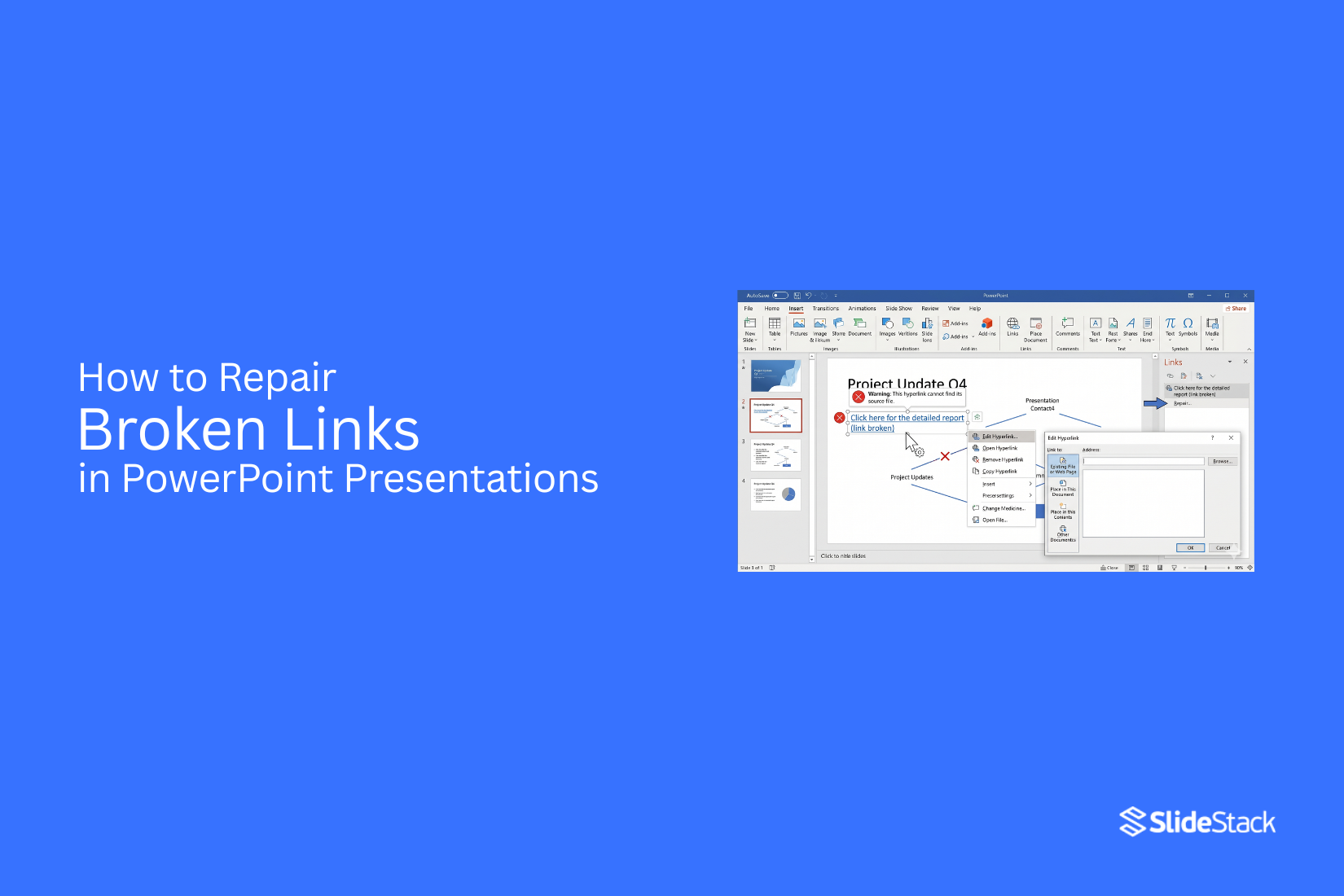
Broken links in PowerPoint presentations often stop images, charts, and documents from loading correctly, which interrupts the flow of a presentation and creates confusion for viewers during meetings or training sessions, leading to missing information and delayed communication that seriously affects overall presentation delivery quality.
Next, broken links often force users to search for missing files during a live presentation, which slows down delivery, breaks focus, and creates stress for the presenter and audience, especially in professional settings where timing and clarity matter most. This article explains how to identify broken links and repair them step by step, so presentations run smoothly again without missing content or errors during sharing or live delivery sessions reliably.
Why Links Break in PowerPoint
Links in PowerPoint presentations often stop working due to changes in file paths, file names, or storage locations. A link connects one file or web address to a slide. That connection depends on a stable path. Small changes in that path can stop the link from working.
Broken links also appear after moving a presentation between devices or folders. The connection inside the slide still points to the old location. The system cannot find the target file or page anymore. Below are the main causes of broken links in PowerPoint.
File moved to a new location: A linked file may be moved to another folder or drive. PowerPoint keeps the original path. The link no longer matches the new location. This leads to a failed connection.
File name changed: Renaming a linked file changes its identity in the system. PowerPoint still looks for the old name. The mismatch breaks the link.
Missing linked files: Linked content may be deleted or not transferred with the presentation. PowerPoint cannot open something that no longer exists. The link stops working.
Link to web pages that changed: Web links depend on stable addresses. Some pages change structure or get removed. The original address no longer leads to valid content.
Transfer to another computer: A presentation may work on one device but fail on another. Linked files stored locally are not included during transfer. The new system cannot access the original file paths.
How to Identify Broken Links in PowerPoint
Broken links in PowerPoint show clear signs during use. A slide may fail to open a webpage. A file may not load. A linked document may show an error message. Some links may do nothing at all. These signs point to a link issue inside the presentation.
Small changes in file location or web address often cause this problem. A moved file or edited URL can break the connection. Now the focus shifts to how to find these broken links inside your slides.
Method 1: Open to Verify PowerPoint Links
Start with the simplest check. Open the presentation in PowerPoint. Move through each slide that contains links. Click each linked item. Watch what happens next. A working link opens a webpage or file. A broken link shows an error or stays inactive.
Some links sit behind text or shapes. Right-click on the object. Select the link option from the menu. Check the address shown. A missing or incorrect path points to a broken link. Another check uses a text view. Copy the link from PowerPoint. Paste it into a simple text editor. Review the full address. Extra spaces, missing characters, or broken formatting often show up here.
Method 2: Edit to Check PowerPoint Links
Open the slide in edit mode. Focus on each linked object one by one.
Step 1: Select the object with the link. This may be text, an image, or a button shape.
Step 2: Open the link settings. Check the full URL or file path shown in the field. Look for missing parts or strange characters.
Step 3: Compare the link path with the correct source. A mismatch shows the link is not valid anymore.
Broken links often come from simple issues. A renamed file breaks file paths. A copied link may miss characters. Extra spaces can also stop links from working.
How to Fix the PowerPoint Hyperlink Not Working Issue
Broken links in PowerPoint appear in different ways. Some links point to websites. Some open documents. Others connect to images, Excel charts, or slides inside the file. Each type needs a different fix. The sections below show how to repair each one.
1. Fixing Hyperlinks for Websites or Documents
A hyperlink may stop working if the web address or file path changes. This happens often with pages that move or files stored in different folders.
Step 1: Right-click the linked text, image, or shape.
Step 2: Select Edit Hyperlink.
Step 3: Remove the old link.
Step 4: Paste the correct web address or document path.
Step 5: Select OK.
Run the slide show and click the link. The page or file should open normally. How to edit a hyperlink to a website, Editing a hyperlink to a website
2. Fixing Links to External Files in PowerPoint
External files include PDFs, Word files, Excel sheets, and images saved outside PowerPoint. Moving or renaming those files breaks the link.
Step 1: Right-click the linked object.
Step 2: Select Edit Hyperlink.
Step 3: Select Browse.
Step 4: Find the correct file location.
Step 5: Select the file and confirm.
Open the presentation again. The file should load from the updated path. How to fix a hyperlink to a document in PowerPoint, Editing a hyperlink to the document
3. Fixing Broken Image Links
Some images are linked instead of embedded. A moved or deleted image file causes a blank space or error.
Step 1: Right-click the image or empty image box.
Step 2: Select Change Picture.
Step 3: Select From a File.
Step 4: Find the correct image.
Step 5: Insert the image.
The slide now shows the correct picture. Saving images inside PowerPoint removes future link issues. Embedded images stay inside the file.
Updating image link in PowerPoint, Fixing an image with a broken PPT link
4. Fix Broken Excel Chart Links in PowerPoint
Excel charts often stay connected to external spreadsheets. Moving the Excel file breaks the connection.
Step 1: Select the chart.
Step 2: Right-click the chart.
Step 3: Select Edit Data.
Step 4: Find the correct Excel file.
Step 5: Open the file to reconnect.
Keep the Excel file in the same folder as the presentation. This helps the link stay stable. Fix the chart in Excel link, edit the data link on the PowerPoint slide
5. Fix Broken Links for Slides
Internal slide links connect one slide to another. Changing slide order or deleting a slide breaks the link.
Step 1: Select the linked text or shape.
Step 2: Right-click and choose Edit Hyperlink.
Step 3: Select Place in This Document.
Step 4: Pick the correct slide from the list.
Step 5: Confirm the selection.
Start the slide show and test the link. The correct slide opens during the presentation. How to reconnect the link to a slide, Editing hyperlink to reconnect the slide
6. PowerPoint links not working
Slidewise helps you check links inside PowerPoint without digging through every slide. Open the Slidewise panel and let it scan your deck. It reads all hyperlinks in the file and shows their status in a simple view. A green dot shows a working link. It opens in a browser without trouble. An orange flag points to a problem link. That link may be broken, outdated, or pointing to the wrong address. Some results may also look flagged even though the link still works. A quick manual check confirms the real state.
Slidewise groups all links in one place. This removes the need to click through slides one by one. You see patterns fast, like repeated broken sources or shared links across many slides. Open a flagged link in a browser. Check the page load. A missing page or error screen confirms the issue. Replace the link in PowerPoint with the correct address. Slidewise updates the status after changes, so you can see the fix right away.
7. Edit all links in PowerPoint
Slidewise gives one place to manage every link in your presentation. Open the tool panel and switch to the link list view. All hyperlinks appear together, even those repeated across slides. Select a link to view every location where it appears. This helps you avoid missing copies of the same URL. Edit the link once, and the change applies everywhere it is used in the deck.
Broken or outdated links stand out with warning markers. These markers help you focus on what needs attention first. Update the target URL directly in the Slidewise panel. The change flows back into PowerPoint without extra steps. Link cleanup becomes faster with grouped control. Repeated edits turn into single actions. The presentation stays consistent, and fewer errors slip through during review.
Automating Link Fixes Using VBA
Large PowerPoint files often carry many links. Some point to web pages. Some connect to files. Some pull in charts or data.
Manual fixes take time. One broken link can slow down a full update process. Big presentations make this worse. Hundreds of slides can hold many link points.
VBA helps handle this at scale. It can scan slides. It can find linked items. It can update paths in one run. It can refresh connected data sources. This reduces manual work and keeps files consistent across versions.
VBA Example for Automating Link Fixes
The macro below loops through each slide. It checks each shape. It looks for links. It updates link addresses based on a stored rule or path.
Sub FixPresentationLinks()
Dim sld As Slide
Dim shp As Shape
Dim oldPath As String
Dim newPath As String
oldPath = "C:\OldFolder\"
newPath = "C:\NewFolder\"
For Each sld In ActivePresentation.Slides
For Each shp In sld.Shapes
If shp.Type = msoLinkedOLEObject Or shp.Type = msoLinkedPicture Then
If shp.LinkFormat.SourceFullName <> "" Then
shp.LinkFormat.SourceFullName = Replace( _
shp.LinkFormat.SourceFullName, oldPath, newPath)
End If
End If
Next shp
Next sld
End Sub
This macro focuses on linked objects and linked images. It replaces an old file path with a new one across the entire deck.
Teams that manage large slide libraries use this method often. Marketing teams handle brand assets. Sales teams update reports each week. Training teams refresh course materials across regions. One script keeps all versions aligned without opening each file one by one.
Preventing and Managing Broken Links in PowerPoint
Broken links in PowerPoint often start with small file habits. A file gets moved. A folder gets renamed. A linked image points to an old location. Over time, these small changes break connections and create missing content in slides. A clear system keeps these issues low and keeps presentations stable.
Keep Presentation Files Organized
Store all related files in one main folder. Keep images, charts, and linked documents inside subfolders under it. Do not scatter assets across different locations on a device. Use clear file names. Avoid generic labels like “final” or “new.” Use names that describe the content directly. This makes it easier to track linked items later. Keep folder paths stable. Moving a main folder to a new location changes every link inside it. A stable structure reduces broken connections over time.
Embed Critical Content When Necessary
Some content needs to stay inside the presentation file. Logos, key images, and core visuals work better as embedded elements. Linked content depends on external files. Embedded content stays inside the slide file itself. This removes risk tied to missing sources. Use embedding for assets that rarely change. Keep linking to items that need regular updates. This split keeps a balance between flexibility and stability.
Use Packaging Features When Sharing Presentations
PowerPoint includes tools that gather linked files into one package. This keeps assets connected during transfer between devices. A packaged presentation keeps images and media together with the main file. This reduces missing link issues during sharing through email, drives, or USB storage. Keep the original folder structure during packaging. A clean setup helps the tool collect everything correctly without missing components.
Know When to Rebuild Links Instead of Fixing Them
Some links become harder to maintain over time. File paths grow long. Assets get moved multiple times. At that stage, fixing each link one by one takes more effort. Rebuilding links from a clean folder setup saves time. Place all assets in a new structured folder. Connect them again using updated paths. This approach reduces hidden errors that stay even after partial fixes.
Maintain Good Link Management Practices
Check linked assets during every update cycle. Small checks help catch missing files early. Avoid duplicating files across multiple folders. One source file for each asset keeps tracking simple. Keep a record of linked items in a separate list. This helps track where each asset comes from and where it is used in slides. A stable link system comes from steady habits. Clean structure, clear file naming, and consistent storage keep presentations reliable across long use.
Final Notes
Broken links in presentations reduce clarity. They interrupt the flow of information. They also affect how the audience understands the message. Fixing hyperlink errors restores access to external pages and documents. Reconnecting missing files brings linked content back into place. Repairing chart data links keeps visuals accurate and updated. VBA automation helps manage and update multiple links with less manual effort. These methods support stable and reliable presentations across different file types and sources.
Business users rely on consistent link performance for reports. Educators depend on working links for teaching materials. Designers and corporate teams use linked content for structured presentations and client work. Strong link management supports all these groups. Maintaining link health keeps presentations stable over time. It reduces disruptions and supports clear communication throughout every slide deck.
FAQs:
1: What causes broken links in PowerPoint?
Broken links happen when a file is moved, renamed, or deleted. They also break when a presentation is opened on another device. Web links can also stop working if the page changes.
2: How can you tell a link is broken?
A broken link may show an error. It may not open anything. Some links do nothing at all during a click. These signs show a connection problem.
3: How do you fix a website or document hyperlink?
Right-click the link in the slide. Choose Edit Hyperlink. Remove the old address. Add the correct web link or file path. Save the change.
4: How do you fix links to external files?
Right-click the linked object. Open Edit Hyperlink. Select Browse. Find the correct file location. Select the file and confirm.
5: Can broken image links be fixed?
Yes. Right-click the image area. Select Change Picture. Pick the correct image file. Insert it into the slide.
6: What happens with broken Excel chart links?
The chart may stop updating or show missing data. Reconnecting the Excel file restores the link and data flow.
7: Can Slidewise help find broken links?
Yes. Slidewise scans the presentation. It shows all links in one list. It marks working and broken links for quick review.
8: Can VBA fix broken links in PowerPoint?
Yes. VBA can update multiple file paths at once. It helps fix large presentations faster without checking each slide manually.




You may also be interested in ...

How To Create An Eye-Catching Portfolio
If you’re looking to create an eye-catching portfolio, this post will come in handy. In this article, you can find the easies...
23 Jun, 2024

How To Easily Create An Infographic
Infographics are the perfect way to make a presentation that will impact an audience, but their design and composition might...
08 Jun, 2024

PowerPoint Template Tips & Tricks You Ne...
PowerPoint seems to be an unknown world for many people, especially those who have been assigned to create a presentation out...
08 Jun, 2024