Better Ways to Share Ideas Through PowerPoint Mind Maps
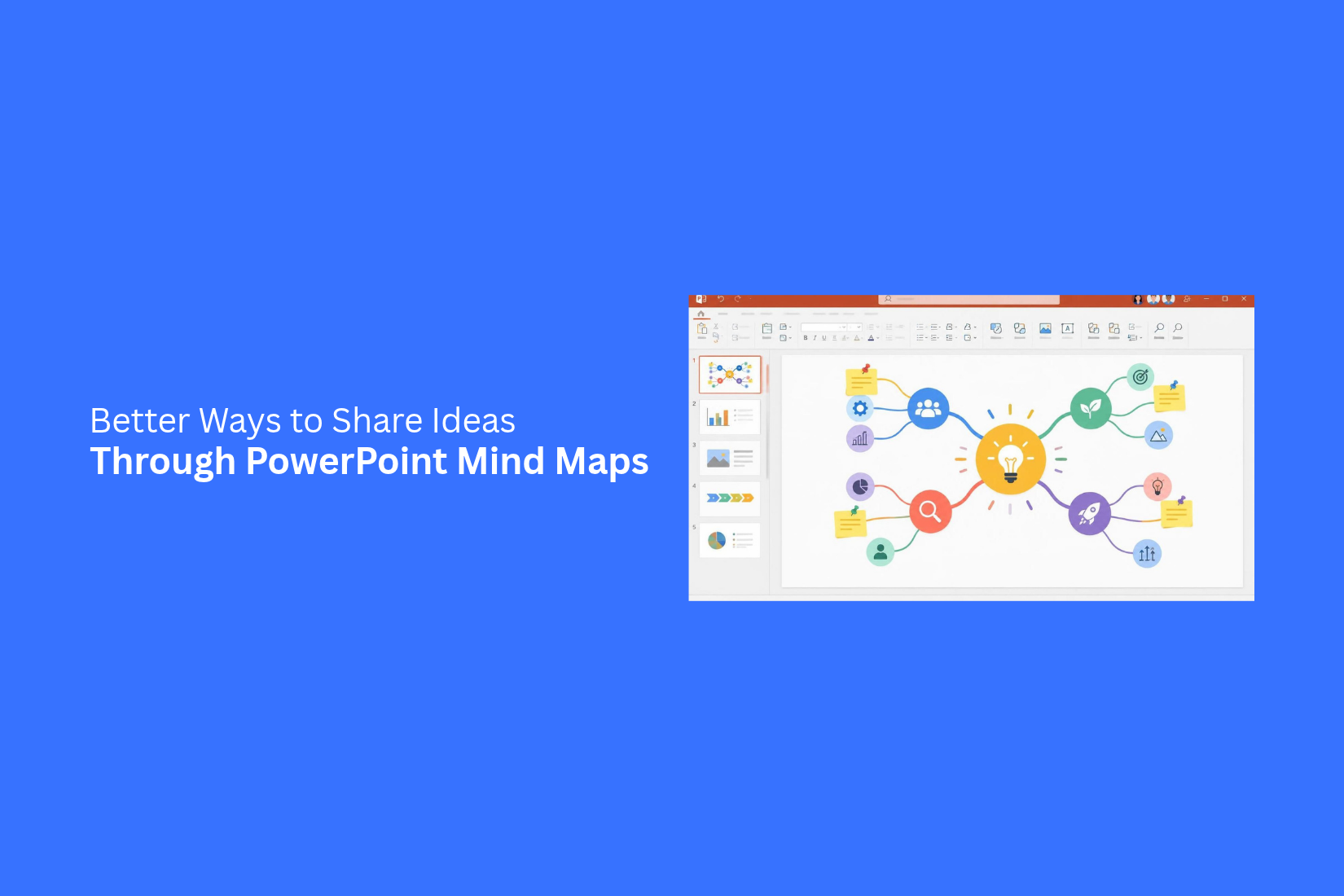
Sharing ideas through PowerPoint can be hard, especially when a topic has many points to cover. Long text and crowded slides can make it hard for people to follow your message. A simple list may not show how different ideas connect.
This can affect the flow of your presentation. Your audience may miss key points or find it hard to understand how each idea relates to the main topic. As a result, your message may not have the impact you want.
PowerPoint mind maps offer a clear way to arrange and share ideas. They connect a main topic with related points through branches, colors, shapes, and images. In this article, you will learn how to create mind maps and use them to share ideas more clearly.
What Is a Mind Map in PowerPoint?
A mind map in PowerPoint is a visual way to organize ideas around one main topic. It starts with a central idea. Related points branch out from it through lines, shapes, or connectors. Each branch can show a key point, detail, or supporting idea. PowerPoint lets you build mind maps with shapes, text boxes, SmartArt, and connector lines. You can use different colors, icons, and layouts to separate ideas and show how they relate to each other.
For example, a mind map about a marketing plan can place "Marketing Plan" in the center. Its branches can cover social media, email campaigns, content creation, and paid ads. Each branch can include smaller points with more details. This layout helps people see how ideas connect. It also makes complex topics easier to present, discuss, and understand.
Why Use Mind Maps in PowerPoint Presentations?
Mind maps make it easier to share ideas in a clear and visual way. They help organize information around one main topic. Each related idea connects to the central point. This layout helps the audience see how different thoughts fit together.
PowerPoint mind maps also make presentations easier to follow. Instead of showing long blocks of text, you can use branches, shapes, colors, and short labels. This gives each idea its own space on the slide.
Here are some key reasons to use mind maps in PowerPoint presentations:
1. Organize Ideas Clearly
A mind map puts the main topic at the center. Related points spread out into separate branches. This structure keeps your ideas in order. It also helps the audience understand the link between each point.
2. Make Complex Topics Easier to Follow
Large topics often include many smaller ideas. A mind map breaks them into simple groups. Your audience can focus on one branch at a time. This makes the slide easier to read.
3. Support Brainstorming Sessions
Mind maps give teams a shared space to add and connect ideas. You can place a main topic in the center and add new branches during a group discussion. This helps everyone see the ideas in one place.
4. Improve Audience Engagement
A visual layout can hold attention better than a slide filled with text. Colors, shapes, lines, and icons help separate each group of ideas. These visual elements also make key points easier to spot.
5. Show Links Between Different Ideas
Some topics have several related parts. A mind map shows these links through branches and connecting lines. This helps the audience see how one idea relates to another.
6. Make Information Easier to Recall
The visual structure gives each idea a clear place on the slide. Short labels and visual links help the audience connect key points. This can make the main message easier to remember.
A well-made mind map can turn a group of scattered thoughts into a clear presentation. It gives your audience a simple way to follow the main topic and its related ideas.
How to Create a Mind Map in PowerPoint
A mind map in PowerPoint starts with one main idea. You can build around it by adding branches, subtopics, and supporting details. Each part should have a clear place on the slide. This makes the map easy to follow and helps your audience understand how the ideas connect.
Start with a Central Idea or Topic
Begin with the main topic of your mind map. Place it near the center of your PowerPoint slide. Use a shape, text box, or circle to hold the main idea. Keep the topic short and clear. A few words are enough to explain the main subject. You can also use a larger font size or a bold color to make it stand out.
For example, a mind map about project planning can use "Project Planning" as its central idea. The other sections can cover tasks, deadlines, budget, and team roles.
Add Main Branches for Key Ideas
Main branches show the key ideas linked to your central topic. Place them around the main shape. Use lines to connect each branch to the center. Each branch should cover one major part of the topic. Keep the labels short so they fit inside the shapes. This also gives you room to add more details later.
For a project planning mind map, the main branches could include:
- Project Goals
- Team Members
- Budget
- Timeline
- Tasks
These branches give your audience a clear view of the main points. They also help you divide a large topic into smaller sections.
Include Subtopics and Supporting Details
Subtopics add more information to each main branch. They help explain the key ideas without making the central topic too crowded.
For example, the "Budget" branch can have subtopics such as equipment, software, and staff costs. The "Timeline" branch can include start dates, deadlines, and project stages.
Use smaller shapes or text boxes for these details. Keep each label brief. Avoid adding long sentences to the map. A few words can explain each point.
Connect Related Ideas with Lines and Arrows
Lines and arrows show how different parts of your mind map relate to each other. Use them to connect the central topic with its main branches. You can also connect subtopics to their related branches. PowerPoint offers connector lines and arrow shapes for this task. Choose a line style that is easy to follow. Keep the connectors clear and avoid unnecessary crossings. Some ideas may relate to more than one branch. For example, a project deadline may affect both team tasks and the project timeline. An arrow can show this link.
Use Colors, Shapes, and Icons to Organize Information
Visual elements help separate the sections of your mind map. Use different colors for each main branch. This makes it easier to see which subtopics belong together. Shapes can also show the role of each idea. For example, use circles for main topics and rectangles for supporting details. Keep the same shape style across related sections.
Icons can add visual clues to your map. A clock icon can represent deadlines. A group icon can show team members. A money icon can represent budget details. Keep the design simple. Use a small color palette and clear icons. Make sure the text remains easy to read. Your visual choices should help explain the ideas, not take attention away from them.
Different Ways to Share Ideas Through PowerPoint Mind Maps
PowerPoint mind maps can help share ideas in many types of presentations. They give each topic a clear place on the slide. You can use them to show how ideas connect, explain plans, or group related details. The layout also helps your audience follow the main topic without reading long blocks of text. Here are five practical ways to use PowerPoint mind maps.
Use Mind Maps for Brainstorming Sessions
Brainstorming sessions often produce many ideas at once. A PowerPoint mind map helps collect them in one place. Start with the main topic in the center of the slide. Add each new idea as a separate branch. You can also add smaller branches to group related thoughts.
For example, a team planning a new product can use branches for design, pricing, target customers, and promotion. Team members can add ideas under each group. This makes it easier to review suggestions and find areas that need more discussion.
Present Project Plans and Strategies
A mind map can show the main parts of a project plan on one slide. Place the project name in the center. Add branches for goals, tasks, deadlines, team roles, and resources. Each branch can include smaller details about the work.
This layout gives the audience a clear view of the project. Team members can see how each task connects to the main goal. It also helps managers explain project steps during planning meetings.
Explain Business Concepts and Processes
Some business topics include several related parts. A mind map can break these topics into smaller sections. For example, a business presentation about customer service may include branches for customer needs, support channels, staff roles, and feedback.
You can also use a mind map to explain a process. Add each major step as a branch. Place key details under the right step. This helps the audience follow the process and see how each part relates to the main subject.
Organize Research and Study Notes
Research often includes facts, topics, examples, and supporting details. A PowerPoint mind map can group this information in a clear layout. Place the main research question in the center. Add branches for key findings, sources, methods, and related topics.
Students can use this layout to organize lesson notes or prepare for exams. Researchers can use it to present their findings. Each branch keeps related details together, so the audience can follow the topic more easily.
Share Team Ideas and Meeting Discussions
Team meetings often cover several topics. A mind map can help record the main points on a single slide. Add the meeting topic in the center. Create branches for team suggestions, key decisions, action items, and open questions.
You can also add team members' names under relevant branches to show who shared each idea or owns a task. This gives everyone a clear view of the discussion. It also helps the team review decisions and follow up on assigned work.
Best PowerPoint Features for Creating Mind Maps
PowerPoint has several features that help you build mind maps. You can use ready-made layouts or create your own designs with shapes and lines. Each feature serves a different purpose. Some help you organize ideas, while others make your mind map easier to read. Here are five PowerPoint features you can use to create clear and useful mind maps.
Create Mind Maps with SmartArt Graphics
SmartArt Graphics offer ready-made layouts for organizing ideas. You can use them to build a mind map without drawing every shape by hand. Open the Insert tab and select SmartArt. Choose a layout that fits your topic. Add your main idea and enter related points in the text pane.
SmartArt makes it easy to add or remove branches. You can also change the layout and colors. This feature works well for simple mind maps with a clear structure.
Use Shapes and Connectors for Custom Mind Maps
PowerPoint shapes give you more control over your mind map design. Open the Insert tab and select Shapes. Add a large shape for the main topic. Place smaller shapes around it for key ideas and subtopics.
Use lines or connectors to link related points. Connectors stay attached to shapes as you move them. This helps keep your mind map organized during edits. You can also change the shape size, border, fill color, and line style.
Add Icons and Images to Represent Ideas
Icons and images can help readers understand ideas at a glance. A small image can represent a team, task, product, or goal. Open the Insert tab to add icons or pictures to your slides.
Place each visual near the related topic. Use similar icon styles across the mind map. Keep images small enough to leave room for text. Too many visuals can make the slide hard to read. Choose images that support the message instead of taking attention away from the ideas.
Use Text Boxes to Add Notes and Details
Text boxes help you add information to each branch of your mind map. You can use them for short notes, examples, definitions, or key details. Select Insert > Text Box and click the area where you want to add text.
Keep each text box focused on one point. Use short phrases instead of long paragraphs. Adjust the font size and alignment to match the rest of the slide. This makes the content easier to scan during a presentation.
Apply Design Themes and Color Schemes
A consistent design helps readers follow the mind map. PowerPoint themes provide ready-made font and color combinations. Open the Design tab and choose a theme for your slide.
You can also assign a different color to each main branch. For example, use blue for project goals, green for tasks, and orange for key dates. Keep the same color rules across the mind map. Use dark text on light backgrounds to make labels easy to read. Avoid using too many colors, as this can distract readers from the main ideas.
Creative PowerPoint Mind Map Layout Ideas
The layout of a mind map affects how people read and understand your ideas. A clear structure helps viewers follow each topic and see how different points connect. PowerPoint offers several ways to arrange mind maps. Each layout works well for a different type of information. You can choose a simple design for a small topic or a detailed structure for a larger project. Here are five layout ideas to help you share ideas through PowerPoint mind maps.
Radial Mind Map Layout
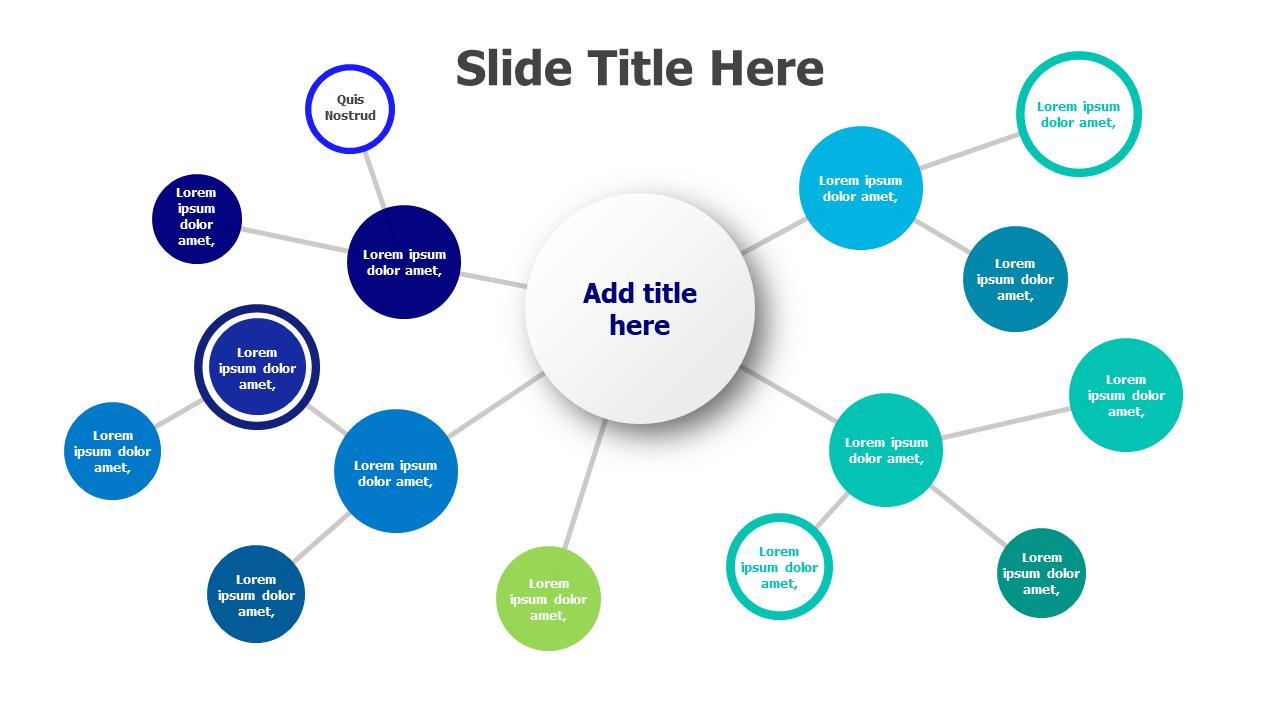
A radial mind map places the main topic at the center of the slide. Related ideas spread outward in different directions. This layout works well for brainstorming, planning, and group discussions.
Add the main topic inside a large circle or shape. Place the main ideas around it. Use connecting lines to link each idea to the center. You can also add smaller branches to show more details.
For example, a marketing mind map can place "Marketing Plan" in the center. Its branches can include social media, email campaigns, content, and paid ads. This makes the main topic easy to follow.
Tree-Style Mind Map Layout
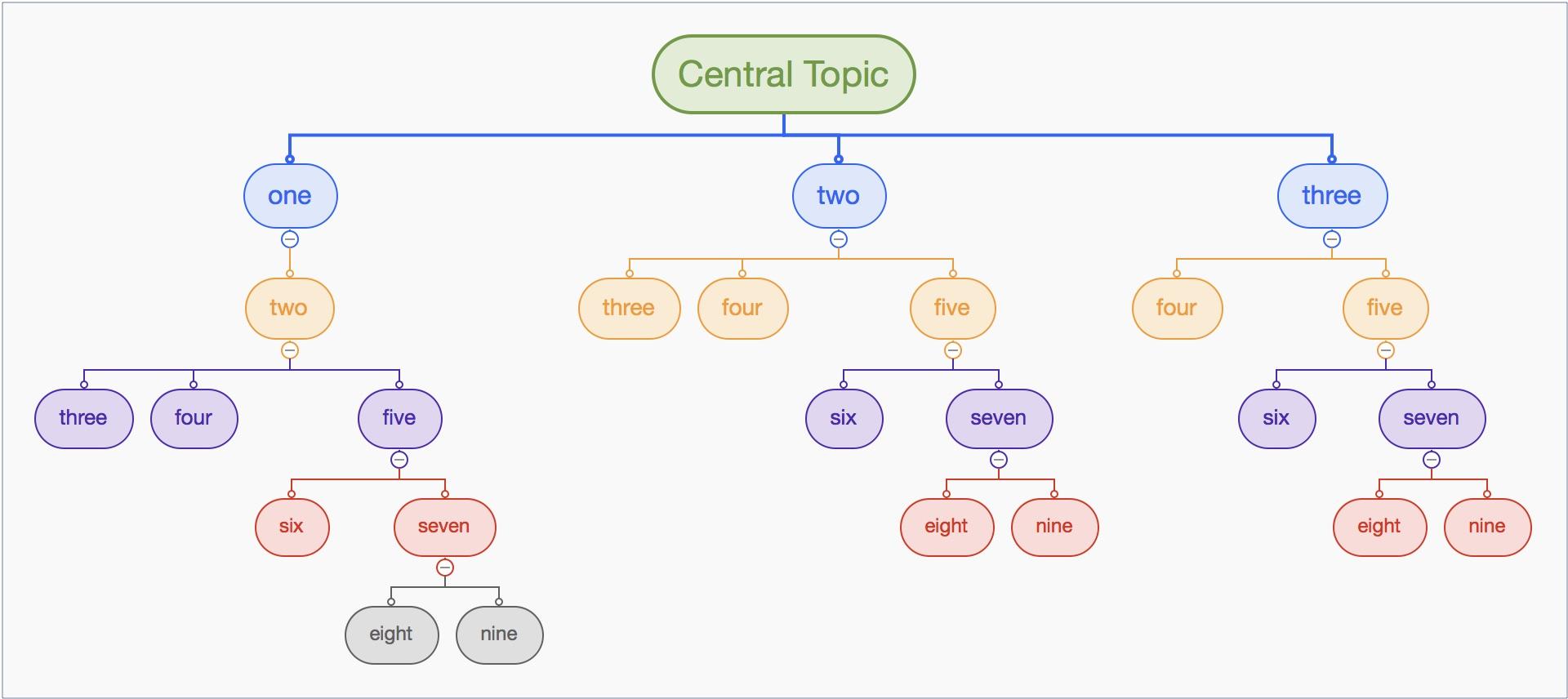
A tree-style mind map starts with one main topic at the top or left side. It then splits into main branches and smaller sub-branches. The structure looks like a tree with several levels.
This layout works well for project plans, business goals, and study topics. Start with the main subject. Add the key ideas below it. Place related details under each idea.
For example, a business plan can start with "Business Plan" at the top. Its branches can include finance, marketing, operations, and sales. Each branch can have smaller points with more details.
Flowchart Mind Map Layout
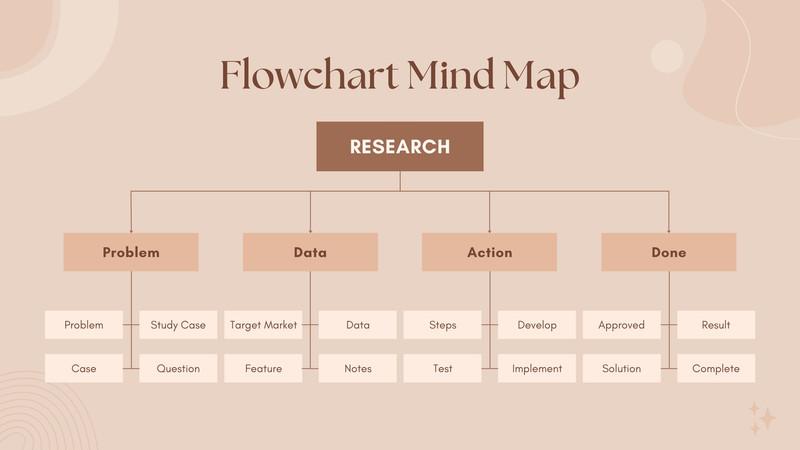
A flowchart mind map uses boxes, arrows, and connecting lines to show how ideas move from one step to another. It helps explain a process or show the order of tasks.
Start with the first idea on one side of the slide. Add the next steps in a clear order. Use arrows to show the direction of the process. You can also add decision points to show different paths.
For example, a product launch mind map can show research, product design, testing, marketing, and launch. Each step connects to the next one. This helps viewers understand the full process.
Color-Coded Mind Map Layout
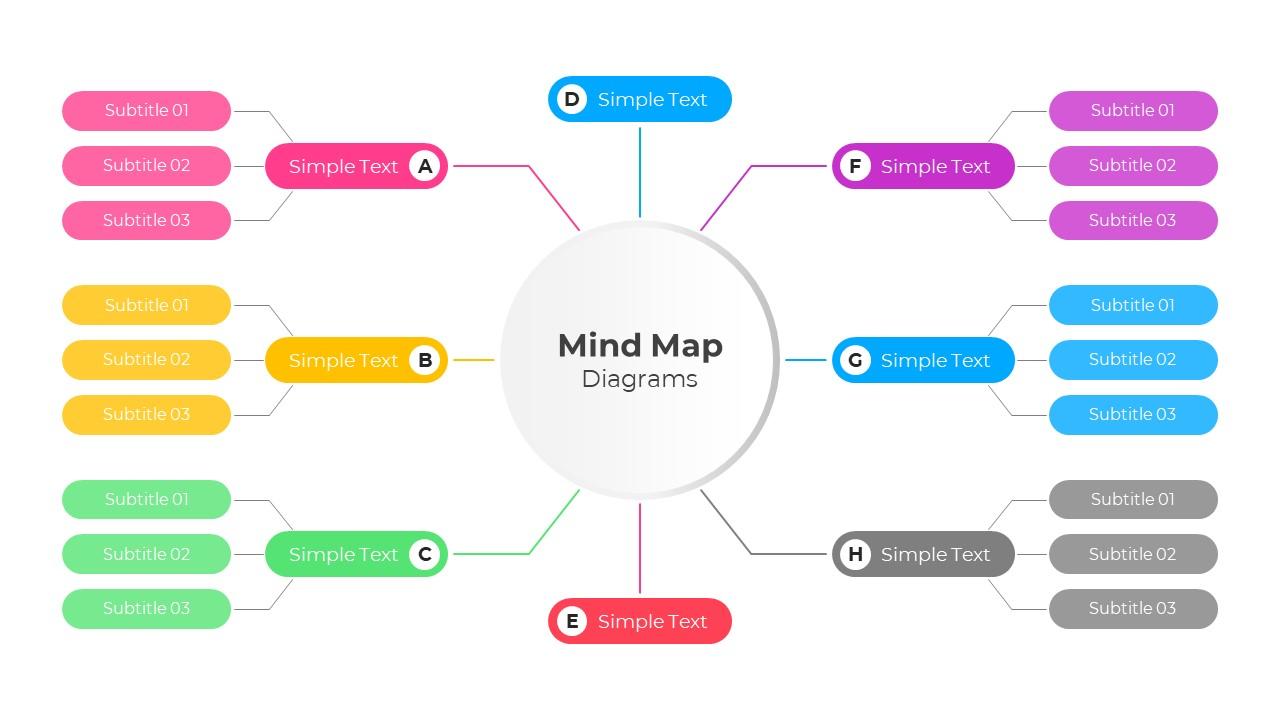
A color-coded mind map uses different colors to separate topics and groups of ideas. Each branch gets its own color. This makes the slide easier to scan and helps viewers tell related points apart.
Start with one main topic. Give each main branch a different color. Use lighter shades for smaller branches under the same group. Keep the colors consistent across the slide.
For example, a project planning mind map can use blue for tasks, green for budgets, orange for deadlines, and purple for team roles. Add a small legend if viewers need help understanding the color groups.
Multi-Level Mind Map Layout
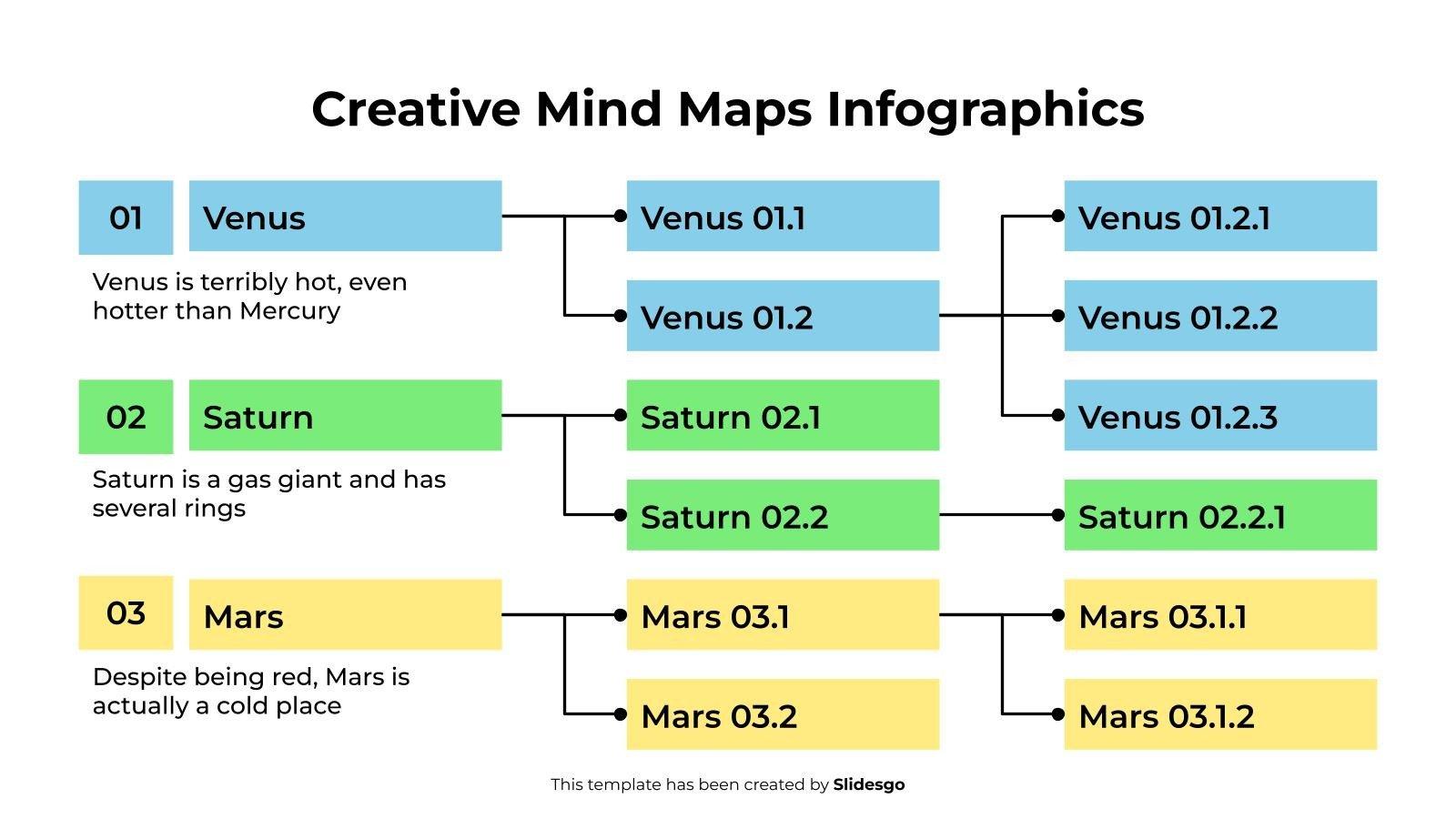
A multi-level mind map shows ideas in several layers. It starts with one main topic. Each main branch then breaks into smaller topics and supporting details. This layout works well for large subjects that need more explanation.
Place the main topic at the top or center of the slide. Add the main categories around it. Then create smaller branches for related points. Keep each level clear so viewers can follow the structure.
For example, a company growth mind map can include sales, marketing, customer service, and product development. Each category can have smaller points, such as lead generation, customer feedback, team goals, and product updates.
This layout helps present detailed information in an organized way. It also gives viewers a clear view of how each small idea supports the main topic.
Tips for Making PowerPoint Mind Maps More Effective
A good mind map should help people understand your ideas at a glance. A clear layout makes each point easy to follow. Small design choices can also make your slide easier to read. Use these tips to create better PowerPoint mind maps.
Keep the Main Topic Easy to Identify
Place the main topic in a clear spot on your slide. Use a larger font or a bold shape to make it stand out. Keep it separate from the smaller ideas. This helps viewers understand the subject right away.
Use Short Labels Instead of Long Sentences
Mind maps work best with short labels. Long sentences take up space and make the slide harder to read. Use a few words to describe each idea. For example, use "Market Research" instead of "Research the needs of the target market." This keeps your slide clean and easy to scan.
Maintain a Clear Visual Hierarchy
Show the link between the main topic and its supporting ideas. Use different font sizes, shapes, or line styles to show each level. Keep the main topic at the highest level. Place key ideas below it. Add smaller details to the next level. This structure helps viewers follow your points in the right order.
Choose Colors with Good Contrast
Use colors that make text and shapes easy to read. Dark text on a light background works well. You can also use different colors for each main branch. Keep the color choices consistent across the slide. Avoid using too many bright colors. They can take attention away from the content.
Avoid Adding Too Many Branches to One Slide
Too many branches can make a mind map crowded. Each idea needs enough space to remain clear. Group similar points under one main branch. Move extra details to another slide if needed. A simple mind map is easier to read than one filled with too much information.
Keep Related Ideas Close Together
Place ideas that share a common point near each other. This makes the links between them easier to see. Use the same branch or color for related topics. Keep enough space between separate groups. A well-arranged mind map helps viewers see how each idea connects to the main topic.
Common Mind Map Design Mistakes to Avoid
A good mind map should make ideas easy to follow. Poor design can make even simple topics hard to understand. Too much text, random colors, and unclear links can distract readers. Small design changes can make your PowerPoint mind map easier to read and share. Here are some common mistakes to avoid.
Adding Too Much Text
A mind map should show key ideas, not long blocks of text. Too many words can make each branch look crowded. Readers may find it hard to spot the main points.
Use short words or phrases for each branch. Keep extra details for speaker notes or another slide. This helps readers scan the map and understand how each idea connects to the main topic.
Using Too Many Colors and Shapes
Colors and shapes can help group ideas. But too many of them can make a mind map look messy. Random color choices may also make it hard to tell which ideas belong together.
Choose a small color palette. Use one color for each main branch or topic group. Keep shapes simple and use the same style across the map. This creates a clean look and helps readers follow each group.
Creating Unclear Connections Between Ideas
The lines and branches in a mind map show how ideas relate to each other. Poor connections can leave readers unsure about which point belongs to which topic.
Keep each branch close to its related idea. Use clear lines to link main topics with their supporting points. Avoid crossing too many lines. A clear structure helps readers follow the flow of ideas without extra effort.
Ignoring Alignment and Spacing
Poor alignment can make a mind map look uneven. Crowded branches can also make the text hard to read. Large gaps between related ideas may break the visual flow.
Keep related branches at a similar distance from the center. Leave enough space between text, shapes, and connecting lines. Use PowerPoint's alignment and spacing tools to keep each part in place.
Using Inconsistent Fonts and Styles
Different fonts, text sizes, and styles can make a mind map look untidy. Readers may also find it hard to tell which ideas are more important.
Choose one font family for the whole slide. Use larger text for the central topic and main branches. Keep smaller text for supporting points. Apply the same text and shape styles across all branches. This gives the mind map a neat and consistent look.
Final Notes
PowerPoint mind maps offer a simple way to organize and share ideas. They help turn large topics into smaller groups. You can use branches, shapes, colors, and icons to show how each idea connects to the main topic.
PowerPoint features like SmartArt, shapes, connectors, and text boxes make it easy to build your own mind map. You can also choose from radial, tree-style, flowchart, color-coded, and multi-level layouts.
Keep your design clean and easy to read. Use short labels, clear connections, and enough space between branches. Avoid too much text, random colors, and mixed styles. A well-designed mind map helps your audience follow your message and understand your ideas with less effort.
Frequently Asked Questions
1. What is a mind map in PowerPoint?
A mind map in PowerPoint is a visual way to organize ideas around one main topic. It uses branches, shapes, lines, and text boxes to show how different points connect.
2. How do I create a mind map in PowerPoint?
Start with a main topic in the center of your slide. Add branches for key ideas. Then include subtopics and supporting details. Use shapes, connectors, colors, and icons to organize the information.
3. Which PowerPoint feature is best for creating mind maps?
SmartArt is a good choice for simple mind maps. Shapes and connectors work better for custom layouts. You can also use text boxes and icons to add more details.
4. What are the different types of PowerPoint mind maps?
Common types include radial, tree-style, flowchart, color-coded, and multi-level mind maps. Each layout works well for a different type of topic or presentation.
5. How can I make my PowerPoint mind map easy to read?
Use short labels, clear branches, and enough space between ideas. Choose colors with good contrast. Keep the font style consistent and avoid adding too much text.
6. Can I use PowerPoint mind maps for brainstorming?
Yes. A mind map gives team members a shared space to add ideas. You can place the main topic in the center and create branches for each new suggestion.
7. How many branches should a PowerPoint mind map have?
There is no fixed number. Use enough branches to cover the main ideas. Keep the slide free from clutter. Move extra details to another slide if the map becomes too crowded.
8. Can I add images and icons to a PowerPoint mind map?
Yes. You can add icons and images to represent topics such as teams, tasks, budgets, and goals. Place each visual near its related idea and keep the design simple.



You may also be interested in ...

Tips To Create A Great Infographic
Infographics Have been around for a while, but not many people know about them or are their preferred presentation choice. If...
08 Jun, 2024

3 Steps To Create The Best Presentation...
Presentations are something wonderful when well done, you can captivate an audience or be super interested in what another pe...
23 Jun, 2024

3 Tips For Your Next Presentation You MU...
PowerPoint presentations are perfect for explaining a topic and communicating your ideas with a visual aid. But most people s...
08 Jun, 2024