How to Use Google Polls to Make Presentations More Interactive
Many presentations struggle to keep people involved from start to finish. Audience members may listen, yet they often stay quiet and passive. This lack of interaction can make it hard to know whether your message is clear or whether people remain interested in the topic.
A presentation with little participation can lead to lower engagement and fewer useful discussions. Speakers may miss valuable feedback and audience questions that could improve the session.
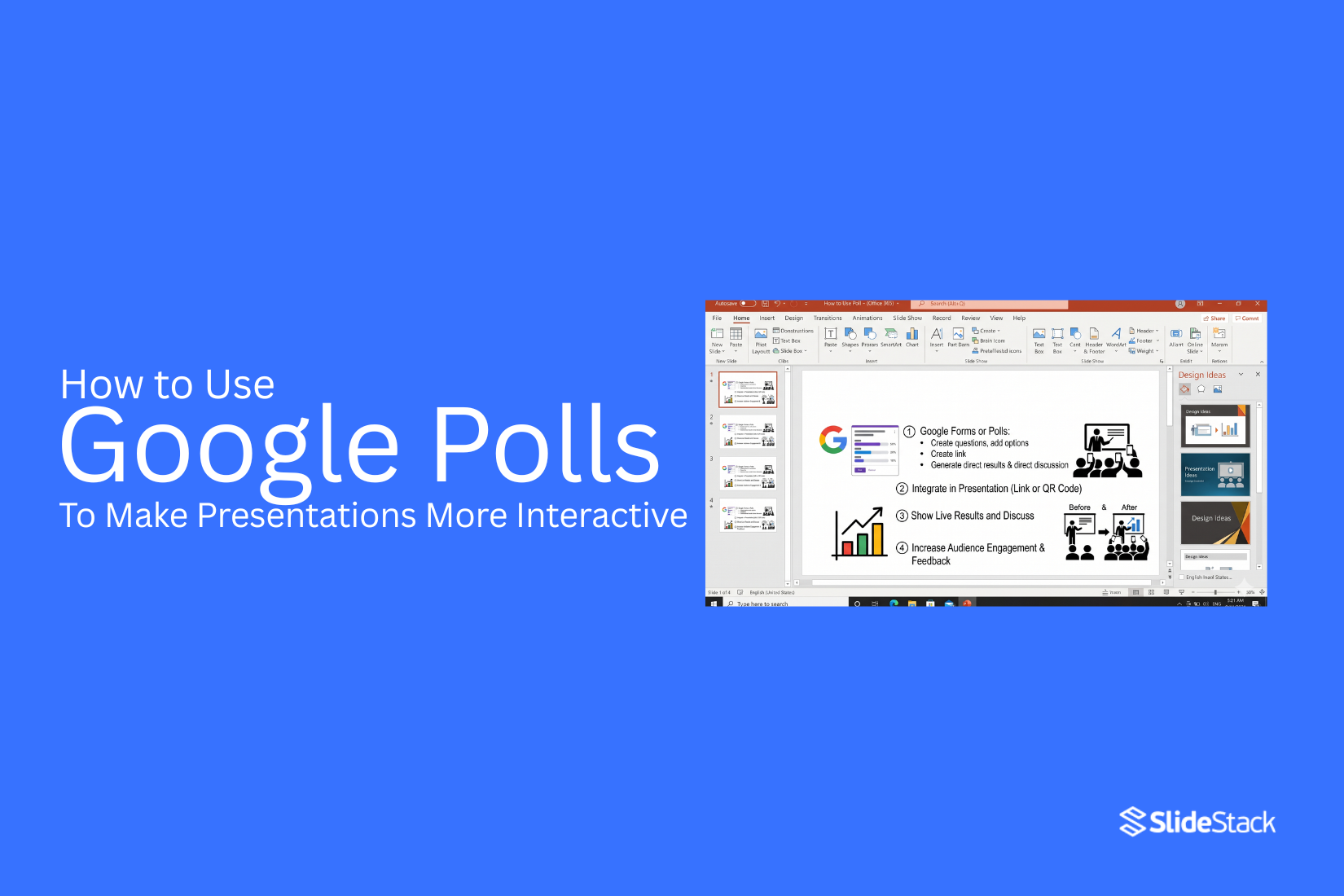
Google Polls offer a simple way to encourage participation during presentations. They help collect responses, gather opinions, and create real-time interaction. This guide explains how to create Google Polls, add them to presentations, share them with participants, and use results effectively.
Why Use Polls in Presentations?
Audience engagement plays a big role in the success of any presentation. A presentation works best when people stay involved and pay attention from start to finish. Polls give presenters a simple way to interact with the audience and make sessions more active. They also help turn one-way communication into a two-way experience.
1. Keeps the Audience Involved: Polls encourage people to take part instead of only listening. A quick question can grab attention and bring the audience into the discussion. This works well during business meetings, classroom lessons, and online webinars.
2. Increases Participation: Not everyone feels comfortable speaking in front of a group. Polls give people an easy way to share their opinions. More audience members can join the conversation without the pressure of raising a hand or speaking aloud.
3. Makes Presentations More Interactive: Interactive presentations often hold attention longer than presentations that rely only on slides. Polls add moments of activity throughout the session. As a result, the audience stays focused on the topic being discussed.
4. Checks Audience Understanding: Presenters can use polls to see how well the audience understands key points. A simple question can reveal whether people are following along or need more explanation. This helps presenters adjust their approach during the presentation.
5. Encourages Active Learning: People tend to learn better when they take part in the process. Polls encourage the audience to think about questions and choose answers. This level of involvement can help improve knowledge retention in educational and training sessions.
6. Collects Instant Feedback: Polls provide immediate feedback from the audience. Presenters can learn what people think about a topic, idea, or proposal within seconds. This information can support better discussions and decision-making.
7. Helps Guide the Presentation: Audience responses can help shape the direction of a presentation. For example, a trainer may spend more time on a topic that many participants find challenging. This creates a more relevant experience for everyone involved.
8. Starts Meaningful Discussions: Poll results often lead to useful conversations. Different responses can highlight new viewpoints and create opportunities for discussion. This is especially valuable in workshops, team meetings, and classroom settings.
9. Provides Useful Data and Insights: Poll responses give presenters data they can review after the session. Business professionals can gather opinions from employees or clients. Educators can measure student understanding. Webinar hosts can learn more about audience interests.
10. Creates a More Memorable Experience: People are more likely to remember presentations that include interaction. Polls break up long sections of content and add variety to the session. A presentation that invites participation often leaves a stronger impression on the audience.
What Is a Google Poll?
A Google Poll is a survey or questionnaire created with Google Forms. It allows users to collect answers from a group of people in a simple and organized way. Google Polls are not a separate Google tool. Instead, they are made through Google Forms. Users can create questions, send the poll to others, and collect responses in one place. People use Google Polls for many purposes. Teachers gather feedback from students.
Businesses ask customers for opinions. Teams collect ideas, preferences, or votes from group members. Google Polls include several useful features. Users can add different question types, change the appearance of the form, and control who can respond. Polls can also be shared through a link, email, or other communication channels. As responses come in, Google Forms records the data automatically. Results are displayed in charts and summaries, which makes it easier to review responses. Users can also open the data in Google Sheets for deeper analysis and record-keeping.
Benefits of Using Google Polls in Presentations
A presentation works best when people take part in it. Google Polls give your audience a simple way to join the discussion instead of only listening. One major benefit is higher engagement. People can answer questions in real time. This keeps them focused on the topic and gives them a reason to stay involved throughout the presentation.
Google Polls also help presenters collect feedback right away. Instead of waiting until the end, you can learn what your audience thinks at different points in the session. This can help you adjust your presentation and address questions as they come up. Another benefit is better audience understanding. Poll results can show what people already know about a topic. This makes it easier to explain ideas at the right level and spend more time on areas that need extra attention.
Polls can make presentations feel more interactive and enjoyable. A quick question or opinion poll can break up long sections of content and bring fresh energy to the room. The results can also help start discussions. After people vote, you can talk about the answers and ask follow-up questions. This creates more opportunities for participation and sharing ideas. Finally, Google Polls are easy to use. Most participants can respond from their phones, tablets, or computers. This makes it simple for large and small groups to take part without special equipment.
Requirements for Using Google Polls
Before you add a Google Poll to your presentation, make sure you have a few basic things ready. You need a Google account to create and manage polls. This account gives you access to the tools needed to build and share poll questions. A stable internet connection is also important. Polls collect responses online, so both you and your audience need internet access during the presentation.
Your audience should have a device they can use to join the poll. A smartphone, tablet, or computer works well for this purpose. It also helps to prepare your poll questions before the presentation starts. Clear questions make it easier for people to respond. Short answer choices can also improve participation.
One more thing to check is the sharing method. Most presenters share a link or QR code so audience members can join the poll quickly. Keeping access simple helps more people take part. With these basics in place, you can focus on using polls to keep your audience involved throughout the presentation.
How to Make a Google Poll
To create a Google Poll for your presentation, follow the steps below:
Step 1: Open Google Forms and select Blank Form or choose a template.
Step 2: Enter a title and description for your poll.
Step 3: Click the question field and type your poll question.
Step 4: Select a question type, such as Multiple Choice, and add answer options.
Step 5: Turn on the required option to make sure participants submit a response.
Step 6: Review your poll and check that all answer choices appear correctly.
Step 7: Click Send to share the poll through a link, email, or other sharing method.
Advanced Poll Options
For additional functionality, you can add multiple questions, use checkboxes for multiple answers, create rating questions with a linear scale, organize questions into sections, and limit participants to one response.
Customizing Your Google Poll
After creating your poll, you can adjust its appearance to match your presentation. Use the theme settings to change colors, add a header image, update the background style, and include branding elements. You can also collect email addresses, shuffle question order, and manage response settings.
Viewing Google Poll Results
You can monitor responses directly from Google Forms.
In Google Forms: Open the Responses tab to view response totals, charts, and answer summaries.
In a Spreadsheet: Export responses to a spreadsheet for sorting, filtering, and deeper analysis.
Note: Poll responses update in real time, allowing you to track participation and review audience feedback during your presentation.
How to Insert Google Polls in Presentations
There are several ways to add a Google Poll to a presentation. These methods help audience members access the poll during your session. In Google Slides, you can use links, QR codes, or visual previews to connect people to your poll without leaving the presentation flow.
How to Embed Google Polls into Google Slides
Google Slides does not include a built-in feature for displaying a live Google Poll inside a slide. Still, you can add polls using a few simple methods. The options below focus on practical ways to connect your audience to the poll.
Method 1: Shareable Link with Shape, Text, or Button
Create a shape, text box, image, or button on your slide. Select the element and open Insert > Link. Paste the shareable Google Poll link and apply it to the selected object. During the presentation, audience members can click the linked element to open the poll.
Method 2: QR Code Integration
Copy the shareable link for your Google Poll and create a QR code using a QR code generator. Download the QR code image and insert it into your Google Slides presentation. Place it in a visible area of the slide so audience members can scan it with their mobile devices and access the poll instantly.
Method 3: Embed Poll Preview with Screenshot
Take a screenshot of the first poll question and insert it into your slide as an image. This gives the audience a preview of the poll before they open it. Next, select the screenshot, open Insert > Link, and add the poll URL. Clicking the image will take users directly to the live poll.
How to Use Google Polls in PowerPoint
There are several ways to add a Google poll to a PowerPoint presentation. Each method gives your audience a simple way to open and respond to the poll. The right option depends on your presentation style and how you want participants to join.
Method 1: Connect a Slide Element with the Poll Link
Create a shape, text box, image, or button on your slide. Copy the shareable link from your Google poll. Select the slide element and go to Insert > Link. Paste the poll link and apply it to the selected item. During the presentation, participants can click the linked element to open the poll in their browser.
Method 2: Insert a Google Polls QR Code in a Slide
Copy the shareable link for your Google poll and create a QR code using a QR code generator. Download the QR code image and insert it into your PowerPoint slide. Place the QR code where it is easy to see and scan. Audience members can scan the code with their mobile devices and open the poll without typing a web address.
Method 3: Embed a Web Page
PowerPoint supports web-based content through certain add-ins. Install a web-viewing add-in and add a web content window to your slide. Paste the Google poll URL into the add-in to display the poll page inside the presentation. This method keeps the poll visible within the slide environment and can create a smoother experience during live presentations. It requires an internet connection and a compatible add-in.
How to Share Google Polls During a Presentation
Creating a poll is only part of the process. People also need an easy way to join and submit their answers. A simple sharing method helps more participants take part. It also keeps the presentation moving without delays.
Sharing a Direct Link
A direct link is one of the easiest ways to share a Google Poll. After creating the poll, copy the link and send it to your audience. You can share the link through email, chat, or a meeting platform. Some presenters also place the link in the presentation chat during virtual sessions. Short links work well because they are easier to type. Participants can open the poll on their phones, tablets, or computers and respond right away.
Using QR Codes for Quick Access
QR codes give participants a quick way to open a poll. Instead of typing a web address, they can scan the code with their phone camera. Place the QR code on a slide before the poll begins. Leave it on the screen long enough for everyone to scan it. This method works well for large groups. It also helps reduce typing errors and saves time during the presentation.
Embedding Poll Links in Presentation Slides
Adding poll links directly to slides keeps everything in one place. Participants can access the poll without searching through messages or emails. You can attach the poll link to text, buttons, or images within the presentation. During the session, direct the audience to the slide that contains the link. This approach helps create a smooth experience. It also makes it easier to move between your content and audience responses.
Displaying Instructions for Participants
Clear instructions help people join the poll without confusion. Even a simple poll can cause delays if participants do not know what to do. Add a short list of steps on the slide. Explain how to access the poll and how to submit an answer. Keep the instructions brief and easy to read. A quick explanation from the presenter can help as well. Once everyone understands the process, the poll can begin, and the discussion can continue without interruption.
How to Use Poll Results in Real Time
Polls do more than collect answers. They help you understand your audience while your presentation is still happening. As responses come in, you can see what people know, what they prefer, and what they want to learn next. This creates a more active experience for everyone in the room.
Viewing Responses as They Arrive
One useful feature of Google Polls is the ability to watch responses appear in real time. You do not need to wait until the presentation ends to review the data. As participants submit their answers, the results update automatically. This gives you a clear view of audience participation. It also helps you spot trends right away. A quick look at the responses can reveal which topics are easy for the audience and which ones need more attention. That insight helps keep your presentation connected to the people listening.
Presenting Live Results to the Audience
Displaying poll results during a presentation can make the session more engaging. People enjoy seeing how their answers compare with others. After enough responses arrive, share the results on your screen. Charts and percentages make the data easy to understand. Live results can spark interest and encourage more participation. They also give the audience a chance to see different opinions within the group. This can lead to stronger discussions and greater involvement.
Using Responses to Guide Discussion
Poll results can help shape the direction of your presentation. Instead of following a fixed path, you can focus on topics that matter most to the audience. For example, a poll may show strong interest in one subject. Another question may reveal confusion about a specific topic. These results provide useful clues about where to spend more time. As the discussion moves forward, use the feedback to support your key points. This keeps the conversation relevant and helps maintain audience attention.
Addressing Audience Questions and Concerns
Polls can also uncover questions that participants may not want to ask out loud. Some responses may point to common concerns or areas where more explanation is needed. Take a moment to review the results and identify patterns. Then address those concerns during the presentation. This approach shows that audience feedback matters. It also helps create a more open and interactive environment. People feel heard, and the presentation becomes more useful for everyone involved.
Best Practices for Using Polls During Presentations
Polls can help turn a one-way presentation into a two-way conversation. They give people a chance to share their opinions and stay involved throughout the session. A well-planned poll can improve participation, spark discussion, and help you understand your audience better. The following practices can help you get better results from your polls and create a smoother experience for everyone.
- Keep Questions Clear and Simple: Poll questions should be easy to read and understand. Participants should know what is being asked without needing extra explanation. Clear wording helps people respond faster and reduces confusion during the session.
- Limit the Number of Questions: A poll with too many questions can reduce participation. Focus on the most important points you want to learn from your audience. Short polls keep attention high and allow the presentation to move forward smoothly.
- Test Polls Before the Presentation: Take time to check that every poll works as expected. Review the wording, answer options, and display settings. A quick test can help you avoid delays and technical issues during the live session.
- Introduce Polls Naturally: Polls should feel like part of the presentation rather than a separate activity. Use them to start a discussion, gather opinions, or check understanding. A natural transition helps the audience stay focused on the topic.
- Give Clear Participation Instructions: Not everyone will be familiar with the polling tool. Briefly explain how to join and submit responses. Simple directions help more people participate with confidence.
- Allow Enough Time to Respond: Some audience members need extra time to read and think. Avoid closing polls too quickly. A reasonable response window helps more participants contribute their views.
- Discuss the Results: Poll results create an opportunity for conversation. Take a moment to explain what the responses show and how they connect to your topic. This makes the activity feel meaningful rather than routine.
- Prepare for Different Response Patterns: Results may not match your expectations. Stay flexible and be ready to adjust your discussion. Unexpected responses often create valuable conversations and new insights.
- Focus on Audience Comfort: Avoid questions that may make participants feel uncomfortable or pressured. People are more likely to respond honestly when they feel respected and safe sharing their opinions.
- Have a Backup Plan: Technology does not always work perfectly. Keep an alternative activity or discussion question ready. This allows the presentation to continue without interruption if a polling issue occurs.
Creative Ways to Use Google Polls
A simple poll can do more than collect answers. It can help people take part in your presentation from start to finish. Start with an icebreaker poll. Ask a fun question at the beginning of your session. This helps people feel comfortable and ready to join the discussion. You can also use polls to test knowledge. Add a short question before you cover a topic. Then ask the same question later. This shows what the audience has learned.
Another idea is to let the audience help shape the presentation. Ask what topic they want to discuss next. Their answers can guide the direction of the session. Polls also work well for gathering opinions. For example, you can ask people about their biggest challenge or favorite option. The results can lead to useful conversations. At the end of your presentation, use a feedback poll. Ask what people liked and what could be better. This gives you helpful ideas for future presentations.
Common Challenges and How to Solve Them
Google Polls are easy to use, but a few issues can affect participation. One common problem is a low response rate. Some audience members may not notice the poll or may hesitate to answer. A clear explanation can help. Tell people why their input matters and how long the poll will take. Technical issues can also appear. Poor internet access may prevent some people from joining. Before your presentation starts, test the poll and make sure the sharing link works.
Long or unclear questions can confuse participants. Keep each question short and direct. Simple wording helps people answer with confidence. Another challenge is asking too many questions. Frequent polls can interrupt the flow of the presentation. Use them at key moments where audience input adds value. Some presenters move on before everyone has time to respond. Give people a short moment to read the question and submit their answers. This helps increase participation.
Google Polls vs Other Audience Engagement Tools
Google Polls are one of many tools used to engage an audience. Each option has its own strengths. Google Polls are easy to create and share. Many people are already familiar with Google's tools. This makes participation simple for both presenters and attendees. Some audience engagement platforms offer extra features. These may include live quizzes, word clouds, rankings, or game-style activities. Such features can add variety to a presentation.
Still, extra features often come with added setup steps. Some tools also require paid plans to access advanced options. Google Polls focus on simplicity. They are a good choice for collecting feedback, gathering opinions, and asking questions during a presentation. The right tool depends on your goals. A simple presentation may only need a few polls. A larger event may benefit from tools that offer more interactive features.
Final Notes
Google Polls give presenters a simple way to increase audience participation. They help collect feedback, encourage discussion, and keep people involved throughout a presentation. With Google Forms, you can create polls, share them through links or QR codes, and review responses as they arrive. Polls also provide useful insights that can help shape conversations and address audience needs. From business meetings to classroom lessons, they add an interactive element that supports better communication and engagement.
Clear questions, simple sharing methods, and thoughtful use of results can help create a smoother experience for both presenters and participants. By adding polls at key points in your presentation, you can turn passive listeners into active contributors and make your session more engaging and productive.
FAQs:
Can I create a Google Poll without special software?
Yes. You can create a Google Poll using Google Forms. A Google account gives you access to the tool and its features.
Do participants need a Google account to answer a Google Poll?
In many cases, participants can answer a poll without signing in. The response settings chosen by the poll creator determine access requirements.
Can I use Google Polls during live presentations?
Yes. Google Polls work well during live presentations. Participants can submit responses from their phones, tablets, or computers while the session is taking place.
How do I share a Google Poll with my audience?
You can share a poll through a direct link, email, QR code, or a linked element inside your presentation slides.
Can I view poll results while the presentation is running?
Yes. Google Forms updates responses as they arrive. This allows presenters to review audience feedback during the session.
Can I add more than one question to a Google Poll?
Yes. Google Forms allows you to create polls with multiple questions. You can use different question types based on your goals.
What devices can participants use to join a poll?
Participants can use smartphones, tablets, laptops, or desktop computers with internet access.
Can I use Google Polls in both Google Slides and PowerPoint?
Yes. You can connect Google Polls to both presentation tools through links, QR codes, or other sharing methods.
How can poll results help during a presentation?
Poll results can show audience opinions, measure understanding, and highlight topics that need more discussion. This helps presenters keep the session relevant.
What should I do if a poll does not work during the presentation?
Keep a backup activity or discussion question ready. This helps the presentation continue smoothly while you address the issue.


You may also be interested in ...

How To Create An Eye-Catching Portfolio
If you’re looking to create an eye-catching portfolio, this post will come in handy. In this article, you can find the easies...
23 Jun, 2024

How To Easily Create An Infographic
Infographics are the perfect way to make a presentation that will impact an audience, but their design and composition might...
08 Jun, 2024

PowerPoint Template Tips & Tricks You Ne...
PowerPoint seems to be an unknown world for many people, especially those who have been assigned to create a presentation out...
08 Jun, 2024