How to Customize PowerPoint Templates in Canva
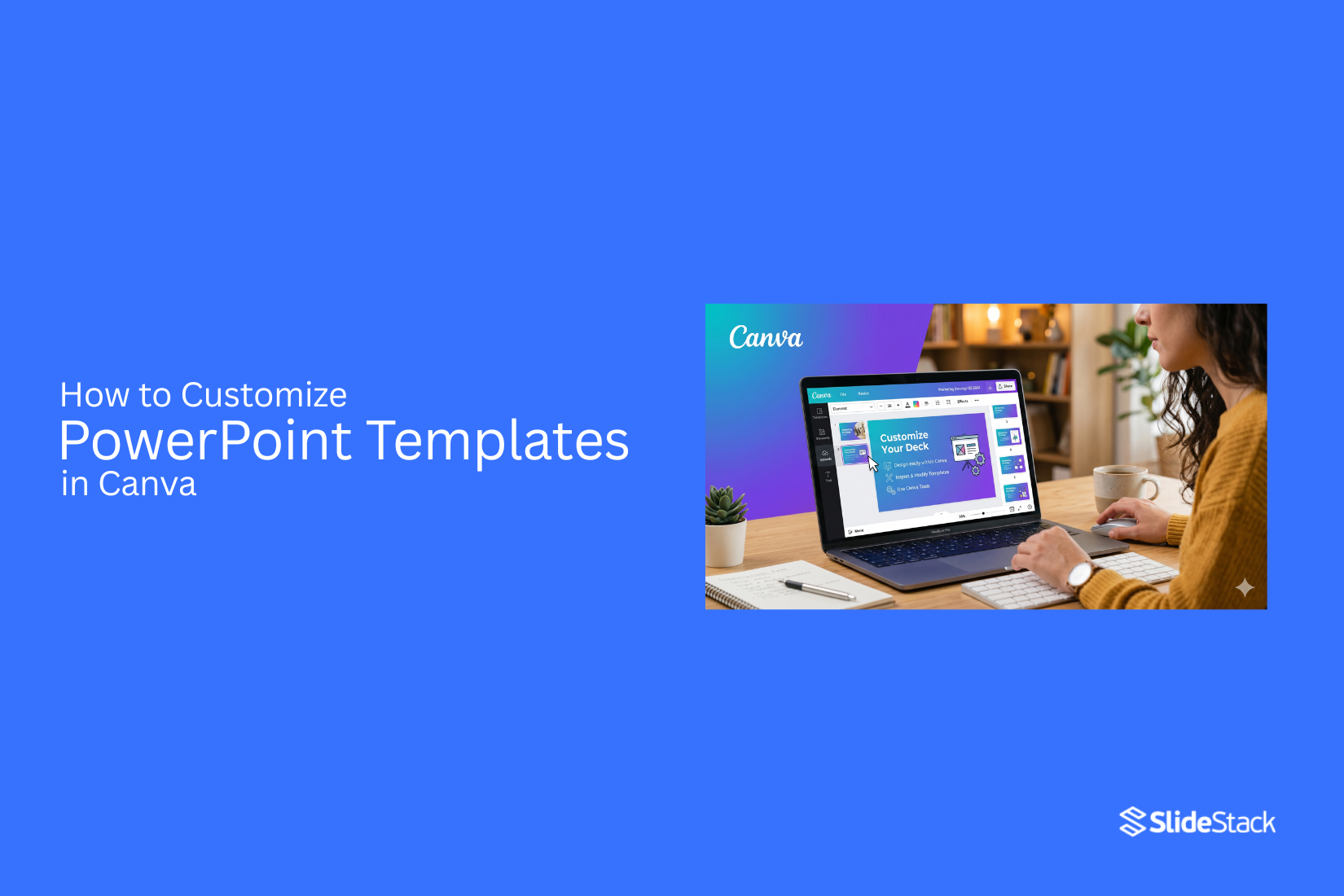
PowerPoint remains a widely used tool for building structured presentations and detailed slide decks. Canva has become a common alternative for editing and designing presentation content, especially for users who want simpler tools for visual updates and layout changes. Many people now import PowerPoint templates into Canva to adjust designs, apply branding, and manage presentation content in one place.
Canva makes it possible to edit slides without advanced design skills, but the experience is not always identical to PowerPoint. Some elements transfer smoothly, while others may shift or lose formatting during import. This guide explains how to customize PowerPoint templates in Canva, what you can edit after uploading, and what to check before and after making changes.
Understanding PowerPoint Templates in Canva
PowerPoint templates are ready-made slide designs. They help users build presentations with a clear layout. These templates include text boxes, images, and design styles. Canva also works with these files. Users can open PowerPoint files inside Canva and adjust them. The design stays editable, so changes are simple to make. This gives more control over how slides look. It also helps improve design quality without starting from zero.
What Are PowerPoint Templates?
PowerPoint templates are pre-designed slide formats. They guide how content is placed on each slide. Titles, images, and text areas are already set. These templates help keep slides consistent. They also save time during design work. Users only need to add their own content.
How Canva Supports PowerPoint Files
Canva allows users to upload PowerPoint files. The slides open in an editable format. Most elements stay flexible to changes. Users can adjust text, colors, and images. Some design elements may shift slightly after import. Canva still gives a simple way to fix layouts and improve design. This makes editing easier for users who prefer a visual workspace.
Why Customize Templates in Canva?
Customizing templates in Canva helps improve presentation design. It allows better control over layout and style. Users can match brand colors and fonts. Slides can also be adjusted for clearer messaging. The process helps make presentations look more consistent and clean. Canva also supports quick edits. This helps users update content without rebuilding slides from the start.
Common Reasons for Editing PowerPoint Templates in Canva
PowerPoint and Canva serve different presentation workflows. PowerPoint focuses on slide building with fixed layout control and desktop-based features. Canva works as a browser-based design tool with template-based editing and shared access. Many users move PowerPoint files into Canva to adjust layouts, update brand elements, and manage content across teams without changing software tools.
After import, slide elements may shift due to differences in how each system handles fonts, spacing, and animations. PowerPoint supports advanced transitions and motion paths that do not always transfer into Canva. Canva may turn some effects into static visuals, which changes timing and slide movement. Font changes can also appear if the original typeface is not available, which affects spacing and alignment across slides.
Cross-platform template use affects workflow stability across both tools. Templates made for PowerPoint keep formatting steady inside Microsoft software. Canva templates follow their own grid system and export rules, which can create changes during transfer between platforms. Teams working across both tools often select templates designed for both systems to reduce layout shifts and keep slide structure consistent during edits.
Things to Consider Before Uploading a PowerPoint Template to Canva
Before uploading a PowerPoint file into Canva, the file should be checked for elements that may change during import. Some parts of a presentation do not move between tools in the same way. A short review helps prevent layout issues and missing design elements.
Compatible Fonts
Fonts can change during upload if Canva does not support the original typeface. The text will still appear, but the style may shift. This can affect spacing and alignment across slides. Simple and common fonts such as Arial or Calibri are safer choices because they keep the layout steady after import.
Review Images and Graphics
Images usually transfer without major problems. Some graphic elements may not behave the same way in Canva. Shapes, grouped objects, and complex diagrams can shift or lose structure. Each slide should be checked so that the visual parts stay clear and properly placed after upload.
Compatibility for Animations
PowerPoint animation settings do not carry over in full. Motion effects often change or disappear after import. Canva uses its own animation system, which works differently. Slides that depend on motion may need to be rebuilt using Canva tools to keep movement consistent.
Use of Slideshow
Canva handles presentation mode differently from PowerPoint. Slide transitions and timing settings may not transfer as expected. A simple slide layout works better for editing inside Canva. Complex slideshow setups should be checked before upload to avoid display changes during presentation.
Backup Original File
Keeping the original PowerPoint file is important before making any changes. The Canva version may not match the original in every detail. A saved copy allows the presentation to be restored if something shifts during import. This keeps the workflow safe and controlled.
How to Upload and Edit a PowerPoint Template in Canva
Editing a PowerPoint file in Canva starts by uploading the file into the platform and then moving through each slide inside the editor, where you can adjust text, images, colors, and layout using simple tools that are built into Canva.
Step 1: Upload the PowerPoint File to Canva
Open Canva on your browser and go to the main home screen, where all design tools are shown in one place, then locate the upload section and select the option to upload a file from your device, after that choose the PowerPoint file in PPT or PPTX format and start the upload process so Canva can bring the file into the system. The presentation is processed by Canva, and each slide is converted into an editable format that appears inside the editor. Once this conversion finishes, you can scroll through the full slide deck and open any slide for editing without needing to recreate the presentation from scratch.
Step 2: Edit Text and Fonts
Click on any text box inside the slide to activate editing mode, where you can change words directly inside the box and adjust the content to match your needs for each section of the presentation, then use the top toolbar to modify font style, font size, and text color so the slide matches the visual direction you want to follow across the entire deck. Some fonts that were used in the original PowerPoint file may not be available inside Canva, so the system replaces them with similar font styles that keep the overall look close to the original design while still allowing full control over the final appearance.
Step 3: Replace Images and Graphics
Select any image or graphic element placed on the slide and remove it or choose a replacement option that allows you to insert new visuals from your device or from Canva’s built-in image library, then position the new image inside the slide area so it aligns with the surrounding content and supports the message of the slide in a clear way. You can resize images using corner handles and adjust placement by dragging them across the slide, which helps maintain balance between text and visuals while keeping the slide layout structured and easy to follow.
Step 4: Modify Colors and Layouts
Click on design elements such as shapes, icons, or background sections and open the color panel where you can change colors to match a specific theme or brand style across all slides, then apply consistent color choices so the entire presentation maintains a unified appearance from the first slide to the last. You can also move elements around the slide, adjust spacing between objects, and reorganize layout components by dragging them into new positions, which helps create better alignment and improves the overall structure of each slide without needing advanced design skills.
PowerPoint Editing in Canva
Editing a PowerPoint file in Canva follows a simple path. You bring the file into Canva. The tool converts the slides into an editable format. Some parts stay the same. Some parts change slightly during import.
What Can Usually Be Edited Easily After Import
Text editing stays simple in most cases. You can click on text boxes and change words. Fonts often adjust to match Canva’s available options. You can still select new fonts from Canva’s library. Images remain editable. You can replace them or move them around the slide. Shapes and icons usually stay separate elements. You can resize them or shift their position. Colors can be changed using Canva’s color tools. This helps match a new style or brand. Layouts often stay close to the original structure. You can move sections if the design needs to change.
PowerPoint Features Likely to Cause Compatibility Issues
Some PowerPoint animations may not transfer correctly. Movement effects may reset or change. Custom fonts from PowerPoint may not appear in Canva. A substitute font may appear instead. Advanced slide transitions may not carry over. Canva may replace them with basic effects. Embedded media files may not work after import. Videos or audio may need to be added again. Layered design effects can shift during conversion. Elements may overlap in new positions. SmartArt graphics may turn into grouped shapes. You may need to adjust them manually. Complex charts may lose formatting detail. Data may remain, but visuals may look different.
Updating Colors and Branding
Colors and branding shape how a slide deck looks. They set the tone for the whole design. Small changes in color can shift how the message feels. A clean and steady color setup keeps slides easy to read and follow.
Applying Brand Colors
Brand colors give each slide a clear identity. These colors stay the same across titles, shapes, and backgrounds. Picking a small set of colors helps avoid confusion on the slide. Light and dark shades work well together for clear contrast.
Using Canva Brand Kit
Canva Brand Kit stores brand colors in one place. It helps keep colors ready for use during editing. Saved colors can be applied quickly across all slides. This keeps the design aligned without repeated manual work.
Maintaining Design Consistency
Consistency keeps all slides looking connected. Fonts, colors, and shapes should follow the same pattern across the deck. Repeating the same style choices builds a steady flow from slide to slide. This makes the presentation easier to follow from start to finish.
Replacing Images and Graphics
Images and graphics shape how a slide looks. They also guide attention to key points. In Canva, these parts can be changed in a few simple steps. The goal is to keep slides clear and easy to read.
Uploading Custom Images
Start by bringing in your own images. Open the upload section in Canva. Pick image files from your device. Add them to your project. Once uploaded, drag the image onto the slide. It will sit on top of the old visual. Adjust the size by pulling the corners. Keep the image balanced inside the slide space. A clean image choice helps the slide feel focused. Low-quality images can make the design look weak.
Using Canva's Media Library
Canva also offers ready-made visuals. Open the media section inside the editor. Search for photos, icons, or illustrations. Pick a visual that matches your slide message. Click to place it on the slide. It will replace or sit with existing graphics. Some visuals work better for text slides. Others fit well for title slides. Keep the layout simple so the message stays clear.
Editing and Positioning Visuals
After placing an image, adjust its position. Click and move it across the slide. Align it with text or other elements. Resize it to fit the space better. Avoid stretching the image too far. This keeps the quality clean. Cropping tools help remove extra parts of an image. This keeps focus on what matters. Small changes in placement can improve how the slide looks. A balanced layout makes the content easier to follow.
Modifying Slide Layouts
Slide layouts set how each slide looks. They control where text, images, and shapes sit on the page. Changing layouts helps the presentation match the message better. Canva gives simple tools to adjust these layouts after importing a PowerPoint file.
Rearranging Slide Elements
Each slide contains different parts. Text boxes, images, and icons sit in fixed spots at first. These parts can be moved around to better fit the message. Click on an element. Drag it to a new position. Drop it where it fits best. Spacing matters here. Keep enough space between items so the slide does not look crowded. Alignment tools help keep everything straight. Use them to line up text and visuals neatly across the slide.
Adding or Removing Content Blocks
Some slides need more space. Some need less. Content blocks help control this balance. A block can hold text, images, or icons. Add a new block to bring in more information. Remove a block to clear space and reduce clutter. Each change affects the flow of the slide. Keep only what supports the main idea. Too many elements can distract from the message.
Creating Consistent Slide Designs
Consistency helps slides look connected. It also makes the presentation easier to follow. Use the same font style across slides. Keep colors steady. Match spacing and alignment from slide to slide. Copy a well-designed slide to reuse its structure. Replace only the content inside. This keeps the design stable across the whole presentation.
Improving Presentations with Canva Features
Canva gives tools that help slide content look clearer and more organized. These tools also help turn plain slides into visual stories that are easier to follow.
Adding Icons and Illustrations
Icons and illustrations help explain ideas without long text. A small icon next to a point can guide attention fast. Canva offers a wide set of simple graphics. These can match a topic or mood. A finance slide can use coin or chart symbols. A health slide can use medical symbols. Placement matters. Icons work best near short text blocks. They should not crowd the slide. Space around each element keeps the design easy to read. Consistency also helps. Using a similar style of icons across all slides keeps the presentation steady and clean.
Using Charts and Infographics
Charts turn numbers into visuals. This helps the audience see patterns without reading tables. Bar charts work well for comparisons. Line charts show changes over time. Pie charts show parts of a whole. Infographics combine text, shapes, and numbers. They help explain steps or processes in a simple way. Keep each chart focused on one message. Too much data in one visual can confuse the viewer. Labels should stay short and clear so the slide stays easy to scan.
Applying Animations and Transitions
Animations control how objects appear on a slide. They can bring attention to one point at a time. This helps guide focus during a presentation. Simple effects work best. A slow fade or slide motion keeps attention without distraction. Strong effects can pull focus away from the message. Slide transitions control movement between slides. A consistent transition style helps the presentation feel smooth and steady. Use motion with purpose. Each effect should support the message on the slide, not compete with it.
Collaborating on Presentation Projects
Working on a presentation with others helps improve ideas. Canva makes group work simple. Team members can work on the same file from different places. This keeps everyone on the same page and saves time.
Sharing Designs with Team Members
Designs can be shared through a link or email invite. Each person gets access to the same presentation file. Roles can be set for viewing or editing. This helps control who can change the content. It also keeps the project organized.
Using Comments and Feedback Tools
Comments can be added directly on slides. Team members can point out changes or give ideas. Replies can stay in the same thread. This keeps feedback clear and easy to follow. Small updates can be made without confusion. Every note stays attached to the right slide.
Managing Presentation Versions
Each update creates a saved version. Older versions stay available in the file history. It is easy to go back to a previous design. This helps fix mistakes or review earlier work. Changes are tracked over time. The project remains stable even with many edits.
Exporting Your Customized Presentation
Your presentation work in Canva reaches a final stage where it moves into a shareable file. This step turns the design into a PowerPoint format. Open the finished file inside Canva. The full slide set appears on screen. Each slide stays in its edited form. Move to the top menu and select the share option. A download panel appears with file choices.
Pick the PowerPoint format. The file type shows as PPTX. This format keeps slides usable in PowerPoint. Start the download. The file saves to your device. The presentation is now ready for use outside Canva. Open the file in PowerPoint to review the layout. Some fonts or spacing may shift slightly. Small adjustments may be needed to match the original design.
Common Mistakes to Avoid
Many slides lose clarity because elements are placed without structure. Text and images sit in uneven spots. The slide looks crowded and hard to follow. Font changes across slides break visual flow. One slide uses a large font. The next uses a small one. The message feels inconsistent. Too many colors create visual noise. Slides lose focus. The main point gets buried under color changes.
Images with low quality reduce trust in the design. Pixelated visuals make the presentation look unfinished. Extra text on slides makes reading slow. Full sentences fill the space. The audience struggles to follow the key point. Poor spacing between elements leads to clutter. Content touches the edges. The slide feels tight and uncomfortable to view.
Best Practices for PowerPoint Editing in Canva
Editing PowerPoint files inside Canva works best with structure and control. Imported slides often carry formatting gaps or design limits. Canva performs better when you guide the layout instead of relying on the original file alone. A steady workflow helps reduce errors and keeps the design consistent across all slides.
Use Canva Brand Kits
Brand Kits set the visual rules for your presentation. Fonts, colors, and logos stay consistent across every slide. This reduces manual edits and prevents mismatched styles. Upload your brand assets before you start editing. Apply them across headings, body text, and shapes. This keeps the deck aligned with your visual identity from the first slide to the last.
Add Elements After Import
Imported PowerPoint files often lose design clarity inside Canva. Instead of fixing everything at once, start with a clean base. Then build on it. Add icons, shapes, and visuals using Canva’s library after import. This keeps control in your hands. It also prevents conflicts between old PowerPoint formatting and Canva’s layout system.
Review Slides
Imported content can carry hidden spacing issues or alignment shifts. A full slide review helps catch these early. Go through each slide one by one. Check text spacing, image placement, and alignment. Small errors become more visible during this step, especially in multi-slide presentations.
Simplify Slides
Some PowerPoint slides come with heavy layouts or dense text blocks. Canva handles clean layouts better. Break large sections into smaller slides. Remove repeated visuals or unnecessary elements. Keep only what supports the main point of each slide. This improves clarity and reduces visual strain.
Use Native Canva Features
Canva performs best with its own tools. Some PowerPoint features do not transfer well and may lose quality or structure. Replace unsupported charts, effects, or layouts with Canva-native elements. Use Canva charts, grids, and text tools instead. This keeps design quality stable and avoids formatting issues during export.
Final Notes:
This section closes the discussion on editing PowerPoint templates in Canva. The main value comes from using Canva as a place to adjust PowerPoint slides with less friction. It supports a simple workflow for users who want control over presentation design without staying inside a single tool. After import, core elements stay editable. Text can be changed for clarity and structure. Images can be replaced or repositioned. Colors can be adjusted to match a chosen theme. Layouts can be reshaped to fit new content needs.
Differences between Canva and PowerPoint affect how smoothly files behave. Some animations and advanced effects do not transfer in the same way. Formatting shifts can also appear during import. These gaps can lead to small design changes that need correction. A careful review after editing supports better results. Checking each slide helps catch spacing issues, missing elements, or style mismatches. Preparation before export also reduces rework later.
FAQs:
Can I upload any PowerPoint file to Canva?
Most PPT and PPTX files upload without issues. Very large files or files with heavy animations may load with changes in layout or effects.
Will my PowerPoint fonts stay the same in Canva?
Not always. Canva may replace fonts that are not available in its library. The text stays, but the style can change.
Do animations from PowerPoint work in Canva?
Most PowerPoint animations do not transfer fully. Canva uses its own animation system, so some motion effects may need to be rebuilt.
Can I edit every element after importing a PowerPoint file?
Many elements stay editable. Text, images, shapes, and colors can usually be changed. Some grouped or complex objects may need adjustments.
Why do my slides look different after importing into Canva?
Canva and PowerPoint use different design systems. Spacing, fonts, and layout rules can shift during import.
Can I use Canva to fix layout problems from PowerPoint?
Yes. You can move elements, adjust spacing, and rebuild parts of the slide using Canva tools.
Is it better to redesign slides after importing?
It depends on the file. Simple slides usually need small edits. Complex slides may work better with a partial redesign.
Can I export the Canva file back to PowerPoint?
Yes. You can download the file as a PPTX. Some formatting may change slightly after export.
Will charts from PowerPoint stay the same in Canva?
Basic charts may transfer, but advanced or custom charts can lose formatting and may need to be recreated.
What is the safest way to prepare a PowerPoint file before uploading?
Use standard fonts, simple layouts, and avoid heavy animations. This reduces layout shifts after import.


You may also be interested in ...

How To Create An Eye-Catching Portfolio
If you’re looking to create an eye-catching portfolio, this post will come in handy. In this article, you can find the easies...
23 Jun, 2024

How To Easily Create An Infographic
Infographics are the perfect way to make a presentation that will impact an audience, but their design and composition might...
08 Jun, 2024

PowerPoint Template Tips & Tricks You Ne...
PowerPoint seems to be an unknown world for many people, especially those who have been assigned to create a presentation out...
08 Jun, 2024