How to Use PowerPoint: The Complete Step-by-Step Guide
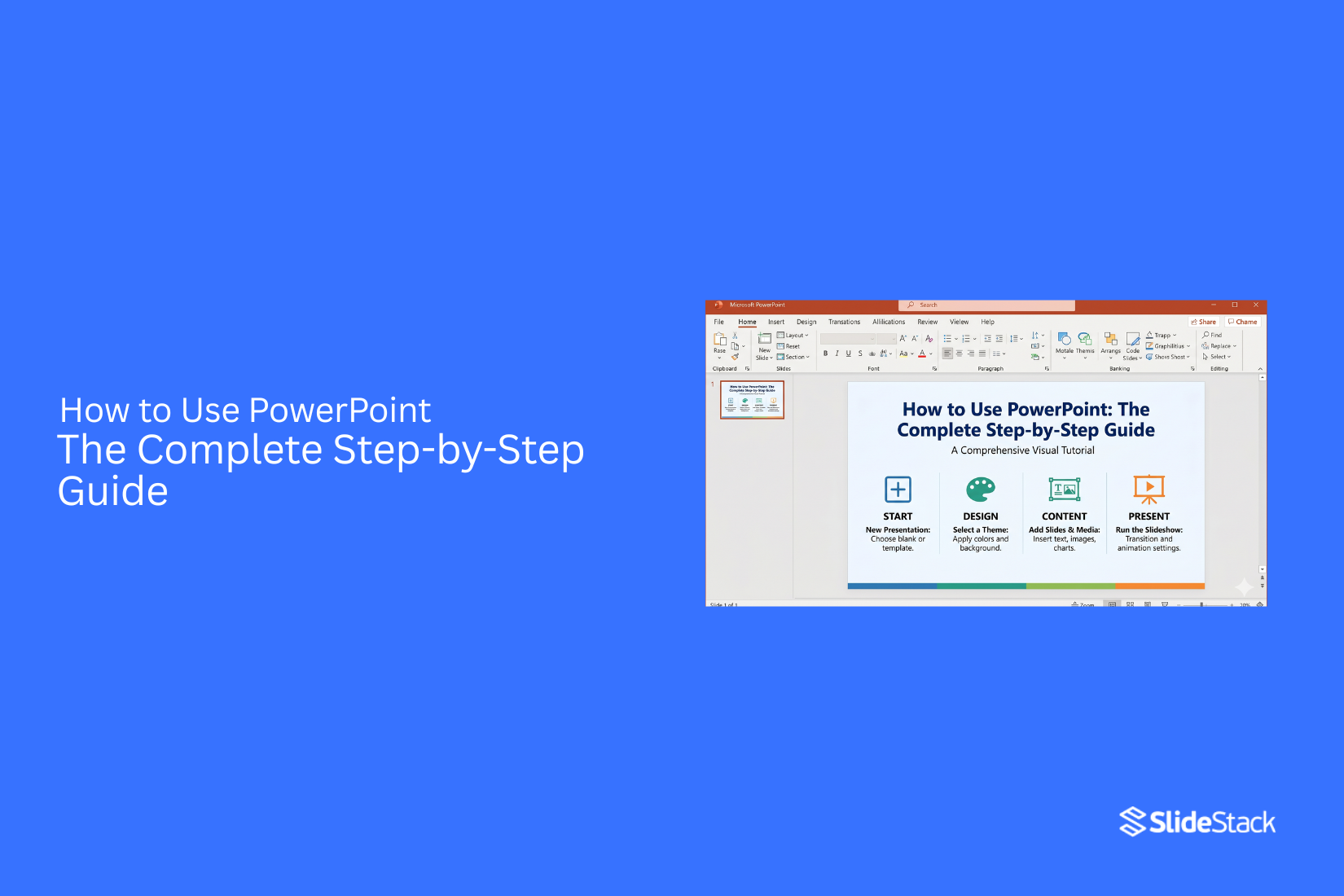
PowerPoint can feel confusing at first for many users. It often takes time to learn where to start and how to build clean slides that look clear and organized. Then, this guide shows how to use PowerPoint step by step, from basic tools to slide design and presentation. You will learn how to create slides that are simple, clear, and easy to present in school or work. Let us begin with the first steps inside PowerPoint and how everything connects as you build your presentation. Each section will move in a clear order so you can follow without confusion. Everything is designed for beginners and first-time users. You can start right away.
Starting Right: Templates and the Slide Master
A strong start makes slide creation easier. Templates give you a ready design. Slide Master controls the full look of slides. These tools save time and keep slides consistent.
How to Use PowerPoint Templates
PowerPoint templates give you a ready layout. They include fonts, colors, and slide styles. Open PowerPoint. Go to the template section. Pick a design that fits your topic. The layout will load on your screen. Add your text in the placeholders. Replace sample content with your own words. Keep text short on each slide. This helps the message stay clear. You can change colors and fonts inside the template. Stick to one style across all slides. This keeps your presentation neat.
How to Use Slide Master in PowerPoint
Slide Master controls the design of all slides at once. It helps keep everything uniform. Go to the View tab. Open Slide Master. You will see a main slide at the top. This controls all other layouts below it. Change fonts, colors, and backgrounds in the main slide. These changes apply to every slide in the deck. You can also edit specific layouts below the main slide. This helps when different slide types need different looks. Close the Slide Master view when finished. All slides will follow the updated design.
What Is Microsoft PowerPoint?
Microsoft PowerPoint is a program for making slide presentations. It is used for school, work, and business talks. Each presentation is made of slides. Each slide can hold text, images, charts, or videos. PowerPoint helps present ideas in a clear way. It organizes information into steps that are easy to follow.
Formatting Tools Worth Knowing
PowerPoint includes tools that shape how text and design look on a slide. Some tools adjust text position. Others help match styles and colors. These features save time and keep slides neat.
Superscript, Subscript, Format Painter, and the Eyedropper
Superscript places text a little above the normal line. It is used for math like x2 or x3. The text becomes smaller and sits higher than regular text. Subscript places text a little below the normal line. It is often used in science, such as H2O. The text becomes smaller and sits lower than normal text.
Format Painter copies styling from one part of a slide to another. It transfers font type, size, color, and effects. This helps keep text styles the same across slides without manual changes. The Eyedropper tool picks a color from anything on the screen. It helps match colors exactly. This keeps slide elements aligned in style and appearance.
Understanding PowerPoint Slides and Layouts
PowerPoint presentations are built from slides. Each slide holds one part of your message. Layouts decide how content looks on each slide.
How Slides Work in PowerPoint
Slides work like pages in a book. Each one carries text, images, or charts. A presentation moves from one slide to the next in order. This creates a clear flow for the viewer. Each slide has its own space. You can keep ideas separate. You can also build a story step by step across slides.
Selecting and Changing Slide Layouts
Layouts control where content goes. Some layouts focus on text. Some support images or charts. PowerPoint gives layout choices for each slide. You can pick a layout that fits your content. You can also switch layouts later to adjust the look. Different layouts help keep slides neat. They also help readers follow information without confusion.
Adding, Duplicating, and Deleting Slides
New slides help grow your presentation. Each new slide adds space for more ideas. Duplicating a slide copies its content. This helps keep the style and structure the same across slides. Removing slides keeps the presentation focused. Unneeded slides can be deleted to avoid clutter. These actions help control the size and shape of your work.
Organizing Slides with Sections
Sections group slides into parts. Each section can hold a theme or topic. Sections make large presentations easier to handle. They also help you move through slides faster during editing. You can place related slides together. This builds a clearer structure across the whole presentation.
Using Slide Master for Consistency
Slide Master sets a common style for all slides. It controls fonts, colors, and layout rules. Changes in the Slide Master affect every slide linked to it. This keeps the design uniform. A consistent look helps the presentation feel organized. It also saves time since you do not adjust each slide one by one.
Adding and Formatting Content
Slides become clear when content sits in the right place. PowerPoint gives simple tools for text, layout, and design control. Each feature helps shape how ideas appear on screen.
Inserting and Editing Text Boxes
Text boxes hold all written content on a slide. Open the Insert tab and select Text Box. Click on the slide and start typing. Move the box by dragging it. Change size by pulling the edges. Edit text anytime by clicking inside the box. This keeps content flexible and easy to adjust.
Formatting Fonts, Colors, and Styles
Font settings control how text looks. Select the text first. Then choose font type, size, and color from the toolbar. Bold text highlights key points. Italic style adds slight emphasis. Different colors can separate ideas or sections. Keep choices simple, so slides stay clear.
Using Bullets and Numbered Lists Effectively
Lists help break text into small parts. Select the text and choose bullets or numbering from the toolbar. Bullets work well for ideas without order. Numbered lists work for steps or sequences. Keep each line short to improve reading on screen.
Aligning and Arranging Content
Alignment controls where items sit on the slide. Options include left, center, and right alignment. These tools help keep text neat. Arrange tool options help layer objects. Move items forward or backward to control what appears on top. Group items together to move them as one unit.
Applying Themes and Design Templates
Themes set the overall look of a presentation. Choose a theme from the Design tab. It changes colors, fonts, and background style. Templates give a ready layout for slides. They help keep design consistent across the presentation. Pick a simple style that keeps focus on content.
Working with Images, Icons, and Media
Slides often feel clearer with visuals. PowerPoint allows adding pictures, icons, and video files directly into slides. These elements help explain ideas without long text blocks. Images can be placed, resized, and moved around the slide. Icons can represent ideas in a simple form. Video clips can play inside the presentation, keeping attention on the content. Clear visuals support better understanding and reduce the need for heavy text.
Creating Charts, Tables, and SmartArt
Data becomes easier to read with charts and tables. PowerPoint includes tools for bar charts, pie charts, and line charts. These show numbers in a visual way. Tables help organize information in rows and columns. SmartArt turns text into diagrams such as lists, cycles, and step flows. Each format helps structure information so it feels more direct and easier to follow.
Using PowerPoint Design Features
Design tools shape how a presentation looks. Themes set colors, fonts, and backgrounds across all slides. Slide layouts help place text and visuals in a balanced way. Alignment tools keep objects in line. Guides and grids help position items cleanly on the slide. Consistent design across slides creates a steady flow from start to finish.
Adding Animations and Transitions
Animations control how objects appear on a slide. Text and images can enter, move, or fade in different ways. This adds movement to key points. Transitions control how one slide moves to the next. Simple effects like fade or wipe keep the flow smooth between slides. Too much motion can distract, so light use keeps attention on the message.
Presenting with PowerPoint
Presentation mode shows slides full screen. Speaker notes help guide what to say during each slide. Presenter View allows one screen for the audience and another for notes and timing. This helps maintain steady pacing. Navigation tools let slides move forward or backward during the talk. Clear delivery depends on timing, structure, and steady flow between points.
Collaborating and Sharing Presentations
Working on a slide deck is not a solo task. Teams often need to share files, edit together, and give feedback. PowerPoint has tools that make this process simple and organized.
Sharing PowerPoint Files with Others
Sharing a presentation starts with sending access to the file. A link can be created and sent through email or chat. Access levels can be set so others can view or edit. This helps control who can change the content and who can only view it.
Co-Authoring and Real-Time Collaboration
Multiple people can work on the same file at the same time. Changes appear as they happen. Each person sees updates on their screen without delay. This keeps everyone on the same version of the file and reduces confusion.
Adding Comments and Feedback
Comments help teams talk inside the file. A comment can be placed on a slide or a specific element. Team members can reply to comments and track changes in one place. This keeps feedback clear and easy to follow.
Exporting to PDF and Other Formats
Presentations can be saved in different formats. PDF is often used for sharing a fixed version that cannot be edited. Other formats support printing or offline use. Export options help match the file to different needs outside PowerPoint.
Presenting Directly from the Cloud
PowerPoint files stored online can be presented without downloading them. A browser is enough to open and run the slides. This helps during meetings on different devices. It also reduces setup time before presenting.
Advanced PowerPoint Features
PowerPoint has tools that go beyond basic slides. These features help save time and add more depth to your work. They also help you present ideas in a clear way.
Using Slide Master for Efficient Editing
Slide Master controls the main design of your slides. It sets fonts, colors, and layouts for the whole deck. One change here updates every slide. This keeps your design consistent. It also reduces repeated editing. You can focus more on content instead of fixing each slide one by one.
Creating Interactive Presentations with Hyperlinks
Hyperlinks connect slides or external pages. A click can move you to another slide in your deck. This helps build non-linear presentations. You can jump between sections with ease. It works well for quizzes, menus, and guided content. The flow becomes more flexible for both you and your audience.
Recording Narration and Screen Presentations
PowerPoint allows voice recording over slides. You can explain each point in your own words. Screen recording adds live actions from your computer. This helps show steps in real time. These features support self-running presentations. They also help viewers who are not in the room with you.
Embedding External Content
You can place videos, charts, and files inside slides. This keeps everything in one place. Videos can play during your presentation. Charts can update your data visuals. Embedded content reduces the need to switch apps. Your presentation feels smoother and more complete.
Leveraging AI-Powered PowerPoint Tools
AI tools in PowerPoint help with slide design and content ideas. They can suggest layouts and improve visual balance. Some tools help turn text into slides. Others assist with quick design changes. This saves time during slide creation. It also helps improve clarity and structure.
Common PowerPoint Mistakes to Avoid
PowerPoint slides should be clear and easy to read. Many people make small mistakes that reduce the impact of their message. These mistakes can confuse the audience and weaken the presentation.
Overcrowding Slides with Text
Too much text on one slide makes it hard to read. People stop listening and start reading instead. Keep only key points on each slide. Use short phrases instead of full paragraphs.
Using Inconsistent Design Elements
Different fonts, colors, and styles across slides create confusion. The presentation feels unorganized. Stick to one font style. Use the same layout style across all slides for a clean look.
Choosing Poor Color Combinations
Some color pairs make text hard to see. Light text on a light background or dark on dark reduces clarity. Pick colors with strong contrast. This keeps the text easy to read from a distance.
Overusing Animations and Effects
Too many animations distract the audience. Movement on every slide pulls attention away from the message. Use simple effects only where they support understanding. Keep motion minimal and purposeful.
Neglecting Presentation Rehearsal
A presentation can feel uneven without practice. Timing issues and unclear delivery often appear during the real session. Run through the slides out loud. This helps improve flow and confidence.
PowerPoint Tips for Creating Better Presentations
Good slides help people follow your message. A clear design makes ideas easier to understand. PowerPoint works best when each slide has a clear job. Small choices in layout and content shape how your audience reacts.
Following the One-Idea-Per-Slide Principle
Each slide should carry one main idea. Too many ideas on one slide create confusion. The audience stops focusing and starts reading instead of listening. A single idea keeps attention steady. One message per slide also makes your talk easier to follow. Slides become support, not a script. A new point often needs a new slide. This keeps the flow clean and direct.
Using Visual Hierarchy to Guide Attention
Not all content on a slide carries equal weight. Some parts need more attention than others. Size, color, and placement help guide the eye. Big text draws focus first. Smaller text supports it. Important points should sit where the eye lands quickly. A strong header helps set direction. Supporting details stay lighter so they do not compete for attention.
Simplifying Complex Information
Large blocks of text slow understanding. Breaking content into small parts makes it easier to read. Short lines work better than long sentences. Lists can help, but only when they stay simple. Visuals like icons or charts can replace long explanations. Every slide should remove extra noise. If something does not support the main point, it does not need to be there.
Creating Slides for Different Audiences
Different groups need different levels of detail. A classroom audience may need more explanation. A business audience may prefer quick points and clear results. The same topic can change shape based on who is watching. Some slides focus on teaching. Others focus on decision-making. Knowing the audience helps shape tone, content, and layout. This keeps the message clear for the right group.
Improving Engagement Through Storytelling
Slides feel stronger when they follow a simple story flow. A beginning sets the topic. The middle builds the main ideas. The end ties everything together. Stories help people stay interested. Facts become easier to remember when they connect to a flow of events. A presentation feels more natural when each slide leads into the next idea without forcing it.
Final Notes
PowerPoint gets easier with regular use. Clean slides help people follow ideas. Simple design keeps focus on the message. Each slide should hold one clear point. Short text makes reading easier on screen. Consistent fonts and colors create a steady look across the deck. Practice shapes better timing and smoother delivery during a presentation. Speaking with slides builds confidence over time. A clear structure supports a better understanding for any audience. A presentation works best with simple choices and steady planning.
FAQs
What is Microsoft PowerPoint used for?
PowerPoint is used to create slide presentations. It is common in school, work, and meetings. Each slide holds text, images, or charts.
How do I add a new slide?
Open the Home tab. Select New Slide. A new slide appears in your deck. Add your content right away.
What is Slide Master?
Slide Master controls the main design of all slides. It sets fonts, colors, and layout style for the full presentation.
How do I add pictures to slides?
Open the Insert tab. Select Pictures. Choose an image from your device. Place it on the slide and adjust size.
Can I use Format Painter on shapes as well as text?
Format Painter works on both shapes and text. It copies style like color, size, and effects from one item to another.
What happens to an embedded YouTube link if the video is removed?
The video stops working inside the slide. The player may show an error or empty space.
Does Presenter View work without a second screen?
Presenter View can open on a single device. The presenter sees notes and timing while the audience sees the slide view.
Is Copilot available with all Microsoft 365 plans?
Copilot is not included in all Microsoft 365 plans. It is available only in selected plans that support AI features.
Should Slide Master be set up before or after adding content?
Slide Master works best at the start of the presentation. It sets the design before slides are built.
Can I share a PowerPoint file with others?
PowerPoint files can be shared through a link or email. Others can view or edit based on the access you give.


You may also be interested in ...

How To Create An Eye-Catching Portfolio
If you’re looking to create an eye-catching portfolio, this post will come in handy. In this article, you can find the easies...
23 Jun, 2024

How To Easily Create An Infographic
Infographics are the perfect way to make a presentation that will impact an audience, but their design and composition might...
08 Jun, 2024

PowerPoint Template Tips & Tricks You Ne...
PowerPoint seems to be an unknown world for many people, especially those who have been assigned to create a presentation out...
08 Jun, 2024