How to Deliver an Online Presentation with Confidence
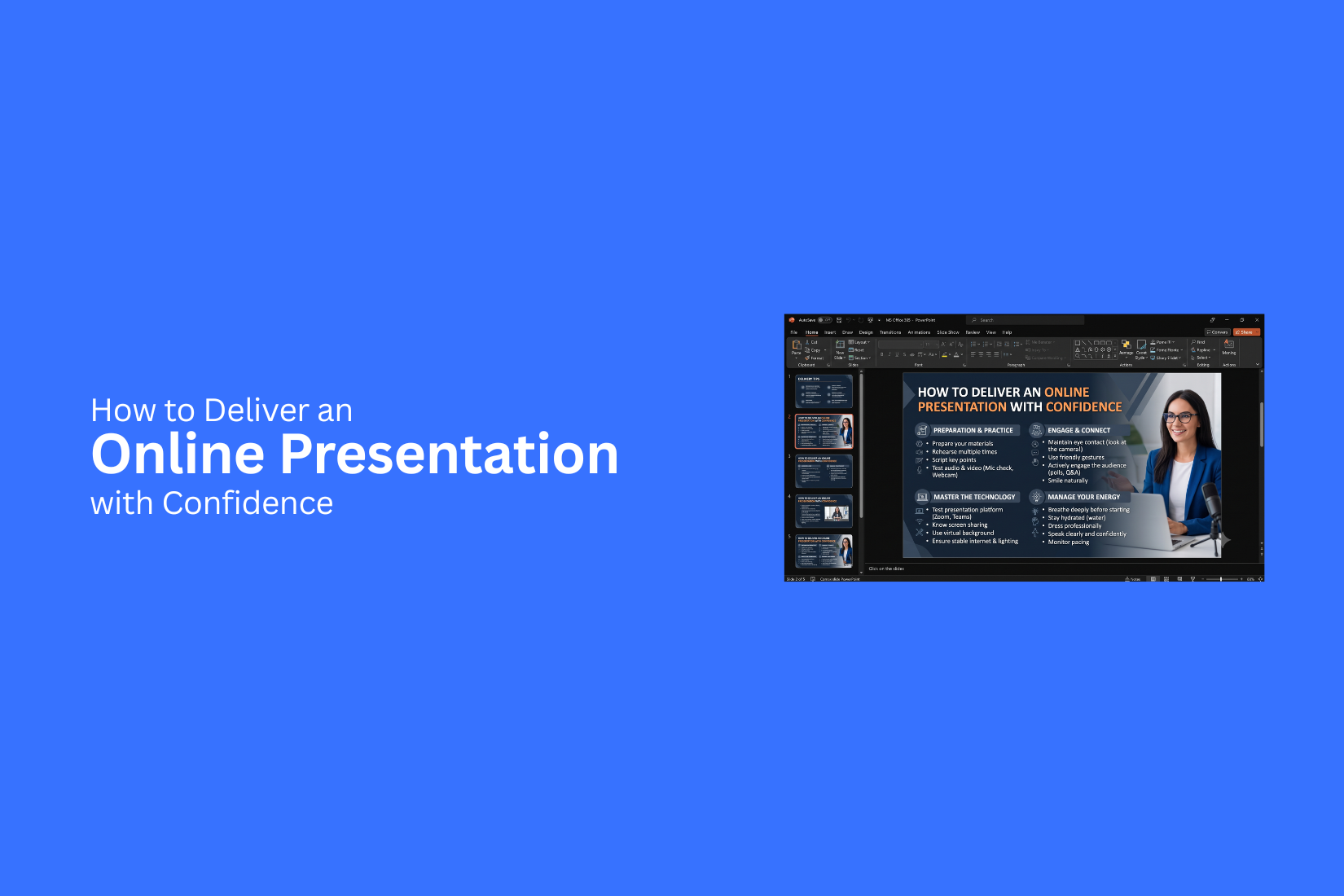
Online presentations can feel stressful for many speakers. A good idea may lose its impact if the presenter feels nervous or unsure during the session. Camera use, voice control, and audience connection can be harder to manage than a face-to-face presentation without the right preparation.
With the right approach, presenters can build confidence and create a smoother online experience. This guide shares practical tips to help you deliver online presentations with more confidence. You will learn how to improve delivery, engage viewers, handle technical issues, and avoid common mistakes. These steps can help you prepare better and present your message clearly in virtual sessions. The article also covers useful tools and best practices for professional online presentations.
Why Online Presentation Skills Matter
Online presentations are now a common way to share ideas, teach lessons, and connect with others. A good presentation helps your audience follow your message and stay focused from start to finish.
Strong online presentation skills help you speak clearly, use your slides better, and create a better experience for your viewers. A speaker who feels prepared can explain ideas with more confidence and avoid common problems like reading from slides or losing track of the topic.
Online meetings also create new challenges. You need to manage your voice, body language, screen sharing, and audience attention through a camera. These skills help you feel more comfortable and make your message easier to understand. A well-delivered online presentation can build trust with your audience. It shows that you know your topic and can share information in a clear way. With practice, anyone can improve their speaking skills and create presentations that leave a positive impression.
Essential Tips to Deliver an Online Presentation with Confidence
A confident online presentation needs more than good slides. Your preparation, speaking style, and connection with your audience all matter. A few simple habits can help you present your ideas clearly and feel more comfortable during an online session.
Start with a Strong Opening
The opening of your presentation sets the direction for the entire session. A clear start helps your audience understand the topic and know what to expect. Begin by introducing yourself and your topic. Share the main goal of the presentation in a simple way. You can start with a question, a short example, or a useful fact related to your subject. Avoid spending too much time on background details. Your audience should quickly understand why the topic matters. A focused opening helps people pay attention from the first moment.
Know Your Audience Before Presenting
Understanding your audience helps you create a presentation that fits their needs. Different groups may have different levels of knowledge, interests, and expectations. Learn about who will attend your session. Think about their goals and the type of information they need. This helps you choose examples and explanations that feel relevant. Using the right language also makes your presentation easier to follow. Simple words and clear examples help more people understand your message.
Create a Clear Presentation Structure
A clear structure keeps your presentation organized. It helps both you and your audience follow the flow of ideas. Start with an introduction that explains your topic. Then, arrange your main points in a logical order. Each section should connect naturally with the next one. Avoid adding too many ideas in one section. Focus on the most useful points and remove information that does not support your main message. A well-organized presentation also helps you stay confident because you know what to say at each stage.
Practice Before Going Live
Practice is one of the best ways to improve your delivery. It helps you become familiar with your slides and speaking points. Read through your presentation several times. Practice your introduction, transitions, and closing message. These parts often need extra attention because they shape the audience’s experience. Recording yourself can help you notice areas that need improvement. You can check your speaking speed, voice, and body language. Practice also helps reduce stress because you feel more prepared before the live session begins.
Prepare Your Presentation Environment
Your presentation space affects how your audience sees and hears you. A clean and quiet environment helps you stay focused. Choose a place with fewer distractions. Remove items that may take attention away from your presentation. Make sure your background looks neat and professional. Good lighting helps your audience see your face clearly. Your camera should show you from a comfortable angle. A prepared environment allows you to focus more on your message instead of fixing problems during the presentation.
Test Your Camera, Microphone, and Internet
Technical checks should be part of your preparation routine. Small issues with your equipment can interrupt your presentation. Test your camera to make sure your video looks clear. Check your microphone to confirm that your voice sounds easy to understand. Your internet connection also needs attention. A weak connection can affect video and audio quality. Run a quick test before the session starts. This gives you time to fix problems and begin your presentation with confidence.
Speak Clearly and Maintain a Steady Pace
Your speaking style affects how well people understand your message. Clear speech helps your audience follow your ideas without effort. Speak at a steady speed. Avoid rushing through important points. Give your audience enough time to listen and understand. Use simple sentences and pause between ideas. This makes your presentation easier to follow. A calm speaking style also helps you appear more confident and prepared.
Look at the Camera Instead of the Screen
Eye contact helps create a stronger connection during an online presentation. The camera works like the eyes of your audience. Looking at the camera makes it feel like you are speaking directly to viewers. It creates a more personal experience. Avoid looking only at your slides or your own video window. Check your notes when needed, but return your focus to the camera. Small changes in where you look can make your presentation feel more natural.
Use Natural Body Language and Facial Expressions
Your body language supports your spoken message. Even during an online presentation, your movements and expressions affect how people respond. Sit with good posture and keep your movements natural. Use hand gestures when they help explain an idea. Your facial expressions also show your interest and energy. A friendly expression can make your presentation feel more welcoming.
Avoid staying completely still. Natural movement helps you appear more comfortable and confident.
Control Your Voice and Tone
Your voice plays a big role in how your message is received. A flat or unclear voice can make even useful information harder to follow. Change your tone based on the topic. Use more energy for key ideas and a calm voice for detailed explanations. This keeps your delivery natural. Pay attention to your volume as well. Speak loudly enough for your audience to hear you clearly. Avoid speaking too softly or too loudly. A balanced voice helps your audience stay focused and understand your message better.
Avoid Reading Directly from Your Slides
Slides are there to support your presentation. They should not replace your explanation. Reading every word from your slides can make your delivery feel less natural. Your audience may focus on the screen instead of listening to you. Use short points on your slides and explain them in your own words. This helps you sound more prepared and connected with your topic. Review your slides before presenting so you know the main ideas without depending on the text.
Keep Slides Simple and Visual
Simple slides help your audience focus on your message. Too much text can make it harder for people to follow your presentation. Use short sentences, clear headings, and useful visuals. Images, charts, and icons can help explain ideas faster than long paragraphs. Each slide should share one main idea. Remove extra details that do not support your message. A clean slide design also helps you stay focused while presenting.
Use Storytelling to Explain Ideas
Stories can make your presentation easier to understand. They help turn complex ideas into simple examples. Use short stories, examples, or real situations to explain your points. A simple story can help your audience connect with the topic. Start with a problem, share the situation, and explain the lesson. This gives your presentation a clear flow. Good storytelling also helps people remember your main message after the presentation ends.
Maintain Audience Engagement
Keeping your audience involved is important during an online presentation. People can lose focus easily during long sessions. Add small moments of interaction throughout your presentation. Ask questions, share examples, or invite quick responses. Change your delivery style from time to time. A different tone, short pause, or question can bring attention back to your message. A connected audience is more likely to follow your ideas and participate.
Use Pauses to Highlight Important Points
Pauses give your audience time to process information. They also help you control your speaking speed.
Take a short pause after sharing an important idea. This gives your words more attention. Pauses can also help you move between sections smoothly. They create space for your audience to follow the presentation. Do not feel the need to fill every second with words. A short pause can make your delivery clearer.
Manage Nervousness Before Presenting
Feeling nervous before an online presentation is normal. Good preparation can help you feel more comfortable. Prepare your slides, notes, and equipment early. Last-minute problems can increase stress.
Practice your opening lines several times. Starting with confidence can help you feel more relaxed during the rest of the session. Focus on sharing useful information with your audience. This helps shift your attention away from nervous feelings.
Keep Notes Short and Organized
Notes can help you remember important points during your presentation. They should act as a guide, not a full script. Write short keywords instead of complete paragraphs. This helps you speak naturally without reading every sentence. Arrange your notes in the same order as your slides. This makes it easier to find information quickly. Well-organized notes help you stay focused and maintain a smooth presentation flow.
Handle Questions with Confidence
Questions give you a chance to connect with your audience. A clear response can help explain your topic better. Listen carefully before answering. Make sure you understand the question first. Take a moment to think before you respond. A thoughtful answer is better than a rushed reply. If you do not know an answer, be honest. You can tell the audience that you will check the information and share it later.
Monitor Audience Reactions
Pay attention to your audience during the presentation. Their reactions can show if they understand your message. Watch for signs of confusion or interest. You can adjust your explanation based on their responses. Online tools such as chat messages and reactions can also provide feedback. Listening to your audience helps you create a better presentation experience.
End with a Strong Closing Message
The ending of your presentation is your final chance to share your main idea. A clear closing helps your audience remember your message. Review the key points you covered. Keep your final words simple and focused. You can also share a next step or a final thought related to your topic. A clear ending gives your presentation a strong finish.
How to Make Your Online Presentation More Interactive
A good online presentation is not only about sharing information. It is also about creating a connection with your audience. Simple activities can help people stay focused and take part in the session.
Ask Questions During the Presentation
Questions help your audience stay involved. They give people a reason to listen and respond.
Start with simple questions that relate to your topic. You can ask for opinions, experiences, or quick answers. Short questions also help you check if your audience understands your message.
Open-ended questions can create better conversations. Yes or no questions work well for quick feedback.
Use Polls, Chat, and Reactions
Online tools can make your presentation more active. Polls help you collect answers from many people at once. Chat features let your audience share ideas or ask for help. Reactions are useful for quick responses. A thumbs-up or emoji can show if people agree or follow along. These small actions can break the silence of an online meeting and keep your audience connected.
Encourage Audience Participation
People pay more attention when they have a role in the presentation. Invite your audience to share examples, answer questions, or join short activities. You can ask viewers to share their thoughts in the chat. You can also create small tasks that relate to your topic. A simple activity can make your presentation feel more like a conversation instead of a one-way talk.
Handle Questions with Confidence
Questions are a normal part of any presentation. A clear response can help you build trust with your audience. Listen carefully before answering. Take a moment to understand the question. Give a simple and direct reply. You do not need to know every answer. If you need more details, tell your audience that you will follow up later. Staying calm helps you manage questions with confidence.
How to Handle Technical Issues During an Online Presentation
Technical problems can happen during any online presentation. Your internet may slow down. Your microphone may stop working. Your slides may not load properly. These moments can feel stressful, but a good plan helps you handle them with confidence. A calm response keeps your audience focused on your message. Small problems do not have to ruin your presentation. The way you handle them can show your preparation and control.
Create a Backup Plan
A backup plan helps you stay ready for common technical problems. Before your presentation starts, test your internet connection, microphone, camera, and presentation file. Keep a copy of your slides in more than one place. Save them on your device and store another copy online. You can also export your slides as a PDF. This gives you another way to share your content if the original file has an issue.
Prepare simple solutions for common problems:
• Keep a second device nearby if possible.
• Have your presentation link ready.
• Keep important notes in a separate document.
• Share your contact details with the host or team member in case you lose connection.
A little preparation can help you continue your presentation without major delays.
Stay Calm During Unexpected Problems
A sudden technical issue can interrupt your flow. The first step is to stay calm. Your audience will notice your reaction. Take a moment to check what went wrong. Speak clearly and let your audience know you are fixing the issue. A simple message like, “I am checking the connection. Please give me a moment,” is enough. Avoid rushing through the problem. Quick actions made under stress can create more issues. Stay focused and solve one problem at a time. Your confidence does not come from avoiding every problem. It comes from knowing how to respond when something goes wrong.
Recover Smoothly Without Losing Momentum
After fixing the issue, return to your presentation with a clear next step. Avoid spending too much time explaining what happened. Your audience is there for your content, not the technical details. Repeat the last key point before the interruption. This helps everyone follow along again. Then continue with the next part of your presentation. If you lost your slides, use your notes to guide the discussion. If your video stops working, continue speaking and keep the focus on your message. A smooth recovery helps your presentation feel organized. Small interruptions become easier to manage with practice and preparation.
Common Online Presentation Mistakes to Avoid
A good online presentation needs more than clear ideas. Small mistakes can affect how people follow your message. Many presenters focus on the content but forget the details that shape the viewer’s experience. Avoiding these common issues can help you present with more confidence.
Overloading Slides with Text
Too much text can make your slides hard to follow. Viewers may stop listening and start reading instead.
Use short points to share your main ideas. Add simple visuals, charts, or examples to support your message. Your slides should guide your talk, not replace it.
Speaking Too Fast or Too Quietly
Your speaking style affects how people understand your presentation. A fast pace can make your points feel rushed. A low voice can make it hard for people to hear you. Practice your delivery before the live session. Pause after key points. Speak clearly and keep a steady pace so your audience can follow along.
Ignoring Audience Engagement
Online presentations can feel less personal than in-person talks. People may lose focus if there is no interaction. Ask questions, invite feedback, or add short activities to keep people involved. Simple actions can make your presentation feel more connected.
Forgetting to Test Equipment
Technical issues can interrupt your presentation. A microphone problem or camera issue can distract your audience. Check your internet connection, audio, camera, and presentation files before the session starts. A quick test can help you avoid last-minute problems.
Poor Lighting and Camera Position
Your camera setup affects how professional and clear you appear on screen. Poor lighting can make your face hard to see. A bad camera angle can make the presentation feel less comfortable to watch.
Place your camera at eye level. Use a light source that brightens your face. Keep your background clean so the focus stays on you and your message.
Best Practices for Delivering Professional Online Presentations
A strong online presentation needs more than good slides. Your setup, body language, and delivery style shape how people receive your message. Small details can help you look prepared and keep your audience focused.
Dress Appropriately for Your Audience
Your clothing should match the type of presentation you are giving. A formal meeting may need business attire, while a casual team session may allow a more relaxed style. Choose clean and simple clothing that helps you feel comfortable. Avoid outfits that distract from your message. Your goal is to look ready and professional.
Maintain Eye Contact Through the Camera
Looking at the camera helps create a direct connection with your audience. It feels more like a face-to-face conversation. Place your camera at eye level and look into the lens while sharing key points. Avoid looking only at your screen because it can make your presentation feel less personal.
Minimize Distractions in Your Background
A clean background helps people focus on your presentation. Remove items that may take attention away from you. Choose a quiet space with good lighting. Check your camera view before starting. A simple and organized area helps create a better viewing experience.
End with a Clear Call to Action
A strong ending gives your audience a clear next step. Tell them what action they should take after your presentation. You can ask them to share feedback, review a document, complete a task, or join a follow-up discussion. A direct closing helps your main message stay memorable.
Recommended Tools for Online Presentations
The right tools can make an online presentation easier to manage. They help you create clear slides, connect with your audience, and keep the session organized. Each tool has a specific role, so choose options that match your presentation needs.
Presentation Software
Presentation software helps you create and display your slides. A good tool lets you add text, images, charts, and other visual elements without making the process difficult. Microsoft PowerPoint is a popular choice for creating professional slides. It offers many templates, design options, and presentation features. You can also add speaker notes to help guide your talk. Google Slides works well for teams that need to create and edit slides together. It runs in a browser, so you can access your presentation from different devices. Canva helps users create visually appealing presentations with ready-made layouts. It is useful for people who want a simple way to design slides.
Video Conferencing Platforms
A video conferencing platform helps you present your slides and communicate with your audience. The right platform gives you tools like screen sharing, chat, and recording. Zoom is widely used for online meetings and presentations. It allows screen sharing, audience questions, and session recording. Microsoft Teams works well for workplace presentations. It combines video meetings, file sharing, and team communication in one place. Google Meet provides a simple way to host online presentations. It works directly through a web browser and connects easily with other Google tools.
Audience Engagement Tools
Keeping your audience involved can make your presentation more interactive. Engagement tools help you collect feedback, ask questions, and check audience responses. Mentimeter allows you to create live polls, quizzes, and audience questions. These features help you understand how your audience responds during the session. Slido helps presenters collect questions and run polls during online events. It is useful for meetings, webinars, and group discussions. Kahoot! can add quizzes and simple activities to your presentation. It helps keep viewers active instead of only watching slides. Using a mix of these tools can help you create a smoother online presentation experience. Pick tools that support your goals and make it easier to connect with your audience.
Final Notes
Delivering an online presentation with confidence takes preparation and practice. Clear slides, strong speaking skills, and a good connection with your audience can improve your presentation experience.
Small steps can make a big difference. Practice your delivery, test your equipment, and create a space that helps you stay focused. Use simple slides, speak clearly, and keep your audience involved throughout the session. Technical problems and nervous moments can happen. A calm approach and a backup plan can help you handle these situations better. With regular practice, you can improve your online presentation skills and share your ideas with more confidence.
FAQs:
1. How can I deliver an online presentation with confidence?
You can deliver an online presentation with confidence by preparing your slides, practicing your delivery, and testing your equipment before the session. Speak clearly, look at the camera, and use simple notes to guide your presentation.
2. What makes an online presentation effective?
An effective online presentation has a clear structure, simple slides, and a strong connection with the audience. Good voice control, natural body language, and audience interaction can help people understand your message better.
3. How can I reduce nervousness before an online presentation?
Practice your presentation several times before going live. Prepare your notes, check your equipment, and focus on sharing useful information with your audience. Good preparation can help you feel more comfortable.
4. Should I read from my slides during an online presentation?
No. Slides should support your presentation, not replace your explanation. Use short points on your slides and explain the ideas in your own words.
5. How can I keep my audience engaged during an online presentation?
You can keep your audience engaged by asking questions, using polls, encouraging chat responses, and adding short activities. These actions help create more interaction during the session.
6. What should I do if technical problems happen during my presentation?
Stay calm and check the problem step by step. Keep backup copies of your slides, have your notes ready, and explain the issue briefly while you fix it. A prepared backup plan can help you recover smoothly.
7. How can I improve my online presentation skills?
You can improve your skills through regular practice. Record yourself, review your speaking style, improve your slide design, and focus on areas that need more attention.
8. How important is eye contact in an online presentation?
Eye contact helps create a stronger connection with your audience. Looking at the camera while speaking makes your presentation feel more direct and personal.
9. What tools can help with online presentations?
Presentation tools like Microsoft PowerPoint, Google Slides, and Canva can help you create slides. Video platforms like Zoom, Microsoft Teams, and Google Meet help you present online. Engagement tools like Mentimeter, Slido, and Kahoot! can help you interact with your audience.
10. How can I make my online presentation look professional?
Use a clean background, good lighting, clear slides, and a proper camera position. Dress appropriately for your audience and focus on delivering your message in a clear way.




You may also be interested in ...

How To Create An Eye-Catching Portfolio
If you’re looking to create an eye-catching portfolio, this post will come in handy. In this article, you can find the easies...
23 Jun, 2024

How To Easily Create An Infographic
Infographics are the perfect way to make a presentation that will impact an audience, but their design and composition might...
08 Jun, 2024

PowerPoint Template Tips & Tricks You Ne...
PowerPoint seems to be an unknown world for many people, especially those who have been assigned to create a presentation out...
08 Jun, 2024