How to Change or Replace Fonts in PowerPoint: A Step-by-Step Guide
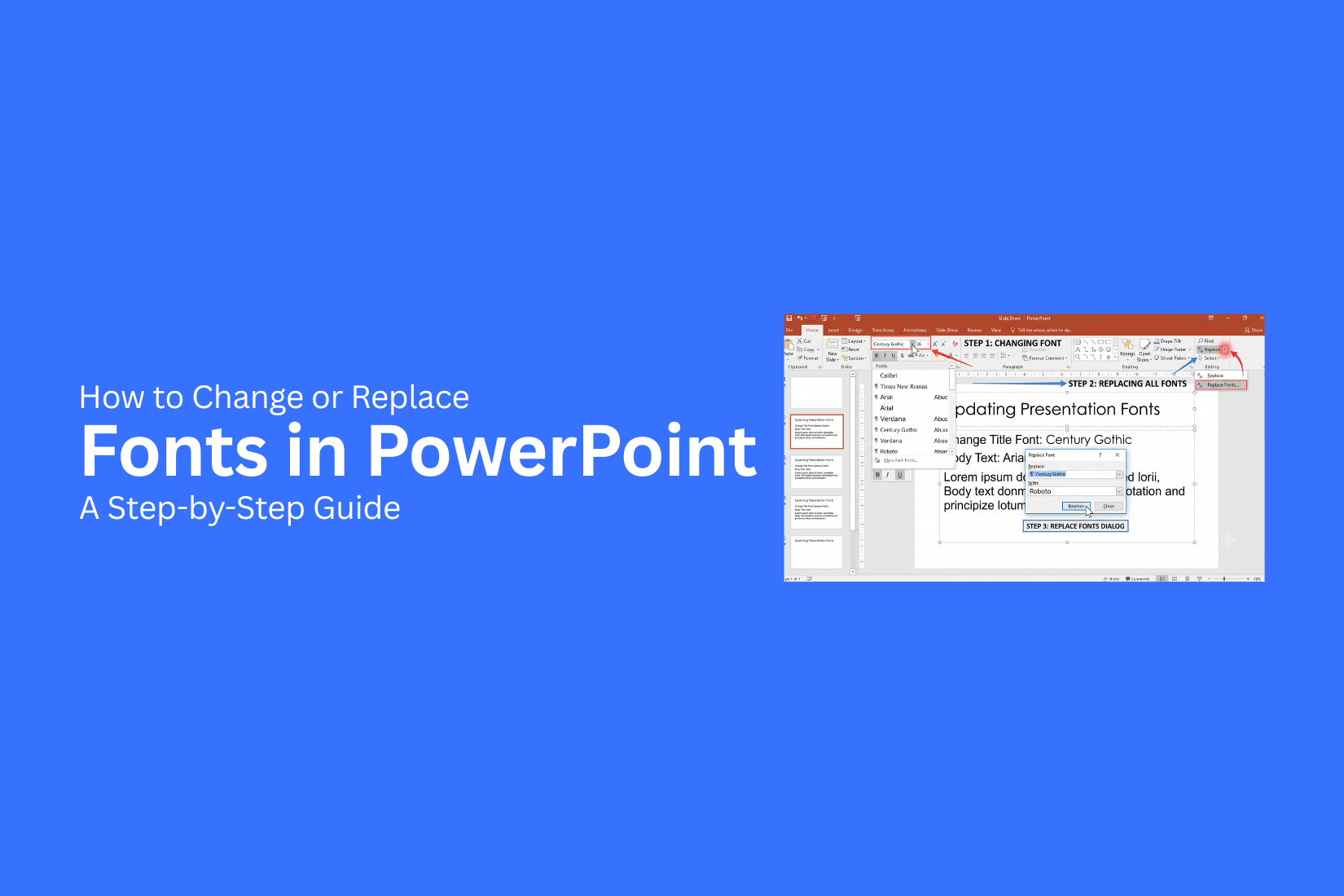
Fonts play a key role in the look and readability of a PowerPoint presentation. Using the wrong font style or dealing with missing fonts can affect the way your slides appear. Changing fonts manually on each slide may take extra time, especially in larger presentations. PowerPoint offers simple tools to replace fonts across an entire presentation with just a few steps. This guide explains how to change or replace fonts in PowerPoint, including different methods for Windows, Mac, and PowerPoint Online. You will also learn how to manage fonts, fix common issues, and choose better font options for your slides.
What Does Replacing Fonts in PowerPoint Mean?
Replacing fonts in PowerPoint means changing one font style to another across your presentation. Instead of editing each slide one by one, you can replace a selected font with a new one in just a few clicks. This feature helps keep your slides consistent. It is useful if your presentation uses a font that is hard to read, does not match your design, or is missing on another device.
For example, a presentation may use Arial for all headings and body text. You can replace Arial with Calibri to update the entire file. PowerPoint will apply the new font wherever the old font appears. The Replace Fonts option changes text styles throughout the presentation. It works on text boxes, titles, and other slide elements that use the selected font. This saves time and helps you update your design without making manual changes on every slide.
Why You May Need to Change or Replace Fonts in PowerPoint
Fonts play a key role in how your PowerPoint slides look and feel. The right font choice helps your content look clear and organized. The wrong font can make slides feel messy or hard to read. There are many reasons to change or replace fonts in a presentation. You may need to update an old design, fix font issues, or match a specific style. PowerPoint makes it easy to replace fonts across your slides without editing each text box one by one.
Maintain a Consistent Design
A consistent font style helps your slides look clean and professional. Using different fonts on each slide can make the presentation feel unorganized. Replacing fonts lets you apply the same style across all slides. This helps create a better flow and keeps your design choices aligned.
Fix Missing Fonts
PowerPoint files may look different if they use fonts that are not available on your device. Missing fonts can change text size, spacing, and slide layouts. Replacing the missing font with an available option helps restore your slide design. It also prevents issues when sharing or presenting the file on another computer.
Improve Readability
Some fonts are difficult to read, especially in large presentations. Small text, unusual styles, or poor spacing can make it harder for viewers to follow your message. Changing to a clearer font improves the reading experience. Simple fonts with good spacing help your audience understand the content more easily.
Match Brand Guidelines
Many businesses use specific fonts to keep their visual identity consistent. A presentation that uses the wrong font may not match other brand materials. Replacing fonts helps align your slides with brand rules. It creates a more connected look across presentations, documents, and other materials.
How to Replace Fonts in PowerPoint
Changing fonts in PowerPoint helps keep your slides clear and consistent. You may need to replace a font if a presentation uses the wrong style or if the text does not look the way you want.
PowerPoint has a built-in Replace Fonts feature. It lets you change one font across the entire presentation instead of editing each text box one by one.
How to Replace Fonts on Windows
PowerPoint for Windows makes it simple to replace fonts in a few steps.
- Open your PowerPoint presentation.
- Click the Home tab from the top menu.
- Find the Editing section on the right side.
- Click Replace and select Replace Fonts.
- A new window will appear with a list of fonts used in your slides.
- Select the font you want to replace.
- Choose the new font from the With dropdown menu.
- Click Replace to apply the change.
PowerPoint will update the selected font throughout the presentation. Check your slides after the change to make sure the text size and layout still look correct.
How to Replace Fonts on Mac
The steps are slightly different in PowerPoint for Mac.
- Open your presentation in PowerPoint.
- Go to the Home tab.
- Click the arrow next to Replace in the editing tools.
- Select Replace Fonts.
- Pick the font you want to change.
- Choose a new font style from the available options.
- Click Replace.
The new font will appear across your slides. Review each slide to fix any spacing or alignment changes.
How to Replace Fonts in PowerPoint Online
PowerPoint Online has fewer font editing options than the desktop version. It does not include the full Replace Fonts tool.
You can change fonts manually by following these steps:
- Open your presentation in PowerPoint Online.
- Select the text box or text area you want to edit.
- Highlight the text.
- Open the font menu from the toolbar.
- Choose a new font style.
For presentations with many slides, open the file in the desktop version of PowerPoint. The desktop app gives you more tools for making font changes across the whole presentation.
How to Change Fonts Without Replacing Them
PowerPoint lets you change fonts without replacing every font in your presentation. This method works well for small edits or design updates. You can change a few words, update a single slide, or adjust the font style across your slides. Different methods help you control how much of your presentation changes. You can edit selected text, use Slide Master, or update theme fonts.
Change Fonts in Selected Text
Changing the font for selected text is the easiest option. It works best for titles, headings, or specific parts of a slide.
Follow these steps:
- Select the text you want to edit.
- Open the Home tab in PowerPoint.
- Find the Font section.
- Click the font drop-down menu.
- Choose a new font from the list.
The selected text will update with the new font. Other text on the slide stays the same. This option gives you control over small changes. It helps keep your original design while improving certain text areas.
Change Fonts Using Slide Master
Slide Master helps you manage fonts across multiple slides. It lets you edit the main layout instead of changing each slide one by one.
Follow these steps:
- Open your PowerPoint presentation.
- Go to the View tab.
- Select Slide Master.
- Click the slide layout you want to edit.
- Select the text box or placeholder.
- Choose a new font from the Font menu.
- Click Close Master View.
The font changes will apply to slides that use that layout. This method saves time for presentations with many slides. It also keeps the design style consistent across your deck.
Change Theme Fonts
Theme fonts allow you to update the font style used throughout your presentation. This option changes the main heading and body fonts connected to your PowerPoint theme.
Follow these steps:
- Open the Design tab.
- Click Fonts in the Variants section.
- Select a built-in font combination.
- Choose Customize Fonts to create your own pair.
Theme font changes help create a consistent look across all slides. They are useful for updating the overall style without editing each text box manually. Choosing the right method depends on the size of your font change. Small edits work well with selected text. Larger updates are easier with Slide Master or theme font settings.
How to Embed Fonts in PowerPoint
Embedding fonts in PowerPoint helps keep your text style the same after sharing a presentation. A font that works on your computer may not appear correctly on another device. Adding fonts to the file can help prevent these changes.
Follow these steps to embed fonts:
- Open your PowerPoint presentation.
- Click File and select Options.
- Choose Save from the left menu.
- Scroll down to the Preserve fidelity when sharing this presentation section.
- Check the box for Embed fonts in the file.
- Choose one of these options:
• Embed only the characters used in the presentation to reduce file size.
• Embed all characters to allow others to edit the text.
7. Click OK and save your presentation.
After embedding fonts, the file stores the font information inside the presentation. This helps your slides keep the same look across different devices.
Common Font Replacement Issues and How to Fix Them
Changing fonts in PowerPoint is usually simple, but some issues may appear during the process. A few settings or file limits can affect how fonts display. Here are common problems and ways to fix them.
Missing Fonts: A missing font appears if PowerPoint cannot find a font used in the presentation. This often happens after moving the file to another computer.
To fix this issue:
• Open the presentation and check the font warning message.
• Replace the missing font with an available font.
• Install the original font on your device.
• Save the file again after making changes.
Using common fonts can also help prevent this problem in future presentations.
Text Formatting Changes: Replacing a font can change the size, spacing, or alignment of your text. Some fonts take up more space than others.
To fix formatting changes:
• Check each slide after replacing fonts.
• Adjust text boxes that look different.
• Change font size or line spacing if needed.
• Review headings and key text areas.
A quick slide review helps keep your presentation layout clean.
Unsupported Fonts: Some fonts may not work in certain PowerPoint versions or operating systems. This can cause text to appear differently or show another font.
To fix unsupported font issues:
• Use fonts that work across common devices.
• Replace unsupported fonts with similar options.
• Test the presentation on the device you plan to use.
Choosing compatible fonts makes it easier to share presentations.
Font Replacement Not Working: Sometimes the Replace Fonts feature does not change every text area. This can happen with text inside images, charts, or special elements.
Try these fixes:
• Check if the text is part of an image or graphic.
• Edit text inside charts or objects separately.
• Make sure the correct font is selected in the Replace Fonts window.
• Restart PowerPoint and try again.
A full slide check helps find text areas that did not update.
Tips for Choosing the Right Font
The right font can make your PowerPoint slides easier to read and more professional. A good font choice helps your audience focus on your message instead of struggling to read the text. Keep your fonts clear, simple, and suitable for your presentation style.
Prioritize Readability
Readability should be the first thing to check before choosing a font. A font may look stylish, but it can hurt your message if people cannot read it easily. Use clear fonts with simple letter shapes. Avoid fonts with too many decorative details, especially for body text. Keep the font size large enough so people at the back of the room can read your slides. Sans-serif fonts often work well for presentations because they look clean on screens. Use bold styles for headings and regular styles for longer text.
Use Compatible Fonts
Font compatibility helps your presentation look the same on different devices. A font that works on your computer may not appear correctly on another device. Choose fonts that are widely available or use PowerPoint’s font embedding feature to keep your design consistent. Check your slides on the device you plan to use before presenting. Using compatible fonts also helps avoid layout problems. Text boxes, spacing, and slide designs stay in place without unexpected changes.
Keep Font Pairing Simple
Using too many fonts can make your slides look messy. A simple font combination creates a cleaner design. Try using one font for headings and another for body text. Make sure both fonts have a similar style and are easy to read together. A good rule is to use no more than two or three fonts in one presentation. This keeps your slides organized and helps your audience follow your content.
Best Practices for Managing Fonts in PowerPoint
Choosing the right fonts helps create clean and easy-to-read slides. Good font choices also keep your presentation style consistent. Follow these tips to manage fonts better in PowerPoint.
Limit the Number of Fonts
Using too many fonts can make your slides look messy. Try to use two or three fonts throughout your presentation. Pick one font for titles and another for body text. Keep the same font style across similar slides. This creates a clear visual pattern for your audience.
Use Theme Fonts
Theme fonts help you control your presentation style from one place. PowerPoint applies these fonts across your slides, which saves time during editing. Using theme fonts also makes font changes easier. You can update the main font settings and apply the changes to the whole presentation.
Test Your Presentation Before Sharing
Always review your slides before sending or presenting them. Check that all text looks correct and that fonts appear as expected. Open the file on the device you plan to use. Look for missing fonts, changed text sizes, or layout issues. Fixing these problems early helps your presentation look polished.
Final Notes
Changing or replacing fonts in PowerPoint helps keep your slides clear, readable, and consistent. The Replace Fonts tool saves time by updating text styles across the entire presentation. Other options, like Slide Master and theme fonts, give you more control over your design.
Before sharing your presentation, check your slides on the device you will use. Look for missing fonts, spacing changes, or layout issues. Using simple and compatible fonts can help your slides look the same across different screens. A good font choice supports your message and makes your presentation easier to follow. With the right font settings, you can create slides that look clean and professional.
FAQs
How do I replace all fonts in PowerPoint at once?
You can replace all fonts using the Replace Fonts feature in PowerPoint. Open the Home tab, select Replace, choose Replace Fonts, pick the font you want to change, select a new font, and click Replace. PowerPoint will update the selected font across your presentation.
Can I replace fonts in PowerPoint Online?
PowerPoint Online does not have the full Replace Fonts tool. You can change fonts manually by selecting text and choosing a new font from the toolbar. For larger font changes, use the desktop version of PowerPoint.
Why are my PowerPoint fonts changing on another computer?
Fonts may change if the other computer does not have the same fonts installed. PowerPoint may use a different font, which can affect text size, spacing, and slide layouts. Embedding fonts in your presentation can help prevent this issue.
How do I change fonts without affecting the whole PowerPoint presentation?
You can change fonts for selected text only. Highlight the text you want to edit, open the Font menu, and choose a new font. This method lets you update specific parts of your slides without changing the entire file.
What is the best way to manage fonts in PowerPoint?
Using theme fonts, Slide Master, and a limited number of font styles helps keep your presentation organized. Choose fonts that are easy to read and work well across different devices.
Can I embed fonts in a PowerPoint file?
Yes. PowerPoint allows you to embed fonts into your file. Go to File, select Options, open Save settings, and enable the option to embed fonts in the file. This helps keep your text style consistent after sharing the presentation.
Why is the Replace Fonts option not changing all text in PowerPoint?
The Replace Fonts tool may not update text inside images, charts, or special objects. Check those elements separately and edit the text manually if needed.
How many fonts should I use in a PowerPoint presentation?
Using two or three fonts is usually enough for a presentation. A simple font combination keeps slides clean and helps viewers follow the content easily.
Which fonts work best for PowerPoint presentations?
Clear and simple fonts usually work best for slides. Choose fonts with easy-to-read letters and good spacing. Compatible fonts also help prevent display issues on other devices.




You may also be interested in ...

How To Create An Eye-Catching Portfolio
If you’re looking to create an eye-catching portfolio, this post will come in handy. In this article, you can find the easies...
23 Jun, 2024

How To Easily Create An Infographic
Infographics are the perfect way to make a presentation that will impact an audience, but their design and composition might...
08 Jun, 2024

PowerPoint Template Tips & Tricks You Ne...
PowerPoint seems to be an unknown world for many people, especially those who have been assigned to create a presentation out...
08 Jun, 2024