How to Create a Custom Slide Show in PowerPoint
A PowerPoint presentation may contain more slides than you need for one audience. Showing every slide can make the presentation longer and harder to follow. You may also need different slide sets for meetings, training, sales, or classroom use.
A custom slide show gives you a simple way to choose only the slides you need. You can keep the full presentation in one file and create different slide sets for different audiences. This also lets you skip slides without deleting them from the main file.
In this guide, you will learn how to create, run, and edit a custom slide show in PowerPoint. You will also learn how to create multiple versions, use them for different audiences, and avoid common mistakes.
What Is a Custom Slide Show in PowerPoint?
A custom slide show lets you choose which slides appear during a presentation. You can use slides from the same PowerPoint file and arrange them for a specific audience or purpose. The original slide deck stays unchanged. For example, a presentation may have 20 slides, but one group may only need slides 1, 3, 6, 8, and 12. A custom slide show lets you present those slides without creating a new file.
Custom Slide Show vs. Regular Slide Show
A regular slide show follows the slide order in your PowerPoint file. It usually starts with the first slide and continues through the deck. A custom slide show uses only the slides you select. You can also set a different order for those slides. This gives you more control over what each audience sees.
The main difference is simple:
• Regular slide show: Shows the full deck in its set order.
• Custom slide show: Shows selected slides in the order you choose.
• Original file: Stays unchanged after you create the custom show.
When to Use a Custom Slide Show
A custom slide show works well for presentations with different audiences. You can use one PowerPoint file for several groups instead of making separate files.
Common uses include:
• Showing different slides to different teams
• Giving a shorter version of a long presentation
• Presenting only the slides related to a specific topic
• Reusing one deck for several meetings
• Creating separate versions for different audiences
• Skipping slides that are not needed for a specific session
This setup keeps your main presentation in one file while giving you control over the slides shown in each session.
Why Create a Custom Slide Show?
A custom slide show lets you choose which slides to present from one PowerPoint file. You can build different slide groups for different needs. This keeps your main presentation file organized while giving you more control over what the audience sees.
Present Different Content to Different Audiences
Different audiences may need different information. A sales team may need product details, while a client may only need key points. Custom slide shows let you select the slides that fit each group. You can keep all related slides in one PowerPoint file. Then, create a custom slide show for each audience. This saves you from making separate files for each group.
Keep Multiple Presentations in One File
A single PowerPoint file can hold several versions of a presentation. Each custom slide show can use a different set of slides. This setup makes it easier to manage related presentations. You can keep shared slides in the main file and create separate slide shows for each purpose.
Skip Slides Without Deleting Them
Some slides may not fit every presentation. You can leave those slides in the file and skip them during a custom slide show. This gives you more control over the presentation flow. The original slides stay available for another audience or a later presentation.
Create Shorter Versions of a Presentation
A long presentation may need a shorter version for some audiences. A custom slide show lets you select only the slides you need. For example, a full presentation may contain 20 slides. A shorter version may use only 8 of them. The unused slides remain in the main file, so you can use them again later.
How to Create a Custom Slide Show in PowerPoint
A custom slide show lets you use only the slides you need from a larger PowerPoint presentation. You can create different slide groups for different audiences or topics. Each custom show can have its own name and slide order. This lets you keep one main presentation while preparing several versions from it.
Open Your PowerPoint Presentation
Start PowerPoint and open the presentation you want to use. The presentation should contain all the slides you may want to include in the custom slide show. Look through the slide thumbnails on the left side of the PowerPoint window. Check the titles and content of each slide. This makes it easier to choose the right slides later. You do not need to make a copy of the presentation. The custom slide show uses the slides from your existing file.
Open the Custom Slide Show Settings
Go to the Slide Show tab in the PowerPoint ribbon. Look for the options related to setting up and managing the slide show. Select Custom Slide Show. A menu will appear with options for creating and managing custom shows. Select the option to create or edit a custom slide show. The settings window shows the custom shows already saved in the presentation. A new presentation may not have any custom shows listed yet.
Create a New Custom Slide Show
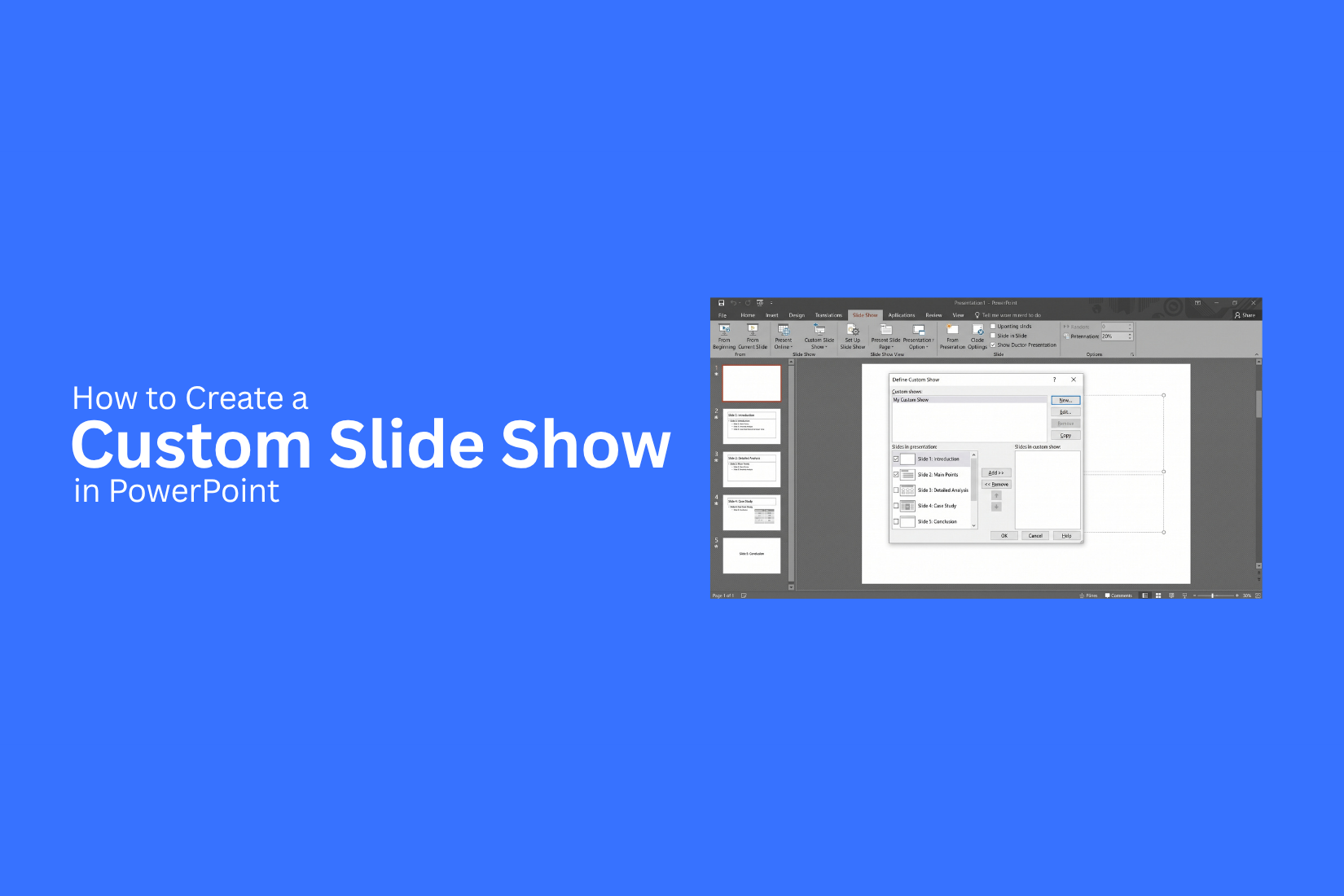
Select New in the Custom Shows window. PowerPoint will open a new window with two slide lists. The list on one side shows the slides in your presentation. The other list shows the slides selected for your custom show. Select a slide from the presentation list. Use the Add button to place it in the custom show list. Repeat this step for each slide you want to include.
Name Your Custom Slide Show
Enter a name in the Slide show name field. Use a name that clearly tells you what the custom show is for. For example, you could use a name based on the topic, audience, or meeting. A name such as Sales Team Presentation is easier to recognize than a name such as Show 1. A clear name also helps you manage several custom shows in the same PowerPoint file. Each show can have a different set of slides.
Select the Slides You Want to Include
Review the full list of slides shown in the presentation. Select the slides that match the purpose of your custom show. Use the Add button to move selected slides into the custom show list. You can select one slide at a time or select several slides before adding them. Check the selected slide list after adding your slides. Remove any slide that you do not need. This keeps the custom show focused and prevents extra content from appearing during the presentation.
Arrange the Slides in Order
The order of your slides affects how your custom show flows. After adding the slides, review their order from the first slide to the last. Select a slide in the custom show list and use the move controls to change its position. Move slides up or down until the order matches your presentation plan. Read through the slide titles in order before saving. This simple check can help you spot a slide that appears too early, too late, or in the wrong section.
Save Your Custom Slide Show
Review the selected slides and their order one more time. Make sure the custom show has a clear name and includes all the slides you need. Select OK to save the custom show. PowerPoint keeps the custom show inside the presentation file. You can return to the Custom Slide Show settings later to edit the slide list. You can also create another custom show from the same presentation without changing the original slide order.
How to Run a Custom Slide Show in PowerPoint
A custom slide show lets you present a selected set of slides from your PowerPoint file. This is useful for different groups, topics, or meeting needs. After you create the custom show, you can run it from the Slide Show menu.
Open the Slide Show Menu
Open your PowerPoint file and go to the Slide Show tab at the top of the screen. This tab contains the tools you need to start a presentation. Look for the options related to starting the slide show. The exact layout may vary based on your PowerPoint version.
Select Your Custom Slide Show
Open the Custom Slide Show option from the Slide Show tab. You will see the custom shows saved in your presentation. Select the custom slide show you want to use. Check the slide order before starting. This helps you make sure the right slides are ready for your audience.
Start the Presentation
After selecting the custom slide show, start the presentation. PowerPoint will show only the slides included in that custom show. Your original presentation stays unchanged. You can return to the full slide deck later and use the same file for another audience.
How to Edit a Custom Slide Show
PowerPoint lets you edit a custom slide show after you create it. You can change the slides, update their order, or remove the show. These edits help keep the slide show aligned with your presentation needs.
Add or Remove Slides
Open the Custom Slide Show settings and select the show you want to edit. Click Edit to view the slides in the show. To add a slide, select it from the list of available slides and add it to the custom show. To remove a slide, select it from the custom show list and click Remove. The original slide stays in your main presentation.
Change the Slide Order
Open the custom slide show and select Edit. The slides appear in the order they will play. Select a slide and move it up or down in the list. Set the order based on how you want the content to appear during the show. The new order only affects the custom slide show.
Rename a Custom Slide Show
A clear name makes it easier to find the right custom slide show. Open the Custom Slide Show settings and select the show you want to rename. Click Edit and update the name. Use a short name that tells you what the slide show contains.
Delete a Custom Slide Show
You can remove a custom slide show without deleting the slides from your presentation. Open the Custom Slide Show settings and select the show you no longer need. Click Remove or Delete, based on the PowerPoint version you use. The custom slide show is removed, but the original slides remain in the presentation.
How to Create Multiple Custom Slide Shows in One PowerPoint File
One PowerPoint file can hold several custom slide shows. Each show can use a different group of slides from the same presentation. This setup works well for presentations made for different audiences.
Create the First Slide Show
Start with the full set of slides in your PowerPoint file. Add the slides needed for your first audience. Create the first custom slide show from this main slide set. Give it a clear name that matches the audience or purpose. This makes it easier to find later. Keep the slide order clear. The first show should contain only the slides needed for that group.
Create Additional Slide Shows
Use the same PowerPoint file for other slide shows. Select a different group of slides for each one. Give every slide show a clear name. A name based on the audience makes each version easy to identify. You can create several shows from the same slide file. This keeps all presentation content in one place.
Organize Slides for Each Audience
Group slides based on what each audience needs to see. One group may need more detail. Another may need only the main points. Keep each custom show focused on its audience. Remove slides that do not fit that group. A clear slide setup also makes updates easier. You can keep shared slides in the main file and use different slide groups for each audience.
How to Use Custom Slide Shows for Different Audiences
A custom slide show lets you use the same PowerPoint file for different groups. You can select only the slides that fit each audience. This keeps your presentation focused without creating separate files.
Business Presentations
Business meetings often include different topics for different teams. A custom slide show can include only the slides that match the meeting goal. For example, a team meeting may need project updates, key results, and next steps. A management meeting may need budget details, goals, and performance data. Select the slides that fit each group.
Sales Presentations
Sales presentations need content that matches the buyer's needs. A custom slide show lets you create a shorter set of slides for each sales meeting. You can include product details, pricing, features, case studies, or service information. Pick the slides that match the buyer's questions and needs.
Training Sessions
Training sessions often cover different topics for different groups. Custom slide shows let you use one PowerPoint file for several sessions. A basic session may use slides with key concepts and examples. An advanced session can include extra details, exercises, and review slides. This helps keep each session focused.
Classroom Presentations
Teachers can use custom slide shows for different classes or lessons. One PowerPoint file can hold the full lesson content. A shorter slide show can cover the main lesson points. Another version can include activities, review questions, or extra examples. This makes it easier to adjust the lesson for each class.
Client Meetings
Client meetings may need different levels of detail. A custom slide show lets you select slides based on the client's needs. A first meeting may focus on your company, services, and main ideas. A follow-up meeting may include project details, pricing, timelines, or results. You can keep all related slides in one file and show only the ones needed for each meeting.
Tips for Creating Better Custom Slide Shows
A custom slide show works best with a clear purpose. Each version should show only the slides needed for its audience or topic. A few simple checks can also help keep every slide show easy to use.
Keep Each Version Focused
Give each custom slide show one clear purpose. Use slides that support that purpose. Remove slides that do not fit the topic or audience. This keeps the presentation short and easy to follow.
Use Clear Names for Slide Shows
Give each custom slide show a name that tells you what it contains. Use names such as “Sales Overview” or “Client Presentation.” Clear names make it easier to select the right version later.
Check the Slide Order
Review the slide order before presenting. Make sure the slides appear in a logical sequence. Check that key points come at the right time. A good order helps the audience follow the presentation without confusion.
Avoid Unnecessary Slides
Extra slides can make a custom slide show longer than needed. Remove repeated points, old information, and slides that do not support the main topic. Keep only the content needed for that version.
Test Each Custom Slide Show
Run each custom slide show from start to finish. Check that the correct slides appear and that they are in the right order. Review the text, images, links, and transitions as well. A quick test can help catch problems before the presentation.
Common Custom Slide Show Mistakes to Avoid
A custom slide show works best with a clear purpose and a well-planned slide set. Small mistakes can affect the flow of your presentation. Check these common issues before you present.
Selecting the Wrong Slides
Each custom slide show should include slides that match its purpose. Adding unrelated slides can make the presentation harder to follow. Review each slide before adding it. Remove slides that do not support the topic or audience.
Using the Wrong Slide Order
The slide order affects how your ideas are presented. A strong set of slides can still feel confusing if the order is wrong. Arrange the slides in a clear sequence. Check the order from start to finish before presenting.
Forgetting to Update Custom Slide Shows
Changes to the main presentation may affect a custom slide show. A new slide may need to be added. An old slide may need to be removed. Review each custom slide show after making major changes to the main deck.
Creating Too Many Versions
Too many custom slide shows can make your PowerPoint file harder to manage. Each version should have a clear purpose. Keep only the versions you still need. Use simple names so you can find the right slide show quickly.
Not Testing Before Presenting
A quick test can help catch problems before the presentation starts. Run the custom slide show from beginning to end. Check the slide order, selected slides, and overall flow. Make any needed changes before presenting.
Custom Slide Show vs. Hiding Slides in PowerPoint
PowerPoint gives you two ways to leave certain slides out of a presentation. You can create a custom slide show or hide slides. Both methods keep slides in the file, but they work in different ways.
Key Differences
A custom slide show lets you choose a specific group of slides for a presentation. The original slide order stays unchanged. You can also create more than one custom slide show from the same presentation. Hiding slides keeps a slide in the presentation but skips it during the slide show. The slide stays in its original place. You can show it again later by removing the hidden setting. The main difference is control. A custom slide show lets you create a separate slide sequence. Hiding a slide simply removes that slide from the normal presentation.
When to Use Each Option
A custom slide show works well for presentations that need different versions. For example, you may have one set of slides for a short meeting and another set for a longer session. Each version can use the same PowerPoint file. Hiding slides works well for slides you may need later but do not want to show during a specific presentation. This can include backup slides, extra details, or content for another audience. Choose a custom slide show for different presentation versions. Use hidden slides for content you want to keep in the file but skip during the main slide show.
Final Notes
A custom slide show gives you more control over a PowerPoint presentation. You can keep all your slides in one file and create different slide sets for different audiences. Start with a clear purpose for each custom show. Select only the slides that support that purpose. Give each version a clear name and check the slide order before presenting.
Custom slide shows also make it easier to reuse your presentation. You can create versions for meetings, sales presentations, training sessions, classrooms, or client meetings without making separate files. Take a few minutes to test each custom show before presenting. Check the selected slides, order, text, images, links, and transitions. A quick review can help you avoid simple presentation problems.
FAQs
What is a custom slide show in PowerPoint?
A custom slide show lets you choose specific slides from a PowerPoint presentation. You can also set a different slide order for the selected slides. The original presentation stays unchanged.
Can I create multiple custom slide shows in one PowerPoint file?
Yes. You can create several custom slide shows from the same PowerPoint file. Each show can use a different set of slides for a specific audience, topic, or meeting.
Does creating a custom slide show delete any slides?
No. Creating a custom slide show does not delete slides from the main presentation. All original slides stay in the PowerPoint file.
Can I change the order of slides in a custom slide show?
Yes. You can move slides up or down in the custom slide show settings. The new order only applies to that custom slide show.
Can I edit a custom slide show after creating it?
Yes. You can add or remove slides, change the slide order, rename the show, or delete the custom slide show from the Custom Slide Show settings.
Can I create a shorter version of a PowerPoint presentation?
Yes. Select only the slides needed for the shorter version. The unused slides remain in the main presentation for later use.
What is the difference between a custom slide show and hidden slides?
A custom slide show lets you create a separate slide sequence from selected slides. Hidden slides stay in the normal presentation but are skipped during the slide show.
Can I use custom slide shows for different audiences?
Yes. You can create separate slide shows for clients, sales teams, managers, students, or training groups. Each version can contain slides that match the needs of that audience.
Should I test a custom slide show before presenting?
Yes. Run the full custom slide show before the presentation. Check the slide selection, order, text, images, links, and transitions. This helps catch issues before you present.


You may also be interested in ...

How To Create An Eye-Catching Portfolio
If you’re looking to create an eye-catching portfolio, this post will come in handy. In this article, you can find the easies...
23 Jun, 2024

How To Easily Create An Infographic
Infographics are the perfect way to make a presentation that will impact an audience, but their design and composition might...
08 Jun, 2024

PowerPoint Template Tips & Tricks You Ne...
PowerPoint seems to be an unknown world for many people, especially those who have been assigned to create a presentation out...
08 Jun, 2024