How to Create a Clickable Table of Contents in PowerPoint
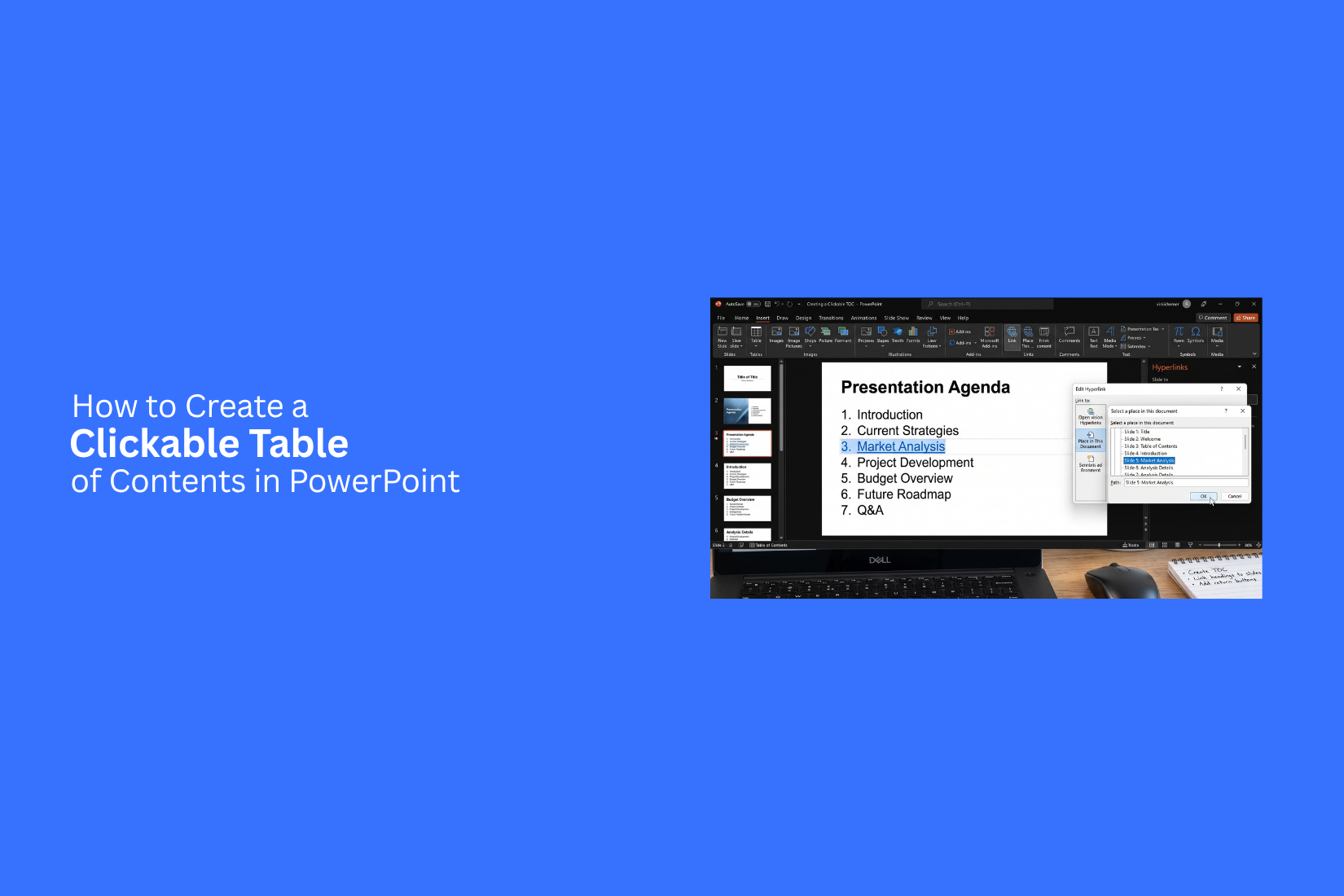
A long PowerPoint presentation can make it hard for viewers to find the section they need. They may have to move through many slides just to reach one topic. This can slow the presentation and make it harder to follow.
A simple table of contents helps, but a clickable one makes navigation easier. Each section title can link directly to its related slide. Viewers can select a topic and jump to the right place without searching through the deck.
In this guide, you’ll learn how to create a clickable table of contents in PowerPoint. You’ll also learn how to use PowerPoint Zoom, add links, create a home button, test links, customize the slide, and fix common problems.
What Is a Clickable Table of Contents in PowerPoint?
A clickable table of contents in PowerPoint is a list of slide topics that links to specific slides in a presentation. Each item works like a button. A click takes you directly to the related slide. This setup helps readers move through a long presentation with less effort. It also gives them a clear view of the topics covered in the deck.
For example, a table of contents may include:
• Introduction
• Market Overview
• Sales Results
• Project Timeline
• Key Takeaways
Each item can link to its matching slide. You can also add a link that takes users back to the table of contents. A clickable table of contents works well for reports, training decks, business presentations, and interactive slide decks. It gives viewers more control over how they move through the presentation.
Why Use a Clickable Table of Contents?
A clickable table of contents makes a PowerPoint presentation easier to navigate. It lets viewers jump to a specific section with a single click. This works well for long presentations with many sections. Viewers can quickly find the topic they need without moving through every slide. A clickable table of contents can also help the presenter control the flow of a presentation. It provides a clear view of the main sections and makes it easier to move between topics during a live session.
Here are a few key benefits:
• Quick navigation: Jump to a specific section without scrolling through slides.
• Better organization: Show the main topics in one place.
• Easier presentations: Move between sections with a click.
• Better viewer experience: Help the audience follow the structure of the presentation.
• Useful for long decks: Give viewers a simple way to access different parts of the presentation.
How do you Present a Table of Contents in a PowerPoint Presentation?
A table of contents gives your audience a clear view of your presentation structure. It lists the main sections and shows what each part covers. PowerPoint lets you create a table of contents in two main ways.
Unlinked Table of Contents in PowerPoint
An unlinked table of contents is a simple list of your slide sections. It does not connect each item to a specific slide. You can create one with text boxes, shapes, or a SmartArt graphic. Add the main topics in the order they appear in your presentation. You can also include slide numbers to help your audience find each section. This option works well for short presentations. It is also easy to edit as your content changes.
Automatic/Interactive Table of Contents in PowerPoint
An interactive table of contents lets you click a topic and jump to the related slide. This makes it useful for longer presentations with many sections. You can create clickable links by using PowerPoint's Link feature. Select the text or shape, open the link options, and choose the slide you want to connect it to. Each item can then act as a navigation button. An interactive table of contents also gives you more control during a live presentation. You can jump to a specific section without moving through every slide in order.
How to Create a Clickable Table of Contents in PowerPoint
A clickable table of contents helps your audience move through a PowerPoint presentation with ease. Each section title can link to its matching slide. This lets you jump to a specific part without moving through every slide.
Create the Table of Contents Slide
Start with a new slide for your table of contents. A simple layout works best. Add a clear title, such as Table of Contents or Agenda. Leave enough space for each section title. Use a layout that keeps the list easy to scan. You can also use shapes, icons, or text boxes to create a more visual layout.
Add Your Section Titles
List the main sections of your presentation on the slide. Keep each title short and clear.
For example:
• Introduction
• Market Analysis
• Key Findings
• Recommendations
• Conclusion
Match each title to the section it represents. This makes the table of contents easy to follow.
Link Each Section to a Slide
Now turn each section title into a clickable link.
- Select the text, shape, or object for a section title.
- Go to the Insert tab.
- Select Link.
- Choose Place in This Document.
- Select the slide that matches the section.
- Click OK.
Repeat these steps for every section. Each item should point to the correct slide. You can also use shapes as clickable buttons. This gives the table of contents a cleaner look and makes the links easier to select.
Test the Links in Slide Show Mode
Your links should work before you present. Go to Slide Show mode and open the table of contents slide. Click each section title or button. Check that it takes you to the correct slide. Test every link, not just a few. A wrong slide link can make your presentation harder to follow. Fix any incorrect links before presenting.
How to Create a Clickable Table of Contents With PowerPoint Zoom
PowerPoint Zoom lets you build a clickable table of contents with slide thumbnails. Each thumbnail links to a slide in the same presentation. This makes it easy to move between sections during a presentation.
Insert Slide Zoom
Open the PowerPoint presentation and go to the slide you want to use as your table of contents. Select the Insert tab. Find Zoom, then choose Slide Zoom. PowerPoint will ask you to pick the slides for your table of contents. This adds clickable thumbnails to the current slide.
Select the Slides
Choose the slides that represent the main sections of your presentation. Select each section slide from the list. Then click Insert. PowerPoint adds the selected slides as Zoom thumbnails. Each thumbnail works as a link to its slide.
Arrange the Zoom Thumbnails
Move the Zoom thumbnails into a clear order. Place them from left to right or top to bottom based on the order of your sections. Adjust the size of each thumbnail so the table of contents looks clean. Add section titles or short labels beside the thumbnails to help your audience know what each part covers. Run the presentation in Slide Show mode and click each thumbnail. Check that every item opens the correct slide.
Manually Creating Table of Contents in PowerPoint
A manual table of contents gives you full control over your presentation. You can add each section title by hand and place it on one slide. This method works well for short presentations with a clear structure. Start with a blank slide or a simple layout. Add a title such as Table of Contents. Then, list the main sections of your presentation. Keep each item short and easy to scan.
You can also add slide numbers beside each section. Use the same font, size, and spacing across the list. This keeps the slide neat and easy to read. A manual table of contents does not link to other slides by itself. You need to add hyperlinks to make each section clickable. This lets you jump to a specific part of the presentation during Slide Show mode.
Manual Table of Contents Example
Here is a simple example for a business presentation:
- Introduction
- Market Research
- Customer Analysis
- Marketing Strategy
- Budget
- Next Steps
Each item can point to its matching slide. For example, clicking Market Research can take you directly to the Market Research slide. This setup is easy to edit. You can add, remove, or rename sections as your presentation changes. It also gives you control over the look and order of your table of contents.
How to Add a Home Button to Your PowerPoint Slides
A Home button gives viewers a quick way to return to the table of contents. It works well for presentations with many sections or slides.
Steps to Add a Home Button
- Open the slide where you want to add the button.
- Select Insert > Shapes from the PowerPoint ribbon.
- Choose a shape for your Home button.
- Draw the shape on the slide.
- Add Home as the button text.
- Right-click the shape and select Link.
- Select Place in This Document.
- Choose the slide that contains your table of contents.
- Select OK.
Keep the Home button in the same location across your slides. This creates a consistent navigation system and makes the button easier to find.
How to Link a PowerPoint Shape to Another Slide
A PowerPoint shape can act as a clickable button. You can link it to any slide in the same presentation. This is useful for table of contents items, section buttons, and navigation controls.
Steps to Link a Shape to a Slide
- Select the shape you want to link.
- Right-click the shape and select Link.
- Choose Place in This Document.
- Select the slide you want to open.
- Click OK.
Now, the shape opens the selected slide during the presentation. Repeat these steps for each section in your table of contents. Run the presentation in Slide Show mode to test the links. Click each shape and check that it opens the correct slide.
How to Edit or Remove a PowerPoint Hyperlink
PowerPoint lets you change or remove a hyperlink without deleting the shape or text. This helps you update your clickable table of contents as the presentation changes.
Edit a PowerPoint Hyperlink
- Right-click the linked shape or text.
- Select Edit Link.
- Choose the new slide or location.
- Click OK.
The hyperlink now points to the new location.
Remove a PowerPoint Hyperlink
- Right-click the linked shape or text.
- Select Remove Link.
The shape or text remains on the slide. Only its clickable link is removed. Check your links after making changes. A quick test in Slide Show mode can help ensure every table of contents item and Home button works as expected.
How to Test Your Clickable Table of Contents
Testing your clickable table of contents helps make sure every link works as expected. Start the slideshow from the first slide. Click each item in the table of contents. Check that each link takes you to the correct slide. Go through every item, not just the first few. A single wrong link can take your audience to the wrong part of the presentation.
Also check the links in Slide Show mode. Some links may work differently in the editing view. Use the same view your audience will see during the presentation. Fix any wrong links before you present. Run through the table of contents one more time after making changes.
How to Customize a Table of Contents PowerPoint Slide?
A table of contents slide should match the style of the rest of your presentation. You can change the text, colors, fonts, shapes, and layout to fit your slides. Keep each section easy to read. Use clear labels for your slide groups. Place the items in a logical order so your audience can find each section quickly. You can also add shapes or icons to make each section stand out. Keep the design simple so the links remain easy to use.
Ribbon Menu Options
PowerPoint's Ribbon menu gives you tools to edit your table of contents slide. Use the Home tab to change fonts, text size, alignment, and text color. The Shape Format tab gives you options for shapes. You can change a shape's fill, outline, size, and position.
Use the Insert tab to add shapes, icons, pictures, or other elements. The Design tab lets you change the overall look of your presentation. These tools let you adjust the table of contents without rebuilding the slide from scratch.
Readymade PowerPoint Templates
A ready-made PowerPoint template can give your table of contents slide a ready-to-edit layout. You can replace the sample text with your own section names and keep the basic design. Look for a template that has a clear contents layout. Check that the text has enough space and that the links are easy to select.
You can also adjust the colors, fonts, shapes, and other elements to match your presentation. Add your clickable links after the layout is ready. This approach can save time on slide design. It also gives you a starting point for building a clean and organized clickable table of contents.
Tips for Designing a Clickable Table of Contents
A clickable table of contents should be easy to read and use. Keep the layout simple. Use clear labels for each section so readers know where each link leads.
Here are a few tips to improve your PowerPoint table of contents:
• Use short labels: Keep section names brief and clear.
• Keep the layout clean: Leave enough space between each item.
• Use readable fonts: Pick a font size that is easy to read from a distance.
• Match the slide design: Use fonts, colors, and shapes that fit the rest of your presentation.
• Make links easy to spot: Use buttons, text, or shapes that look clickable.
• Keep the order logical: List topics in the same order they appear in the presentation.
• Add a home button: Place a small home icon on content slides to help users return to the table of contents.
• Test every link: Run the slideshow and click each item to check that it opens the right slide.
A simple layout often works best. The goal is to help viewers find a section without slowing down the presentation.
Common Problems With Clickable PowerPoint Table of Contents
Clickable links can cause issues if they are not set up or tested correctly. A few common problems can affect how your table of contents works.
A Link Opens the Wrong Slide
Check the hyperlink settings for that item. The link may point to the wrong slide. Edit the link and select the correct destination.
A Link Does Not Work
The hyperlink may not have been added correctly. Right-click the text or shape and check the link settings. Make sure it points to a slide in the same presentation.
Links Work in Edit Mode but Not as Expected in Slide Show
Test the table of contents in Slide Show mode. PowerPoint handles clicks differently during editing. A link that looks correct in the editing view may still need testing during the presentation.
The Clickable Area Is Too Small
Text links can be hard to click during a presentation. Use larger text boxes or shapes as buttons. Give each item enough space so viewers can select it easily.
The Table of Contents Looks Too Crowded
Too many sections can make the slide hard to scan. Shorten the labels or split the contents across two slides. Keep the most useful navigation options visible.
Links Break After Editing Slides
Changing slide order or removing slides can affect navigation. Check the table of contents again after major edits. Test every link before presenting the final version.
Final Notes
A clickable table of contents gives your PowerPoint presentation a simple navigation system. It helps viewers move to the section they need without going through every slide. Before presenting, check each section link in Slide Show mode. Make sure every link opens the correct slide. Test Home buttons and shape links too. Review the table of contents after major edits. Adding, removing, or moving slides can affect your links. A quick test can prevent navigation errors during your presentation.
Keep the design simple and easy to read. Use short section labels, clear spacing, readable fonts, and large clickable areas. A consistent Home button can also make navigation easier across the deck. PowerPoint gives you several ways to build a clickable table of contents. You can add links to text and shapes, use Slide Zoom, or create the layout by hand. Pick the method that fits your presentation and update the links as your content changes.
FAQs
Can I make a table of contents clickable in PowerPoint?
Yes. You can add links to text, shapes, or other objects. Each link can point to a specific slide in the same presentation.
How do I link a table of contents to a slide in PowerPoint?
Select the text or shape. Go to Insert > Link. Choose Place in This Document. Select the target slide and click OK.
Can I use PowerPoint Zoom for a clickable table of contents?
Yes. Slide Zoom lets you add clickable slide thumbnails to a table of contents slide. Each thumbnail links to its selected slide.
How do I add a Home button to PowerPoint slides?
Add a shape to the slide. Type Home on the shape. Right-click it and select Link. Choose Place in This Document, then select your table of contents slide.
How do I test clickable links in PowerPoint?
Start the presentation in Slide Show mode. Click each table of contents item and check that it opens the correct slide. Test the Home button too.
Can I edit a PowerPoint hyperlink?
Yes. Right-click the linked text or shape and select Edit Link. Choose a new slide or location, then click OK.
How do I remove a hyperlink from PowerPoint?
Right-click the linked text or shape and select Remove Link. The text or shape stays on the slide, but the clickable link is removed.
Why does my PowerPoint link open the wrong slide?
The link may point to the wrong destination. Right-click the linked item, select Edit Link, and choose the correct slide.
Why does my PowerPoint link not work?
Check the link settings and make sure it points to a slide in the same presentation. Test the link in Slide Show mode.
How can I make a clickable table of contents easier to use?
Use short section labels, clear spacing, readable fonts, and large clickable areas. Keep the sections in the same order as they appear in the presentation.
Can I create a clickable table of contents manually?
Yes. Add your section titles to a slide by hand. Then add hyperlinks to each title or shape so users can jump to the related slide.
What happens to table of contents links after I edit my presentation?
Changing the slide order or removing slides can affect navigation. Check and test your links after making major changes.




You may also be interested in ...

How To Create An Eye-Catching Portfolio
If you’re looking to create an eye-catching portfolio, this post will come in handy. In this article, you can find the easies...
23 Jun, 2024

How To Easily Create An Infographic
Infographics are the perfect way to make a presentation that will impact an audience, but their design and composition might...
08 Jun, 2024

PowerPoint Template Tips & Tricks You Ne...
PowerPoint seems to be an unknown world for many people, especially those who have been assigned to create a presentation out...
08 Jun, 2024