How to Remove Animation Effects from Canva Slides
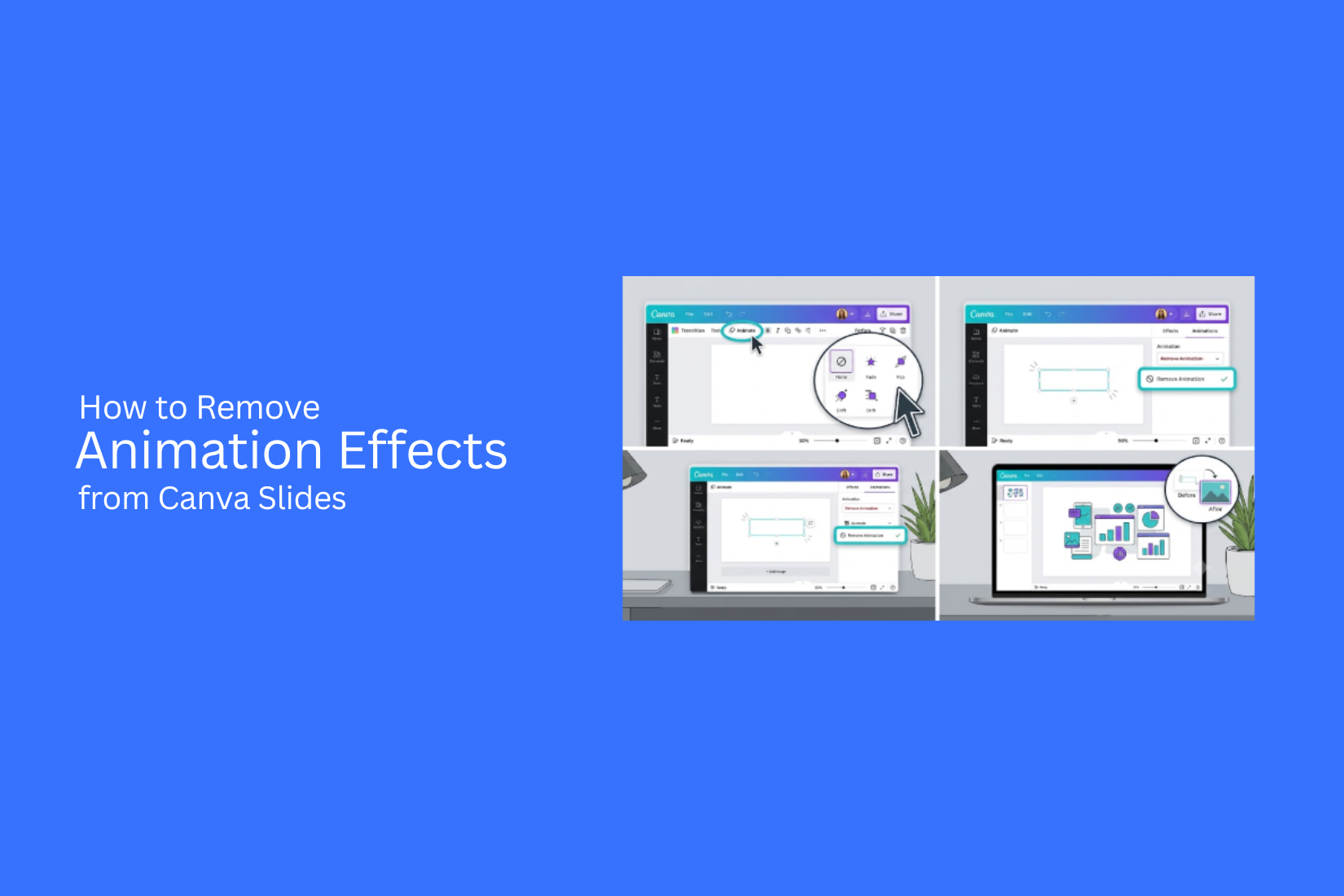
Adding animation effects to Canva slides can make a presentation feel less clear if the movement does not fit the design goal. Some users may struggle to find the right settings to remove unwanted effects, leaving slides with distractions during a presentation or review.
However, removing animation effects is a simple process with the right steps. This guide explains how to remove animations from Canva slides, including page animations and animated elements. It also covers ways to remove effects from multiple slides, fix common issues, and create cleaner presentations with better control over slide movement. You will also learn how to review your slides before sharing them so your final presentation looks organized and easy to follow.
Understanding Animation Effects in Canva
Canva animation effects add movement to slides and help make presentations more engaging. These effects control how text, images, icons, and other design elements appear or move on a slide. Animations can help highlight key points and guide the viewer’s attention. However, too many movements can make a presentation feel distracting. Removing animations can create a cleaner look and help the audience focus on the main message.
What Are Canva Animation Effects?
Canva animation effects are visual movements added to elements or pages in a presentation. They control how objects enter, leave, or move across a slide. For example, a text box can fade into view, an image can slide onto the page, or the entire slide can use a transition effect. These options help add style and motion to a presentation. Canva provides animation settings for different design parts. Users can apply effects to individual elements, such as text and images, or add movement to the full page.
Difference Between Element Animations and Page Animations
Element animations affect specific objects on a slide. These objects can include text, photos, shapes, icons, or charts. The animation applies only to the selected item. Page animations affect the entire slide. They control how the full page appears during a presentation. A page animation changes the movement between slides instead of changing one single object. The main difference is the area each animation controls. Element animations focus on individual parts, while page animations affect the whole slide.
When You Should Remove Animation Effects
Removing animation effects can help create a simple and professional presentation style. A slide with fewer movements may be easier for viewers to follow. You may want to remove animations for presentations that need a clean design, quick delivery, or a formal appearance. It can also help reduce distractions and keep attention on the content. Removing unused animations also makes editing easier. A presentation with fewer effects is often simpler to update and manage.
Why Remove Animations from Canva Presentations
Animations can add movement to Canva slides, but they do not always fit every presentation style. Too many effects can distract viewers and make the main message harder to follow. Removing animations helps create a cleaner slide design. A simple layout lets viewers focus on the text, images, and key points without extra movement. Some presentations need a more professional or formal look. Static slides can work better for business reports, educational materials, and documents that people need to review at their own speed. Removing animation effects can also help keep the presentation consistent. Each slide can have the same visual style, which makes the full presentation easier to follow.
How to Remove Animation Effects from Canva Slides
Animations can make a Canva presentation more active, but too many effects may distract viewers. Removing animations helps create cleaner slides and keeps the focus on your content. Canva lets you remove animations from single elements or entire pages with a few simple steps.
Open Your Canva Presentation
Start by opening the Canva presentation that contains the animation effects you want to remove. Go to your Canva account and select the design from your projects. Once the presentation opens, move through the slides and find the pages with animations. This helps you remove only the effects you no longer need.
Select the Animated Slide or Element
Click the element with the animation effect. This can be text, an image, a shape, or another design item on your slide. After selecting the element, Canva will show editing options in the toolbar. Make sure you choose the exact item that has the animation. Selecting the wrong part of the slide may show different options. To remove animations from a full slide, click on an empty area of the page. This allows you to access page-level settings instead of element settings.
Open the Animate Panel
With the element or page selected, find the Animate option in the Canva toolbar. Click it to open the animation panel. The panel shows the animation styles currently applied to your selected item. You can review the effect before removing it. This step helps you identify whether the animation belongs to one element or the entire page.
Remove an Animation Effect from an Element
Select the animated element and open the Animate panel. Look for the active animation effect. Choose the None option to remove the animation from that element. The text, image, or object will stay on the slide but will no longer move or appear with an effect. Repeat the same process for other elements that have unwanted animations.
Remove a Page Animation
Page animations affect the whole slide instead of one specific item. To remove one, click on the slide background. Open the Animate panel and find the page animation option. Select None to remove the effect from the entire slide. The slide content will remain unchanged. Only the movement or transition effect will be removed.
Preview and Save Your Presentation
After removing the animations, preview your presentation to check how the slides appear. Click the play button in Canva to view the presentation mode. Check each slide to make sure all unwanted effects are gone. Once everything looks right, save your design. Your Canva presentation will now display without the removed animation effects.
How to Remove Animations from Multiple Canva Slides
Removing animations from several Canva slides does not require editing each design from scratch. A few checks can help you find active effects and remove them across your presentation. This keeps your slides clean and ready for sharing or exporting.
Check Each Slide for Active Animations
Start by opening your Canva presentation and going through each slide. Click on a slide and check if any animation effect appears in the toolbar. Look for both page animations and object animations. Page animations affect the full slide, while object animations apply to specific items like text, images, or shapes. Checking each slide helps you find hidden effects that may not be visible during normal editing.
Remove Page Animations from Every Slide
Page animations can make a full slide move or appear with a special effect. To remove them, select a slide and open the animation settings. Choose the option to remove the page animation. Repeat this step for other slides that have the same effect. For presentations with many slides, go through them one by one to make sure no page animation remains.
Remove Animations from Individual Elements
Some animations are added only to certain parts of a slide. Text boxes, images, icons, and shapes can each have their own effects. Select the element with an animation. Open the animation menu and remove the applied effect. Check every slide element that uses movement. This helps prevent small animated parts from appearing after you export the file.
Review the Presentation Before Exporting
After removing animations, play the presentation from the beginning. Check each slide to confirm that all effects have been removed. Look for unexpected movements, text changes, or object effects. A final check helps make sure the exported file matches your design. Once everything looks correct, you can export your Canva presentation in your preferred format.
How to Remove Animation Effects in Canva Mobile
Animations can help add movement to a presentation, but they may not fit every design. Some slides work better with a simple layout without extra motion. Canva Mobile makes it easy to remove animation effects directly from your phone. The process is simple. You only need to open your presentation, select the animated element, remove the effect, and check the final result. Follow these steps to clean up your Canva slides.
Open Your Presentation in the Canva App
Open the Canva app on your mobile device and sign in to your account. From the home screen, go to the Projects section to find your saved designs. Select the presentation you want to edit. Tap the file to open it in the Canva editor. Wait for all slides and editing tools to load before making changes. If you have many designs, use the search bar inside Canva to find your presentation faster. Opening the correct file helps you avoid making changes to the wrong project. Once the presentation opens, move through the slides and find the page that has the animation effect you want to remove.
Select the Animated Object or Page
Go to the slide with the animation. Tap the animated object, such as text, an image, a shape, or another element. The selected item will show editing options at the bottom of the screen. Look for the animation option in the toolbar.
Some animations apply to a single object. Others affect the entire slide. Check which type of animation is active before removing it. To remove a page animation, tap an empty area on the slide. This selects the page instead of an individual element. You can then access the page animation settings. Selecting the right item is a key step. Removing an animation from one object will not always remove effects from other parts of the slide.
Remove the Animation
After selecting the animated object or page, tap the Animate option from the editing menu. Canva will display the animation style currently applied to that element. Look through the available options and choose None or the option that removes the animation effect. The selected element will return to a static format. For slides with multiple animated items, repeat the same steps for each element. This helps create a consistent look across your presentation. You can also check each page in your presentation. Some slides may have separate animation settings that need to be removed one by one. Removing extra effects can make your slides cleaner and easier for viewers to follow. It also helps keep attention on your message instead of slide movement.
Save and Preview the Presentation
After removing the animations, Canva saves your changes automatically. Still, it is a good idea to preview the presentation before sharing it. Tap the preview button to view your slides as an audience would see them. Check each page to make sure there are no unwanted movements. Review the text, images, and layout after removing animations. Some design elements may look different without motion effects. If everything looks correct, your presentation is ready to share, present, or export. A final preview helps you deliver a smooth viewing experience without unwanted animation effects.
Common Animation Effects You Can Remove in Canva
Canva animation effects add motion to different parts of a slide. They can make presentations feel more active, but not every slide needs movement. Too many effects may distract viewers from the main message. A simple slide design often works better with fewer visual changes. Removing extra animations helps create a cleaner layout and keeps attention on the text, images, and data. Canva includes many animation options. Some effects are used for entering elements, while others create movement across the slide. You can remove any of these effects by changing the animation settings for your slide or individual elements. Here are some common animation effects you may want to remove from Canva slides.
Fade
Fade is a common animation that slowly shows or hides an element. Text, images, icons, and shapes can use this effect. This style works well for a soft entrance, but it may slow down a presentation that needs a direct flow. A slide with many Fade effects can also make each element appear one after another, which may take attention away from the main idea. Removing Fade creates a more fixed slide view. All content stays visible without waiting for each part to appear.
Rise
Rise moves an element upward as it appears on the slide. It is often used for headings, photos, and design elements. The upward movement can add energy to a presentation. However, some slides need a calmer layout, especially those with charts, instructions, or detailed information. Removing Rise keeps the slide still and lets viewers read the content at their own pace. It also helps maintain the same style across multiple slides.
Pan
Pan creates a side-to-side movement across an element. It is often applied to photos or large visual sections. This effect can make a slide feel more dynamic, but it may not work well with every design. A moving image can pull attention away from nearby text or important details. Removing Pan keeps images in one place. This gives viewers more time to focus on the message without extra movement.
Pop
Pop makes an element appear with a quick scaling effect. It is commonly used for buttons, icons, short text, or important points. This animation can help highlight small parts of a slide. Too many Pop effects may make a presentation feel less organized. Removing Pop creates a smoother viewing experience. Elements appear naturally without sudden movements that interrupt reading.
Breathe
Breathe adds a slow zoom effect to an element. The object gently grows and shrinks during the presentation. This effect can work well for background images or creative slides. It may not match presentations that need a simple and focused design. Removing Breathe keeps visual elements still. This helps viewers spend more time reading and understanding the information on the slide.
Drift
Drift moves elements slowly across the slide. It creates a floating movement that can add style to a presentation. This effect may work for creative projects, but it can distract from important content in business, education, or data-based presentations. Removing Drift keeps all elements in their original position. The slide looks more stable and easier to read.
Match and Move
Match and Move creates movement between two slides by moving similar elements from one position to another. It is often used for smooth changes between slide layouts. This effect can create a connected feel between slides. However, some presentations need clear separation between each page. Removing Match and Move stops the movement between slides. Each slide appears on its own without extra transitions, which can make the presentation feel simpler and more structured.
Troubleshooting Canva Animation Removal Issues
Removing animations from Canva slides is usually simple, but some issues may stop the changes from working as expected. A missing button, moving elements, or saved settings that do not update can make the process confusing. The fixes below can help solve common Canva animation problems and keep your slides working the way you want.
The Animate Option Is Missing
The Animate option may not appear if you select the wrong part of the slide. Click on the page area first to check page animations. Select an individual element to check its own animation settings. Some Canva features also depend on the type of design or account settings. Refresh the editor and check again. Updating your browser can also fix display problems.
Elements Still Move After Removing Animations
An element may still move because the animation was applied to the element, not the whole page. Select the moving item and open the Animate menu. Choose the option to remove its effect. Check each element on the slide if several items are moving. Text boxes, images, and graphics can have separate animation settings.
Slide Transitions Continue to Play
Slide transitions work between pages, so removing element animations will not stop them. Open the transition settings between two slides and remove the selected transition effect. Check every slide in the presentation. A transition may still be active on other pages even after you remove it from one slide.
Changes Are Not Saving Properly
Canva normally saves edits automatically, but connection problems can delay updates. Wait for the save process to finish before closing the editor. Refresh the page if changes do not appear. You can also open the design again to check if the animation settings were saved correctly. Creating a copy of the design may help if the original file has editing issues.
Best Practices After Removing Animation Effects
Removing animation effects can make your Canva slides look cleaner and easier to follow. However, the design still needs attention after making this change. A few simple improvements can help your slides look polished and keep your message clear.
Keep Your Slide Design Clean
A slide without animations should still guide the viewer’s attention. Remove extra elements that make the page look crowded. Keep only the text, images, and graphics that support your main message. Use enough empty space between elements. A clean layout helps viewers focus on the most important parts of your slide. Simple fonts, balanced spacing, and a clear structure can make your presentation easier to read.
Improve Readability with Better Layouts
Animation removal often changes how viewers interact with your slides. A strong layout helps each point stand out without movement. Place headings in clear positions and keep body text easy to scan. Break large blocks of text into smaller sections. Use consistent alignment across slides to create a smooth viewing experience. A good layout allows your audience to understand your message at a glance.
Use Static Visuals Effectively
Static visuals can add value even without animation effects. Choose images, icons, charts, and diagrams that explain your ideas clearly. Avoid adding visuals only for decoration. Each image or graphic should have a purpose. A well-placed visual can support your message and make the slide more engaging.
Preview Your Presentation Before Sharing
Review your slides after removing animation effects. Check each page from the viewer’s perspective. Make sure the text is readable, and the design looks balanced. Look for missing details, spacing issues, or slides that feel too empty. A final review helps you fix small problems before presenting or sharing your Canva presentation.
Final Notes
Removing animation effects from Canva slides helps create a cleaner and more focused presentation. The process only takes a few steps. You can remove effects from single elements, full pages, or multiple slides by using the Animate settings. After removing animations, review your slides carefully. Check the layout, text placement, images, and transitions to make sure everything looks consistent. A simple slide design can help viewers follow your message without extra movement. A presentation does not need many effects to look professional. Clear content, balanced layouts, and useful visuals often create a better viewing experience. Use animation only when it supports your goal. Remove it when it distracts from the main idea.
FAQs
Can I remove animation effects from Canva slides?
Yes, you can remove animation effects from Canva slides. Open your presentation, select the animated element or page, open the Animate panel, and choose the option to remove the effect.
How do I remove animation from a single element in Canva?
Select the element with the animation, such as text, an image, or an icon. Open the Animate menu and choose None to remove the effect from that specific item.
How do I remove animation from an entire Canva slide?
Click on the empty area of the slide to select the page. Open the Animate panel and remove the page animation. This removes movement from the full slide.
Can I remove animations from multiple Canva slides at once?
Canva does not always remove all animations with one click. You may need to check each slide and remove page or element animations separately.
Why are my Canva elements still moving after removing animations?
The movement may come from a different animation setting. Check both page animations and individual element animations to find the active effect.
Can I remove Canva animations using the mobile app?
Yes, you can remove animations in the Canva mobile app. Open your presentation, select the animated object or page, open the Animate option, and remove the effect.
Will removing animations change my slide design?
No, removing animations only removes movement effects. Your text, images, colors, and layout will stay the same.
Why should I remove animations from a Canva presentation?
Removing animations can help create a cleaner slide style. It can also reduce distractions and make the main content easier to follow.
How can I check if all animations are removed from my Canva presentation?
Use the preview option in Canva and watch the full presentation. Check each slide for unwanted movements, transitions, or animated elements before sharing the file.
Do Canva animations affect exported presentations?
Yes, animations can appear in supported presentation formats. Removing them before exporting helps ensure your final file matches your preferred design style.




You may also be interested in ...

How To Create An Eye-Catching Portfolio
If you’re looking to create an eye-catching portfolio, this post will come in handy. In this article, you can find the easies...
23 Jun, 2024

How To Easily Create An Infographic
Infographics are the perfect way to make a presentation that will impact an audience, but their design and composition might...
08 Jun, 2024

PowerPoint Template Tips & Tricks You Ne...
PowerPoint seems to be an unknown world for many people, especially those who have been assigned to create a presentation out...
08 Jun, 2024