How to Create a Dropdown Menu in PowerPoint: Step-by-Step Guide
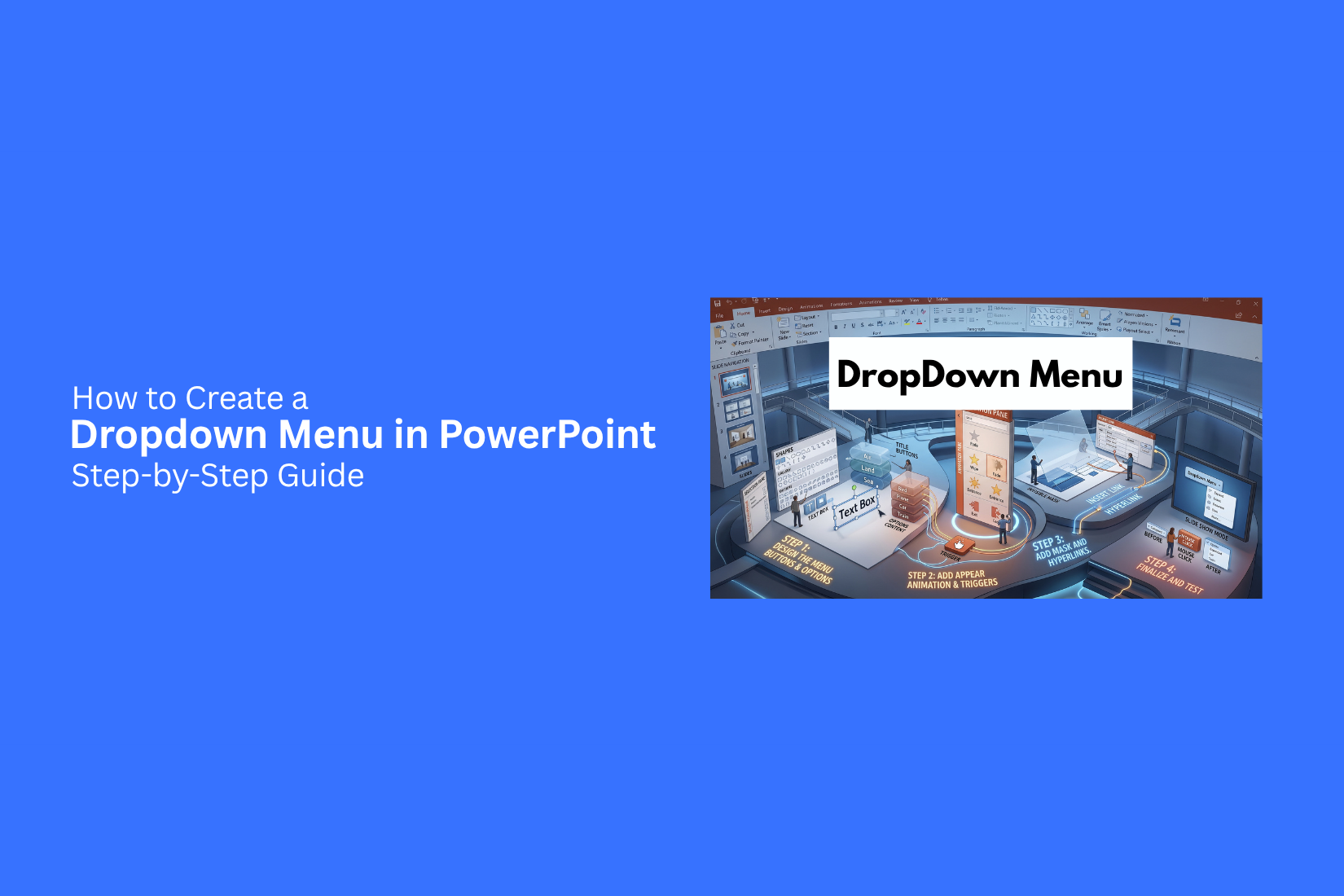
Creating a dropdown menu in PowerPoint can make it easier to move between sections, but setting one up may feel confusing without clear steps. A menu that does not work as expected can also make navigation harder during a presentation. The good news is that you can build a dropdown menu with linked slides and add effects to make it feel interactive. This guide shows you how to plan the menu, create buttons and menu items, link them to slides, and add a close or back button. You will also learn how to create a dropdown menu with VBA, customize its look, fix common problems, and test each part before presenting. By the end, you will have a clear process for building a PowerPoint dropdown menu.
What Is a Dropdown Menu?
A dropdown menu is a user interface element that shows a list of options after a user selects or clicks a button, field, or arrow. The list opens to display available choices and closes after a selection is made. Dropdown menus help users select items without showing every option at once. This saves space, reduces clutter, and makes navigation easier. In PowerPoint, a dropdown menu can work as an interactive navigation tool. It can organize slide links or content choices in one place, helping users move between sections without adding extra buttons to every slide.
Why Create a Dropdown Menu in PowerPoint?
A dropdown menu can make a PowerPoint presentation easier to use. It gives viewers a clear way to move between different sections or topics. This works well for interactive presentations, training materials, and digital guides. A dropdown menu can also keep a slide clean. Instead of showing many buttons or links at once, you can place them under one menu. This saves space and gives the slide a more organized look.
Interactive menus can also help viewers control what they see. They can select a topic and jump to the related slide. This creates a simple navigation system inside the presentation. For presentations with many sections, a dropdown menu can make navigation easier. It can also help you build a presentation that feels more like an interactive tool than a standard slide deck.
Benefits of Using a Dropdown Menu in PowerPoint
A dropdown menu can make a PowerPoint presentation easier to navigate and manage. It works well for training, business presentations, and e-learning. It also helps keep slides clean while giving viewers access to related content. Here are the main benefits of using a dropdown menu in PowerPoint.
Enhanced Navigation
A dropdown menu gives viewers a simple way to move between sections. You can link menu items to specific slides, making it easier to find key parts of a presentation.
Improved Organization
A dropdown menu groups related topics in one place. This helps you organize large presentations without adding extra navigation buttons to every slide.
Easy to Present
A dropdown menu can support a clear presentation flow. You can select a topic from the menu and move to the right slide without searching through the full slide deck.
Space Optimization
A dropdown menu saves slide space. It keeps navigation options in a small area instead of placing many buttons across the slide. This helps reduce clutter and keeps the main content clear.
Interactivity
Dropdown menus add an interactive feature to PowerPoint slides. Viewers can select different topics and move through the presentation based on the available options.
Customization
You can personalize the dropdown menu to match your presentation style. Change the text, size, position, and design to fit your PowerPoint theme.
Visual Appeal
A well-designed dropdown menu can give slides a clean and polished look. It adds useful navigation without taking attention away from the main content.
Easy to Follow
A dropdown menu gives viewers clear choices for moving through the presentation. This makes long presentations easier to follow and helps keep each topic in a clear order.
How to Create a Dropdown Menu in PowerPoint With Linked Slides
While PowerPoint does not offer a built-in dropdown menu feature, you can create one using linked slides, shapes, action buttons, animations, and triggers. You can also use editable PowerPoint templates or VBA scripts to create similar navigation effects.
Step 1: Plan Your Dropdown Menu
Before you start, decide which slides or sections your dropdown menu will link to. A clear structure will help you keep the navigation easy to use. For example, you can create a vertical menu with expandable horizontal boxes under each main menu button. Each menu option can link to a specific slide or section of your presentation. Plan the menu items first. Then decide which slides each item should open.
Step 2: Create the Main Menu Button
You can use PowerPoint shapes to create your own main menu button. Go to Insert → Shapes and select a shape such as a rectangle or rounded rectangle. Draw the shape on your slide and add a label such as Menu, Sections, or Topics. Use the Shape Format tab to adjust the Shape Fill, Shape Outline, font, and text alignment. Keep the button style simple so the menu text stays easy to read.
Step 3: Create the Dropdown Menu Items
Next, create the menu options that will appear under the main button. Go to Insert → Shapes and add a rectangle for each menu option. Add text to each shape based on the sections in your presentation. Place the shapes below the main menu button to create the dropdown area. Use Shape Format → Align to keep the items in a clean position. For example, a main menu called Services could have dropdown options such as Design, Video, and Marketing. Customize the fill, outline, font, and spacing to match your presentation design.
Step 4: Create the Main Navigation Slide
Create a main slide that contains the dropdown menu buttons. You can duplicate an existing slide and arrange the buttons in one place. Right-click the slide thumbnail and select Duplicate Slide. Move and align the buttons to create your main navigation layout. Use Shape Format → Align to keep the buttons evenly placed. This slide can also work as an opening slide. It gives you a central place to access different sections of the presentation.
Step 5: Link Menu Items to Content Slides
Once your main navigation slide is ready, link each menu item to its related content slide. Select a menu button, then go to Insert → Link → Insert Link → Place in This Document. Select the slide you want the button to open and click OK. Repeat the same process for each menu option. For example, a Services button can link to the Services slide, while a Pricing button can link to the Pricing slide.
Note: You can also use Insert → Action to create slide navigation. This gives you another way to link a shape to a specific slide.
Step 6: Use Animations to Create the Dropdown Effect
Animations can make the menu items appear after the main menu button is selected. Select the dropdown menu shapes and go to the Animations tab. Choose Appear or Fade. Open the Animation Pane to manage the animation settings. Then select Trigger → On Click of and choose the main menu button. Adjust the animation timing to control how quickly the dropdown items appear.
Note: A template may already include the required animation settings. In that case, you may be able to skip the trigger setup and use the existing linked slide structure.
Step 7: Add a Close or Back Button
A close or back button can help users return from the dropdown menu. Go to Insert → Shapes and select a small shape for the button. Add text such as Back, Close, or an X symbol. Select the button and go to Insert → Link → Insert Link → Place in This Document. Choose the slide you want the button to open. You can also add an exit animation to the dropdown items. This lets the menu disappear after the close button is selected.
Step 8: Test Your Dropdown Menu
Switch to Slide Show mode and test the menu from start to finish. Click the main menu button and check that the dropdown items appear. Select each menu item and make sure it opens the correct slide. Also test the close or back button. Check the animation timing and make sure no menu item covers important content. A full test helps you find broken links, incorrect slide connections, and animation problems before you use the presentation.
How to Create a Dropdown Menu in PowerPoint Using VBA
A VBA macro can create a dropdown menu with interactive behavior in PowerPoint. The setup uses the VBA Editor, a module, and a short script. Follow these steps to add the menu to your presentation.
Step 1: Open the VBA Editor
Open your PowerPoint presentation and go to Developer → Visual Basic. If the Developer tab is not visible, enable it from File → Options → Customize Ribbon. Select Developer, then click OK.
Step 2: Insert a New Module
In the VBA Editor, select Insert → Module. A new code window will appear. This is where you will add the VBA script for the dropdown menu.
Step 3: Add the VBA Code
Paste the VBA code into the new module. The code controls the dropdown menu and its visibility. You can adjust the script to match the names and actions used in your presentation. Keep the code inside the module so PowerPoint can access it as a macro.
Step 4: Run the Macro
Close the VBA Editor and return to PowerPoint. Go to Developer → Macros. Select the macro you added, then click Run. PowerPoint will run the VBA script and apply the dropdown behavior to the presentation.
Step 5: Test the Dropdown Menu
Start the slide show and select the button connected to the dropdown menu. Check that the menu appears and hides as expected. Test the button again to confirm that it toggles the dropdown's visibility. The VBA method gives you a button that controls the dropdown menu directly. It works well for presentations that need more dynamic and interactive behavior.
How to Customize Your PowerPoint Dropdown Menu
A dropdown menu should match the style of the rest of your PowerPoint presentation. Simple changes to colors, fonts, icons, spacing, and effects can make the menu easier to use. Keep each menu item clear and easy to spot.
Change Colors and Fonts
Use colors that match your presentation theme. Apply the same color style to the menu background, text, and buttons. Choose a clear font that is easy to read. Keep the font size large enough for the audience to see. Use a bold font for menu labels if they need more visual focus. You can also use a different color for the active menu item. This helps show which section the viewer has selected.
Add Icons to Menu Items
Icons can help users understand each menu option faster. Add a small icon beside each menu label to show its purpose. For example, a home icon can link to the main slide. A chart icon can link to a data section. A folder icon can point to supporting content. Keep icons simple and use the same style across the menu. Make sure they do not take more space than the text.
Adjust Spacing and Alignment
Good spacing keeps the dropdown menu clean and easy to scan. Leave enough space between menu items so they do not look crowded. Use PowerPoint's alignment and distribution tools to place items evenly. Keep text and icons lined up across the menu. Check the menu in Slide Show mode. Make sure each item has enough space around it for easy clicking.
Add Hover or Click Effects
PowerPoint does not support standard website-style hover menus. You can still create visual feedback with animations, links, and trigger effects. A click effect can change the appearance of a menu item after the user selects it. For example, you can use a different fill color or animation to show the selected item. Trigger animations can also create interactive effects. Link each menu item to the right slide or section. Test every button in Slide Show mode to make sure the menu works as expected.
Common Dropdown Menu Problems and How to Fix Them
A dropdown menu can make a PowerPoint presentation easier to use. Still, small setup errors can stop the menu from working as expected. Check each menu item, link, animation, and macro to find the issue.
Menu Items Do Not Open
A menu item may not open because its action is missing or set up incorrectly. Select the menu item and check its action settings. Make sure the item is linked to the slide or action you want. Test the menu in Slide Show mode. Normal editing mode does not always show how the menu will work during the presentation. Check each item one at a time.
Links Go to the Wrong Slide
A menu link can point to the wrong slide after slides are moved or added. Select the menu item and review its link or action setting. Check the target slide name and number. Test the link in Slide Show mode. Repeat this check for every menu item.
Animations Do Not Work
Dropdown menus may use animations to show or hide menu items. An animation may fail because its trigger or order is set incorrectly. Open the Animation Pane and check the animation settings. Review the trigger for each menu item. Make sure the animation starts from the correct menu button or action. Run the presentation from the start. Test the menu several times to confirm that each animation responds as expected.
VBA Macro Does Not Run
A VBA macro may not run because macros are blocked or the code is not set up correctly. Check the macro security settings in PowerPoint. Make sure macros are allowed for the file. Also check that the presentation is saved in a macro-enabled format, such as .pptm. Open the VBA editor and review the macro code for errors. Test the macro again after making the required changes.
Tips for Creating a Better Dropdown Menu in PowerPoint
A dropdown menu works best when it is simple and easy to use. Keep the menu clear so users can find the right slide without extra effort. Use short menu labels that match the content of each section. Keep the menu in the same place on each slide. This gives users a clear way to move through the presentation. Use the same font, size, and style for menu items across all slides. Test each menu item before sharing the presentation. Click every option and check that it opens the correct slide. Also test the menu in Slide Show mode to make sure the links work as expected.
Avoid adding too many menu options. A long list can make the menu hard to scan. Group related slides under clear labels to keep the menu easy to follow. Use a clear visual style for the dropdown menu. Make sure the text stands out from the background. Keep enough space around each option so users can select the right item with ease. A simple dropdown menu can make a PowerPoint presentation easier to navigate. Good labels, consistent placement, working links, and a clean layout help users move between sections with less effort.
Dropdown Menu vs. Other PowerPoint Navigation Options
A dropdown menu is one way to help readers move through a PowerPoint presentation. It lets users choose a topic from a list and jump to the related slide. This setup works well for presentations with several sections. PowerPoint also offers other navigation options. A table of contents can show all main sections on one slide. Buttons can link to specific slides or return users to a main menu. Hyperlinks can also connect text, shapes, or images to other slides.
Each option supports a different type of presentation flow. A dropdown menu keeps the navigation list compact. A table of contents gives users a quick view of the full structure. Navigation buttons work well for simple actions, such as going back, moving forward, or returning to the home slide. For a presentation with many sections, a dropdown menu can keep the main slide clean while still giving users access to different parts of the deck. A simple menu may be enough for shorter presentations, while a mix of links and buttons can work better for more detailed slide structures.
Final Notes
A dropdown menu can give your PowerPoint presentation a clear way to move between sections. You can build one with shapes, links, animations, and triggers. VBA also gives you another way to add interactive menu behavior. Start with a simple menu structure. Use short labels and clear links. Keep the menu in the same place across your slides. Good spacing and readable text can make each option easier to use.
Test the menu in Slide Show mode before sharing the presentation. Check every link, animation, close button, and VBA macro. Fix any wrong links or setup issues before presenting. A well-planned dropdown menu can keep your slides clean while giving viewers easy access to different parts of your presentation.
FAQs
Can you create a dropdown menu in PowerPoint?
Yes. PowerPoint does not have a built-in dropdown menu tool, but you can create one with shapes, links, animations, and triggers.
How do I link a dropdown menu item to a slide?
Select the menu item and go to Insert → Link → Insert Link → Place in This Document. Choose the slide you want to open and click OK.
Can I create a dropdown menu in PowerPoint without VBA?
Yes. You can create a dropdown menu with shapes, slide links, animations, and triggers. VBA is not required for a basic interactive menu.
Can I use VBA to create a dropdown menu in PowerPoint?
Yes. A VBA macro can control the visibility of menu items and add more direct interactive behavior. The presentation must support macros.
Why is my PowerPoint dropdown menu not working?
Check the links, animation triggers, and action settings. Run the presentation in Slide Show mode and test each menu item.
Can I add a close button to a PowerPoint dropdown menu?
Yes. Add a shape for the close button and link it to the slide you want users to return to. You can also use an exit animation to hide the menu items.
Can I add hover effects to a PowerPoint dropdown menu?
PowerPoint does not support standard website-style hover menus. You can use animations, triggers, links, and click effects to create visual feedback.
How many items should a PowerPoint dropdown menu have?
Keep the list short and easy to scan. Group related topics under clear labels instead of adding too many menu options.
Can I customize the look of a PowerPoint dropdown menu?
Yes. You can change the colors, fonts, icons, spacing, alignment, button size, and effects to match your presentation style.
How do I test a dropdown menu in PowerPoint?
Start Slide Show mode and test the main menu button, each dropdown item, and the close or back button. Check that every link opens the correct slide and that animations work as expected.


You may also be interested in ...

How To Create An Eye-Catching Portfolio
If you’re looking to create an eye-catching portfolio, this post will come in handy. In this article, you can find the easies...
23 Jun, 2024

How To Easily Create An Infographic
Infographics are the perfect way to make a presentation that will impact an audience, but their design and composition might...
08 Jun, 2024

PowerPoint Template Tips & Tricks You Ne...
PowerPoint seems to be an unknown world for many people, especially those who have been assigned to create a presentation out...
08 Jun, 2024