How to Use Document Inspector in PowerPoint: A Complete Guide
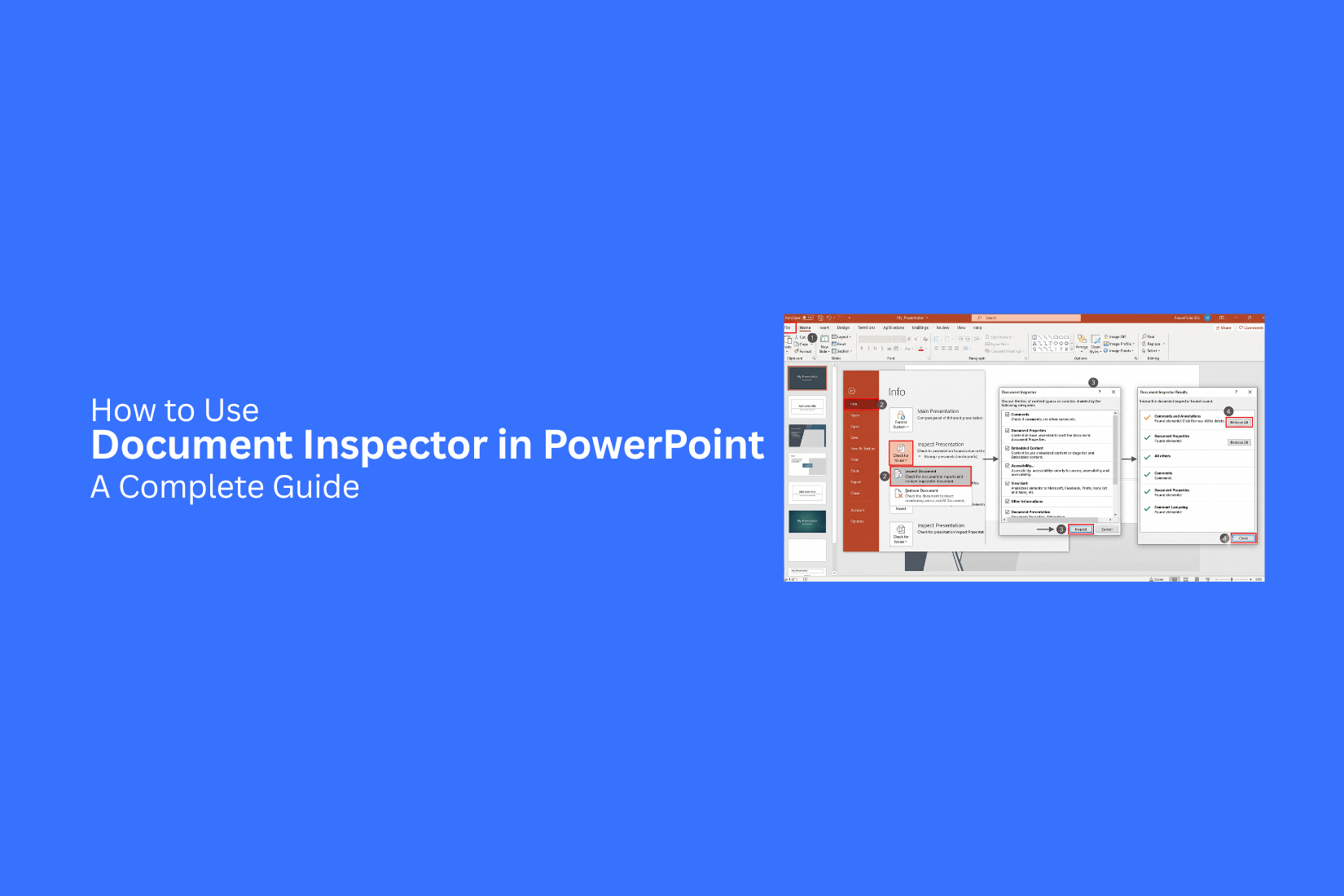
Sharing a PowerPoint presentation can expose hidden details that you may not want others to see. Comments, notes, personal data, and other file information can stay inside your presentation. These details are easy to miss during regular editing. This can create issues before you share.
To avoid these issues, you need a way to check your file before sending it to others. Document Inspector helps you review hidden content and remove unwanted information from your PowerPoint presentation. This guide explains how to use Document Inspector step by step and shows what it can find in your file. You will also learn how to prepare a cleaner presentation before sharing it with your team or clients.
What Is Document Inspector in PowerPoint?
Document Inspector is a built-in PowerPoint tool that helps you check a presentation for hidden information and unwanted details. It scans your file and shows items that may need to be removed before sharing. A PowerPoint file can contain hidden comments, notes, personal details, and other data. These items may stay inside the presentation even if they are not visible on the slides. Document Inspector helps you find these details in a few steps. This tool is useful before sending a presentation to clients, coworkers, or other people. It gives you a chance to review your file and clean up extra information. Your slides stay focused on the content you want others to see.
Why Should You Use Document Inspector in PowerPoint?
A PowerPoint file can contain hidden details that are not visible on the slides. These details may include comments, notes, hidden slides, personal information, or unused content. Document Inspector helps you find and remove these items before sharing your presentation. Using Document Inspector keeps your file cleaner and safer. It helps you check your presentation before sending it to clients, coworkers, or other viewers. This step reduces the chance of sharing private details by mistake. Document Inspector is also useful for managing large presentations. It can help remove extra data that makes a file harder to handle. A quick inspection can help you keep your slides organized and ready for sharing. Before you upload or send a PowerPoint file, running Document Inspector gives you a simple way to review hidden content and make changes as needed.
How to Open Document Inspector in PowerPoint
Opening Document Inspector in PowerPoint takes only a few steps. This tool is available inside the File menu and helps you check a presentation for hidden details.
Follow these steps to open it:
- Open your PowerPoint presentation.
- Click the File tab at the top-left corner.
- Select Info from the menu.
- Click Check for Issues.
- Choose Inspect Document from the options.
- A Document Inspector window will appear.
PowerPoint may ask you to save your file before running the inspection. Create a backup copy first to keep your original presentation safe. The Document Inspector window shows different types of content you can review. You can select the items you want PowerPoint to check, then run the inspection to find hidden information in your file.
How to Use Document Inspector in PowerPoint Step by Step
Document Inspector helps you find and remove hidden details from a PowerPoint file. The tool checks different parts of your presentation, such as notes, comments, hidden data, and personal details. Follow these steps to review your file before sharing it with others.
Create a Backup Copy of Your Presentation
Start by saving a copy of your PowerPoint file. Document Inspector can remove certain information from your presentation. A backup keeps your original file safe if you need to restore any details later. Open your presentation and select File > Save As. Create a new copy with a different file name. Use this copy for the inspection process.
Choose Items to Inspect
Open the copied presentation and go to the File tab. Select Info, then choose Check for Issues. Click Inspect Document to open the Document Inspector window.
You will see a list of items that PowerPoint can check. These may include:
• Comments and notes
• Document properties and personal information
• Hidden slides
• Custom XML data
• Invisible content
• Presentation elements that may contain hidden details
Select the items you want to review. Keep the selected options based on the type of information you want to find.
Run the Document Inspection Process
After choosing the items, click Inspect. PowerPoint will scan your presentation and search for hidden information. The inspection time depends on the size of your file and the number of elements it contains. Wait until the process finishes before making any changes.
Review Inspection Results
Once the scan is complete, Document Inspector will show the results. Each section will display whether hidden information was found. Review each result carefully. Some details may be useful for editing, while others may not be needed in the final version of your presentation. For example, comments may help during teamwork but should be removed before sending the file to clients or external users.
Remove Unwanted Hidden Information
After reviewing the results, click Remove All next to the information you want to delete. PowerPoint will remove the selected hidden details from your presentation. Check the results again after removal. This helps confirm that unwanted information is no longer inside the file. Save your presentation after completing the process. Your PowerPoint file is now cleaner and ready to share.
What Can Document Inspector Find in PowerPoint?
Document Inspector helps you check a PowerPoint file for hidden details. It reviews different parts of your presentation that may contain private data or extra content. This helps you clean your file before sharing it with others.
Comments, Notes, and Annotations
PowerPoint files may contain comments, speaker notes, or other marks added during editing. These items can reveal feedback, ideas, or messages from the creation process. Document Inspector can find these items and show where they appear. You can review them and remove anything that should not be shared.
Personal Information and Document Properties
PowerPoint stores details about a file, such as the author name, company details, and editing history. These details are saved as document properties. Document Inspector can check this information and help you remove private details. This keeps your file cleaner before sending it to clients, teams, or other viewers.
Hidden Slides and Hidden Content
Some presentations include slides that are hidden from the main slideshow. These slides may contain extra information, old versions, or unused content. Document Inspector can locate hidden slides and other hidden items. You can review them and decide if they should stay in the file.
Embedded Files and Objects
A PowerPoint presentation can include embedded files, charts, images, or other objects. Some of these items may not be visible during a normal slide view. Document Inspector can find these objects and show extra content stored inside the presentation. This helps you check for files or items that you no longer need.
Custom XML Data and Other Hidden Elements
PowerPoint files may store custom XML data and other hidden information behind the scenes. These details can come from editing tools or file settings. Document Inspector checks for this type of data and lists any findings. You can remove unwanted items to keep the presentation ready for sharing.
How to Remove Hidden Information Using Document Inspector
PowerPoint files may contain hidden details that are not visible on slides. These details can include comments, author names, hidden slides, and other saved data. Document Inspector helps you find and remove this information before sharing your presentation. Removing hidden data keeps your file clean and helps protect private details. Follow these steps to remove unwanted information from your PowerPoint file.
Remove Comments and Review Notes
Comments and review notes help teams share feedback during the editing process. They are useful while creating a presentation, but they may not be needed in the final file. Document Inspector can find comments and notes added by reviewers. After the scan, PowerPoint shows the items it finds. You can choose to remove them with one click. Before deleting comments, review them carefully. Some notes may contain useful feedback or changes you still need to make. Save a copy of your presentation before removing any review details.
Delete Personal Information From File Properties
PowerPoint saves details about the file, such as the author name, company information, and document properties. This data may appear in the file details. Document Inspector can check these properties and help remove personal information. This step is helpful before sending a presentation to clients, coworkers, or public audiences. Removing these details gives you better control over what information stays with the file.
Remove Hidden Slides and Content
Hidden slides stay inside the presentation even though they do not appear during a slideshow. They may contain old ideas, private notes, or unfinished content. Document Inspector can help you find hidden slides and other hidden elements. Review each item before removing it. Some hidden slides may still be needed for future edits. Deleting unused hidden content can reduce confusion and keep your presentation file organized.
Clear Unused Presentation Data
PowerPoint files can store extra data from editing, copying, and reviewing. Some of this information may no longer be needed. Document Inspector checks for unused content and other saved elements. Removing unnecessary data can make your file cleaner and easier to manage. Run the inspection process before sharing important presentations. It gives you a chance to review what is stored inside the file and remove details that should not be shared.
How to Use Document Inspector Before Sharing a PowerPoint Presentation
Sharing a PowerPoint file with others means your slides should show only the information you want to share. Hidden details like comments, notes, personal data, or unused content can stay inside the file. These details may reveal extra information that your audience does not need to see. Document Inspector helps you check your presentation before sending it to others. It scans the file and shows hidden items that may need removal. Follow these steps to prepare a cleaner presentation.
Save a Final Copy of Your File
Start by saving a copy of your PowerPoint presentation. Keep your original file safe so you can make changes later if needed. Use a new file name for the final version. This makes it easier to tell the edited file apart from the original. A backup copy also gives you a way to restore the earlier version.
Inspect the Presentation for Hidden Data
Open the final copy and run Document Inspector from the PowerPoint settings. The tool checks different parts of your file for hidden information. It can find items such as comments, speaker notes, document properties, and hidden slides. The inspection helps you see what information is stored inside your presentation. Review the results carefully. Some hidden items may be useful for your own work, while others may not belong in the shared file.
Review and Remove Unnecessary Information
Look through the inspection results and remove details that do not need to be included. Delete old comments, private notes, or extra file information that could confuse viewers. Keep the content that supports your presentation goals. Removing extra data also helps keep your file organized and ready for sharing.
Share a Clean and Professional Presentation
After removing unwanted information, save your presentation again. Open the file and check each slide to make sure everything looks correct. A clean presentation gives viewers only the content they need. Document Inspector adds an extra review step that helps you share your PowerPoint file with more confidence.
Common Issues When Using Document Inspector in PowerPoint
Document Inspector helps find and remove hidden details from a presentation. However, it may not remove every type of hidden information. Some files may still need extra checks before sharing.
Document Inspector Does Not Detect All Hidden Data
Document Inspector can find many types of hidden details, but it may miss some items. Certain objects, links, or custom elements may not appear in the scan results. Review your slides manually after running the tool. Check for hidden slides, notes, comments, and extra objects that may still be part of the file.
Removed Information Cannot Be Restored
Document Inspector removes selected data from your presentation. After removal, you may not be able to bring that information back. Create a copy of your file before using the tool. Keep the original version saved in case you need any removed details later.
Some Content Requires Manual Removal
Some hidden items need to be removed by hand. Document Inspector may not handle every type of content inside a presentation. Check your slides, speaker notes, embedded files, and other elements after the inspection. Manual review helps you find details that the tool may miss.
Best Practices for Using Document Inspector in PowerPoint
Document Inspector helps you check a PowerPoint file before you send it to others. A few simple habits can help you remove unwanted details and keep your presentation clean.
Always Inspect Presentations Before Sharing
Run Document Inspector before sharing a presentation with clients, coworkers, or other viewers. The tool checks for hidden details like comments, notes, and personal information. A final check helps you find items you may not notice during regular editing. It also gives you a chance to remove extra data before someone else opens the file.
Keep an Original Backup File
Save a copy of your presentation before removing any hidden information. Some changes made through Document Inspector cannot be undone. Keeping the original file lets you return to the earlier version if you need missing details later. Use a clear file name so you can tell the backup apart from the cleaned version.
Review Detected Issues Carefully
Document Inspector shows the types of hidden content found in your presentation. Review each result before removing anything. Some items may be useful for your work. Removing them without checking can affect notes, comments, or other presentation details you still need.
Use Document Inspector for Client and Team Presentations
Presentations shared with clients or teams often need a clean final version. Document Inspector helps remove extra information that should not be visible to others. Make it part of your final review process for business reports, project updates, and shared presentations. This small step helps you send files that look more professional and organized.
Document Inspector vs Other PowerPoint Review Tools
PowerPoint includes several tools that help improve a presentation before sharing it. Each tool checks a different part of the file. Document Inspector looks for hidden data and private details. Other tools focus on spelling, readability, or access needs. Knowing the purpose of each tool helps you choose the right option for your presentation.
Difference Between Document Inspector and Spelling Review
Document Inspector checks the hidden parts of a PowerPoint file. It can find items such as comments, personal details, hidden slides, and other stored information. This helps you clean the file before sending it to others. Spelling Review focuses on text errors. It checks words in slides, notes, and other text areas. It helps fix spelling mistakes and improve writing quality. These tools solve different problems. Document Inspector helps protect file details. Spelling Review helps improve the accuracy of your text.
Difference Between Document Inspector and Accessibility Checker
Document Inspector looks for hidden information inside a presentation. It helps remove details that viewers may not need to see. Accessibility Checker focuses on making presentations easier for people with different needs. It checks items like missing alternative text, reading order, and slide design issues. A presentation may need both tools before it is shared. Document Inspector helps clean the file. Accessibility Checker helps make the slides easier to use.
When to Use Each PowerPoint Review Tool
Use Document Inspector before sharing a final presentation, especially if the file contains notes, comments, or other private details. Use Spelling Review after creating slide content. It helps find typing errors and spelling problems. Use Accessibility Checker during the design process or before presenting to an audience. It helps make sure more people can understand and use the slides. Each PowerPoint review tool has a clear purpose. Using the right tool at the right stage helps create a cleaner and more polished presentation.
Final Notes
Document Inspector is a helpful PowerPoint tool for checking hidden details before sharing a presentation. It helps you find comments, notes, personal data, hidden slides, and other stored information inside your file. Make it part of your final review process. Save a backup copy first, inspect the file, review the results, and remove details that should not be shared. This keeps your presentation organized and helps protect private information.
Keep in mind that Document Inspector may not find every hidden item. A manual review of your slides, notes, and embedded content can help you catch anything the tool misses. A quick inspection before sharing can help you send a cleaner PowerPoint file to clients, coworkers, or other viewers. This simple step helps you stay in control of the information inside your presentation.
FAQs:
What is Document Inspector in PowerPoint?
Document Inspector is a built-in PowerPoint tool that checks a presentation for hidden information. It can find comments, notes, personal details, hidden slides, and other saved data inside the file.
Why should I use Document Inspector before sharing a PowerPoint file?
You should use Document Inspector to review hidden details before sending your presentation to others. It helps you find and remove information that may not need to be shared, such as comments, notes, or personal data.
How do I open Document Inspector in PowerPoint?
Open your PowerPoint file and go to File. Select Info, then choose Check for Issues. Click Inspect Document to open the Document Inspector window.
Can Document Inspector remove hidden information from PowerPoint?
Yes. Document Inspector can remove selected hidden details, such as comments, notes, personal information, and other stored data. Review the results before removing anything.
Does Document Inspector remove all hidden data from a PowerPoint file?
No. Document Inspector can find many types of hidden information, but it may miss some items. Check your slides and file content manually after running the inspection.
Can I restore information removed by Document Inspector?
Removed information may not be restored after it is deleted. Create a backup copy of your presentation before using Document Inspector to keep the original file safe.
What types of information can Document Inspector find?
Document Inspector can check comments, speaker notes, document properties, personal information, hidden slides, embedded files, custom XML data, and other hidden elements.
Should I use Document Inspector for every PowerPoint presentation?
Using Document Inspector is a good habit before sharing important presentations. It is especially useful for files that contain team feedback, private notes, or client information.
What is the difference between Document Inspector and Accessibility Checker?
Document Inspector checks for hidden data and private details inside a presentation. Accessibility Checker focuses on making slides easier for people with different needs.
What is the difference between Document Inspector and Spelling Review?
Document Inspector checks hidden file information. Spelling Review checks text for spelling mistakes and writing errors in your presentation.




You may also be interested in ...

How To Create An Eye-Catching Portfolio
If you’re looking to create an eye-catching portfolio, this post will come in handy. In this article, you can find the easies...
23 Jun, 2024

How To Easily Create An Infographic
Infographics are the perfect way to make a presentation that will impact an audience, but their design and composition might...
08 Jun, 2024

PowerPoint Template Tips & Tricks You Ne...
PowerPoint seems to be an unknown world for many people, especially those who have been assigned to create a presentation out...
08 Jun, 2024