Current State vs Future State Presentation: A Complete Guide
A presentation can show where a business or team stands, yet the path ahead may still be hard to see. Without a clear comparison, the audience may not understand the gap between the current situation and the desired result.
That gap matters because unclear goals can make it harder to explain why changes are needed. A long list of problems may also leave the audience without a clear view of what should happen next.
A Current State vs Future State presentation brings both sides together. It shows the current process, key gaps, future goals, proposed changes, and expected results. This guide explains how to structure and create one, along with examples, visual formats, use cases, common mistakes, and practical tips.
What Is a Current State vs Future State Presentation?
A Current State vs Future State presentation shows where something is now and where it needs to be later. It creates a clear view of the gap between the two points. The current state explains the existing situation. The future state explains the desired situation. The comparison helps people see what needs to change.
This type of presentation can be used for business plans, project updates, process changes, team goals, and other improvement plans. It gives the audience a simple way to understand the starting point and the desired result.
What Is the Current State?
The current state describes how things work right now. It shows the present process, system, team setup, or business situation. This section should focus on facts that help explain the starting point. It may include:
- Current processes
- Existing tools or systems
- Team roles
- Current results
- Main problems
- Gaps or areas that need work
The goal is to give the audience a clear view of the present situation. Keep the information focused and easy to follow.
What Is the Future State?
The future state describes the desired situation. It shows how things should work after the planned changes take place.
This section can show:
- New processes
- Updated systems or tools
- New team roles
- Expected results
- Planned improvements
- Goals for the next stage
A strong future state gives the audience a clear picture of the target. It should connect to the problems or gaps shown in the current state.
Current State vs Future State
The current state and future state work as two parts of the same story. The first shows the starting point. The second shows the target.
A simple comparison can make the gap easier to understand:
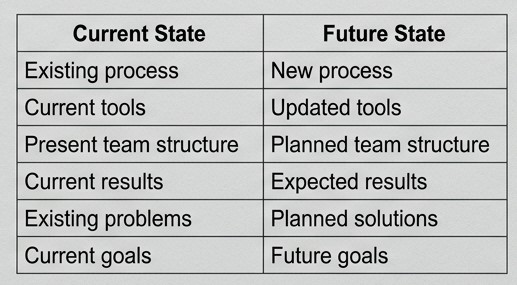
The gap between these two states shows what needs to change. A presentation can then explain the steps, resources, timeline, and actions needed to reach the future state. This structure helps the audience understand not only what needs to change, but also why the change is being planned.
Why Create a Current State vs Future State Presentation?
A current state vs future state presentation helps people see where things are now and where they need to go. It puts the present situation beside the desired result. This makes the main issues, goals, and next steps easier to understand.
Show the Need for Change
The current state shows how a process, team, system, or business works today. The future state shows what it should look like after planned improvements.
This comparison makes the need for change easier to explain. People can see the difference between the current setup and the desired result. It also gives the presentation a clear purpose.
Highlight Gaps and Problems
The space between the current state and future state can reveal key gaps. These gaps may relate to slow processes, limited tools, unclear roles, poor results, or other issues. A presentation can show these problems in a simple visual format. This helps the audience understand what needs attention. It also gives teams a clear view of the areas that need work.
Define Future Goals
The future state gives the team a clear target. It shows what the improved process, system, or business setup should look like. Clear goals make it easier to plan the work ahead. They also help teams understand what success should look like. A strong future state should be specific enough to guide decisions and actions.
Align Teams and Stakeholders
Different people may have different views of the current situation. A current state vs future state presentation brings those views into one clear picture. Teams and stakeholders can see the same problems and goals. This creates a shared point of reference for discussions. It also helps people understand their role in reaching the future state.
What to Include in a Current State vs Future State Presentation
A current state vs future state presentation shows how things work today and how they should work in the future. It helps people understand the gap between the two stages. Each section should share clear facts, goals, and steps for change.
Current Processes
Start by explaining how things work today. Describe the main tasks, tools, and steps in the current process. Keep the details simple and easy to follow. Use a process map or flowchart to show how work moves from one step to the next. Add key data, such as task time, costs, or output. This gives your audience a clear view of the current setup.
Current Problems and Gaps
Next, show the problems that affect the current process. These may include slow tasks, high costs, repeated work, or a lack of clear steps. Use facts to explain each problem. Add data, team feedback, or examples from daily work. Then show the gap between current results and the results your team wants to achieve.
Future Goals
Explain what the team wants to achieve in the future. Set clear goals that match the needs of the business or project. Use specific targets to make each goal easy to measure. For example, a team may want to cut task time by 20% or reduce errors by 15%. A timeline can also help your audience understand when each goal should be met.
Proposed Changes
Describe the steps needed to move from the current state to the future state. Link each change to a problem or gap you have already shown. These changes may include new tools, updated workflows, staff training, or changes to team roles. Explain what needs to change, who will lead the work, and how the team will put each change into action.
A roadmap can help present these steps in a clear order. Add key dates, resources, and milestones to show how the plan will move forward.
Expected Results
End this section by showing what the proposed changes should achieve. Focus on results that matter to your audience.
These may include lower costs, faster work, fewer errors, better team output, or improved customer service. Use numbers to show the expected impact. A before-and-after table can help people compare current results with future targets.
Also, explain how the team will track progress. Set clear measures and review dates. This helps everyone see whether the changes are working and whether the project is moving toward its goals.
How to Structure a Current State vs Future State Presentation
A clear structure helps your audience follow the story from the current situation to the desired one. Each part should answer a simple question. Where are we now? What needs to change? Where do we want to go? What will improve after the change?
Start With the Current State
Begin by showing how things work today. Keep this section simple and factual. Show the current process, system, workflow, or business situation.
Use charts, short points, or simple diagrams to explain the current state. Focus on the details that matter to the main topic. Avoid adding too much information at once. Your audience should understand the starting point before you show the future state.
Identify the Main Gaps
Next, show the gaps between the current state and the desired state. These gaps may include slow processes, higher costs, outdated systems, missed goals, or other issues.
Keep each gap clear. Group similar issues together. Use a simple table or diagram to make the differences easier to follow. This section gives your audience a clear reason for the planned changes.
Introduce the Future State
Now show what the new state should look like. Describe the target process, system, workflow, or business setup.
Use a visual that makes the future state easy to understand. A process diagram, timeline, or side-by-side layout can work well. Keep the focus on the end goal. Your audience should see how the future state differs from the current one.
Explain the Changes
The next step is to show how you will move from the current state to the future state. List the main changes in a clear order.
You may cover new tools, process updates, team changes, system changes, or new ways of working. Keep each point short. A simple before-and-after table can also help. It lets your audience see what stays the same and what changes.
Show the Expected Outcomes
End the main comparison by showing what the changes are expected to achieve. Connect each outcome to a specific change.
You may show results such as lower costs, faster work, better service, fewer errors, or improved team performance. Use numbers or charts when you have clear data. This final section connects the planned changes to the results your audience needs to understand.
How to Create a Current State vs Future State Presentation
A Current State vs Future State presentation shows where things stand now and where you want them to go. It helps your audience see the gap between the two states. A clear structure makes the message easier to follow.
Define Your Presentation Goal
Start with a clear goal. Decide what you want your audience to understand after the presentation. Your goal may be to show a process gap, explain a business change, or present a plan for improvement. Keep the goal focused on one main point. This gives your slides a clear direction.
Gather Current State Information
Collect the key facts about the current state. Look at the process, tools, teams, tasks, and results involved. Focus on information that supports your main goal. Remove details that do not help explain the current situation. Clear facts make the current state easier to understand.
Map the Current Process
Show how the current process works from start to finish. List the main steps in the right order.
A simple process map can help your audience see delays, repeated tasks, gaps, or other issues. Use short labels for each step. Keep the visual easy to read.
Define the Future State
Describe how the process or situation should work in the future. Show the main changes from the current state. Focus on the new process, tools, roles, or results. Make the future state clear and realistic. Your audience should be able to see what will change.
Compare the Two States
Place the current state and future state side by side. This makes the key differences easier to spot. You can compare areas such as process steps, time, tools, roles, costs, or results. Use the same categories for both states. This creates a clear comparison.
Organize the Slides
Build the presentation in a simple order. Start with the goal and current situation. Then show the current process, future state, and key differences.
A basic slide flow can look like this:
- Presentation goal
- Current state overview
- Current process map
- Future state overview
- Current vs future comparison
- Key changes and next steps
Keep each slide focused on one main idea. Use simple visuals and short text. This helps your audience follow the story from the current state to the future state.
Current State vs Future State Presentation Examples
A current state vs future state presentation shows where a process, team, system, or customer experience stands today and where it should go next. The examples below show how this format can work across different business areas.
Business Process Example
A company may use a current state vs future state slide to show how its sales process can improve.
Current state:
Sales staff enter customer details by hand. They use emails, spreadsheets, and separate files to track leads. This takes time and can lead to missing or outdated information.
Future state:
The sales team uses one system to track leads. New customer details are added to the system once. Sales staff can view lead status, follow-ups, and customer details from one place.
The slide can show both processes side by side. A simple process flow can make the changes easy to follow.
Technology Example
A technology example can show the move from older systems to a newer setup.
Current state:
A company uses several older tools for file storage, communication, and data management. Teams often switch between different systems to complete basic tasks.
Future state:
The company uses a connected technology setup. Teams can access key files and data from fewer systems. This creates a simpler workflow for daily work.
A two-column layout works well here. Use the left side for the current system and the right side for the future system. Arrows can show the main changes.
Customer Experience Example
A current state vs. future state presentation can also show changes in the customer journey.
Current state:
A customer visits a website, fills out a form, and waits for a reply. The customer may need to contact the company again to check the status of the request.
Future state:
The customer fills out a simple form and receives an instant confirmation. The customer can also check the request status online.
A customer journey map can make this example clear. Show each step from the first contact to the final response.
Organizational Structure Example
This format can help explain a change in how a company is organized.
Current state:
A company has several teams with separate managers. Some employees handle similar tasks across different teams. This can create extra steps for shared projects.
Future state:
The company groups related roles under shared teams. Each team has clear responsibilities and reporting lines. Employees know who handles each type of work. An organizational chart can show the difference. Place the current structure on one side and the future structure on the other side.
Marketing Process Example
Marketing teams can use this format to show how campaign work can change.
Current state:
A marketing team plans campaigns through emails and separate documents. Content, design, and campaign data are stored in different places. Team members may spend extra time finding the latest files.
Future state:
The team uses one shared process for campaign planning. Content, design files, deadlines, and campaign details are kept in one place. Each team member can see their assigned tasks.
A simple workflow can show the change from planning to launch. This helps the audience see how the future process differs from the current one.
How to Visualize Current State vs Future State
A clear visual makes the gap between the current state and future state easier to understand. The right format depends on the type of change you want to show. You can use a simple comparison, a diagram, a process, a table, or a roadmap.
Side-by-Side Comparison
A side-by-side comparison places the current state next to the future state. This format works well for showing clear differences.
Use one section for the current state and another for the future state. Add short points under each side. Keep both sections balanced. This helps the audience see what changes and what stays the same.
Before-and-After Diagram
A before-and-after diagram shows the starting point and the desired result. It works well for changes in systems, teams, products, or work methods. Place the current state on the left and the future state on the right. Add arrows between them to show the change. Use short labels to explain the key differences.
Process Flowchart
A process flowchart shows how a process moves from the current state to the future state. It works well for workflow changes.
Start with the current process. Show each main step in order. Then show the improved process. Use arrows to connect the steps. This gives the audience a clear view of how the process changes.
Comparison Table
A comparison table gives you space to compare several areas at once. It works well for detailed presentations. Create columns for the current state and future state. Add rows for key areas such as tools, tasks, roles, time, or results. Keep each point short. This makes the table easy to scan during a presentation.
Roadmap
A roadmap shows the path from the current state to the future state. It adds time to the comparison.
Start with the current state. Add the main steps needed to reach the future state. Place each step along a timeline. You can also add key milestones to show progress. A roadmap works well for projects that need several steps before the future state is reached.
Current State vs Future State Presentation by Use Case
A current state vs future state presentation can fit many types of projects. The basic idea stays the same. You show where things stand now, then show where the team wants to be. The content changes based on the project and its goals.
Business Strategy
Business strategy presentations use this format to show a clear path from the current position to a desired business state. The current state can cover sales, costs, customers, market position, or key business goals.
The future state shows the planned direction. It can include new goals, target results, or changes in the way the business operates. A side-by-side layout can make the gap easy to see.
Digital Transformation
Digital transformation presentations focus on how technology can change the way a company works. The current state may show old tools, manual work, separate systems, or slow data sharing.
The future state can show connected systems, digital tools, automated tasks, and easier access to data. A clear before-and-after view helps the audience see what the project aims to change.
Process Improvement
Process improvement presentations compare the current workflow with a new workflow. The current state can show extra steps, delays, repeated work, or gaps between teams.
The future state shows the updated process. It can include fewer steps, clearer roles, and a smoother flow of work. A process diagram works well for this type of slide.
Change Management
Change management presentations help teams understand what is changing and why. The current state can show existing habits, tools, roles, or work methods.
The future state shows how these areas will look after the change. You can also use the slide to show key actions, team support, training, and other steps needed to help people adjust.
IT Projects
IT project presentations often use current and future state slides to explain system changes. The current state may show an old system, separate platforms, manual tasks, or technical gaps.
The future state shows the planned setup. This can include new software, connected systems, updated workflows, or improved data access. Simple system diagrams can make the difference easier to follow.
Organizational Change
Organizational change presentations focus on how a company, team, or department will work in the future. The current state may show the existing team structure, roles, reporting lines, or work model.
The future state shows the planned structure. It can highlight new roles, team changes, reporting updates, or shifts in responsibility. A simple organizational chart can help the audience understand the change.
Common Mistakes to Avoid
A current state vs future state presentation should make the change easy to see. Some common mistakes can make the message harder to follow. A clear structure helps the audience understand where things stand now, where they should go, and what needs to change.
Adding Too Much Information
Too much information can make the slides hard to read. Keep each slide focused on one main point. Use short text, clear labels, and only the details that support your message.
Large blocks of text can also take attention away from the main idea. Move extra details to speaker notes or a separate document.
Making the Current State Too Detailed
The current state needs enough detail to explain the situation. It does not need every small fact or process step.
Focus on the main issues, results, and limits. Show the parts that help explain why a change is needed. This gives the audience a clear view without filling the slide with extra details.
Keeping the Future State Too General
A future state should give the audience a clear view of the desired result. Vague statements do not show what will change.
Use specific goals, processes, features, or results. Show what the new state should look like. Clear details help the audience understand the target.
Failing to Show the Gap
The gap connects the current state to the future state. Leaving it out can make the presentation feel incomplete.
Show the main differences between the two states. These may include process issues, performance levels, tools, costs, roles, or customer needs. A simple comparison can make these differences easy to understand.
Using Confusing Visuals
Visuals should make the comparison easier to follow. Too many shapes, colors, icons, or charts can distract from the message. Use a simple layout for both states. Keep labels clear and use the same visual structure across the slides. The audience should understand the comparison without needing to study the design.
Tips for a Clear Current State vs Future State Presentation
A clear current state vs future state presentation should make the change easy to follow. The audience needs to see where things stand now and where they need to go. Simple visuals and clear points can help keep the message focused.
Keep the Comparison Simple
Show the current state and future state in a simple format. A side-by-side layout can work well. Use short points for each state. Avoid adding details that do not support the main message.
The audience should understand the main difference at a glance. Keep each slide focused on one part of the change.
Focus on Key Changes
Highlight the changes that matter most. Show what will change in the process, team, system, or workflow. Use short statements to explain each change.
A long list can make the slide hard to follow. Pick the main changes and give each one enough space.
Use Consistent Visuals
Use the same visual style across the presentation. Keep fonts, shapes, icons, and layouts consistent. Use similar formats for the current state and future state.
This helps the audience compare both states with less effort. It also gives the presentation a clean and organized look.
Connect Changes to Goals
Each major change should link to a clear goal. Explain what the change is meant to achieve. This gives the audience a reason to care about the future state.
For example, a new process may aim to reduce delays. A new system may help teams work with fewer manual steps. Keep the link between the change and the goal clear.
End With Next Steps
Finish the presentation with clear next steps. Show what needs to happen after the future state is presented. This may include planning, assigning tasks, setting dates, or reviewing the proposed changes.
A clear next-step slide helps turn the presentation into an action plan. The audience should leave knowing what comes next.
Final Notes
A Current State vs Future State presentation helps show the difference between where things are now and where they should be. It gives your audience a clear view of current processes, key gaps, future goals, planned changes, and expected results.
Keep the comparison simple and focused. Show the current state with clear facts, then explain the future state with specific goals. Use tables, process maps, diagrams, or roadmaps to make the gap easier to understand.
A strong presentation also connects each proposed change to a clear goal. End with practical next steps so the audience knows what needs to happen next. With the right structure and visuals, your presentation can make the path from the current state to the future state much easier to follow.
Frequently Asked Questions
What is a Current State vs Future State presentation?
A Current State vs Future State presentation shows where a business, team, process, or system stands now and where it should be in the future. It helps the audience see the gap and understand the changes needed.
What should a Current State vs Future State presentation include?
It should include the current process, key problems and gaps, future goals, proposed changes, and expected results. You can also add a roadmap, timeline, or comparison table.
How do you compare the current state and future state?
Use the same categories for both states. You can compare processes, tools, roles, costs, time, or results. A side-by-side layout or comparison table makes the differences easy to see.
What visuals can be used in a Current State vs Future State presentation?
You can use side-by-side comparisons, before-and-after diagrams, process flowcharts, comparison tables, and roadmaps. Pick a format that matches the type of change you need to show.
What are common mistakes in a Current State vs Future State presentation?
Common mistakes include adding too much information, making the current state too detailed, keeping the future state too general, failing to show the gap, and using confusing visuals.
How do you end a Current State vs Future State presentation?
End with clear next steps. Show the actions, tasks, dates, or plans that need to follow the proposed changes. This helps the audience understand what should happen next.


You may also be interested in ...

How To Create An Eye-Catching Portfolio
If you’re looking to create an eye-catching portfolio, this post will come in handy. In this article, you can find the easies...
23 Jun, 2024

How To Easily Create An Infographic
Infographics are the perfect way to make a presentation that will impact an audience, but their design and composition might...
08 Jun, 2024

PowerPoint Template Tips & Tricks You Ne...
PowerPoint seems to be an unknown world for many people, especially those who have been assigned to create a presentation out...
08 Jun, 2024