Canva vs PowerPoint — Which is Better? – Complete Tutorial
Choosing the right tool for presentations can feel confusing. Canva and PowerPoint both promise to make slides look professional, but each has unique strengths and limitations. Many users struggle to decide which platform fits their needs best, wasting time experimenting with both.
This complete tutorial breaks down the key differences between Canva and PowerPoint. We will examine pricing, templates, fonts, visuals, charts, animations, AI tools, export options, collaboration, and other features.
By the end, you will clearly understand which tool suits your style and workflow. This guide helps you save time, create engaging slides, and make confident decisions without second-guessing your choice.
What Is Canva?
Canva is a tool for creating visual content. You can use it to make presentations, posters, social media posts, and more. It works in a web browser or on a mobile app. Canva offers templates, images, icons, and fonts you can use. You can drag and drop elements to build slides quickly. It is designed to be easy for anyone, even without design experience.
What Is PowerPoint?
PowerPoint is a software for making presentations. It is part of Microsoft Office. You can add slides, text, images, charts, and videos. PowerPoint lets you control how your slides appear and move. You can also use templates or start from scratch. Many people use it for business meetings, school projects, and training sessions.
Why Presentation Tools Matter
Choosing the right presentation tool can shape how your message is received. A clear, organized slide deck keeps your audience focused. Poor visuals or confusing layouts can make even strong ideas hard to follow. The tool you pick affects how easily you can create, edit, and share your slides. It also impacts your workflow, collaboration, and how professional your final presentation looks. Picking a tool that fits your needs saves time and helps your content connect with viewers.
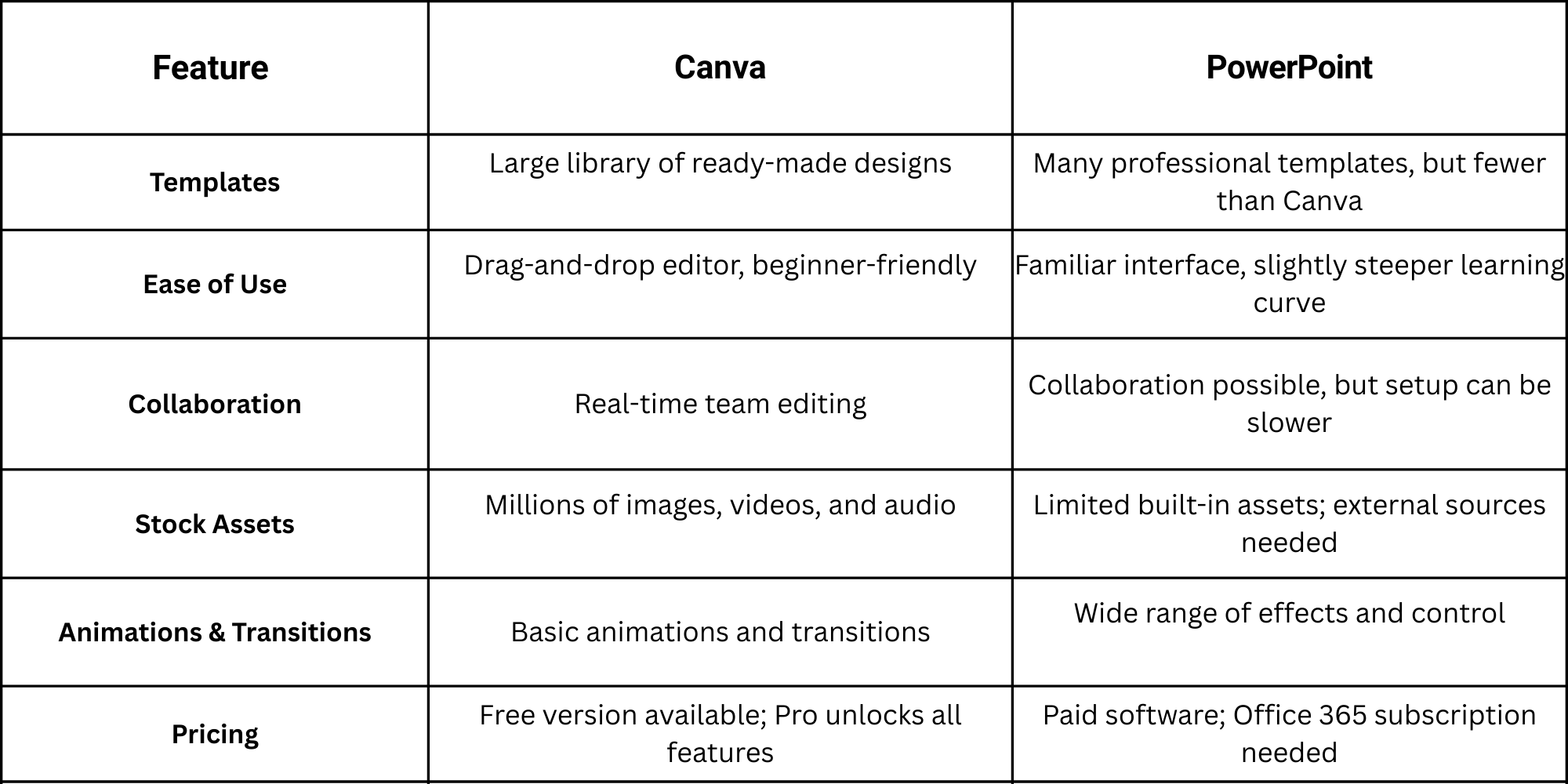
Canva vs PowerPoint — Quick Comparison Table
Canva vs. PowerPoint: Pricing and Highlights
Let’s start with an overview of the pricing and highlights of both programs. The main difference is that PowerPoint is a presentation-focused tool, while Canva is a web-based design platform. This means Canva can handle a wide range of tasks, from social media posts and flyers to mind maps and print documents.
PowerPoint comes in two versions: PowerPoint Desktop, which is the full-featured version, and PowerPoint Online, which is lighter and web-based. This guide will focus on PowerPoint Desktop, as it offers the most complete set of tools.
Canva
Canva offers a freemium model with a free version that includes basic features. Users get access to over 2 million templates, 3 million stock assets such as images, videos, fonts, and audio, limited AI-powered design tools, 5GB of cloud storage, and more.
Beyond the free version, Canva provides several paid plans that give full access to all tools:
Canva Pro: This plan is for a single user. It is ideal for freelancers or small business owners. The cost is $15 per month or $120 per year. A 30-day free trial is available. It includes premium templates, stock assets, unlimited cloud storage, AI design tools, and brand kit management.
Canva Teams: Designed for up to three users, this plan adds team collaboration features. The price is $30 per month or $300 per year. For more than three users, an extra $100 per user per year applies. A 30-day free trial is available. Teams can share folders, use approval workflows, and access collaborative templates.
Canva Enterprise: Recommended for large companies or organizations with 100 or more employees. This plan includes advanced team management tools, custom integrations, extra security, and dedicated support. Pricing depends on company size, with discounts for larger enterprises.
Canva for Education: This free plan is for primary and secondary schools. It includes all Canva Teams features, plus educational templates and LMS integration. It is available for teachers, students, and qualifying schools.
Canva for Campus: Tailored to universities and larger institutions. It provides more collaboration tools, project spaces, AI design tools, and dedicated support. Pricing is similar to Canva Enterprise.
Canva for Non-profits: Free for up to 50 users, this plan is for registered non-profits, charities, and social changemakers. For more than 50 users, a 50% discount per additional user applies. It includes most Canva Teams features, including templates, stock assets, and AI tools.
PowerPoint
PowerPoint Desktop is included in most Microsoft 365 plans. These plans also give access to other Microsoft Office apps like Excel, Word, OneDrive, Outlook, and Teams.
Pricing is based on monthly or annual subscriptions. Options exist for individuals, families, businesses, educational institutions, government entities, and non-profits. PowerPoint Online is also free if you want to try it.
Here’s a breakdown of the main plans:
Microsoft 365 Personal: Designed for one person. Includes 1TB of cloud storage and premium features. Costs $7 per month or $70 per year.
Microsoft 365 Family: Supports up to 6 people. Offers the same premium benefits as the Personal plan, with 6TB of cloud storage. Costs $10 per month or $100 per year.
Microsoft 365 for Business: Suitable for small and medium-sized businesses. Supports up to 300 users and includes the AI Copilot tool. Prices start at $7.20 per user per month.
Microsoft 365 for Enterprises: Designed for large organizations. Offers advanced security-focused plans, including options for government and non-profits. Prices start at $8 per user per month. Free plans are available for qualifying non-profits.
Microsoft 365 for Education: Free for eligible teachers and students at select institutions. Paid versions are available with more apps and management tools. Contact Sales for pricing.
Canva vs. PowerPoint: Template Repository
If you’re short on time, using presentation templates can save you hours.
Let’s see how these resources differ between Canva and PowerPoint:
Canva
Canva stands out for its large library of templates, which includes around 2 million resources. It has thousands of professionally designed templates to make your presentations look polished from the start.
The templates cover areas like business, marketing, professional portfolios, project introductions, and more. If you use Canva for Education or Canva for Non-profits, the platform offers templates tailored to your field.
A key advantage of Canva is its user-friendly interface. Templates are easy to edit, even if you have no prior design experience. This makes it perfect for beginners while still allowing advanced users to customize fonts, colors, layouts, and graphics.
PowerPoint:
PowerPoint offers a reliable set of templates, but its library is smaller than Canva’s. Most templates are traditional and suited for professional or business presentations. Slides tend to follow formal layouts with clean lines, charts, and text-heavy designs.
If PowerPoint’s built-in templates don’t meet your needs, third-party templates can provide extra variety. These downloads let you customize layouts, colors, and styles beyond the default collection. You can also mix templates to create a more unique look or combine professional designs with visual elements to make presentations more engaging.
For users who frequently present in corporate or academic settings, PowerPoint’s focus on structure and consistency can be an advantage. At the same time, exploring external templates helps break the monotony and supports presentations that require creativity or a modern touch.
Canva vs. PowerPoint: Fonts
Typography can change how your slides feel. The right font grabs attention and makes your message clear. Picking the right tool affects how creative and flexible your text can be.
Canva
Canva offers a large selection of fonts. Free users get many choices, but Pro users unlock even more styles. Canva also adds effects like shadows, curves, and spacing tweaks. These tools make it easy to create unique titles or highlight key points. The interface is simple, so testing different fonts takes little time. This freedom lets you match fonts to your topic and design style without fuss.
PowerPoint
PowerPoint uses familiar fonts that are standard on most devices. You can add new fonts, but installing them takes extra steps. Some effects are available, but they are not as flexible as Canva. If a font is missing on another computer, the slide may not look right. For consistent results, embedding fonts is often necessary. This makes PowerPoint reliable for sharing, even if it feels less creative at first.
Compatibility Note
When you share presentations, font choices matter. Canva handles fonts automatically online, but exported files can still have limits. PowerPoint requires embedded fonts to maintain layout on other devices. Checking slides on different computers helps prevent surprises. Proper font handling ensures your slides appear as intended, no matter where they are opened.
Canva vs. PowerPoint: Visual and Audio Stock
When you create a presentation, visuals and audio make it more engaging. Pictures, videos, and music help keep attention. They also make ideas easier to understand. Knowing what each platform offers can save time and improve your slides.
Canva
Canva has a large library of stock assets. You can find photos, videos, music, icons, stickers, and mockups. The library keeps growing because Canva integrates resources from Pexels and Pixabay. The Pro plan adds even more options. These assets are easy to drag onto slides. They help make presentations feel polished without extra effort.
PowerPoint
PowerPoint provides a variety of stock assets to enhance slides. You can search images directly through Bing, which gives access to photos and illustrations licensed for creative use. The app also offers icons, stickers, cartoons, and cutout people that can be added to slides with one click.
Videos are supported too. You can insert video files from your computer or embed YouTube clips. This allows you to add short clips for context or explanation. PowerPoint also supports audio clips, though the selection is more limited than Canva’s.
The platform includes SmartArt and templates that combine visuals and text, which can save time when designing slides. Users can also format images and icons with built-in tools, like resizing, background removal, or simple animations.
While the library is smaller than Canva’s, PowerPoint works well for those who need straightforward stock assets. It integrates smoothly with Microsoft 365 apps, making it easier to use files from OneDrive, SharePoint, or Teams. For corporate or academic settings, this can be a major convenience.
Comparison
Overall, Canva has a broader and more varied library. It makes it easier to find exactly what you need. PowerPoint gives solid options, but it is more limited. If you want a wide selection of multimedia assets, Canva stands out. PowerPoint works well for simpler presentations or if you prefer using familiar Microsoft tools.
Canva vs. PowerPoint: Charts and Diagrams
Presenting data clearly is key in meetings, reports, and training sessions. Charts and diagrams help audiences understand numbers, trends, and processes at a glance. Choosing the right tool can save time and make your visuals more effective.
Canva
Canva offers a simple way to create charts and diagrams. You can make bar charts, pie charts, line graphs, and even interactive infographics. It integrates with Google Sheets, letting you import data directly. Canva also includes design elements like icons and colors to make charts visually appealing. The downside is that its automation is limited. Updating charts automatically or handling complex datasets can be slow or manual. Canva works well for visuals that need to look polished quickly.
PowerPoint
PowerPoint focuses on data-heavy presentations. Its SmartArt feature lets you map processes, hierarchies, and relationships easily. You can also create standard charts like bars, pies, lines, and scatter plots. Integration with Excel allows real-time data updates, while advanced options let you customize axes, labels, and colors. PowerPoint also supports basic data analysis, like trendlines and percentages, directly in your slides. These features make it ideal for analytical presentations with complex data.
Practical Advantage
Canva is strong when the goal is clear, such as visual charts for reports or social-style slides. PowerPoint works best for detailed data, recurring updates, or analysis-driven presentations. Choosing between them depends on whether your priority is visual appeal or analytical depth
Canva vs. PowerPoint: Animations and Transitions
What would presentations be without animations and transitions? They guide the audience’s attention and make slides feel connected. Both Canva and PowerPoint offer ways to add motion, but the level of control differs.
Canva:
Canva lets you animate text, images, and entire slides with simple presets. Options like fade, rise, and pan give slides movement without effort. These animations are easy to apply and adjust with a few clicks.
Slide transitions are straightforward. You can apply the same effect across all slides or vary them to keep viewers engaged. Canva works well when you want clean, smooth animations without spending too much time learning the software.
PowerPoint:
PowerPoint provides advanced animation tools. You can create entrance, exit, and emphasis effects for individual objects. Motion paths allow precise control over how elements move across a slide.
Transitions between slides can be timed, layered, and triggered by clicks or other actions. This control helps in storytelling or complex presentations where timing matters. PowerPoint’s tools are ideal for professional audiences and data-heavy slides.
Insight: Canva focuses on simplicity and visual style. PowerPoint emphasizes control and precision. For fast, creative slides, Canva works well. For presentations that need detailed timing, object animations, or complex transitions, PowerPoint delivers more power.
Canva vs. PowerPoint: IA-Powered Tools
AI features are no longer optional extras. They now help users create slides faster, improve visuals, and reduce repetitive work. Let’s look at how Canva and PowerPoint use AI to make presentations easier and more creative.
Canva
Canva uses AI to simplify design and content creation. Its tools are built for speed and ease, making it easy to generate polished slides without guessing what looks good.
Magic Design
This tool automatically generates slide layouts. You pick a style or theme, and Magic Design fills in your slides with professional designs. It eliminates the guesswork and saves time on arranging visuals.
Magic Switch
Magic Switch can turn an existing file, like a PDF or a document, into a presentation. It formats content into slides automatically, so you spend less time copying and pasting.
Magic Write
Magic Write generates slide text. You provide a topic or some key points, and it creates concise, readable content for your slides. It helps you focus on ideas instead of wording.
Magic Media
Magic Media curates or generates images, icons, and videos for your slides. You can quickly add visuals without leaving Canva, keeping your presentation visually consistent.
PowerPoint
PowerPoint integrates AI differently, targeting users who want deeper control and professional workflows. Its AI features focus on enhancing design and content within Microsoft’s ecosystem.
PowerPoint Designer
Designer suggests layouts, color schemes, and design tweaks for your slides. It gives immediate suggestions that match your content style, helping you create attractive slides without starting from scratch.
Microsoft Copilot
Copilot is a more powerful AI assistant. It can generate content, outline slides, draft speaker notes, or create full presentations from scratch. Copilot saves time and ensures your content is clear and professional while integrating with design and Office tools.
Insight
Canva excels at quick, AI-assisted creation that works well for beginners or small teams. PowerPoint with Copilot is built for professionals who need a robust workflow and deeper content support. Both tools reduce repetitive tasks, speed up slide production, and allow you to focus on ideas rather than formatting.
Canva vs. PowerPoint: Export Options
Exporting your work matters. How easily you can save, share, or reuse your slides affects productivity and your backup plan. Here’s a breakdown of how Canva and PowerPoint handle exports.
Canva
Canva relies on an internet connection to export files. You can save your designs as PDF, PNG, or MP4. With the Pro plan, you get higher-resolution options and extra file types like SVG or GIF. This is useful if you need crisp visuals for printing or want to repurpose your content across platforms. Keep in mind that without the internet, you can’t export, so it’s advisable to plan ahead.
PowerPoint
PowerPoint works offline, giving you flexibility if you don’t always have internet access. It supports PDF, video, and GIF exports, making it versatile for presentations, recordings, or sharing via email. Integration with Microsoft tools like Teams and OneDrive helps maintain workflow continuity. Having offline access also means you always have a backup ready, you never know when the internet might fail.
Canva vs. PowerPoint: Collaboration Features
Remote work and team projects make collaboration tools more important than ever. Choosing the right software can improve workflow, reduce confusion, and keep everyone on the same page. Canva and PowerPoint both offer ways for teams to work together, but they approach collaboration differently.
Canva
Canva allows multiple team members to work on a design at the same time. Everyone can see changes in real time, which helps avoid duplicate work. Users can leave comments directly on elements, making feedback clear and organized.
The platform also keeps a change history, so it is easy to revert to previous versions if needed. Teams can create custom brand kits, ensuring colors, fonts, and logos stay consistent across designs. These features make Canva useful for marketing teams, small businesses, or any group that wants to streamline creative work.
PowerPoint
PowerPoint integrates with Microsoft 365, allowing real-time co-authoring on shared files. Documents saved in OneDrive or SharePoint can be accessed by the team from anywhere. Users can also collaborate during meetings using Microsoft Teams or even Zoom, making it easy to review slides together.
PowerPoint supports version tracking, so updates are recorded, and older versions can be restored. Its strong integration with the Microsoft ecosystem benefits teams already using Outlook, Teams, or OneDrive. PowerPoint works well for larger organizations that need structured workflows and enterprise-level collaboration.
Comparison and Insight
Canva excels for teams that prioritize creative flexibility and easy, visual feedback. PowerPoint performs better for structured projects with Microsoft 365 users and teams that require detailed version control or live meeting collaboration. Choosing between the two depends on your workflow, team size, and preferred tools for real-time communication.
Canva vs. PowerPoint: Additional Features
Both Canva and PowerPoint are rich with features and receive frequent updates. Each platform has tools that make creating presentations easier and more effective, depending on your needs.
Canva
Branding Tools: Canva lets you save color palettes, fonts, and logos for consistent designs across presentations. This is useful for teams or businesses.
Flexible Workspace: You can quickly resize slides for social media, reports, or pitch decks without starting from scratch.
Third-Party Integrations: Canva works with apps like Google Drive, Dropbox, and Slack, making it easy to import content or share work.
AI Photo Generation: Canva’s AI can create custom images based on simple prompts, reducing the need for stock photos.
Remote Slide Control: You can control presentations from a mobile device, which is helpful for meetings or online sessions.
PowerPoint
Slide Master: PowerPoint allows you to set global formatting for slides, ensuring uniform design throughout a presentation.
Excel and Power BI Integration: Charts, tables, and reports can be connected directly from Excel or Power BI, keeping data up-to-date automatically.
VBA Automation: PowerPoint supports macros and VBA scripts, which can automate repetitive tasks, customize functions, or create interactive presentations.
Both platforms offer ways to work efficiently, but in different areas. Canva focuses on creative flexibility and accessible AI features, while PowerPoint is built for data-driven presentations and advanced control.
Pros and Cons
Choosing the right presentation tool depends on your needs. Each tool has strengths and weaknesses. Knowing these can help you pick the best one for your project.
Canva Pros & Cons
Pros: Canva is easy to use. You can drag and drop elements and pick from many templates. This helps you make slides quickly. It also has lots of free images, icons, and fonts.
Cons: On the downside, Canva’s animations are limited. You cannot do complex transitions. Some advanced features need a paid plan.
PowerPoint Pros & Cons
Pros: PowerPoint is powerful. It allows detailed control over animations, transitions, and slide layouts. You can add charts, graphs, and other data visuals easily.
Cons: However, it can be harder for beginners. It takes more time to make slides look good. Templates are fewer compared to Canva, and some designs can feel plain.
Best Use Cases — Who Should Use What?
Not all presentation tools fit every need. Some tools work better for creative projects, while others are best for formal business settings.
Canva works well for people who need quick, visually strong slides. It suits marketing teams, teachers, and social media creators. Canva is easy to use and offers many ready-made layouts and graphics.
PowerPoint is better for people who need control and flexibility. It suits managers, analysts, and anyone giving detailed reports. PowerPoint handles charts, data, and complex slide setups well.
Choosing the right tool depends on your goals. Ask yourself if you want speed and design or detail and control.
Canva vs PowerPoint for Business Presentations
Both Canva and PowerPoint can make professional slides, but they do it differently.
Canva is simple. It has templates, stock images, and icons built in. You can make slides quickly without design skills. It is web-based, so you can access it from anywhere.
PowerPoint gives more options for structure and detail. You can create charts, tables, and custom animations. It works well offline and fits large, formal presentations.
The best choice depends on your needs. For quick visuals, Canva wins. For detailed reports, PowerPoint is stronger. Many people use both depending on the project.
Final Thoughts
Choosing between Canva and PowerPoint comes down to how you work and what you need. Canva makes it easy to create slides quickly with stylish templates, stock media, and AI tools. It works well for beginners, small teams, or projects that need a visual punch without extra effort.
PowerPoint gives more control over data, charts, animations, and professional layouts. It is ideal for users who rely on Microsoft 365, need offline access, or work on detailed presentations that require precision.
Your choice depends on your workflow. If speed and creative flexibility matter most, Canva is a strong option. If advanced features, data integration, and structured collaboration are key, PowerPoint is likely the better fit.
Consider your audience, the type of presentation, and how often you create slides. Picking the right tool helps you work efficiently, share confidently, and deliver a clear message every time.
FAQs:
1. Which tool is easier for beginners?
Canva is simpler for beginners. Its templates, drag-and-drop interface, and AI tools make creating slides fast and easy.
2. Can I work offline with Canva or PowerPoint?
PowerPoint works offline. Canva needs an internet connection to save or export slides.
3. Which tool is better for charts and data?
PowerPoint is better for detailed charts and data. It integrates with Excel and allows precise customization. Canva works for simple charts and visuals quickly.
4. Can I collaborate with others in real time?
Both tools let you collaborate. Canva shows edits in real time and allows comments on slides. PowerPoint integrates with Microsoft 365 for co-authoring and version tracking.
5. Are there AI tools in both platforms?
Yes. Canva uses AI to generate layouts, text, and visuals. PowerPoint has Designer and Microsoft Copilot for content suggestions and automated slide creation.
6. Which platform has more templates and media?
Canva offers more templates, stock images, icons, videos, and audio. PowerPoint has fewer built-in templates but allows third-party resources.
7. Which tool is better for professional reports?
PowerPoint is better for professional or data-heavy presentations. It provides detailed control over charts, animations, and formatting.
8. How do pricing plans compare?
Canva has free, Pro, and Enterprise plans, offering flexibility for individuals and teams. PowerPoint comes with Microsoft 365 subscriptions, which include other Office apps and cloud storage.
9. Can I export my slides easily?
Yes. Canva exports PDF, PNG, MP4, and more, but it needs ithe nternet. PowerPoint exports PDF, video, and GIF, and works offline.
10. Which should I choose?
Pick the tool that matches your workflow. Choose Canva for speed, visuals, and easy AI tools. Choose PowerPoint for control, data, and offline access.




You may also be interested in ...

How To Create An Eye-Catching Portfolio
If you’re looking to create an eye-catching portfolio, this post will come in handy. In this article, you can find the easies...
23 Jun, 2024

How To Easily Create An Infographic
Infographics are the perfect way to make a presentation that will impact an audience, but their design and composition might...
08 Jun, 2024

PowerPoint Template Tips & Tricks You Ne...
PowerPoint seems to be an unknown world for many people, especially those who have been assigned to create a presentation out...
08 Jun, 2024