How to Animate Text in Google Slides: A Quick Guide
Creating a presentation is one thing, but keeping your audience’s attention is another. Static text can make slides feel dull and lifeless, leaving your points unnoticed. Many people struggle to make their messages stand out without overwhelming their slides.
Animating text can change that. By adding simple motion, you can guide viewers through your ideas, highlight key points, and make your slides more engaging.
This quick guide will walk you through the steps to animate text in Google Slides. You’ll learn how to add effects, control timing, and create slides that capture attention without extra software or complex tools.
Are You Still Using Static Slides? Let’s Fix That!
Have you ever sat through a presentation and felt your eyes glaze over? That moment when every slide looks the same, and nothing seems to grab your attention. You know the feeling—slides packed with text that just sit there, staring back at you.
Picture this: you’re in a meeting, watching a presenter flip through slides. Each slide is neat, yes, but lifeless. The audience shifts in their seats. Some are checking their phones. The key points start to blur together. Static slides can make even the most important ideas feel… forgettable.
The problem isn’t the content. It’s how it’s delivered. Static slides don’t guide the audience. They don’t highlight the main points or create moments that stick. Your message deserves more than flat text.
Here’s the fix: animated text. Adding movement to your slides makes information pop. It draws attention to key words. It helps your audience follow along naturally. The message becomes clearer, and the presentation feels alive.
You don’t need complicated software or hours of extra work. With a few simple tweaks, your slides can go from static to dynamic. Stick with me, and I’ll show you how easy it is to bring your text to life.
Step 1: Open Google Slides and Select Your Text
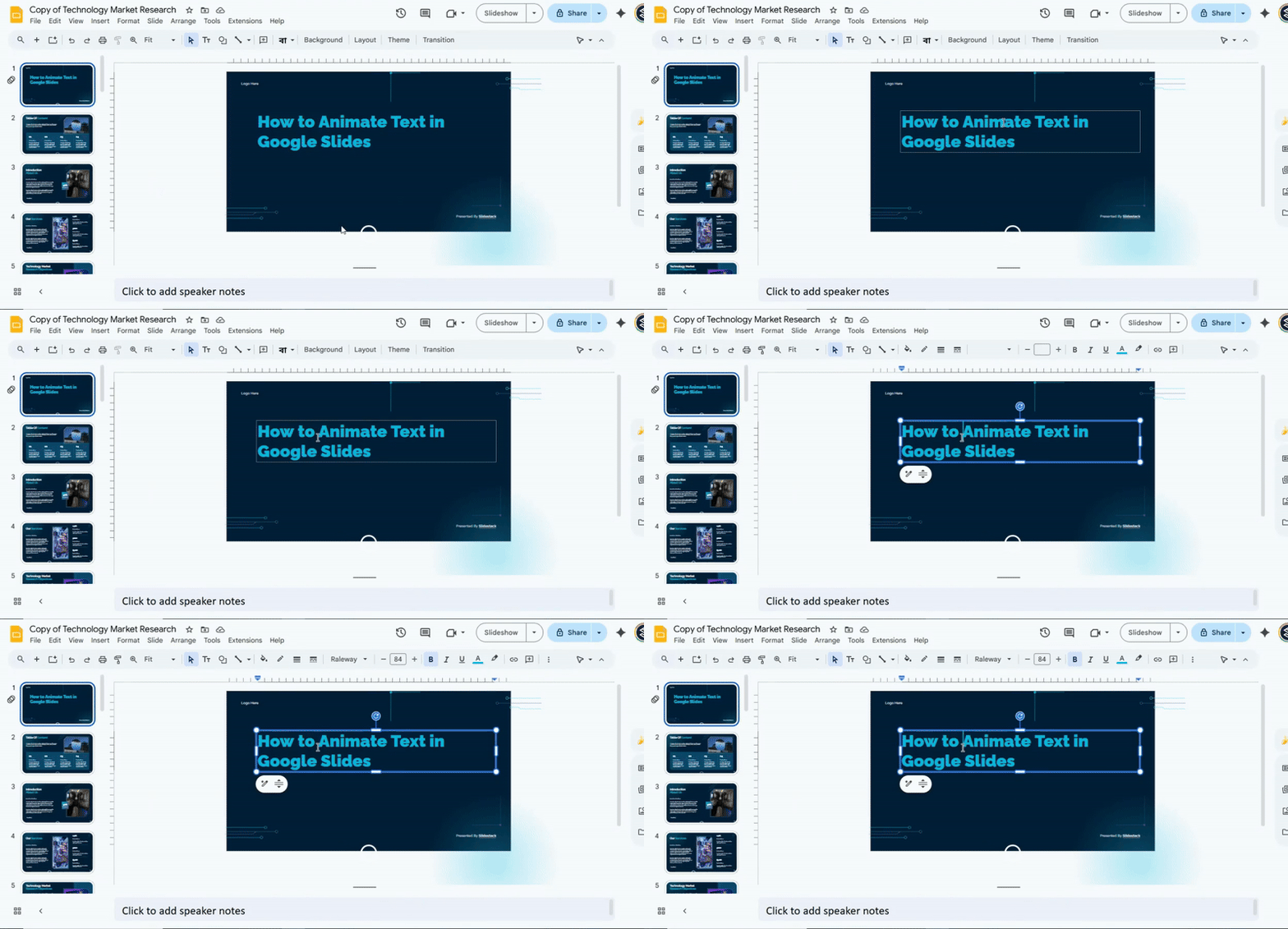
Start by opening your Google Slides presentation. Click on the slide where your text is located. Then, select the text you want to animate.
Pro tip: You can animate a single word, a sentence, or a whole text box. Highlight carefully to make sure only what you want moves. Take a moment to select your text and get ready for the next step.
Step 2: Open the Animation Panel
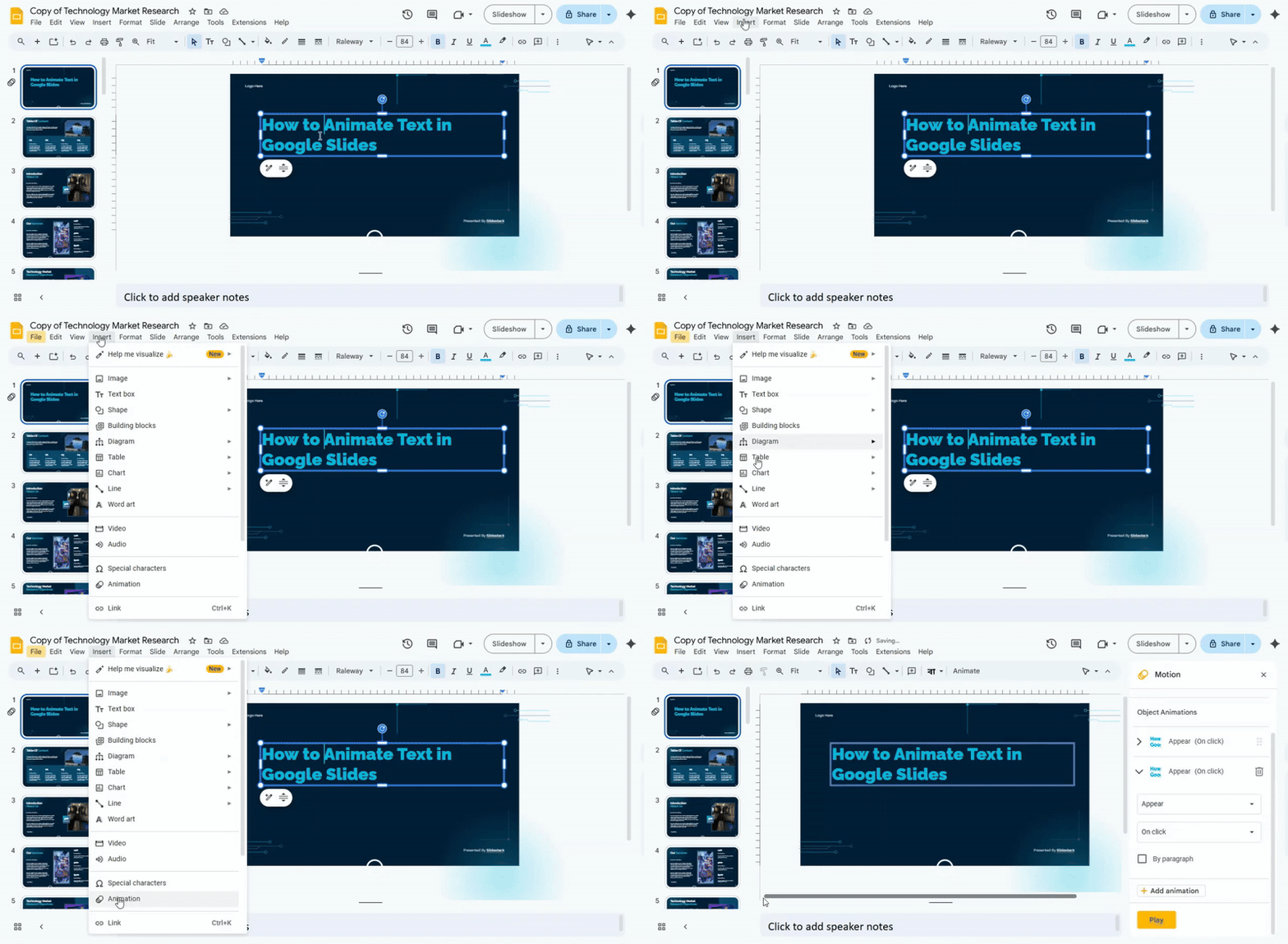
With your text selected, go to the top menu and click “Insert”, then choose “Animation.” A panel will appear on the right side of the screen.
Pro tip: This panel shows all animations for the current slide. You can manage multiple animations here.
Notice how easy it is to control animations once the panel is open.
Step 3: Choose an Animation Effect
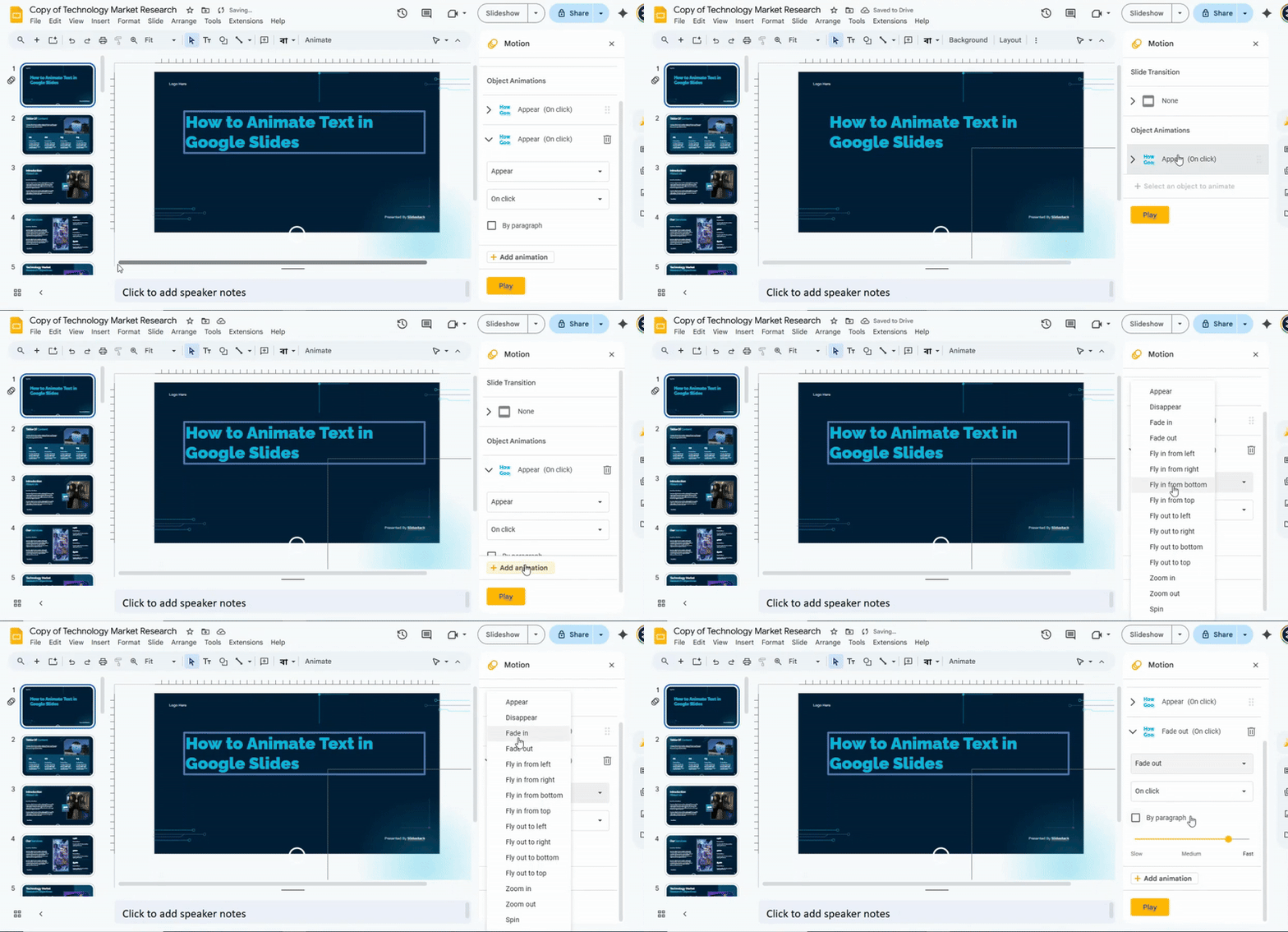
In the animation panel, under “Object Animation”, click “Add animation.” You will see a list of effects like Fade in, Fly in, Zoom, and more. Click the one you like.
Pro tip: Hover over an effect to preview it on your slide. This helps you pick the one that fits your style.
Try a few options until you find the effect that works best for your text.
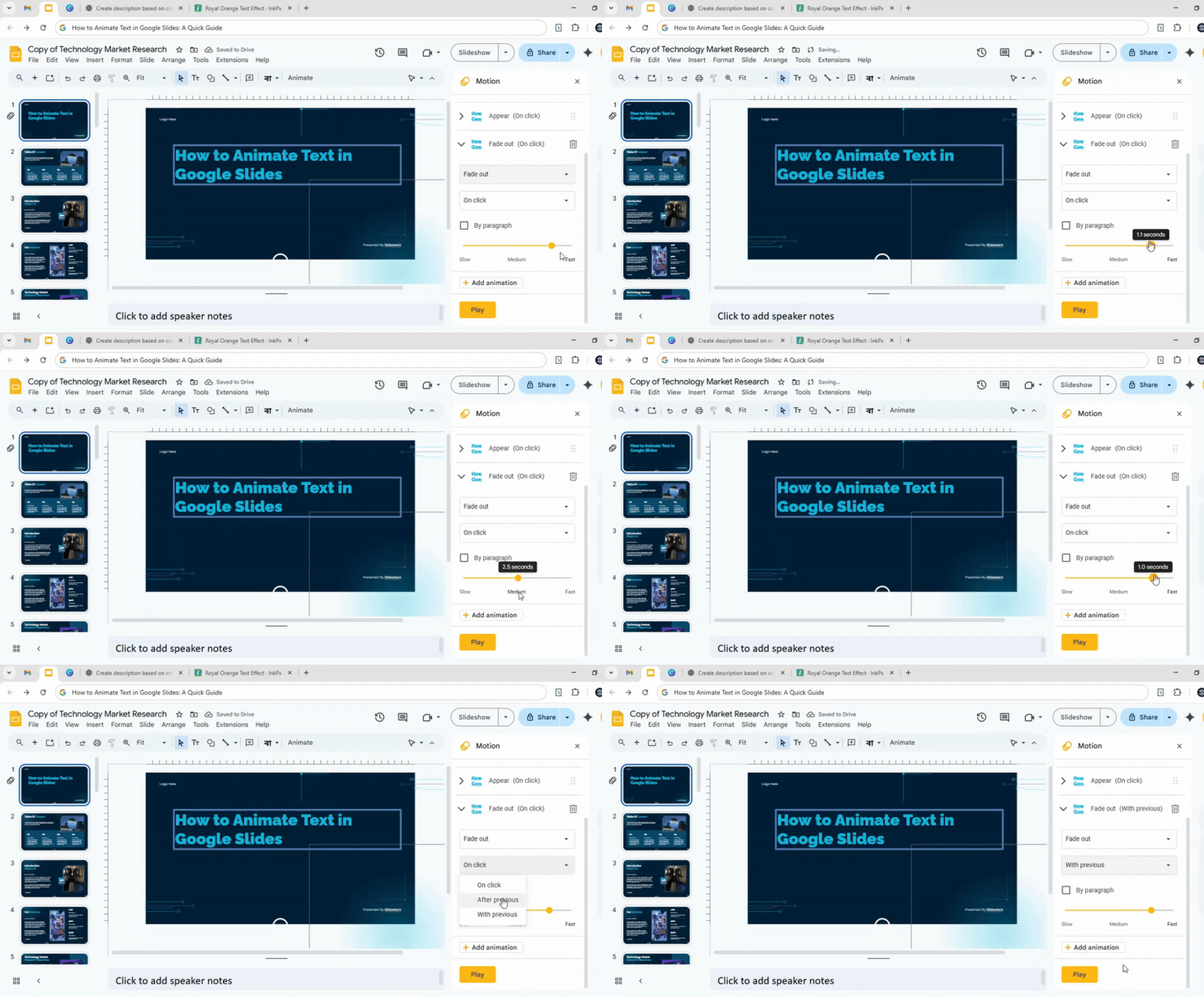
Step 4: Set the Animation Timing & Trigger
After choosing an effect, adjust when it happens. You can set it to start on click, after previous, or with previous. You can also change the speed to slow, medium, or fast.
Pro tip: Use “on click” if you want control during a presentation. Use “after previous” for automatic flow.
Play with the settings until the timing feels smooth for your slide.
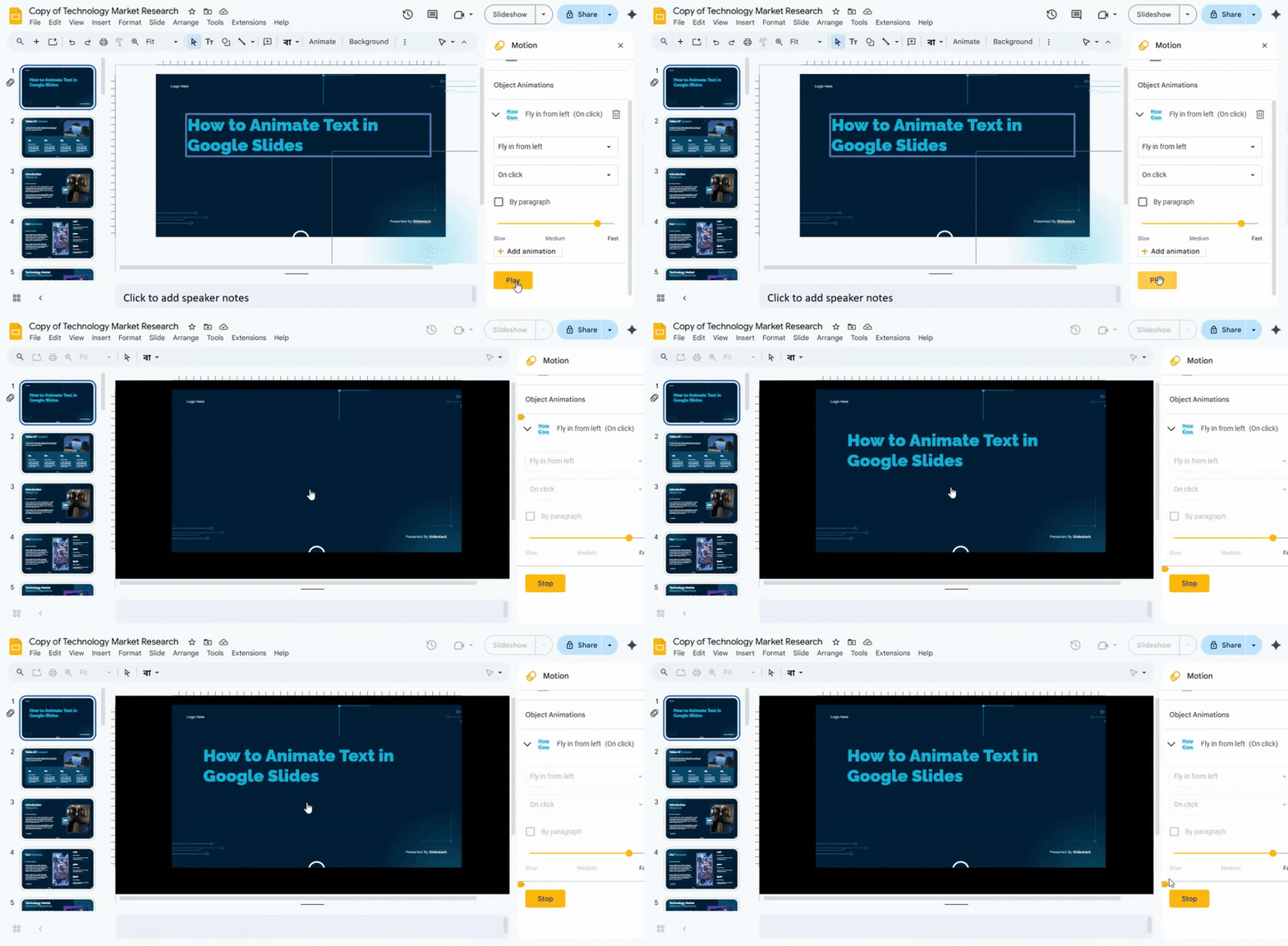
Step 5: Preview & Fine-Tune the Animation
Click the “Play” button in the animation panel to see your effect in action. Watch carefully to check the timing and movement.
Pro tip: Adjust speed, start time, or effect options if it doesn’t look right. Little tweaks make a big difference.
Once it feels right, repeat the steps for other text boxes if needed. You are ready to present with animated text that grabs attention.
Read also: How to Easily Add or Change Fonts in Google Slides for a Professional Look
Bonus: Add Multiple Animations to One Text Box
Want to level up your slides? You can make a single text box do more by adding multiple animations. This helps your presentation feel dynamic and engaging. Follow these steps:
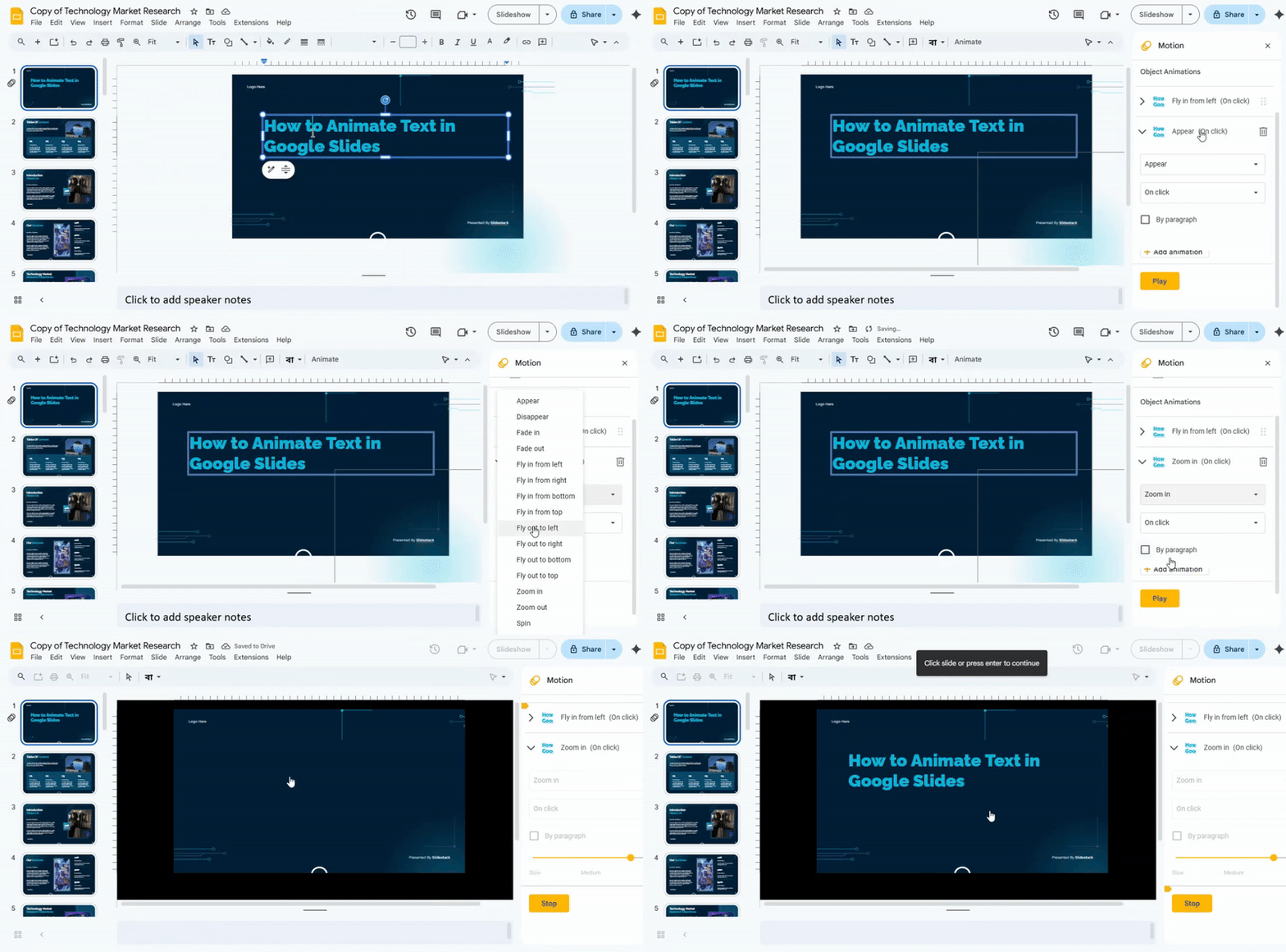
• Select the text box you want to animate.
• Click on Insert, then choose Animation.
• Pick the first animation you want and set its timing.
• Click Add animation to layer a second effect.
• Adjust the order of animations in the side panel.
• Test your animations by pressing Play.
Using multiple animations makes your slides more lively and keeps your audience interested.
Read also: How to Select Multiple Slides in Google Slides for Faster Editing
Best Practices for Animating Text in Google Slides
• Keep it simple: Avoid using too many animation styles on a single slide. It can distract the audience.
• Match animation to content: Use subtle effects for serious information and light effects for casual points.
• Control timing: Set animations to appear at the right pace. Too fast or too slow breaks the flow.
• Sequence logically: Animate points in the order you plan to discuss them. Random order confuses viewers.
• Limit repetition: Repeating the same animation on every slide can feel boring. Vary styles sparingly.
• Check readability: Make sure animations don’t make text hard to read or overlap with other elements.
• Preview before presenting: Always run through slides to see how animations feel in real time.
Conclusion:
Animating text in Google Slides doesn’t have to be complicated. A few simple steps can make your slides more engaging and help your audience follow your message. By choosing the right effects, timing them well, and keeping your animations clear, you can turn ordinary slides into presentations that hold attention. Start experimenting today, and watch your text come alive.
Read also: How to Change Text Color in Google Slides the Easy Way
FAQs:
Can I animate text in Google Slides on mobile?
Yes, you can add animations on mobile using the Google Slides app. However, the options are limited compared to the desktop version. For full control, it’s best to use a computer.
Can I make text appear letter by letter?
Google Slides does not have a built-in feature to show text letter by letter. You can achieve a similar effect by creating separate text boxes for each letter or word and animating them individually.
How do I remove an animation?
Select the text with the animation, open the “Animations” panel, and click the trash icon or “Remove” option next to the animation. The text will return to normal without any effect.
Can I animate bullet points one by one?
Yes, you can. In the animation settings, choose “By paragraph” or “By point” to make each bullet appear separately.
Will animations work during an online presentation?
Yes, animations will play when presenting online, whether using Google Meet, Zoom, or another platform. Make sure you are in “Present” mode for them to work properly.


You may also be interested in ...

How To Create An Eye-Catching Portfolio
If you’re looking to create an eye-catching portfolio, this post will come in handy. In this article, you can find the easies...
23 Jun, 2024

How To Easily Create An Infographic
Infographics are the perfect way to make a presentation that will impact an audience, but their design and composition might...
08 Jun, 2024

PowerPoint Template Tips & Tricks You Ne...
PowerPoint seems to be an unknown world for many people, especially those who have been assigned to create a presentation out...
08 Jun, 2024