PowerPoint, Canva, Google Slides: Which Presentation Tool Is the Best for Your Needs? – Quick Tips
With so many options, it’s easy to waste time on features you don’t need or struggle with designs that don’t match your goals. Many people get stuck trying to decide between PowerPoint, Canva, and Google Slides.
Each of these tools offers unique strengths that can make creating presentations easier and more effective. Knowing how they differ helps you pick the one that fits your style, audience, and purpose. By understanding these differences, you can save time, create better visuals, and deliver presentations that leave a stronger impression.
Why Choosing the Right Presentation Tool Matters
Choosing the right presentation tool changes how your ideas come across. A good tool makes slides clear and easy to follow. It also saves time and effort when creating visuals. The wrong tool can make presentations look messy and confuse the audience. Picking the right one helps you communicate your message clearly and keeps viewers engaged.
Overview of the Three Tools
Choosing the right presentation tool can make creating slides easier and more effective. Each tool has its strengths and works best for different needs. Knowing what each offers helps you pick the one that fits your style and goals.
Microsoft PowerPoint
Microsoft PowerPoint is a widely used presentation tool. It offers many templates, slide transitions, and animation options. Users can create slides with text, images, charts, and videos. PowerPoint works well for offline use and gives full control over design details.
Canva
Canva is an online tool for creating visually appealing slides quickly. It offers thousands of templates and design elements like icons, images, and charts. Canva is beginner-friendly and allows easy collaboration with others. It also works directly in the browser without installation.
Google Slides
Google Slides is a cloud-based presentation tool. It is simple to use and allows multiple users to work on slides at the same time. Users can add images, charts, and text easily. Google Slides saves changes automatically and works well for online collaboration.
Comparison Table of PowerPoint, Google Slides, and Canva
Here’s a clear look at how PowerPoint, Google Slides, and Canva stack up across key features and uses:
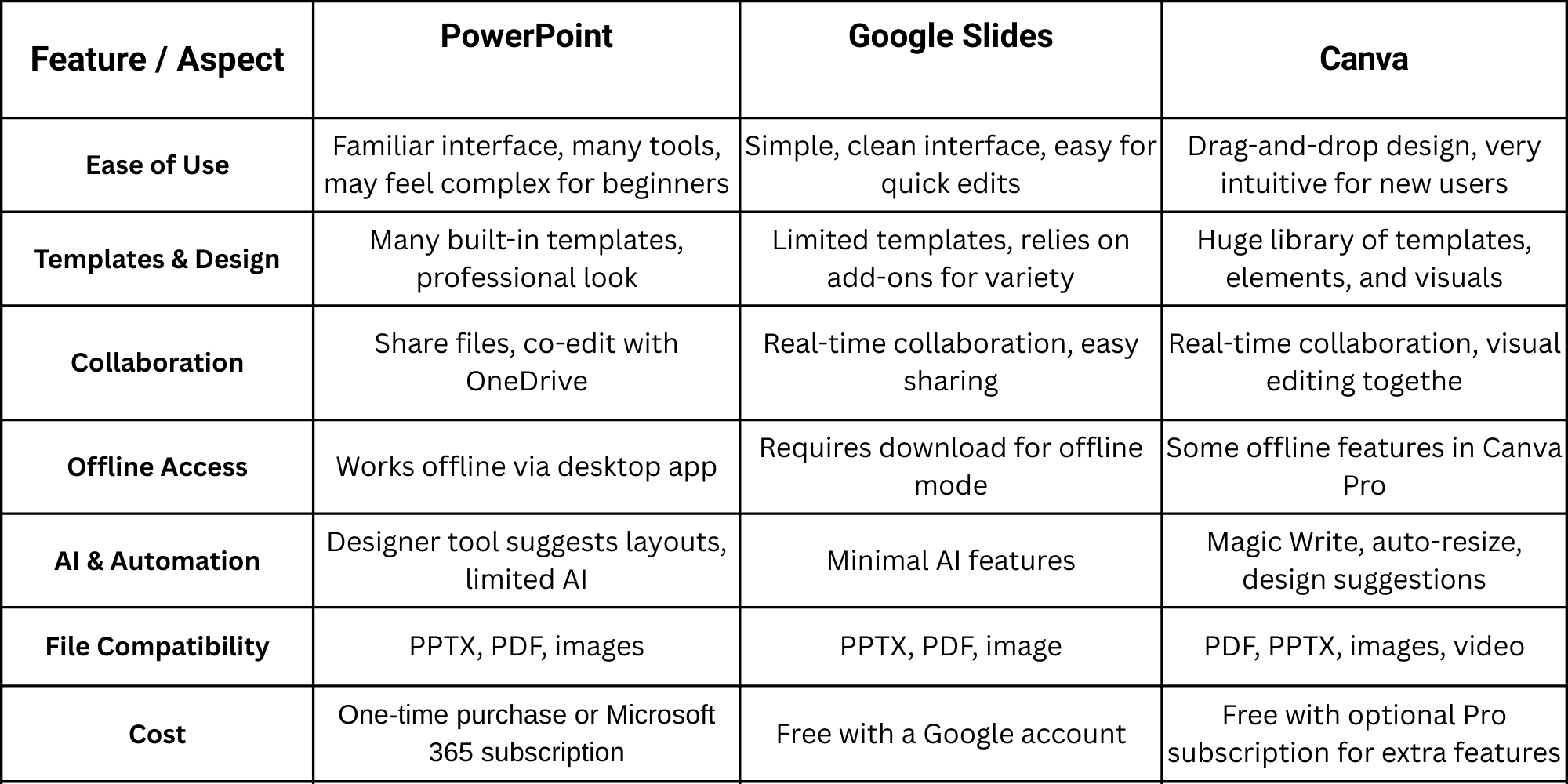
This table shows each tool’s strengths and limitations side by side. PowerPoint works well for detailed presentations. Google Slides shines in collaboration. Canva excels in visuals and quick design.
Use Cases & Recommendations
Different people use presentation tools in different ways. Choosing the right approach can make work easier and more effective. Here’s how various users can get the most out of these tools.
For Students
Students can create slides for class projects, reports, or presentations. The tools help organize ideas and add visuals that make learning clearer. They also save time and keep work looking neat.
For Teachers
Teachers can design lesson plans, quizzes, or interactive lessons. Templates and graphics make content more engaging for students. Presentations also help explain topics in a simple and clear way.
For Business Professionals
Professionals can make sales pitches, reports, or team updates. Charts, graphs, and visuals make information easy to understand. Presentations help communicate ideas clearly and keep meetings focused.
For Content Creators
Content creators can plan social media posts, tutorials, or campaigns. Templates and visuals make work look polished without extra design skills. This helps share ideas clearly and attractively.
Pros and Cons
Every presentation tool has its strengths and weaknesses. The right tool depends on your goals, experience, and how you want your slides to look.
Microsoft PowerPoint
Pros:
- Offers advanced design features for professional presentations.
- Works offline, so you can edit anywhere.
- Supports animations, transitions, charts, and multimedia like videos and audio.
- Many templates and themes are available for different industries.
- Strong tools for formatting text, images, and layouts.
Cons:
- Some templates can feel outdated or plain.
- Beginners may need time to learn all the features.
- Collaboration is less smooth; files must be shared and saved.
- Large presentations can become heavy and slow to open.
- Mobile and web versions have fewer features than the desktop.
Google Slides
Pros:
- Free to use and easy to start.
- Real-time collaboration lets multiple users edit at once.
- Saves automatically in the cloud, so work is not lost.
- Works across devices: phones, tablets, and computers.
- Integrates well with Google apps like Docs and Sheets.
Cons:
- Design and formatting options are basic compared with PowerPoint and Canva.
- Fewer templates and style choices for professional visuals.
- Some advanced animations and effects are not available.
- Offline mode works, but features are limited.
- Complex charts and data visuals are harder to create.
Canva
Pros:
- Huge library of templates, icons, photos, and graphics.
- Beginner-friendly interface; drag-and-drop design makes editing easy.
- Cloud-based, allowing real-time collaboration.
- Slides look visually rich without much effort.
- Offers design tools beyond presentations, like posters, social posts, and infographics.
Cons:
- Some features require a paid subscription.
- Offline capabilities are limited; an internet connection is needed.
- Complex charts, graphs, and data visuals are harder to handle.
- Slides may feel less professional for formal business settings.
- Heavy use of graphics can slow down the presentation on some devices.
Quick Tips for Choosing the Right Tool
Picking the right tool can save time and make your work easier. First, look at what features matter most for your needs. Check if the tool is easy to use and fits your style. Also, think about how it works with other programs you use. Finally, consider the cost and whether it fits your budget.
Pay attention to templates and design options. Some tools offer ready-made layouts that match your type of project. Others let you start from scratch for more control. Test how fast you can create and edit content. A tool that slows you down can become frustrating.
Look at collaboration options if you work with a team. Tools that allow multiple people to edit at the same time can save hours. Check how it handles sharing files or exporting work. Finally, read reviews or try free versions before committing. Hands-on experience often shows what works best for you.
Final Thoughts:
Choosing the right presentation tool makes a big difference in how your slides look and how easy they are to create. PowerPoint is best if you need detailed design options and work offline. Google Slides is ideal for teamwork and cloud-based editing. Canva is great for visuals and quick, eye-catching slides.
Think about your goals, the type of content you create, and how you work with others. Pick the tool that matches your needs and comfort level. When the tool fits your style, creating presentations becomes faster, simpler, and more effective.
FAQs:
1. Which presentation tool is easiest for beginners?
Canva is the most beginner-friendly. Its drag-and-drop interface and ready-made templates make designing slides simple.
2. Can I collaborate with others on these tools?
Yes. Google Slides and Canva allow real-time collaboration. PowerPoint also supports sharing, but teamwork is smoother with the cloud versions.
3. Do these tools work offline?
PowerPoint works fully offline. Google Slides requires offline setup, and Canva’s offline features are limited to the Pro version.
4. Which tool is best for professional business presentations?
PowerPoint is the top choice for detailed and formal presentations. Canva works well if visuals are the main focus, while Google Slides is useful for team projects.
5. Are these tools free to use?
Google Slides is free with a Google account. Canva has a free version with optional Pro features. PowerPoint requires Microsoft 365 or a one-time purchase.




You may also be interested in ...

Tips To Create A Great Infographic
Infographics Have been around for a while, but not many people know about them or are their preferred presentation choice. If...
08 Jun, 2024

3 Steps To Create The Best Presentation...
Presentations are something wonderful when well done, you can captivate an audience or be super interested in what another pe...
23 Jun, 2024

3 Tips For Your Next Presentation You MU...
PowerPoint presentations are perfect for explaining a topic and communicating your ideas with a visual aid. But most people s...
08 Jun, 2024