Canva vs Google Slides: Best Presentation Tool for Professionals?
Professionals often struggle to pick the right tool for creating presentations. With so many options available, it can be confusing to know which one delivers the best results. Choosing the wrong tool may lead to wasted time, less engaging slides, and missed opportunities to impress your audience.
That’s why understanding the key differences between Canva and Google Slides is crucial. Each platform offers unique features, benefits, and limitations. By exploring how they compare, you can decide which tool fits your workflow, team needs, and presentation goals. This guide will break down their strengths, weaknesses, and real-world use cases to help professionals make an informed choice.
Google Slides and Canva: What is the Main Difference?
Many people use both Google Slides and Canva to create presentations, but each tool serves a slightly different purpose. Both can help users make visually appealing slides, yet they have unique strengths that set them apart.
Google Slides: Google Slides is known for its simplicity and ease of use. Users can create, edit, and share presentations directly online. Collaboration is a key feature. Multiple people can work on the same presentation at the same time. Changes appear in real-time, which makes teamwork smoother. It is compatible with Microsoft PowerPoint, allowing files to be imported and exported without losing formatting. Google Slides also works on various devices, from computers to tablets and smartphones. Its interface is straightforward, which makes it easy for beginners to start building presentations quickly.
Canva: Canva focuses more on design. It offers a wide range of templates, images, icons, and fonts that users can mix and match. Its drag-and-drop interface makes it easy to place elements exactly where you want them. Canva also supports collaboration, letting teams edit and comment on designs together. Users can create not just presentations, but also social media posts, posters, and other visual content. The tool emphasizes creativity, giving users the flexibility to produce polished, visually engaging slides.
Key Differences: The main difference between Google Slides and Canva lies in their focus. Google Slides prioritizes collaboration and compatibility. It is ideal for teams that need to edit slides together quickly. Canva emphasizes design and creativity. Its extensive templates and drag-and-drop features make it a go-to for visually striking presentations. While both tools can achieve similar results, the choice often depends on whether the goal is teamwork efficiency or design freedom.
Why do Businesses Need Presentation Tools?
Businesses share ideas every day. Teams meet to discuss plans, strategies, and results. Without clear visuals, messages can get lost or misunderstood. Presentation tools help make information easier to follow.
Charts, images, and slides can explain complex topics in a simple way. They also keep the audience focused. A well-structured presentation guides listeners through the key points step by step.
These tools save time, too. Instead of explaining everything verbally, a slide can show data at a glance. This helps teams make faster decisions.
Presentations also support consistency. Using the same template or style across meetings strengthens the company’s message. It makes ideas look professional and organized.
Overall, businesses use presentation tools to communicate clearly, save time, and leave a strong impression on their audience.
Why Choosing the Right Tool Matters
Picking the right tool changes how your presentation feels and flows. A good tool helps you organize ideas clearly. It also makes your slides easier to read and follow.
The wrong tool can slow you down. You might spend more time fixing layouts or formatting instead of focusing on your message.
The right tool saves time and effort. It lets you focus on sharing your points and connecting with your audience. Small differences in tools can lead to big differences in results.
Overview of Canva
Canva is a design-focused platform that helps users create visual content. It offers tools for graphics, social media posts, and presentations. The platform is known for its easy-to-use interface and wide range of templates.
Canva for Presentation: Features
• Drag-and-drop editor for slides
• Pre-designed presentation templates
• Stock images, icons, and illustrations
• Charts and graphs for visual data
• AI-powered text suggestions
• Collaboration options with shared editing
• Export in multiple formats (PDF, PPTX, video)
Pros of Canva Presentation
• Intuitive and beginner-friendly interface
• Large library of templates and media
• Quick creation of visually appealing slides
• Works on web and mobile devices
• Allows team collaboration
Cons
• The free version has limited templates and assets
• Advanced customization can be restricted
• Offline access is limited
• Presentation features are not as advanced as dedicated software
Overview of Google Slides
Google Slides is a collaboration-focused platform for creating presentations. It emphasizes teamwork, real-time editing, and cloud storage. Users can access Slides from any device with internet connectivity.
Google Slides Presentation: Features
• Real-time collaboration with multiple users
• Cloud storage with automatic saving
• Version history for tracking changes
• Templates and themes for slides
• Integration with Google Workspace apps
• Offline editing capability
• Simple charts, images, and diagrams
Pros
• Excellent for teamwork and shared projects
• Automatic saving prevents data loss
• Works on web and mobile platforms
• Free to use with a Google account
• Easy integration with Google Workspace
Cons
• Design options are limited compared with Canva
• Fewer built-in graphics and media assets
• Customization is more basic
• Relies on the internet for full functionality
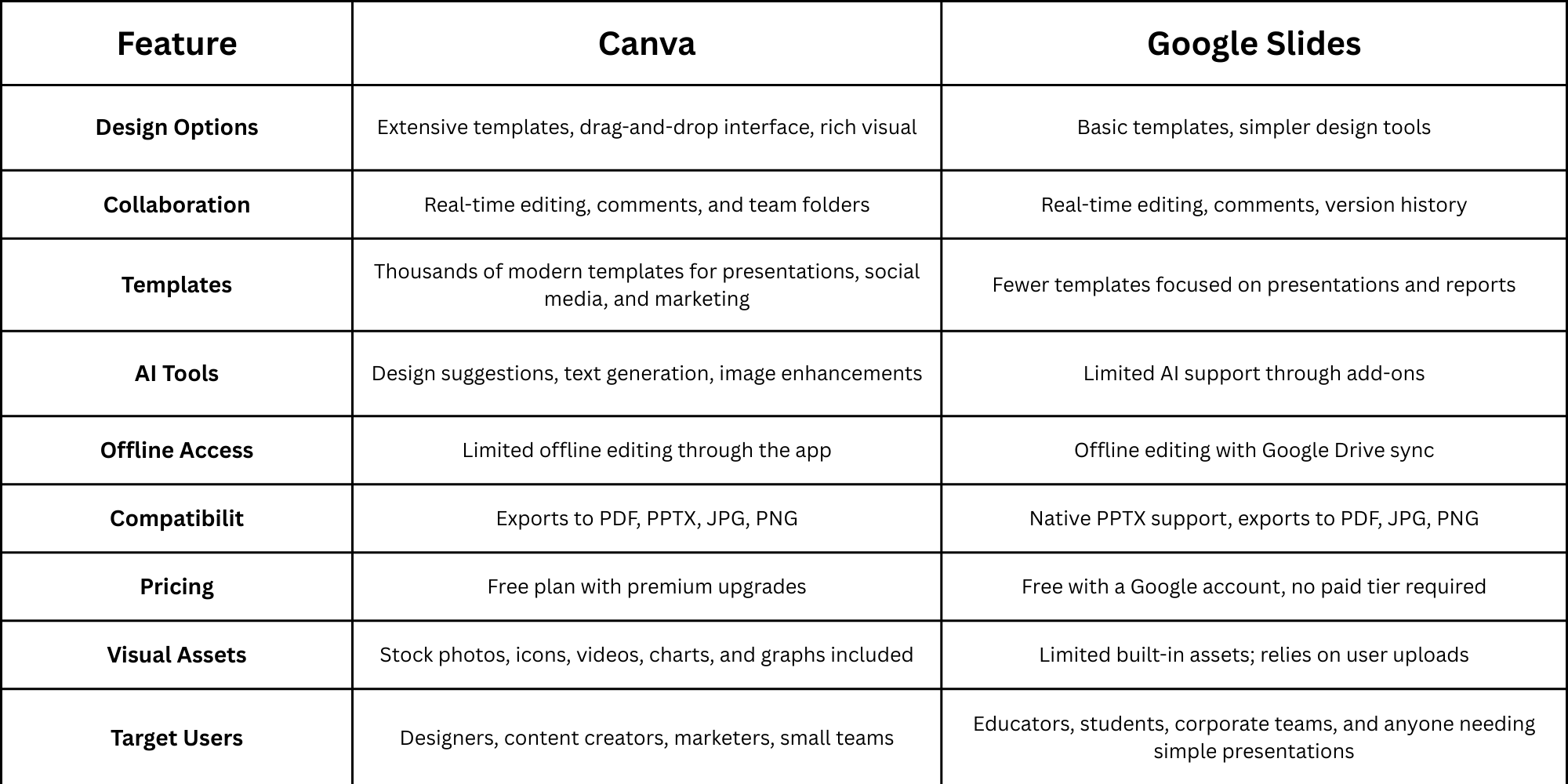
Canva vs Google Slides Comparison Table
Both Canva and Google Slides help users create presentations, but they differ in design options, collaboration, and features. This table highlights the key differences to guide your choice.
Use Case Scenarios
Different users have different needs, from teachers to marketers and corporate teams. This section shows which tool fits each scenario best.
For Teachers:
• Create visually engaging lessons and worksheets.
• Use templates for interactive activities.
• Share assignments and presentations with students easily.
For Marketers:
• Design promotional decks, social media visuals, and reports.
• Access stock images, icons, and charts without extra tools.
• Collaborate with teams in real-time on campaigns.
For Students:
• Build clear and professional presentations quickly.
• Use templates to organize ideas visually.
• Collaborate with classmates on group projects.
For Content Creators:
• Produce graphics, videos, and presentations in one platform.
• Apply design templates to maintain brand consistency.
• Export content for multiple channels efficiently.
For Corporate Users:
• Develop reports, presentations, and pitches.
• Enable team collaboration with comments and version control.
• Integrate with cloud storage and export to multiple formats.
Ease of Use & Learning Curve
Some tools are easier for beginners, while others offer advanced features for professionals. Here, we compare how quickly users can learn and adapt to each platform.
Canva:
• Intuitive drag-and-drop interface suitable for beginners.
• Templates guide users to create polished visuals quickly.
• AI tools help streamline design and content generation.
• Slight learning curve for advanced features like animations and custom charts.
Google Slides:
• Simple, straightforward interface familiar to anyone using Google Workspace.
• Quick to learn for basic presentations and collaboration.
• Limited design tools mean less time spent learning visuals.
• Add-ons can extend functionality but require extra setup.
This layout keeps everything clear, structured, and easy to scan. It shows which tool works best depending on the audience and needs.
Templates & Visuals
Canva offers a wide range of templates with built-in graphics and easy customization. Google Slides has fewer templates but focuses on clean, professional layouts.
Canva Presentation
Canva offers thousands of presentation templates across many categories. Users can find business, education, marketing, and creative themes. Each template includes built-in graphics, icons, charts, and photo options. Canva also allows easy customization with drag-and-drop elements. This makes it simple to match brand colors or create unique slide designs.
Google Slides
Google Slides provides fewer templates than Canva, but they cover essential presentation needs. Templates focus on clean and professional layouts. Users can add images, charts, and diagrams, though customization options are more limited. Google Slides is ideal for straightforward presentations without heavy design work.
AI & Automation Features
Canva uses AI to generate visuals, suggest layouts, and speed up design work. Google Slides provides smart formatting suggestions to keep slides organized and consistent.
Canva
Canva includes AI-powered tools that help speed up design work. Users can generate visuals, resize slides automatically, and create brand-consistent graphics. Features like text suggestions and design layouts reduce repetitive tasks. This can save time for busy teams and individuals.
Google Slides
Google Slides offers AI in the form of smart suggestions for text, charts, and layout adjustments. While not as extensive as Canva’s design tools, these features assist with formatting, alignment, and overall slide organization. AI helps maintain consistency without complex manual work.
Pricing & Accessibility
Canva has free and paid plans, with extra templates and AI tools available in paid versions. Google Slides is free for all users, with premium Google Workspace features adding storage and security.
Canva
Canva has a free plan that includes thousands of templates and basic features. Paid plans offer extra templates, stock photos, AI tools, and team collaboration. Pricing is flexible for individuals or businesses, and the interface works in browsers and apps.
Google Slides
Google Slides is free for anyone with a Google account. It allows real-time collaboration, sharing, and cloud storage. Premium Google Workspace subscriptions add administrative controls, more storage, and advanced security, but the core presentation features remain free.
Offline Access & File Compatibility
Canva: allows offline work through its app, though some features require an internet connection. Users can download presentations in PowerPoint, PDF, or image formats.
Google Slides: works offline when enabled in the browser or app. Slides can be exported as PowerPoint, PDF, or images. Both tools handle common file types and ensure easy sharing between devices.
Which One Should You Choose?
The best choice depends on your priorities and the type of presentation you need. If visuals and design variety matter most, Canva is the stronger option. Its templates, graphics, and AI tools make it easier to create polished and eye-catching slides. Users who want unique layouts or need to match brand colors often prefer Canva.
If teamwork and collaboration are key, Google Slides may work better. Multiple people can edit slides at the same time, leave comments, and track changes. It also saves work automatically in the cloud, which reduces the risk of losing files.
Some users combine both tools. They start by designing slides in Canva for visuals, then move to Google Slides to collaborate with others or make final edits. This approach offers the benefits of both design and teamwork.
Consider also your budget and device setup. Canva’s paid plans unlock more features, while Google Slides remains free and fully accessible through a browser. Offline access is possible in both, but Google Slides works smoothly for simple presentations even without internet.
Ultimately, the right tool depends on whether your focus is on creative visuals or collaborative workflow. Users who need both can use each tool strategically to get the best results.
Final Thoughts
Choosing the right presentation tool makes a big difference. Canva helps create slides that look polished and creative. Its templates, images, and AI features make design fast and simple. Google Slides focuses on teamwork. It makes sharing, editing, and tracking changes easy for groups.
Some professionals use both tools together. They design in Canva, then collaborate in Google Slides. This approach balances strong visuals with smooth teamwork.
Your decision depends on what matters most. If your priority is design, Canva is a solid choice. If your priority is collaboration, Google Slides works best. Either way, knowing the strengths of each tool helps you make better presentations and share ideas clearly.
FAQs:
1. What are the main differences between Canva and Google Slides?
Canva focuses on design, offering lots of templates, images, and graphics. Google Slides is mainly for creating simple, editable presentations and works well for collaboration. Canva is more visual, while Google Slides is better for quick edits and teamwork.
2. Which is the best presentation maker for beginners?
Canva is beginner-friendly because it has drag-and-drop tools and ready-made templates. Google Slides is simple too, but it may need more work to make slides look polished. Beginners usually find Canva easier for design.
3. Can I use Canva and Google Slides together?
Yes, you can. You can design slides in Canva and then download them as images or PDFs to import into Google Slides. This lets you combine Canva’s design features with Google Slides’ collaboration tools.
4. Which tool works better offline?
Google Slides works offline if you enable offline mode in Google Drive. Canva mostly requires an internet connection, though some features may work offline in its app. For full offline use, Google Slides is more reliable.
5. Is Canva free to use for presentations?
Yes, Canva has a free version that lets you create and download presentations. Some premium templates, images, and features need a paid subscription. The free version is enough for most basic presentations.




You may also be interested in ...

How To Create An Eye-Catching Portfolio
If you’re looking to create an eye-catching portfolio, this post will come in handy. In this article, you can find the easies...
23 Jun, 2024

How To Easily Create An Infographic
Infographics are the perfect way to make a presentation that will impact an audience, but their design and composition might...
08 Jun, 2024

PowerPoint Template Tips & Tricks You Ne...
PowerPoint seems to be an unknown world for many people, especially those who have been assigned to create a presentation out...
08 Jun, 2024