How to Use Copilot PowerPoint Skills to Create Better Presentations
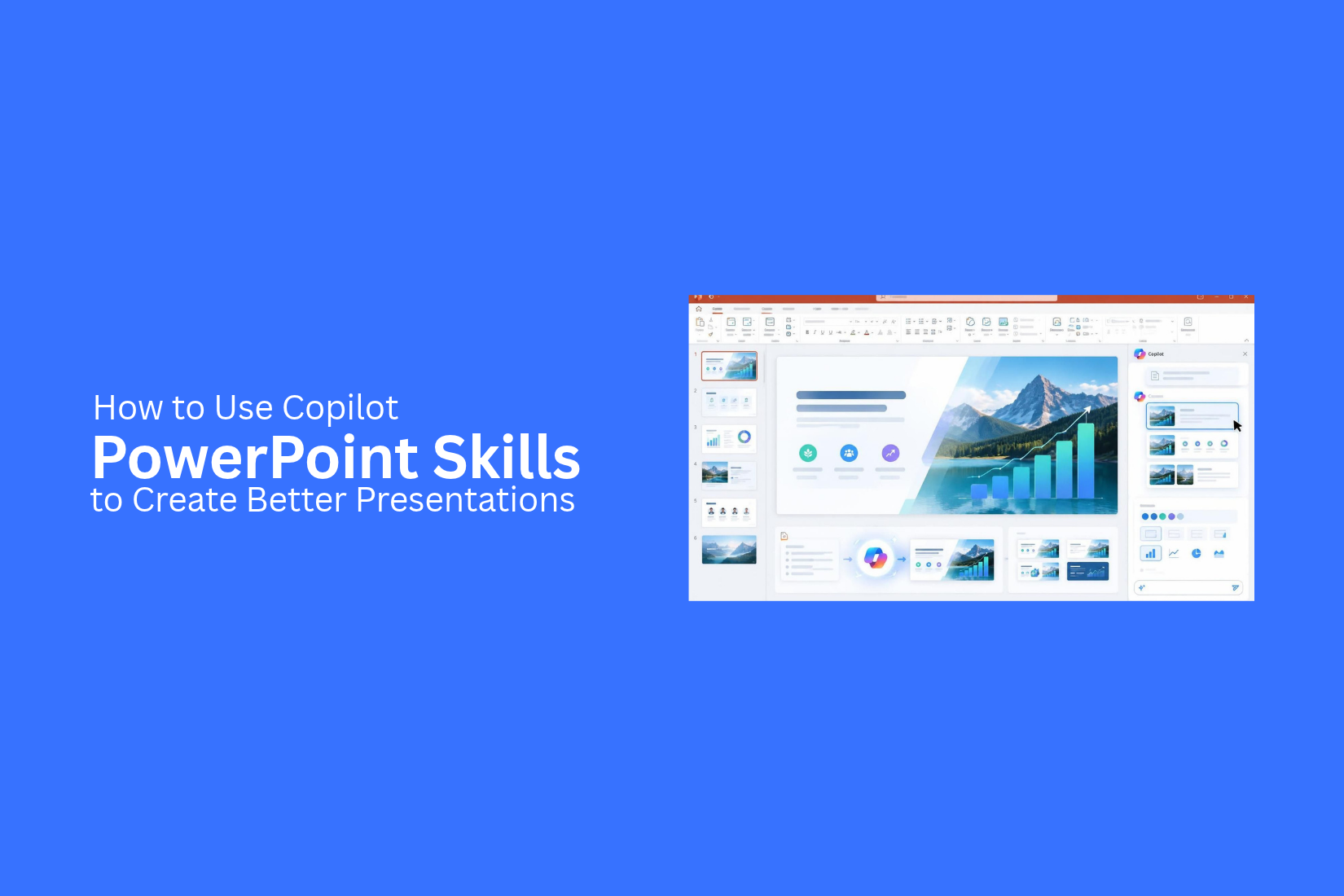
Creating a PowerPoint presentation takes time and effort. You need to organize ideas, write clear content, arrange slides, and choose the right visuals. These tasks can slow down your work, especially for long or detailed presentations.
A poorly planned slide deck can also make your message hard to follow. Too much text, weak layouts, and unclear points may reduce audience interest. This can affect how people understand your message.
Copilot PowerPoint skills can help with these tasks. You can use simple text prompts to create slides, improve content, summarize information, and organize your deck. This guide explains how to use these skills, write better prompts, and create presentations that meet your goals.
What Are Copilot PowerPoint Skills?
Copilot PowerPoint skills are AI-powered features that help users create and edit presentations. They let you work with slides through simple text prompts. You can ask Copilot to create a presentation, write slide content, summarize information, or improve existing slides.
These skills can save time during the presentation process. You do not need to build every slide from scratch. Copilot can help organize your ideas, suggest content, and create slide layouts based on your instructions.
For example, you can give Copilot a topic and ask it to create a presentation outline. You can also provide a Word document and ask it to turn the main points into slides. After the first draft is ready, you can review the content, edit the text, and adjust the design to match your needs. Copilot works as an AI assistant inside PowerPoint. It helps with different parts of presentation creation, but your input and review are still important.
Why Use Copilot in PowerPoint?
Creating a presentation takes time. You need to plan the content, write slide text, arrange ideas, and build each slide. Microsoft Copilot can help with these tasks. It works inside PowerPoint and uses AI to assist with slide creation and editing.
Copilot can help you turn a written prompt or an existing document into a presentation. You can also use it to create slide content, summarize key points, and improve existing slides. This can reduce the time spent on manual work.
Here are some key reasons to use Copilot in PowerPoint:
• Save time: Create a first draft of your presentation from a simple prompt or a file. This gives you a starting point for your work.
• Create slide content: Ask Copilot to write titles, short descriptions, and key points for your slides.
• Organize your ideas: Turn long text into clear sections. This helps you present information in a logical order.
• Improve existing slides: Ask Copilot to rewrite text, make content shorter, or improve the flow of your presentation.
• Summarize documents: Use content from supported files to create a presentation with the main points.
• Get help with design: Use Copilot to assist with slide layouts and visual choices.
Copilot can handle many basic presentation tasks. However, it does not replace your own review. Check the facts, edit the wording, and make sure each slide fits your message. A final review also helps keep your presentation clear and consistent.
Key Copilot PowerPoint Skills for Better Presentations
Microsoft Copilot can help with many parts of presentation creation. It can turn text into slides, improve written content, and help organize ideas. It can also assist with slide design and speaker notes. These skills can save time and make presentation work easier. Here are some key Copilot PowerPoint skills that can help you create better presentations.
Create Presentations from Text Prompts
You can use Copilot to create a PowerPoint presentation from a text prompt. Start by describing your topic and the type of presentation you need. Add details about your audience, purpose, and preferred slide count.
Copilot uses your prompt to create a draft presentation. It can suggest slide titles, key points, and content for each slide. You can then review the slides and make changes to match your needs. For example, enter a prompt like "Create a 10-slide presentation about digital marketing strategies for small businesses." Copilot can use this request to prepare a starting deck.
Generate Slides from Existing Documents
Copilot can also help turn existing documents into PowerPoint slides. This is useful for people who already have reports, Word files, or other written material. You can ask Copilot to create a presentation from a Word document. It can use the main ideas and key details to build slides. This saves you from copying text and creating each slide by hand. Review the generated slides after creation. Check the facts, remove extra text, and adjust the layout. This helps keep your presentation clear and focused.
Write and Improve Slide Content
Writing slide content takes time. Copilot can help you create new text or improve content that is already on your slides. You can ask it to write slide titles, short descriptions, and key points. It can also rewrite long sentences in simpler language. This helps make your message easier to follow.
For example, select a slide with too much text and ask Copilot to shorten it. You can also request a more professional tone or ask it to turn a paragraph into a short list. Always review the suggested text. Make sure it matches your message and audience.
Summarize Long Presentations
Long presentations can contain many details. Copilot can help you get the main points without reading every slide one by one. You can ask Copilot to summarize a presentation. It can provide a short overview of the main topics and key messages. This is useful for meeting decks, business reports, and training materials. You can also use the summary to prepare a quick overview for your audience. Check the result to make sure no key details are missing.
Create Presentation Outlines
A clear outline gives your presentation a strong structure. It helps you arrange ideas in a logical order before adding full slide content. Copilot can help create an outline from a topic or prompt. Ask it to suggest slide titles and the main points for each section. You can then review the order and make changes.
For example, a presentation about a new product launch may include an introduction, product features, target audience, pricing, marketing plan, and next steps. This approach gives you a clear plan before you start building the slides.
Design and Organize Slides
Good slide design helps people follow your message. Copilot can assist with slide layouts and content organization. You can ask it to suggest a layout for a slide or help arrange information into a clearer structure. It can also help create a consistent flow across different sections of your presentation. Review the design after Copilot makes changes. Check text placement, spacing, font size, and alignment. Make sure each slide is easy to read and follows the same visual style.
Add Images and Visual Elements
Images and visual elements can make a presentation easier to understand. Copilot can help you work with visuals based on your slide content and available PowerPoint features.
You can ask for ideas about suitable images, charts, or other visual elements. You can also use Copilot to help create or improve visual content, depending on the features available in your version of PowerPoint.
For example, a sales report may need a chart to show monthly growth. A product presentation may need images to show key features. Choose visuals that support your message. Avoid adding images that do not serve a clear purpose.
Create Speaker Notes
Speaker notes help you prepare for a presentation. They give you extra details to use while speaking without adding too much text to your slides. Copilot can help draft speaker notes based on your slide content. Ask it to explain key points in simple language or prepare short talking points for each slide.
You can also ask it to add examples or brief explanations to help you discuss a topic. Review the notes and adjust them to match your speaking style. This can help you feel more prepared during meetings, training sessions, and business presentations.
How to Use Copilot in PowerPoint Skills
Copilot in PowerPoint can help you create slides with less manual work. You can use it to build a presentation, add content, and make changes to existing slides. A clear process can help you get better results. Follow these steps to use Copilot PowerPoint skills for your next presentation.
Open Copilot in PowerPoint
Start by opening PowerPoint on your computer. Open an existing presentation or create a new blank file. Find the Copilot button in the PowerPoint toolbar and click it to open the Copilot panel. You can now enter prompts and ask Copilot to help with your slides. The available features may depend on your Microsoft 365 plan and account settings.
Enter a Clear Prompt
Copilot uses your prompt to understand what kind of presentation you need. A clear prompt helps it create more useful content. Include the main topic, target audience, purpose, and key points. You can also mention the number of slides and the tone you want.
For example, use a prompt like this:
"Create a 10-slide presentation about digital marketing for small business owners. Cover social media, email marketing, SEO, and content planning. Use simple language and a professional tone."
Avoid prompts that are too broad. Add enough detail to help Copilot understand your goal.
Generate Your Presentation
After entering your prompt, submit it to Copilot. It will process your request and create a presentation based on the details you provided.
Review the generated slides to see how Copilot has arranged the content. Check the slide titles, main points, and order of topics. Make sure the presentation follows your main goal. You can also ask Copilot to make changes. For example, ask it to add a slide, shorten the content, or change the order of a few topics.
Review and Edit the Generated Slides
Copilot can create a starting point, but you should review every slide before using the presentation. AI-generated content may contain errors, repeated points, or details that do not match your needs.
Check the following areas:
• Text accuracy: Review facts, dates, names, and figures.
• Content flow: Make sure each slide connects to the next one.
• Slide titles: Use clear titles that explain the main point.
• Text length: Remove extra words and keep the main ideas.
• Consistency: Check that the same terms and writing style appear throughout the deck.
Edit any content that needs more detail or a clearer message. You can make these changes yourself or ask Copilot to revise selected slides.
Improve Slide Design and Layout
Good content needs a clear layout. Check how text, images, charts, and other elements appear on each slide. Make sure the design supports the message. Use Copilot to help make design changes. You can ask it to adjust slide layouts, add visual content, or improve the way information is arranged.
Here are a few areas to review:
• Text placement: Keep titles and body text easy to read.
• Images: Use relevant images that support the slide topic.
• Colors: Follow a consistent color scheme.
• Charts: Make data easy to read and understand.
• Spacing: Leave enough space between text and visual elements.
Keep each slide focused on one main idea. Avoid adding too much content to a single slide.
Save and Share Your Presentation
Once your presentation is ready, save the file to your preferred location. You can use PowerPoint's save options to keep a copy on your computer or in OneDrive.
Check the final file before sharing it. Review the slide order, spelling, images, and layout. Make sure all content appears as expected. You can share the presentation with others through OneDrive or send the PowerPoint file directly. You can also export it as a PDF if someone needs a version that is easy to view.
Best Copilot Prompts for PowerPoint Presentations
The quality of your presentation depends on the instructions you give Copilot. Clear prompts help it create slides that match your topic, audience, and goals. You can ask it to write slide titles, organize key points, suggest layouts, or create speaker notes. Here are some useful prompts for different types of presentations.
Prompts for Business Presentations
Business presentations often cover company goals, plans, team updates, and project results. Copilot can help organize these details into clear slides. Use prompts like these:
- Create a business presentation about our company's goals for the next year. Include an introduction, key goals, action plans, and expected results.
- Create a project update presentation for senior managers. Include project progress, completed tasks, current issues, and next steps.
- Turn this business report into a 10-slide PowerPoint presentation. Use short text and clear slide titles.
- Create a presentation about a new business plan. Include the target market, business model, budget, and growth goals.
- Create a company overview presentation. Include our history, services, team, mission, and key achievements.
Prompts for Educational Presentations
Educational presentations help teachers explain lessons and help students share their ideas. Copilot can organize lesson topics into simple slides. Try these prompts:
- Create a 10-slide educational presentation about climate change. Explain its causes, effects, and possible solutions.
- Turn this lesson into a PowerPoint presentation for middle school students. Use simple language and clear examples.
- Create a presentation about the solar system. Include the main planets, their features, and key facts.
- Make a presentation about the history of the internet. Arrange the main events in chronological order.
- Create a classroom presentation about healthy eating. Include food groups, healthy habits, and daily meal examples.
Prompts for Marketing Presentations
Marketing presentations help teams share campaign plans, product details, and market results. Copilot can help arrange these ideas into slides that are easy to follow. Here are some prompts to try:
- Create a marketing strategy presentation for a new product launch. Include target customers, product benefits, pricing, and promotion plans.
- Turn this marketing report into an 8-slide presentation. Highlight campaign results, audience reach, and key findings.
- Create a social media marketing plan for a small business. Include platform choices, content ideas, posting schedules, and goals.
- Create a presentation about our brand identity. Include brand values, target audience, visual style, and brand message.
- Prepare a competitor analysis presentation. Compare our product with three competitors based on price, features, and target audience.
Prompts for Data-Driven Presentations
Data-driven presentations use numbers, charts, and reports to explain results. Copilot can help organize data into slides and highlight key points. Use these prompts to get started:
- Turn this sales report into a PowerPoint presentation. Highlight monthly sales, revenue changes, and top-performing products.
- Create a presentation based on this survey data. Show the main findings with charts and short explanations.
- Make a 10-slide presentation about our company's financial performance. Include revenue, expenses, profit, and year-over-year changes.
- Create a data analysis presentation from this spreadsheet. Use suitable charts to compare trends and show key results.
- Summarize this business dataset in a presentation for senior managers. Highlight important patterns, major changes, and key takeaways.
Tip: Give Copilot the right source files and enough context before using these prompts. Review the generated slides to check facts, numbers, and chart labels. Edit any content that does not match your presentation goals.
Tips for Getting Better Results from PowerPoint Copilot
PowerPoint Copilot can help you create slides and organize ideas. However, the quality of the results depends on how you use it. A few simple steps can help you get better slides and save time.
1. Write clear prompts: Tell Copilot what you want. Include the topic, audience, presentation goal, and preferred slide style. Clear instructions help it create more relevant content.
2. Provide enough details: Share the key points, facts, and ideas you want to include. This gives Copilot more context for your presentation.
3. Use simple instructions: Avoid putting too many tasks into one prompt. Break large tasks into smaller steps. For example, ask Copilot to create an outline first. Then ask it to build slides from that outline.
4. Review every slide: Check the text, facts, images, and layout. Copilot can make mistakes, so review the results before sharing your presentation.
5. Keep your audience in mind: Tell Copilot who will view the slides. A presentation for a business team may need a different tone from one for students or customers.
6. Make manual edits: Copilot can create a starting point, but your own edits help improve the final result. Adjust the text, colors, images, and slide layouts to match your needs.
7. Use your own files: Add relevant Word documents or other supported files as source material. This can help Copilot create slides that match your content and goals.
Common Problems When Using Copilot in PowerPoint
Copilot can make presentation tasks easier, but it does not always produce the results you expect. You may get incorrect text, poor slide layouts, or answers that do not match your prompts.
Here are some common problems and ways to address them.
Copilot Generates Inaccurate Content
Copilot may create incorrect facts, use outdated details, or add information that is not in your source files. This can affect the quality of your presentation.
To address this issue, review all generated content. Check names, dates, numbers, and other facts. Compare the text with your original sources. Remove any details that you cannot confirm.
You can also give Copilot more context. Share reliable source material and tell it to use only the information in your files.
Slides Have Poor Layouts or Formatting
Sometimes, Copilot creates slides with uneven spacing, crowded text, or images that do not fit the layout. Some slides may also look different from the rest of the presentation.
You can fix these issues with manual edits. Try the following steps:
- Reduce long text to a few short points.
- Adjust the size and position of text boxes.
- Use consistent fonts and colors across slides.
- Resize images to fit the slide layout.
- Apply a consistent theme to the presentation.
Review each slide in Slide Show mode. This helps you spot layout issues that may not be easy to notice in the editing view.
Copilot Does Not Follow Prompts
Copilot may misunderstand your instructions. It may create extra slides, leave out key points, or use a different tone from the one you requested.
This often happens when a prompt is too broad or contains several tasks. Use short and direct instructions instead.
For example, rather than asking Copilot to create a full business presentation with every detail, start with a simple request:
"Create a 10-slide business presentation about quarterly sales performance. Include sales data, key results, and three areas for improvement."
You can then review the outline and ask Copilot to make changes. Give one instruction at a time to keep the results closer to your needs.
Copilot Features Are Not Available
You may not see Copilot in PowerPoint or find that some features are missing. This can happen due to your Microsoft 365 plan, account settings, app version, or organization policies.
Try these steps to check the issue:
- Check your Microsoft 365 plan: Make sure your account includes access to the Copilot features you want to use.
- Sign in to the right account: Use the Microsoft account linked to your eligible subscription or work account.
- Update PowerPoint: Install the latest available version of the app.
- Check your internet connection: Some Copilot features need an active internet connection.
- Contact your IT team: Work or school accounts may have settings that control access to Copilot.
Also, check your Microsoft 365 account settings to see whether Copilot is enabled.
Copilot PowerPoint Limitations to Know
Copilot can help with slide creation, text editing, and presentation planning. However, it has some limits. Knowing them can help you set the right expectations and avoid extra editing work.
• It may produce incorrect information: Copilot can generate facts or details that are not accurate. You need to check the content before using it.
• It cannot replace human review: It can create a draft, but you still need to check the message, tone, and design.
• Design quality may vary: Some slides may need changes to spacing, alignment, colors, and image placement.
• Results depend on your prompts: Broad or unclear instructions may lead to content that does not match your goals.
• Some features require an eligible plan: Access to Copilot depends on your Microsoft 365 subscription, account type, and organization settings.
• It may not understand every file: The quality of its output can depend on the file type, content, and available source information.
• It has limits in creative decisions: Copilot can suggest layouts and content, but it may not fully match your brand style or design preferences.
Copilot works best as a tool for creating and editing presentation drafts. Your own knowledge, fact-checking, and design choices still play a key role in the final slides.
Final Notes
Microsoft Copilot can help you create PowerPoint presentations with less manual work. You can use it to generate slides, write content, organize ideas, summarize documents, and prepare speaker notes. Clear prompts and relevant source files can help you get better results.
However, Copilot should be a starting point, not a replacement for your own work. Review the generated content, check the facts, and make design changes to match your needs. Pay attention to slide layouts, text length, and visual consistency. With the right prompts and careful editing, you can use Copilot PowerPoint skills to create clear, well-organized, and professional presentations.
Frequently Asked Questions
1. What are Copilot PowerPoint skills?
Copilot PowerPoint skills are AI-powered features that help users create, edit, and organize presentations. You can use text prompts to generate slides, write content, summarize documents, and improve slide layouts.
2. Can Copilot create a PowerPoint presentation from a text prompt?
Yes. You can give Copilot a topic, target audience, purpose, and slide count. It can use these details to create a draft presentation with slide titles and content.
3. Can Copilot create PowerPoint slides from a Word document?
Yes. Copilot can turn a supported Word document into a PowerPoint presentation. It uses the main ideas and key details to create slides.
4. How can I write better prompts for PowerPoint Copilot?
Use clear and direct instructions. Include your topic, audience, presentation goal, preferred tone, and slide count. You can also list the key points you want to cover.
5. Can Copilot improve existing PowerPoint slides?
Yes. You can ask Copilot to rewrite text, shorten long content, improve slide titles, and organize information. Review the suggested changes before using them.
6. Can Copilot create speaker notes in PowerPoint?
Yes. Copilot can help draft speaker notes based on your slide content. You can ask it to create talking points, explain key ideas, or add short examples.
7. Does Microsoft Copilot design PowerPoint slides?
Yes. Copilot can assist with slide layouts, content placement, and visual elements. You may still need to adjust spacing, fonts, colors, and images manually.
8. Why is Copilot not showing in PowerPoint?
Copilot may not appear due to your Microsoft 365 plan, account settings, app version, or organization policies. Check your subscription, sign-in account, and PowerPoint updates.
9. Can I use Copilot in PowerPoint for free?
Access to Copilot features depends on your Microsoft account, subscription, and available plan. Check your Microsoft 365 account to see which features you can use.
10. Does Copilot replace manual PowerPoint editing?
No. Copilot can help create and edit slides, but it does not replace human review. You still need to check facts, improve the design, and make sure the presentation meets your goals.




You may also be interested in ...

Tips To Create A Great Infographic
Infographics Have been around for a while, but not many people know about them or are their preferred presentation choice. If...
08 Jun, 2024

3 Steps To Create The Best Presentation...
Presentations are something wonderful when well done, you can captivate an audience or be super interested in what another pe...
23 Jun, 2024

3 Tips For Your Next Presentation You MU...
PowerPoint presentations are perfect for explaining a topic and communicating your ideas with a visual aid. But most people s...
08 Jun, 2024