How to Insert Emojis in PowerPoint: Quick Guide
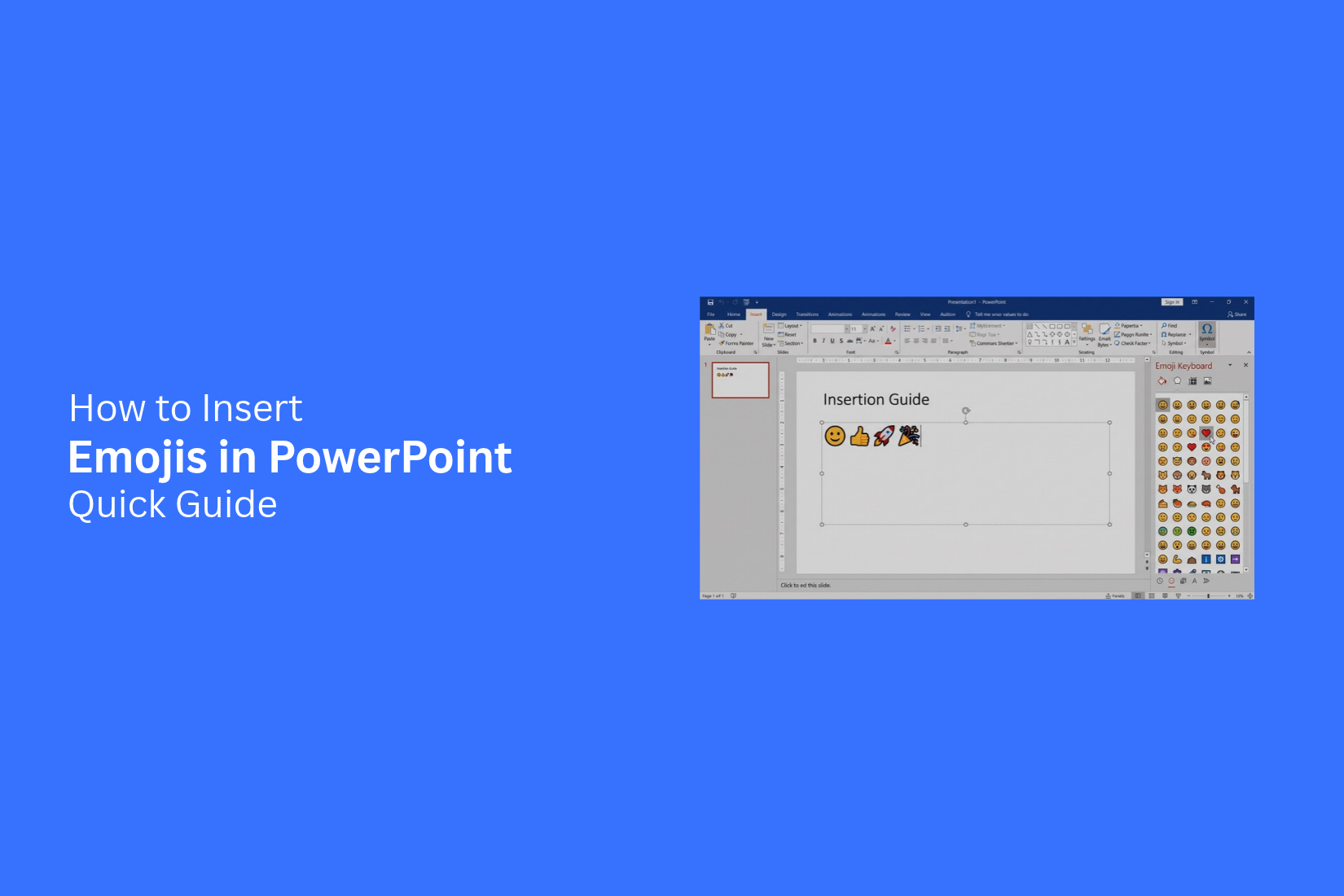
Adding emojis to a PowerPoint slide can make text feel more friendly and expressive. The problem is finding the right way to insert them. Many users may not know which keyboard or menu option to use on Windows or Mac.
Searching for an emoji outside PowerPoint can also slow down your work. Copying symbols from another app may affect their look or make formatting harder. The same emoji can also appear differently across devices and PowerPoint versions.
This guide shows several simple ways to insert emojis in PowerPoint. You will learn how to use the emoji keyboard, Character Viewer, and copy-and-paste method. You will also learn how to format emojis and fix common display issues.
Why Use Emojis in PowerPoint
Emojis can add a clear visual touch to a PowerPoint slide. A small emoji can show an idea, feeling, or reaction without using many words. This can make a slide easier to scan. Emojis also help break up blocks of text. They can work well in headings, lists, labels, and short messages. A simple symbol can draw attention to a key point.
The right emoji can also add personality to a presentation. It can make a casual presentation feel more friendly. For work presentations, simple emojis can support a message without taking attention away from the main content. Use emojis with care. Pick symbols that match your topic and audience. Keep the style consistent across your slides.
How to Insert Emojis in PowerPoint
Emojis can add a visual touch to your PowerPoint slides. You can add them in text boxes, titles, notes, and other text areas. PowerPoint gives you several easy ways to add emojis. The best method depends on the device you use.
Method 1: Use the Emoji Keyboard on Windows
Windows has a built-in emoji keyboard. It lets you add emojis without leaving PowerPoint. Open your PowerPoint presentation and click the text area where you want the emoji. Place the cursor at the right spot. Press the Windows key + . (period) on your keyboard. The emoji panel will appear on the screen.
Browse the available emojis or use the search box to find one. Click the emoji you want to use. It will appear in your PowerPoint text. You can also add more than one emoji. Place the cursor in another spot and open the emoji keyboard again.
Method 2: Use the Character Viewer on Mac
Mac users can use the built-in Character Viewer to add emojis. This tool gives you access to a wide range of symbols and emojis. Open your PowerPoint file and click inside the text area. Place the cursor where you want the emoji. Open the Character Viewer on your Mac. Find the emoji you want to use. Click the emoji to add it to your text. You can repeat the same steps to add more emojis to the slide. This method works well for titles, text boxes, and other areas where you can enter text.
Method 3: Copy and Paste Emojis
Copying and pasting is another simple way to add emojis to PowerPoint. It works well if you already have the emoji you need. Find the emoji you want to use and copy it. Return to your PowerPoint slide. Click the text area where you want the emoji. Place the cursor in the right spot and paste it.
You can use this method to add emojis from other apps or text sources. It also lets you reuse the same emoji across several slides. Just copy it once and paste it into each location you need.
How to Format Emojis in PowerPoint
Emojis can add a visual touch to PowerPoint slides. You can also adjust their size, position, and use them with other text. A few simple formatting changes can help emojis fit the slide design.
Change the Emoji Size
You can change an emoji size just like other text elements in PowerPoint. Select the emoji and adjust the font size. A larger size makes the emoji more visible on the slide. A smaller size works well beside short text.
Pick a size that matches the other elements on the slide. The emoji should support the content without taking attention away from the main message.
Change the Emoji Position and Alignment
The emoji position can affect how the slide looks. You can move the emoji to place it beside text, above a heading, or in another open area.
Alignment also helps keep the layout neat. Place the emoji in line with nearby text or other slide elements. Check the spacing around it so the emoji does not look too close to other content.
Add Emojis to Text and Headings
Emojis can be placed next to words in text and headings. This can help add a visual cue to the message. For example, an emoji can appear before or after a short heading. Keep the emoji close to the related text. Use a size that matches the text around it. A simple placement
Why Emojis Look Different in PowerPoint
An emoji may look different after you add it to a PowerPoint slide. The same emoji can have a different face, shape, or color on another device. This happens because PowerPoint relies on fonts, operating systems, and software versions to display emojis.
Emoji Font Can Change Its Appearance
Emojis are tied to specific fonts. Each font can use a different design for the same emoji. One font may show a smiling face with a wide smile. Another may use a smaller smile or a different face shape.
The font used in your PowerPoint file can affect how the emoji appears. Changing the font may also change the emoji design. This can make an emoji look different from the one you first selected.
Operating Systems Can Render Emojis Differently
Windows and other operating systems may display emojis in different ways. Each system can use its own emoji designs and rendering methods.
For example, an emoji may look one way on a Windows computer and another way on a different system. The basic meaning stays the same, but the visual details can change.
PowerPoint Versions May Affect Emoji Display
Your PowerPoint version can also affect how emojis appear. Newer versions may support emoji characters that older versions handle differently.
An emoji that looks correct on one computer may appear different after the presentation is opened on another device. Checking the slides on the computer you plan to use for your presentation can help you spot display changes before you present.
How to Fix Emoji Display Problems
Emojis may look different on another computer or screen. Some may show as boxes or missing symbols. A few simple checks can help fix these display problems before you present.
Use a Compatible Emoji Font
The emoji font can affect how an emoji appears in PowerPoint. Some fonts may not support certain emojis. This can lead to blank boxes or odd symbols.
Use an emoji font that works with your version of PowerPoint and operating system. Check the emoji after changing the font. Make sure it looks correct on the slide.
Check the Presentation on Your Presentation Device
Your presentation may look fine on your computer but show different emojis on another device. The device may use a different font or system. Open the PowerPoint file on the computer you plan to use for the presentation. Check each slide that contains emojis. Look for missing symbols, boxes, or changes in the emoji design.
Replace Problematic Emojis
Some emojis may not display correctly in PowerPoint. Replacing them can keep your slides clean and easy to read. Choose a simpler emoji that displays correctly. You can also remove the emoji and use text or another visual element instead. Check the slide again after making the change.
Emojis vs. Icons in PowerPoint
Emojis and icons can both add visual meaning to a PowerPoint slide. They also serve different purposes. Emojis often feel more casual and expressive. PowerPoint icons usually have a cleaner and more professional look. The right choice depends on your slide and audience.
When to Use Emojis
Emojis work well for casual presentations. They can help show feelings, reactions, or simple ideas. A smile emoji can show a positive result. A warning emoji can point out a risk or issue. A check mark can show that a task is done.
They can also make text-heavy slides easier to scan. Use one or two emojis near key points instead of adding them to every line. Too many can make the slide look busy. Emojis are a good fit for team meetings, social topics, school presentations, and informal reports. Pick emojis that match the tone of your presentation and are easy for your audience to understand.
When to Use PowerPoint Icons
PowerPoint icons are a better fit for formal presentations. They work well in business reports, project plans, training slides, and client presentations. Icons can represent topics without adding extra text.
Icons also give your slides a more consistent look. You can use the same icon style across several slides. This helps create a clear visual pattern. Use icons for items such as sales, finance, users, goals, tasks, and locations. Keep the icons simple and make sure they support the main message of the slide.
Tips for Using Emojis in PowerPoint
Emojis can add a visual touch to your PowerPoint slides. They can help show emotions, highlight ideas, or make key points easier to notice. The right emoji can support your message without taking attention away from the main content.
Choose Emojis That Match Your Message
Pick emojis that fit the idea on your slide. A smile emoji can work well for a positive message. A warning emoji can help point out a risk or key issue. The emoji should support your text. Avoid using an emoji just because it looks good. Make sure the meaning is clear to your audience.
Keep Emojis Easy to Read
Use emojis that are clear at the size shown on your slide. Small emojis may be hard to see from the back of a room. Large emojis can also take up too much space. Use a simple size that fits the slide layout. Place the emoji near the text it supports. This helps the audience connect the visual with the main point.
Avoid Using Too Many Emojis
Too many emojis can make a slide look crowded. They may also distract people from the main message. A few well-placed emojis often work better than filling the slide with them. Use emojis only on key points that need extra visual support. Keep the rest of the slide clean. This gives each emoji a clear purpose.
Final Notes
Emojis can add a simple visual touch to a PowerPoint presentation. They can help show feelings, point out key ideas, and break up long blocks of text. PowerPoint also gives you several ways to add them. Windows users can use the emoji keyboard. Mac users can use Character Viewer. Copy and paste is another easy option. After adding an emoji, check its size, position, and alignment so it fits the slide.
Emoji display can change across fonts, operating systems, and PowerPoint versions. Some emojis may also appear as boxes or missing symbols. Test your presentation on the device you plan to use. Replace any emoji that does not display correctly. The best results come from using emojis with a clear purpose. Pick symbols that match your message and audience. Keep their size and style consistent. Use PowerPoint icons for a more formal look. Use emojis for slides that need a more casual and expressive feel.
FAQs:
How do I insert an emoji in PowerPoint on Windows?
You can use the built-in emoji keyboard on Windows. Open your PowerPoint slide and click where you want the emoji. Press the Windows key + . (period). Find the emoji and click it to add it to your text.
How do I insert an emoji in PowerPoint on Mac?
Mac users can use Character Viewer. Open your PowerPoint file and click inside a text area. Place the cursor where you want the emoji. Open Character Viewer, find the emoji, and click it to add it.
Can I copy and paste emojis into PowerPoint?
Yes. Copy the emoji from another app or text source. Return to PowerPoint and click the text area where you want it. Place the cursor and paste the emoji.
Why does my emoji look different in PowerPoint?
Emoji designs can vary based on the font, operating system, and PowerPoint version. The same emoji may have a different face, shape, or color on another device.
Why do some emojis appear as boxes in PowerPoint?
Some fonts may not support certain emojis. This can cause blank boxes or odd symbols. Try using a compatible emoji font and check the emoji again.
Can I change the size of an emoji in PowerPoint?
Yes. Select the emoji and adjust its font size. Use a size that fits the nearby text and the slide layout.
Can I use emojis in PowerPoint headings?
Yes. Emojis can be placed next to words in headings and text. Keep the emoji close to the related text and use a size that matches the text.
Should I use emojis or icons in PowerPoint?
The choice depends on your presentation. Emojis work well for casual and expressive slides. PowerPoint icons are a better fit for formal presentations, business reports, project plans, and client presentations.
How can I make sure emojis display correctly during a presentation?
Open the PowerPoint file on the computer you plan to use for the presentation. Check every slide that contains emojis. Look for missing symbols, boxes, or changes in the emoji design. Replace any emoji that does not display correctly.




You may also be interested in ...

How To Create An Eye-Catching Portfolio
If you’re looking to create an eye-catching portfolio, this post will come in handy. In this article, you can find the easies...
23 Jun, 2024

How To Easily Create An Infographic
Infographics are the perfect way to make a presentation that will impact an audience, but their design and composition might...
08 Jun, 2024

PowerPoint Template Tips & Tricks You Ne...
PowerPoint seems to be an unknown world for many people, especially those who have been assigned to create a presentation out...
08 Jun, 2024